Schools, colleges and training centers are under pressure to deliver modern digital learning while controlling budgets, saving space and keeping IT maintenance simple. That is exactly why the mini PC for educational institutions has become one of the fastest-growing categories in classroom technology. A compact computer the size of a textbook can now power an interactive display, run a full computer lab, drive digital signage in the hallway and support a teacher’s desk — all while drawing less power than a desk lamp.
This guide explains what makes a mini PC suitable for education, which specifications matter for classrooms versus computer labs, how to plan a budget, and which compact computers are worth shortlisting for your next procurement cycle.
Why Schools Are Switching from Desktop Towers to Mini PCs
For two decades, the traditional desktop tower was the default choice for school computer labs. Today, that model is being replaced for several practical reasons:
- Space efficiency: A mini PC mounts behind a monitor or interactive panel with a VESA bracket, freeing desk space in crowded classrooms and labs.
- Lower energy consumption: Most education-grade mini PCs operate at 15W–65W, compared with 200W or more for a typical tower — a meaningful saving across hundreds of devices.
- Quiet operation: Fanless or low-noise designs keep classrooms distraction-free during lessons and exams.
- Easier IT management: Standardized hardware simplifies imaging, remote management and spare-part inventory.
- Durability: Fewer moving parts and a sealed chassis mean fewer failures from dust, chalk and curious hands.
- Flexibility: The same unit can serve as a classroom host PC, a lab workstation, a library kiosk or a digital signage player.
The UNESCO Technology in Education Report reminds institutions that technology should be chosen on the school’s own terms — with clear learning goals, equity and long-term cost in mind. Mini PCs fit that philosophy because they are affordable to deploy at scale and simple to maintain over a multi-year lifecycle.
Key Factors When Choosing a Mini PC for Educational Institutions
Not every compact computer is built for a school environment. The checklist below covers the specifications and features that matter most when evaluating a mini PC for classrooms and computer labs.
1. Processor Performance Tiers
Matching the CPU to the actual workload prevents overspending on some seats and under-equipping others. A useful way to think about it is in three performance tiers:
| Tier | Typical Processor | Best For | Typical Tasks |
|---|---|---|---|
| Entry | Intel N100 / N-series | Primary classrooms, libraries, signage | Web browsing, Google Workspace, Microsoft 365, educational apps, video playback |
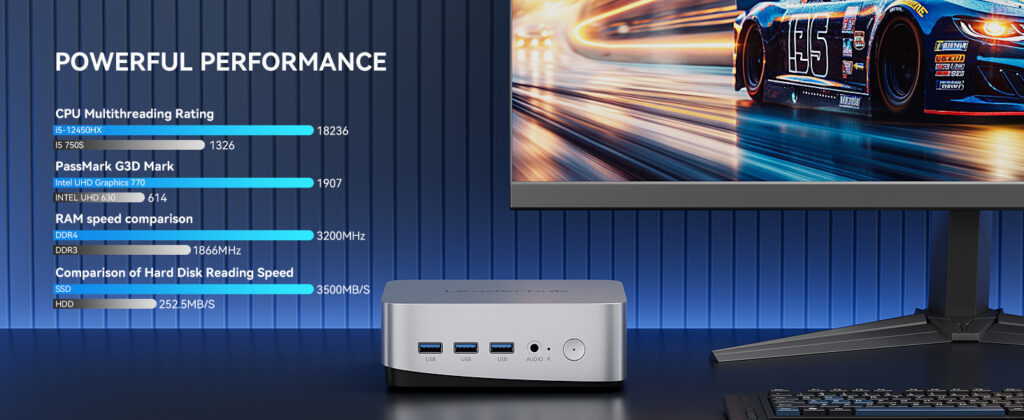
| Mainstream | Intel Core i5 (12th Gen H/HX) | Secondary classrooms, general computer labs, teacher desks | Multitasking, video conferencing, coding, light photo and video editing |
| Performance | Intel Core i7 / AMD Ryzen 7 class | STEM labs, media departments, higher education | CAD, 3D modelling, data science, AI tools, 4K video production |
2. Memory and Storage
Modern browsers and learning platforms are memory-hungry. For a five-year deployment, treat 8GB RAM as the minimum for entry-level seats and 16GB as the standard for labs and teacher PCs. On storage, an NVMe or SATA SSD of 512GB provides fast boot times and enough room for the operating system, classroom software and local caches. Look for models where RAM and SSD slots are user-accessible, so IT staff can upgrade rather than replace.
3. Connectivity and Ports
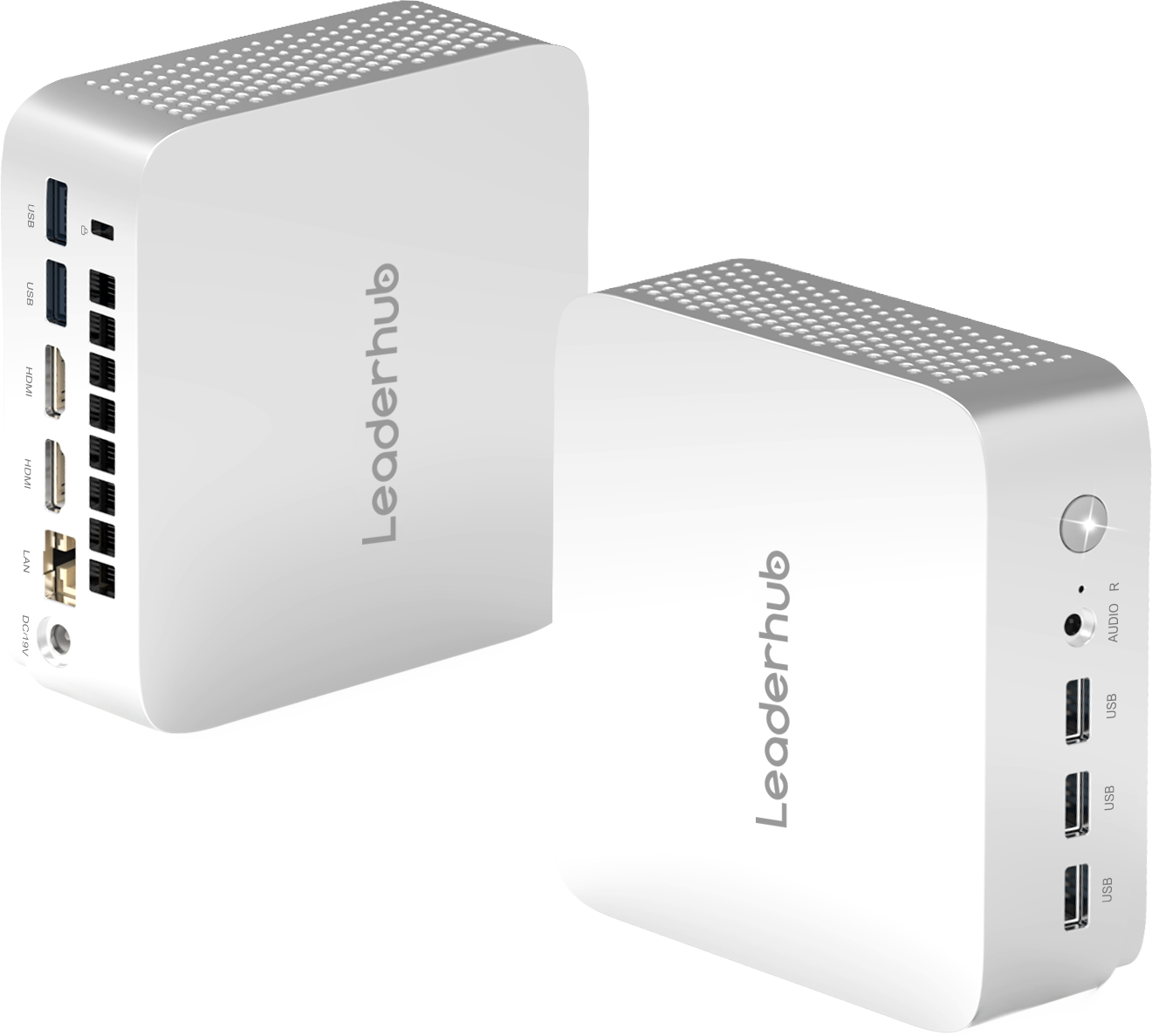
A classroom mini PC often connects to more peripherals than an office machine. Prioritize:
- At least two display outputs (HDMI and/or DisplayPort/USB-C) to drive an interactive panel plus a teacher monitor
- Multiple USB-A ports for document cameras, printers, keyboards and student response devices
- USB-C for charging and single-cable docking
- Gigabit Ethernet for reliable lab networking and PXE imaging
- Wi-Fi 6 and Bluetooth 5.x for wireless peripherals and flexible room layouts
- A 3.5mm audio jack for classroom speakers or headsets
4. Compatibility with Interactive Displays
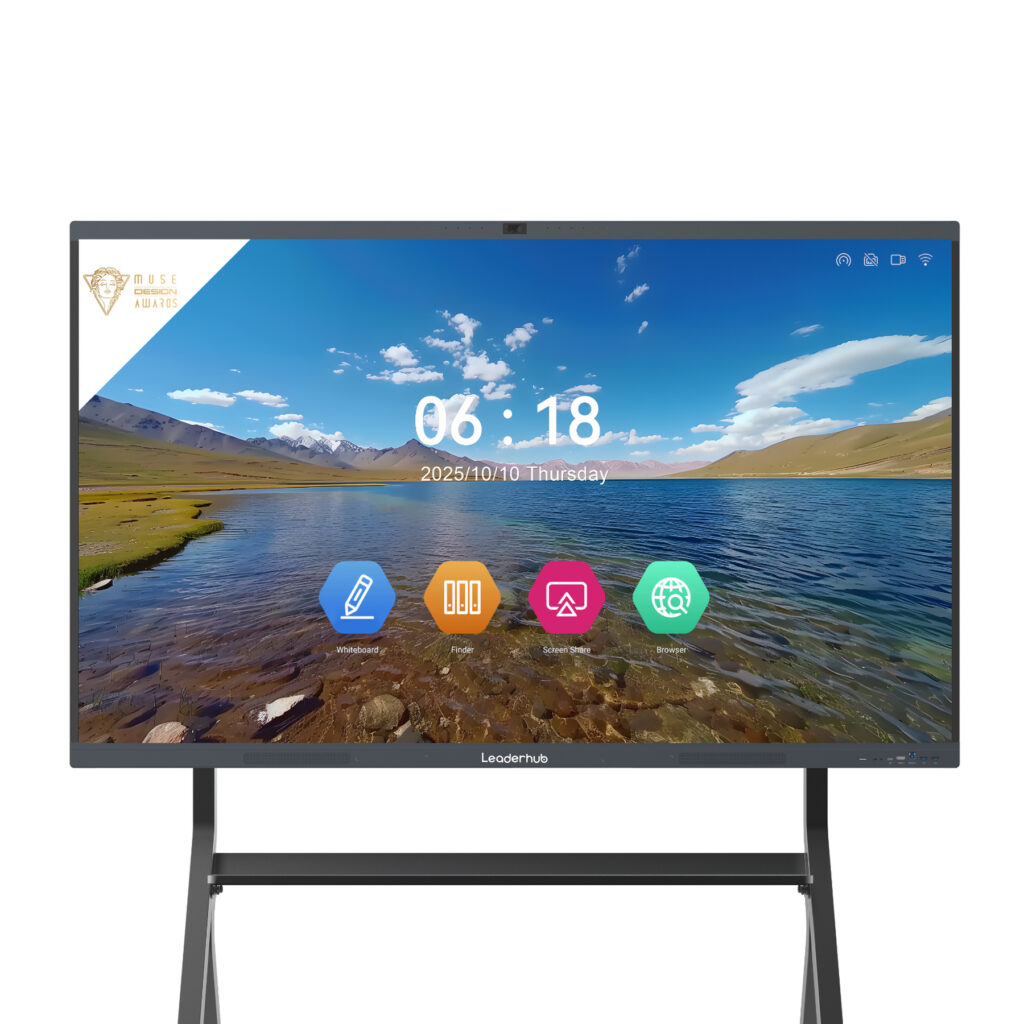
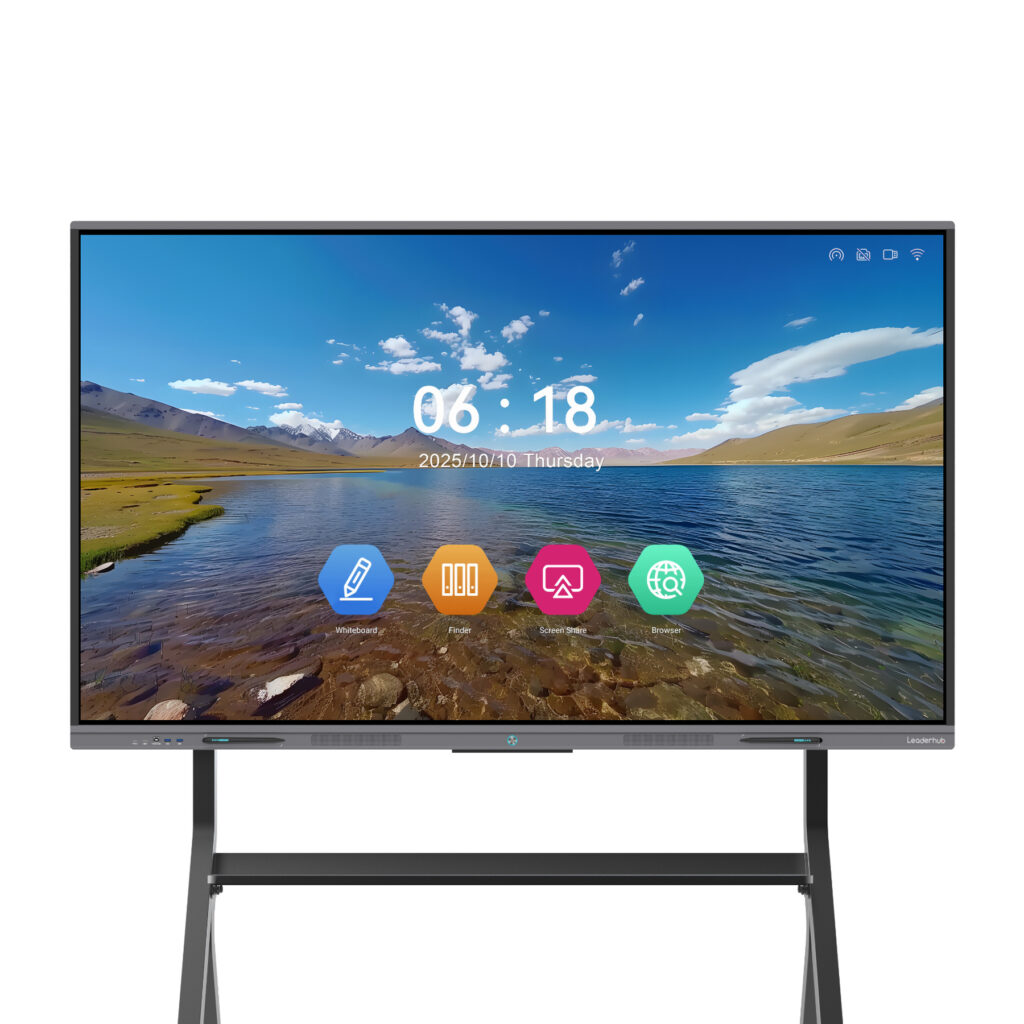
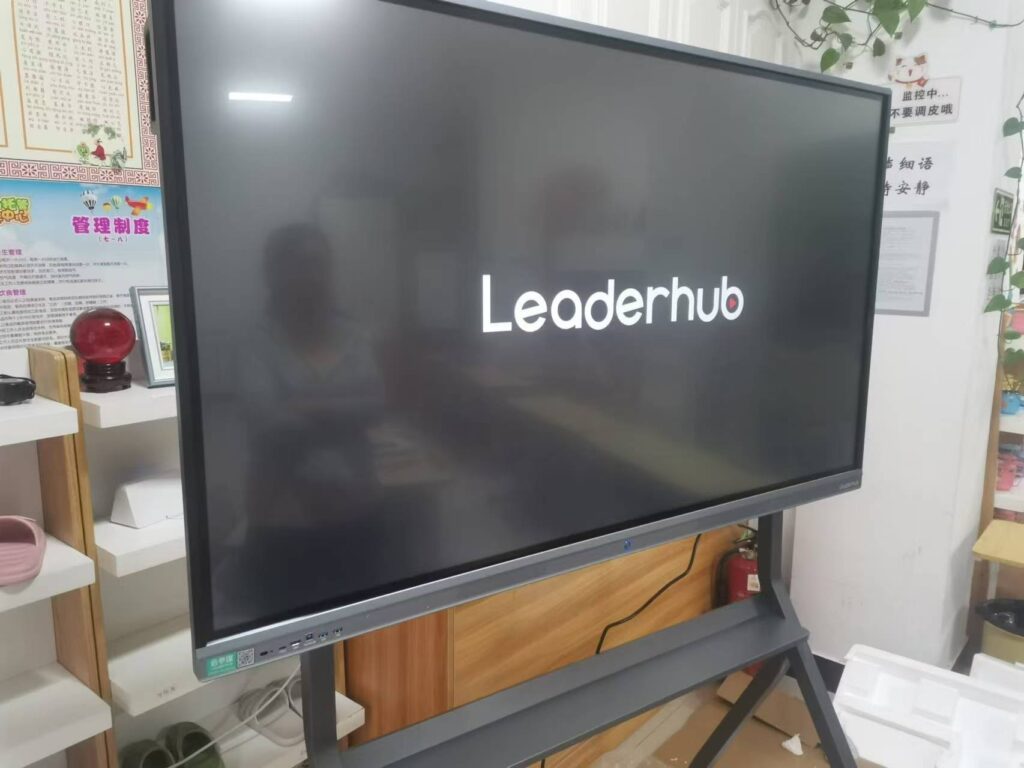
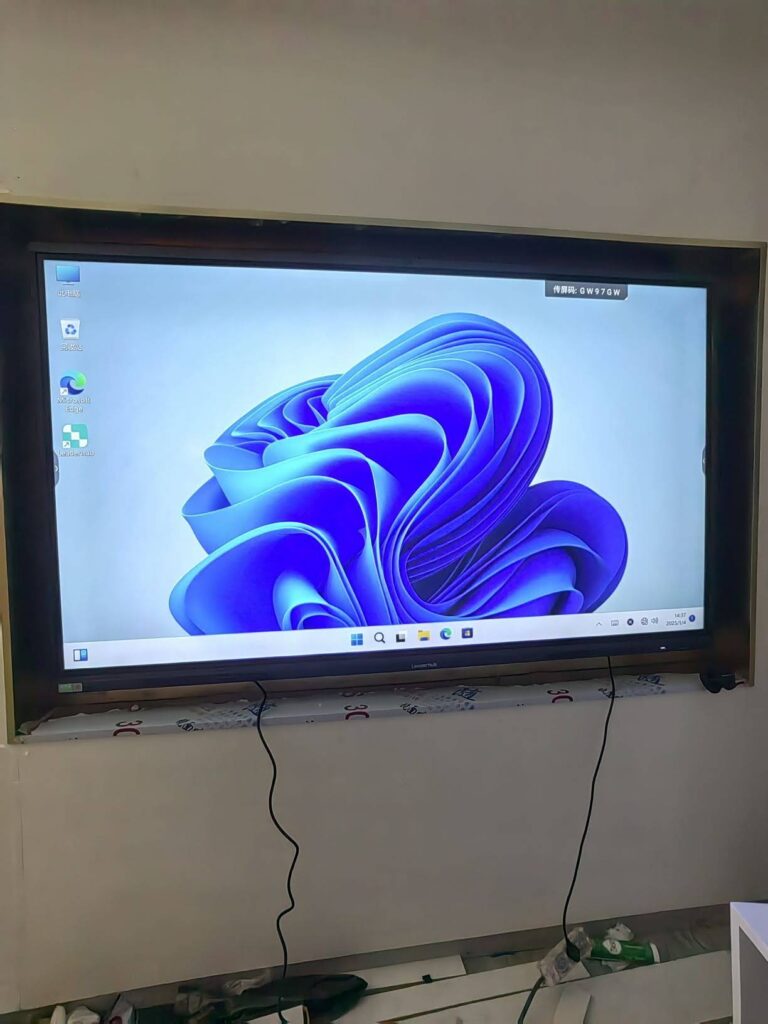
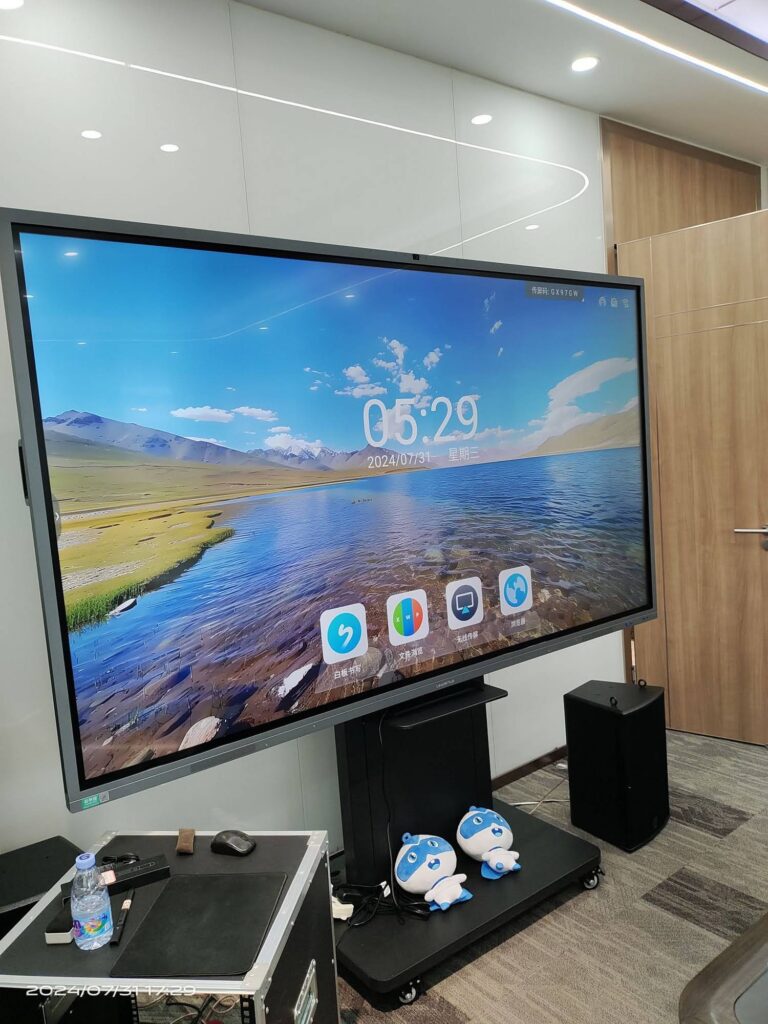
Many schools pair a mini PC with an interactive flat panel to create a complete smart classroom. Confirm that the mini PC supports 4K output at 60Hz, touch-back over USB, and VESA mounting behind the panel. If you are planning a full front-of-class upgrade, browse the range of interactive smart whiteboards to find a panel size that suits your room before finalizing the computer specification.
5. Noise, Heat and Power
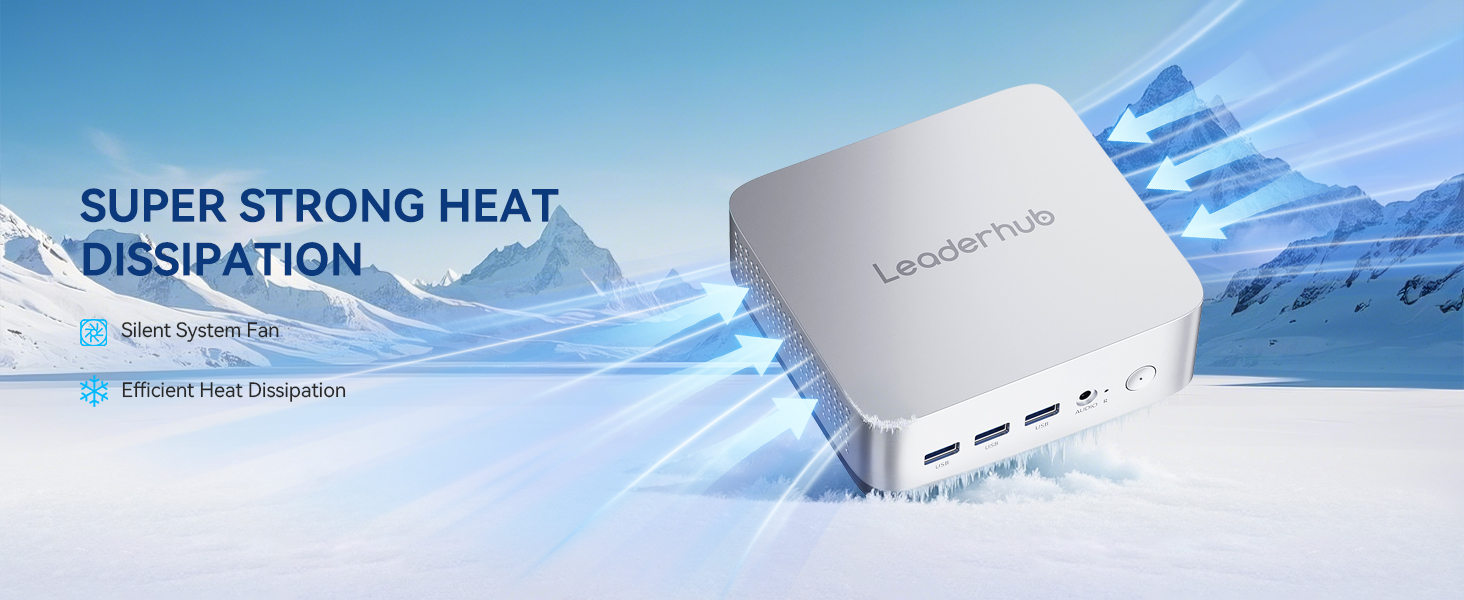
Classrooms need silence during tests and lectures. Entry-level mini PCs with N-series chips are often fanless, while mainstream units use low-RPM fans that stay under 30 dB. Also check the power adapter rating: a 65W unit across 200 seats consumes a fraction of what legacy towers would, which directly reduces the institution’s electricity bill and cooling requirements.
6. Security and Manageability
School IT teams must protect student data and keep devices updated with minimal site visits. Look for a TPM 2.0 chip for Windows 11 compliance, BIOS password protection, Kensington lock slots, and support for Wake-on-LAN so machines can be patched overnight. Guidance such as the ISTE Standards for Students emphasizes digital citizenship and safe technology use, which starts with secure, well-managed hardware.
7. Durability and Warranty
Student environments are harsh. A metal chassis, dust-resistant venting and a manufacturer warranty of at least two to three years are worth paying for. Ask suppliers about advance-replacement options and spare-part availability for the full expected lifecycle.
Matching Mini PCs to Different Educational Spaces
Different areas of a campus have very different computing needs. The following table summarizes a practical specification baseline for each environment.
| Environment | Recommended Specification | Key Priorities |
|---|---|---|
| Primary / K-6 Classroom | Intel N100, 8GB RAM, 512GB SSD | Silent, low cost, interactive panel output |
| Secondary Classroom | Core i5, 16GB RAM, 512GB SSD | Multitasking, video conferencing, dual displays |
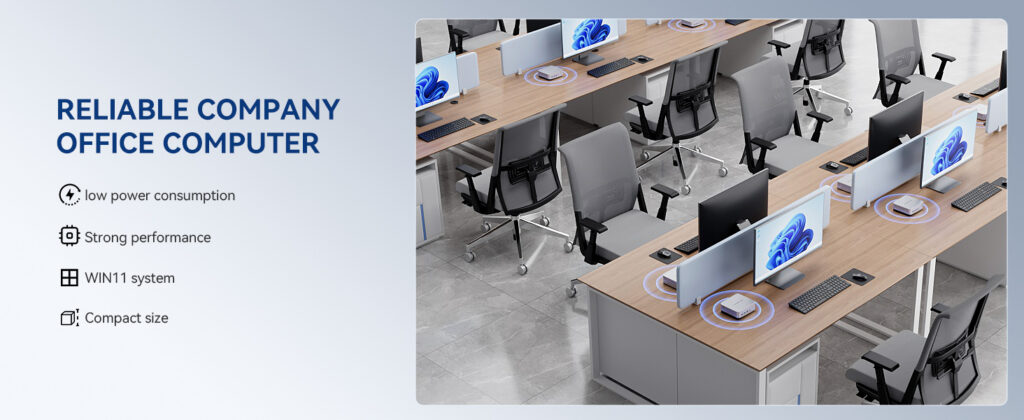
| General Computer Lab | Core i5, 16GB RAM, 512GB SSD, Gigabit LAN | Uniform hardware, PXE imaging, VESA mounting |
| STEM / Media Lab | Core i7 / Ryzen 7 class, 16–32GB RAM, 1TB SSD | GPU capability, 4K editing, AI and 3D workloads |
| Library & Self-Study | Intel N100, 8GB RAM | Fanless, Kensington lock, kiosk mode |
| Administration Office | Core i5, 16GB RAM, TPM 2.0 | Data security, dual monitors, long warranty |
| Digital Signage / Hallways | Intel N100, 8GB RAM | 24/7 reliability, 4K output, remote control |
Recommended Compact Computers for Schools and Computer Labs
LeaderHub, a Shenzhen-based interactive display manufacturer with 16 years of experience serving education and enterprise customers in 82 countries, offers three mini PC models that map neatly onto the performance tiers above. All three support VESA mounting and pair directly with interactive panels.
| Model | Core Specification | Ideal Deployment | Price |
|---|---|---|---|
| LP1C Mini PC | Intel N100, 8GB RAM, 512GB SSD | Primary classrooms, libraries, signage, large-scale lab rollouts | $399.00 |
| LP5C Mini PC | Intel Core i5-12450HX, 16GB RAM, 512GB SSD | Secondary classrooms, general computer labs, teacher workstations | $799.00 |
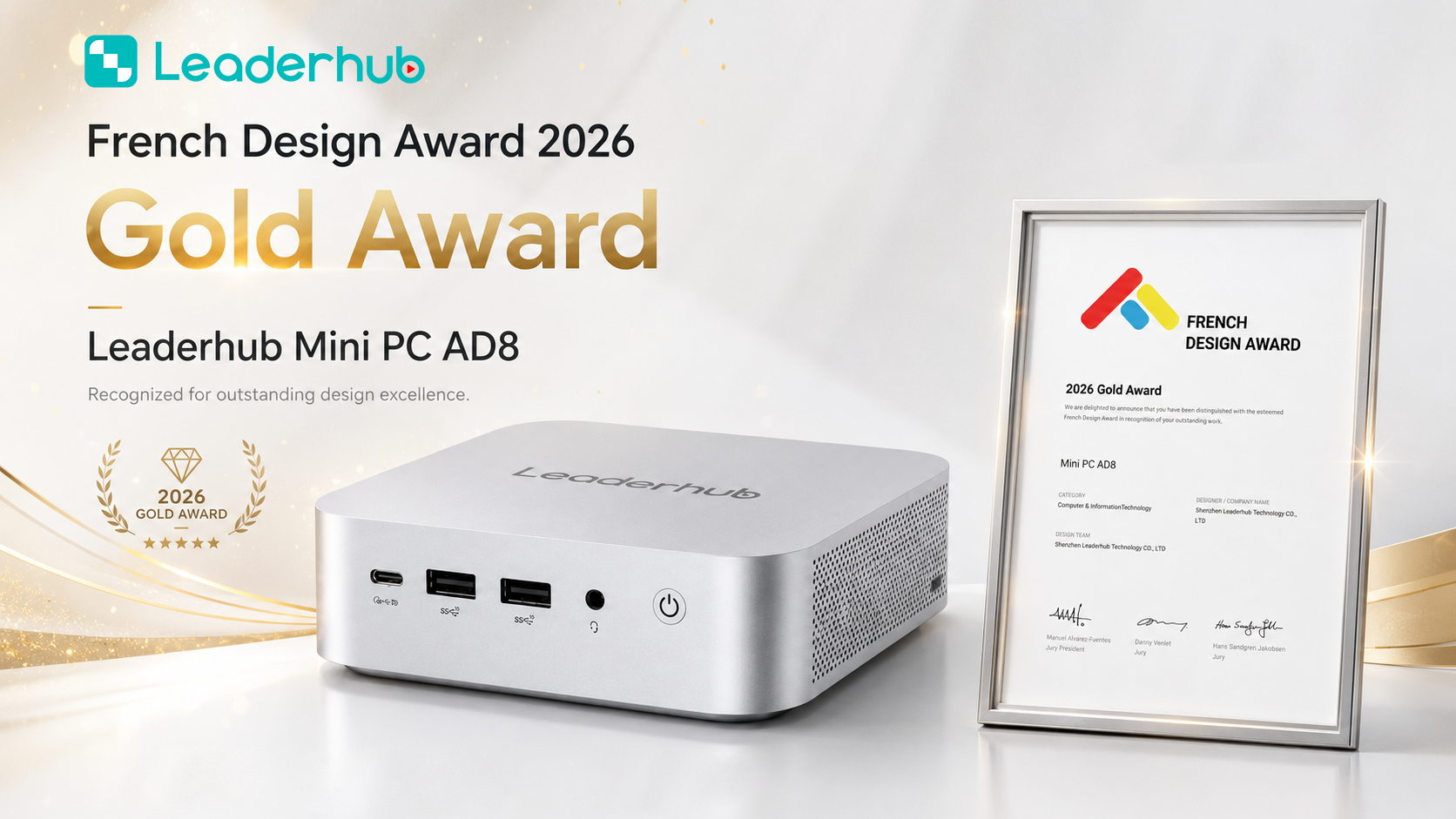
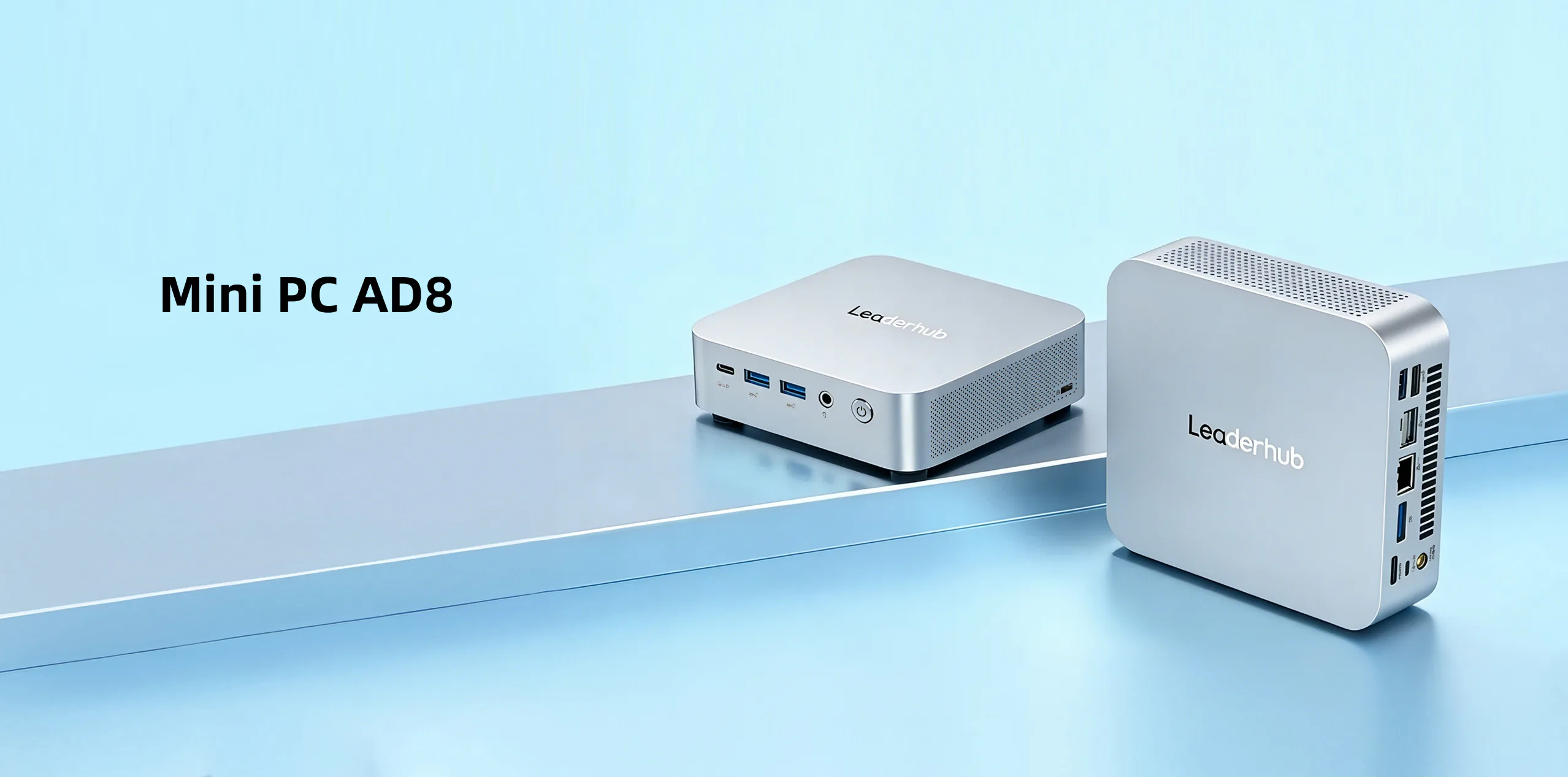
| AD8 Mini PC | High-performance compact platform | STEM labs, media departments, higher-education research | $999.00 |
Institutions equipping an entire building can mix tiers — for example, LP1C units in every standard classroom and library, LP5C units in labs and offices, and AD8 units in the design or computer-science department. Explore the full mini PC range for education to compare specifications side by side.
Budget Planning and Total Cost of Ownership
The purchase price is only one part of the equation. Procurement teams should evaluate the total cost of ownership (TCO) over a five-year period. The comparison below illustrates typical differences between a legacy tower and an education mini PC for a 30-seat computer lab.
| Cost Factor (30 Seats, 5 Years) | Desktop Tower | Education Mini PC |
|---|---|---|
| Power consumption per unit | 150–250W | 15–65W |
| Desk and floor space required | High | Minimal (VESA mounted) |
| Average noise level | 35–45 dB | 0–30 dB |
| Cooling and HVAC impact | Significant in packed labs | Low |
| Hardware failure points | PSU, HDD, multiple fans | SSD only, one or no fan |
| Redeployment flexibility | Limited | High — moves between rooms and roles |
Research summarized in the OECD Digital Education Outlook shows that sustainable digital infrastructure — not one-off purchases — is what allows schools to benefit from technology over time. Lower running costs and longer service life make mini PCs a strong fit for that long-term approach.
Deployment Checklist for School IT Teams
Once the hardware is selected, a smooth rollout depends on planning. Use this step-by-step list to keep the project on track:
- Audit the rooms. Count displays, power outlets, network drops and mounting points in every space receiving a mini PC.
- Standardize the image. Build one operating system image per tier with classroom software, content filtering and management agents pre-installed.
- Pilot before scaling. Deploy 5–10 units in representative classrooms and gather teacher feedback for two to four weeks.
- Mount and cable neatly. Use VESA brackets behind monitors or panels, and secure cables to prevent accidental disconnection.
- Enable remote management. Configure Wake-on-LAN, remote desktop tools and automated patching to minimize on-site visits.
- Train staff. A short session on connecting devices, switching inputs and basic troubleshooting dramatically reduces help-desk tickets.
- Document and label. Asset-tag every unit and record serial numbers, locations and warranty dates.
- Review annually. Check performance, storage headroom and software demands so upgrades can be budgeted proactively.
Frequently Asked Questions
Can a mini PC really replace a full desktop in a computer lab?
Yes. For the vast majority of educational workloads — productivity suites, web-based learning platforms, coding environments and video conferencing — a Core i5-class mini PC with 16GB RAM performs equivalently to a desktop tower while using far less power and space. Only specialized GPU-intensive courses may require a performance-tier unit or dedicated workstation.
How long should a school mini PC last?
With an SSD, adequate RAM and a quality chassis, a well-chosen mini PC typically serves five to six years in a classroom setting. Choosing models with upgradeable memory and storage can extend that lifespan further.
Is a fanless mini PC better for classrooms?
Fanless designs are ideal for primary classrooms, libraries and signage because they are completely silent and resistant to dust. For labs and higher-performance tasks, a quiet actively cooled unit is usually the better balance of power and noise.
Which operating systems are supported?
Most education mini PCs ship with or support Windows 11, and many also run Linux distributions used in computer-science programs. Confirm TPM 2.0 support if your institution standardizes on Windows 11.
How do mini PCs support hybrid or remote learning?
Paired with a webcam, microphone and interactive panel, a classroom mini PC becomes the hub for live-streaming lessons, recording content and running collaboration platforms. The EEF Digital Technology Guidance highlights that technology delivers the most benefit when it directly supports teaching practice — a reliable host PC is the foundation for that.
Final Thoughts
Choosing the right mini PC for educational institutions comes down to matching performance tiers to real classroom needs, prioritizing silent and energy-efficient operation, ensuring compatibility with interactive displays, and planning for total cost of ownership rather than purchase price alone. With a tiered approach — entry-level units for everyday classrooms, mainstream models for labs and offices, and performance units for STEM and media departments — schools can modernize every learning space without overspending.
Ready to plan your rollout? Browse compact computers and interactive displays or contact our education team for volume pricing, deployment advice and bundled classroom solutions.