Choosing desktop computers for schools is one of the most consequential technology decisions an education leader can make. The right machines quietly power lessons for five, six or even eight years; the wrong ones generate helpdesk tickets, frustrate teachers and drain budgets that could have gone toward learning. This guide walks IT coordinators, principals and procurement teams through what actually matters when selecting reliable, budget-friendly classroom PCs — from durability and specifications to total cost of ownership and smart deployment.
Why Desktop Computers Still Belong in the Classroom
Laptops and tablets get most of the attention, yet desktops remain the backbone of school computing for very practical reasons. A fixed machine at the teacher’s station, in a computer lab or in a library carrel delivers consistent performance, is harder to lose or drop, and is far easier to secure and manage at scale.
- Lower cost per seat — desktops typically deliver more processing power per dollar than portable devices.
- Longer service life — no batteries to degrade, no hinges to break, fewer accidental drops.
- Easier management — fixed network connections, standardized images and simple physical security.
- Better ergonomics — full-size monitors and keyboards support longer work sessions in labs and testing centers.
- Predictable upgrades — RAM and storage can often be expanded instead of replacing the whole unit.
Research summarized in the OECD Digital Devices Research suggests that how devices are integrated into teaching matters more than device type alone — which is why reliability and ease of use should drive your purchasing criteria.
What “Reliable” Really Means for a School PC
Reliability in an education setting is not just about a machine that boots every morning. It is about reducing the hidden labor cost that falls on already-stretched IT teams.
Physical Durability
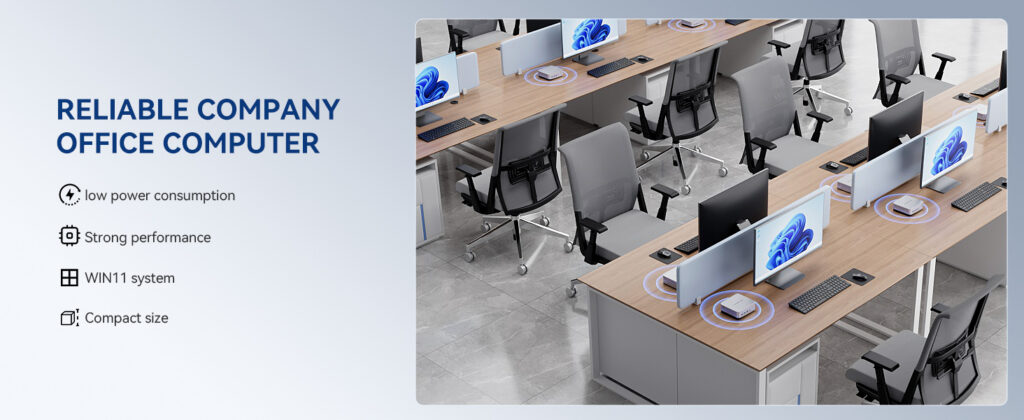
Classroom desktops live in dusty, high-traffic rooms. Look for fanless or low-noise designs, metal chassis, and sealed or easily cleaned ventilation. Compact units that mount behind a monitor (VESA) stay out of reach of curious hands and spilled drinks.
Low Maintenance Overhead
Fewer moving parts means fewer failures. Solid-state drives (SSDs) are now essential — they boot in seconds, survive bumps and consume less power than mechanical drives. Standardized hardware across a fleet also lets your team deploy a single system image and swap units quickly when something does fail.
Long-Term Software Support
Confirm the processor and chipset will support your operating system and security updates for the full expected lifespan. A bargain PC that falls off the update cycle after two years is not a bargain. For broader guidance on sustainable technology choices, see the UNESCO Technology in Education Report.
Key Specifications to Look For
Schools do not need gaming-grade hardware, but underpowered machines create their own problems when thirty students open a browser-based learning platform at once. The table below outlines sensible minimum and recommended specifications for 2026-era classroom use.
| Component | Minimum for Basic Use | Recommended for Labs & STEM |
|---|---|---|
| Processor | Intel N100 / quad-core efficiency CPU | Intel Core i5 (12th gen or newer) or equivalent |
| Memory | 8GB RAM | 16GB RAM |
| Storage | 256GB SSD | 512GB SSD or larger |
| Connectivity | Gigabit Ethernet, Wi-Fi 5, USB 3.0 | Gigabit Ethernet, Wi-Fi 6, USB-C, multiple HDMI/DP |
| Display Output | Single 1080p monitor | Dual 4K output for interactive panels |
| Form Factor | Small form factor or mini PC | Mini PC with VESA mount and active cooling |
Mini PCs vs. Traditional Tower Desktops
Over the past few years, mini PCs have become the preferred desktop format for many school districts. They deliver full desktop performance in a palm-sized chassis, draw a fraction of the power and can be hidden behind a monitor or interactive flat panel. Here is how the two formats compare in a school environment.
| Factor | Mini PC | Tower Desktop |
|---|---|---|
| Desk space | Minimal; VESA-mounts behind the screen | Requires floor or desk space |
| Power consumption | Typically 10–35W | Typically 65–150W |
| Noise | Very quiet or silent | Audible fans in quiet rooms |
| Upgradeability | RAM and SSD usually upgradeable | Fully modular, including GPU |
| Security | Easy to lock out of reach | Needs cable locks or cabinets |
| Best for | Teacher stations, labs, libraries, digital signage | Media production, CAD, high-end STEM labs |
For the vast majority of classrooms, a mini PC meets every requirement while cutting electricity bills and desk clutter. Districts that run 3D modeling or video-editing programs may still reserve a handful of towers or higher-tier mini PCs for specialist labs.
Budgeting Smartly: Think Total Cost of Ownership
The sticker price is only the beginning. A realistic budget for classroom desktops accounts for everything the machine will cost over its lifetime.
Hidden Costs to Include
- Energy — a 100W tower running 8 hours a day across 200 school days consumes far more than a 20W mini PC. Multiply by hundreds of seats and the difference funds new peripherals.
- IT labor — every hour spent reimaging or repairing a PC is an hour not spent supporting teachers.
- Peripherals — monitors, keyboards, mice and mounts are often forgotten in initial quotes.
- Software licensing — operating systems, management tools and content-filtering agents.
- Replacement cycle — a slightly more expensive PC that lasts seven years beats a cheap one replaced at year three.
Stretching the Budget Without Sacrificing Quality
- Standardize on two or three configurations across the whole school or district to simplify support and secure volume pricing.
- Prioritize an SSD and adequate RAM over the fastest CPU — responsiveness matters more than peak benchmarks.
- Buy monitors and PCs separately so each can be replaced on its own schedule.
- Use energy-efficient mini PCs where possible to reduce ongoing utility costs.
- Plan procurement around funding cycles and grants; the K-12 Education Technology community regularly shares funding and planning resources.
Recommended Configurations by Classroom Scenario
Different rooms have different demands. The following matrix matches common school scenarios to practical, budget-conscious desktop options.
| Scenario | Typical Workload | Suggested Desktop | Price Range |
|---|---|---|---|
| Library & general classroom | Web-based LMS, documents, video playback | LP1C Mini PC (Intel N100, 8GB, 512GB SSD) | From $399 |
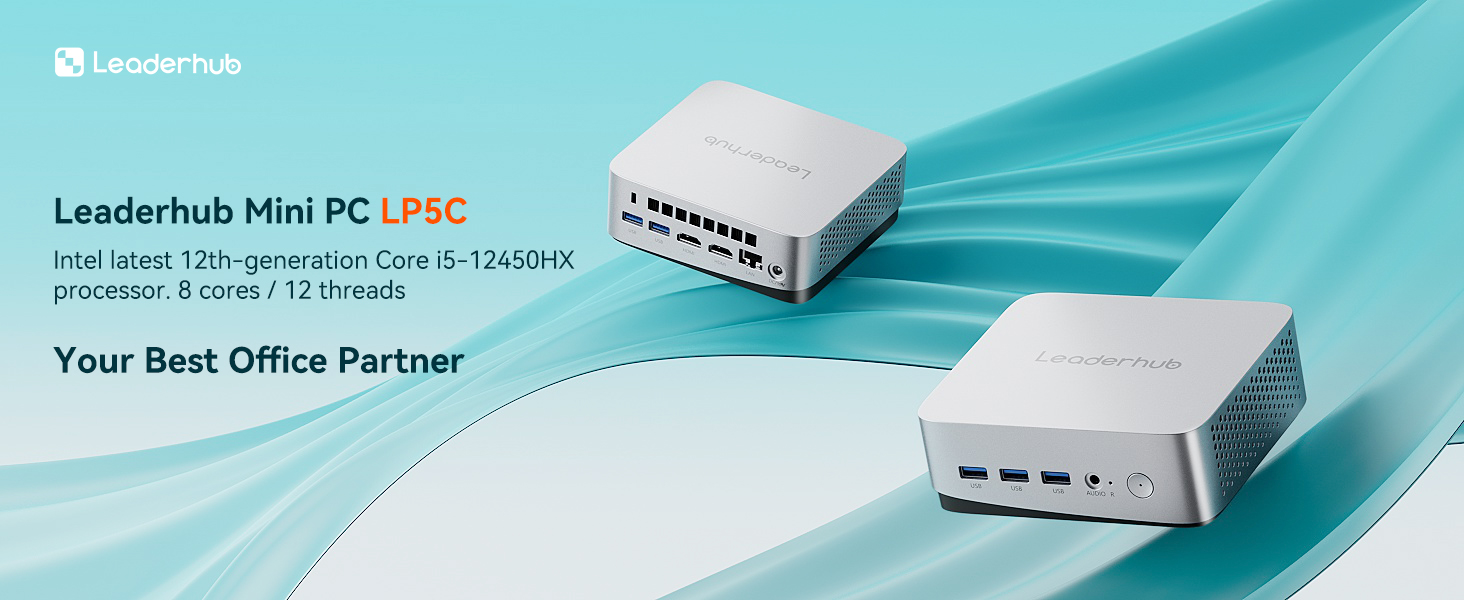
| Computer lab & teacher station | Coding, multitasking, driving a 4K interactive panel | LP5C Mini PC (Intel i5-12450HX, 16GB, 512GB SSD) | From $799 |
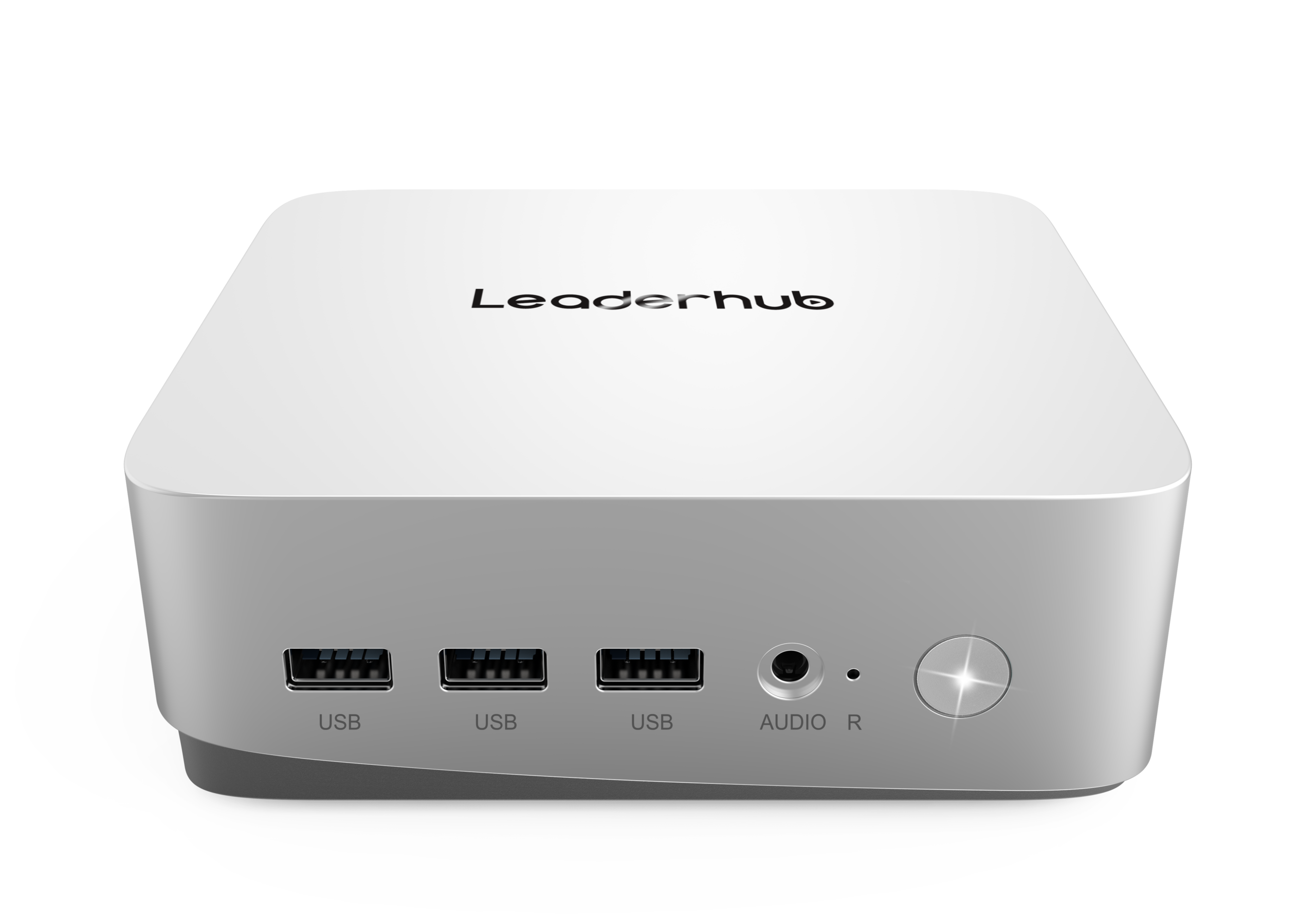
| STEM, media & AI labs | Video editing, 3D, AI tools, heavy simulations | AD8 Mini PC | From $999 |
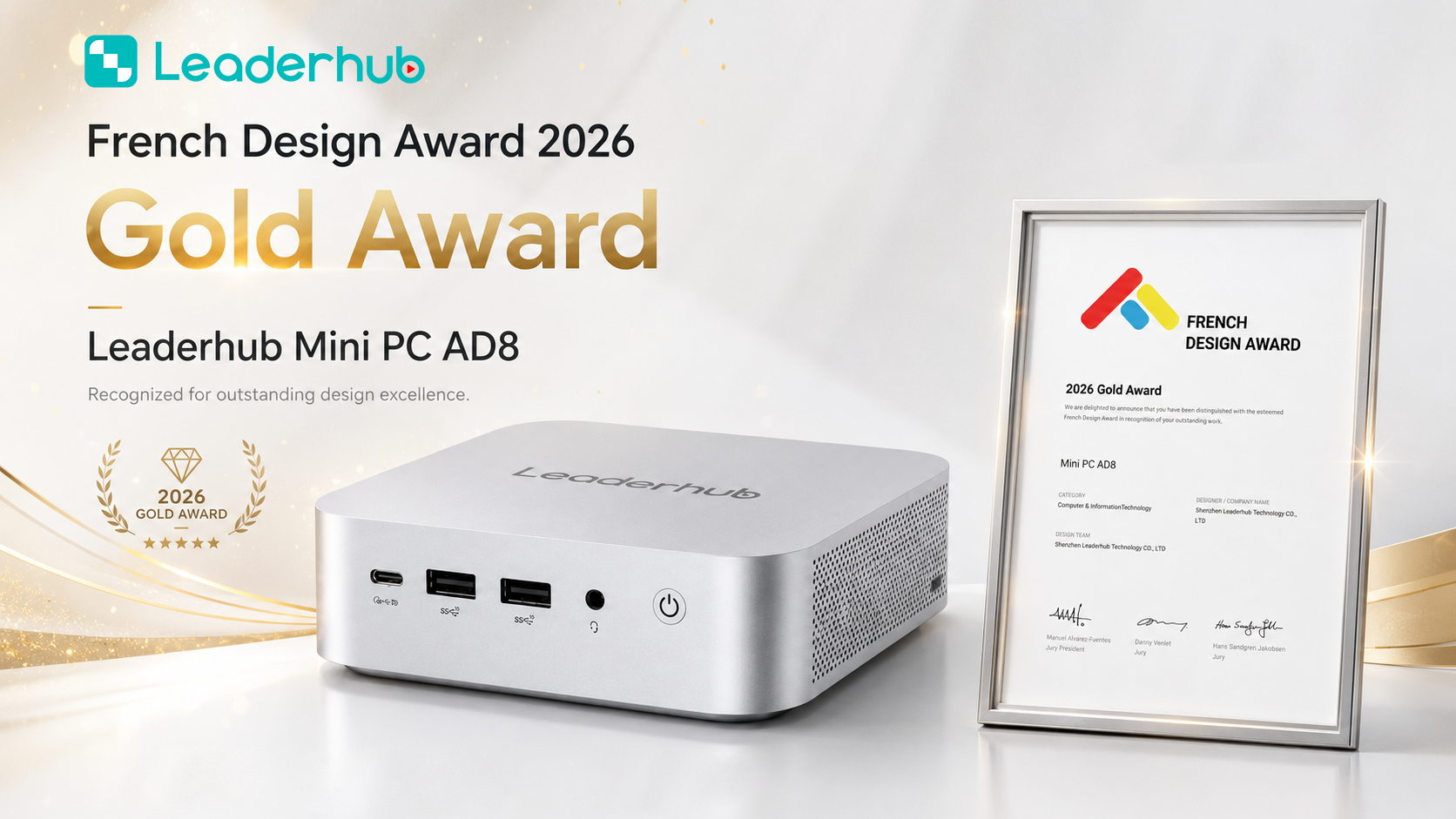
You can compare the full lineup on the mini PCs collection page. Each model supports VESA mounting, SSD storage and multiple display outputs, making them straightforward to deploy across a campus.
Pairing Classroom PCs with Interactive Displays
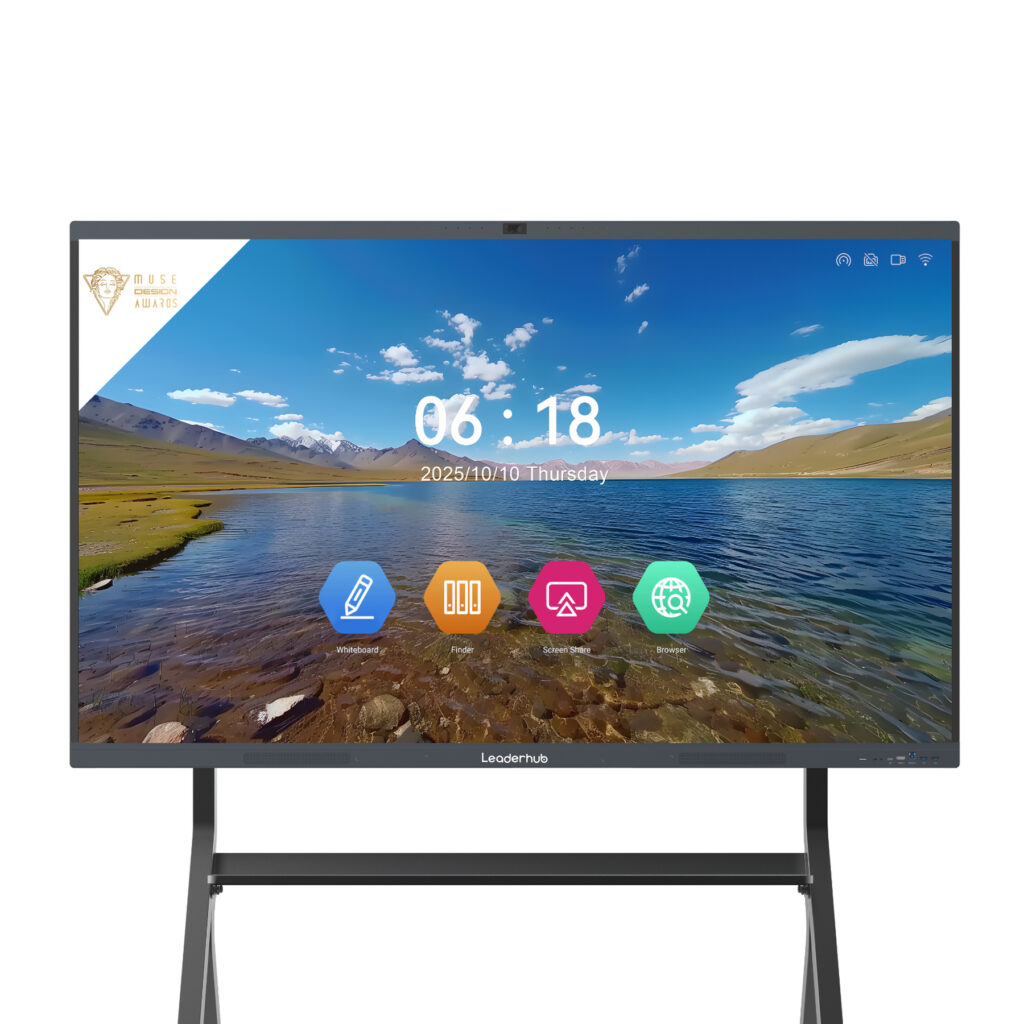
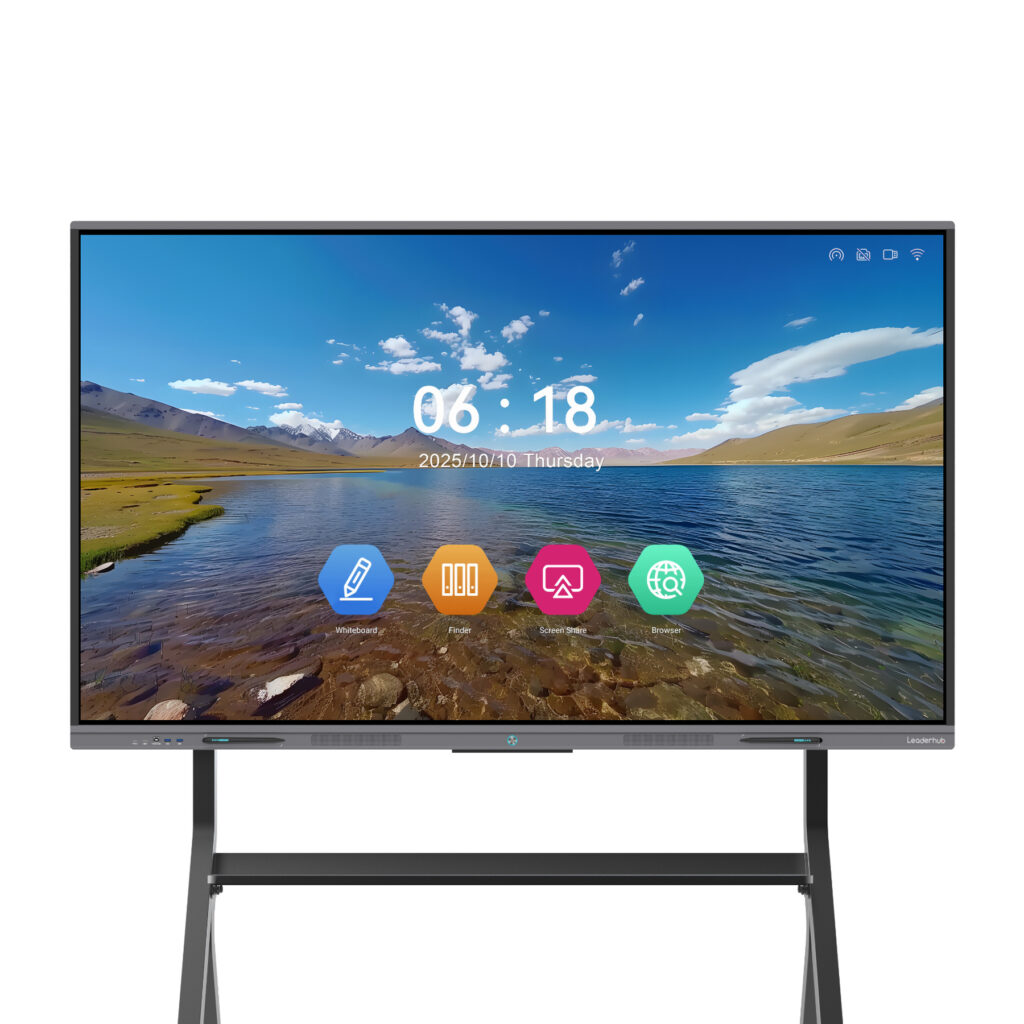
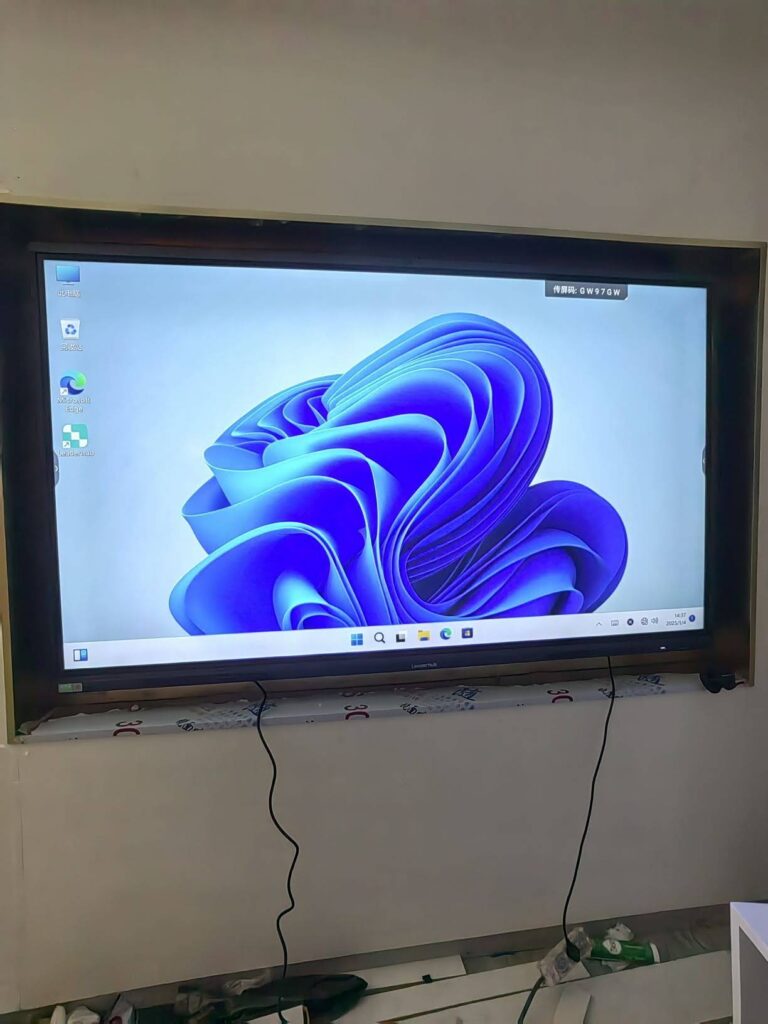
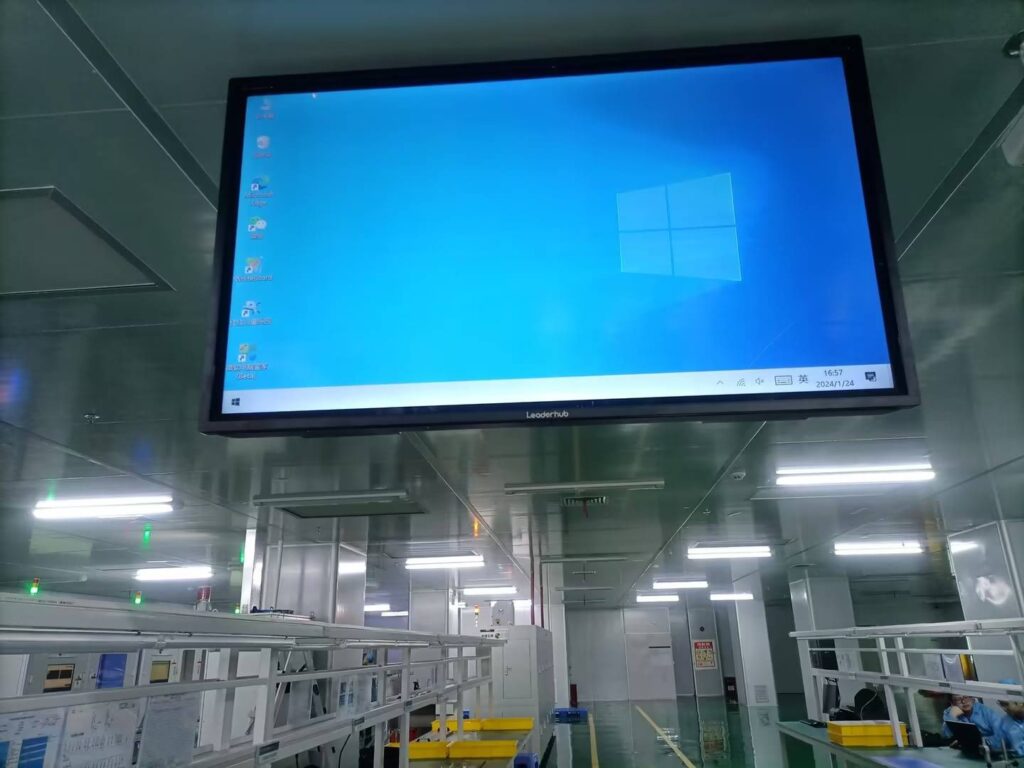
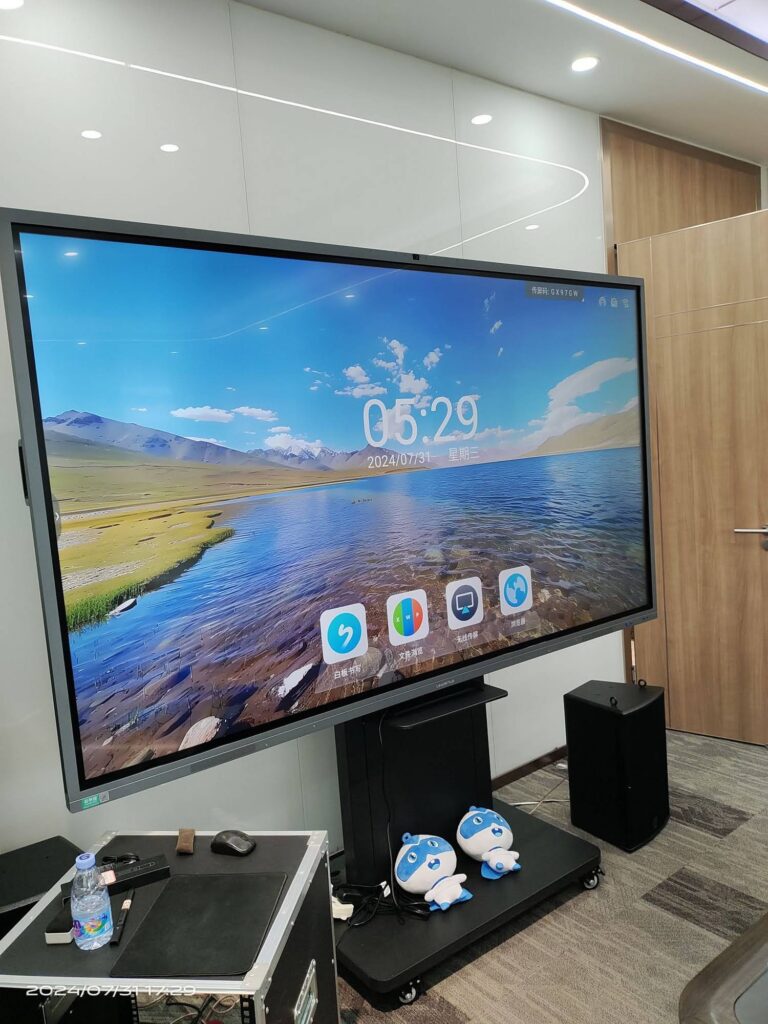
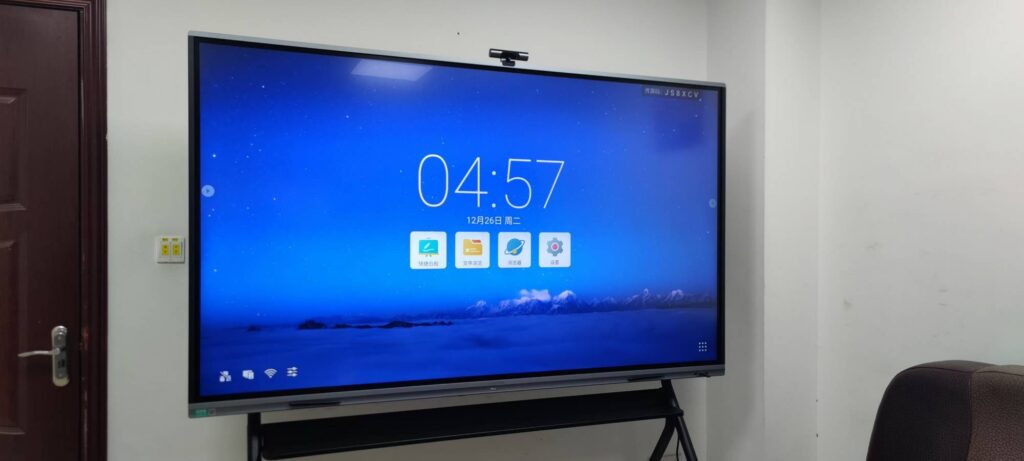
A desktop at the front of the room rarely works alone. Most modern classrooms connect it to an interactive flat panel so teachers can annotate, share student work and run multimedia lessons from one screen. When budgeting for desktops, consider the display side of the equation at the same time:
- Verify the PC’s graphics output supports 4K at 60Hz so text stays crisp on a 65″ to 86″ panel.
- Choose a PC with USB-C or multiple USB 3.0 ports to pass touch data back from the panel.
- Mount the mini PC directly behind the panel to eliminate loose cables and trip hazards.
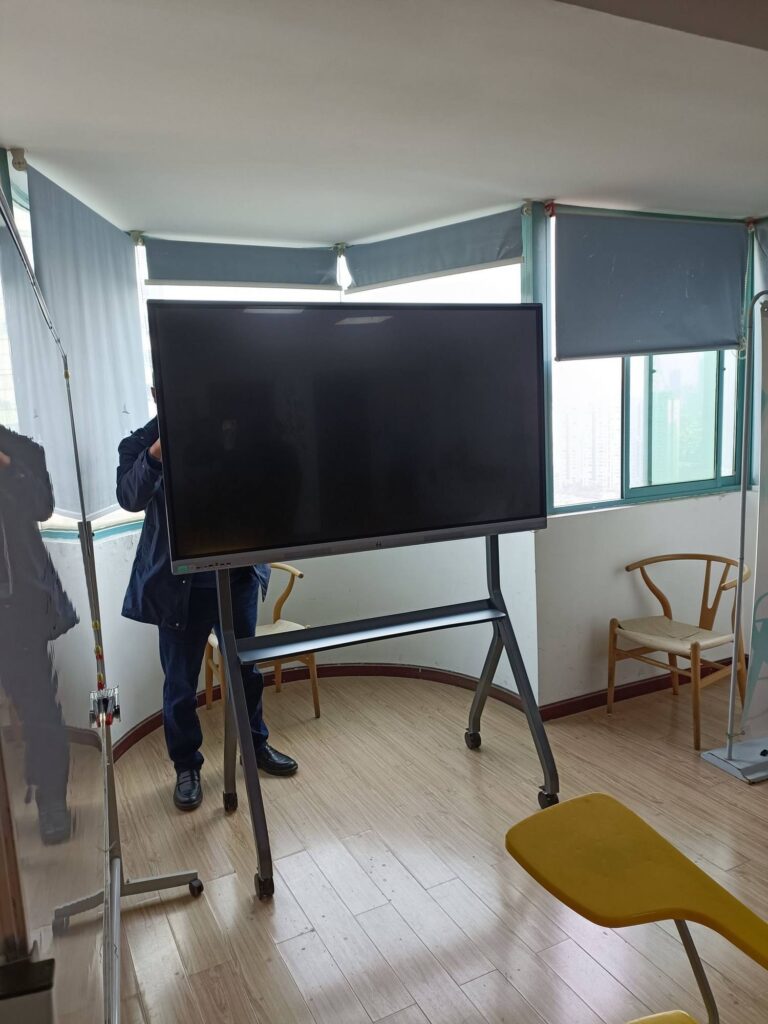
Budget-conscious schools often pair an entry mini PC with a 65″ or 75″ panel such as the L75ZM 75″ 4K interactive whiteboard, which starts at $1,399, or browse the complete smart whiteboards range to match screen size to room dimensions. For a deeper look at how to assess panel needs, the article on Choosing an Interactive Display for K-12 is a useful read.
Who Makes These Classroom PCs?
The mini PCs referenced in this guide are produced by LeaderHub, a Shenzhen-based technology company with 16 years of interactive-display experience, serving schools, enterprises and creative professionals in 82+ countries with smart whiteboards, interactive flat panels, mini PCs and portable smart screens. Its focus on combining dependable hardware with AI-driven collaboration tools is aimed squarely at institutions that need capable technology without enterprise-level price tags.
School Desktop Deployment Checklist
Before signing a purchase order, run through this checklist to avoid the most common and costly mistakes.
- Audit existing infrastructure — confirm network ports, power outlets and furniture can support the new machines.
- Define 2–3 standard configurations — one for general use, one for labs, optionally one for specialist rooms.
- Request evaluation units — test real classroom software, login speed and noise levels before committing.
- Confirm warranty and spare-parts availability — ask for on-site or advance-replacement options for critical rooms.
- Plan the imaging and management workflow — ensure the PCs work with your device management and content-filtering tools.
- Schedule teacher onboarding — the OECD Digital Teaching Guidance highlights how much device value depends on educator confidence.
- Set a refresh calendar — stagger replacements so no single year carries the entire cost.
Frequently Asked Questions
How long should a school desktop computer last?
With an SSD, adequate RAM and a supported processor, a well-chosen desktop should comfortably serve five to seven years. Mini PCs with no mechanical parts often exceed this if they are kept clean and updated.
Are mini PCs powerful enough for coding and STEM classes?
Yes. A mini PC with a Core i5-class processor and 16GB of RAM handles Python, Scratch, web development, Arduino tooling and most introductory data-science workloads with ease. Only GPU-intensive tasks such as 3D rendering or advanced AI training call for higher-tier machines.
Should schools buy Windows, Linux or Chrome OS desktops?
It depends on your software ecosystem. Standard mini PCs run Windows or Linux and give the broadest application compatibility, including legacy educational titles. Whichever platform you choose, keep it consistent across the fleet to simplify support.
What is the single most important upgrade for budget classroom PCs?
An SSD. Moving from a mechanical hard drive to solid-state storage transforms boot times, login speed and overall responsiveness far more than a modest CPU upgrade.
How many ports does a classroom PC really need?
Plan for at least one HDMI or DisplayPort for the main display, a second video output if an interactive panel is used alongside a monitor, three or more USB 3.0 ports for peripherals and touch feedback, and a wired Ethernet port for stable connectivity during online assessments.
Final Thoughts
The best desktop computers for schools are not the cheapest or the most powerful — they are the ones that disappear into the background and simply work, year after year. Prioritize reliability, SSD storage, energy efficiency and standardized configurations, calculate total cost of ownership rather than sticker price, and plan how each PC connects to the displays and software your teachers already rely on. Follow those principles and a modest budget can equip every classroom with technology that supports learning instead of interrupting it.
Need help sizing a deployment or requesting evaluation units for your school? Contact the team here or explore the full product catalog to compare mini PCs and interactive panels side by side.