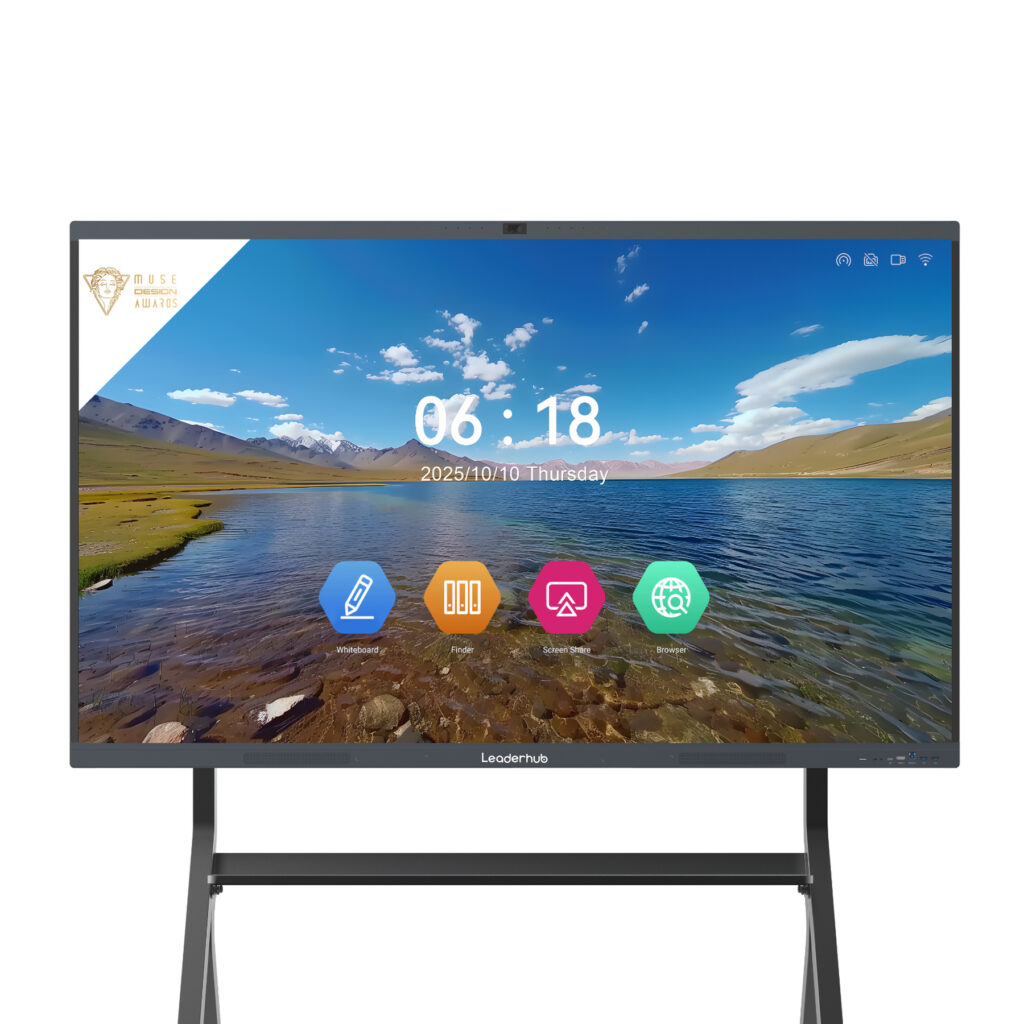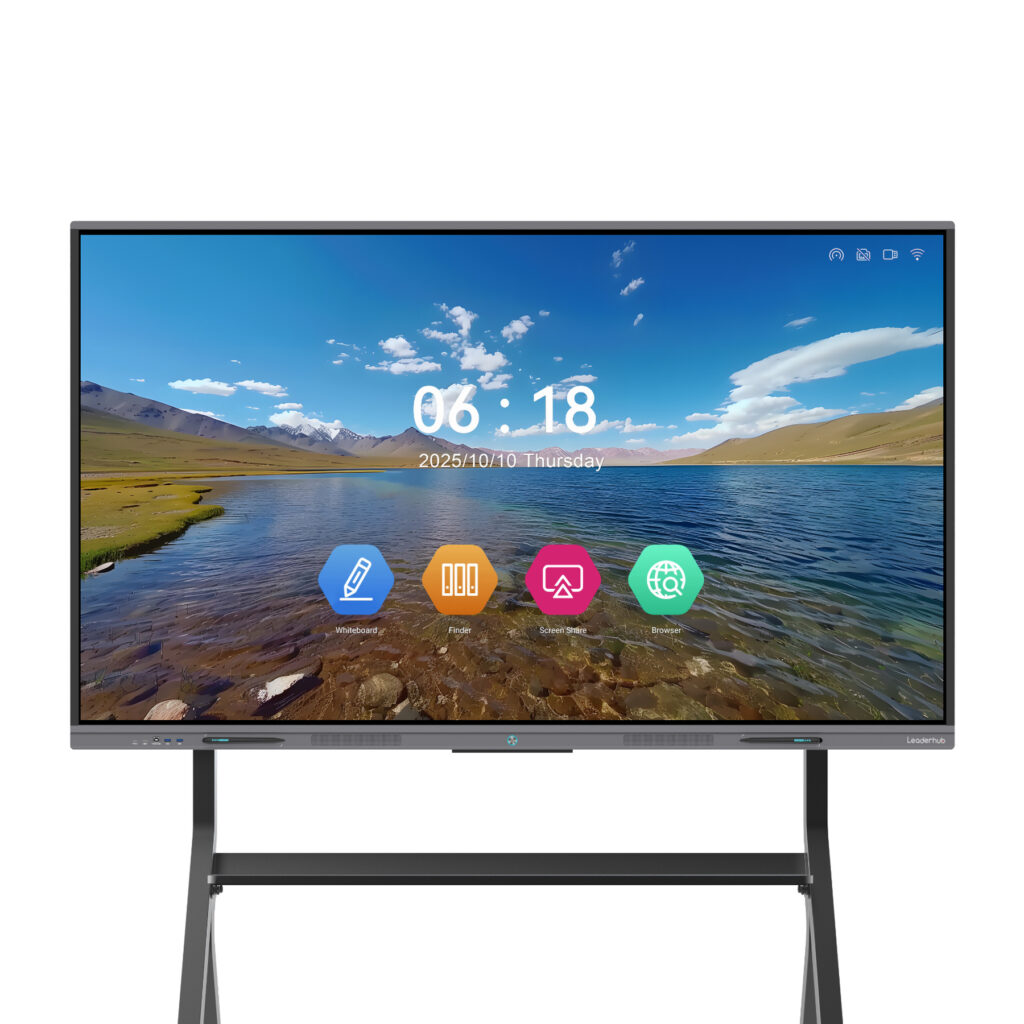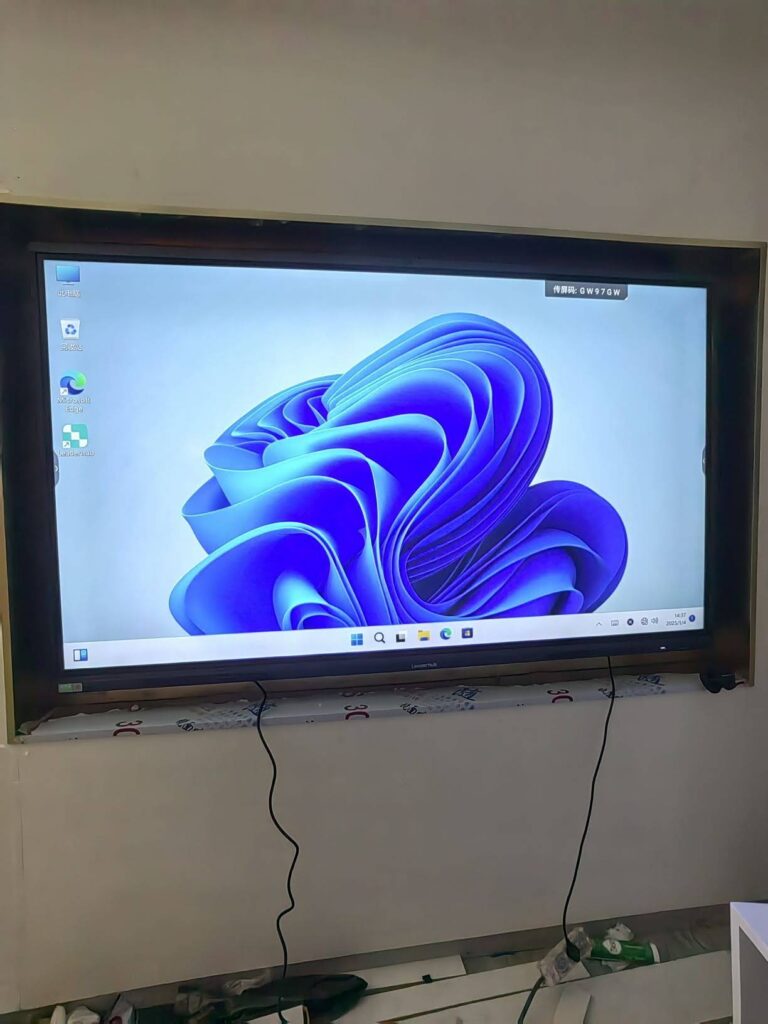
Interactive flat panels have quietly become one of the most-used pieces of electronics in modern classrooms and meeting rooms. They are switched on first thing in the morning, run through back-to-back sessions, and are often left idle for hours. That raises a practical question for school IT managers, facilities teams and office administrators alike: how much electricity does a smart board actually use, and what can be done to keep the bill under control? This guide breaks down real-world smart board energy consumption and efficiency figures, compares them with older display technologies, and shares proven ways to cut power use without sacrificing performance.
Why Smart Board Energy Consumption Matters
A single interactive display may not look like a big energy consumer, but scale changes the picture quickly. A school district with 300 classrooms or a company with dozens of huddle rooms is running a small power plant’s worth of screens. Three factors make this topic increasingly important:
- Rising electricity prices across Europe, North America and Asia-Pacific have pushed operating costs to the top of procurement checklists.
- Sustainability reporting is now mandatory or strongly encouraged for many public institutions and larger enterprises.
- Guidance such as the Choosing Technology in Education framework from UNESCO encourages schools to evaluate the full lifecycle cost of technology, not just the sticker price.
In short, understanding smart board energy consumption and efficiency helps you choose the right size panel, configure it correctly, and justify the investment to budget holders.
How Much Power Does a Smart Board Use?
Power draw depends mainly on screen size, panel brightness, the type of built-in computer, and how the device is used. The figures below reflect typical LED-backlit LCD interactive flat panels sold today.
Typical Power Draw by Screen Size
| Screen Size | Active Use (Typical) | Maximum Rated | Standby |
|---|---|---|---|
| 55-inch | 90–130 W | ≤ 200 W | ≤ 0.5 W |
| 65-inch | 120–170 W | ≤ 260 W | ≤ 0.5 W |
| 75-inch | 160–230 W | ≤ 350 W | ≤ 0.5 W |
| 86-inch | 220–320 W | ≤ 450 W | ≤ 0.5 W |
| 110-inch | 400–550 W | ≤ 800 W | ≤ 0.5 W |
These are representative ranges rather than figures for one specific model; always check the energy label or specification sheet of the panel you are considering. The key takeaway is that a 75-inch smart board in typical use draws roughly the same power as two desktop computers, and far less than many people assume.
What a Year of Use Actually Costs
Let’s translate watts into money. Assume a 75-inch panel averaging 190 W, used 6 hours per school day for 190 days a year, and left in low-power standby the rest of the time.
- Active energy: 190 W × 6 h × 190 days = 216.6 kWh
- Standby energy: 0.5 W × 18 h × 365 days ≈ 3.3 kWh
- Total: approximately 220 kWh per year
| Region (Indicative Tariff) | Annual Cost per 75″ Panel | Annual Cost for 100 Panels |
|---|---|---|
| United States (~$0.17/kWh) | ≈ $37 | ≈ $3,700 |
| United Kingdom (~£0.28/kWh) | ≈ £62 | ≈ £6,200 |
| Germany (~€0.35/kWh) | ≈ €77 | ≈ €7,700 |
| Australia (~A$0.32/kWh) | ≈ A$70 | ≈ A$7,000 |
For one classroom the cost is modest. Across an entire campus, however, behavioural and configuration changes that trim 20–30% of consumption can easily save thousands each year.
Smart Boards vs. Projectors and Older Interactive Whiteboards
Many institutions are replacing projector-based whiteboards with all-in-one interactive flat panels, and energy efficiency is one of the strongest arguments for doing so.
| Technology | Typical Power | Extra Devices Needed | Consumables |
|---|---|---|---|
| Lamp projector + IWB | 250–400 W | PC, speakers, whiteboard sensor | Lamps every 2,000–5,000 h |
| Laser projector + IWB | 200–350 W | PC, speakers, whiteboard sensor | Filters, occasional light source |
| LED-backlit interactive flat panel | 120–320 W (65″–86″) | None (Android + optional OPS built in) | None |
Because a modern smart whiteboard integrates the display, speakers, touch layer and operating system into one unit, it eliminates the separate PC, projector and amplifier that older setups required. The result is lower total consumption, no lamp replacements, and far less heat, which in turn reduces air-conditioning load in warmer climates.
Key Factors That Affect Smart Board Efficiency
1. Backlight Brightness
The LED backlight is the single largest power consumer in any LCD panel. Running at 100% brightness in a normally lit room can waste 30–40% more energy than a sensible 50–60% setting, and it is harder on viewers’ eyes too.
2. Panel Size and Resolution
Bigger screens need more LEDs. A 4K 86-inch panel will always draw more than a 65-inch unit, so match the size to the room instead of defaulting to the largest option. For rooms under 30 m² a 65″ or 75″ display is usually sufficient.
3. Built-in Computing
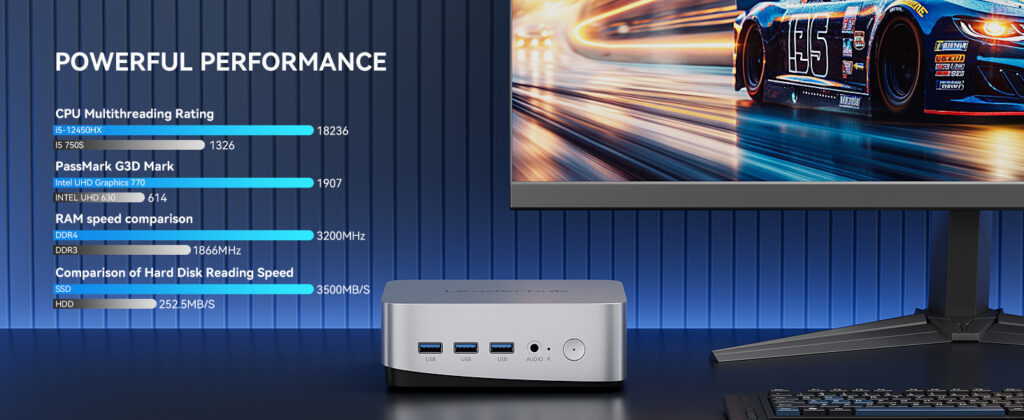
Android-based systems on a chip typically add only 5–15 W. A plug-in Windows OPS module can add 30–65 W depending on the processor. Pairing a panel with an efficient external mini PC such as an Intel N100-class unit, which idles at around 6 W, can be a leaner alternative to a high-performance OPS in rooms where heavy Windows software is rarely needed.
4. Standby and Sleep Behaviour
Modern panels have networked standby below 0.5 W, but only if they are actually allowed to sleep. Displays that are left showing a static home screen overnight can consume more than 1 kWh every night for nothing.
5. Ambient Light and Room Design
Rooms with strong glare push users to increase brightness. Blinds, matte wall paint and anti-glare glass on the panel reduce the need for extra backlight power.
Practical Ways to Reduce Smart Board Power Consumption
The good news is that most savings come from settings and habits rather than new hardware. Work through this checklist on every installed panel.
Settings You Can Change Today
- Enable automatic brightness. Panels with an ambient light sensor adjust the backlight to the room, typically cutting consumption by 15–25%.
- Set a default brightness of 50–60%. Lock it in the admin menu so it is not overridden.
- Turn on auto-sleep after 10–15 minutes of inactivity and auto power-off after 30–60 minutes.
- Schedule power on/off times that match the school or office day, for example 07:30 to 18:00 on weekdays only.
- Use eco or energy-saving picture modes for text-heavy content such as whiteboarding and documents; reserve vivid modes for video.
- Disable unused wireless radios and background apps that keep the processor awake.
Habits for Teachers and Staff
- Use the physical power button or remote to put the display to sleep during breaks instead of leaving it on a blank screen.
- Prefer dark or neutral whiteboard backgrounds; on LCD panels the brightness savings are small, but a dark theme is easier on the eyes and reduces perceived glare.
- Close screen-mirroring sessions when finished so the panel can enter sleep mode.
- Report panels that stay on overnight to the IT team so the schedule can be corrected.
Fleet-Level Strategies for IT Teams
- Centralised device management: push brightness, sleep and scheduling policies to every panel at once and monitor compliance.
- Measure before and after: a $20 plug-in power meter on a sample of rooms gives real data to show decision-makers.
- Right-size new purchases: specify screen size per room type rather than one size for the whole building.
- Ask suppliers for energy labels and standby figures as part of the tender, in line with the UK Education Technology Guidance on sustainable procurement.
| Action | Typical Saving | Effort |
|---|---|---|
| Brightness from 100% to 55% | 25–35% | Low |
| Auto-sleep after 15 min idle | 10–20% | Low |
| Scheduled overnight shutdown | Eliminates 100% of idle waste | Low |
| Replace lamp projector with IFP | 30–50% plus zero lamp costs | Capital investment |
| Right-size screen per room | Up to 40% per unit | Planning stage |
Portable and Battery-Powered Screens: A Different Efficiency Model
Not every space needs a wall-mounted 86-inch display. For breakout rooms, mobile teaching carts and small teams, smaller touch screens with built-in batteries offer a very different energy profile. A 24-inch or 27-inch rotating smart screen typically draws 25–45 W, charges from a standard outlet, and can run several hours unplugged. Deploying these for small-group work while reserving large panels for whole-class or all-hands sessions is one of the simplest ways to lower average consumption per user.
Energy Labels and Standards to Look For
When comparing models, these indicators help you separate genuinely efficient displays from marketing claims:
- EU Energy Label (A–G scale) with declared on-mode power in watts and kWh per 1,000 hours.
- ENERGY STAR certification for displays, which caps on-mode and standby consumption relative to screen area.
- Standby below 0.5 W and networked standby figures clearly stated.
- Presence of an ambient light sensor and a proximity or presence sensor that wakes the panel only when someone approaches.
- Mercury-free LED backlighting and RoHS compliance for end-of-life recycling.
Organisations following the Digital Equipment for Schools priorities under the EU Digital Education Action Plan are increasingly asked to demonstrate that classroom hardware is both pedagogically effective and environmentally responsible, so these labels are worth documenting at purchase time.
Choosing an Efficient Smart Board for Your Space
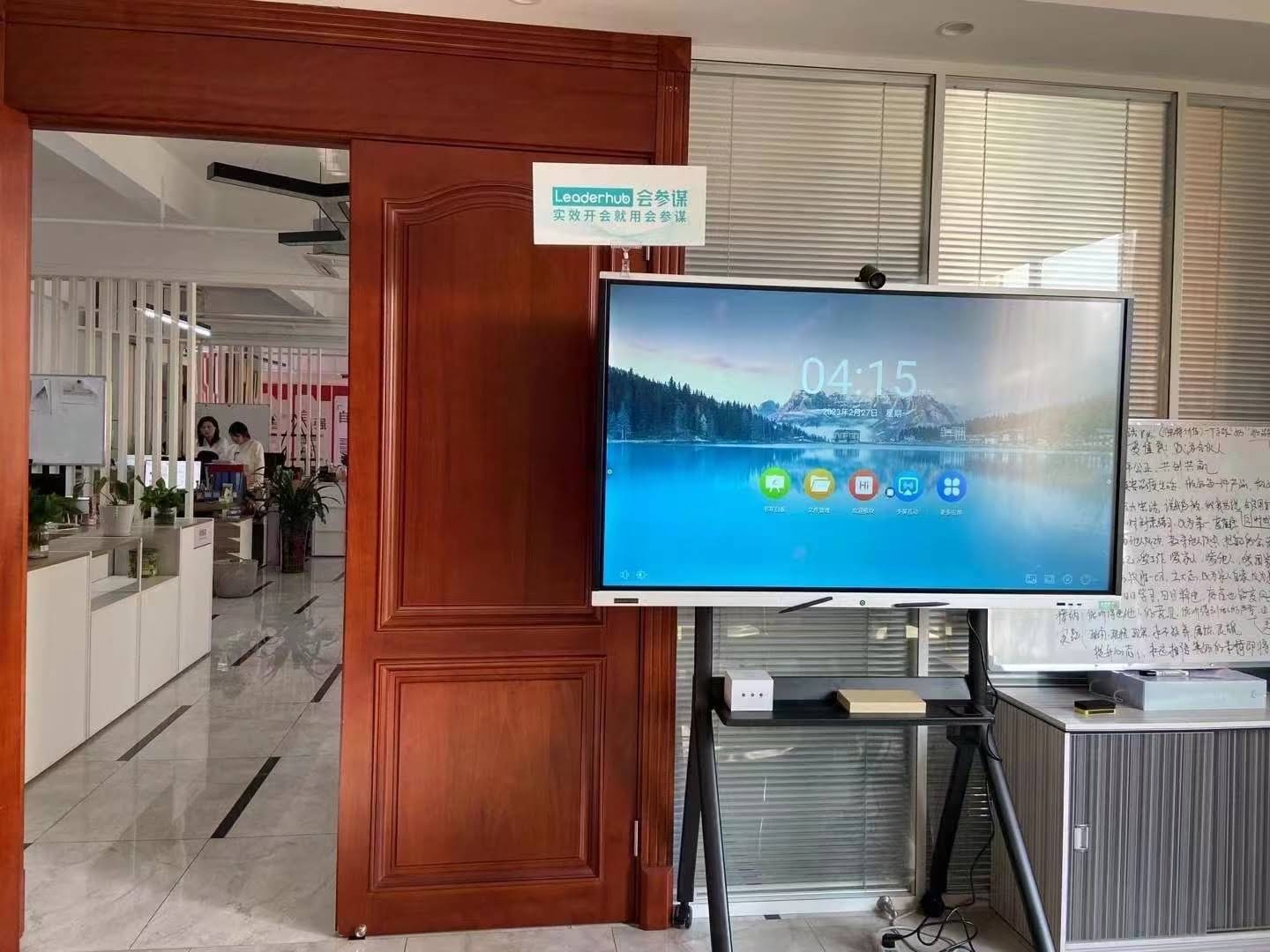
Efficiency starts with the right product. Leaderhub, a Shenzhen-based manufacturer with 16 years of interactive-display expertise and customers in more than 82 countries, designs its panels with LED backlighting, automatic brightness control, low-power Android systems and scheduled power management as standard. Below is a quick guide to matching room size with display size to avoid paying for brightness and inches you will never use.
| Room Type | Recommended Size | Example Model | Price |
|---|---|---|---|
| Huddle room / small classroom (up to 20 m²) | 65″ | Leaderhub L65ZM 65″ 4K Smart Panel | $1,099 |
| Standard classroom / meeting room (20–40 m²) | 75″ | Leaderhub L75HM 75″ 4K Touchscreen | $1,599 |
| Lecture room / boardroom (40–60 m²) | 86″ | Leaderhub L86ZM 86″ 4K Smart Panel | $1,699 |
| Mobile / multi-room use | 55″ on wheels | Leaderhub U55Pro 55″ Mobile 4K Display | $2,499 |
Frequently Asked Questions
Does a smart board use more electricity than a TV of the same size?
Slightly, because of the touch layer, built-in computer and brighter backlight designed for lit rooms. In practice the difference is usually 10–20%, and the smart board replaces several other devices.
Is it better to turn the panel off completely or leave it in standby?
Modern standby consumes under 0.5 W, so leaving it in standby overnight costs only a few cents per month and allows scheduled wake-up and remote updates. Switching off at the wall is only worth it during long holidays.
Will lowering brightness affect visibility?
Rarely. Most panels ship at 80–100% brightness, which is designed for showroom conditions. A setting of 50–60% in a typical classroom is comfortable and reduces eye strain, a point also reflected in OECD Screen Time Research on healthy display use for students.
How much heat does a smart board generate?
Almost all consumed electricity becomes heat. A 75-inch panel at 190 W adds roughly the warmth of two people to a room, which is far less than a lamp projector and rarely affects HVAC planning.
Can I monitor consumption remotely?
Many enterprise panels report uptime and power state through device management software. For precise kWh figures, a smart plug with energy monitoring is an inexpensive addition.
Final Thoughts
Smart board energy consumption and efficiency is a manageable, measurable topic. A typical 65–86 inch interactive flat panel uses between 120 and 320 watts in active use, costs well under $100 a year to run, and is noticeably more efficient than the projector-based systems it replaces. The biggest savings come from three simple steps: choose the right size for the room, set sensible brightness and sleep defaults, and schedule shutdowns outside working hours. Apply those across an entire fleet and the environmental and financial benefits add up quickly.
If you are planning a new deployment or upgrading legacy classrooms and meeting rooms, contact the Leaderhub team for energy specifications, room-size recommendations and volume pricing on efficient interactive displays.