Choosing an interactive display is one of the most important technology decisions a school can make. The right smart board will serve thousands of lessons over five to seven years, while the wrong one can sit unused in the corner because it is too dim, too small, or too complicated for teachers to love. This smart board purchasing guide for educational institutions walks procurement teams, principals, IT coordinators and teachers through every decision point — from screen size and touch technology to total cost of ownership and procurement strategy — so your classroom investment delivers real learning outcomes.
Why Schools Are Replacing Projectors and Chalkboards with Smart Boards
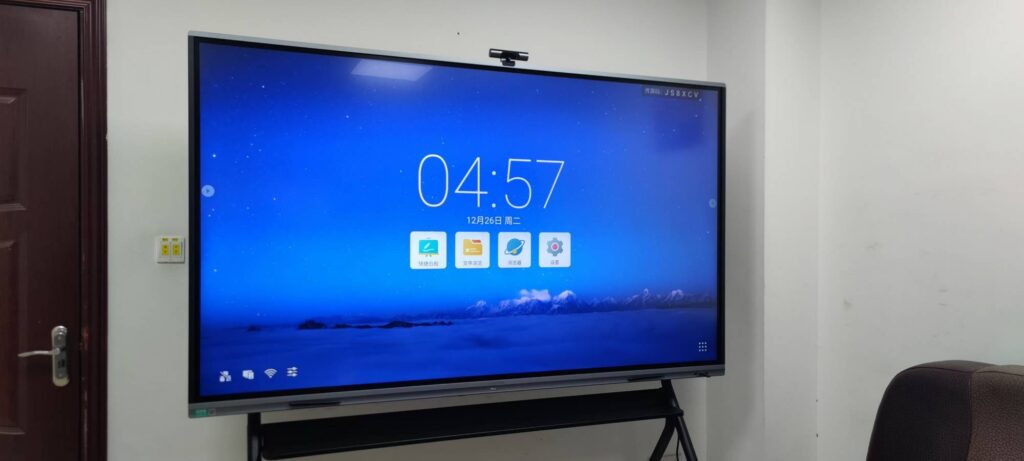
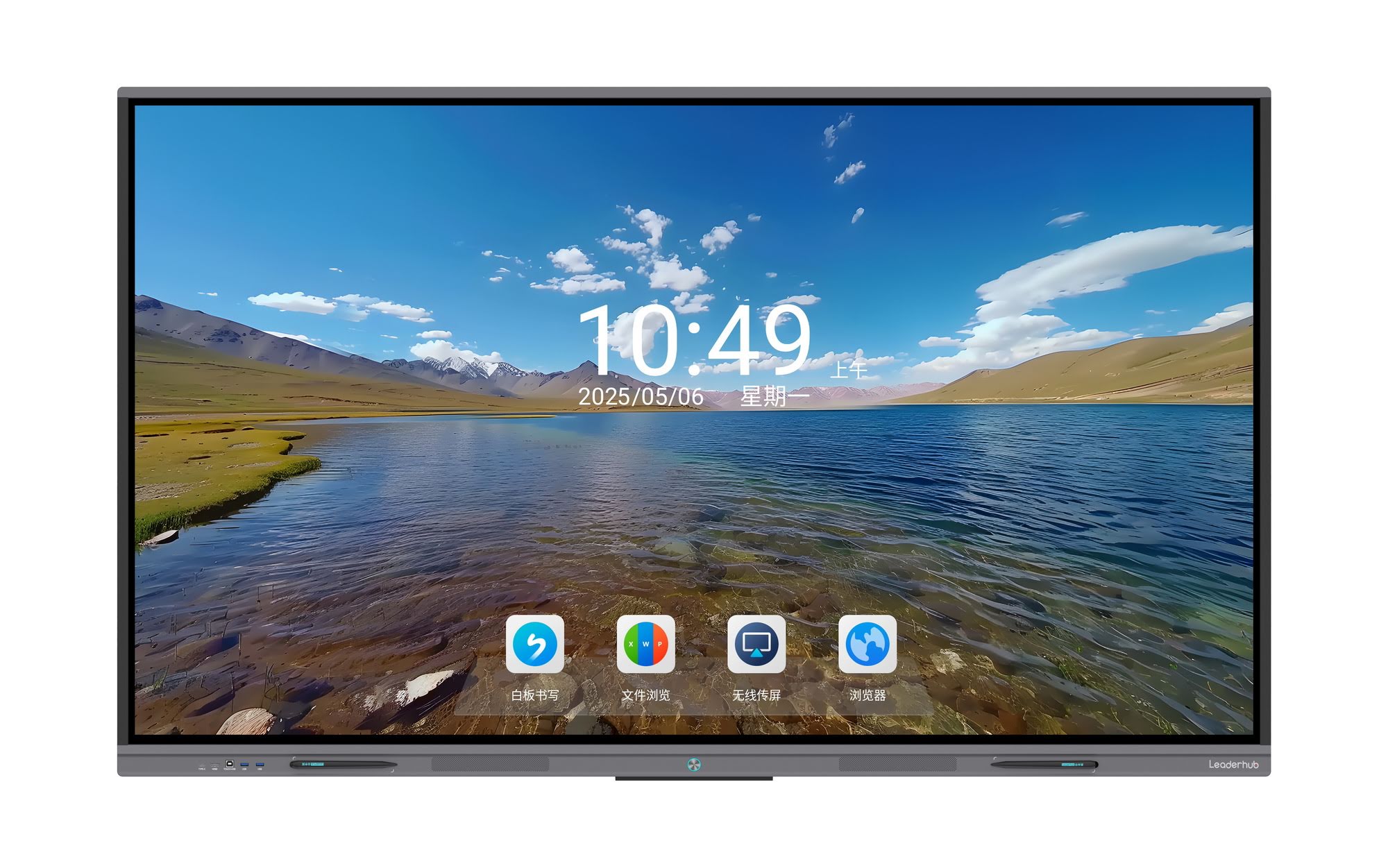
The interactive flat panel has become the standard front-of-class display for a simple reason: it removes nearly every friction point that projectors and traditional whiteboards create. There are no bulbs to replace, no shadows when a teacher stands in front of the board, no calibration drift, and no need to dim the lights. Research summarised in the UNESCO Technology in Education Report emphasises that technology improves learning only when it is used purposefully and is accessible to every teacher — which is exactly where a reliable, easy-to-use interactive display excels.
- Higher engagement: multi-touch screens let several students work at the board at the same time.
- Zero consumables: no projector lamps, markers or filters — just a display rated for 50,000+ hours.
- Hybrid-ready: built-in cameras, microphones and wireless casting support remote and blended learning.
- Lower maintenance: an Android-based panel with optional PC module replaces a projector, speakers, document camera and whiteboard in one device.
- Health and visibility: 4K anti-glare glass with blue-light filtering is readable from the back row even in bright daylight.
Step 1: Define Classroom Requirements Before You Compare Brands
Most purchasing mistakes happen because a school starts by comparing spec sheets instead of starting with its own classrooms. Before requesting quotes, document the following for every room type in your institution.
Classroom Size and Viewing Distance
Screen size is the single most important choice. A panel that is too small forces students at the back to squint; a panel that is too large for a small room is wasted budget. A useful rule is that the furthest student should sit no more than six times the screen height from the display. The table below translates that rule into practical recommendations.
| Room Type | Typical Students | Max Viewing Distance | Recommended Size |
|---|---|---|---|
| Small group / resource room | 8–15 | Up to 5 m | 55″ – 65″ |
| Standard primary classroom | 20–30 | 6–8 m | 65″ – 75″ |
| Secondary / high school classroom | 30–40 | 8–10 m | 75″ – 86″ |
| Lecture hall / auditorium | 60+ | 12 m+ | 98″ – 110″ |
Teaching Style and Subject Mix
A science department that annotates over simulations has different needs from an early-years classroom where children draw with their fingers. Ask teachers how they actually teach: Do they need split-screen for comparing documents? Palm-rejection for resting a hand while writing? Screen recording for flipped lessons? Capturing this information early ensures the panel you buy matches real pedagogy rather than marketing features.
Existing Infrastructure
- Is there reliable Wi-Fi and a wired LAN port near the front wall?
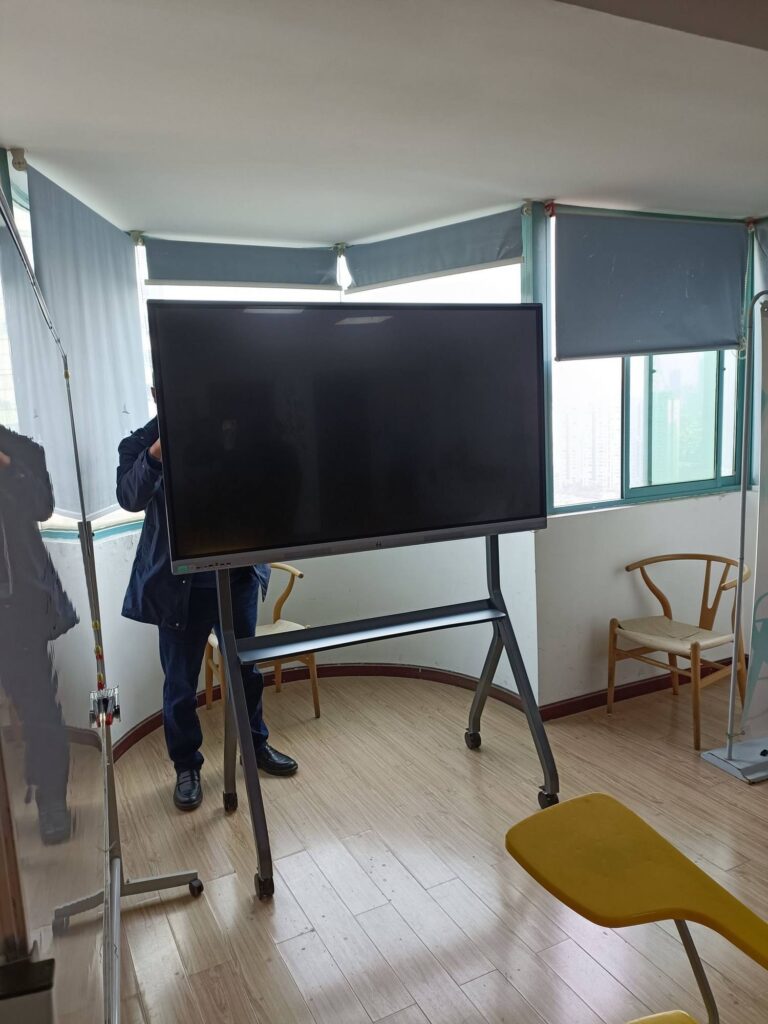
- Can the wall support 50–80 kg, or will you need a mobile stand?
- Do teachers use Windows laptops, Chromebooks, iPads or a mix?
- Is there an existing learning management system the board must integrate with?
Step 2: The Specifications That Actually Matter in a Classroom
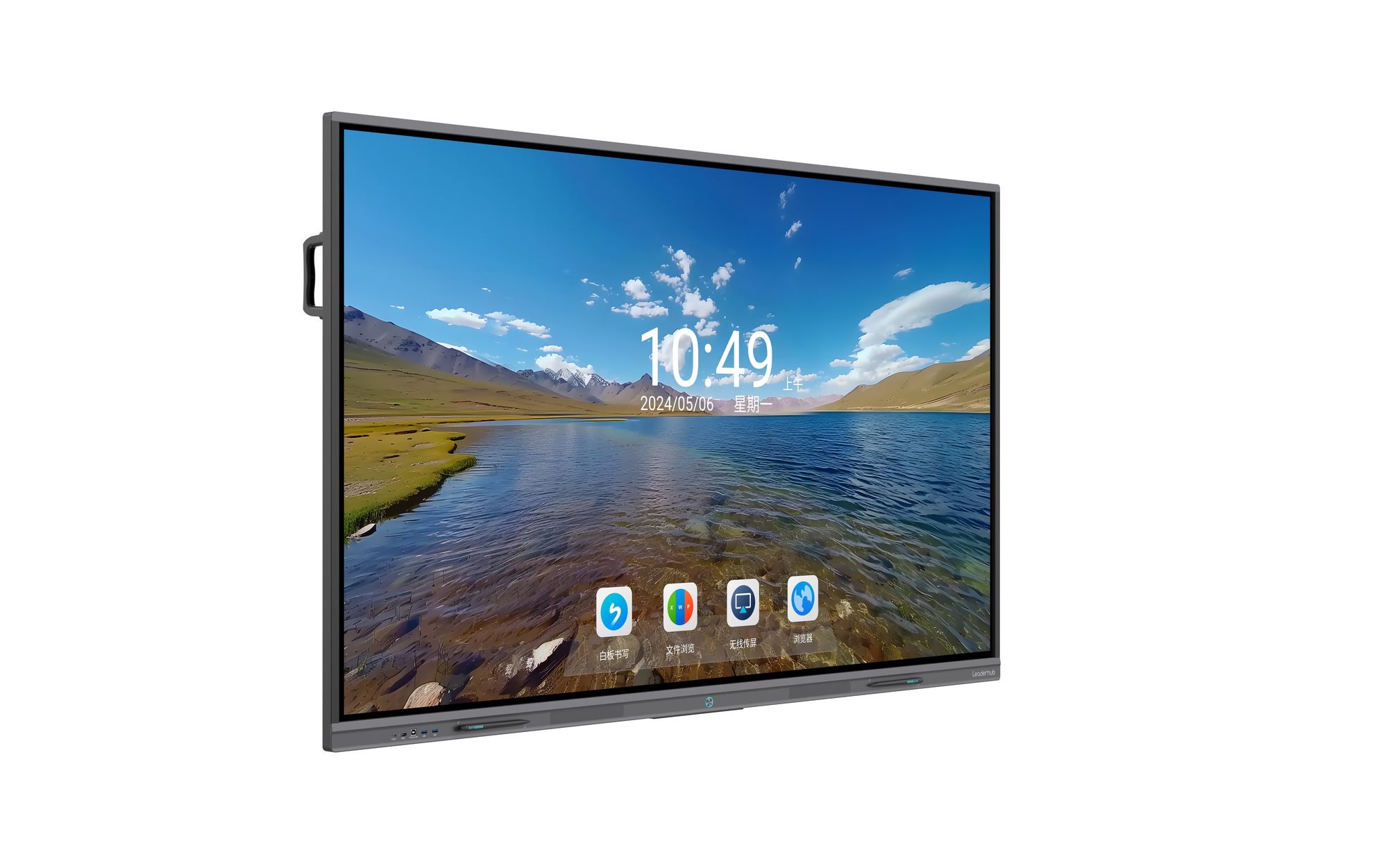
Spec sheets can run to several pages, but only a handful of specifications affect the daily teaching experience. Use this section of the smart board purchasing guide for educational institutions as your technical shortlist.
Display Resolution, Brightness and Glass
4K UHD (3840 × 2160) is now the baseline for any panel 65″ or larger — at Full HD, text becomes visibly pixelated when viewed up close by students at the board. Look for brightness of at least 350–400 nits for daylight-filled classrooms, anti-glare tempered glass rated 4 mm or thicker (Mohs 7 hardness), and a low-blue-light certification to protect young eyes during long school days.
Touch Technology and Writing Experience
Infrared (IR) touch is the dominant classroom technology because it is durable, affordable and works with any object — a finger, a passive stylus or even a closed marker. Capacitive touch offers smoother writing but costs significantly more and is easily damaged. For schools, prioritise:
- 20-point multi-touch or higher so groups can collaborate simultaneously.
- Response time under 8 ms to eliminate the lag between pen and ink.
- Zero-bonding or optical bonding to reduce parallax when writing.
- Palm rejection and dual-pen support (two colours or thicknesses at once).
Operating System, Processor and Memory
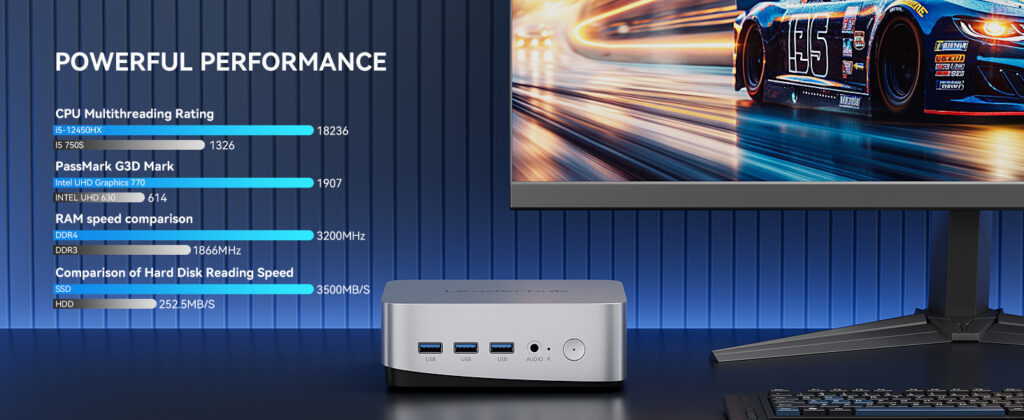
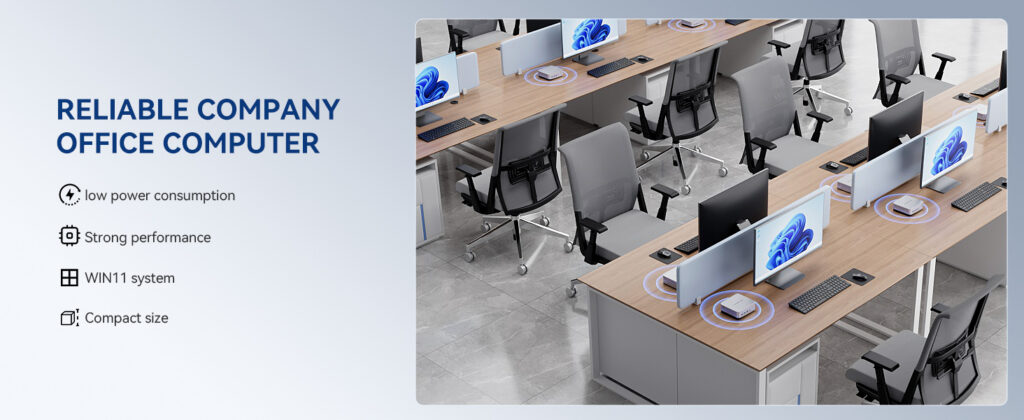
Most modern interactive panels run Android with an optional slot-in Windows PC module (OPS). An Android 11 or newer system with at least 4 GB RAM and 32 GB storage keeps the whiteboard app, browser and casting tools running smoothly. If teachers rely on Windows-only software, budget for an OPS module or a compact external unit such as a classroom mini PC, which can be swapped or upgraded independently of the display.
Connectivity, Casting and Audio
Count the ports you will genuinely use: at least two HDMI inputs, a USB-C port with power delivery (so a teacher’s laptop charges and connects with one cable), USB-A ports on the front for quick access, and a LAN port for stable school-network connections. Wireless screen sharing should support Miracast, AirPlay and Chromecast so any device in the room can present. Built-in speakers of 2 × 15 W or more are usually sufficient for a standard classroom without external audio.
| Specification | Minimum for Schools | Recommended |
|---|---|---|
| Resolution | 4K UHD | 4K UHD with HDR |
| Brightness | 350 nits | 400–450 nits |
| Touch points | 20 | 40 with palm rejection |
| Android RAM / Storage | 4 GB / 32 GB | 8 GB / 64 GB |
| Glass | 4 mm anti-glare tempered | 4 mm, Mohs 7, low blue light |
| Ports | 2 × HDMI, 2 × USB, LAN | 3 × HDMI, USB-C PD, 4 × USB, LAN, OPS slot |
| Speakers | 2 × 10 W | 2 × 15 W + subwoofer |
| Camera / Microphone | Optional | Built-in 4K camera, 8-mic array |
| Warranty | 3 years | 3–5 years on-site |
Step 3: Software, Ecosystem and Teacher Adoption
Hardware is only half of the purchase. The OECD Digital Teaching Guidance is clear that technology adoption succeeds or fails on teacher confidence. When evaluating a smart board, test the included whiteboard software with real teachers and check for:
- Intuitive whiteboarding — infinite canvas, shape recognition, handwriting-to-text, and one-tap saving to the cloud or QR code export for students.
- Cross-platform casting so students can share from any device without installing drivers.
- Classroom management tools — screen lock, timer, randomiser, split-screen and annotation over any source.
- Remote device management for IT teams to push updates and monitor dozens of panels from one dashboard.
- Standards alignment — features that support the ISTE Standards for Educators, such as collaborative design and data-informed instruction.
Step 4: Understand Total Cost of Ownership, Not Just Sticker Price
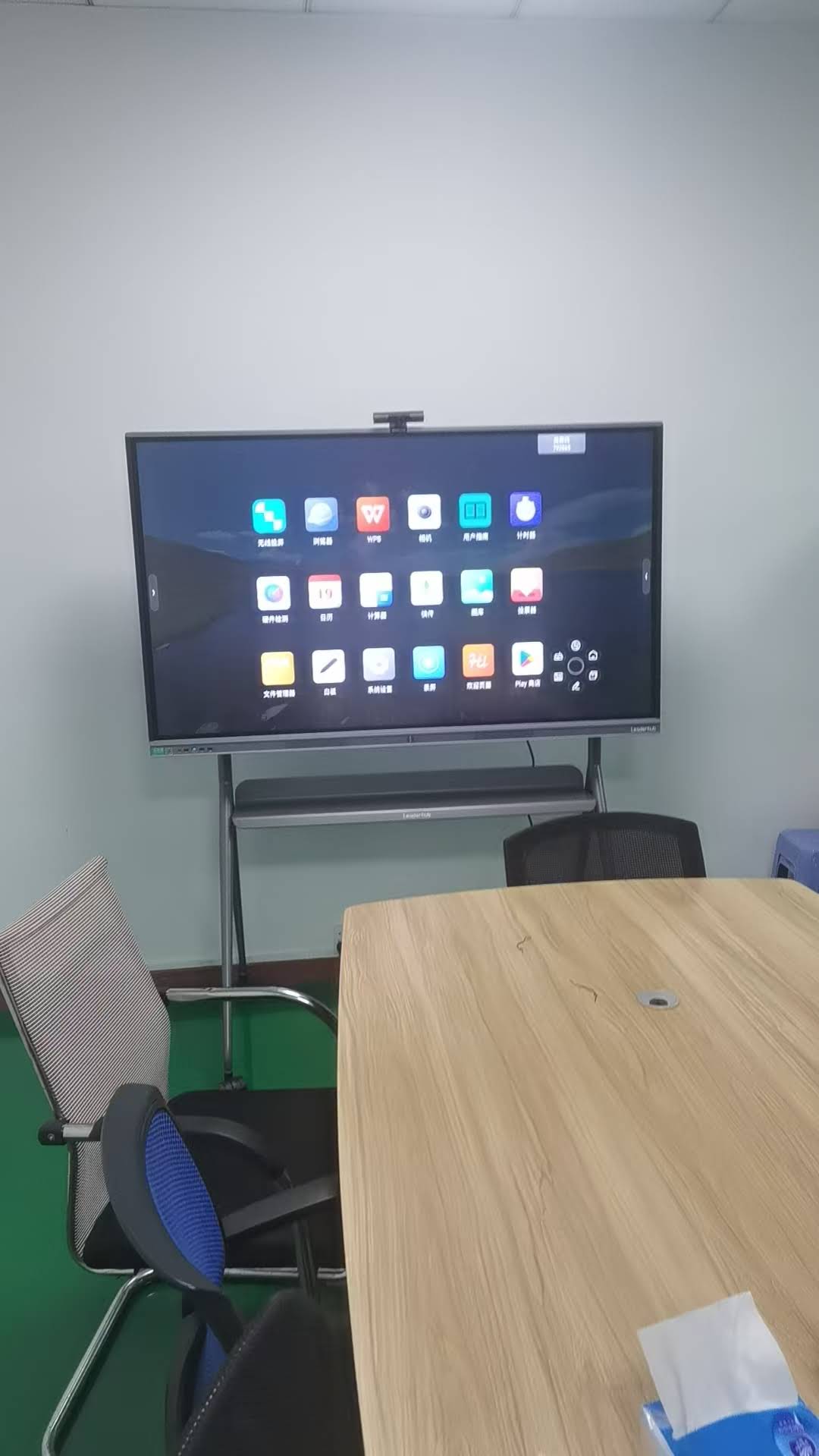
A projector-and-whiteboard setup may look cheaper on day one, but over a five-year period an interactive flat panel is almost always the lower-cost option. A school evaluating a smart board purchasing guide for educational institutions should model the following cost lines for the full service life of the device.
| Cost Component | Projector + Whiteboard (5 yrs) | Interactive Flat Panel (5 yrs) |
|---|---|---|
| Initial hardware | Lower | Higher |
| Replacement lamps / filters | 2–3 lamps per unit | None |
| Markers and cleaning supplies | Ongoing | Minimal |
| External speakers / camera | Required separately | Usually built in |
| Energy use | 250–350 W | 150–250 W with auto-sleep |
| IT support hours | High (calibration, cabling) | Low (remote management) |
| Typical lifespan | 3–5 years | 7–10 years |
Also factor in installation (wall mount vs. mobile trolley), electrical work, staff training time and the cost of extended warranties. Many institutions find that choosing a manufacturer-direct supplier rather than a multi-layer reseller chain cuts the per-classroom price by 30–50% without sacrificing specifications.
Step 5: Procurement Best Practices for Schools and Districts
Whether you are equipping three classrooms or three hundred, a structured procurement process protects your budget and ensures teacher buy-in. Choosing an Interactive Display for K-12 highlights how districts that pilot before scaling achieve far higher classroom usage rates.
- Form a cross-functional team — include teachers, IT, facilities and finance from day one.
- Run a pilot with two or three units for at least one term, collecting structured teacher feedback.
- Write a clear RFP using the specification table above; ask vendors to confirm compliance line by line.
- Request samples and references from other schools that have used the model for at least two years.
- Negotiate bundled value — mounts, styluses, training sessions, spare parts and extended warranty.
- Verify certifications such as CE, FCC, RoHS and energy labels relevant to your region.
- Plan the rollout in phases, with training scheduled before panels arrive, not after.
Recommended Interactive Displays for Different School Budgets
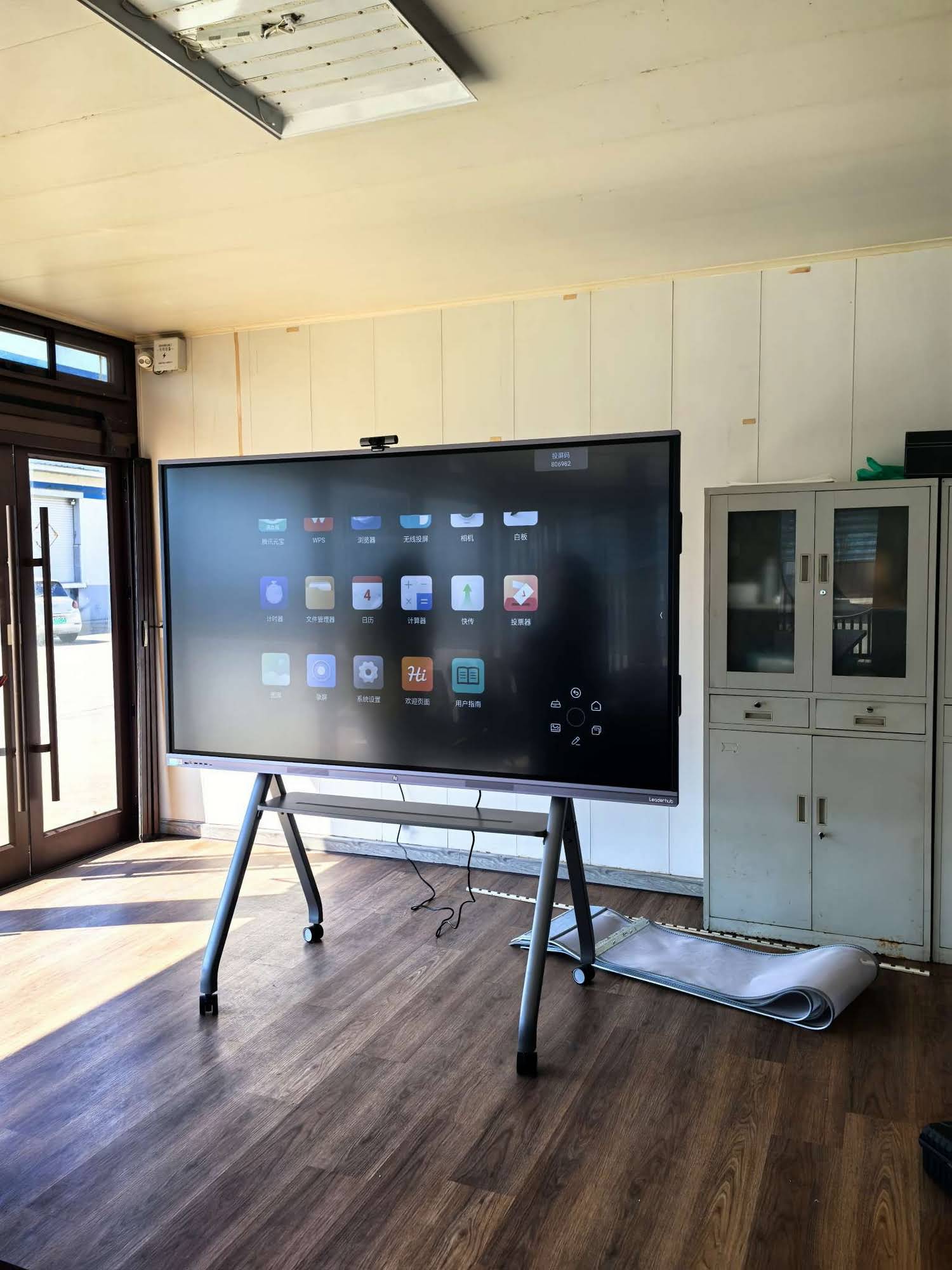
Leaderhub is a Shenzhen-based manufacturer with 16 years of interactive-display expertise, delivering smart whiteboards, mini PCs and portable smart screens to education, enterprise and government partners in more than 82 countries. Because the company sells manufacturer-direct, its education range offers specifications usually found at double the price. The models below map directly to the classroom sizes discussed earlier.
| Model | Size | Best For | Price |
|---|---|---|---|
| L65ZM Interactive Whiteboard | 65″ 4K | Small classrooms, budget-conscious primary schools | $1,099 |
| L75ZM Interactive Whiteboard | 75″ 4K | Standard classrooms of 25–35 students | $1,399 |
| L86ZM Interactive Whiteboard | 86″ 4K | Large secondary classrooms and labs | $1,699 |
| L75HM Smart Whiteboard | 75″ 4K | Hybrid classrooms needing built-in camera and conferencing | $1,599 |
| U55Pro Mobile Interactive Flat Panel | 55″ 4K | Shared spaces, libraries and rooms without wall mounting | $2,499 |
| L110H Interactive Flat Panel | 110″ 4K | Lecture halls and auditoriums | $7,999 |
Schools that need Windows applications alongside Android can pair any panel with the LP1C Mini PC for an affordable, upgradable computing module. Browse the complete smart whiteboard collection to compare every model side by side.
Common Mistakes to Avoid When Buying Smart Boards for Schools
- Buying too small to save money. A 65″ panel in a 40-student room will be unreadable from the back and resented by teachers.
- Ignoring glare. Glossy, non-treated glass in a south-facing classroom becomes a mirror by mid-morning.
- Skipping the pilot. A one-hour sales demo cannot reveal how software behaves after a term of daily use.
- Underestimating training. Without structured professional development, even the best display becomes an expensive TV.
- Overlooking mounting and power. Confirm wall structure, outlet position and cable routes before delivery day.
- Choosing an unknown brand with no support. Verify warranty terms, spare-part availability and local service response times.
Frequently Asked Questions
What is the difference between a smart board and an interactive flat panel?
The terms are now used interchangeably. Historically, “smart board” referred to a touch-sensitive surface used with a projector, whereas an interactive flat panel (IFP) is a self-contained LED display with touch built in. Today nearly all new classroom smart boards are IFPs.
Which screen size is best for a typical classroom?
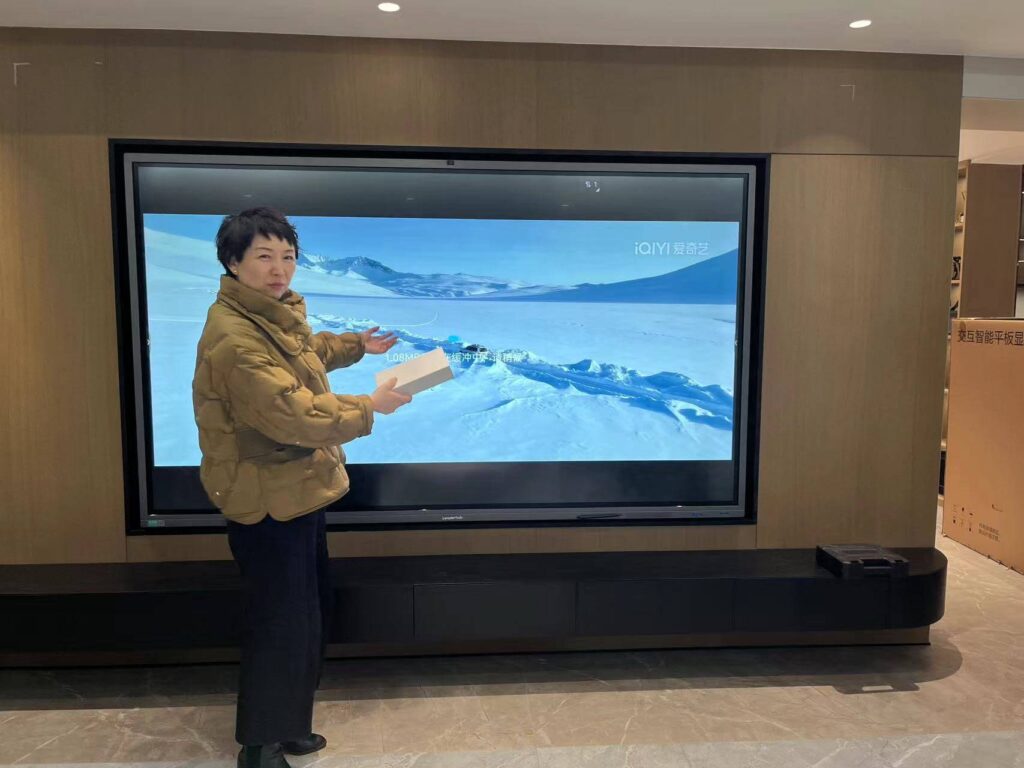
For a standard classroom of 25–35 students, 75 inches is the most popular choice globally, balancing readability, wall space and cost. Larger secondary classrooms often move up to 86 inches.
Do we need a Windows PC module?
Only if your teachers depend on Windows-specific software. Modern Android panels handle whiteboarding, browsing, video, casting and most cloud learning platforms natively. An OPS or external mini PC can always be added later.
How long does an interactive flat panel last?
Quality panels are rated for 50,000 hours of use — roughly 10 years at a typical school schedule — and carry three-year warranties as standard, with extensions available.
Can one smart board support hybrid or remote learning?
Yes. Models with integrated cameras and microphone arrays, such as the HM series, run video-conferencing apps directly so remote students can see both the teacher and the board content in one stream.
Your Final Pre-Purchase Checklist
- Screen size matched to room depth and student count
- 4K resolution, 350+ nits, anti-glare low-blue-light glass
- 20+ touch points with palm rejection and sub-8 ms response
- Android 11+ with at least 4 GB RAM; OPS slot for future Windows needs
- USB-C, multiple HDMI, LAN and wireless casting for every device type
- Teacher-tested whiteboard software and remote device management
- Clear five-year total cost of ownership comparison
- Pilot completed, references checked, warranty and training confirmed
Selecting the best interactive display for your classroom does not have to be overwhelming. Start with your rooms and your teachers, measure against the specifications in this guide, and insist on a pilot before committing budget. When you are ready to request education pricing, volume quotes or sample units, contact the Leaderhub education team for a tailored classroom proposal.