
Description
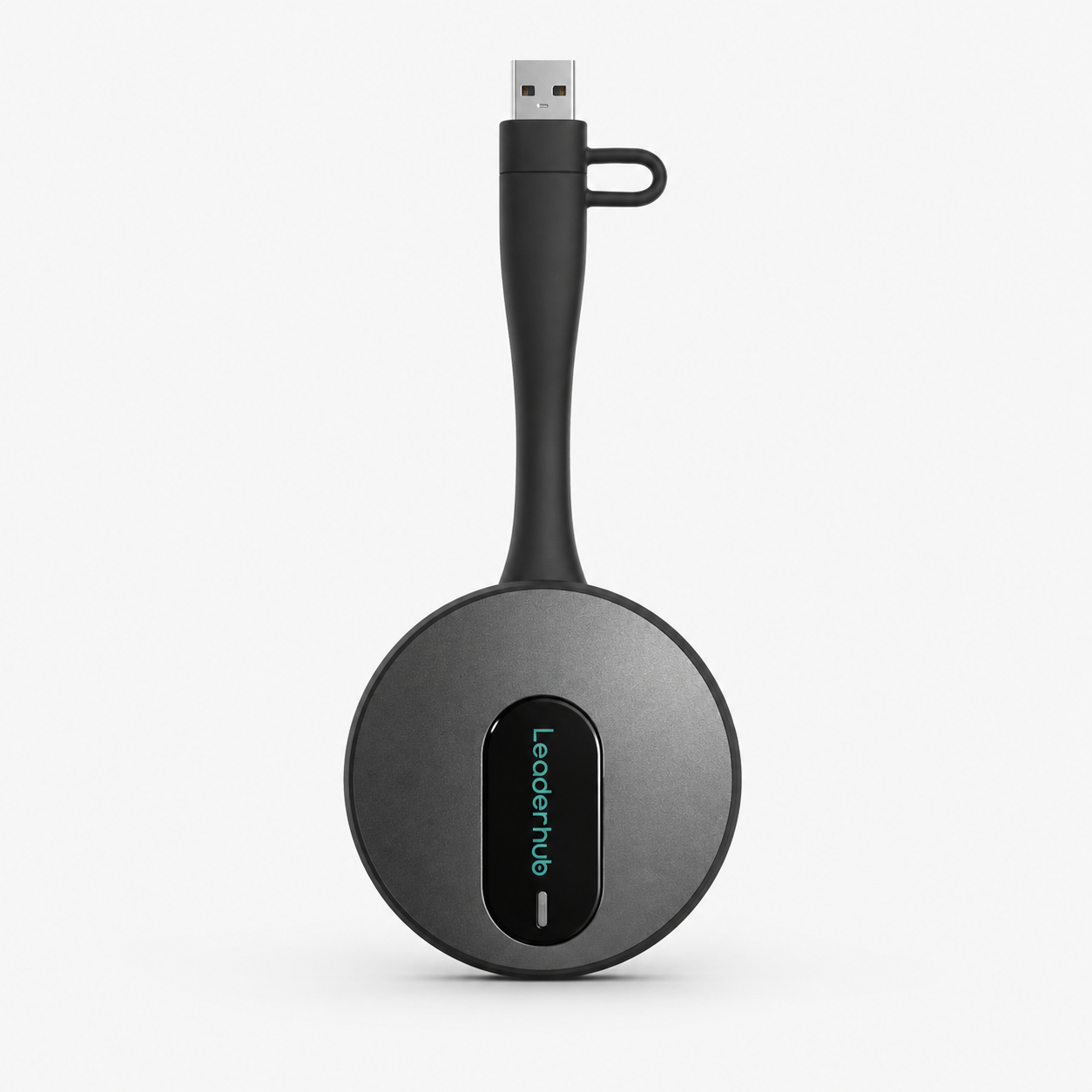
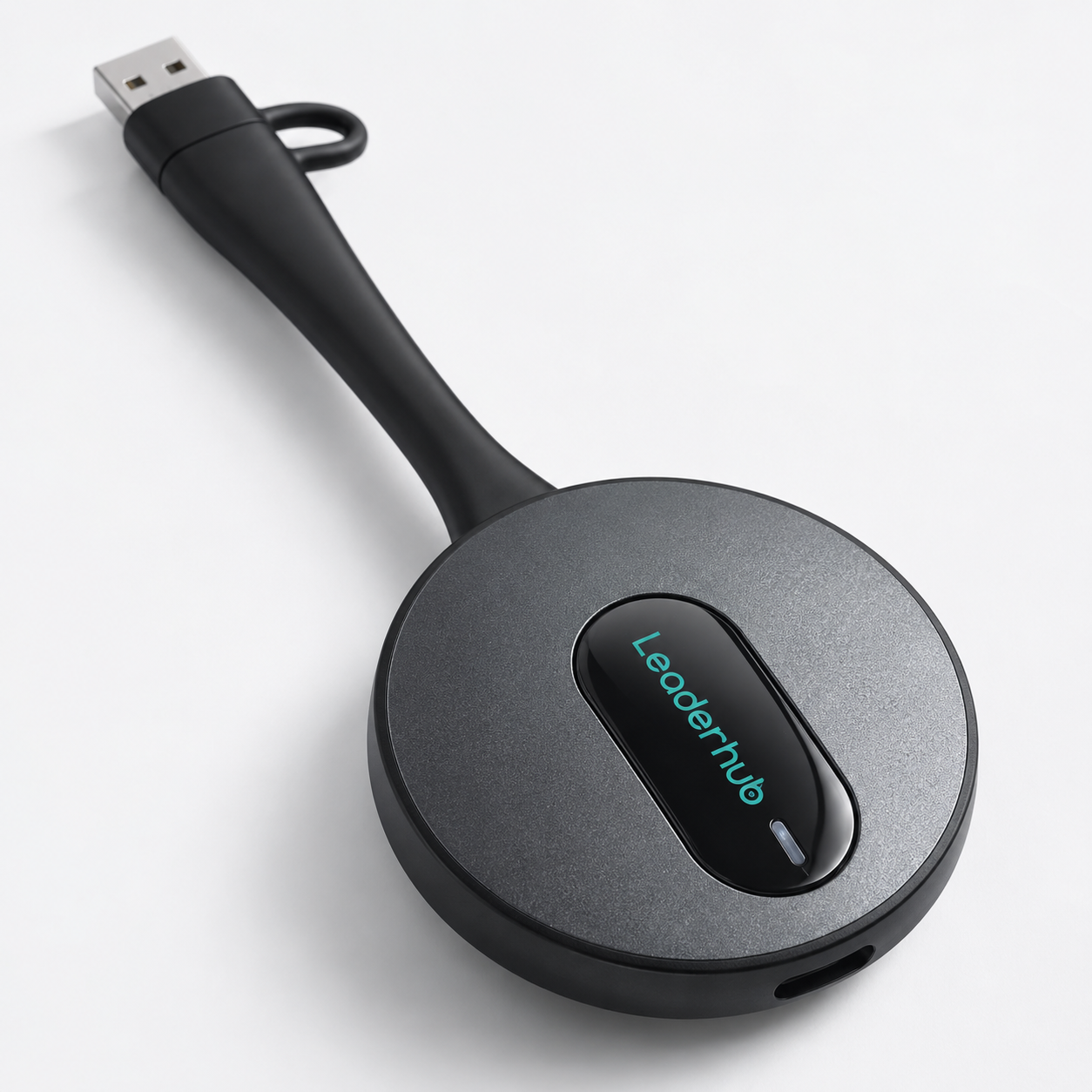
LeaderHub WT20A — Wireless Presentation for Smarter Meetings
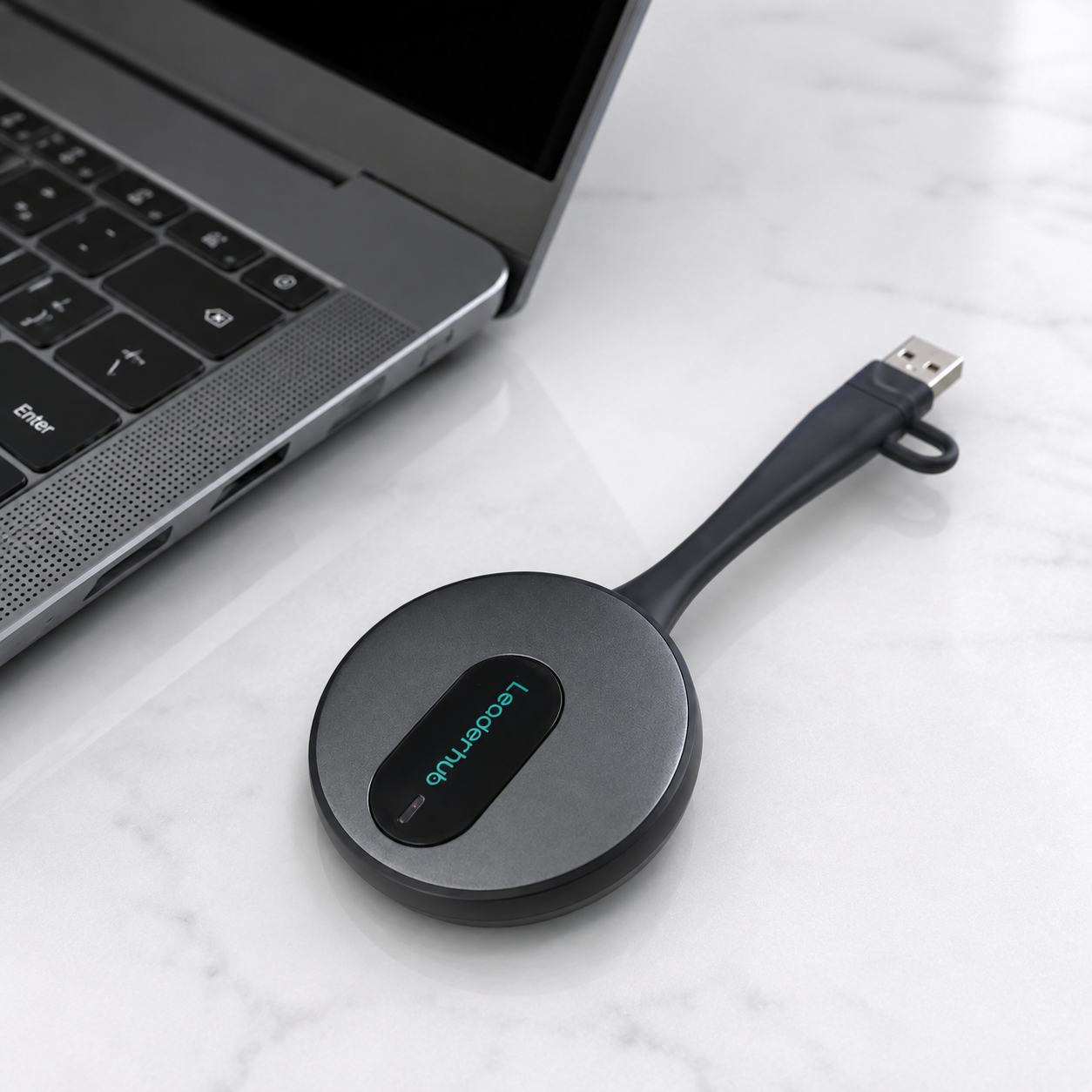
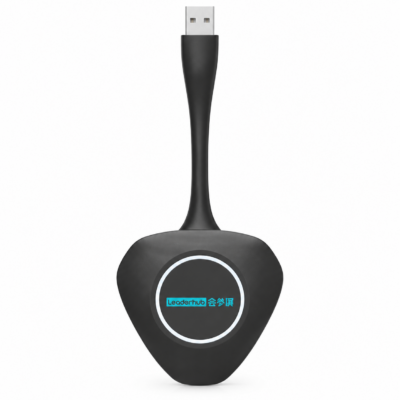
The LeaderHub WT20A is a wireless presentation dongle that turns everyday screen sharing into a one-press action. Pair it once with a compatible LeaderHub Interactive Flat Panel, connect it to your computer, and press the button to start sharing your screen in a meeting, classroom, or training room.
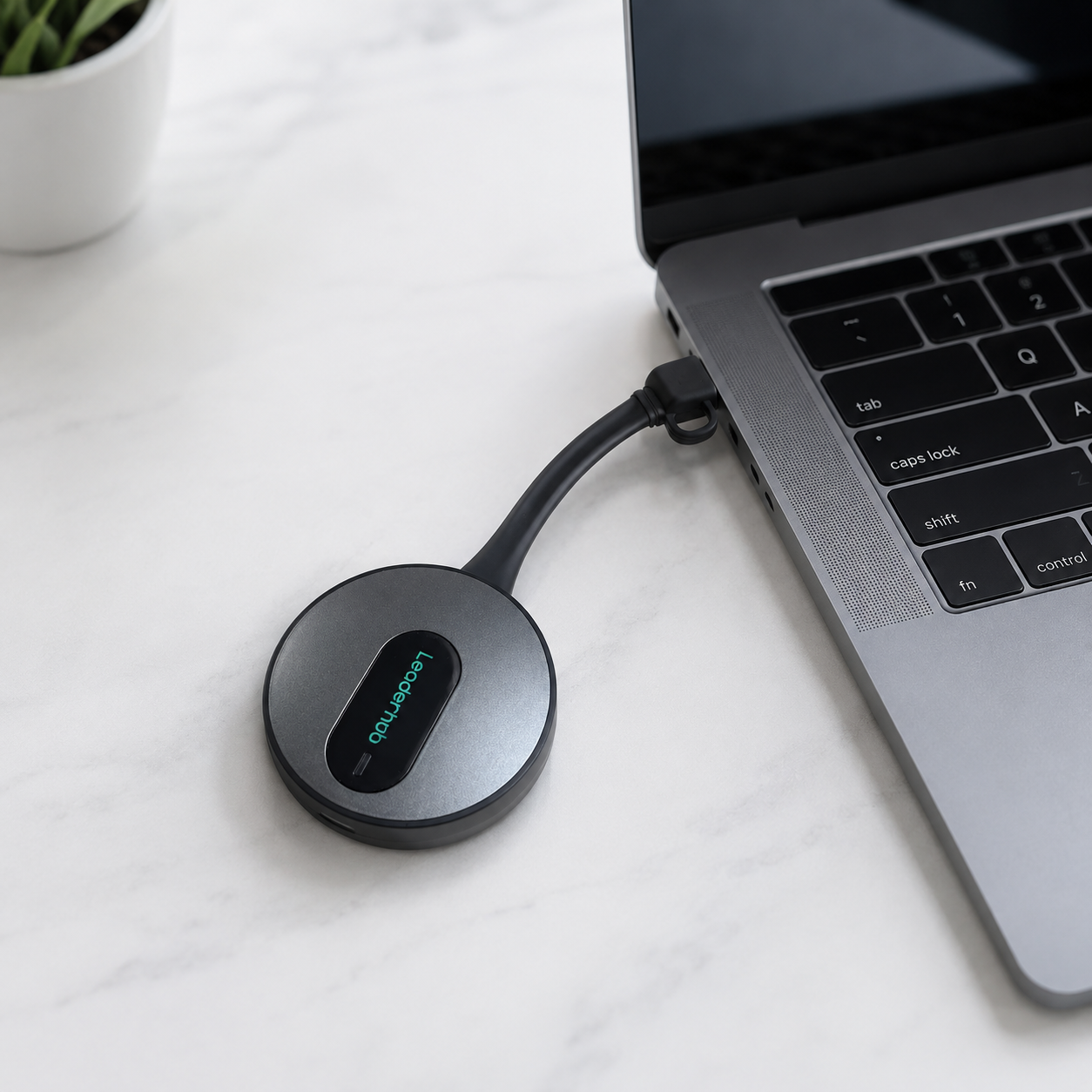
WT20A supports driver-free screen sharing through a DP-enabled USB Type-C connection, plus USB screen sharing for Windows and Mac computers — so it works with almost any laptop your team brings into the room.
Key Features
- One-Press Screen Sharing — start or stop sharing your screen with a single press of the button.
- Quick Pairing — pair WT20A with a compatible LeaderHub Interactive Flat Panel in approximately 10 seconds.
- Driver-Free Type-C Sharing — direct screen sharing through a DP-enabled USB Type-C port with no additional driver installation required.
- Windows & Mac Support — USB screen sharing works on both Windows and Mac computers via the built-in USBDisplay application.
- Extended Screen Support — Windows USB screen sharing supports extended display mode for more flexible presentations.
How to Use
Pair. Connect. Share. Get your screen on a compatible LeaderHub Interactive Flat Panel in just a few steps.
01 · Pair with the Display
Insert the WT20A into the USB port of a compatible LeaderHub Interactive Flat Panel. The device begins pairing automatically — typically around 10 seconds. Once complete, remove the WT20A from the panel.
Indicator: flashing white light = pairing in progress; steady white light = pairing successful.
02 · Connect to Your Computer
Connect the paired WT20A to your computer using one of the supported methods:
- USB Type-C (Driver-Free) — if your computer’s USB Type-C port supports DisplayPort (DP), connect WT20A directly for driver-free screen sharing. No additional driver installation is required.
- USB (Windows & Mac) — on Windows, open the USBDisplay removable drive and run the USBDisplay application. On Mac, launch USBDisplay and grant the required system permissions (Accessibility, Screen Recording, Input Monitoring).
03 · Press to Share
Once WT20A is connected and ready, press the button once to start sharing your screen. Press again to stop.
Indicator: flashing blue light = screen sharing in progress.
Simple from start to screen. Pair once → connect your computer → press to share. Whether you’re presenting in a meeting room, classroom, or training space, WT20A keeps everyday screen sharing simple and reliable.
Technical Specifications
| Model | WT20A |
|---|---|
| Product Name | Wireless Presentation |
| Product Type | Screen Sharing Dongle |
| Primary Use | Computer-to-display screen sharing |
| Compatible Display | Compatible LeaderHub Interactive Flat Panel |
| Pairing Method | USB pairing with LeaderHub Interactive Flat Panel |
| Automatic Pairing Time | Approximately 10 seconds |
| Type-C Screen Sharing | Supported |
| Driver-Free Type-C Mode | Supported with DP-enabled USB Type-C ports |
| USB Screen Sharing | Supported |
| Windows Support | Supported via USBDisplay |
| Mac Support | Supported via USBDisplay |
| Extended Screen Mode | Supported on Windows USB mode |
| USB Startup Time | Approximately 7–8 seconds |
| Status Indicator | White / Blue indicator light |
| Warranty | 1-Year Warranty |

Reviews
There are no reviews yet.