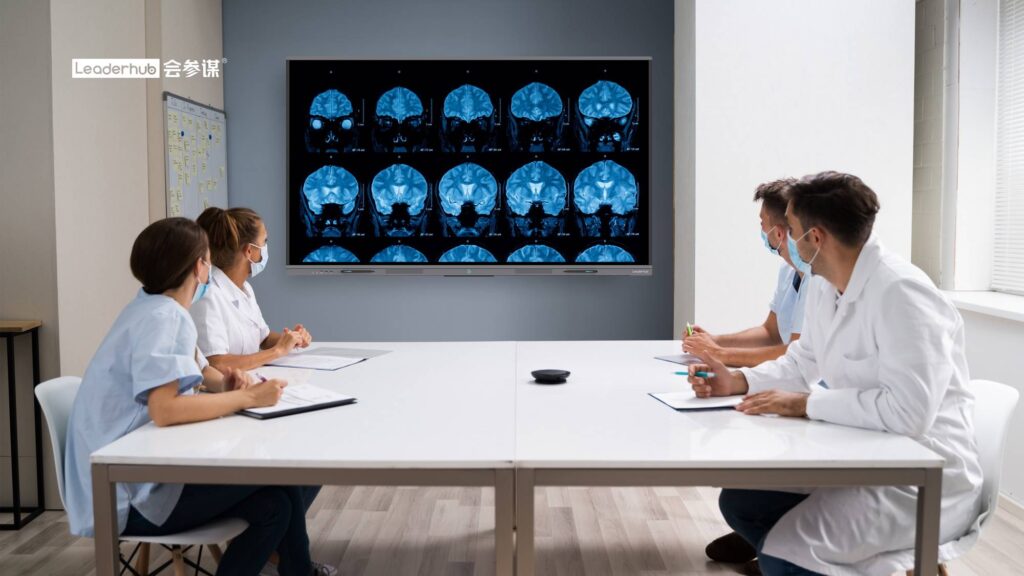
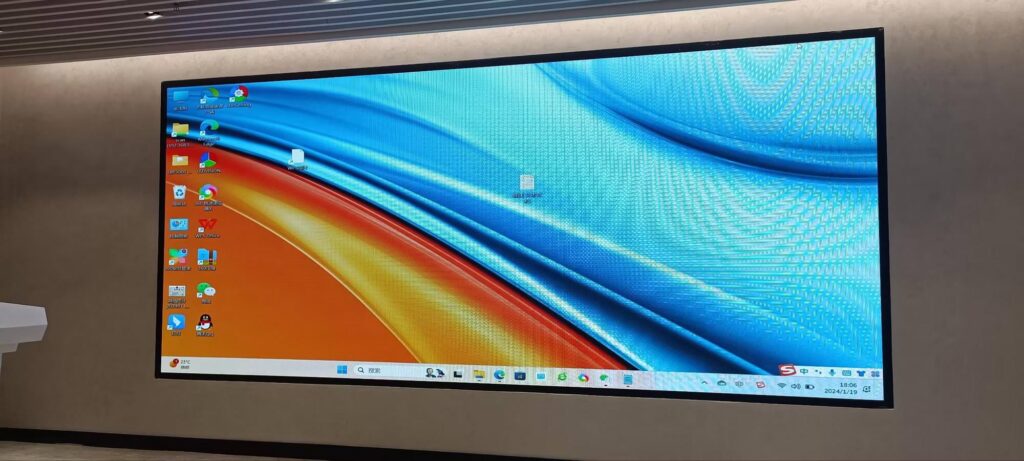
Choosing an interactive display used to be a simple question of screen size and price. Today, the decision is far more nuanced. Teachers want a board that remembers their preferred pen colors and lesson layouts. Office managers want a panel that boots straight into the video conferencing app their team actually uses. IT administrators want control over which apps appear on the home screen and who can change them. All of these needs point to one feature that is quickly becoming a deciding factor: a smart board with customizable interface settings.
This guide walks you through what interface customization really means on a modern interactive flat panel, why it matters for both classrooms and offices, which settings deserve your attention, and how to compare models so you end up with a display your team will genuinely enjoy using every day.
What Does “Customizable Interface Settings” Actually Mean on a Smart Board?
Many manufacturers use the phrase loosely, so it helps to define it clearly. On a quality interactive display, customizable interface settings refer to the ability to adjust how the board looks, behaves, and responds to different users without any technical expertise. This typically covers four layers of the experience:
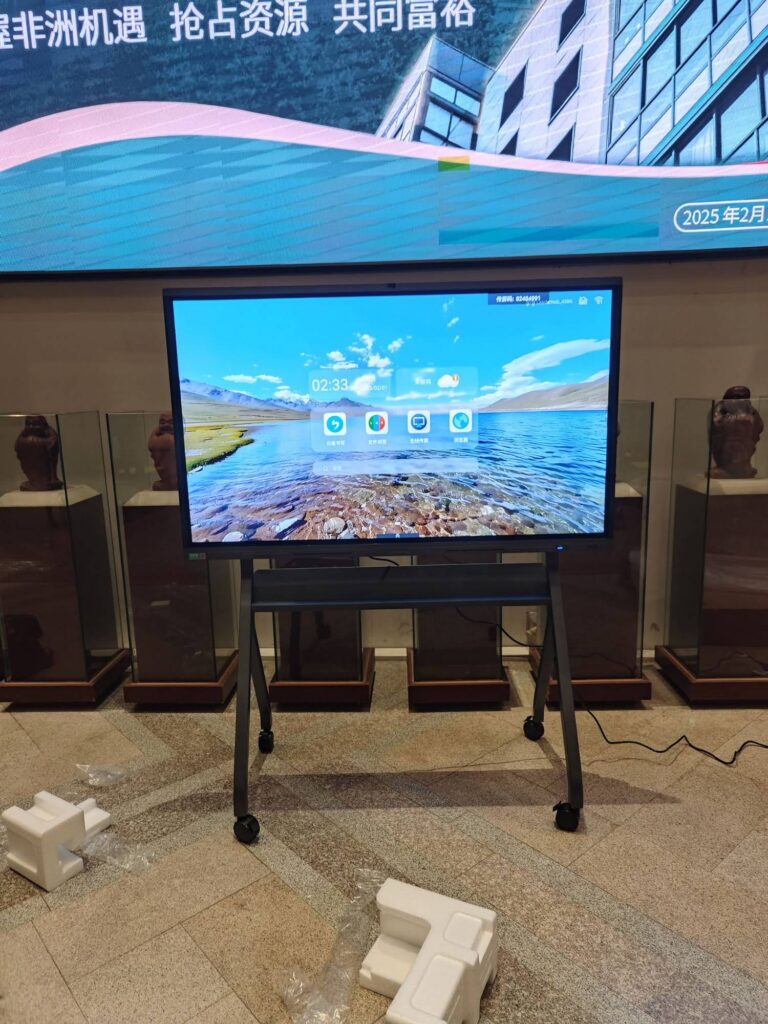
- Home screen and launcher – rearranging app shortcuts, pinning favorite tools, hiding unused apps, and changing wallpapers or themes.
- Whiteboard workspace – default pen thickness and colors, background templates such as grids, music staves or graph paper, and toolbar placement for left- or right-handed users.
- System behavior – default input source on power-on, auto-wake and sleep schedules, touch sensitivity, and gesture shortcuts.
- User profiles and permissions – individual accounts that save personal layouts, plus administrator locks that prevent accidental changes in shared rooms.
A board that offers all four layers lets a single device serve a kindergarten teacher in the morning and a finance team in the afternoon without anyone fighting the interface. That flexibility is exactly why organizations in 82 countries have adopted LeaderHub, a Shenzhen-based manufacturer with 16 years of interactive-display experience across smart whiteboards, mini PCs and portable smart screens.
Why Interface Customization Matters More Than Raw Specs
It is tempting to compare interactive displays on brightness, resolution and processor speed alone. Those numbers are important, but research consistently shows that technology only improves outcomes when it is easy to integrate into existing routines. The UNESCO Technology in Education Report highlights that poorly adapted tools often sit unused, while the OECD Digital Teaching Guidance points to teacher confidence as a decisive factor in classroom technology adoption.
Interface customization addresses both problems directly. When a teacher can set up the board once and have it open exactly the way they like every morning, friction disappears. When a sales team can walk into a meeting room and find their CRM dashboard and conferencing app already on the home screen, the first five minutes of every meeting are no longer wasted on setup.
Benefits for Classrooms
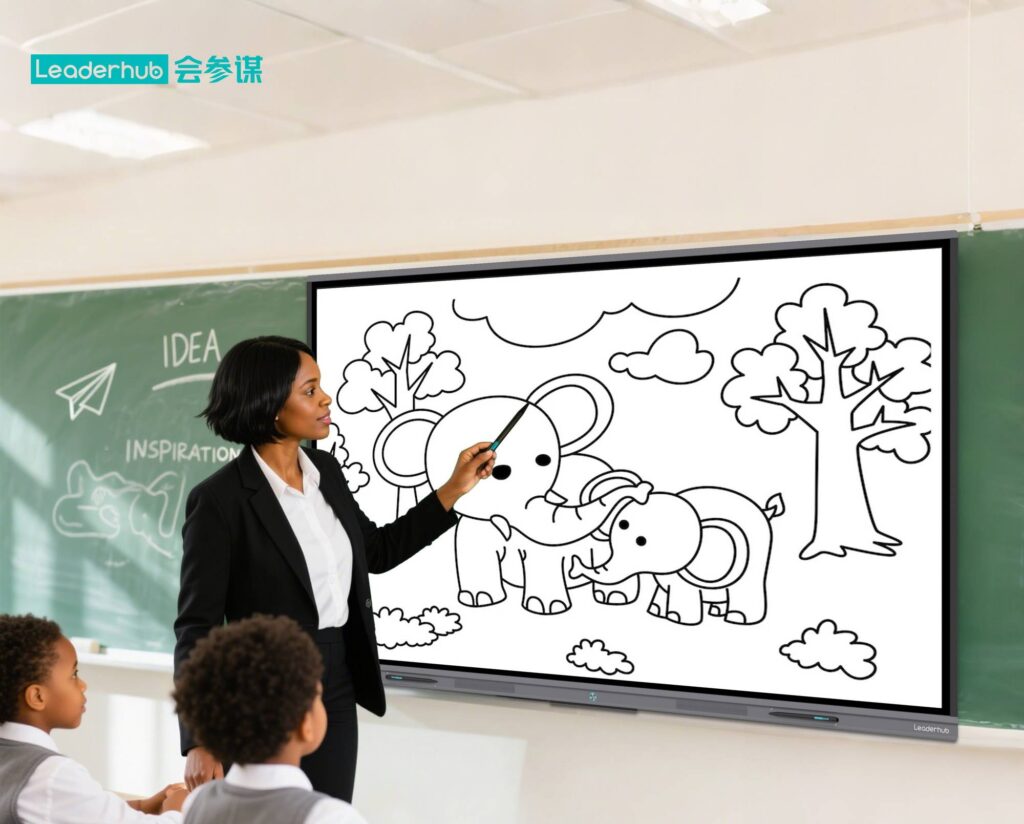
- Age-appropriate layouts – larger icons and simplified toolbars for early years, full feature sets for secondary and higher education.
- Subject-specific templates – coordinate grids for math, lined backgrounds for language lessons, staff notation for music.
- Reduced cognitive load – fewer distracting menus means more attention on the lesson, a principle also discussed in EEF Digital Technology Guidance.
- Consistency across rooms – IT teams can push one standard profile to every panel in a school.
Benefits for Offices
- Brand-aligned appearance – company wallpaper, logo on the screensaver and a curated app set reinforce professionalism in client-facing rooms.
- Faster meeting starts – default to the conferencing platform your organization uses, whether it runs natively or from a connected PC.
- Secure shared spaces – guest mode wipes annotations after each session while admin profiles stay locked.
- Hybrid flexibility – switch between presentation, brainstorming and video-call layouts with a single tap.
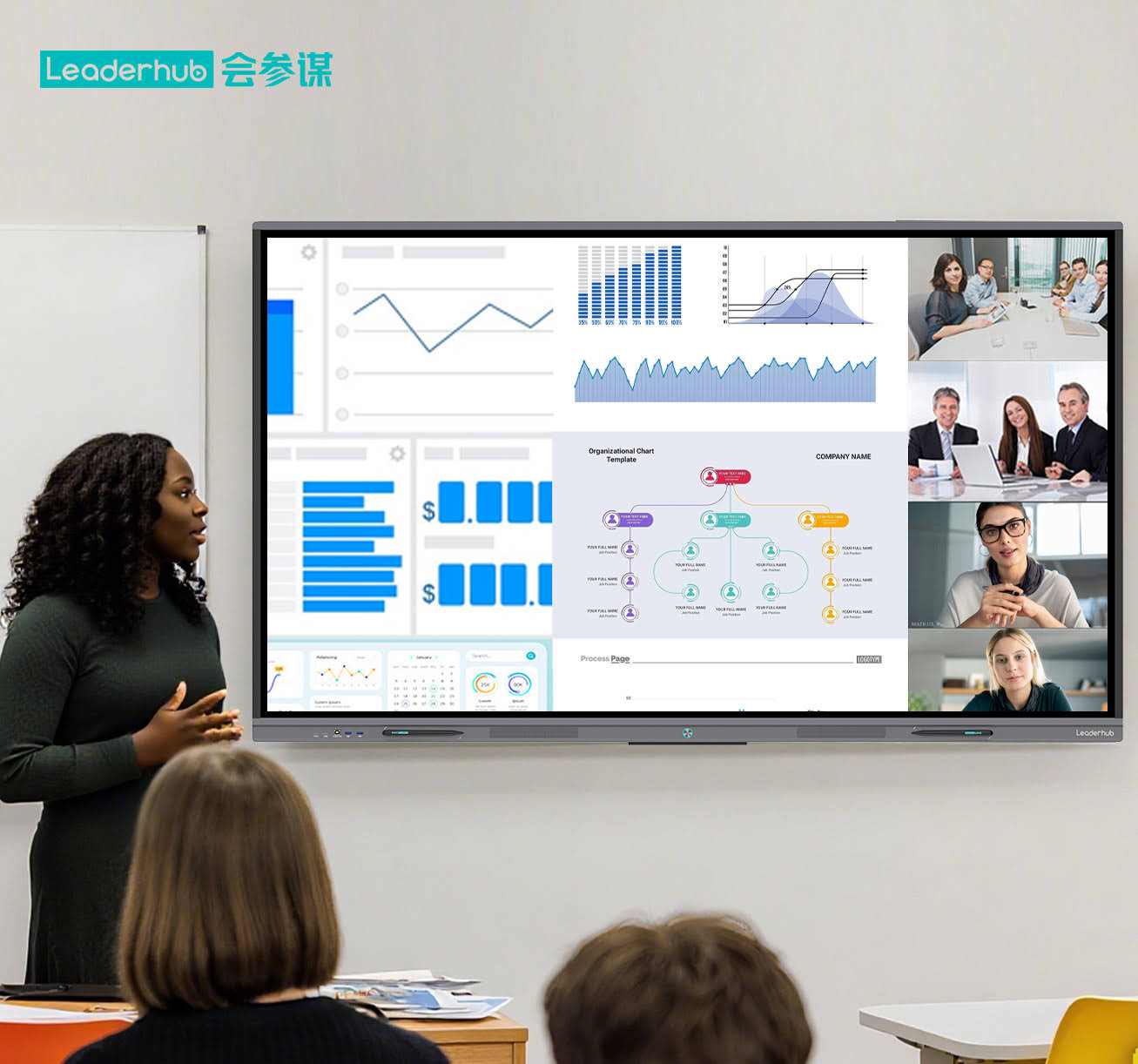
The 8 Interface Settings You Should Test Before Buying
Not every board that advertises customization delivers it in a practical way. Before committing to a purchase, ask for a live demo or trial unit and check the following settings in person.
1. Home Screen Editing
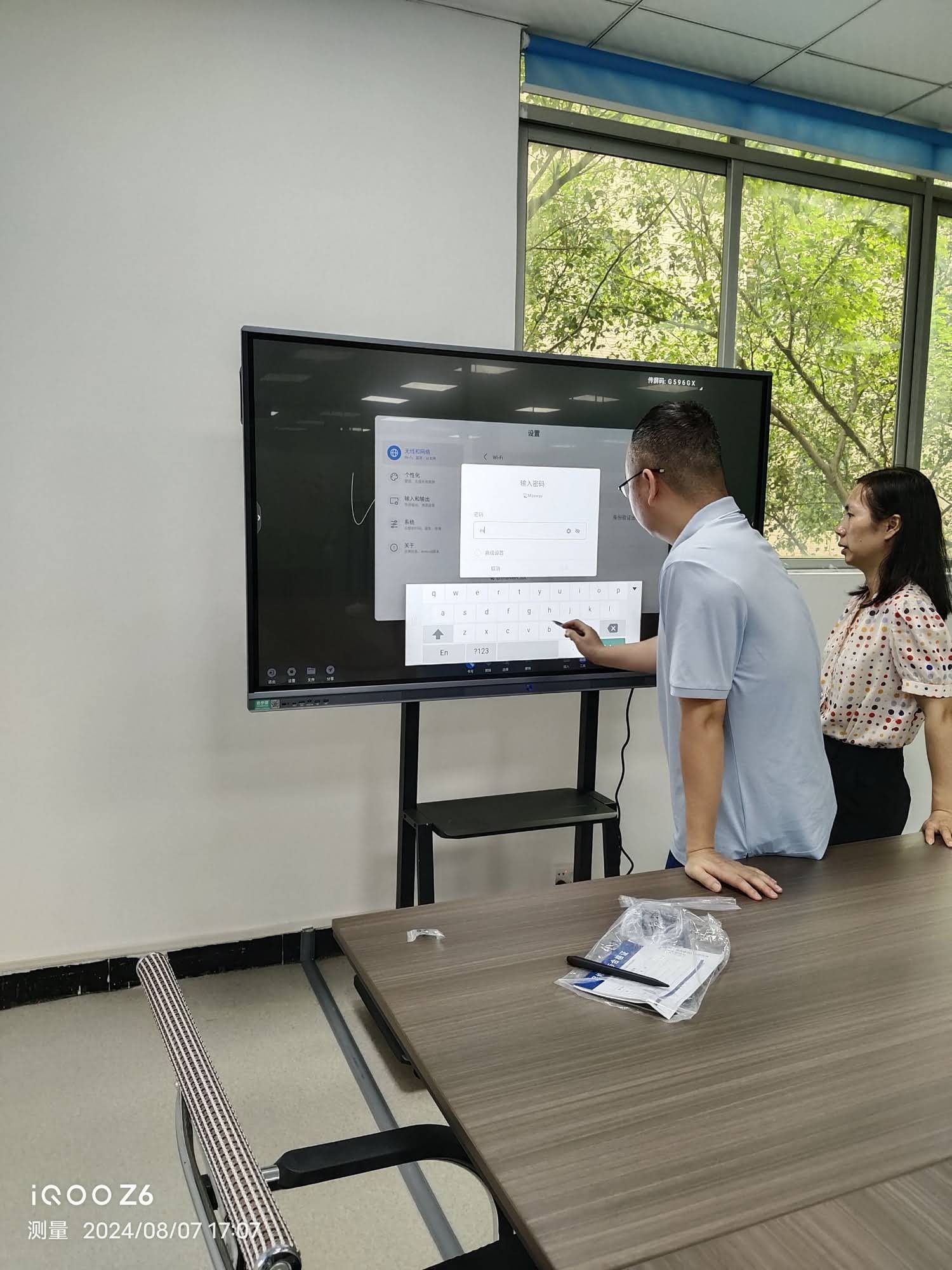
Can you drag apps into any order, create folders, and remove bloatware? Some panels only allow you to change the wallpaper, which is customization in name only. Look for a launcher that lets you build a clean, task-focused home screen in under five minutes.
2. Persistent User Profiles
In shared environments, profiles are the single most valuable feature. Each user should be able to log in – ideally via NFC card, QR code or quick PIN – and see their own saved layout, pen presets and recent files. The Choosing an Interactive Display for K-12 guidance from EdTech Magazine specifically recommends evaluating how a panel handles multiple teachers sharing one room.
3. Whiteboard Tool Defaults
Check whether default pen color, thickness, eraser mode and background template can be saved. A board that always resets to a black thin pen on a white background forces users to repeat the same taps dozens of times a day.
4. Toolbar Position and Sidebar Behavior
Floating toolbars should be movable to either side of the screen and should remember their position. This is especially important on 86-inch and larger panels where reaching across the display is physically tiring.
5. Boot and Source Preferences
Decide whether the panel should wake into the Android home screen, a built-in slot PC, or an external HDMI or USB-C source. A good board lets you choose a default and also set automatic switching when a laptop is connected.
6. Gesture and Shortcut Mapping
Multi-finger gestures to open the whiteboard, take a screenshot or return home can save enormous time. Verify that gestures can be enabled, disabled or remapped so they do not conflict with the software you use most.
7. Administrator Lock and Remote Management
For schools and multi-room offices, confirm that an admin password can lock settings, and that the vendor offers a device management console to push updates and profiles remotely. This aligns with the Effective Technology Use in Schools conditions set out by ISTE, which emphasize sustainable technical support.
8. Accessibility Options
High-contrast themes, adjustable icon sizes, screen-reader compatibility and left-handed toolbar modes make the board usable for everyone. These options should be built into the settings menu rather than requiring third-party apps.
Feature Comparison: What to Expect at Different Price Levels
Interface flexibility tends to scale with the overall quality of the panel’s operating system and processor. The table below summarizes what you can realistically expect across three common budget tiers for a 65-inch to 86-inch interactive display.
| Interface Capability | Entry Level | Mid-Range | Professional |
|---|---|---|---|
| Home screen editing | Wallpaper only | Rearrange and hide apps | Full launcher control, folders, kiosk mode |
| User profiles | None | Local accounts | Cloud-synced profiles with NFC / QR login |
| Whiteboard presets | Reset every session | Saved pen and background | Subject templates, toolbar memory, cloud export |
| Boot / source default | Fixed | Selectable | Selectable with auto-switch and scheduling |
| Remote device management | Not available | Basic updates | Profile push, app control, usage analytics |
| Operating system | Older Android | Android 11–13 | Android 13–14 plus optional Windows slot PC |
Matching Screen Size and Customization to Your Space
Interface settings work hand in hand with the physical format of the display. A toolbar that lives on the left edge of a 65-inch panel might be unreachable for younger students on an 86-inch model, so the two decisions should be made together.
| Environment | Recommended Size | Key Interface Settings | Suggested LeaderHub Model |
|---|---|---|---|
| Small classroom or huddle room (up to 15 people) | 65″ | Saved whiteboard presets, simple launcher | L65ZM Interactive Whiteboard or L65HM Smart Whiteboard |
| Standard classroom or mid-size meeting room (15–30 people) | 75″ | Movable toolbar, user profiles, source default | L75HM Smart Whiteboard or L75H Pro Interactive Flat Panel |
| Lecture hall, training room or boardroom (30+ people) | 86″ – 110″ | Admin lock, remote management, split-screen layouts | L86HM Smart Whiteboard or L110H Interactive Flat Panel |
| Flexible or mobile spaces, breakout zones | 24″ – 55″ portable | Quick profile switching, battery-aware power settings | U55Pro Mobile Smart Display or rotating smart screens |
Android, Windows, or Both? How the Operating System Shapes Customization
The depth of interface customization depends heavily on the platform running the board. Most interactive displays ship with an Android-based system, which handles the launcher, whiteboard and wireless screen sharing. For organizations that rely on Windows-only software, a slot-in or external PC adds a second layer.
Android-Only Panels
Ideal for classrooms and teams that mainly need whiteboarding, screen mirroring, web browsing and video calls. Newer versions such as Android 13 and 14 offer robust profile management, widget support and smoother multitasking. Make sure the manufacturer commits to firmware updates for several years.
Android Plus a Dedicated PC
Offices running specialized Windows applications, legacy conferencing clients or domain-managed accounts benefit from pairing the panel with a compact computer. A mini PC such as the LP5C with an Intel i5 processor and 16GB RAM lets IT teams apply their standard Windows image, group policies and user accounts to the display, while the Android layer remains available for quick whiteboarding. The result is a board that honors both the organization’s security requirements and the individual user’s preferences.
A Practical Buying Checklist
Use the following checklist during product demos or when reviewing quotes from suppliers. Any item marked as unavailable should prompt a follow-up question about roadmap or workaround.
- Request a hands-on demo and spend at least ten minutes in the settings menu, not just the whiteboard.
- Confirm that profiles persist across reboots and firmware updates.
- Ask how many home screen pages, folders and pinned apps are supported.
- Test whether the toolbar can be moved and whether its position is remembered.
- Verify default input source selection and auto-switching behavior with a laptop connected via USB-C.
- Check that an admin PIN locks settings and that a guest mode exists for visitors.
- Ask about the remote management platform, including cost per device and supported features.
- Review the firmware update policy – look for a minimum of three years of security and feature updates.
- Confirm accessibility features such as high-contrast mode and adjustable UI scale.
- Evaluate the total cost including mounting, warranty, training and any PC module.
For international buyers, it is also worth checking that the interface supports your working language and regional date, time and keyboard formats out of the box. Guidance such as the Choosing Technology in Education framework from UNESCO reminds decision-makers to prioritize appropriateness and sustainability over novelty, and localization is a core part of that.
Setting Up Your Smart Board for Maximum Adoption
Once the display is installed, a little planning in the first week pays off for years. Below is a simple rollout sequence that works for both schools and offices.
Week 1: Build the Standard Profile
Create one organization-wide default that includes the essential apps, your preferred whiteboard background, brand wallpaper and the correct default input. Lock it with an admin PIN.
Week 2: Create Role-Based Variations
Duplicate the standard profile and adjust it for specific roles – early-years teachers, science departments, sales teams, executive boardrooms. Keep the differences small so support stays manageable.
Week 3: Train and Collect Feedback
Run short 20-minute sessions showing users how to log in, switch tools and save their own presets. Ask what slows them down and refine the profiles accordingly.
Ongoing: Review Usage and Update
If your management console provides analytics, review which apps are actually used each quarter and prune the rest. A clean interface stays fast and inviting.
Frequently Asked Questions
Can interface settings be copied from one smart board to another?
On professional-grade panels with a device management platform, yes. Administrators can export a configuration and push it to dozens or hundreds of displays simultaneously, which is essential for school districts and multi-site businesses.
Will customization slow down the board?
No. Rearranging apps, saving presets and creating profiles use negligible system resources. Performance is determined by the processor, RAM and the apps you run, not by how the interface is arranged.
Do I need technical skills to customize the interface?
Basic customization – wallpapers, app order, pen defaults – is designed for everyday users. Advanced tasks such as kiosk mode or remote profile deployment are typically handled by IT staff, but reputable manufacturers provide documentation and support for both.
Is a customizable interface useful for a single-user home office?
Absolutely. Even with one user, saving your preferred layout, default video call app and whiteboard template eliminates repetitive setup and makes the display feel like a natural extension of your workflow.
Final Thoughts
A smart board with customizable interface settings is not a luxury feature – it is the difference between a display that transforms how people teach and collaborate and one that gathers dust because nobody wants to wrestle with it. Prioritize persistent user profiles, a flexible launcher, saved whiteboard presets and strong administrative controls, then match screen size and operating system to your room and software needs.
If you would like help comparing models or configuring a standard profile for your school or company, contact the LeaderHub team or explore the full range of interactive displays to find the right fit for your space.