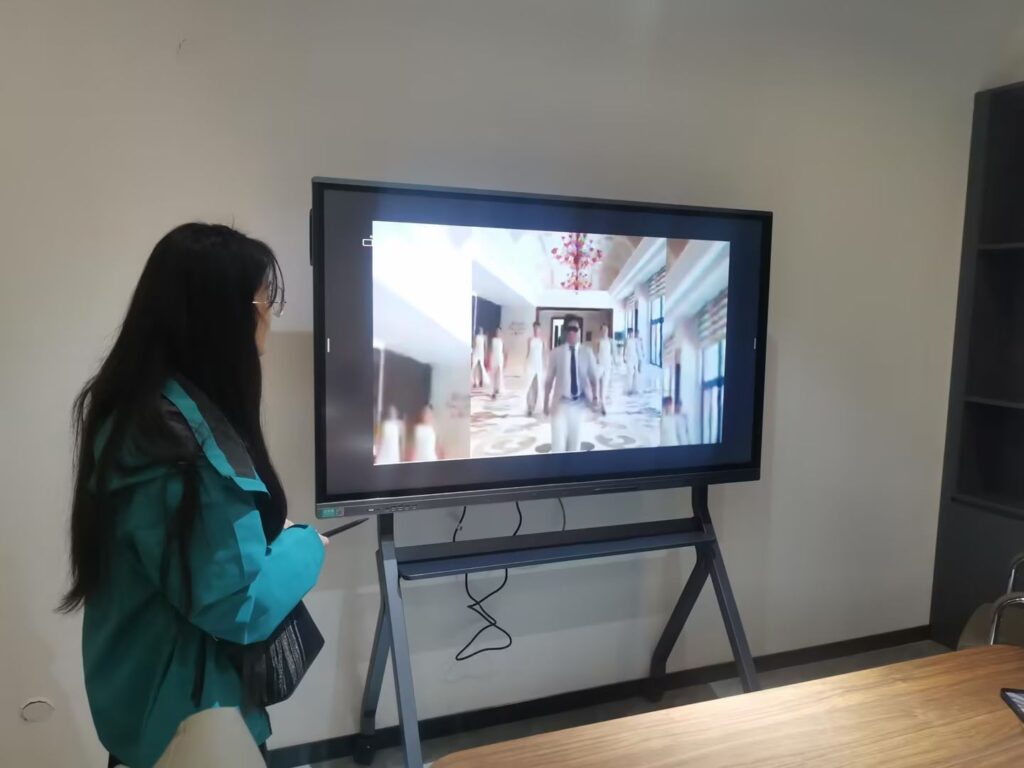
Creators today do far more than sit in front of a webcam. They sketch ideas on screen, walk through slides for an online course, annotate gameplay footage, host live Q&A sessions, and record tutorials that need to look sharp on every device. A smart board for content creators brings all of these workflows onto one large interactive canvas — a 4K touchscreen that doubles as your camera rig, your whiteboard, your second monitor, and your presentation stage. This guide explains what to look for, how the requirements differ for video production, online teaching, and live streaming, and which configurations deliver the best value.
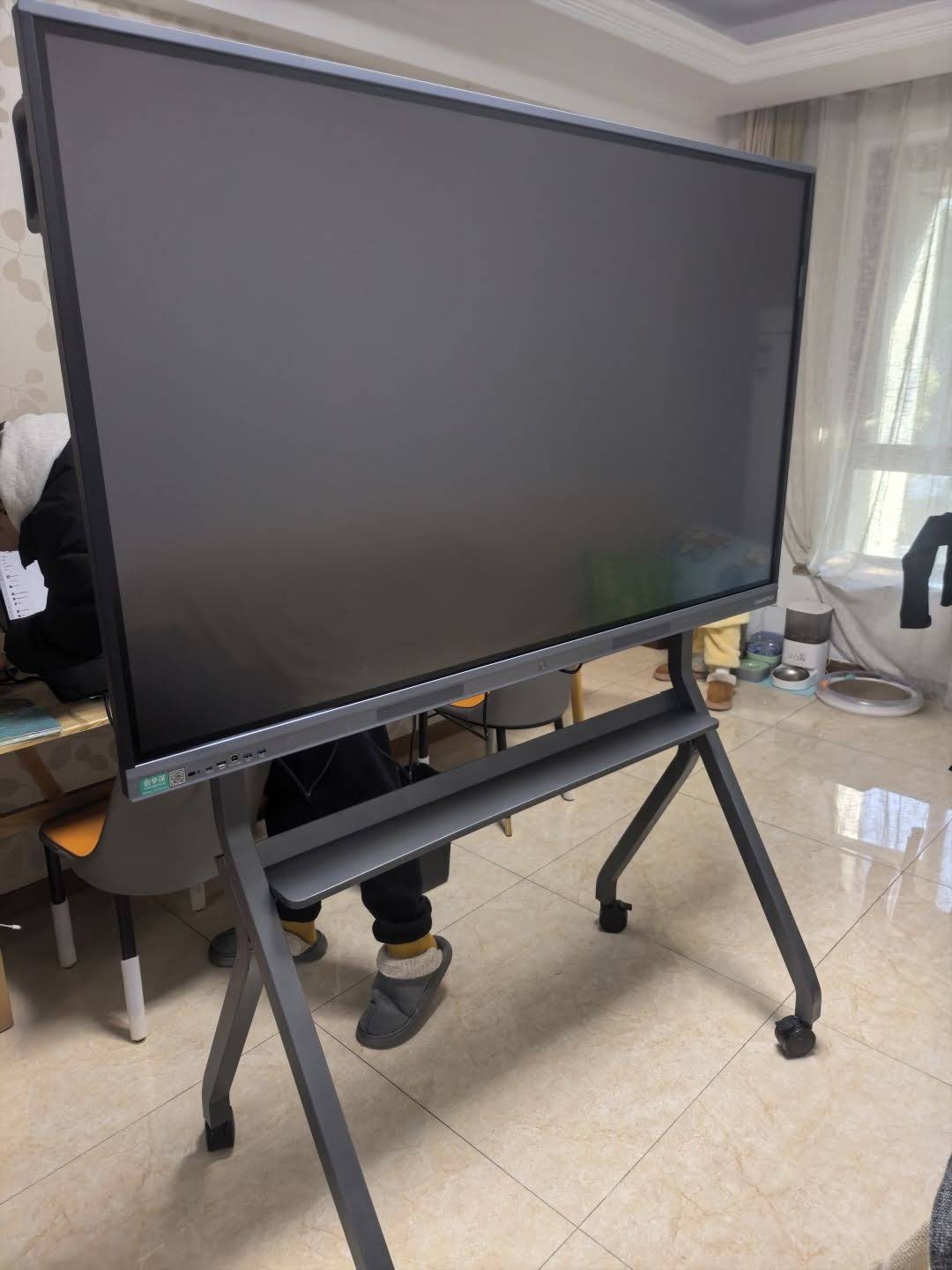
Why Content Creators Are Moving to Interactive Displays
For years, creators pieced together setups from laptops, external monitors, drawing tablets, ring lights, USB microphones, and capture cards. The result was a desk full of cables and a workflow that broke every time one component updated. An interactive display consolidates these tools. A single panel gives you a large 4K canvas, multi-point touch, a built-in camera and microphone array, wireless screen sharing, and an onboard operating system — so you can record, teach, or stream without a separate computer if you choose.
Three trends are accelerating this shift:
- Vertical and short-form video. Rotating screens let you frame content for TikTok, Reels, and Shorts natively instead of cropping a landscape recording.
- Hybrid teaching. Educators now run the same lesson for in-room and remote students, which demands a board that is visible to a camera and interactive at the same time.
- Interactive live streams. Audiences expect hosts to draw, annotate, and respond on screen in real time, not just talk over slides.
How Creator Needs Differ From Classroom or Boardroom Buyers
Most smart boards are designed for schools and offices. Creators share many of those requirements but add a few that typical buyers never think about. Before comparing models, it helps to understand where the priorities diverge.
| Requirement | Classroom / Office Buyer | Content Creator |
|---|---|---|
| Camera quality | Good enough for video calls | Must look polished on YouTube and Twitch at 1080p or higher |
| Color accuracy | Secondary concern | Critical for thumbnails, brand colors, and design tutorials |
| Screen orientation | Landscape only | Landscape and portrait for vertical video |
| Audio capture | Pick up voices across a room | Clean single-speaker audio plus XLR or USB mic input |
| Portability | Wall-mounted, rarely moved | Moves between studio, kitchen, garage, or outdoor set |
| Screen output | Receives input from laptops | Needs HDMI out or USB-C to feed OBS and capture cards |
The Core Features That Matter Most
Display Resolution and Panel Quality
Choose a 4K UHD panel as the baseline. Even if you publish in 1080p, recording a 4K screen lets you crop, zoom, and reframe in post-production without visible softness. Pay attention to anti-glare treatment: studio lights and windows create reflections that ruin footage, and a matte or low-reflection glass surface solves this before it becomes an editing problem. A wide color gamut and brightness of 350–450 nits ensure your on-screen content reads clearly on camera.
Touch Precision and Pen Latency
If you plan to sketch, annotate, or solve problems on screen while recording, touch responsiveness is non-negotiable. Look for 20-point or higher multi-touch, palm rejection, and pen latency under 10 milliseconds. Infrared touch is common and affordable; capacitive touch offers a smoother writing feel. Test whether the board distinguishes between pen, finger, and eraser automatically — this makes live annotation look effortless rather than clumsy.
Built-In Camera and Microphone Array
An integrated camera removes the need to position a separate webcam above a large display. Look for at least 1080p, ideally with auto-framing so the lens follows you as you move across the board. For microphones, a beamforming array with noise cancellation is excellent for teaching and streaming, but serious video producers should confirm the panel also accepts an external microphone through USB or 3.5 mm input.
Operating System and Processing Power
Most interactive panels run Android with an optional Windows module. Android handles whiteboarding, browsing, and video calls well. Creators who edit video, run OBS Studio, or use Adobe applications on the board itself should pair it with a Windows mini PC. A compact unit such as the LP5C Mini PC with an Intel i5 processor and 16GB RAM slots behind the display and turns it into a full production workstation.
Connectivity and Output Ports
Count the ports before you buy. A creator-ready board should include:
- HDMI input for consoles, cameras, and laptops
- HDMI output or USB-C DisplayPort to send the screen to a capture card or external recorder
- USB-C with power delivery for single-cable laptop connection
- Wireless casting (Miracast, AirPlay, Chromecast) for showing phone content
- Gigabit Ethernet for stable streaming — Wi-Fi alone is risky for long live sessions
Mobility and Rotation
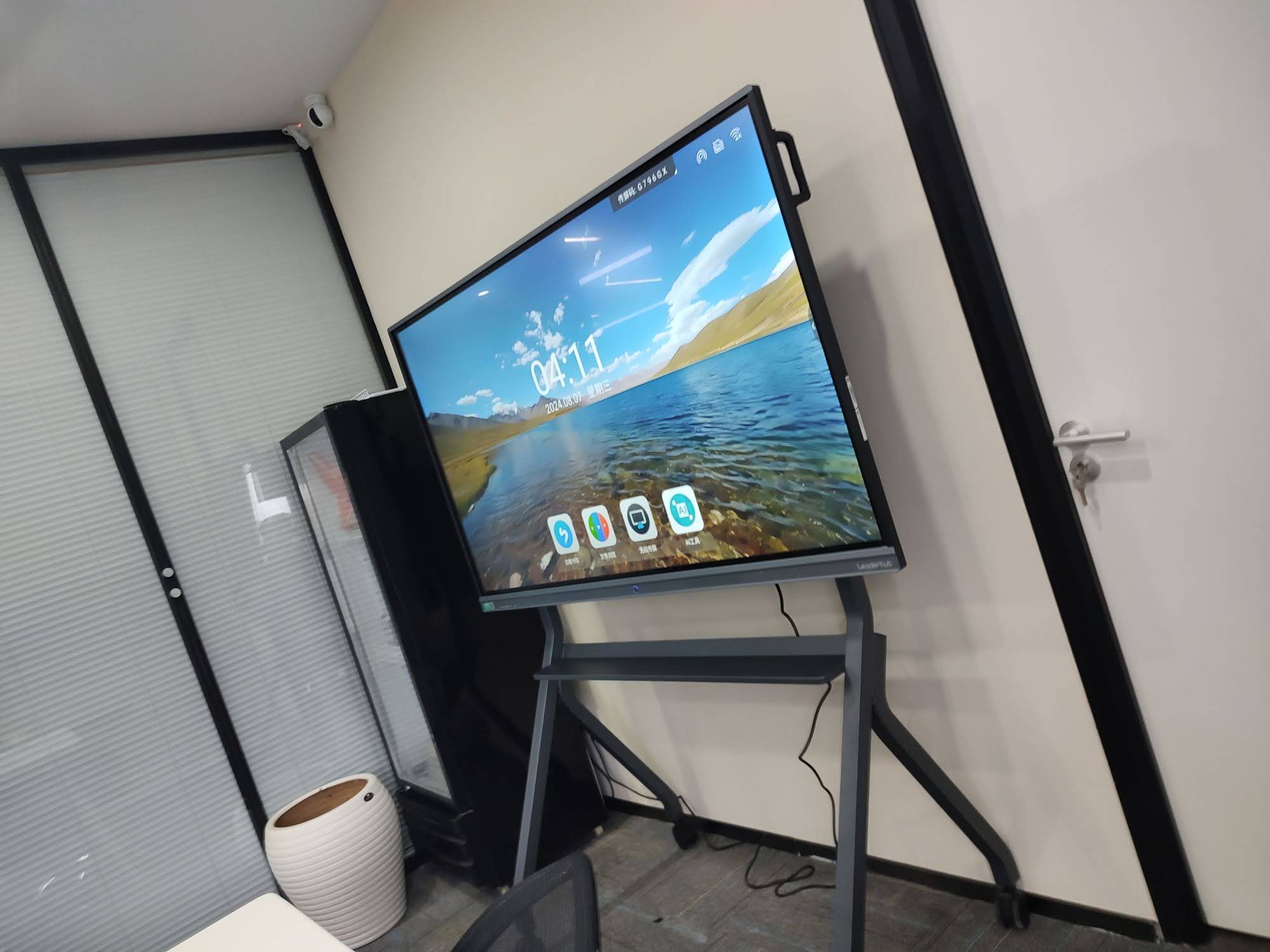
A wall-mounted 75-inch board is ideal for a dedicated studio but useless if you shoot in different rooms. Mobile stands with locking casters solve the location problem, while rotating screens that pivot between landscape and portrait solve the format problem. For short-form creators, a smaller battery-powered portrait screen can be more valuable than a huge fixed panel.
Matching the Board to Your Content Type
Not every creator needs the same hardware. The table below summarizes the priorities for the three most common use cases so you can focus your budget where it matters.
| Priority | Video Production | Online Teaching | Live Streaming |
|---|---|---|---|
| Most important | Color accuracy, anti-glare, HDMI output | Pen precision, whiteboard software, cloud saving | Low latency, Ethernet, camera auto-framing |
| Ideal size | 55″ – 75″ | 65″ – 86″ | 55″ – 75″ |
| Orientation | Rotating preferred | Landscape | Landscape, portrait for mobile audiences |
| Compute | Windows mini PC recommended | Built-in Android is often enough | Windows mini PC for OBS and overlays |
| Audio | External mic input essential | Built-in array with echo cancellation | Both built-in and external |
For YouTube and Course Video Producers
Recorded video gives you the luxury of editing, so you can prioritize image quality over real-time features. Position the board so your key light does not reflect into the camera, record the board’s output through a capture card at 4K, and use the touch surface to pace your explanation naturally. Creators who produce design, coding, or math tutorials find that drawing directly on a large screen looks far more engaging than a cursor moving across a shared desktop.
For Online Teachers and Course Instructors
Teaching demands reliability above all. Lessons should save automatically to the cloud, handwriting should be smooth enough to write full equations, and the board should connect to Zoom, Google Meet, or Microsoft Teams without a laptop. Research from the OECD Digital Education Outlook highlights that the pedagogical value of digital tools depends on how seamlessly they integrate into instruction — which is exactly why a creator who teaches should avoid any hardware that interrupts the flow of a lesson. A 75-inch or 86-inch panel such as the L75ZM Interactive Whiteboard offers enough space to keep previous steps visible while writing new ones.
For Live Streamers and Webinar Hosts
Live content punishes latency and dropped connections. Use a wired Ethernet connection, confirm the camera supports auto-framing so you can step back to the board without leaving the shot, and run your streaming software on a dedicated Windows mini PC rather than the panel’s Android layer. Interactive polls, on-screen annotation of viewer questions, and split-screen layouts all become possible when the board feeds a proper streaming encoder.
Choosing the Right Screen Size
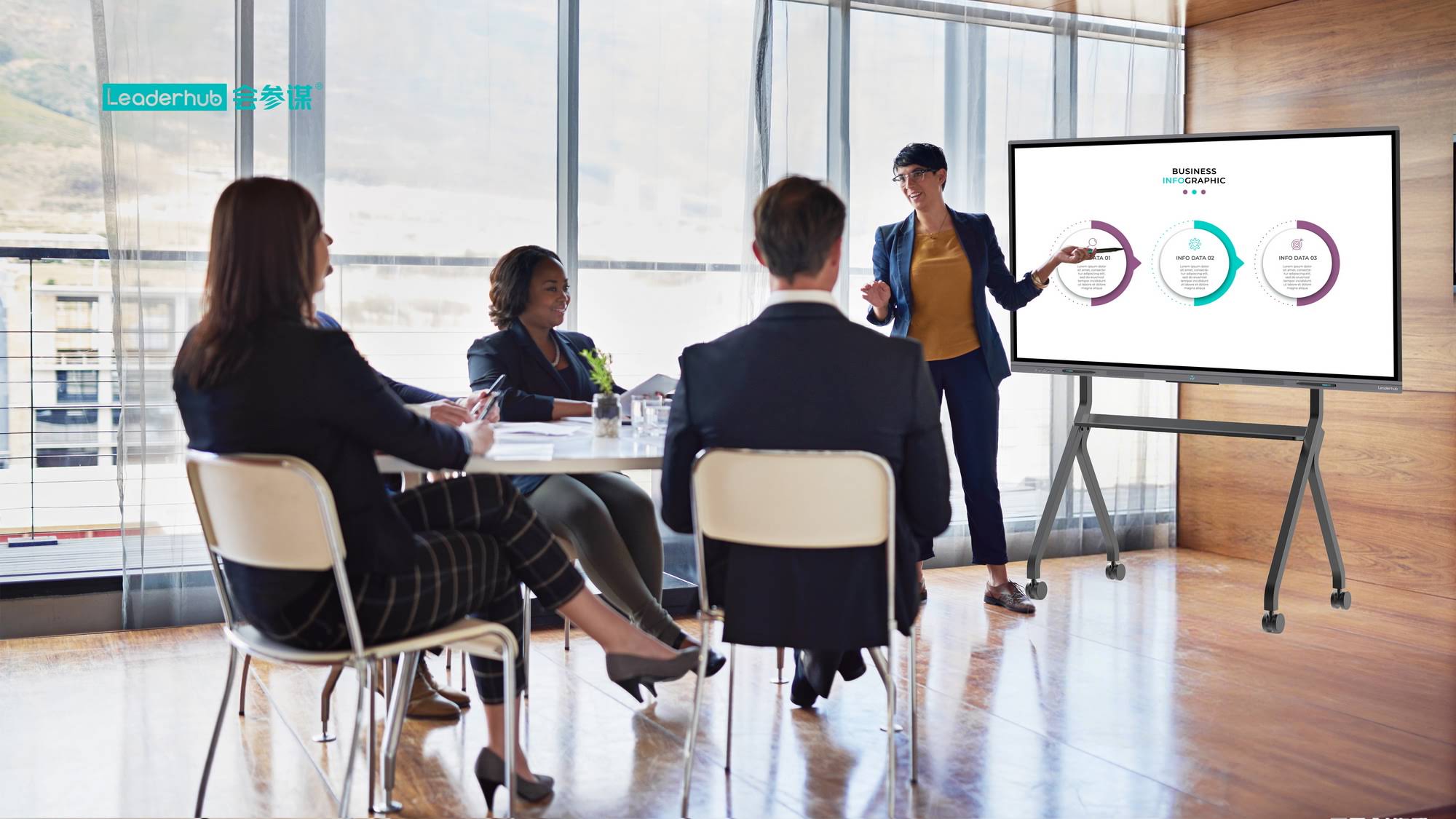
Screen size should be driven by camera distance and the type of content you create, not by the biggest number you can afford. A board that is too large forces you to walk across the frame constantly; one that is too small makes handwriting illegible on a phone screen.
| Screen Size | Best For | Camera Distance | Studio Space Needed |
|---|---|---|---|
| 24″ – 27″ portable | Vertical short-form video, mobile creators, desk streaming | 0.5 – 1 m | Any desk or kitchen counter |
| 55″ | Small home studios, talking-head plus slides | 1.5 – 2 m | Spare bedroom or office |
| 65″ | Tutorials, coaching, most solo creators | 2 – 2.5 m | Medium room |
| 75″ | Full lessons, multi-presenter streams | 2.5 – 3.5 m | Dedicated studio |
| 86″ and above | Studio productions, workshops with a live audience | 3.5 m + | Large studio or training room |
Smart Board vs. Traditional Creator Setups
Is a smart board actually better than a laptop, drawing tablet, and webcam combination? For many creators, yes — but the advantage depends on what you make.
- Compared to a drawing tablet: A tablet is cheaper and more precise for illustration, but your audience never sees your hand or face interacting with the content. A smart board makes the creator part of the visual.
- Compared to a green screen and slides: Green screens require lighting skill and editing time. A smart board shows real presence with no keying artifacts.
- Compared to a physical whiteboard and camera: Physical boards suffer from glare, marker smudges, and illegible handwriting on camera. Digital ink is always crisp, can be saved, and can include images and video.
- Compared to a large TV plus webcam: A TV is not touch-enabled and has no onboard OS, so you still need a laptop and separate camera. Often the total cost ends up similar with a worse workflow.
Recommended Configurations by Creator Type
Below are four practical setups built around interactive smart whiteboards and companion devices. Prices are listed to help you plan a realistic budget.
| Creator Profile | Recommended Display | Add-On | Approx. Total |
|---|---|---|---|
| Short-form & mobile creator | U24M 24.5″ Handheld Smart Screen — $699 | None required (battery, Android 14) | $699 |
| Online teacher / tutor | L65ZM 65″ 4K Smart Panel — $1,099 | LP1C Mini PC — $399 | $1,498 |
| YouTube / course producer | L75HM 75″ 4K Touchscreen — $1,599 | LP5C Mini PC — $799 | $2,398 |
| Multi-room live streamer | U55Pro 55″ Mobile 4K Display — $2,499 | AD8 Mini PC — $999 | $3,498 |
The HM series is particularly interesting for video producers because its rotatable design, recognized with an international design award, allows you to switch from a widescreen lesson layout to a portrait frame for vertical clips in seconds. Pairing any of these panels with the L277M 27″ Smart Rotating Screen as a confidence monitor or chat display is a popular studio upgrade.
Studio Setup Tips for Interactive Displays
Lighting and Reflections
Place your key light at a 45-degree angle to the camera and slightly above eye level, never directly facing the board. Soft, diffused light reduces specular reflections on glass. If you still see hotspots, tilt the panel a few degrees downward on its stand — the camera sees a cleaner surface and your audience sees you, not your lights.
Framing the Shot
Mount your external camera at the top center of the board or use the integrated camera. Leave roughly one third of the frame for the presenter and two thirds for the screen when teaching; reverse that ratio for talking-head streams where the board acts as a dynamic backdrop.
Audio Routing
Even with an excellent built-in microphone array, run a lavalier or shotgun mic into an audio interface for recorded content. Use the board’s array as a backup channel and for interactive sessions where you move around frequently.
Software Workflow
- Use the native whiteboard app for quick sketches and save sessions as PDF or image exports for show notes.
- Install OBS Studio or Streamlabs on the mini PC and add the board’s HDMI output as a video source.
- Enable wireless casting so you can pull up phone screenshots or social comments on screen without cables.
- Set up a cloud sync folder so every annotation is backed up and reusable for future videos.
Common Mistakes to Avoid
- Buying for the room, not the camera. An 86-inch board in a small bedroom studio will never fit in frame. Measure your camera distance first.
- Ignoring output ports. Many consumer boards have no HDMI output, leaving you unable to capture the screen externally.
- Relying on Wi-Fi for live streams. Always wire your connection for broadcasts longer than a few minutes.
- Overlooking glare. A glossy panel can look spectacular in a showroom and terrible under studio lights.
- Skipping the mini PC. Android is excellent for whiteboarding, but demanding creator software still runs best on Windows.
- Forgetting the mobile stand. Wall mounting locks you into one filming location permanently.
Frequently Asked Questions
Can I use a smart board as a monitor for my editing computer?
Yes. Any interactive panel with HDMI or USB-C input works as a 4K touch monitor. You can edit on the board and use touch gestures to scrub the timeline, which many editors find faster than a mouse for rough cuts.
Does the built-in camera replace a dedicated webcam or mirrorless camera?
For live teaching and streaming, a 1080p integrated camera with auto-framing is usually sufficient. For high-production YouTube content, most creators still prefer a mirrorless camera mounted above the board and use the integrated camera as a secondary angle.
Will a smart board work with OBS Studio?
Absolutely. Connect a Windows mini PC to the board, or feed the board’s HDMI output into a capture card on your existing computer, and OBS treats it like any other display or video source.
Is a rotating screen worth the extra cost?
If more than a quarter of your output is vertical video for TikTok, Reels, or Shorts, a rotating panel pays for itself in saved editing time and better framing. If you only publish landscape content, a fixed panel is the more economical choice.
How much should a content creator budget for a complete setup?
Entry-level portable setups start around $700, a serious teaching studio lands between $1,500 and $2,500, and a full-production rig with a mobile 4K display and high-performance mini PC runs $3,500 or more.
Final Thoughts
The best smart board for content creators is the one that disappears into your workflow: it turns on, you walk up to it, and you start creating. Prioritize a 4K anti-glare panel, precise low-latency touch, a capable camera, real output ports, and the flexibility to rotate or move the display as your content evolves. Pair it with a compact Windows mini PC when you need editing or streaming power, and you have a studio that scales from a single tutorial to a daily live show.
LeaderHub, a Shenzhen-based technology company with 16 years of interactive-display expertise, designs smart whiteboards, rotating screens, mini PCs, and portable smart screens used in 82 countries by educators, enterprises, and creative professionals. If you are planning a creator studio and want advice on screen size, mounting, or a complete bundle, contact the team or browse the full product range to find the right configuration for your content.