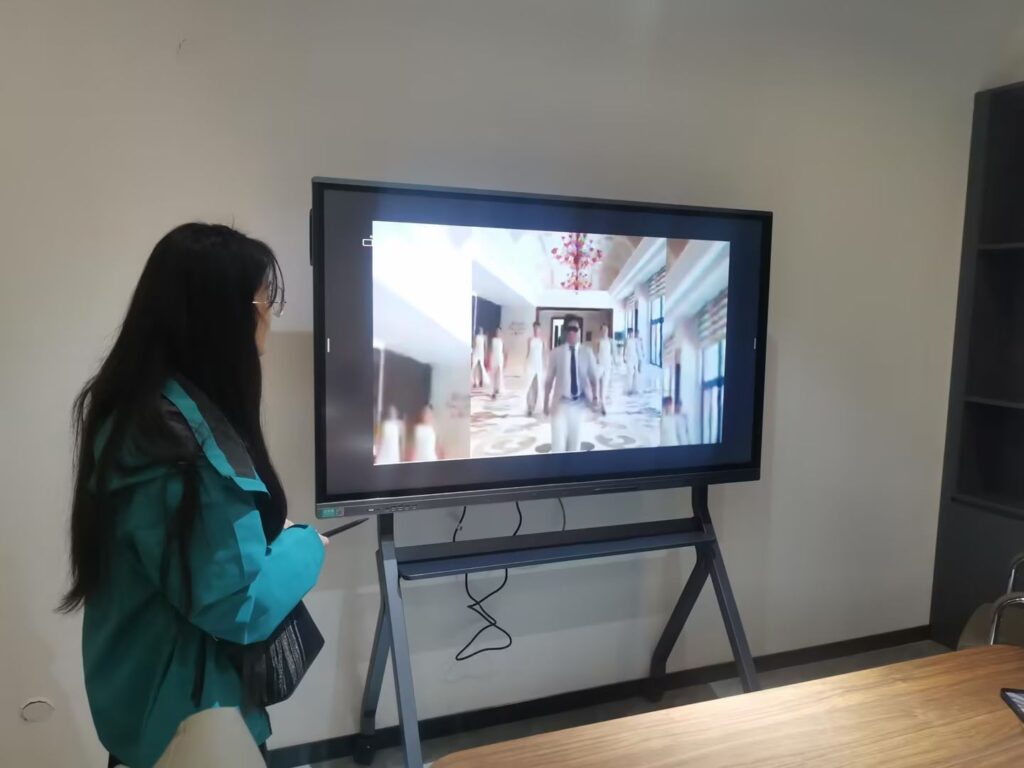
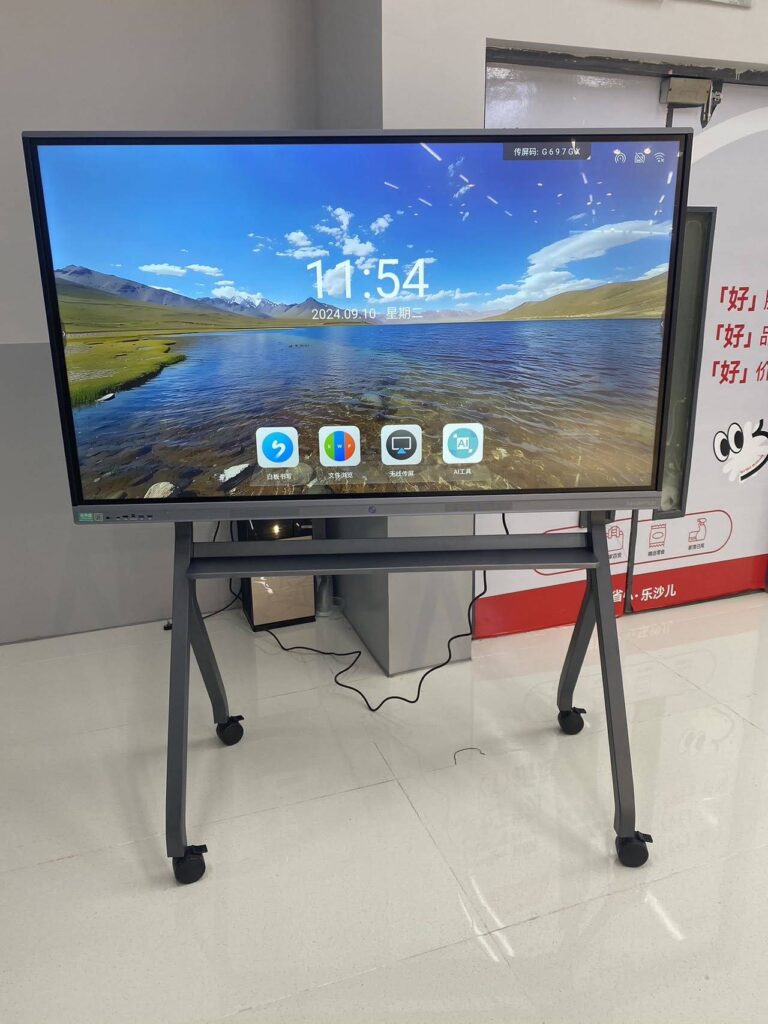
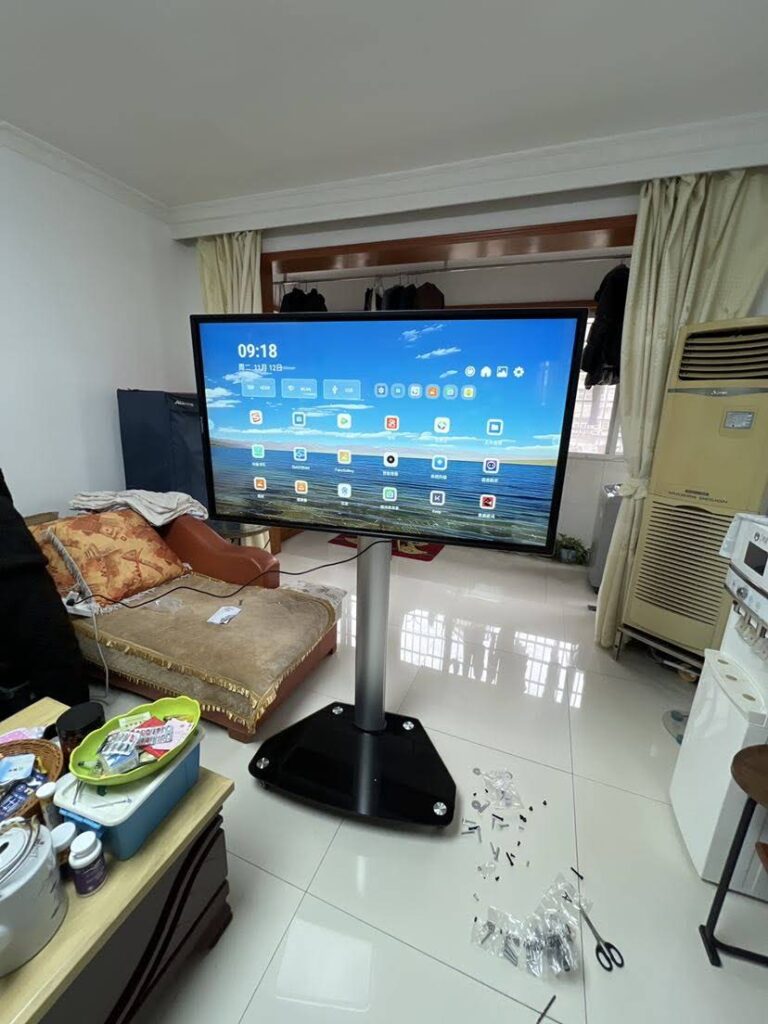
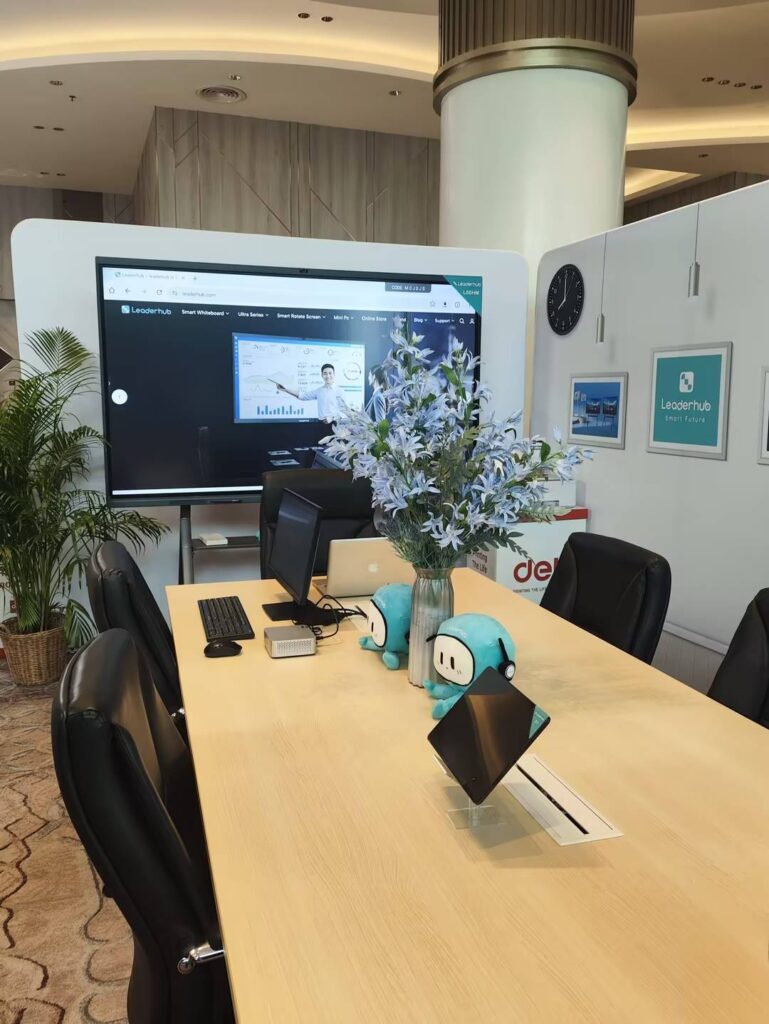
Walking into a meeting room or classroom and spending five minutes hunting for the right cable is a frustration almost everyone has experienced. The good news is that modern interactive displays make screen sharing far easier than it used to be. Whether you are using a Windows laptop, a MacBook, an iPhone, an Android tablet, or a Chromebook, there is a fast way to put your content on the big screen. This guide walks through every practical method for casting to a smart board, from one-tap wireless mirroring to reliable wired connections, so you can pick the option that fits your device and your room.
What Does “Casting” to a Smart Board Actually Mean?
Casting (also called screen mirroring or screen sharing) is the process of sending the video and audio from your personal device to the interactive display so everyone in the room can see it. Depending on the method, you may be able to do more than just mirror your screen. Many smart boards allow touchback, which means you can control your laptop by touching the board, and multi-device casting, which lets several participants share at the same time in a split-screen layout.
There are three broad categories of casting:
- Wireless protocol casting – using standards built into your device such as Miracast, AirPlay, or Google Cast.
- App or dongle casting – using the smart board’s own casting app or a plug-and-play wireless transmitter.
- Wired casting – connecting through HDMI, USB-C, or VGA for a zero-latency, zero-setup experience.
Before You Start: A Quick Pre-Casting Checklist
Most casting failures come down to a handful of simple issues. Run through this list before you begin and you will avoid the majority of problems:
- Same network. For wireless casting, your device and the smart board usually need to be on the same Wi-Fi network (or the board must have its own hotspot enabled).
- Smart board is awake and on the right input. Make sure the display is powered on and set to its built-in Android system or the casting source.
- Casting is enabled. Open the board’s screen-share or wireless display app so it is ready to receive a connection.
- Device software is up to date. Outdated operating systems frequently break Miracast and AirPlay compatibility.
- Firewall and VPN check. Corporate VPNs and strict firewalls often block casting discovery; disconnect temporarily if needed.
Wireless Methods: How to Cast to a Smart Board Without Cables
Wireless casting is the fastest route when it is set up correctly. Below are the most common methods, grouped by the technology they rely on.
Method 1: Built-In Screen Mirroring (Miracast, AirPlay, Google Cast)
Most interactive flat panels running Android support one or more of the three major mirroring standards. The steps differ slightly depending on your device.
Casting from a Windows 10 or 11 Laptop (Miracast)
- On the smart board, open the wireless display or screen-share app and note the device name.
- On your laptop, press Windows key + K to open the Cast panel.
- Select the smart board from the list of available displays.
- Choose Duplicate to mirror or Extend to use the board as a second monitor.
- If prompted, enter the PIN shown on the board.
Casting from a MacBook, iPhone, or iPad (AirPlay)
- Make sure the smart board’s AirPlay receiver is active (it is often built into the casting app).
- On Mac, click Control Center in the menu bar and choose Screen Mirroring. On iPhone or iPad, swipe down to open Control Center and tap Screen Mirroring.
- Select the smart board from the list.
- Enter the AirPlay code displayed on the board if required.
Casting from Android Phones and Tablets
- Swipe down from the top of the screen to open Quick Settings.
- Tap Smart View (Samsung), Cast (Google Pixel), or Wireless Projection (Huawei/Honor) – the name varies by brand.
- Choose the smart board from the discovered devices.
- Accept the connection on the board if a prompt appears.
Casting from a Chromebook (Google Cast)
- Click the time in the bottom-right corner to open the system tray.
- Select Cast and choose the smart board.
- Decide whether to cast the entire desktop or a single Chrome tab.
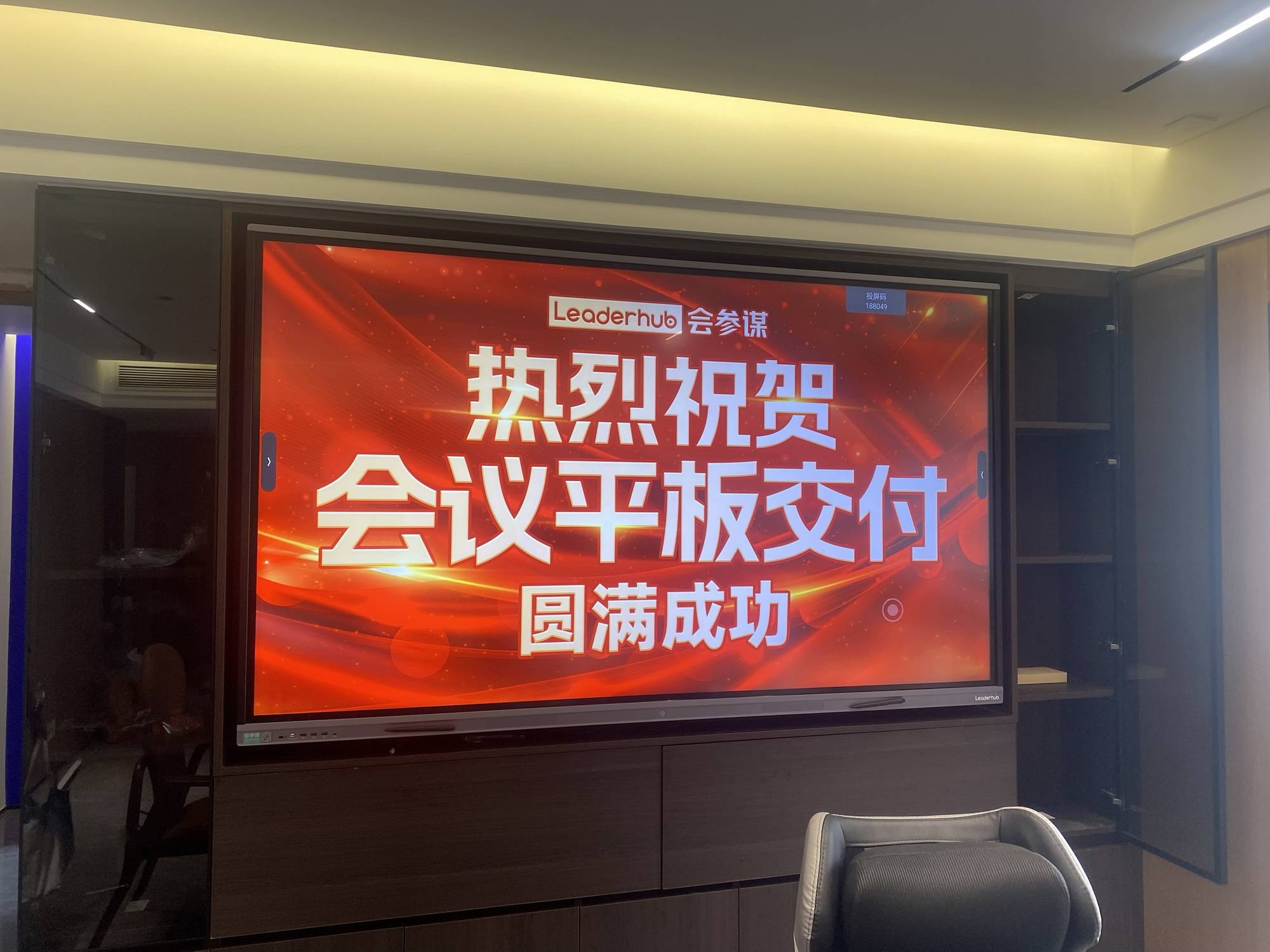
Method 2: The Smart Board’s Own Casting App and Connection Code
Many manufacturers ship their panels with a dedicated casting application that works across every operating system. This is typically the most reliable wireless option because it is designed specifically for the display. On a LeaderHub smart whiteboard, for example, the on-screen casting app displays a short connection code; you install the companion app or open the web casting page on your device, type the code, and your screen appears within seconds. These apps often add features that native mirroring lacks:
- Simultaneous casting from four or more devices in a split-screen layout
- Reverse control, so presenters can operate their laptop by touching the board
- Cross-network casting via the internet, useful when guests cannot join the office Wi-Fi
- Moderator mode, which lets a teacher or host decide whose screen is shown
Method 3: Wireless Casting Dongles
A wireless transmitter dongle plugs into your laptop’s USB-C or HDMI port and pairs with a receiver in the smart board. Press the button on the dongle and your screen is mirrored instantly, with no software to install and no Wi-Fi login. Dongles are popular in corporate environments where visitors frequently present and IT teams want to avoid network access requests. The trade-off is cost and the risk of dongles disappearing from the room.
Method 4: Browser-Based Casting
Some smart boards support casting directly from a web browser. You open a URL on your device, enter the code shown on the board, and share a tab or your whole screen through WebRTC. This method is ideal for locked-down corporate laptops where users cannot install software.
Wired Methods: Reliable Casting Through a Cable
Wireless is convenient, but wired connections remain the gold standard for stability, especially when playing video, presenting from a high-resolution 4K source, or running live demonstrations where any lag is noticeable.
HDMI Connection
HDMI is universally supported. Plug one end into your laptop and the other into one of the smart board’s HDMI inputs (most panels offer two to three). Switch the board’s source to the matching HDMI input. To enable touchback over HDMI, you also connect a USB touch cable from the board’s Touch USB port to your laptop; the board then acts as a giant touchscreen for your computer.
USB-C Connection
Newer interactive displays include a full-function USB-C port. A single cable carries video, audio, touch data, and often 65W or more of charging power back to your laptop. For MacBook, Surface, and modern Windows ultrabook users, this is the cleanest wired method available – one cable does everything.
VGA and Legacy Inputs
Older desktop PCs and some projectors still rely on VGA. Many smart boards retain a VGA input with a separate 3.5mm audio jack for this reason. Image quality is limited to 1080p at best, but it keeps older equipment usable.
Wireless vs. Wired Casting: Which Should You Use?
| Factor | Wireless Casting | Wired Casting |
|---|---|---|
| Setup time | Seconds once configured; may need network setup | Instant, plug and play |
| Latency | 50–200 ms depending on network quality | Near zero |
| Video quality | Usually 1080p; compressed | Full 4K at 60Hz uncompressed |
| Multi-user sharing | Yes, often 4+ screens at once | One device per input |
| Touchback | Supported through casting apps | Supported via USB-C or HDMI + USB touch cable |
| Best for | Collaborative meetings, BYOD classrooms | Video playback, design work, critical presentations |
Device Compatibility at a Glance
Use this table to find the quickest casting route for the device in your hand.
| Your Device | Fastest Wireless Option | Recommended Wired Option |
|---|---|---|
| Windows 10/11 laptop | Miracast (Win + K) or casting app | USB-C or HDMI + USB touch cable |
| MacBook | AirPlay or casting app | USB-C (single cable with charging) |
| iPhone / iPad | AirPlay | Lightning/USB-C to HDMI adapter |
| Android phone / tablet | Smart View / Cast or casting app | USB-C to HDMI (if DisplayPort Alt Mode supported) |
| Chromebook | Google Cast or browser casting | USB-C or HDMI |
| Desktop PC / mini PC | Casting app (if Wi-Fi enabled) | HDMI or OPS slot installation |
Casting Multiple Screens at Once
One of the biggest advantages of a modern interactive panel over a traditional projector is multi-screen casting. In a classroom, a teacher can display four students’ work side by side for comparison. In a sales meeting, two teams can present competing proposals simultaneously. To use this feature:
- Open the casting app on the board and enable multi-screen or split-screen mode.
- Have each participant connect using the same code.
- Tap any shared screen on the board to enlarge it to full screen, then tap again to return to the grid.
- Use the moderator controls to pause or remove a participant’s stream when needed.
Large panels such as the 86-inch L86ZM are especially suited to four-way split screens, since each quadrant still offers a comfortable 43-inch viewing area.
Troubleshooting Common Casting Problems
The smart board does not appear in my device list
- Confirm both devices are on the same Wi-Fi band (2.4 GHz vs. 5 GHz separation can block discovery).
- Check that AP isolation or client isolation is disabled on the router – it is common on guest networks.
- Restart the casting app on the board so it re-broadcasts its presence.
The screen mirrors but there is no sound
- On Windows, right-click the speaker icon and set the smart board as the output device.
- On Mac, open System Settings → Sound and choose the AirPlay destination.
- For HDMI, ensure the laptop’s audio output switched to HDMI automatically; some machines keep playing through internal speakers.
Video is laggy or choppy
- Move closer to the access point or connect the board via Ethernet to reduce wireless congestion.
- Switch to 5 GHz Wi-Fi, which carries far more bandwidth for video.
- For movie playback or live demos, switch to HDMI or USB-C instead.
Touch does not control my laptop
- Over HDMI, you must also connect the USB touch cable; HDMI alone carries no touch data.
- Over wireless, enable “reverse control” or “touchback” inside the casting app on both devices.
- Some macOS versions require you to grant accessibility permissions to the casting app.
Casting Tips for Classrooms and Meeting Rooms
Technology is only useful when it removes friction rather than adding it, a point stressed in the UNESCO Technology in Education Report, which encourages schools to prioritize tools that genuinely support teaching. A few habits make casting smoother for everyone:
- Post the casting instructions on a small card beside the board so visitors do not need to ask.
- Create a dedicated casting Wi-Fi SSID that gives devices access to the board but not to the internal network.
- Keep one HDMI and one USB-C cable permanently attached to the board as a wired fallback.
- Use a mobile stand when one board must serve several rooms – portable panels such as the U55Pro mobile smart display can be wheeled between spaces while keeping casting settings intact.
- Enable a casting PIN in shared spaces to prevent passers-by from accidentally mirroring to your meeting.
For organizations that prefer a built-in Windows experience without relying on a presenter’s laptop, installing a compact mini PC directly on the board provides a permanent, always-ready source that can itself receive wireless casts from the room.
Frequently Asked Questions
Can I cast to a smart board without Wi-Fi?
Yes. Many boards can create their own hotspot, allowing devices to connect directly. Wireless dongles also work independently of the room network, and wired HDMI or USB-C connections never require Wi-Fi at all.
Does casting drain my laptop battery?
Wireless casting uses additional CPU and Wi-Fi power, so expect faster battery drain over long sessions. A USB-C connection solves this by charging your laptop while it casts.
Can I cast protected streaming content?
Many streaming services block screen mirroring due to DRM, resulting in a black screen. A direct HDMI connection with HDCP support generally works, or you can use the board’s own Android apps to stream natively.
How many devices can cast at the same time?
This depends on the board and its casting app. Most business-grade panels support four simultaneous screens; some support up to nine in a grid layout.
Is wireless casting secure?
Casting traffic is usually encrypted, and connection codes or PINs prevent unauthorized mirroring. For sensitive meetings, a dedicated casting network or a wired connection offers the strongest protection.
Final Thoughts
Learning how to cast to a smart board is less about memorizing one procedure and more about knowing which option fits the moment: AirPlay for an iPad, Miracast for a Windows laptop, the board’s casting app for a group session, and a USB-C cable when quality and reliability matter most. Once the basics are in place, screen sharing becomes an invisible part of the meeting or lesson rather than a distraction from it.
LeaderHub, a Shenzhen-based manufacturer with 16 years of interactive-display experience and customers in 82 countries, designs every smart whiteboard, interactive flat panel, and portable smart screen with casting flexibility in mind – supporting Miracast, AirPlay, Google Cast, app-based multi-screen sharing, and full-function USB-C on a single device. If you are planning a classroom or meeting-room upgrade and want help choosing the right size and connectivity, contact the LeaderHub team for a tailored recommendation.