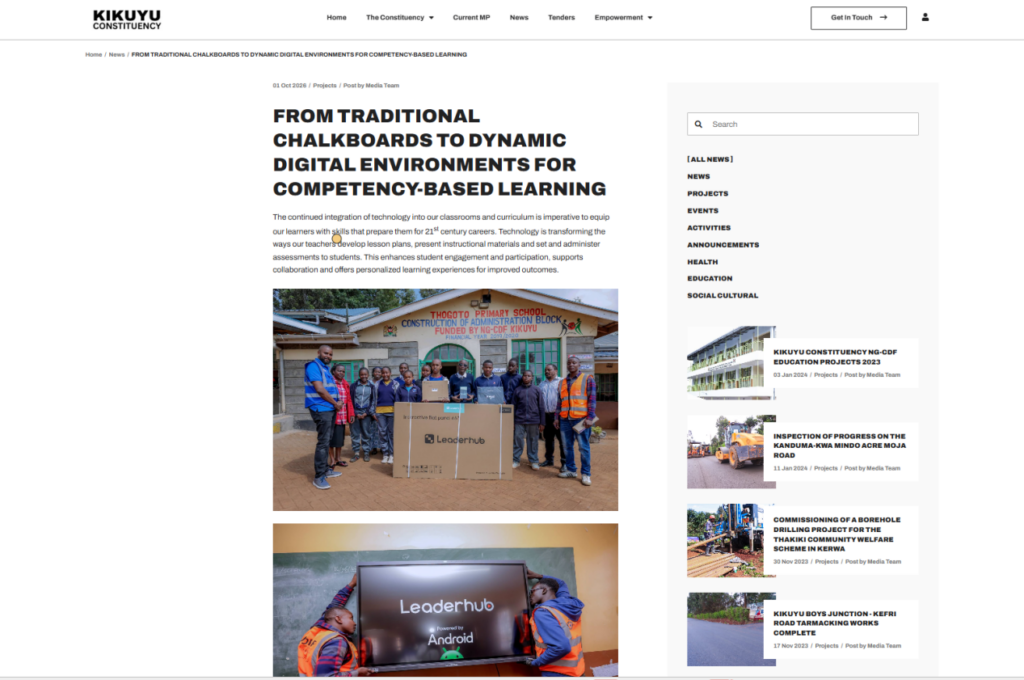
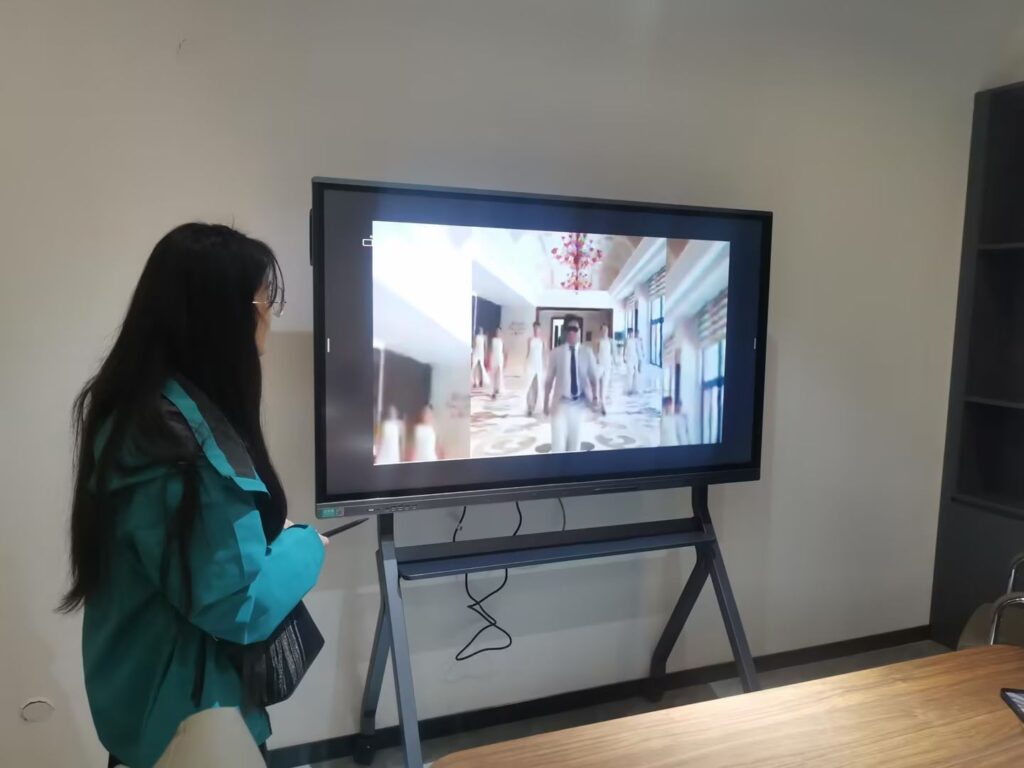
Universities today are under pressure to deliver teaching that is interactive, hybrid-ready and scalable across hundreds of rooms. A premium smart board for universities is no longer a luxury reserved for flagship lecture theatres — it has become core infrastructure for lecture halls, seminar rooms, labs and collaborative learning spaces. Yet with dozens of brands, screen sizes and software ecosystems on the market, procurement teams, IT directors and academic leaders often struggle to separate genuine value from marketing noise.
This guide walks you through everything a higher-education buyer needs to know: how lecture halls differ from classrooms in display requirements, which specifications truly matter, how to compare 65″, 75″, 86″ and 110″ panels, how to budget for a campus-wide rollout, and how to evaluate a manufacturer as a long-term partner.
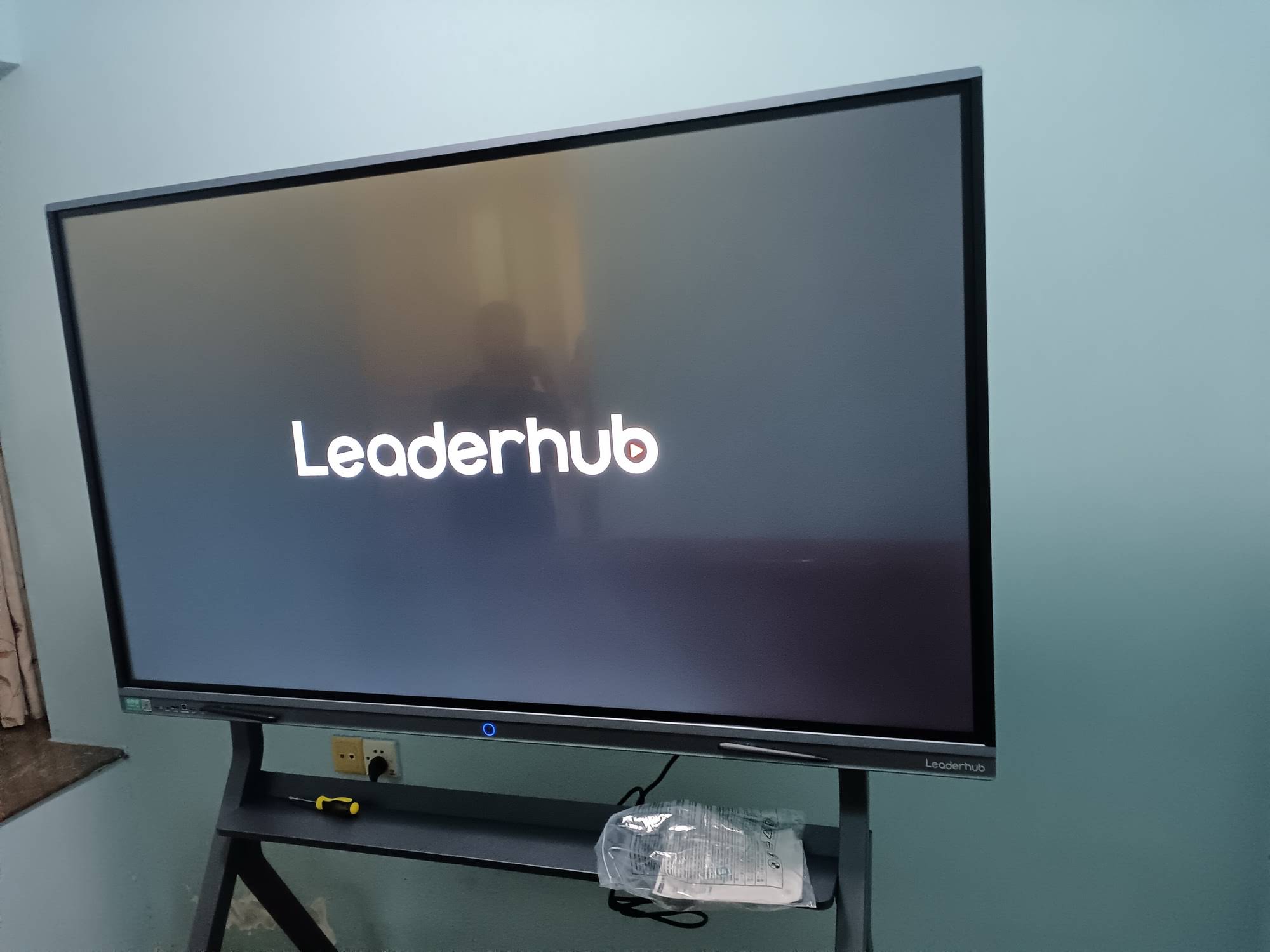
Why Universities Are Replacing Projectors with Interactive Displays
For decades, the projector-and-whiteboard combination defined university teaching spaces. That model is rapidly disappearing. Projectors suffer from lamp degradation, washed-out images in daylight, shadowing when the lecturer stands in front of the beam, and high maintenance costs. Interactive flat panels (IFPs) solve all of these problems while adding capabilities that projectors never had.
The UNESCO Technology in Education Report emphasizes that technology delivers the greatest benefit when it directly supports pedagogy rather than simply replacing older tools. Premium smart boards embody this principle: they allow lecturers to annotate over slides, run simulations, share student devices wirelessly, and record sessions for students who learn remotely — all from a single surface.
Key advantages over traditional AV setups
- 4K clarity with zero shadowing — content stays sharp even in bright lecture theatres with large windows.
- Hybrid teaching built in — integrated cameras, microphone arrays and video-conferencing support connect on-campus and remote learners.
- Lower total cost of ownership — no lamp replacements, filters or periodic recalibration.
- Instant start-up — lecturers begin teaching in seconds rather than waiting for a projector to warm up.
- Multi-user touch — up to 20 or 40 simultaneous touch points enable group problem-solving at the board.
- Cloud-based session saving — annotated lecture notes can be exported as PDFs and uploaded to the LMS instantly.
Lecture Halls vs. Classrooms: Different Rooms, Different Requirements
One of the most common procurement mistakes is specifying a single display model for every space on campus. A 200-seat lecture hall and a 25-seat seminar room have fundamentally different viewing distances, lighting conditions and interaction patterns. Understanding these differences is the first step in selecting the right premium smart board for universities.
Large lecture halls (100+ seats)
In tiered auditoriums, the student in the back row may be 15–20 meters from the screen. Here, screen size and brightness are the dominant factors. An 86″ panel is typically the minimum; many institutions now specify 98″ or 110″ displays, or pair a central interactive panel with repeater screens. High brightness (400–500 nits) and anti-glare glass are essential because lecture halls often have mixed lighting and cannot always be fully dimmed. Lecturers in these spaces interact less with the touch surface and more with slide navigation, annotation and camera-based recording, so a reliable OPS slot and robust video-conferencing integration carry extra weight.
Seminar rooms and standard classrooms (20–60 seats)
Smaller rooms encourage active learning. Students come up to the board, work in groups and share content from laptops and tablets. A 65″ or 75″ interactive panel is usually sufficient, and touch accuracy, palm rejection and wireless screen-sharing become the priorities. These rooms benefit most from pen-and-finger differentiation, split-screen whiteboarding and the ability to cast four or more devices at once.
Flexible and collaborative spaces
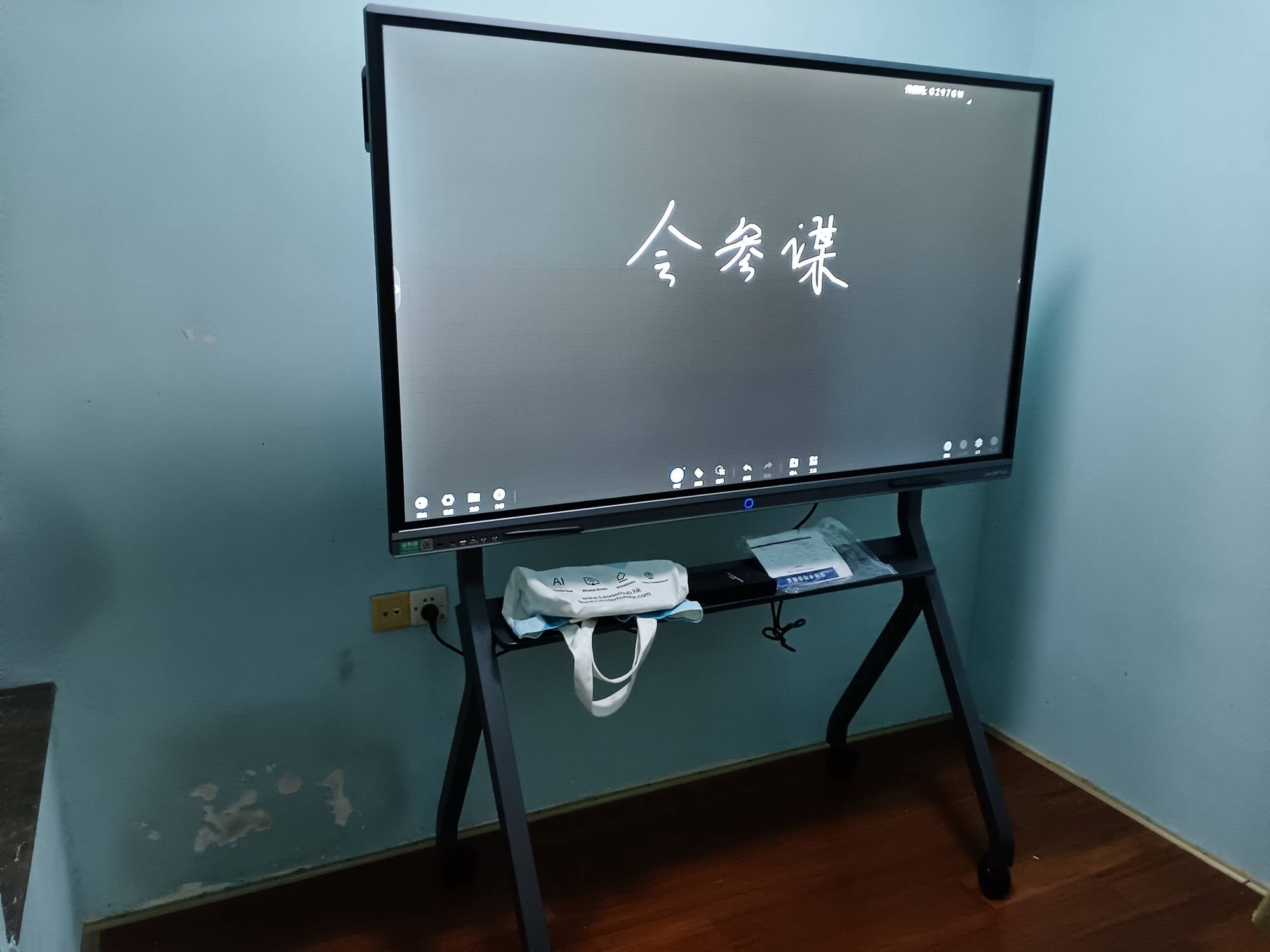
Many campuses are investing in flexible studios, innovation labs and informal study areas. In these spaces, mobility matters. A panel on a motorized or rolling stand — or a battery-powered mobile display — can be moved between zones as teaching needs change throughout the day.
Screen Size Guide: Matching Display Size to Room Capacity
The table below offers a practical starting point for matching display size to room type. Always confirm with an on-site assessment, since ceiling height, seating layout and ambient light all influence the final choice.
| Room Type | Typical Capacity | Max Viewing Distance | Recommended Size |
|---|---|---|---|
| Small seminar / tutorial room | 10–25 students | 6–7 m | 65″ |
| Standard classroom | 25–50 students | 8–10 m | 75″ |
| Large classroom / small lecture hall | 50–100 students | 10–13 m | 86″ |
| Tiered lecture theatre / auditorium | 100–250 students | 14–20 m | 110″ or 86″ + repeater displays |
| Flexible lab / breakout zone | 5–20 students | 4–6 m | 55″ mobile or 65″ on cart |
The 10 Specifications That Matter Most for Higher Education
Spec sheets can be overwhelming. Below are the specifications that have the greatest real-world impact on university teaching, roughly in order of importance.
1. Resolution and panel quality
4K UHD (3840 × 2160) should be the baseline for any premium smart board for universities. At 86″ and above, lower resolutions become visibly pixelated from the front rows. Look for IPS or equivalent wide-viewing-angle panels (178°) so students seated at the sides of a lecture hall see accurate colours and contrast.
2. Brightness and anti-glare treatment
Lecture halls rarely offer perfect lighting control. A panel rated at 400 nits or higher with anti-glare, low-reflection glass remains readable under fluorescent lighting and near windows. Matte-etched glass also reduces fingerprint visibility and provides a more natural writing feel.
3. Touch technology and writing latency
Infrared touch is the most common and durable technology for large panels, while capacitive touch offers smoother, more precise writing. Either way, request a writing latency under 10 ms and confirm that the panel distinguishes between pen, finger and palm. Lecturers writing equations or chemical structures notice lag immediately.
4. Processing power and operating system
The embedded Android system should include at least 8 GB RAM and 128 GB storage for smooth multitasking. For Windows-based teaching software, verify the panel includes an OPS slot so a modular PC can be added or upgraded later without replacing the display. A compact mini PC is a cost-effective alternative when the OPS route is not required.
5. Camera, microphone and hybrid-learning capability
Post-2020, nearly every university maintains some form of hybrid or recorded instruction. Panels with a built-in 4K or 48 MP camera, auto-framing and an 8-array microphone with echo cancellation allow lecturers to run Zoom, Teams or Google Meet directly from the board without additional peripherals.
6. Wireless screen sharing
Students and guest lecturers arrive with Windows, macOS, iOS, Android and Chromebook devices. Native support for Miracast, AirPlay and Chromecast — plus the ability to display four or more screens simultaneously — eliminates adapter chaos and encourages participation.
7. Connectivity and expansion
Count the ports: at least two HDMI 2.0 inputs, a USB-C port with power delivery and display support, Gigabit Ethernet, Wi-Fi 6 and Bluetooth 5.x. Front-facing ports are particularly useful in lecture halls where the lectern is positioned away from the wall.
8. Audio output
Built-in speakers of 2 × 20 W are adequate for classrooms, but lecture halls should either select panels with front-firing high-power speakers or plan integration with the room’s existing PA system via line-out or HDMI ARC.
9. Device management and security
When deploying 50, 100 or 300 panels, IT teams need centralized remote management — pushing firmware updates, controlling power schedules, deploying apps and monitoring status from a single dashboard. Account-based login, data wiping at session end and compliance with institutional privacy policies are equally important.
10. Durability and warranty
Tempered glass rated at 4 mm or thicker (Mohs hardness 7), 50,000-hour panel life and a warranty of at least three years with on-site or advance-replacement service are reasonable expectations for university-grade equipment.
Software Ecosystem: Beyond the Hardware
A premium panel with weak software is a frustrating experience. The OECD Digital Education Outlook notes that the effectiveness of digital infrastructure depends heavily on how seamlessly it integrates with existing teaching workflows. When evaluating smart boards for universities, test the following software elements before signing a purchase order:
- Whiteboarding application — infinite canvas, handwriting-to-text recognition, shape recognition, mathematical formula recognition and the ability to import PDFs and PowerPoint files directly.
- LMS compatibility — export of annotated sessions to Moodle, Canvas, Blackboard or Google Classroom through cloud storage or QR-code sharing.
- AI-assisted features — automatic meeting or lecture summaries, real-time transcription and translation for international student cohorts.
- Browser and app ecosystem — access to Google Play or a curated app store for discipline-specific tools.
- Guest mode — a one-tap reset that clears all personal data between lecturers.
Comparing Premium Smart Board Options for University Deployment
The following comparison illustrates how a well-structured product range can cover every room type on campus — from compact seminar spaces to the largest auditoriums — while keeping procurement simple and spare parts consistent. All models listed feature 4K resolution and multi-touch interaction.
| Model | Size | Best Campus Use | Reference Price |
|---|---|---|---|
| L65ZM Interactive Whiteboard | 65″ | Tutorial rooms, faculty offices | $1,099 |
| L75ZM Interactive Whiteboard | 75″ | Standard classrooms | $1,399 |
| L86ZM Interactive Whiteboard | 86″ | Large classrooms, budget-conscious rollouts | $1,699 |
| L75HM Smart Whiteboard | 75″ | Hybrid classrooms with camera and conferencing | $1,599 |
| L86HM Smart Whiteboard | 86″ | Small lecture halls, hybrid delivery | $3,199 |
| L75H Pro Interactive Flat Panel | 75″ | Premium classrooms, graduate seminar rooms | $2,399 |
| U55Pro Mobile Interactive Flat Panel | 55″ | Flexible labs, libraries, breakout zones | $2,499 |
| L110H Interactive Flat Panel | 110″ | Tiered lecture theatres, auditoriums | $7,999 |
For most institutions, the sweet spot is a two-tier strategy: cost-efficient 75″ or 86″ panels for the bulk of classrooms, and higher-specification 86″ or 110″ models with integrated cameras for lecture halls and flagship teaching spaces. You can browse the complete range of smart whiteboards for education to compare specifications side by side.
Budgeting for a Campus-Wide Rollout
The display itself typically represents 60–70% of the total project cost. A realistic budget should also account for the following items, which are frequently underestimated in early planning stages.
Hidden and recurring costs to include
- Mounting hardware — fixed wall mounts, height-adjustable mounts for accessibility compliance, or mobile carts.
- Installation and cabling — power, network drops, HDMI runs to lecterns and integration with existing room controllers.
- Compute modules — OPS PCs or external mini PCs where Windows software is required.
- Software licences — some vendors charge annually for advanced whiteboarding, device management or cloud storage; premium manufacturers often include these at no extra cost.
- Training — faculty onboarding sessions and quick-reference guides. The OECD Digital Teaching Guidance consistently finds that educator preparation determines whether technology investments translate into learning gains.
- Extended warranty and spares — a small inventory of replacement pens, remotes and one spare panel per 30–50 units minimizes downtime.
Total cost of ownership over five years
When comparing a premium smart board against a projector-based room, remember that projectors require lamp replacements roughly every 2,000–4,000 hours, filter cleaning and eventual recalibration of interactive overlays. Over a five-year cycle, a mid-range interactive panel frequently costs 25–40% less to own than an equivalent projector solution, even before accounting for the productivity gains of faster start-up and hybrid-ready features.
Evaluating the Manufacturer as a Long-Term Partner
Universities keep display hardware in service for six to ten years. The manufacturer’s stability, support infrastructure and willingness to customize matter as much as the specification sheet. Consider the following criteria when shortlisting suppliers.
- Industry tenure — companies with a decade or more of interactive-display experience have refined firmware, touch calibration and thermal management through multiple product generations.
- Global footprint — a supplier shipping to many countries is more likely to understand regional certification (CE, FCC, RoHS), voltage and language requirements.
- OEM/ODM flexibility — the ability to customize boot screens, pre-install institutional apps or adapt the bezel colour to campus branding.
- Design recognition — awards such as the Leaderhub HM Series MUSE Design Award signal attention to ergonomics and build quality.
- Direct channel access — the option to work with the manufacturer directly rather than through multiple intermediaries often reduces cost and shortens support response times.
LeaderHub, a Shenzhen-based manufacturer with 16 years of interactive-display expertise and products delivered to 82 countries, offers a full range of smart whiteboards, interactive flat panels, mini PCs and portable smart screens designed for education, enterprise and creative professionals — with OEM/ODM support for institutions that need customized configurations.
Deployment Best Practices from Successful University Rollouts
Institutions that achieve high faculty adoption rates tend to follow a similar pattern. The Choosing Technology in Education framework from UNESCO recommends asking whether a technology is appropriate, equitable, scalable and sustainable — a useful lens for the practices below.
Start with a pilot
Install three to five panels across different room types and disciplines. Gather structured feedback from lecturers in sciences, humanities and professional programs, since their use patterns differ significantly. A one-semester pilot surfaces mounting-height issues, software gaps and training needs before they are multiplied across hundreds of rooms.
Standardize where possible
Limiting the campus to one or two panel families simplifies training, spare-parts inventory and remote management. Lecturers who move between buildings should find the same interface everywhere.
Plan for accessibility
Height-adjustable mounts, high-contrast display modes and support for screen readers ensure compliance with accessibility legislation and serve lecturers and students with diverse needs.
Integrate with room control and timetabling
Scheduling panels to power on ten minutes before the first class and shut down after the last saves energy and extends panel life. Integration with room-booking systems can display the day’s schedule on the idle screen.
Invest in continuous training
Beyond the initial onboarding, offer short “lunch and learn” sessions each semester introducing advanced features — AI summaries, split-screen comparison, student polling. Peer champions within each faculty accelerate adoption far more effectively than top-down mandates.
Frequently Asked Questions
What size smart board is best for a university lecture hall?
For halls seating 100 or more students, an 86″ panel is the practical minimum, and 110″ is preferred where the furthest seat exceeds 14 meters. Many institutions combine a central interactive panel with side-mounted repeater displays for very wide rooms.
Do premium smart boards work with existing lecture-capture systems?
Yes. Most panels provide HDMI output or USB camera passthrough that allows platforms such as Panopto, Kaltura or Echo360 to record both the on-screen content and the room camera feed.
Is Android or Windows better for university use?
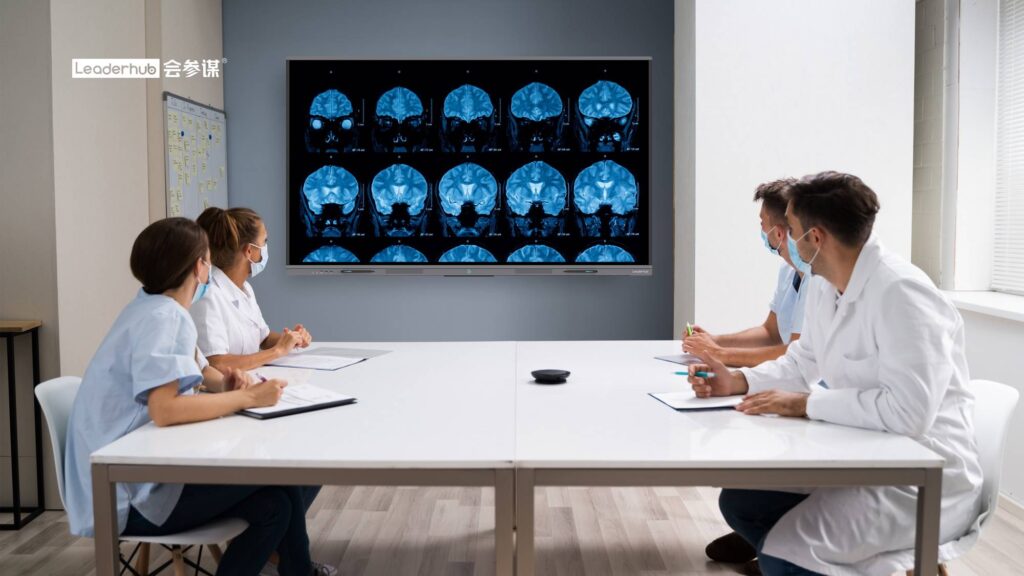
The embedded Android system handles whiteboarding, screen sharing and web browsing for the majority of lectures. Disciplines requiring specialist Windows software — engineering CAD, statistical packages, medical imaging — benefit from an OPS module or an external mini PC. Choosing a panel that supports both keeps every option open.
How long should a premium interactive panel last?
Quality panels are rated for 50,000 hours of backlight life, which equates to well over ten years at typical university usage of 8–10 hours per day. Tempered anti-glare glass resists scratches from daily pen and finger contact throughout that lifespan.
Can we test a panel before committing to a campus-wide order?
Reputable manufacturers encourage pilot evaluations and will often provide sample units or demonstration sessions. You can contact the LeaderHub team to discuss pilot programs, volume pricing and customization options for your institution.
Final Thoughts
Selecting a premium smart board for universities is a decision that will shape the teaching experience of thousands of students for the better part of a decade. The right approach is to match display size and brightness to each room type, insist on 4K resolution and low-latency touch, prioritize hybrid-learning capability and centralized management, and choose a manufacturer with the tenure and flexibility to support a long-term partnership. With a structured pilot, standardized hardware and ongoing faculty training, interactive displays become far more than a projector replacement — they become the foundation for genuinely engaging, accessible and future-ready higher education.