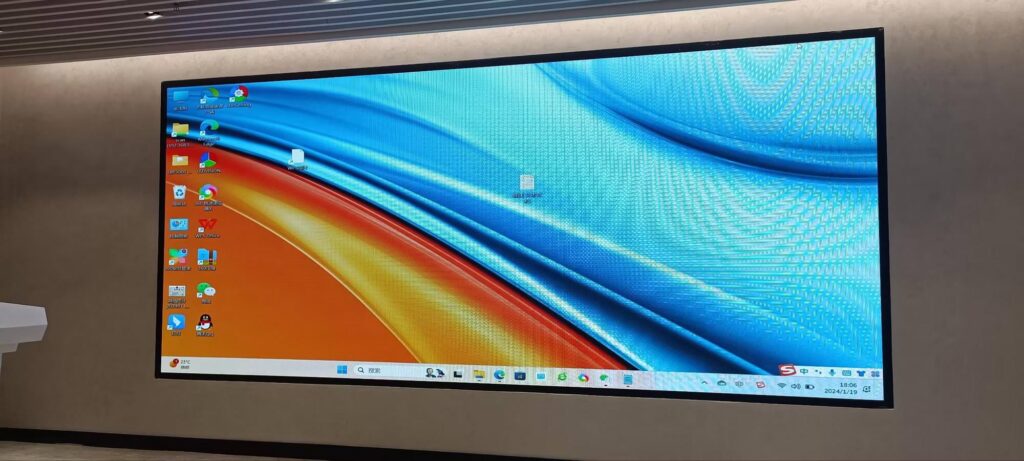
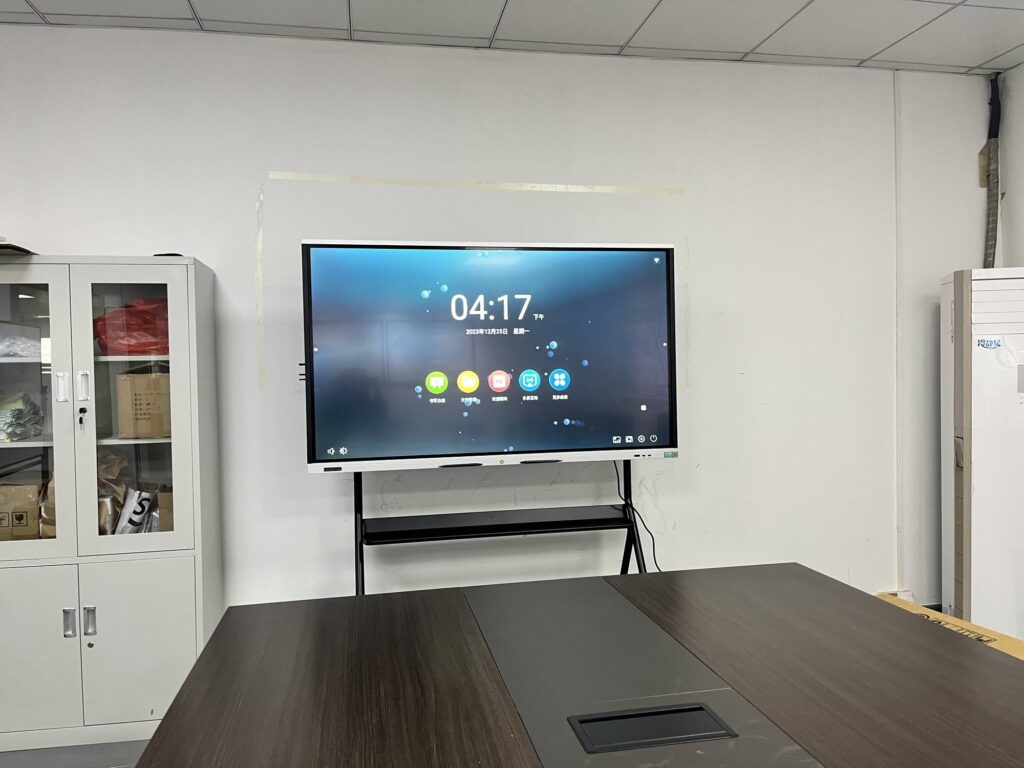
If you have ever walked into a modern classroom or a well-equipped meeting room, you have probably seen a large touchscreen panel mounted on the wall where a dusty whiteboard used to hang. So, what is a smart board used for, exactly? In short, a smart board is an interactive display that combines a high-resolution screen, multi-touch input, built-in software and wireless connectivity into one device. It is used to teach, present, brainstorm, annotate, video-conference and collaborate — all on a single surface that can be saved, shared and revisited at any time.
This guide breaks down the most common smart board uses in education and business, explains the real benefits behind the buzzwords, and walks through practical examples so you can decide whether an interactive display is the right investment for your school, office or studio.

What Is a Smart Board?
A smart board — also called an interactive whiteboard, interactive flat panel (IFP) or interactive display — is a large touch-enabled screen, typically between 55 and 110 inches, that runs its own operating system and can also mirror or control connected laptops, tablets and phones. Unlike a projector-based setup, there is no bulb to replace, no shadow when you stand in front of it, and no calibration drift.
Most modern smart boards share a core feature set:
- 4K UHD touchscreen with 20 to 40 simultaneous touch points for pen, finger and palm input
- Built-in Android system plus an optional slot or port for a Windows mini PC
- Wireless screen sharing from any device, in both directions
- Digital whiteboarding software with infinite canvas, shapes, handwriting recognition and cloud saving
- Integrated camera, microphone array and speakers for video meetings
- Annotation over any content — documents, websites, videos or live app windows
Because the hardware is so flexible, the answer to “what is a smart board used for” depends heavily on who is standing in front of it. Let’s look at the two biggest user groups.
What Is a Smart Board Used For in Classrooms?
Education remains the largest market for interactive displays, and for good reason. A smart board turns a one-directional lecture into a two-way, hands-on learning experience. Here are the most frequent classroom uses.
1. Interactive Lesson Delivery
Teachers open slides, PDFs, e-textbooks or web pages directly on the board and write over them in real time. Instead of copying diagrams onto a whiteboard before class, a biology teacher can pull up a labelled cell diagram, hide the labels, and ask students to fill them in by dragging and dropping.
2. Multimedia Teaching
Video clips, 3D models, maps, simulations and audio recordings play natively on the panel. A history teacher can pause a documentary, circle a detail on screen, and jump to a timeline — all without switching devices.
3. Student Participation and Group Work
Multi-touch support means several students can solve maths problems at the board at the same time. Split-screen mode lets two groups work side by side, and any student tablet can be mirrored to the panel so the whole class can review a peer’s work.
4. Saving and Sharing Lesson Notes
Everything written on the board can be saved as a PDF or image and sent to students by QR code, email or cloud link. Absent students get the full lesson, and teachers build a reusable library of annotated material year after year.
5. Hybrid and Remote Learning
With a built-in camera and microphone, the smart board doubles as the classroom’s video-conferencing hub. Remote students see both the teacher and the board content, and can annotate from home.
6. Formative Assessment
Quick polls, quizzes and interactive games run on the panel give instant feedback on how well the class understood a topic, allowing the teacher to adjust pacing on the spot.
International research supports a careful, pedagogy-first approach to classroom technology. The UNESCO Technology in Education Report emphasises that digital tools deliver the greatest benefit when they are integrated into teaching practice rather than used for their own sake — exactly the role a smart board plays when it becomes the shared surface for the whole class.
| Classroom Use | What the Smart Board Does | Learning Benefit |
|---|---|---|
| Lesson delivery | Displays and annotates slides, textbooks and web content | Clearer explanations, less prep time |
| Group problem solving | Multi-touch and split-screen whiteboarding | Higher engagement and collaboration |
| Multimedia lessons | Plays video, simulations and 3D models in 4K | Abstract concepts become visual |
| Hybrid teaching | Built-in camera, mic and conferencing apps | Remote students stay fully included |
| Note sharing | Saves board content to cloud or QR code | Students review lessons anytime |
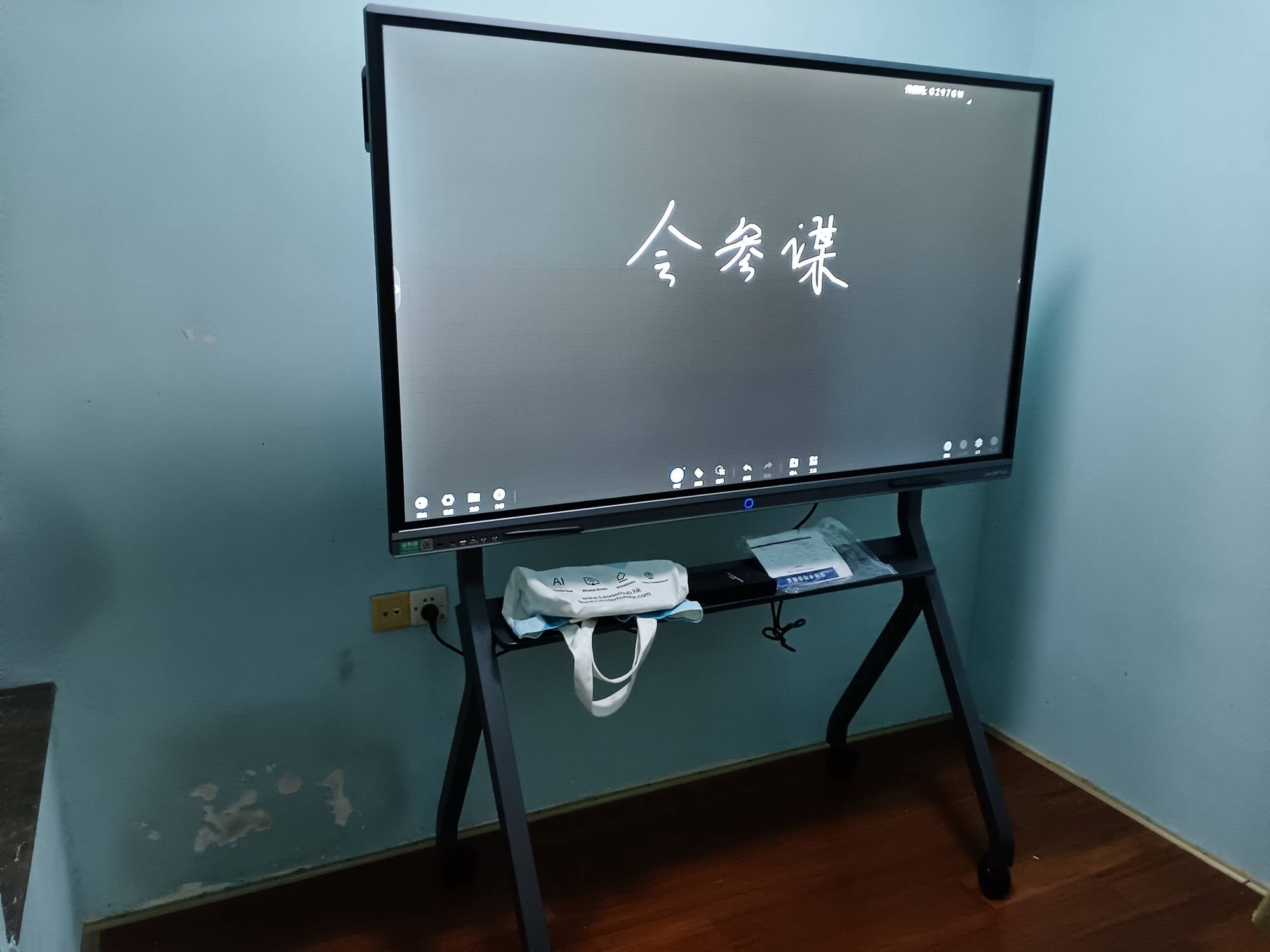
What Is a Smart Board Used For in Business?
In the workplace, a smart board replaces the trio of projector, conference phone and flip chart with one device. Teams use it to meet, decide and document faster. These are the top business applications.
Video Conferencing and Hybrid Meetings
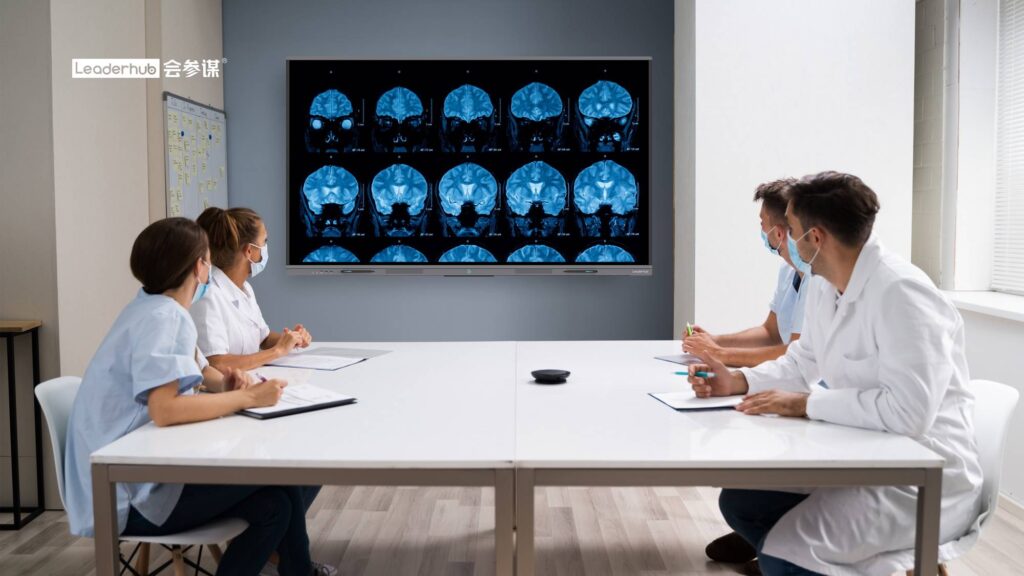
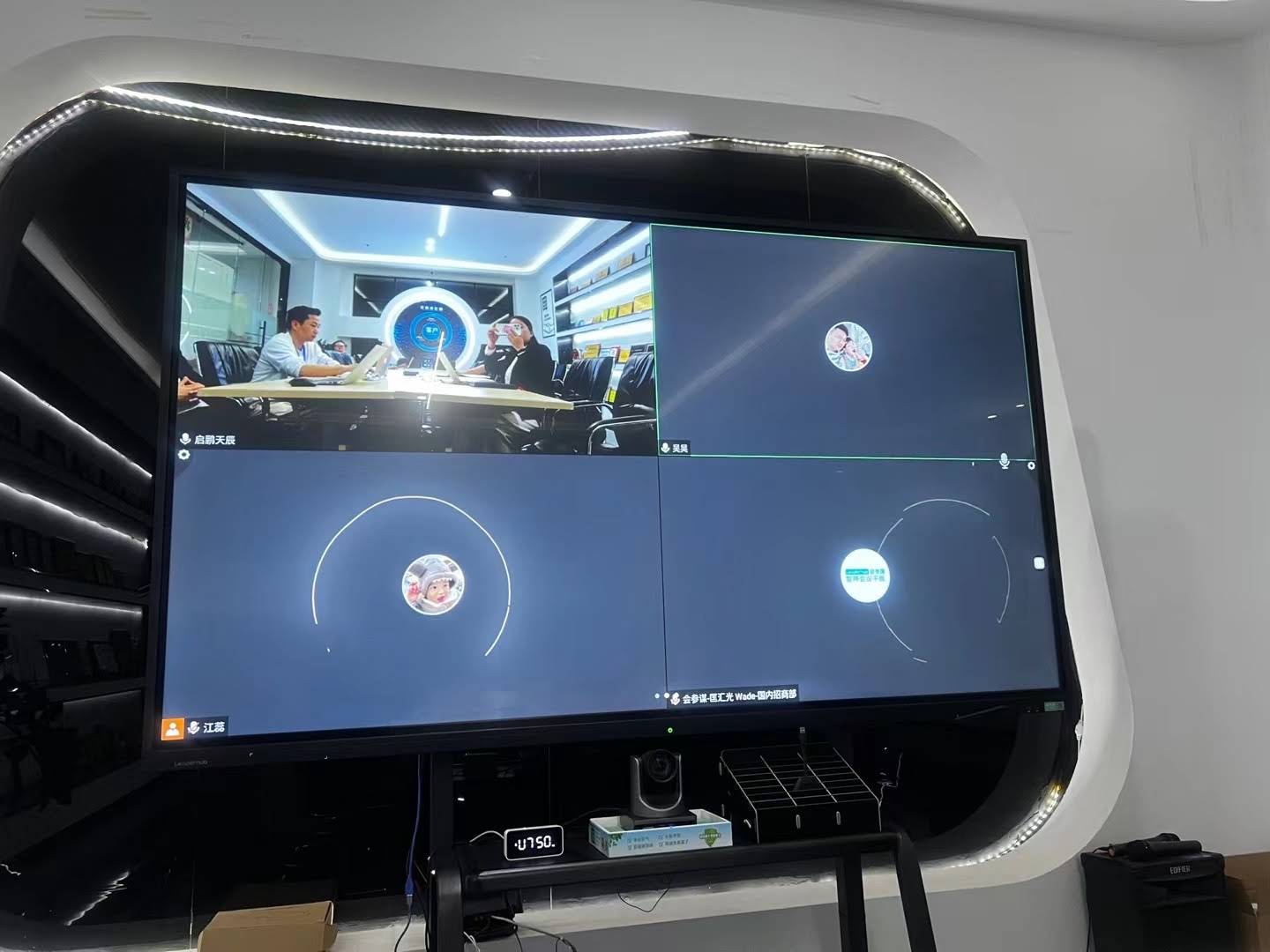
With Zoom, Microsoft Teams, Google Meet or any other platform running directly on the panel, a smart board becomes an all-in-one meeting room system. The wide-angle camera and beam-forming microphones capture the whole room, while remote attendees can see and mark up shared content.
Brainstorming and Whiteboarding
Product teams sketch user flows, marketing teams map campaigns and engineers draw architecture diagrams on an infinite canvas. Sticky notes, shapes and imported images can be moved and grouped, then the whole session is exported as a file instead of being photographed from a wall.
Presentations and Client Pitches
Presenters walk up to the board, wirelessly cast from a laptop, and annotate directly on the slides when a client asks a question. Touch navigation keeps eye contact with the audience instead of hovering over a keyboard.
Data Review and Dashboards
Sales, finance and operations teams open live dashboards on a 75-inch or 86-inch 4K panel and drill into numbers together. Annotating directly on a chart is far more effective than describing it over a call.
Employee Training and Onboarding
HR and L&D teams run workshops, record board sessions and share them as training material. Trainees can interact with the content, which improves retention compared with passive slide decks.
Mobile and Flexible Workspaces
Smart boards on rolling stands, such as a 55-inch mobile panel, move between huddle spaces, open-plan areas and event venues. Smaller battery-powered rotating smart screens extend the same touch and annotation experience to desks, reception areas and pop-up booths.
| Business Scenario | Traditional Setup | With a Smart Board |
|---|---|---|
| Hybrid team meeting | Laptop webcam, speakerphone, projector | One panel with camera, mic, speakers and shared canvas |
| Brainstorm | Markers, sticky notes, phone photos | Infinite digital canvas exported to PDF or cloud |
| Client presentation | HDMI cable, dongles, clicker | Wireless casting and live annotation by touch |
| Training workshop | Printed handouts and static slides | Interactive exercises with recorded sessions |
| Dashboard review | Small monitor or printed reports | Live 4K data with touch drill-down and markup |
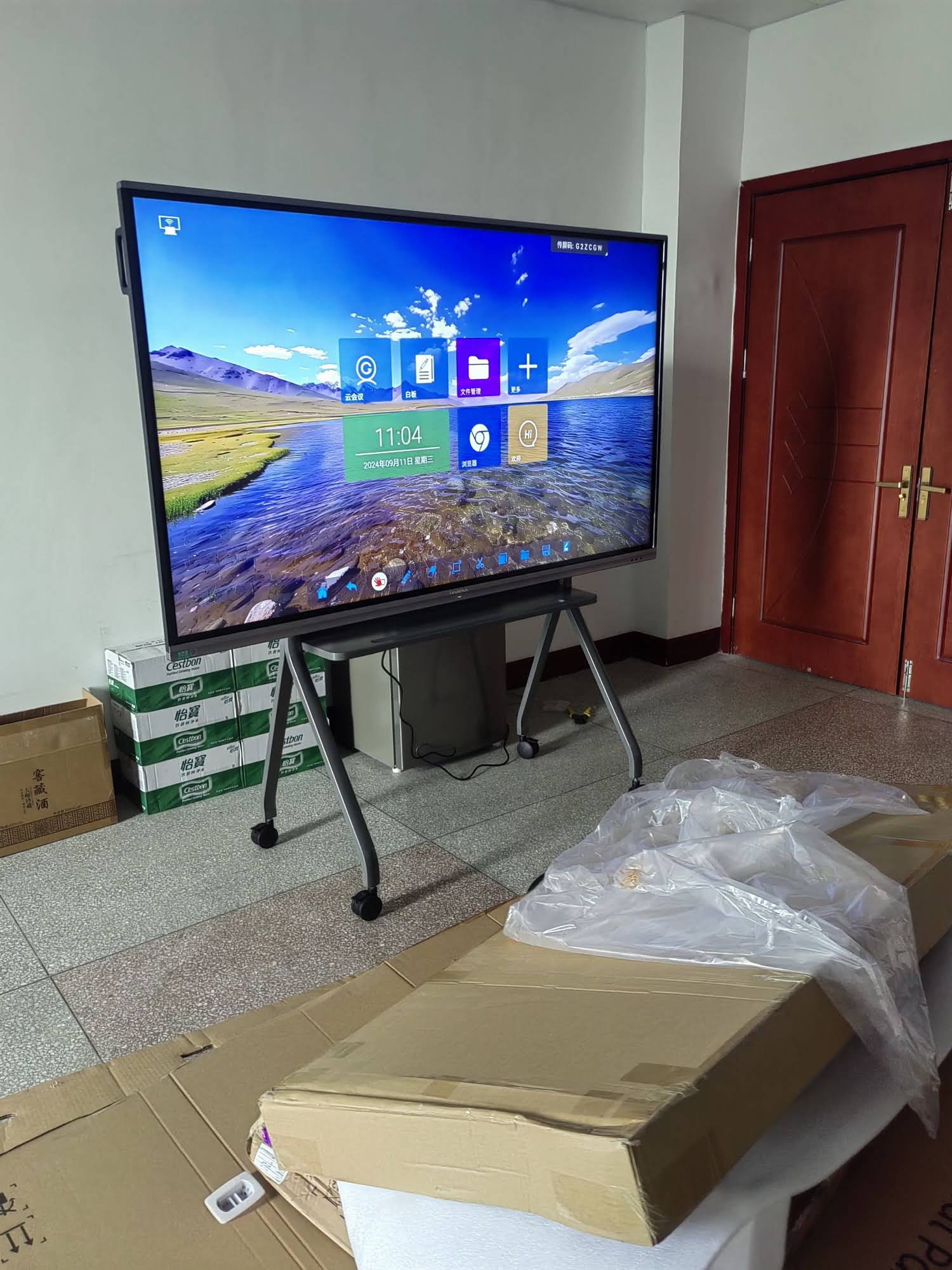
Key Benefits of Using a Smart Board
Beyond the individual use cases, organisations that adopt interactive displays consistently report the same set of advantages.
- Higher engagement — Touch interaction and visual content hold attention far better than static slides or text-heavy whiteboards.
- Time savings — Meetings and lessons start faster with wireless casting, and nobody has to transcribe notes afterwards.
- Lower total cost of ownership — No projector bulbs, no markers, no separate conference cameras or speakers, and panels typically last 50,000 hours or more.
- Better inclusion — Remote participants, students with visual impairments (via zoom and high-contrast modes) and quieter team members all get a clearer seat at the table.
- Searchable knowledge — Saved board sessions become a digital archive that can be revisited, reused and shared.
- Flexibility — The same panel serves as a whiteboard in the morning, a conferencing system at noon and a digital signage screen in the evening.
The OECD Digital Education Outlook notes that shared classroom displays are among the most widely adopted digital tools worldwide precisely because they support, rather than replace, the teacher’s role. The same logic applies to facilitators and managers in the workplace.
Practical Examples: Smart Boards in Action
Example 1: A Grade 5 Science Lesson
The teacher opens a water-cycle animation on a 75-inch panel, pauses it at evaporation and asks three students to come up and draw arrows showing where the vapour goes. Their drawings sit on top of the video frame. The class votes on the best answer using a quick poll, and the annotated frame is saved and shared to the class folder for homework review.
Example 2: A Quarterly Sales Review
A regional sales director casts a CRM dashboard from her laptop. Two account managers join remotely. As the team walks through pipeline numbers, the director circles underperforming segments directly on the chart, drags a sticky note with action items beside each one, and exports the whole board as a PDF that becomes the meeting minutes — no separate note-taker needed.
Example 3: A Design Studio Client Review
An architecture firm mounts an 86-inch panel in its client lounge. Designers present renderings in 4K, zoom into details with two fingers, and sketch suggested changes on top of the plans while the client watches. Revisions are agreed in one session rather than across a week of emails.
Example 4: A Corporate Training Room
An onboarding trainer uses split-screen mode: company policy documents on the left, a live quiz on the right. New hires answer from their phones, results appear instantly, and the trainer revisits any topic where scores are low. The recorded session becomes a self-serve module for future cohorts.
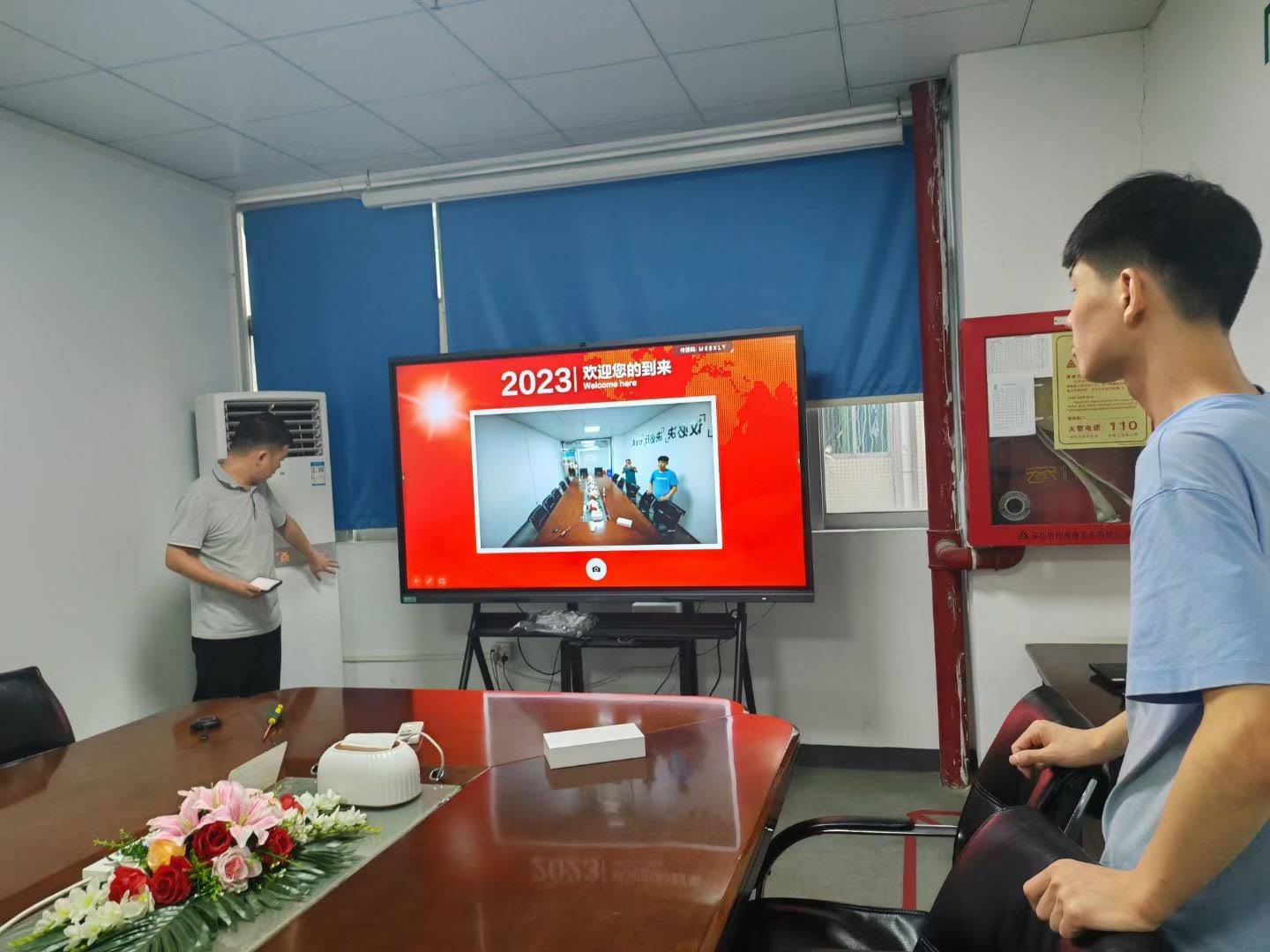
Smart Board vs. Traditional Whiteboard vs. Projector
To understand why so many institutions are switching, it helps to compare the three most common presentation tools side by side.
| Feature | Smart Board | Dry-Erase Whiteboard | Projector + Screen |
|---|---|---|---|
| Touch interaction | Yes, 20–40 points | Marker only | No (unless interactive projector) |
| Image quality | 4K, bright in daylight | N/A | Washed out in bright rooms |
| Save and share content | Instant, cloud or QR | Photo only | Only source file |
| Video conferencing | Built in | No | Separate equipment needed |
| Ongoing costs | Minimal | Markers, erasers | Bulbs, filters, alignment |
| Presenter shadow | None | None | Yes |
How to Choose the Right Smart Board for Your Use Case
Once you know what a smart board will be used for, matching the hardware to the room is straightforward. Four factors matter most.
Screen Size and Room Dimensions
A common rule of thumb: the diagonal in inches should be at least four times the distance in feet to the farthest viewer. A 65-inch panel suits huddle rooms and small classrooms, 75 inches fits standard classrooms and mid-size meeting rooms, and 86 to 110 inches is ideal for lecture halls, boardrooms and auditoriums.
Operating System and Computing Power
Built-in Android handles whiteboarding, casting and conferencing apps. If your team relies on full Windows software — CAD, advanced spreadsheets, specialised education platforms — pair the panel with a compact mini PC that slots behind or beside the display.
Mobility
Fixed wall mounts work for dedicated rooms. Rolling stands or built-in batteries are better for shared spaces, libraries and event venues where the display needs to move.
Budget and Scale
Schools equipping dozens of classrooms often prioritise value-focused models, while executive boardrooms may justify premium panels with rotating screens or extra-large formats.
| Use Case | Recommended Size | Example Model | Price |
|---|---|---|---|
| Small classroom / huddle room | 65″ | L65ZM Interactive Whiteboard | $1,099 |
| Standard classroom / meeting room | 75″ | L75HM Interactive Smart Whiteboard | $1,599 |
| Large classroom / boardroom | 86″ | L86ZM Interactive Whiteboard | $1,699 |
| Flexible / mobile workspace | 55″ on wheels | U55Pro Mobile Interactive Flat Panel | $2,499 |
| Lecture hall / auditorium | 110″ | L110H Interactive Flat Panel | $7,999 |
| Desk / reception / events | 24.5″ handheld | U24M Handheld Smart Screen | $699 |
You can browse the full range of interactive smart whiteboards to compare specifications for your room size and budget.
Tips for Getting the Most Out of a Smart Board
- Train the people, not just the IT team. A short hands-on session for teachers or staff dramatically increases daily use. Guidance from the EEF Digital Technology Guidance stresses that technology improves outcomes only when educators are confident using it.
- Set up cloud accounts so saved board sessions sync automatically to shared drives.
- Standardise on one casting method across rooms so visitors and staff never have to relearn how to connect.
- Use templates — lesson layouts, meeting agendas, retrospective boards — to start every session with structure.
- Mount at the right height: the centre of the screen should sit at roughly eye level for the typical user, with the bottom edge reachable by the shortest regular user.
- Schedule firmware updates during holidays or after hours to keep conferencing apps and security patches current.
Frequently Asked Questions
Is a smart board the same as an interactive whiteboard?
Essentially, yes. “Smart board” began as a brand name but is now used generically for any interactive display. Interactive whiteboard, interactive flat panel and interactive display all describe the same category of touchscreen collaboration device.
Can a smart board work without a computer?
Yes. Modern panels run Android with built-in whiteboarding, browsing, casting and conferencing apps. A connected laptop or mini PC is optional and only needed for Windows-specific software.
What is a smart board used for at home?
Home users employ smaller interactive screens for online tutoring, remote work, family calendars, recipe display, fitness classes and gaming. Portable battery-powered models are especially popular because they move from room to room.
How long does a smart board last?
Most commercial-grade panels are rated for 50,000 hours of use — roughly 17 years at 8 hours a day — with no consumable parts to replace.
Do smart boards support multiple users at once?
Yes. Typical panels register 20 to 40 touch points, so several students or colleagues can write, draw and move objects simultaneously.
Final Thoughts
So, what is a smart board used for? In classrooms, it is used to teach visually, involve every student and share lessons beyond the room. In business, it is used to run hybrid meetings, capture ideas and present with confidence. In both settings, the real value comes from collapsing several devices into one shared, interactive surface that saves time and keeps everyone on the same page.
LeaderHub, a Shenzhen-based manufacturer with 16 years of interactive-display expertise, supplies smart whiteboards, interactive flat panels, mini PCs and portable smart screens to schools and enterprises in more than 82 countries, with a focus on making this technology accessible and affordable for small and medium-sized organisations.
Ready to see how an interactive display could change the way your team teaches, meets or creates? Explore the full product line or contact our team for a tailored recommendation based on your room size, user count and budget.