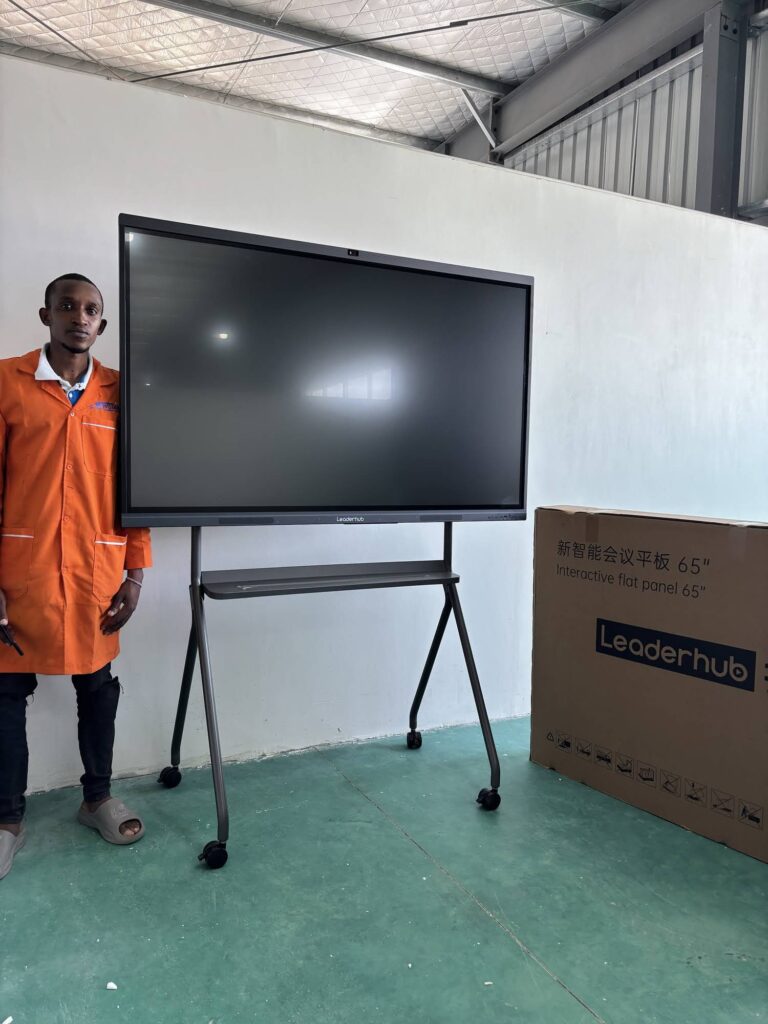
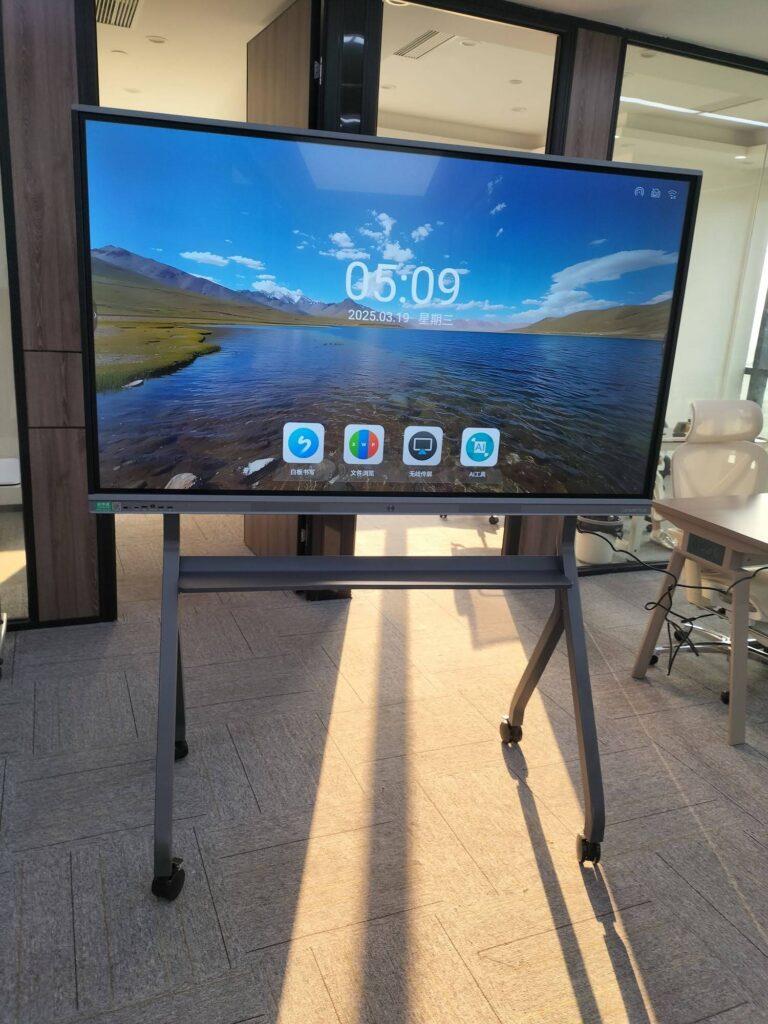
Performance reviews are among the most important conversations a manager has all year, yet many of them still happen across a desk with a printed form, a laptop turned sideways and a lot of nodding. A smart board for performance review meetings changes that dynamic completely. Instead of one person controlling a screen while the other listens, both sides look at the same large touch display, annotate goals together, pull up real data in seconds and leave with a saved, shareable record of what was agreed. This guide explains the features that matter, the measurable benefits for HR teams and managers, and a step-by-step workflow you can apply in your next review cycle.
Why Traditional Performance Reviews Fall Short
Most review formats were designed around paper. The manager fills in a template, the employee reads it (often for the first time) during the meeting, and the discussion becomes a defence of ratings rather than a plan for growth. Common pain points include:
- One-directional communication – the employee rarely gets to shape the document in real time.
- Scattered evidence – KPIs live in dashboards, feedback lives in email, goals live in a spreadsheet.
- Weak follow-through – notes are handwritten, lost or never shared, so next quarter starts from zero.
- Hybrid friction – remote employees join by video and see only a tiny shared window.
An interactive display addresses each of these problems by making the review a shared, visual and documented session rather than a monologue.
Key Smart Board Features That Transform Performance Reviews
1. Multi-Touch Digital Whiteboarding
A 20-point or 40-point touch surface lets both manager and employee write at the same time. You can sketch a career path, draw a skills matrix or rank priorities by dragging sticky notes. The conversation becomes collaborative because both people are literally holding the pen.
2. Wireless Screen Sharing
Pull up a sales dashboard, a project timeline or a customer feedback survey from your laptop or phone without hunting for cables. Split-screen mode allows the review template on one side and supporting evidence on the other, which keeps ratings grounded in facts.
3. Annotation Over Any Content
Open a PDF of last year’s objectives and mark what was achieved, partially achieved or missed directly on the document. Circle a metric, add a comment, and the annotated version is saved as a new file.
4. Built-In Video Conferencing
An integrated 4K camera and far-field microphone array mean a remote employee sees the full board and the manager’s face, not a cropped laptop view. For distributed teams this is the single most valuable feature of a smart board for performance review meetings.
5. Instant Save, Export and Share
At the end of the session, the whiteboard, annotations and screenshots can be exported as PDF or image and sent by QR code or email. Both parties walk away with an identical record, which eliminates the “that’s not what we agreed” problem later.
6. Rotating and Mobile Screens
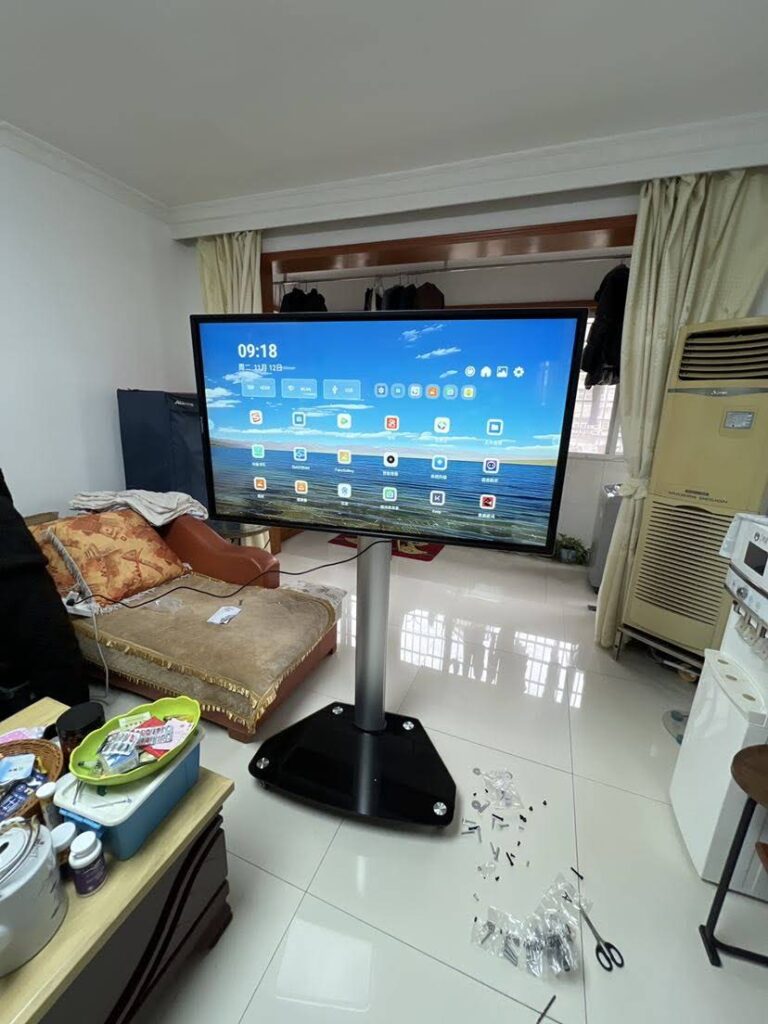
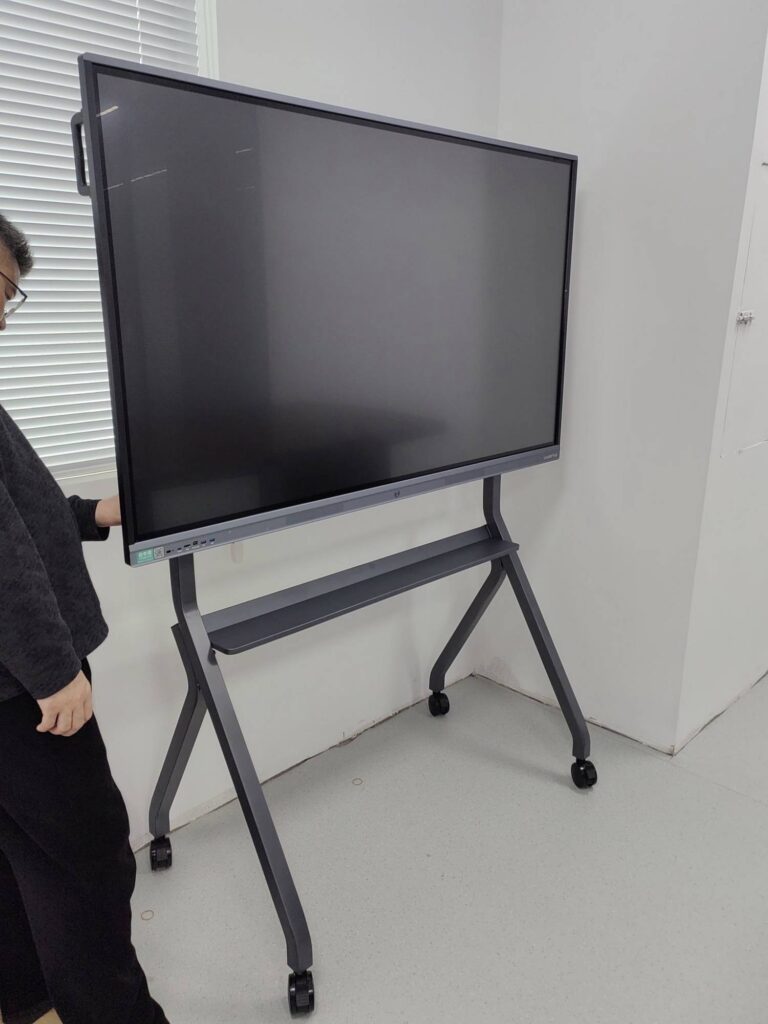
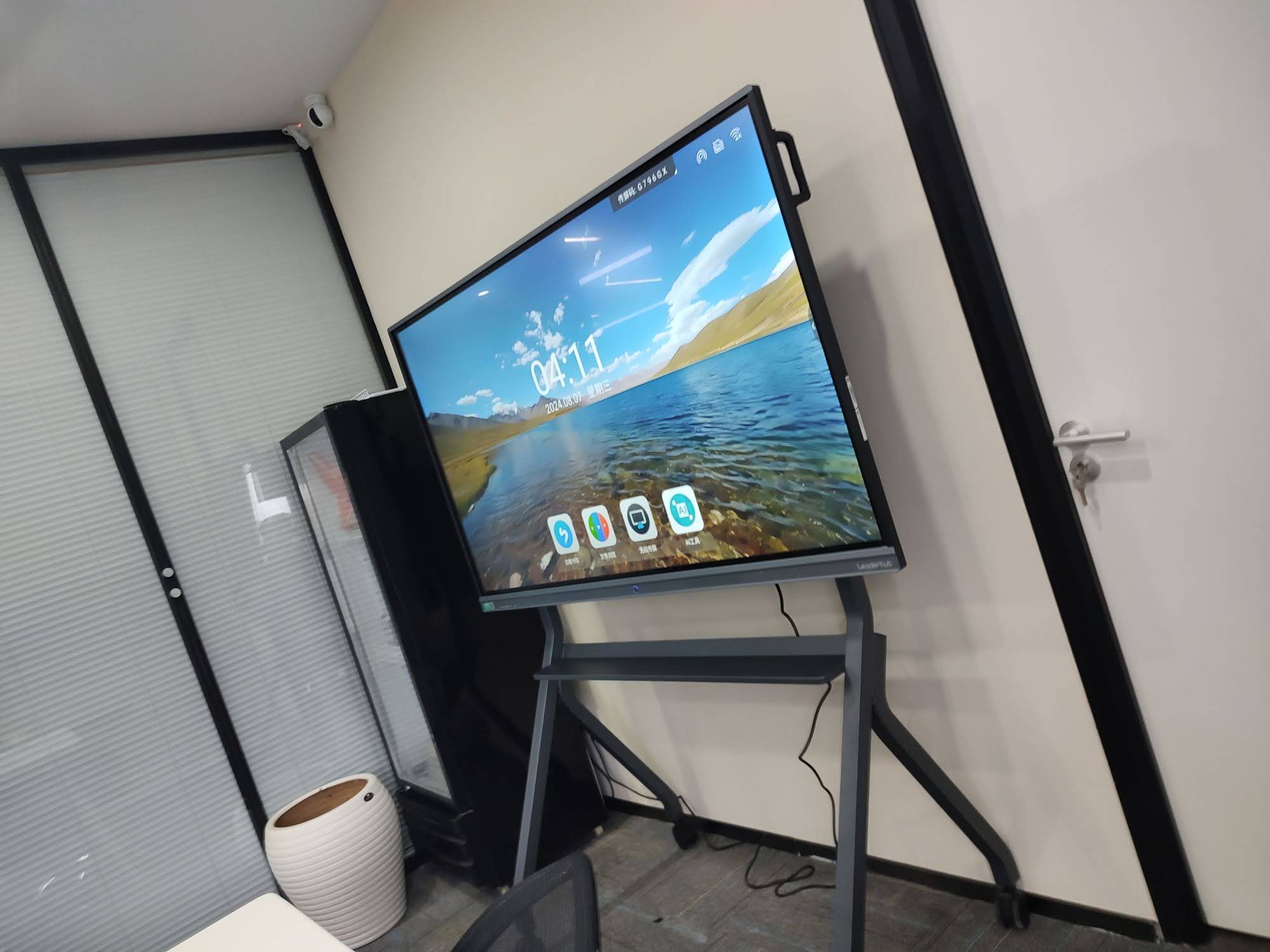
Portrait mode is ideal for document-style review forms and long goal lists, while landscape suits dashboards and video calls. Models with a mobile stand or built-in battery can be wheeled into any private room, which is useful when HR does not have a dedicated review space.
| Feature | What It Does in a Review | Outcome |
|---|---|---|
| 4K touch display | Shows review forms, charts and comments clearly to both people | Fewer misunderstandings |
| Dual-user writing | Employee edits goals alongside the manager | Higher ownership of objectives |
| Wireless casting | Opens live KPI data in seconds | Evidence-based ratings |
| Built-in camera and mics | Full-board view for remote staff | Equal experience for hybrid teams |
| QR code export | Sends the finished board to both parties | Reliable follow-up |
| Portrait rotation | Displays A4-style forms at full height | Less scrolling, better focus |
Benefits for Managers, Employees and HR
For Managers
- Spend less time preparing printouts and more time preparing insights.
- Show data rather than describe it, which makes difficult feedback easier to deliver.
- Run back-to-back reviews from one room with templates preloaded.
For Employees
- See the full picture instead of a page handed across a desk.
- Contribute to goal wording and timelines in real time.
- Receive a clear, visual record to refer back to during the year.
For HR Teams
- Standardise the review experience across departments and locations.
- Reduce paper, printing and filing overhead.
- Improve documentation quality for compliance and calibration sessions.
| Aspect | Paper / Laptop Review | Smart Board Review |
|---|---|---|
| Visibility | One person sees the screen clearly | Both see a 65–86 inch shared view |
| Participation | Manager types, employee listens | Both write and edit together |
| Evidence | Printed screenshots, often outdated | Live dashboards cast wirelessly |
| Documentation | Handwritten notes, retyped later | Saved and shared instantly |
| Remote staff | Small shared window on a call | Full board plus face-to-face video |
| Typical duration | 60–90 minutes with admin | 40–60 minutes, more time on dialogue |
How to Run a Performance Review on a Smart Board: Step by Step
Before the Meeting
- Load your template. Save the company review form as a whiteboard background or PDF on the panel so it opens with one tap.
- Pin supporting files – last cycle’s goals, peer feedback summaries and relevant dashboards – into a single folder on the device or your cloud drive.
- Share a read-only draft with the employee 48 hours ahead so the meeting is a discussion, not a reveal.
- Test wireless casting and the camera if anyone is joining remotely.
During the Meeting
- Open the template full-screen and set the tone: this is a shared document both of you will edit.
- Review last period’s goals with annotation – tick, highlight or comment directly on the board.
- Cast real data when discussing results. Numbers on a large display defuse emotional debate.
- Switch to a blank whiteboard page to brainstorm development goals; let the employee hold the pen.
- Use split-screen to draft SMART objectives on one side while referencing role competencies on the other.
- Summarise agreed actions in a final page with owners and dates.
After the Meeting
- Export the full board as PDF and share by QR code before the employee leaves the room.
- Upload the file to your HR system within 24 hours.
- Schedule a mid-cycle check-in and reopen the same file on the board to track progress.
Best Practices for Smart Board Performance Reviews
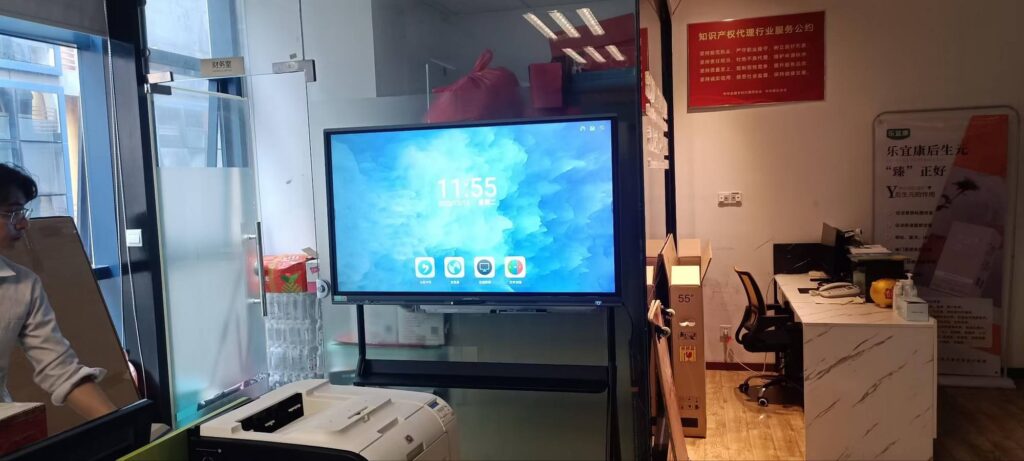
- Keep the room private. Use a small huddle room or a mobile panel that can be rolled into a closed office. Never run reviews on a board visible through glass walls without frosting or blinds.
- Use colour consistently. Green for achieved, amber for in progress, red for missed. Visual coding speeds comprehension and reduces defensiveness.
- Limit the number of pages. Three to five board pages – past goals, evidence, development plan, agreed actions – is enough. More creates noise.
- Let the employee drive at least once. Handing over the pen for the development section signals genuine two-way dialogue.
- Standardise templates across managers. HR should publish one board template so calibration sessions compare like with like.
- Clear the device afterwards. Confirm that files are exported, then delete local copies or use a guest profile that wipes on sign-out.
Privacy and Confidentiality Considerations
Performance data is sensitive. When choosing a smart board for performance review meetings, check for individual user accounts or guest mode, encrypted cloud sync, remote wipe through device management and an easy way to disable the camera and microphone when not in use. Position the panel so that its screen faces away from doors and corridors, and set an automatic lock after inactivity. Industry bodies such as AV Industry Standards and Resources publish useful guidance on secure meeting room design that applies equally to HR spaces.
Choosing the Right Smart Board Size for Review Rooms
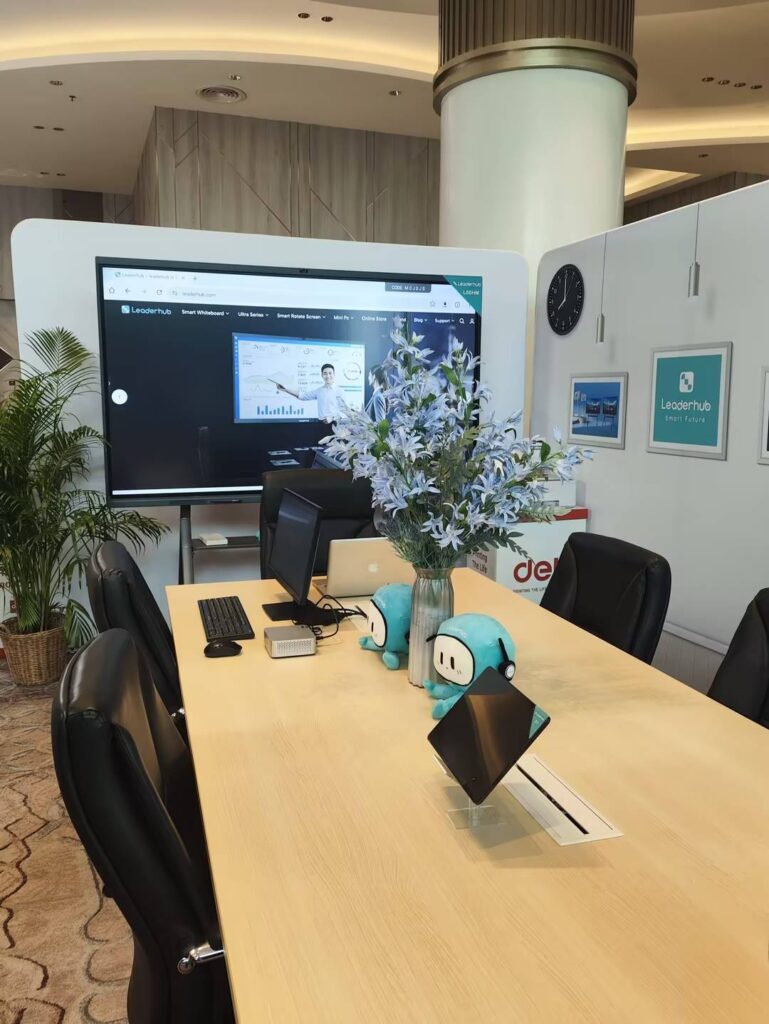
Performance reviews usually involve two to four people in a small room, so the largest panel is rarely the best choice. Consider viewing distance, portrait capability and mobility.
| Room Type | Recommended Size | Suggested Model | Starting Price |
|---|---|---|---|
| Private office or 1:1 room | 55 inch mobile | U55Pro Mobile 4K Smart Display | $2,499 |
| Huddle room, 2–4 people | 65 inch | L65HM 65″ 4K Touchscreen | $1,299 |
| HR meeting room, 4–8 people | 75 inch | L75HM 75″ 4K Touchscreen | $1,599 |
| Calibration or team review | 86 inch | L86ZM 86″ 4K Smart Panel | $1,699 |
| Flexible desk-side reviews | 27 inch rotating | L277M Smart Rotating Screen | $899 |
If your organisation already runs reviews through a browser-based HR platform, pairing a panel with a compact mini PC gives managers a full Windows environment on the board, so they can log in to the HR system directly rather than casting from a laptop. You can compare all sizes in the smart whiteboard collection.
These models are produced by LeaderHub, a Shenzhen-based interactive display manufacturer with 16 years of experience and customers in 82 countries; its rotatable HM series was recognised as the Leaderhub HM Series conference hub at the MUSE Design Awards, and the company works closely with enterprises and HR teams on OEM and customised solutions.
Common Mistakes to Avoid
- Treating the board as a projector. If only the manager touches it, you have replaced paper with a very expensive screen. Design the session for shared input.
- Overloading the screen with dashboards. Pick two or three metrics that genuinely reflect the role.
- Forgetting to export. Build the QR share into your closing routine.
- Skipping training. A 30-minute walkthrough for managers on annotation, split-screen and saving pays for itself in the first review cycle.
- Ignoring hybrid parity. Check that remote participants can see the whiteboard layer, not just the camera feed.
Frequently Asked Questions
Do we need special HR software to use a smart board for reviews?
No. Most teams start with the built-in whiteboard app and PDF annotation. If you already use an HR platform, open it in the panel’s browser or through a connected mini PC.
Is a smart board appropriate for sensitive or disciplinary conversations?
Yes, provided the room is private and the device supports guest profiles or file deletion. Many managers find that visual, evidence-based discussion makes difficult conversations calmer and clearer.
What size is best for one-to-one reviews?
A 55 or 65 inch panel is usually ideal. Larger screens suit team calibration sessions where several managers compare ratings together.
Can remote employees sign or acknowledge the review?
They can annotate the shared board during the video call and receive the exported PDF immediately afterwards. Formal e-signatures should still be completed in your HR system.
How long does setup take?
Wall-mounted installation typically takes under two hours; mobile stand models are ready in minutes. Template preparation for HR is a one-time task of about an hour.
Final Thoughts
The most valuable outcome of a performance review is not the rating – it is the shared understanding of where an employee stands and where they are going next. A smart board for performance review meetings makes that understanding visible, collaborative and documented in a way that paper forms and turned-around laptops never could. Start with a clear template, a private room and a commitment to hand over the pen, and the technology will do the rest. For help selecting the right panel size or configuring a review room, contact the solutions team or browse the full product range.