Buying an interactive display is the easy part. Getting it mounted correctly, connected to your network, integrated with Teams or Zoom, and actually used by your staff is where most office technology projects stall. That is exactly why smart board setup services for business customers have become a standard line item in modern office fit-outs. This guide walks through what a professional setup service covers, how installation, configuration and training fit together, and how to choose the right service partner for your company.
Why Businesses Choose Professional Smart Board Setup Services
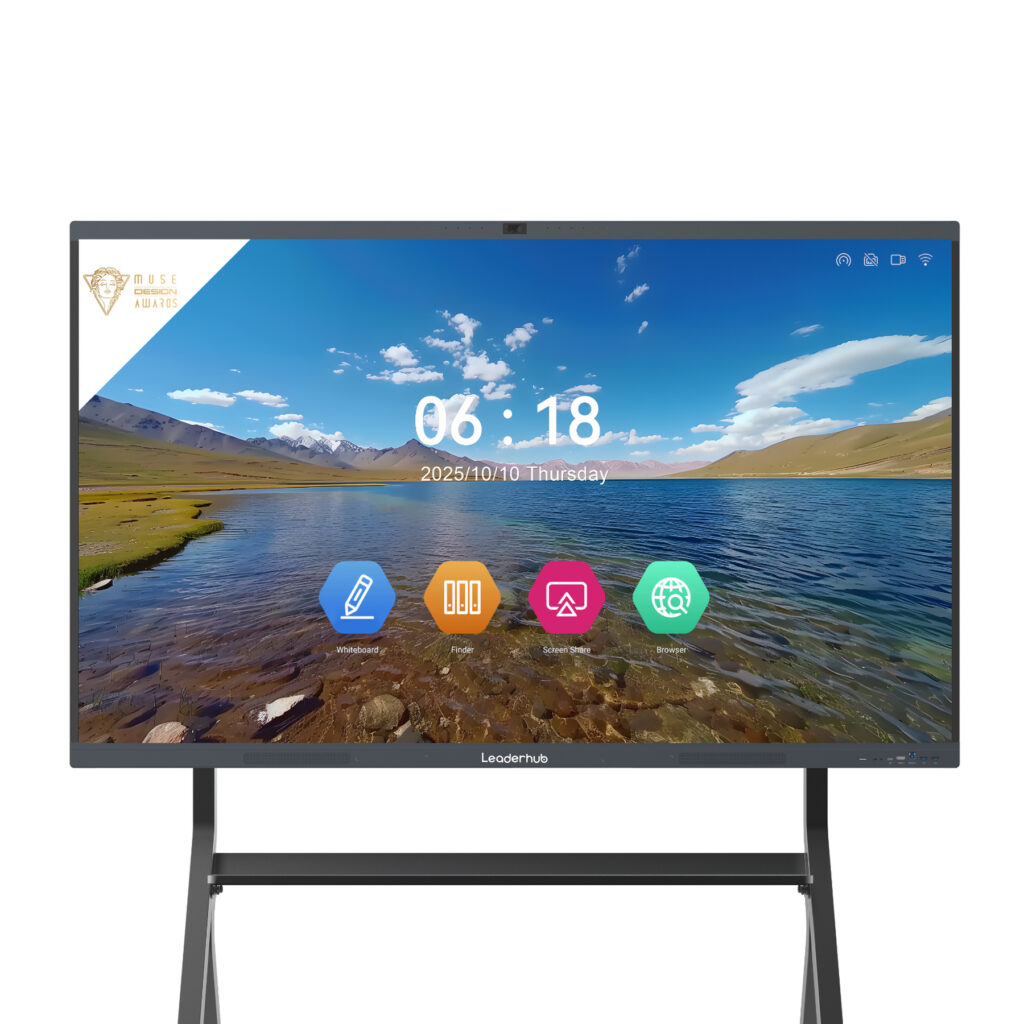
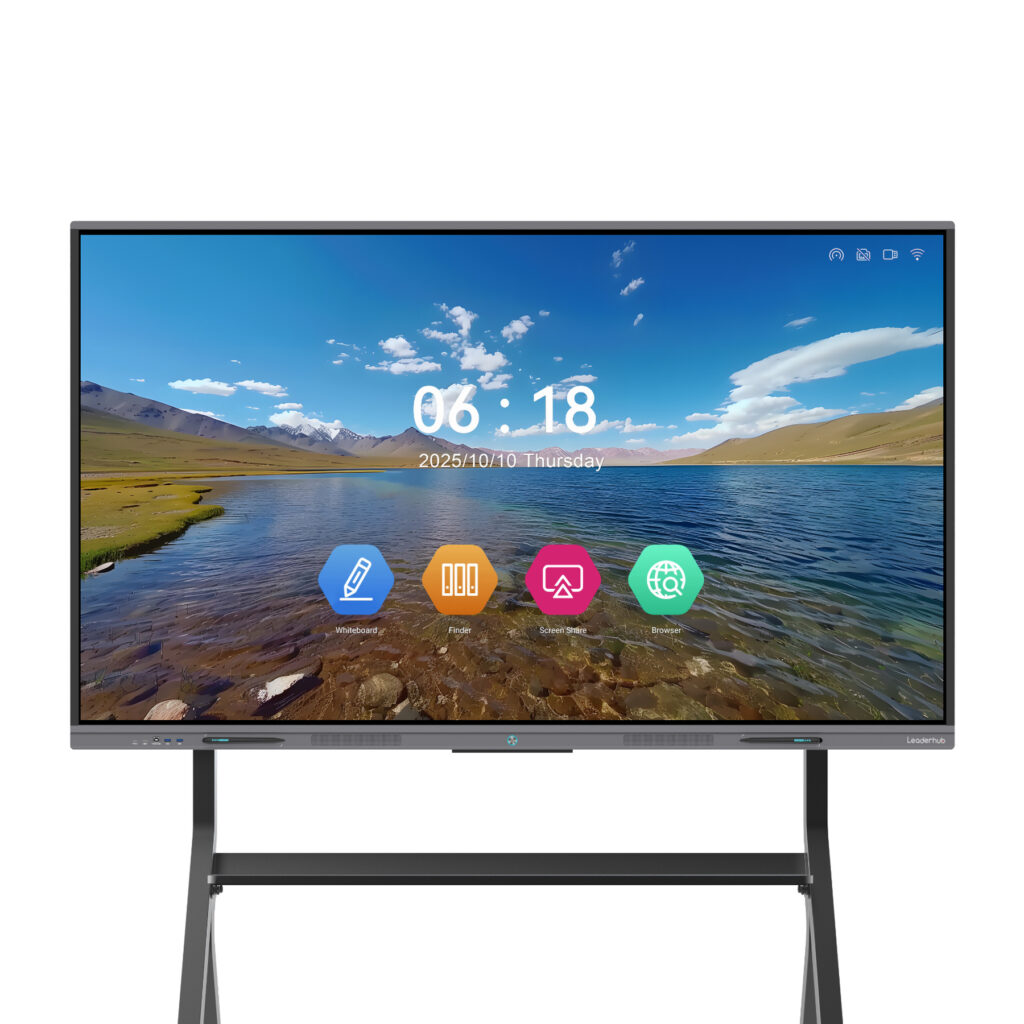
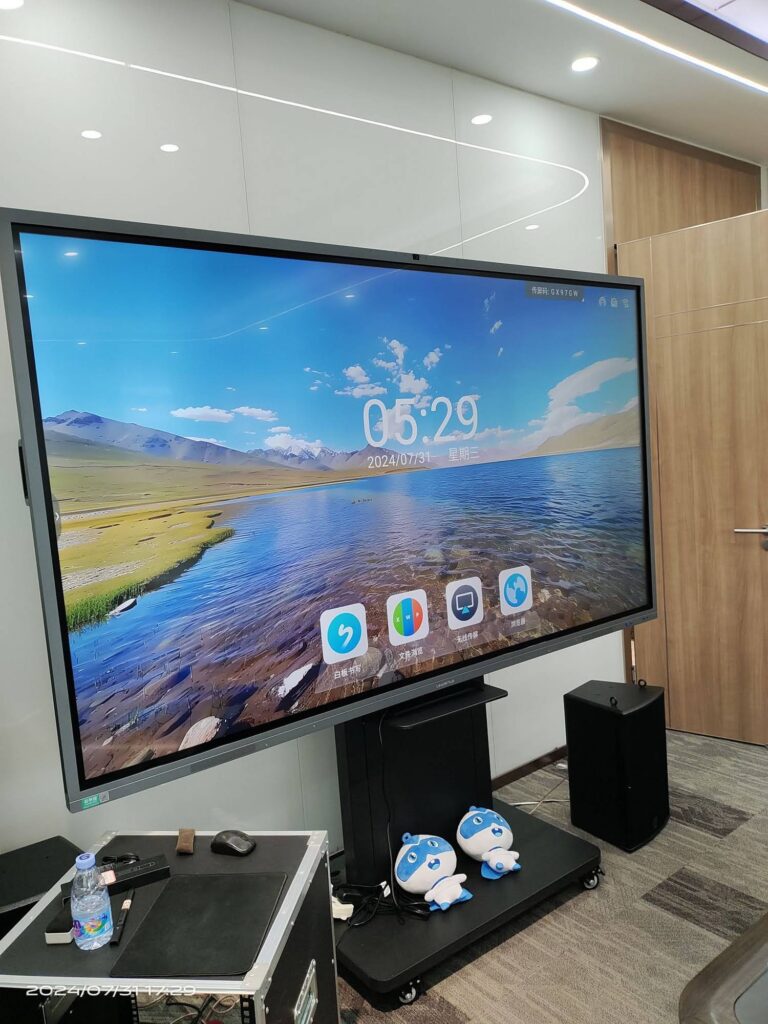
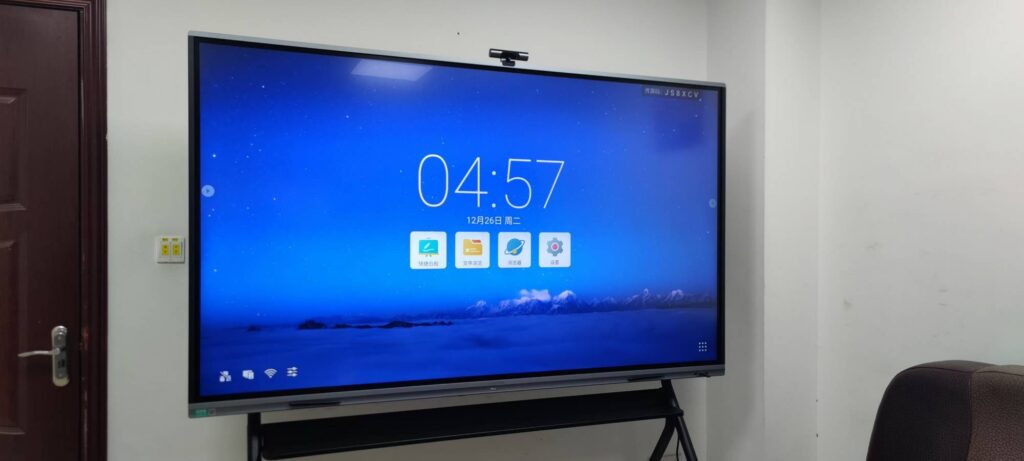
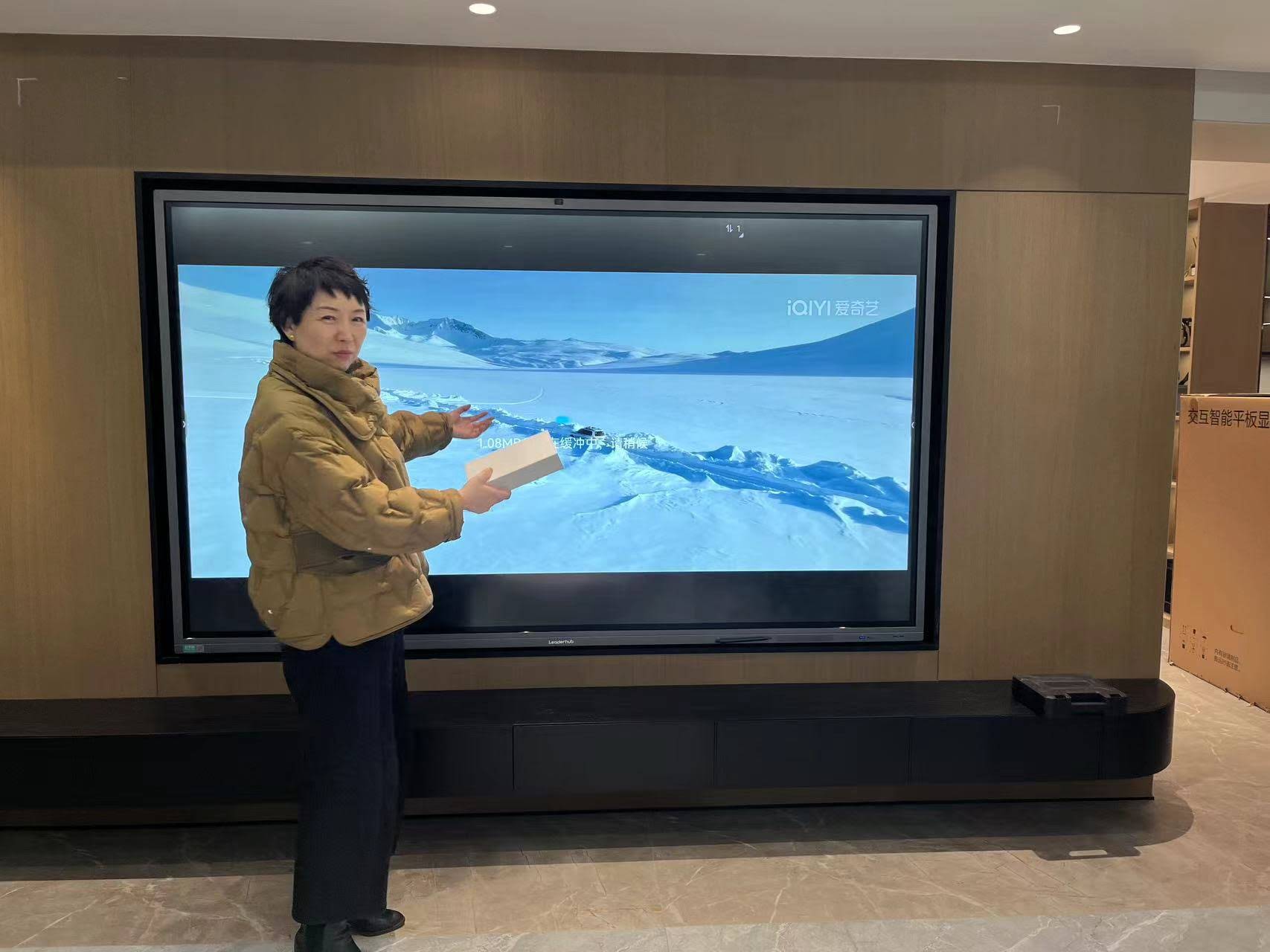
A smart board is not a television. It combines a 4K touchscreen, an embedded Android or Windows system, microphones, cameras, wireless casting and conferencing software into one device that sits at the center of your collaboration workflow. When any one of those elements is set up incorrectly, the whole room suffers. Common problems in self-installed offices include:
- Mounting issues — boards hung too high, on unsuitable walls, or at the wrong angle for seated participants
- Network conflicts — screen sharing that works for guests but not employees, or vice versa
- Audio and video gaps — cameras not recognized by conferencing apps, echo from poorly placed speakers
- Low adoption — staff who revert to laptops and projectors because nobody showed them how the board works
Professional setup services remove these risks. According to AV Industry Standards and Resources from AVIXA, properly commissioned collaboration spaces see significantly higher utilization than rooms where equipment is simply delivered and left for IT to figure out. For small and medium-sized businesses without a dedicated AV team, outsourcing the setup is often cheaper than the hours of internal troubleshooting it replaces.
What a Complete Smart Board Setup Service Includes
Not every provider defines “setup” the same way. Some only deliver and mount the panel. A complete service for business customers should cover three distinct phases, each with its own deliverables.
| Phase | Key Tasks | Typical Time |
|---|---|---|
| Installation | Site survey, wall or mobile stand mounting, cable management, power and data connections | 2–4 hours per board |
| Configuration | Network setup, firmware updates, account integration, conferencing app installation, security settings | 1–3 hours per board |
| Training | Hands-on sessions for staff, admin training for IT, quick-start guides placed in each room | 1–2 hours per team |
Phase 1: Installation
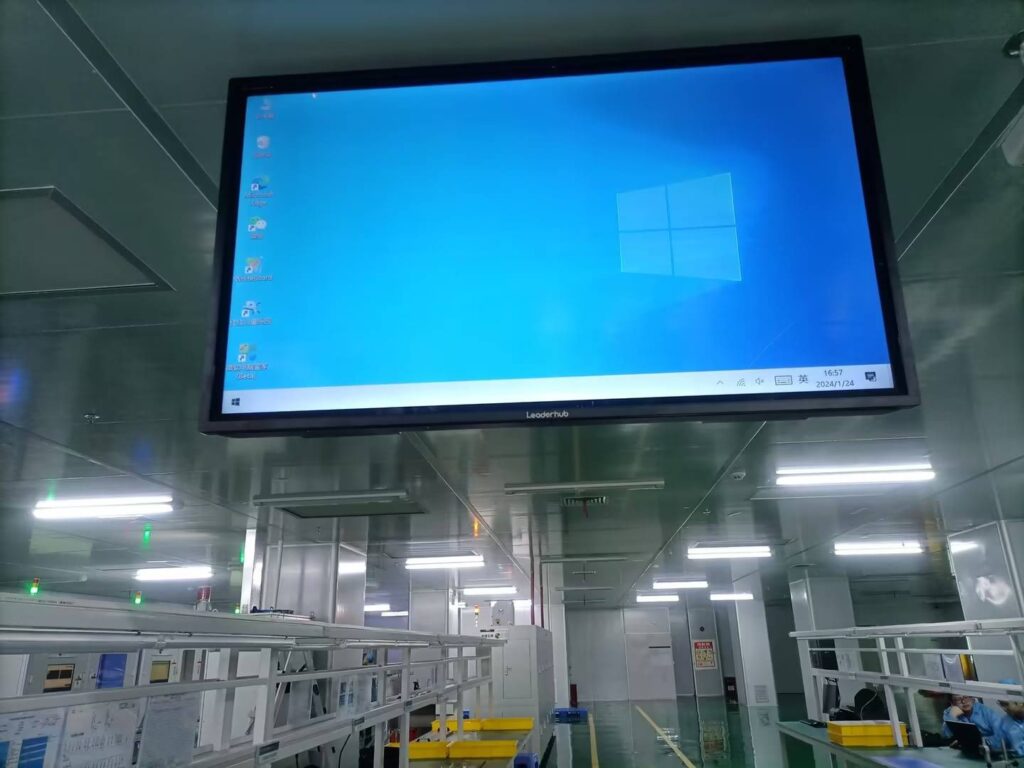
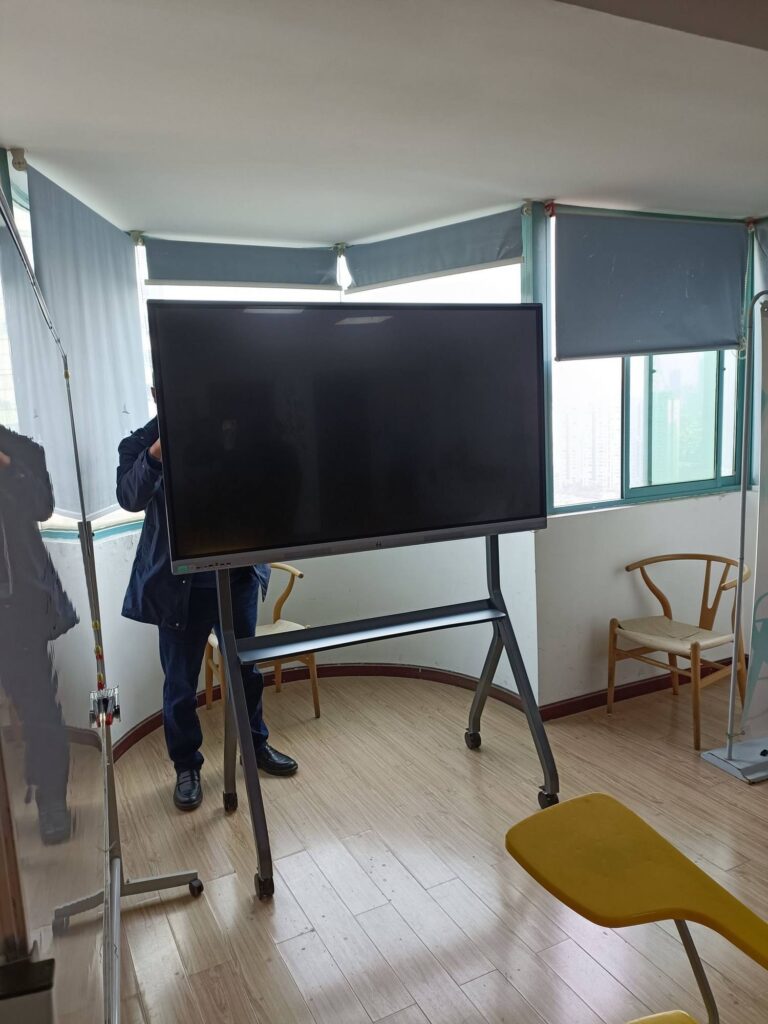
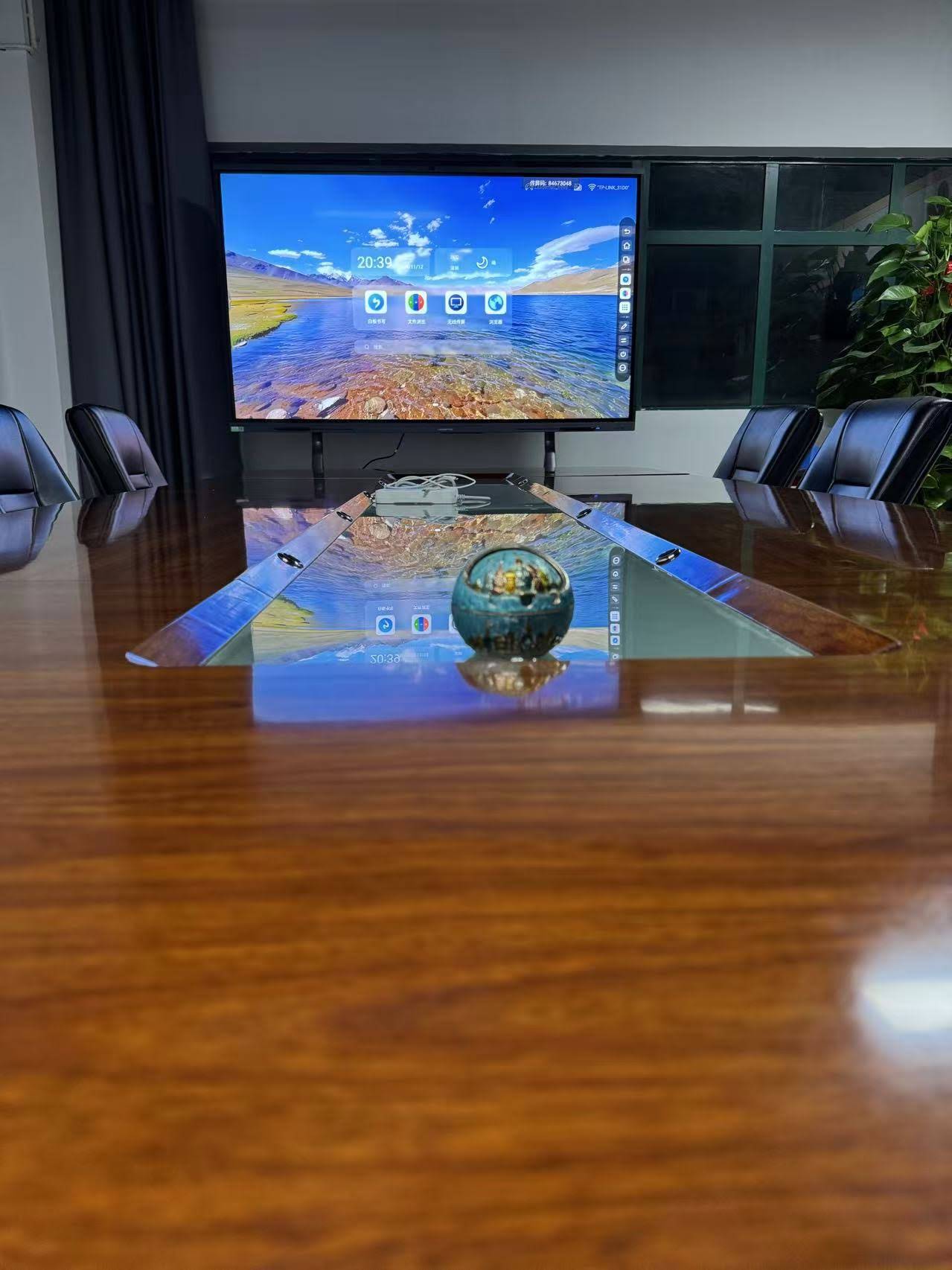
Installation begins with a site survey, either on location or via photos and floor plans. The technician confirms wall type and load capacity, checks for power outlets and Ethernet ports, and recommends the ideal screen height. For a seated boardroom, the center of the display typically sits around 120–130 cm from the floor; for standing huddle spaces it is higher. Where walls cannot support an 86-inch panel, or where the board needs to move between rooms, a mobile stand is the preferred alternative.
Cable management matters more than many buyers expect. Visible HDMI and power cables undermine a professional meeting room and create trip hazards. Good installers route cables inside trunking or through the wall and leave accessible ports for laptops at table level.
Phase 2: Configuration
This is the phase where business customers gain the most from expert help. Configuration tasks commonly include:
- Connecting the board to the corporate Wi-Fi or wired LAN, and to a separate guest network for visitor casting
- Updating firmware and the operating system to the latest stable release
- Installing and signing into Microsoft Teams, Zoom, Google Meet or other conferencing platforms
- Pairing the built-in camera and microphone array with the conferencing software and testing audio levels
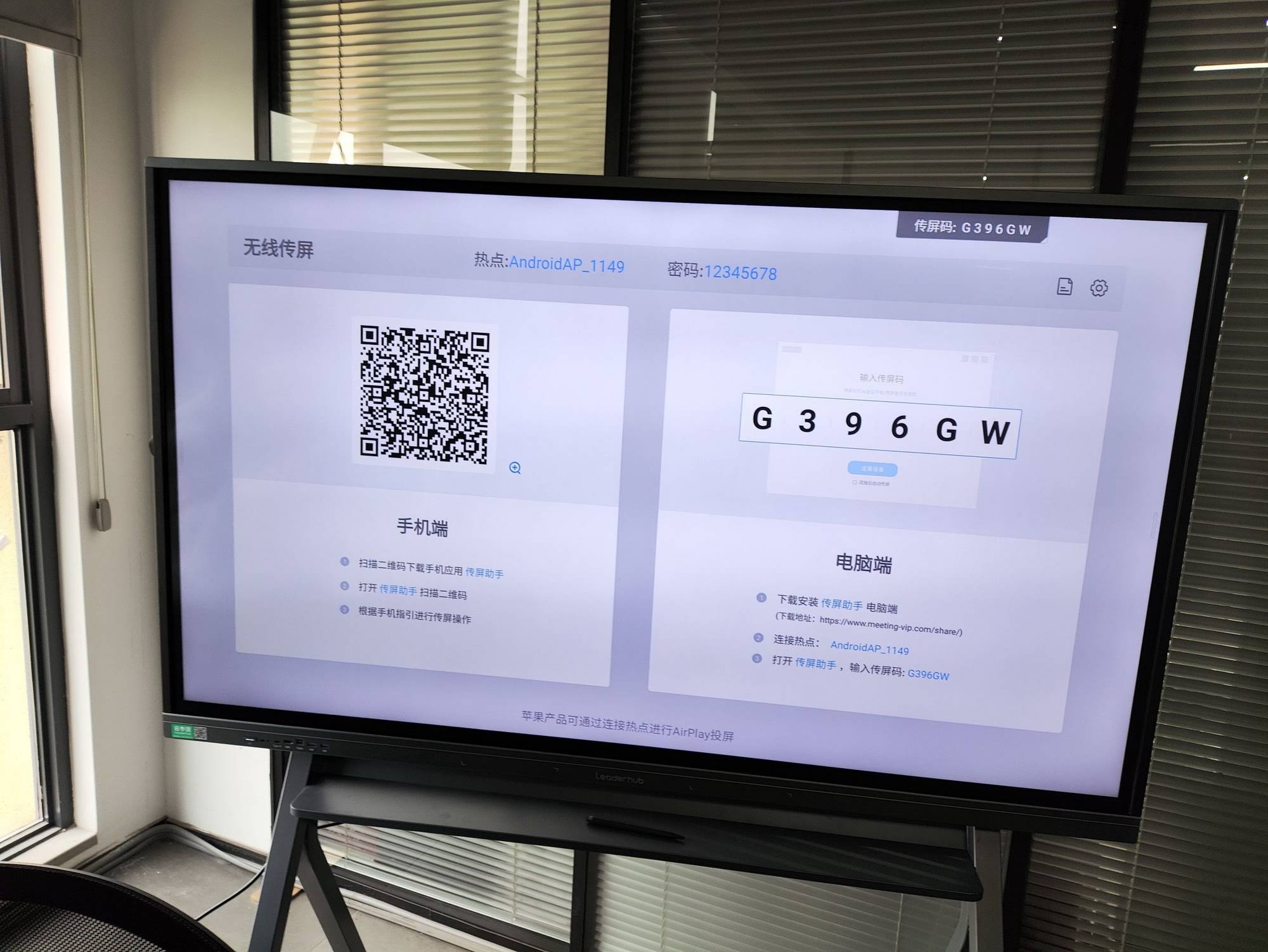
- Setting up wireless screen sharing for Windows, macOS, iOS and Android devices
- Configuring the whiteboard app, cloud saving and email export of meeting notes
- Applying security policies such as admin passwords, auto-logout and USB restrictions
For companies deploying multiple boards across offices, configuration should also include a standard device template so every room behaves identically. Employees should be able to walk into any meeting room and know exactly how to start a call or share a screen.
Phase 3: Training
Training is the most frequently skipped phase and the most important for return on investment. Research summarized in the OECD Digital Education Outlook highlights that technology adoption depends far more on user confidence than on device specifications. The same principle applies in the office.
An effective business training program separates audiences:
- End users — how to start a meeting, annotate over documents, share a screen from a laptop or phone, save and send whiteboard notes
- Power users and presenters — split-screen use, using the board as a second display, recording sessions, templates for workshops
- IT administrators — remote device management, user accounts, firmware policy, troubleshooting common connection issues
Choosing the Right Smart Board for Your Office Before Setup
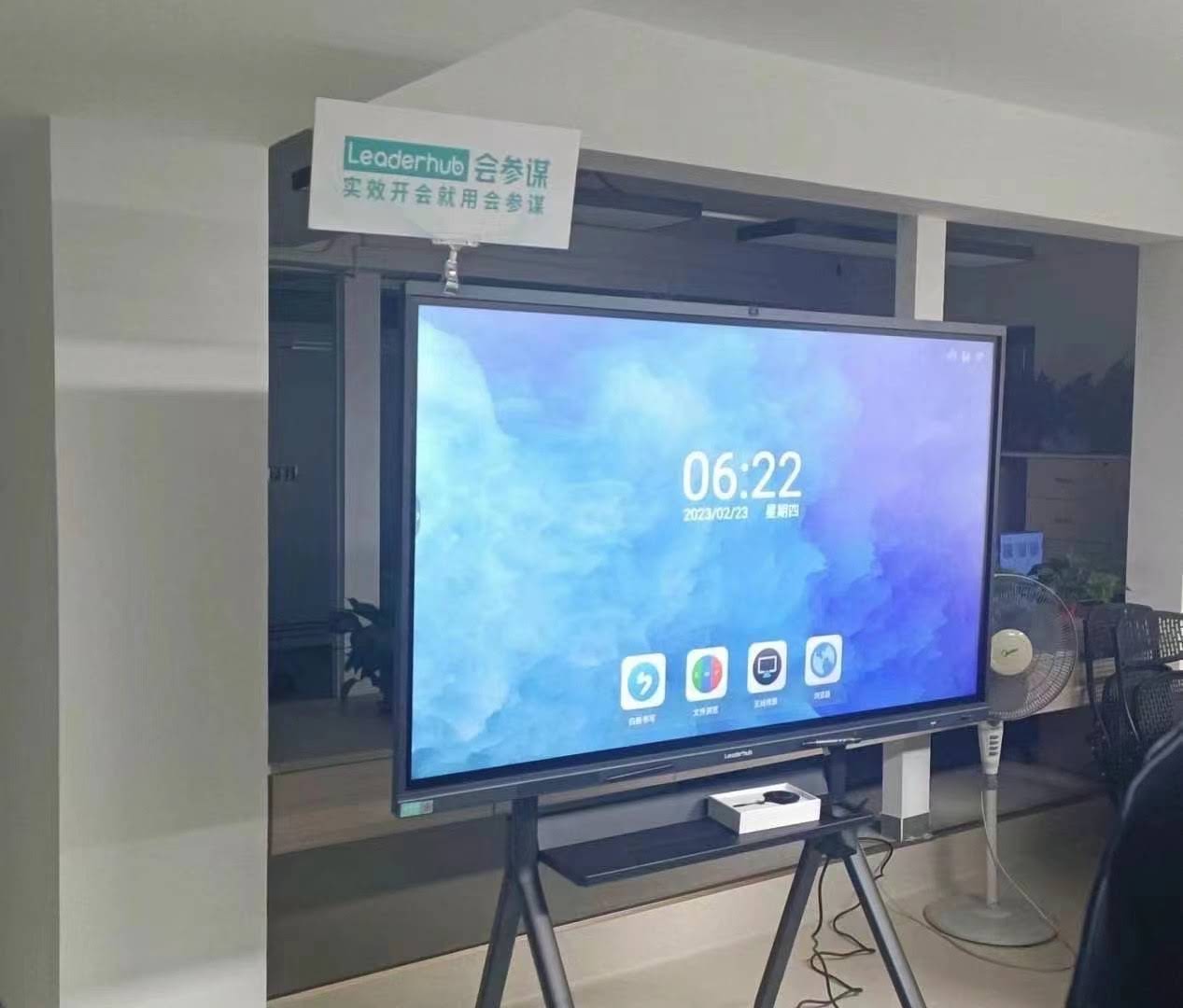
Setup services work best when the hardware matches the room. A board that is too small for a long boardroom or too large for a four-person huddle space will disappoint regardless of installation quality. The table below offers general sizing guidance for business environments.
| Room Type | Participants | Recommended Size | Suggested Model |
|---|---|---|---|
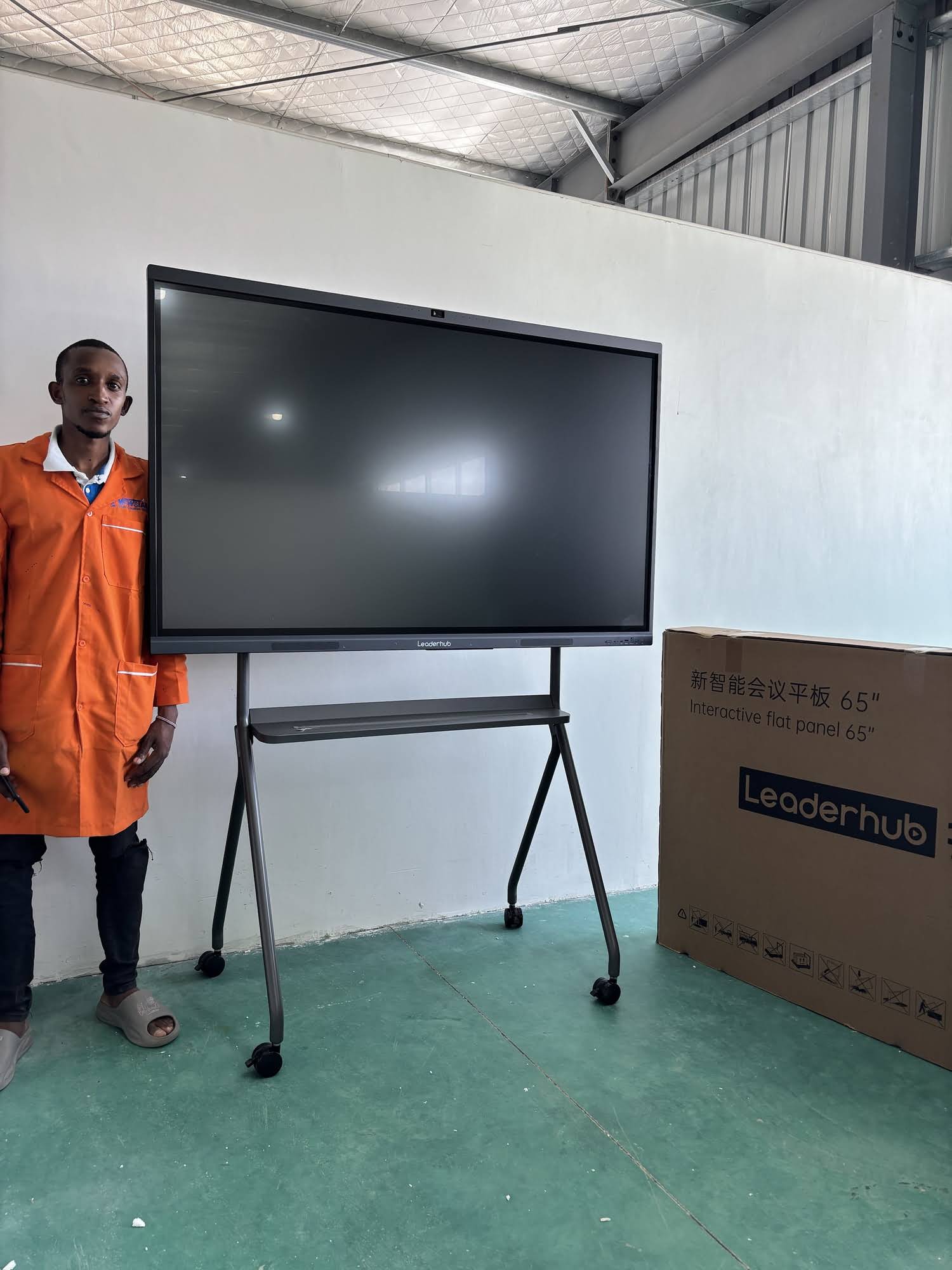
| Huddle space / small office | 2–6 | 55″–65″ | Leaderhub L65ZM 65″ Interactive Whiteboard |
| Standard meeting room | 6–12 | 75″ | Leaderhub L75HM 75″ Smart Whiteboard |
| Boardroom / training room | 12–25 | 86″ | Leaderhub L86HM 86″ Smart Whiteboard |
| Flexible / multi-room use | Varies | 55″ mobile | Leaderhub U55Pro 55″ Mobile Interactive Flat Panel |
| Auditorium / large hall | 25+ | 110″ | Leaderhub L110H 110″ Interactive Flat Panel |
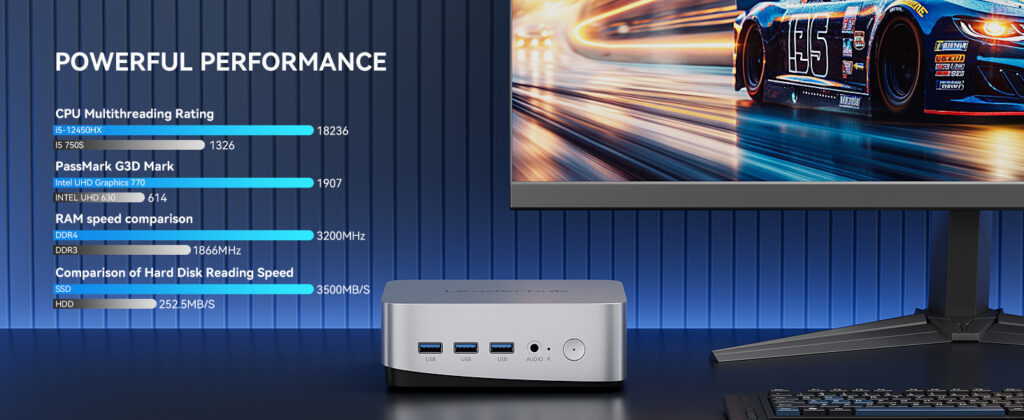
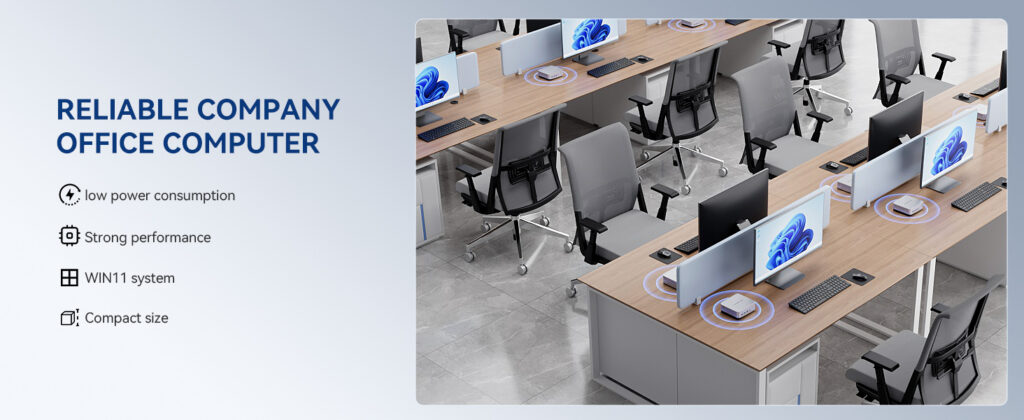
Businesses that want full Windows compatibility for proprietary software often pair the board with a compact computer. A mini PC mounted behind the panel turns the display into a complete workstation, and your setup provider can configure both devices together so they switch inputs automatically.
Questions to Ask a Smart Board Setup Provider
Service quality varies widely between vendors, integrators and freelance installers. Before signing, ask these questions:
Experience and scope
- How many business installations have you completed with this specific brand and model?
- Does the quote include configuration and training, or only physical mounting?
- Will you integrate with our existing conferencing platform and identity system?
Documentation and support
- Do you provide a configuration record for each board so IT can replicate settings later?
- What post-installation support is available, and for how long?
- Can you provide remote assistance if a room stops working before an important meeting?
Scalability
- Can you deploy the same standard across multiple offices or countries?
- Do you offer refresher training when new staff join?
Companies with distributed teams should favor providers that document everything. Guidance from the Education Technology Implementation report, although written for schools, maps closely to corporate deployments: organizations that plan implementation, assign ownership and schedule training see markedly better outcomes than those that treat devices as a one-time purchase.
Timeline: What to Expect From Order to First Meeting
| Step | What Happens | Who Is Involved |
|---|---|---|
| 1. Consultation | Room count, sizes, software stack and budget confirmed | Office manager, IT lead |
| 2. Site survey | Walls, power, network and sightlines checked | Installer, facilities |
| 3. Delivery and mounting | Boards mounted, cabled and powered on | Installer |
| 4. Configuration | Network, accounts, apps and security applied | Technician, IT |
| 5. Acceptance test | Live video call, casting from four device types, whiteboard export | Technician, client |
| 6. Training | Staff and admin sessions, quick-start cards placed in rooms | Trainer, all staff |
For a single office with three to five rooms, the entire process is usually completed within one to two working days on site once hardware has arrived. Larger multi-site rollouts are typically phased so that each location is commissioned and trained before the next begins.
Common Configuration Mistakes to Avoid
Even experienced IT teams run into recurring issues during smart board deployment. Being aware of them helps you check the work of any setup provider.
- Skipping firmware updates. Boards ship with factory firmware that may be several versions old. Updating before configuration avoids redoing settings later.
- Single network for everyone. Putting the board, employees and guests on one Wi-Fi network creates both security and performance problems. Use separate SSIDs with casting enabled across both.
- No admin lock. Without an admin password, any user can change settings, uninstall apps or factory reset the device.
- Ignoring the camera position. Boards mounted high for visibility often place the camera above eye level, producing unflattering angles in video calls. Height should balance both uses.
- Training only one person. When the single trained employee leaves or is on holiday, the room becomes unusable. Train at least two people per team.
How Leaderhub Supports Business Setup
Leaderhub is a Shenzhen-based interactive display manufacturer with 16 years of experience, serving business, education and government customers in more than 82 countries. Beyond manufacturing smart whiteboards, mini PCs and portable screens, the company works with regional partners and system integrators to provide installation guidance, remote configuration support and training materials tailored to office environments. Business customers planning a deployment can contact the team to discuss room layouts, model selection and setup requirements before placing an order.
Frequently Asked Questions
Do I need professional setup if my IT team is capable?
Many IT teams can handle configuration but lack the tools and experience for safe mounting of 50–80 kg displays. A hybrid approach works well: outsource physical installation and have your IT team participate in configuration so they learn the device inside out.
How long does staff training take?
A basic end-user session typically runs 45–60 minutes. Administrator training takes one to two hours. Most companies combine training with the acceptance test so staff see the board working in a real scenario on day one.
Can the board work without a dedicated computer?
Yes. Modern interactive flat panels run Android with built-in conferencing and whiteboard apps. A separate mini PC such as the Leaderhub LP5C is only needed if your workflow depends on full Windows applications.
What if we move offices later?
Wall-mounted boards can be removed and reinstalled, though this requires a new site survey. Companies that anticipate relocation often choose mobile stands so the display, cabling and settings move as a single unit.
Is remote configuration possible?
For many settings, yes. Once a board is on the network, a technician can update firmware, install apps and apply policies remotely. Physical mounting, camera positioning and audio tuning still require someone on site.
Final Thoughts
Smart board setup services for business customers turn a piece of hardware into a dependable collaboration tool. Installation ensures the display is safe and well positioned, configuration connects it to your network and software, and training makes sure people actually use it. Companies that invest in all three phases consistently report faster meetings, fewer technical interruptions and higher satisfaction from both in-office and remote participants. Whether you are equipping a single huddle room or standardizing dozens of offices, start with the right size board, insist on a complete service scope, and plan training from day one.