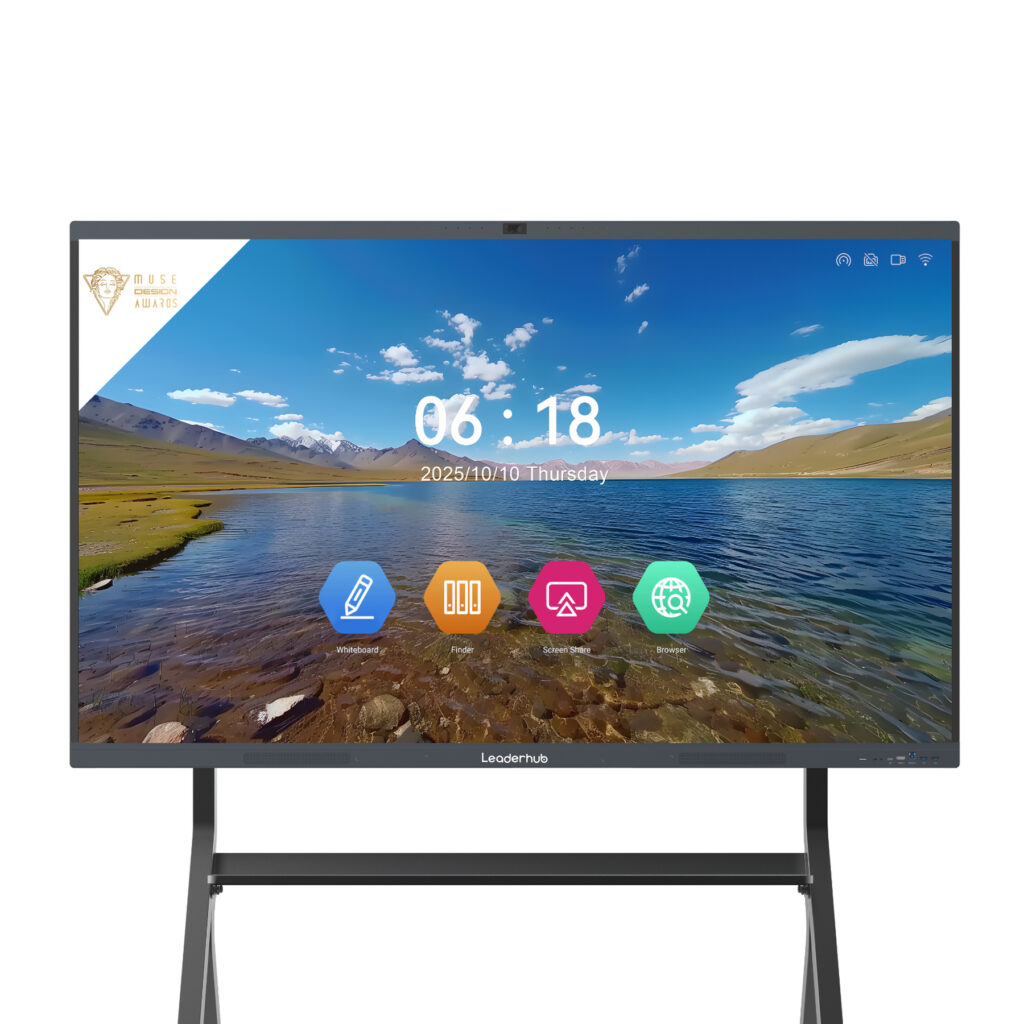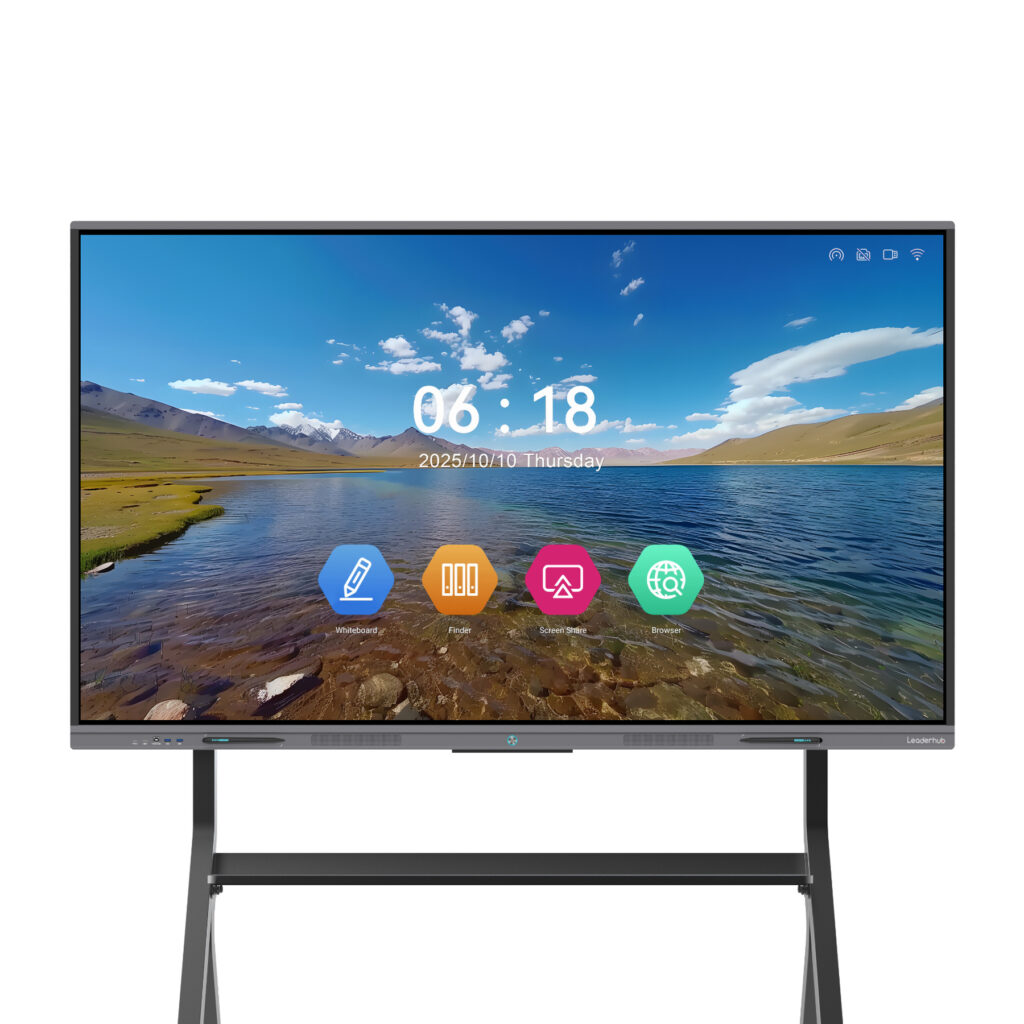
Teachers, presenters and meeting hosts all share the same worry when they walk up to an interactive display: will my file actually open? A smart board is only as useful as the content it can display, and file format compatibility decides whether a lesson or pitch starts on time or stalls in front of an audience. This guide explains which file types modern smart boards support, how the operating system affects compatibility, and the fastest ways to open documents, images, videos and whiteboard files on an interactive panel.
Why File Format Compatibility Matters on a Smart Board
Unlike a desktop computer, a smart board is a shared device used by many people with different laptops, phones and software habits. One teacher brings a PowerPoint deck, another has a Google Slides link, a guest speaker arrives with a Keynote file, and the IT team needs to display a PDF policy document. If the panel cannot handle this variety natively, every session depends on conversions, adapters and workarounds.
Good file format compatibility delivers three practical benefits:
- Zero-friction startup — plug in a USB drive or tap a cloud link and the content appears instantly.
- True interactivity — you can annotate directly over an opened file instead of a static screenshot.
- Lower training cost — staff keep using the tools they already know, which research such as the OECD Digital Teaching Guidance identifies as a key factor in successful classroom technology adoption.
Supported File Types at a Glance
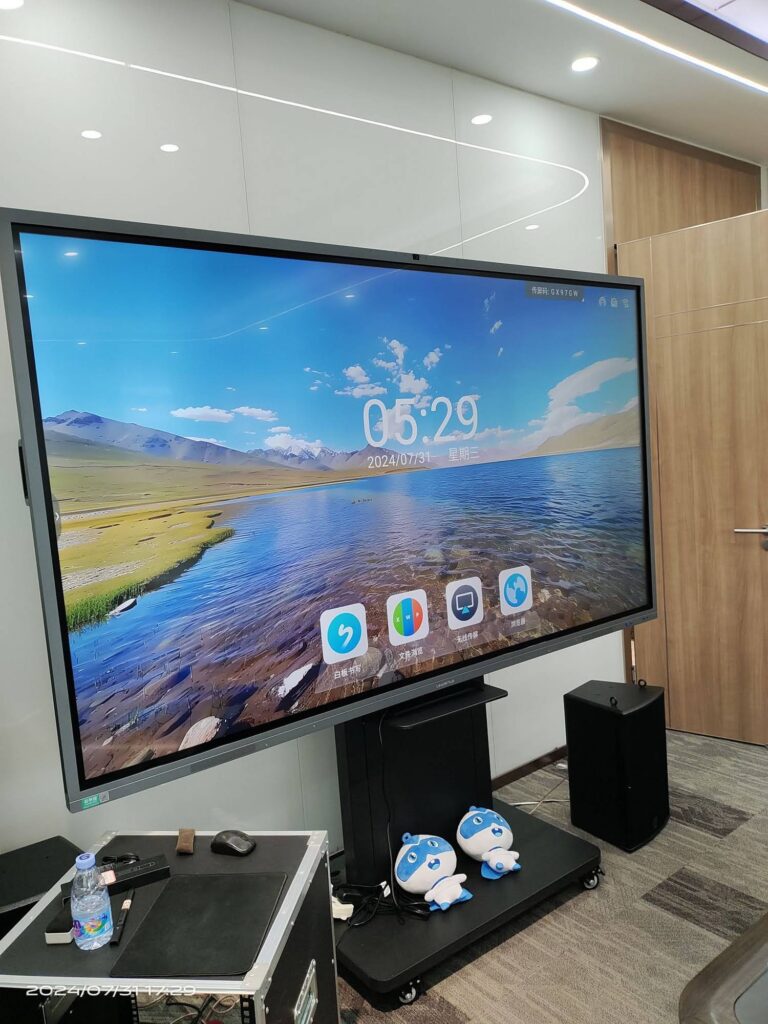
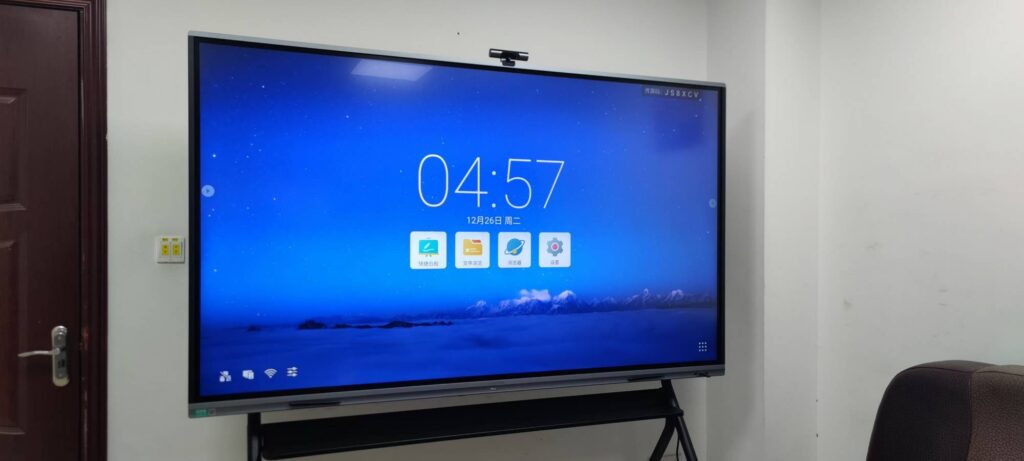
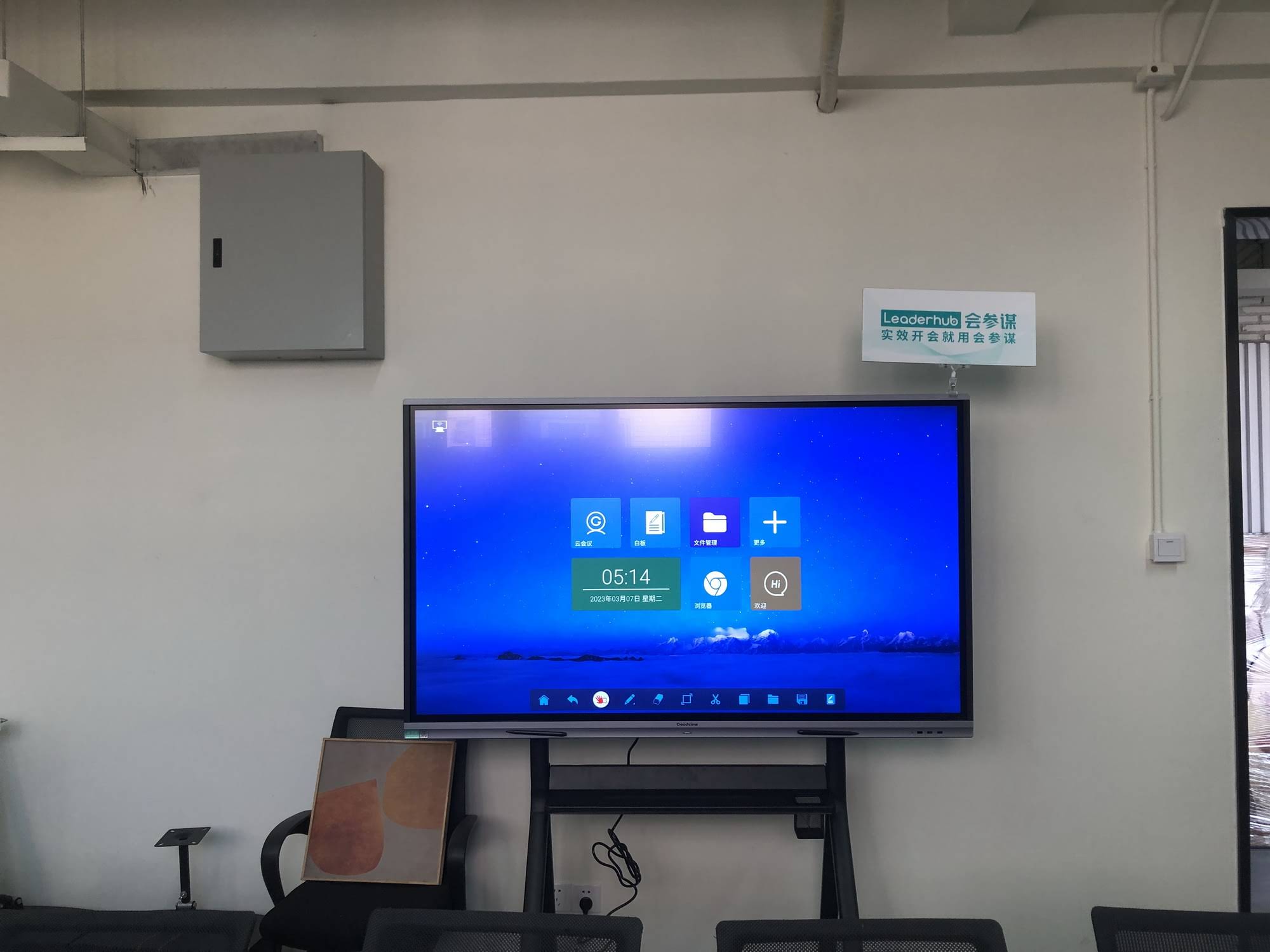
Most current interactive smart whiteboards run an Android-based system with a built-in office suite, media player and whiteboard app. The table below summarizes what a typical 4K smart board opens out of the box.
| Category | Supported Formats | Opened With |
|---|---|---|
| Documents | PDF, DOC, DOCX, TXT, RTF, ODT | Built-in office viewer / PDF reader |
| Presentations | PPT, PPTX, PPS, PPSX, ODP | Office suite in slideshow mode |
| Spreadsheets | XLS, XLSX, CSV, ODS | Office suite spreadsheet module |
| Images | JPG, JPEG, PNG, BMP, GIF, WEBP, TIFF, SVG | Gallery / image viewer, whiteboard import |
| Video | MP4, MKV, MOV, AVI, WMV, FLV, 3GP, TS, WEBM | Built-in media player |
| Audio | MP3, WAV, AAC, FLAC, OGG, M4A, WMA | Built-in media player |
| Whiteboard Files | Native whiteboard project, IWB, exported PDF / PNG / JPG | Whiteboard app |
| Web & Cloud | HTML, Google Docs / Slides links, OneDrive, Dropbox | Built-in browser / cloud drive app |
| Compressed | ZIP, RAR (view and extract) | File manager |
Documents and Presentations
Office files are the most common content shown on a smart board. Android-based panels ship with a lightweight office suite that opens Word, Excel and PowerPoint documents, including newer XML-based formats such as DOCX and PPTX. PDF is the most reliable choice for layout-critical material because fonts, spacing and page breaks are locked into the file. When you present a PPTX deck directly on the panel, basic transitions and embedded images display correctly, while complex animations or macros may be simplified.
Images and Graphics
JPG and PNG open everywhere and can be dragged straight onto the whiteboard canvas for annotation. Many panels also accept WEBP, BMP and GIF, and some support SVG for diagrams that stay sharp when zoomed on a 4K screen. High-resolution images are handled comfortably by modern panels with 4GB or more of RAM.
Video and Audio
Hardware decoding on current smart boards covers H.264 and H.265 (HEVC) video, which means MP4 and MKV files up to 4K resolution play smoothly from a USB drive. MOV files recorded on an iPhone generally play without conversion. Audio formats such as MP3, WAV and FLAC are played through the panel’s front-facing speakers or an external sound bar.
Whiteboard and Annotation Files
Every brand of interactive panel saves its whiteboard sessions in a native project format that preserves pages, layers and editable ink. To share notes with people who do not have the same device, the whiteboard app exports to PDF, PNG or JPG, and many models also generate a QR code so students can download the session to their phones. The IWB (Interactive Whiteboard Common File Format) remains a useful cross-brand exchange format for teachers moving lesson files between older and newer boards.
How to Open Files on a Smart Board
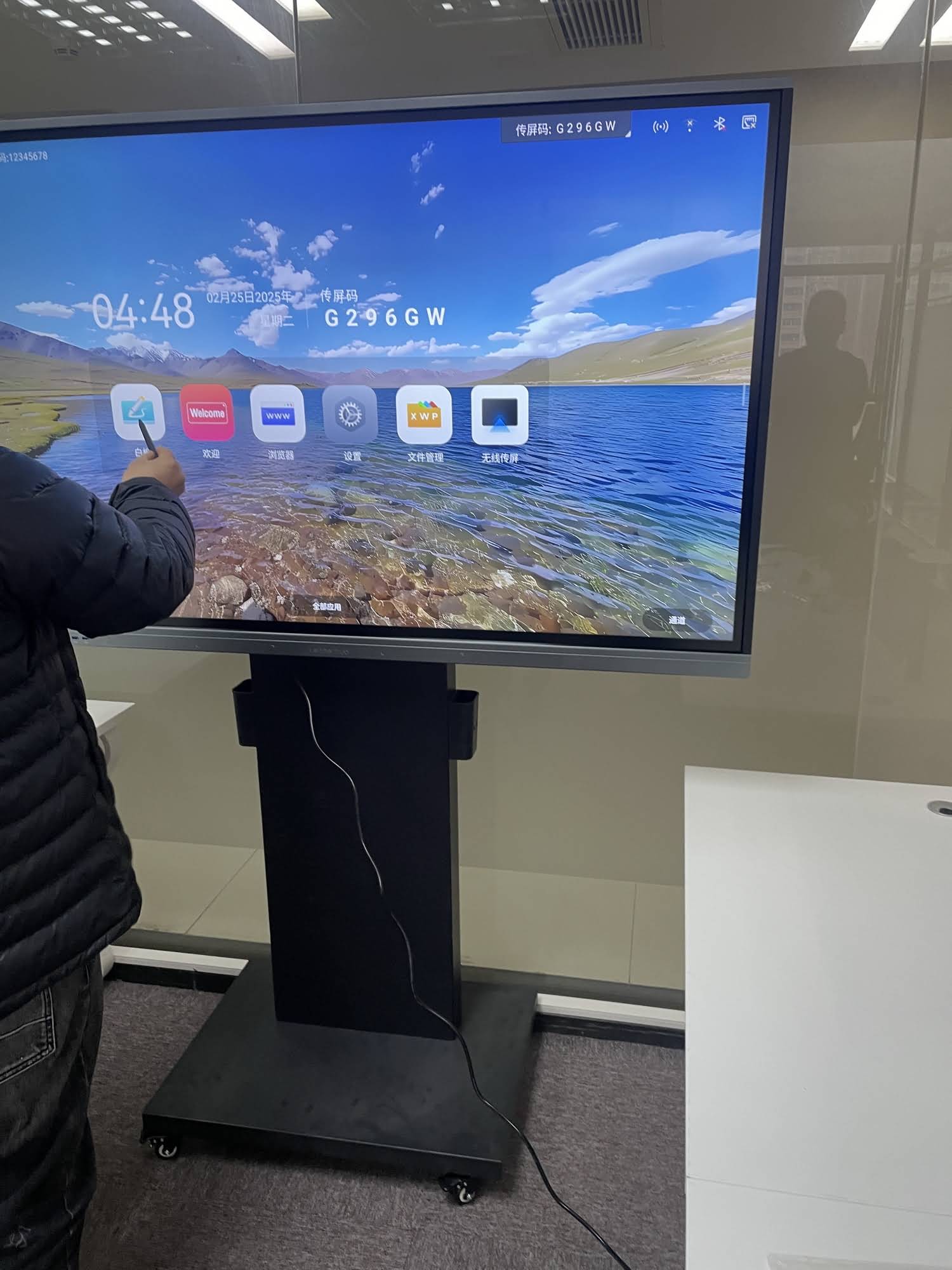
There is no single “right” way to bring content to the screen. The best method depends on where the file lives and how much interactivity you need once it is open.
Method 1: Open Files from a USB Drive
- Format the USB drive as FAT32 or exFAT (NTFS is supported on most panels but not all).
- Insert the drive into a side or front USB port on the panel.
- Open the File Manager app from the home screen and browse to your file.
- Tap the file; the panel automatically launches the matching viewer or player.
- Use the floating annotation toolbar to write over the content and save the result back to the drive.
Method 2: Open Files from the Cloud
Sign in to Google Drive, OneDrive or Dropbox through the panel’s browser or a dedicated cloud app. Files open directly in the web viewer, and Google Slides or Microsoft 365 presentations run in the browser with full touch navigation. This method is ideal for schools that store lesson plans centrally and for hybrid teams that update documents right up to the meeting.
Method 3: Wireless Screen Sharing
If a file only opens in specialist software on your laptop, mirror the laptop instead. Modern panels support Miracast for Windows, AirPlay for macOS and iOS, and Chromecast or a dedicated casting app for Android devices. The file format no longer matters because the panel simply displays your device’s screen, and touch-back allows you to control the source computer from the board.
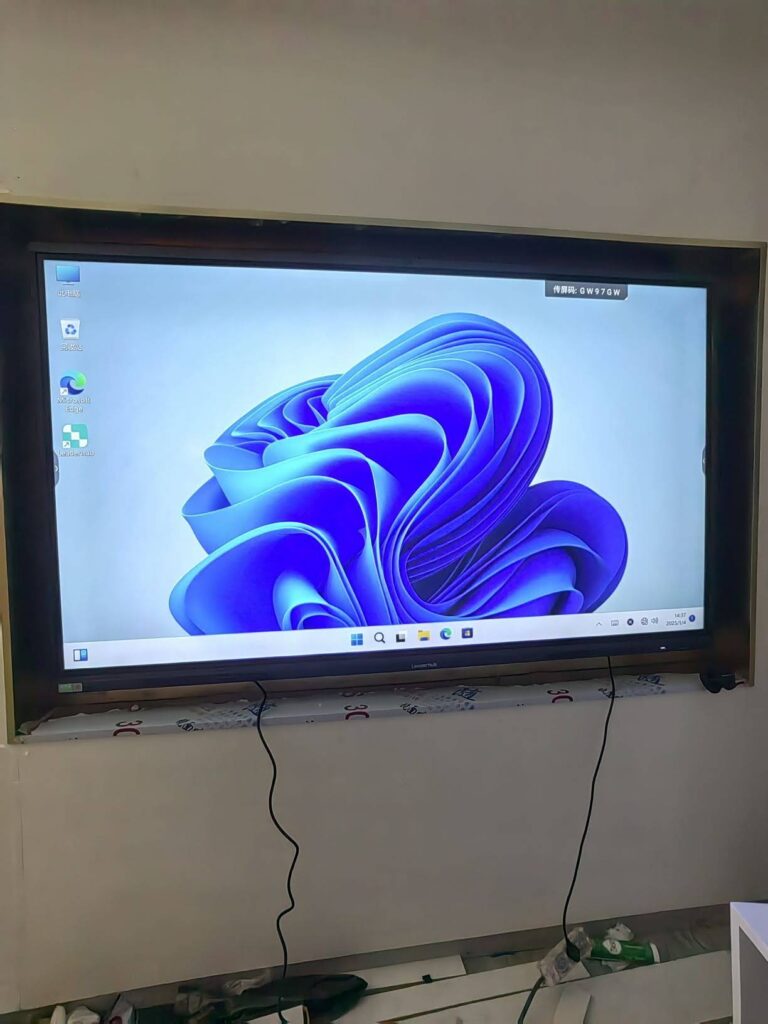
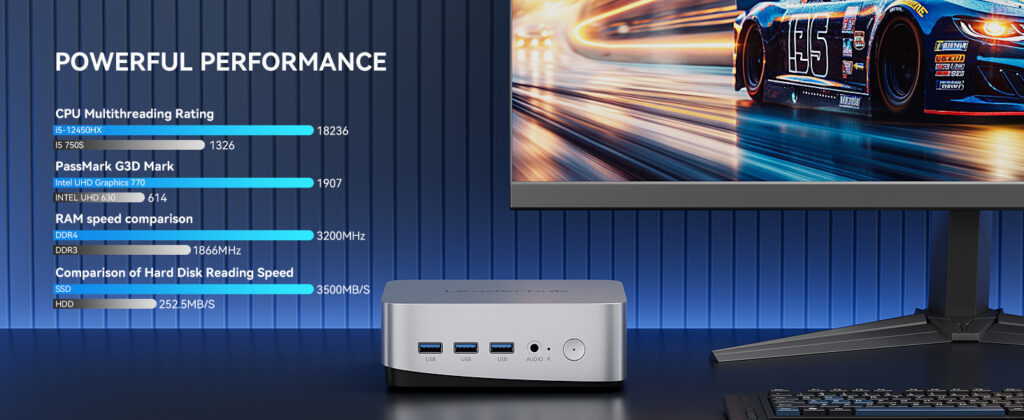
Method 4: Use a Built-in OPS Computer or Mini PC
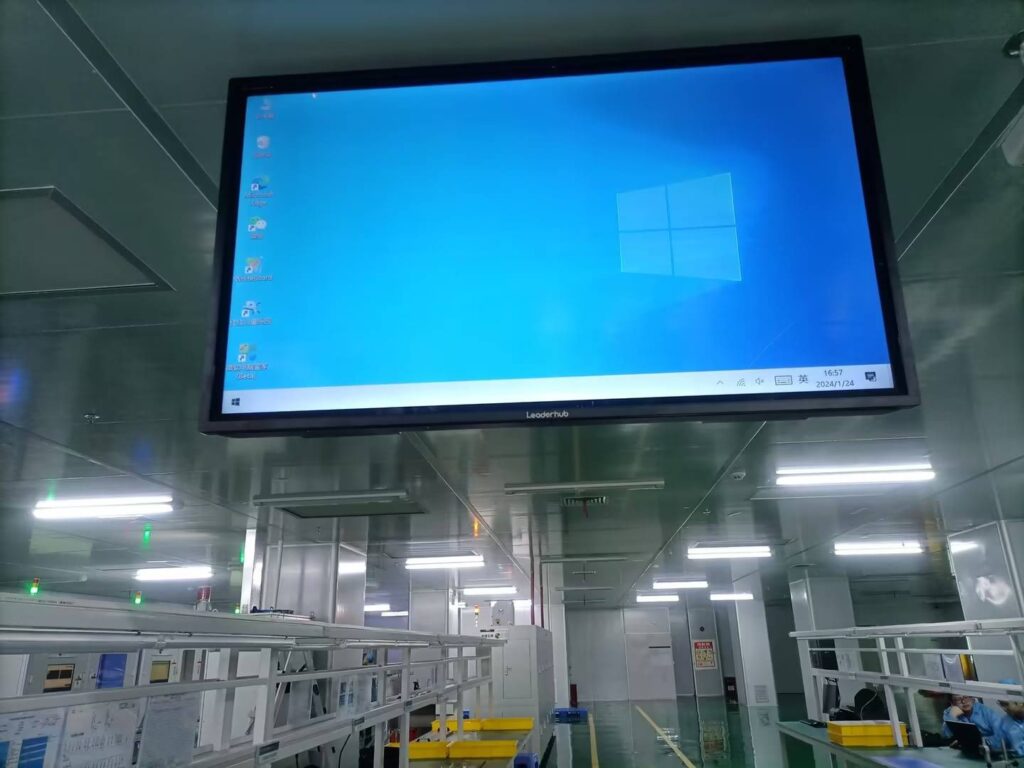
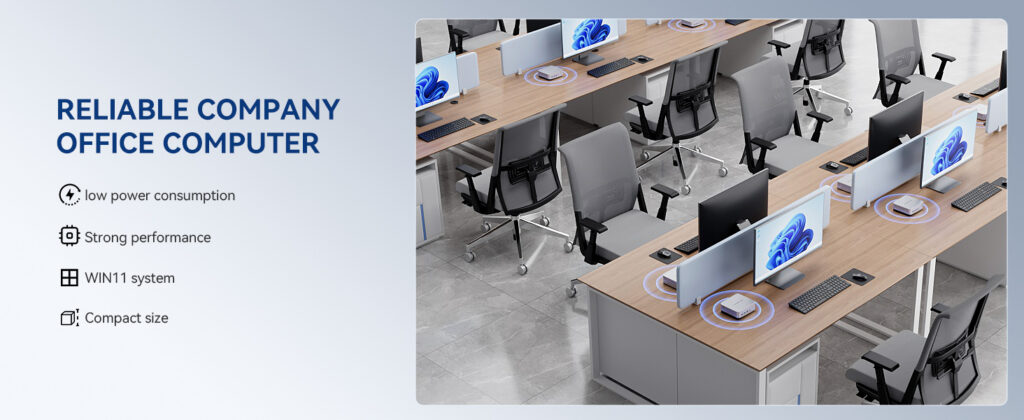
For environments that need complete Windows compatibility, pair the panel with a slot-in OPS module or a compact mini PC connected via HDMI and USB touch. A unit such as the Leaderhub LP1C Mini PC runs full desktop versions of Office, CAD viewers, video editing tools and browser plugins, so any file that opens on a Windows laptop opens on the smart board with full touch control.
Android vs Windows: Which System Opens What?
Understanding the operating system behind the screen is the single most useful step in predicting smart board file format compatibility. The comparison below highlights the practical differences.
| Feature | Android Smart Board | Windows OPS / Mini PC |
|---|---|---|
| Office documents | Opens via built-in suite; advanced features simplified | Full Microsoft Office fidelity |
| PDF annotation | Instant, with floating toolbar | Requires PDF software with ink support |
| Video playback | Hardware 4K decoding for mainstream codecs | Any codec with the right player installed |
| Specialist files (CAD, PSD, AI) | Limited; use screen sharing | Native application support |
| Boot time | Seconds | Standard PC startup |
| Best for | Classrooms, quick huddles, daily meetings | Engineering, design, finance, legacy software |
Many organizations choose a dual-system setup: the Android side handles everyday teaching and collaboration, while a Windows mini PC sits ready for the occasions when a niche file type or enterprise application is required.
Common Compatibility Problems and How to Fix Them
The video has picture but no sound
The audio track is probably encoded in a format the panel cannot decode, such as DTS or certain Dolby variants. Re-export the video with AAC or MP3 audio, or play it through a connected laptop.
PowerPoint fonts look different
The panel substitutes any font it does not have installed. Embed fonts when saving the PPTX, or export the deck as PDF before the presentation.
The USB drive is not recognized
Drives larger than 2TB or formatted as APFS or ext4 may not mount. Reformat to exFAT, and avoid USB hubs that draw too much power.
Animations are missing from slides
Mobile office suites support a reduced set of transitions. For animation-heavy decks, mirror your laptop or run the presentation from a Windows OPS module.
Whiteboard notes cannot be opened on another brand of panel
Native whiteboard formats are proprietary. Always export a PDF copy at the end of a session so the notes remain readable on any device.
Best Practices for Preparing Files Before a Session
- Save a PDF backup of every presentation; it is the most universally compatible format.
- Encode videos as MP4 with H.264 video and AAC audio at 1080p or 4K.
- Name files clearly and keep them in a single folder so they are easy to locate in the file manager.
- Test cloud links from the panel in advance to confirm the account is signed in and the network allows access.
- Keep a USB-C or HDMI cable in the room for wired sharing when Wi-Fi is congested.
- Update the panel firmware regularly; manufacturers add codec and office compatibility improvements over time.
Educators who want a broader framework for evaluating classroom technology can review the Choosing Technology in Education guidance from UNESCO, which emphasizes that tools should fit existing teaching workflows rather than force new ones.
Leaderhub Smart Boards: Built for Open Compatibility
Leaderhub is a Shenzhen-based technology company with 16 years of experience in the interactive display industry, delivering smart whiteboards, interactive flat panels, mini PCs and portable smart screens to education, enterprise and creative customers in 82 countries. Every panel in the range is designed around the idea that content should open the moment it reaches the screen.
| Model | Size | Compatibility Highlights | Price |
|---|---|---|---|
| L65ZM Interactive Whiteboard | 65″ 4K | Android office suite, PDF annotation, 4K media player, wireless casting | $1,099 |
| L75HM Smart Whiteboard | 75″ 4K | Rotatable screen, full document and video support, USB-C one-cable input | $1,599 |
| L75H Pro Interactive Flat Panel | 75″ 4K | OPS slot for Windows, enterprise cloud integration, multi-source split screen | $2,399 |
| U55Pro Mobile Smart Display | 55″ 4K | Battery-powered mobility, same file support as fixed panels, instant casting | $2,499 |
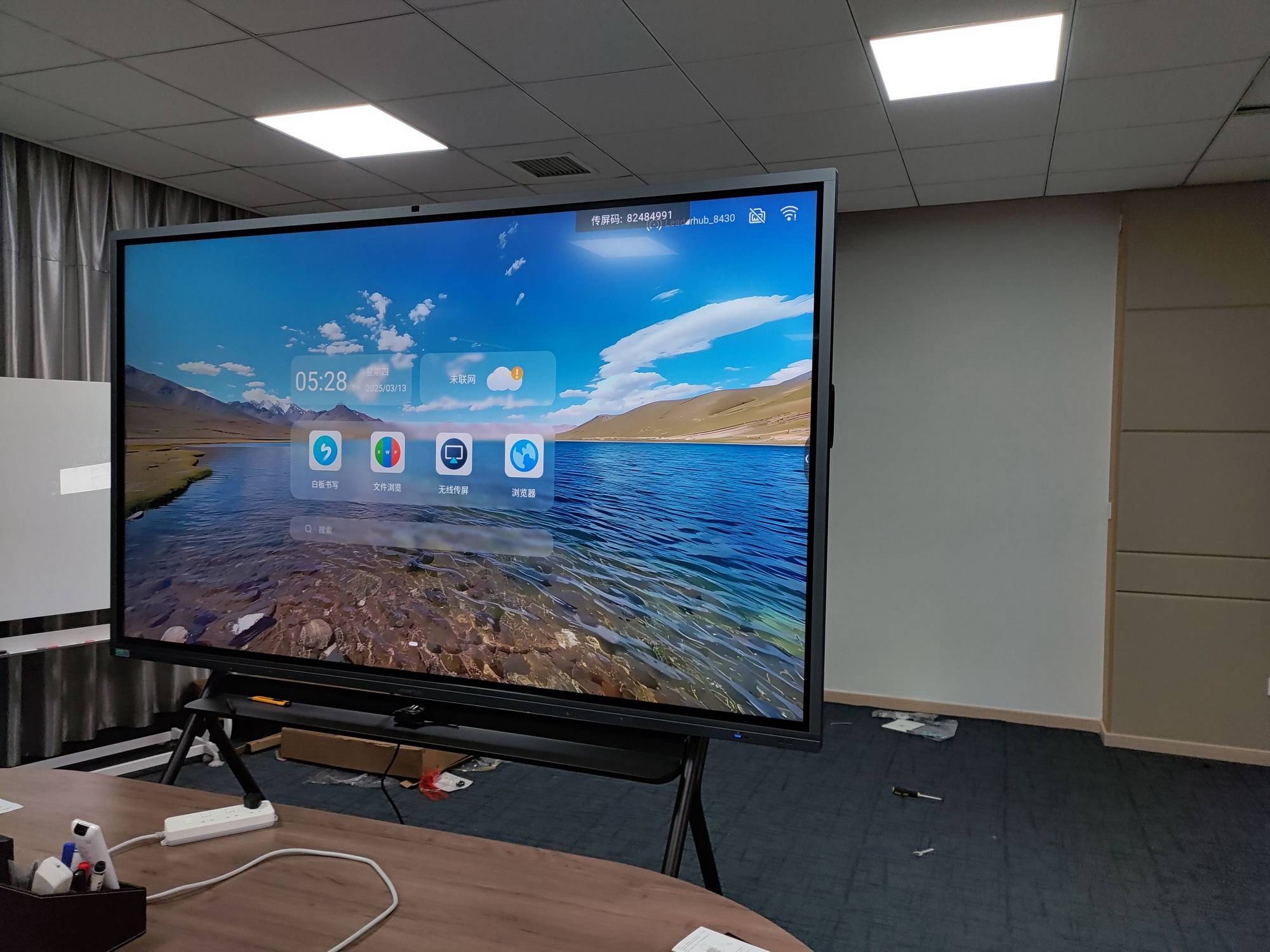
For smaller spaces, the rotating smart screens run the same Android environment, so a lesson file prepared for a 86-inch classroom board opens identically on a 27-inch desk-side display.
Frequently Asked Questions
Can a smart board open Keynote or Pages files?
Not directly on Android. Export from Keynote to PPTX or PDF, or mirror your Mac with AirPlay to present the original file.
Does a smart board support 4K video from a USB drive?
Yes. Panels with H.265 hardware decoding play 4K MP4 and MKV files smoothly. Very high bitrate files benefit from a USB 3.0 port and a fast drive.
Can I edit an Excel spreadsheet on the panel?
Basic cell editing and formula entry work in the built-in suite. For pivot tables, macros or large linked workbooks, use a connected mini PC or OPS module.
What format should I use to share whiteboard notes with students?
PDF is the safest option because it opens on every phone, tablet and laptop. Most panels also generate a scannable QR code for instant download.
Do I need special software on my laptop to share the screen?
Windows 10 and 11, macOS, iOS and Android all include native casting protocols. A lightweight companion app can add touch-back and multi-user sharing, but it is optional.
Final Thoughts
Smart board file format compatibility is no longer the obstacle it once was. A modern 4K interactive panel opens the documents, presentations, images, videos and whiteboard files that classrooms and meeting rooms rely on every day, while wireless casting and optional Windows computing close the remaining gaps. Prepare a PDF backup, keep media in MP4, and choose a panel with a flexible operating system, and your content will open the moment you touch the screen. Ready to find the right display for your space? Explore the full product range or contact the Leaderhub team for a tailored recommendation.