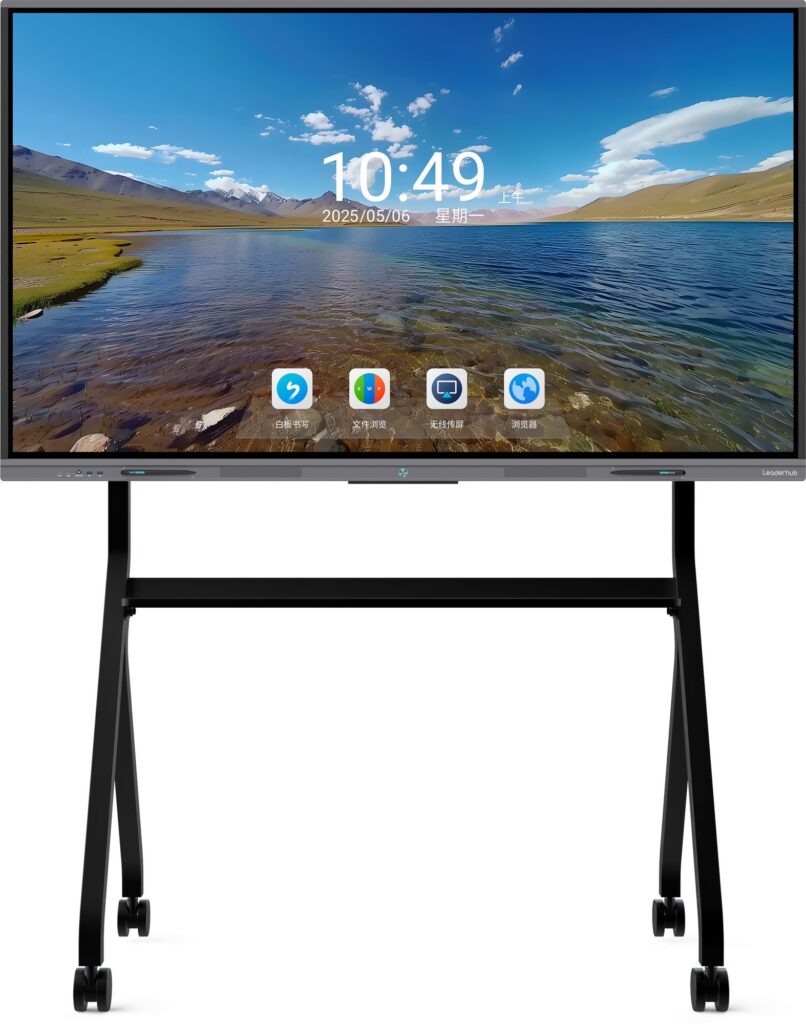
Smart boards can make online teaching more interactive, organized, and engaging when they are set up correctly. If you are teaching from home, running a hybrid classroom, or delivering live training sessions, learning how to use smart board for online teaching will help you present clearly, annotate in real time, and keep students involved.
In modern digital learning, the best results come from combining good hardware, simple workflow, and teaching methods that encourage participation. According to the UNESCO Global Education Monitoring Report, technology works best when it supports learning goals rather than distracting from them. That principle is especially important in remote classes, where clarity and interaction matter most.
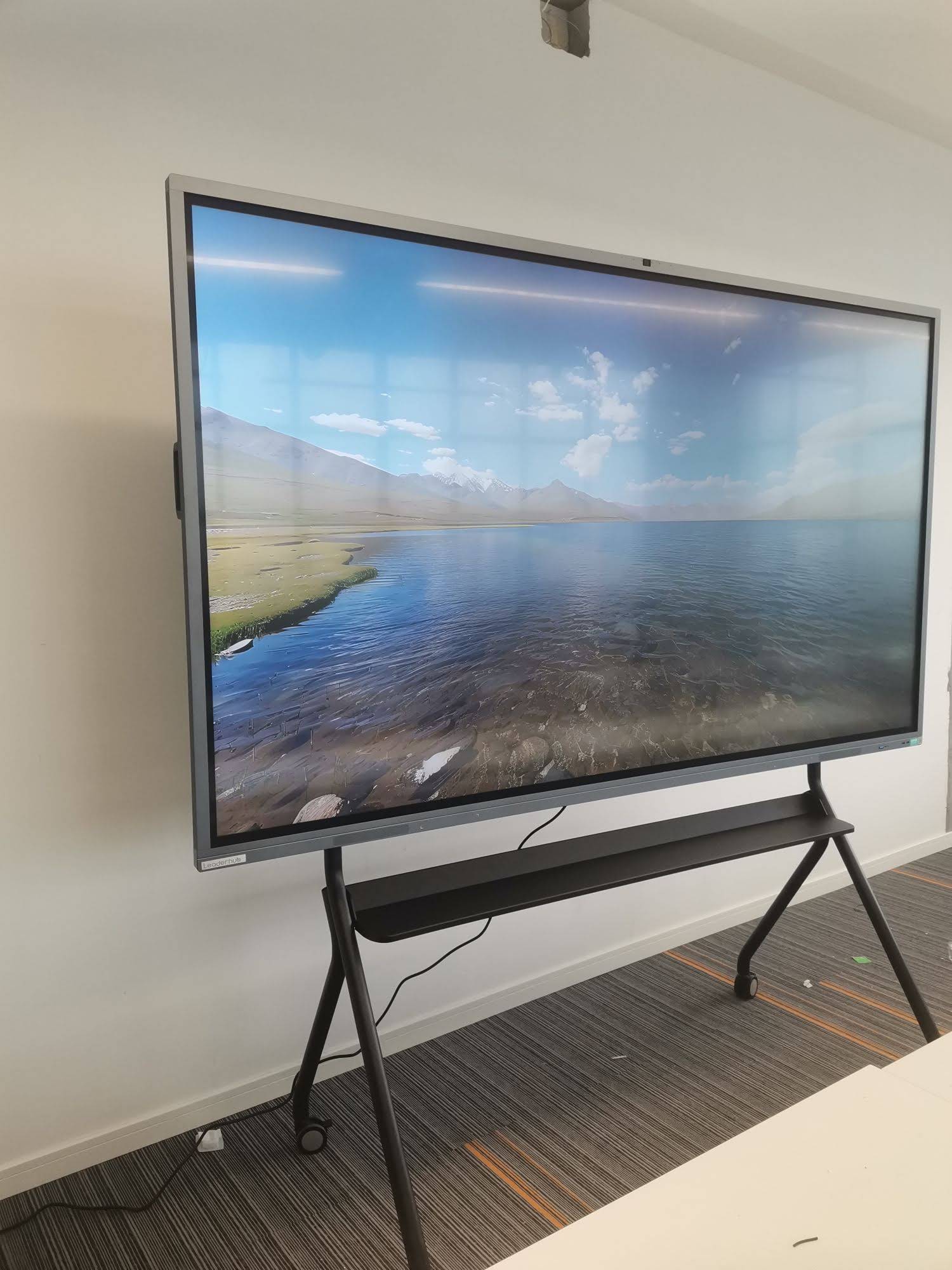
What a Smart Board Does in Online Teaching
A smart board works like a digital teaching hub. It lets you write, draw, highlight, and share content live while teaching through Zoom, Microsoft Teams, Google Meet, or other video conferencing platforms. Instead of switching between multiple windows, you can keep your lesson visible and interactive in one place.
For teachers, this means:
- Better visibility for diagrams, equations, and lesson notes.
- Live annotation to explain difficult concepts step by step.
- More engagement through touch, drawing, and highlighting.
- Faster lesson delivery with saved templates and reusable materials.
Step 1: Choose the Right Smart Board Setup
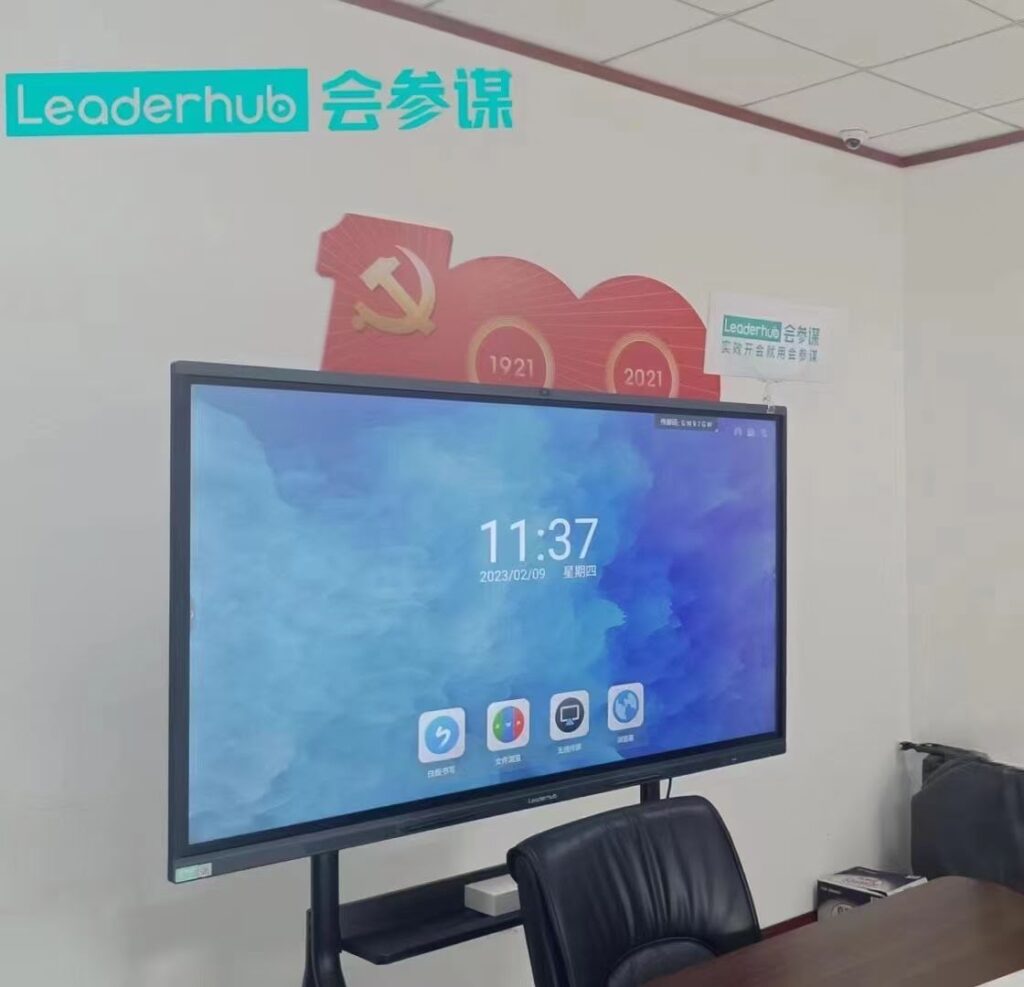
Before you start teaching online, make sure your setup matches your teaching style. A large interactive display is useful if you want more space to write, while a mobile smart screen can work well for smaller rooms. If you need a more compact teaching station, pairing the board with a mini PC can keep the workflow smooth and stable.
You can explore options such as smart whiteboards, mini PCs, and rotating screens depending on your classroom layout and lesson format.
| Teaching Need | Recommended Setup | Best For |
|---|---|---|
| Writing and explaining live | Interactive smart board | Math, science, language lessons |
| Compact online teaching station | Smart board + mini PC | Home studios, tutoring, webinars |
| Portable teaching flexibility | Mobile smart display | Hybrid classrooms, training rooms |
Step 2: Connect Your Smart Board to Your Teaching Device
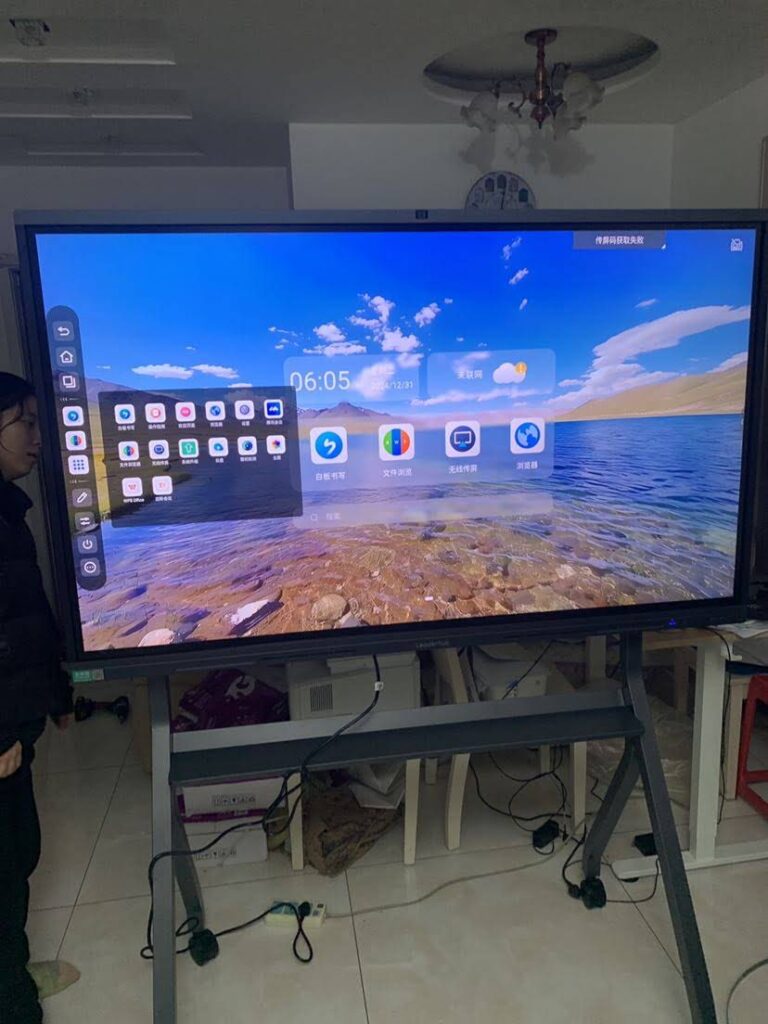
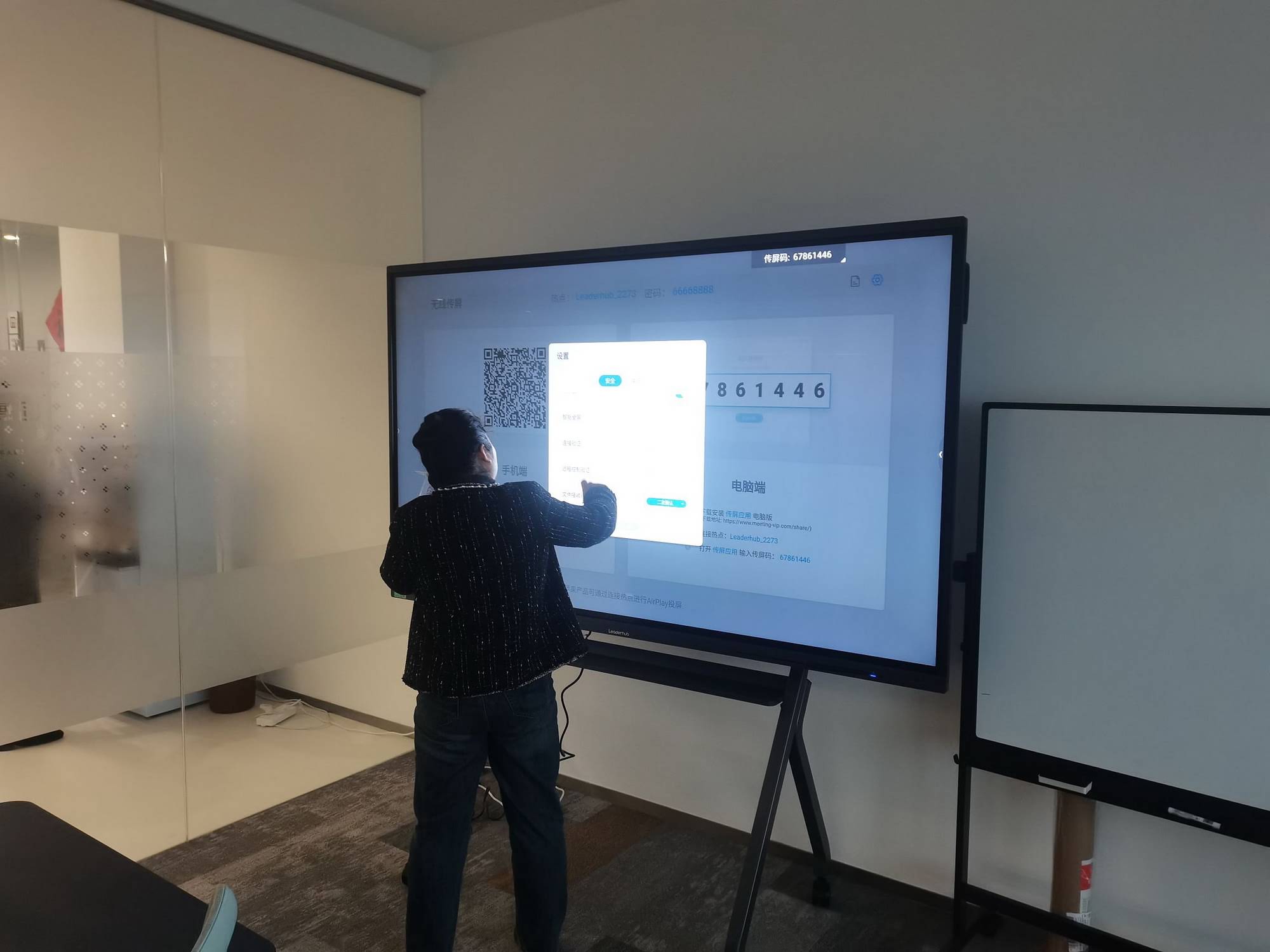
Once the hardware is ready, connect your smart board to a laptop, desktop, or mini PC using HDMI, USB-C, or wireless casting. For online teaching, the most important goal is to make sure your display, camera, microphone, and conferencing software all work together without delays.
- Check that the board is recognized as a display device.
- Set the correct screen resolution for crisp text.
- Test touch response and pen input before class.
- Open your video meeting software and confirm audio/video signals.
Step 3: Open Your Lesson Materials in Advance
Smart boards work best when your lesson materials are prepared before class starts. Open presentations, PDFs, whiteboard apps, and browser tabs in advance so you can move smoothly between activities. This reduces downtime and keeps learners focused.
Helpful materials to prepare:
- Slides for lecture content
- Blank whiteboard pages for brainstorming
- PDF worksheets for annotation
- Web links, videos, or interactive quizzes
If you teach with blended learning, the EU Blended Learning Guidance is a useful reference for combining live instruction with digital resources.
Step 4: Use the Smart Board as Your Main Presentation Surface
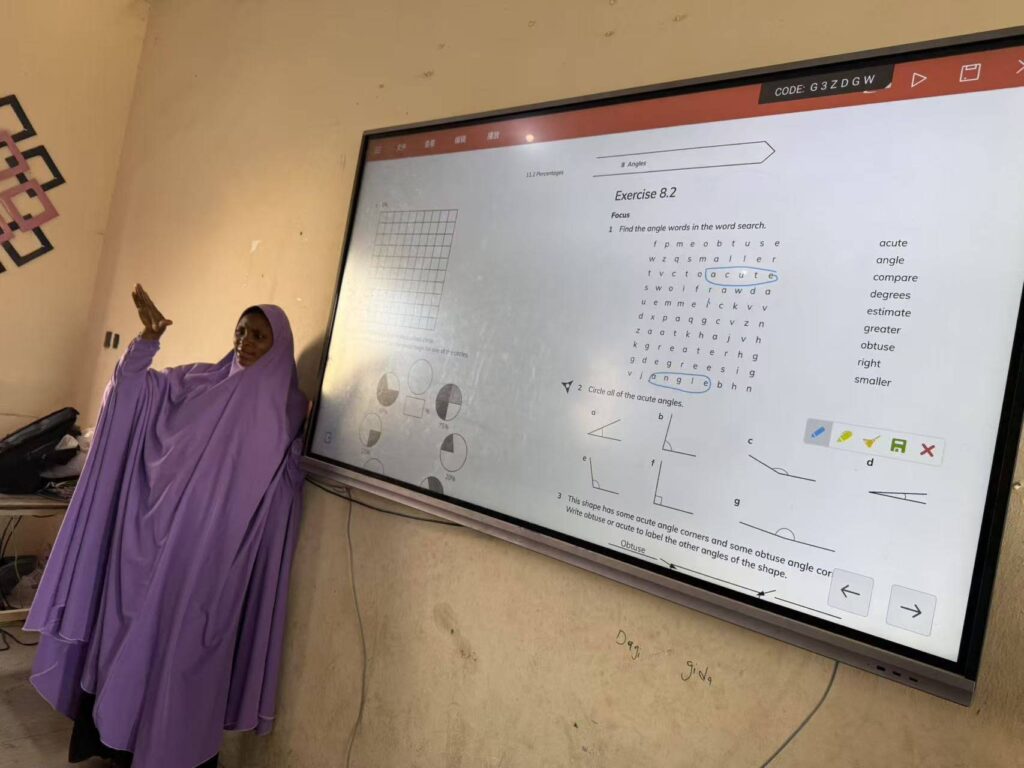
During the live lesson, make the smart board your central teaching space. You can write directly on the screen, point out key ideas, draw shapes, or circle important terms. This is especially useful when students need to see the process, not just the final answer.
Best practice: keep your board layout clean. Use one section for the main topic, another for examples, and a small area for notes or student questions.
- Start with a clear agenda.
- Present one concept at a time.
- Annotate as you explain.
- Pause for questions and quick checks.
- Save or export the board content at the end.
Step 5: Make Students Part of the Lesson
Online teaching becomes much more effective when students are actively involved. Smart boards allow you to invite learners into the learning process through polls, drag-and-drop tasks, live problem-solving, and collaborative writing. Even in a virtual class, students can feel like they are working together.
Ways to increase interaction:
- Ask students to solve a problem on the board.
- Use color coding to separate ideas.
- Highlight student answers during discussion.
- Invite learners to explain their thinking aloud.
For stronger classroom technology planning, see ISTE Essential Conditions for Effective Tech Use in Schools, which emphasizes infrastructure, support, and teacher readiness.
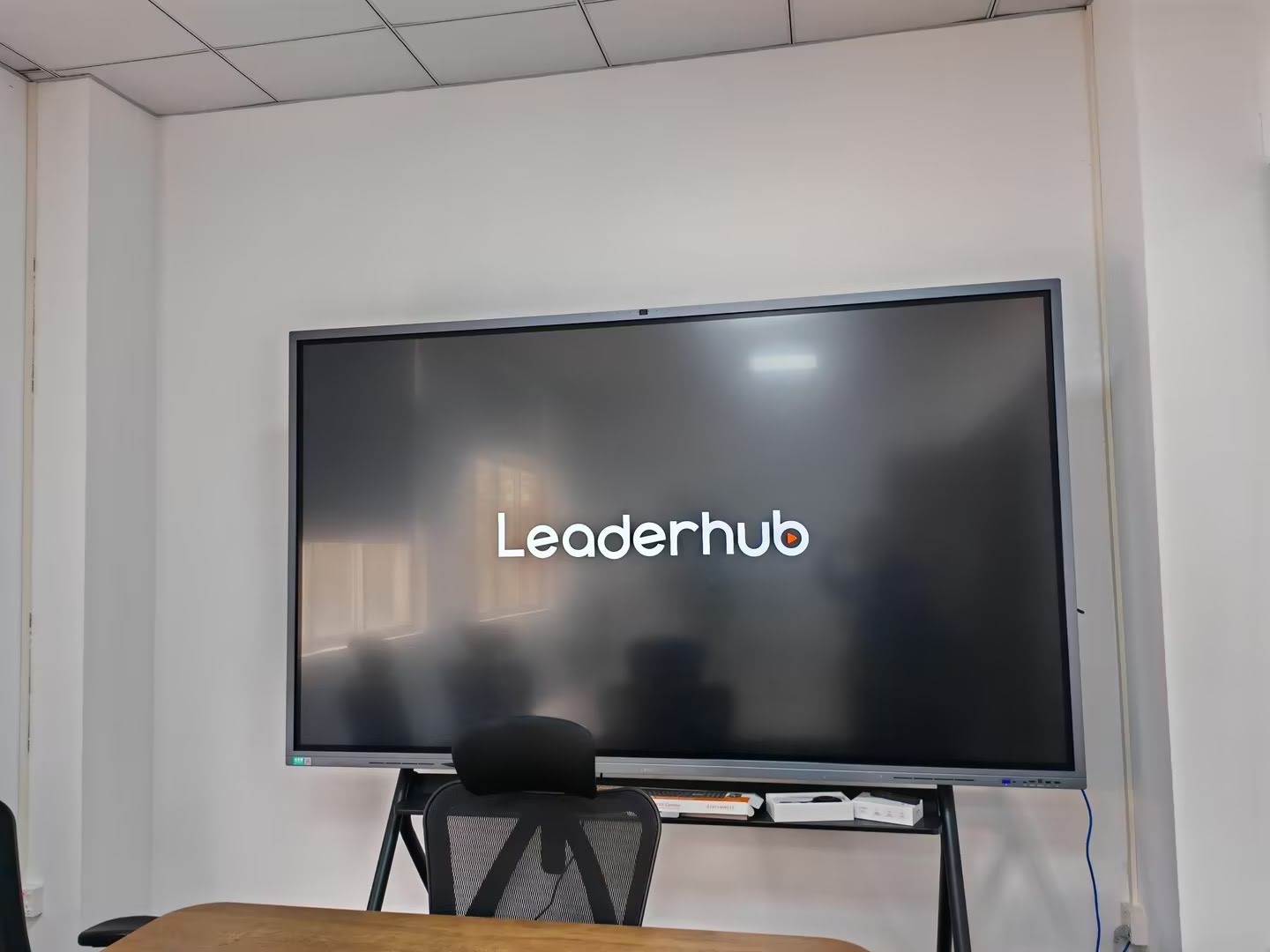
Step 6: Combine the Smart Board with Screen Sharing and Camera Views
A strong online lesson usually includes more than one visual layer. You can share your screen, keep the smart board visible, and use a camera view for face-to-face communication. This helps students stay connected to both the content and the teacher.
| Feature | How It Helps Online Teaching |
|---|---|
| Screen sharing | Displays slides, websites, and videos clearly |
| Touch annotation | Lets you explain ideas visually in real time |
| Camera integration | Builds a stronger connection with students |
| File export | Saves lesson notes for review after class |
Step 7: Save Notes and Share Follow-Up Materials
One of the biggest advantages of using a smart board is that your work does not disappear when class ends. Export notes, save screenshots, or convert the board content into a file students can review later. This is especially helpful for exam preparation, homework support, and absent students.
After class, share:
- The annotated board file
- A short summary of key points
- Homework instructions
- Useful links or extra practice materials
Teaching Tips for Better Online Results
To get the most from your smart board, focus on teaching habits, not just technology. The best online teachers keep lessons short, visual, and easy to follow.
- Use large writing so text is readable on smaller screens.
- Keep colors consistent to avoid visual confusion.
- Leave space between sections of your lesson.
- Test before class to avoid technical delays.
- Record key explanations for revision later.
Common Mistakes to Avoid
Many teachers struggle with smart boards because they try to use every feature at once. Simplicity usually works better.
- Opening too many tabs during class
- Writing too small for remote learners
- Ignoring audio quality
- Skipping setup tests before live sessions
- Using cluttered backgrounds or crowded slides
Recommended Smart Board Use Cases for Online Teaching
Smart boards can support many education formats, including:
- Primary and secondary school lessons
- University lectures and seminars
- Language tutoring and test prep
- Corporate training and onboarding
- Hybrid workshops and live demonstrations
If you are comparing models for your teaching environment, explore the Leaderhub L75HM Interactive Smart Whiteboard for a balanced classroom experience or visit the shop to view more options.
Why Smart Boards Improve Online Teaching
Smart boards help teachers present ideas visually, keep students focused, and reduce the friction of switching between tools. When used well, they turn a one-way online lecture into a more interactive learning experience.
In fact, research and policy discussions from organizations such as the World Bank Education Technology and UNESCO Digital Education continue to stress that technology should support meaningful learning, teacher efficiency, and student participation.
Final Checklist Before You Go Live
- Smart board powered on and connected
- Camera and microphone tested
- Lesson slides and whiteboard app ready
- Internet connection stable
- File saving and sharing options confirmed
When these steps are in place, how to use smart board for online teaching becomes much easier: prepare your content, write visually, engage students actively, and save everything for follow-up. A well-planned setup will help you teach with more confidence and create a smoother experience for every learner.
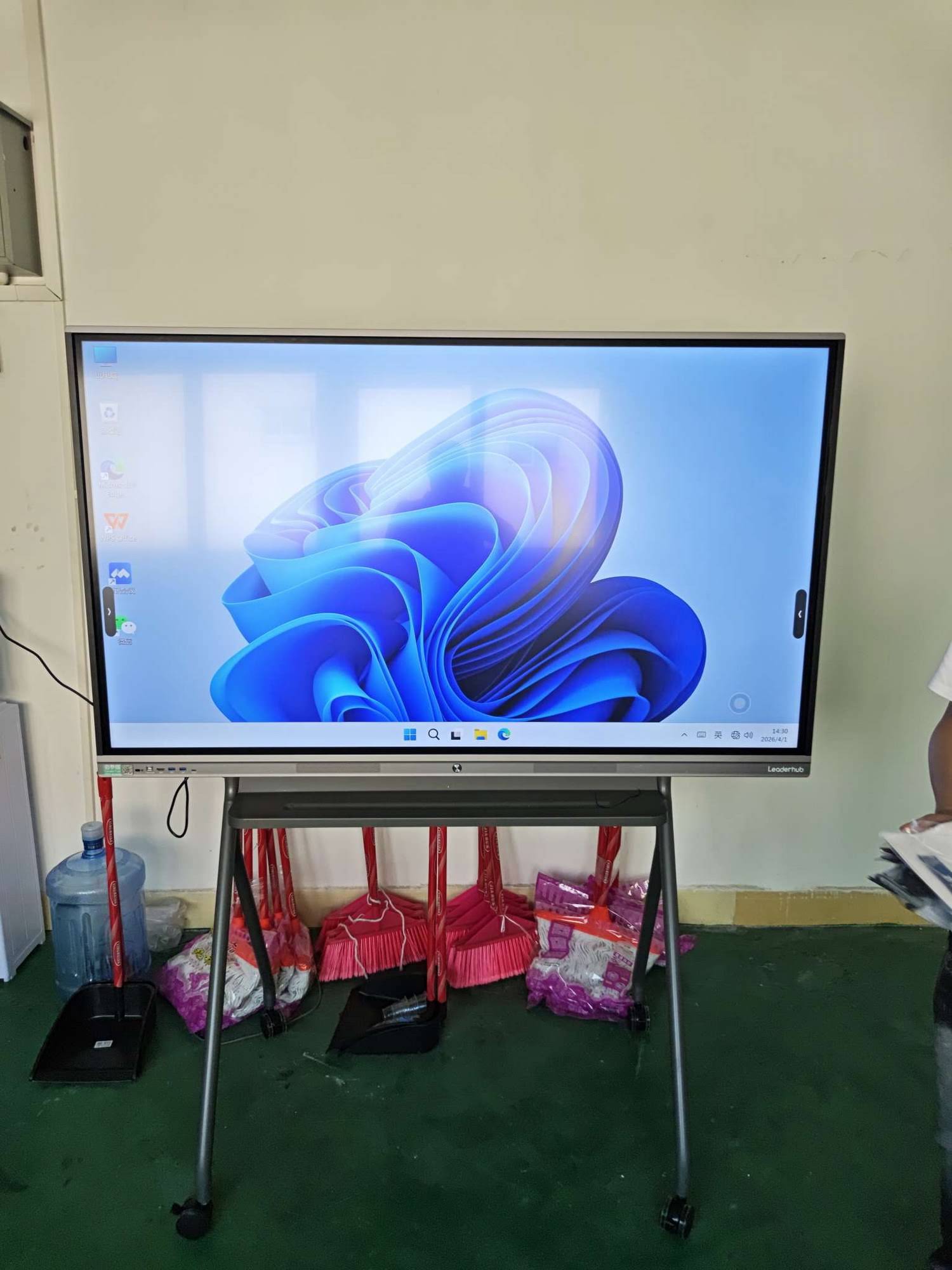
Leaderhub is a Shenzhen-based interactive display company with 16 years of experience in smart whiteboards, interactive flat panels, mini PCs, and portable smart screens, helping educators and organizations build reliable digital learning spaces in 82 countries.
To learn more about practical digital teaching strategies, you can also review the EEF Digital Technology Guidance and the ISTE Standards for Educators.