Classroom debates are one of the most powerful ways to build critical thinking, public speaking and research skills. Yet many teachers still run them with paper notecards, a stopwatch and a chalkboard scoreboard. A smart board for classroom debate activities changes everything: timers, evidence, scoring rubrics, live polls and student notes all live on one large interactive display that the whole room can see and touch. This guide walks you through practical setups, the best tools, ready-to-use debate ideas and the hardware features that matter most.
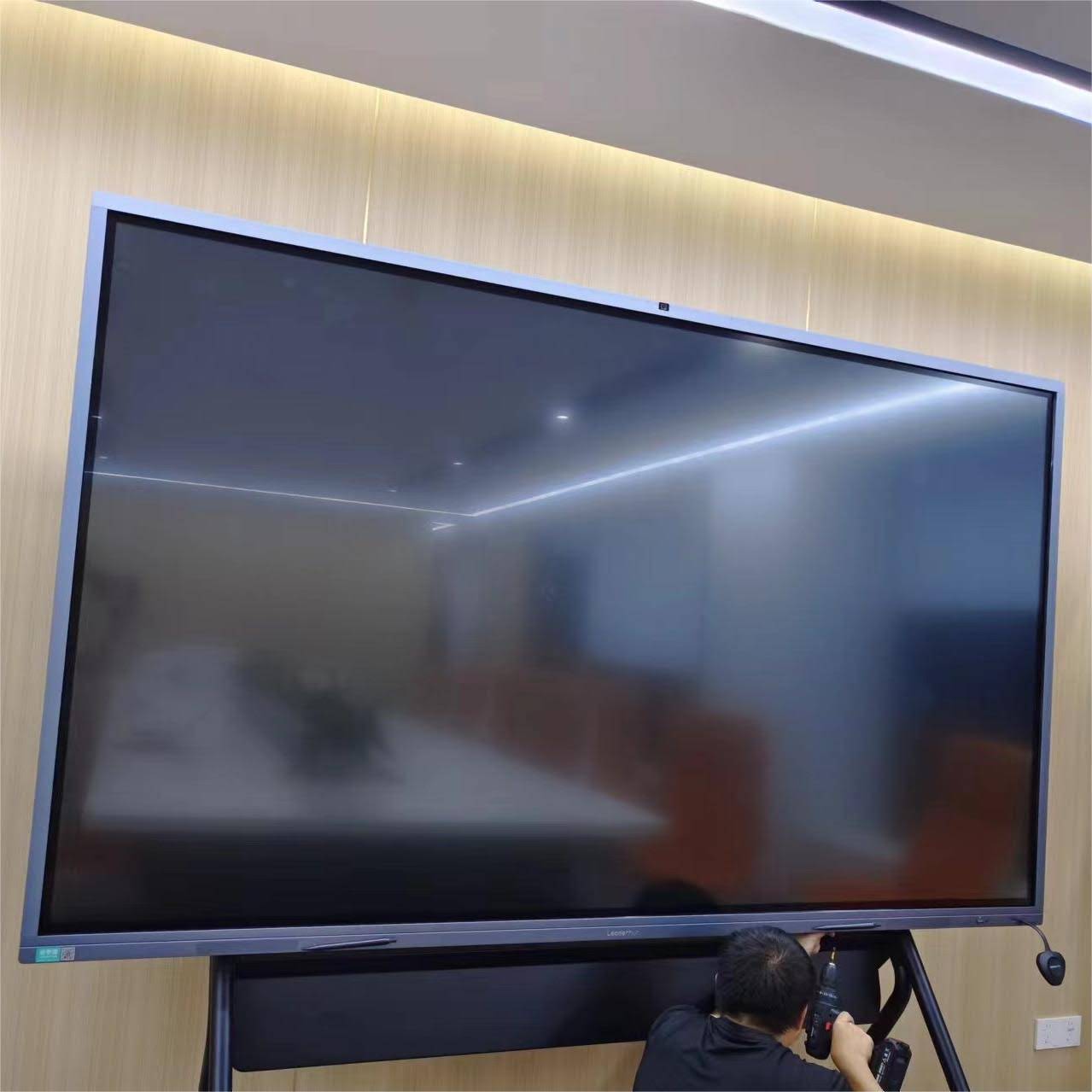
Why Use a Smart Board for Classroom Debate Activities?
Debate is inherently visual and fast-moving. Arguments stack up, rebuttals reference earlier points, and judges need to track evidence in real time. A traditional whiteboard forces teachers to erase and rewrite, while a projector keeps the content locked to the presenter’s laptop. An interactive flat panel removes both bottlenecks.
- Everyone sees the same evidence. Articles, charts, video clips and quotes can be opened side-by-side on a 65″–86″ 4K screen, so no student has to squint at a handout.
- Students interact directly. Debaters walk up, annotate a source, circle a statistic or drag their claim into a “Pro / Con” column. Multi-touch panels allow two speakers to work simultaneously.
- Timers and rubrics are always visible. Built-in timer apps and split-screen mode keep speaking limits transparent and reduce disputes.
- Everything is saved. Flow charts, scores and annotated sources export as PDF or images for reflection and assessment later.
Research summarized in the EEF Digital Technology Guidance consistently finds that technology improves outcomes when it supports a clear pedagogical purpose — and structured debate is exactly that kind of purpose-driven activity.
Setting Up Your Smart Board Debate Space
1. Choose the Right Screen Layout
Most interactive panels support split-screen or multi-window modes. For debates, a three-zone layout works best:
| Screen Zone | What It Shows | Who Controls It |
|---|---|---|
| Left Column | Affirmative team arguments, evidence and rebuttal notes | Affirmative speakers |
| Right Column | Negative team arguments, evidence and rebuttal notes | Negative speakers |
| Top / Center Bar | Resolution, countdown timer, current speaker and live audience poll | Teacher / moderator |
2. Position the Panel for Two Teams
Place the display at the front-center of the room with the two teams seated at an angle on either side. Speakers should be able to reach the board without turning their backs to the audience for long. For flexible rooms, a mobile stand lets you roll the board into a circle or horseshoe arrangement for fishbowl debates.
3. Connect Student Devices
Wireless screen sharing (Miracast, AirPlay or Google Cast) lets a debater push a slide, infographic or short video from a tablet to the board in seconds. Set a rule that each team gets a limited number of “screen shares” per round to keep the debate focused on speaking rather than slideshows.
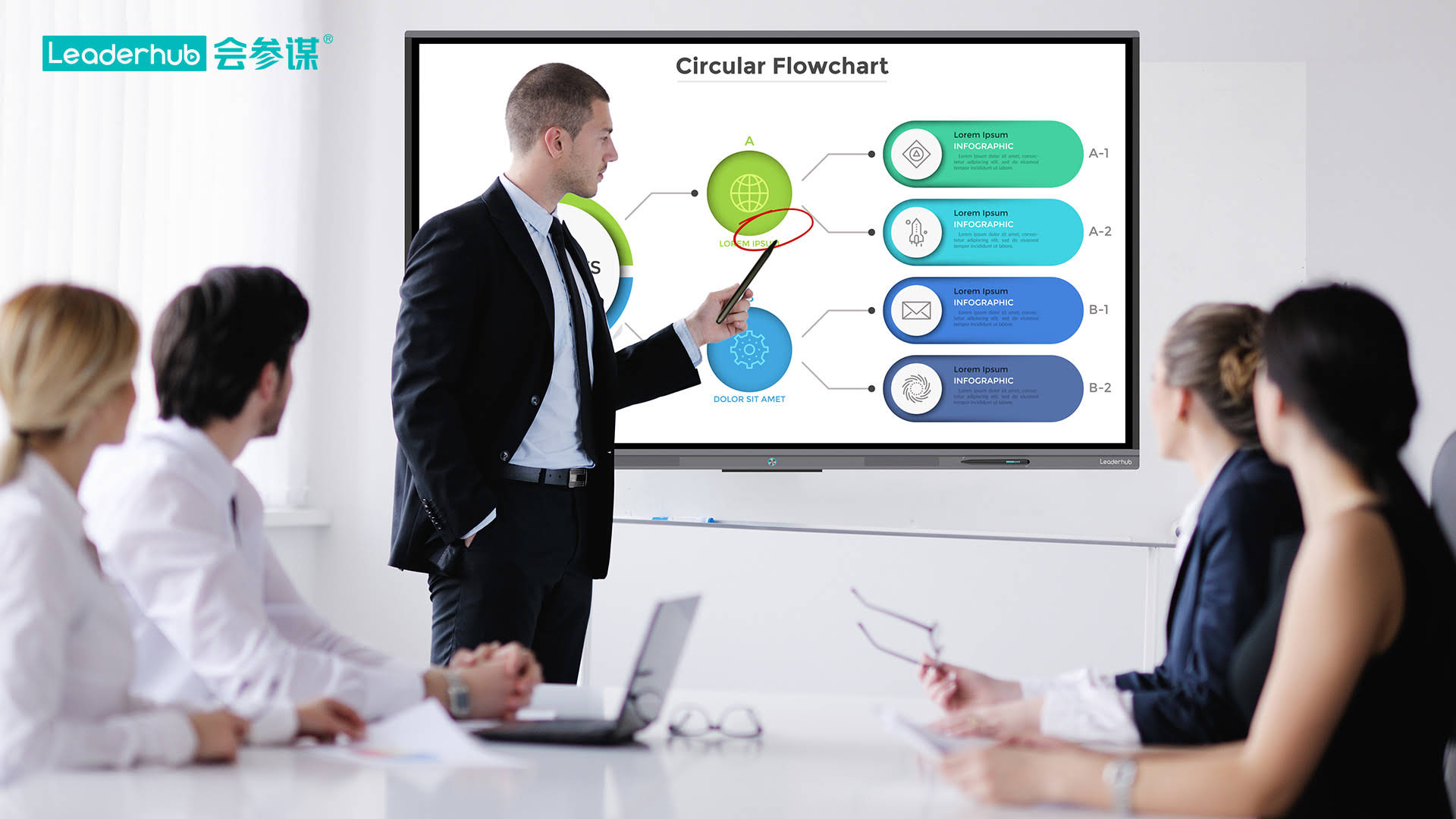
Essential Smart Board Tools for Running Debates
Built-In Whiteboard & Annotation
The native whiteboard app is your debate “flow sheet.” Create a two-column table before class, lock the headers, and let students fill in claims and rebuttals with different pen colors. Use the infinite canvas to extend the flow as the debate continues across multiple rounds.
Timer and Stopwatch Apps
Most Android-based panels include a floating timer widget. Set standard times — for example 4 minutes constructive, 2 minutes cross-examination, 3 minutes rebuttal — and keep it pinned in the corner so the countdown is visible from every seat.
Polling and Response Tools
Run a quick “before and after” poll with a QR code. Students vote with their phones, and the result appears instantly on the board. Comparing opinion shifts is one of the most honest ways to judge who argued persuasively.
Browser and Source Verification
Open a full browser on the board so a team can prove a statistic on the spot. Teaching students to verify claims live is excellent media-literacy practice and aligns with the ISTE Standards for Students around knowledge construction and digital citizenship.
Screen Recording
Record the entire debate — audio plus every board annotation — so students can review their delivery, and so you have evidence for assessment and parent conferences.
Debate Formats That Work Brilliantly on a Smart Board
| Format | Best For | How the Smart Board Helps |
|---|---|---|
| Lincoln-Douglas (1 vs 1) | High school ethics, philosophy, literature | Value framework displayed at top; two-color annotations track clash points |
| Four-Corners Debate | Middle school, warm-ups, mixed-ability groups | Board shows four positions; students drag their name icon to the corner they agree with |
| Fishbowl Debate | Large classes, social studies, current events | Outer circle submits questions via QR form; moderator displays them for the inner circle |
| Tag-Team Debate | Elementary and ESL learners | Sentence starters shown on screen; next speaker taps to “tag in” and the timer resets |
| Science Evidence Debate | STEM classes, data literacy | Teams annotate live graphs and datasets; judges mark strongest evidence with stars |
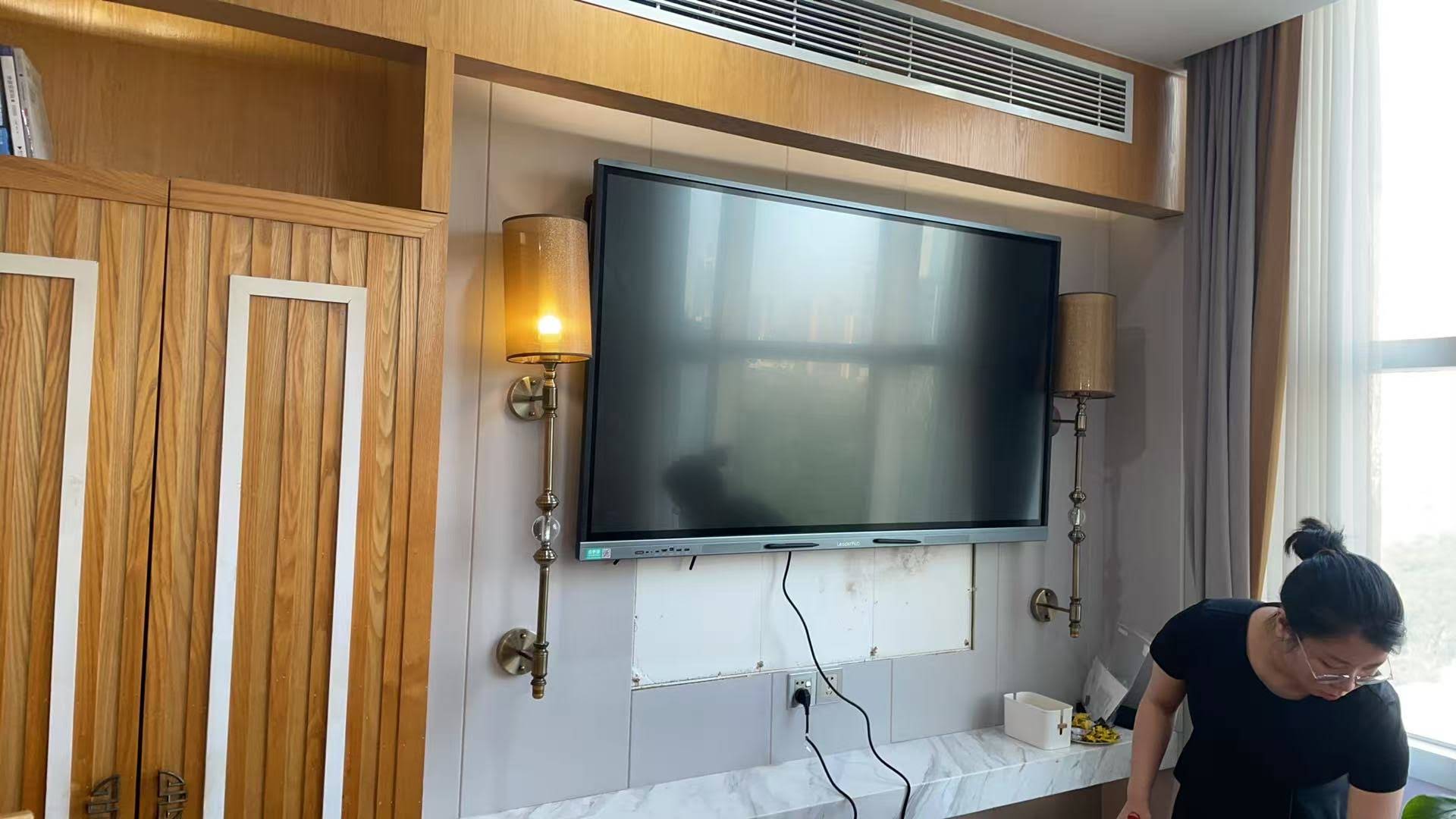
Step-by-Step: Running a 45-Minute Smart Board Debate
- Open with the resolution (3 min). Display the motion in large type, then run a one-tap pre-debate poll so students see the starting opinion split.
- Team prep on the board (8 min). Each team gets half the screen to build a mind map of three main claims. Save a snapshot so nothing can be quietly changed later.
- Constructive speeches (12 min). Speakers present with the timer running. Teammates may add a single piece of supporting evidence to the board per speech.
- Cross-examination (6 min). Questioners circle or highlight the exact claim they are attacking so the audience can follow the clash visually.
- Rebuttals (8 min). Teams drag opposing claims into a “Refuted” box and attach their counter-evidence with an arrow.
- Audience judgment (5 min). Re-run the poll. Display the before/after chart and discuss what changed minds.
- Export and reflect (3 min). Save the full flow sheet as a PDF to the class drive for homework reflection.
Creative Debate Ideas for Different Subjects
English Language Arts
- Character trials: “Is Macbeth a victim of fate or free will?” — display quotes as evidence cards that students can sort.
- Book vs. film adaptations, with side-by-side clips playing on the board.
History and Social Studies
- Role-play historical figures debating a treaty, using a timeline widget to anchor every claim in context.
- “Should this monument stay or go?” — map tool shows real locations and primary-source images.
Science
- Nuclear vs. renewable energy, where teams annotate real emissions data on a shared graph.
- Ethics of gene editing, with a live “risk/benefit” matrix that fills in as arguments are made.
Math
- “Which statistic is misleading?” — debaters redraw the same dataset with different scales and argue over interpretation.
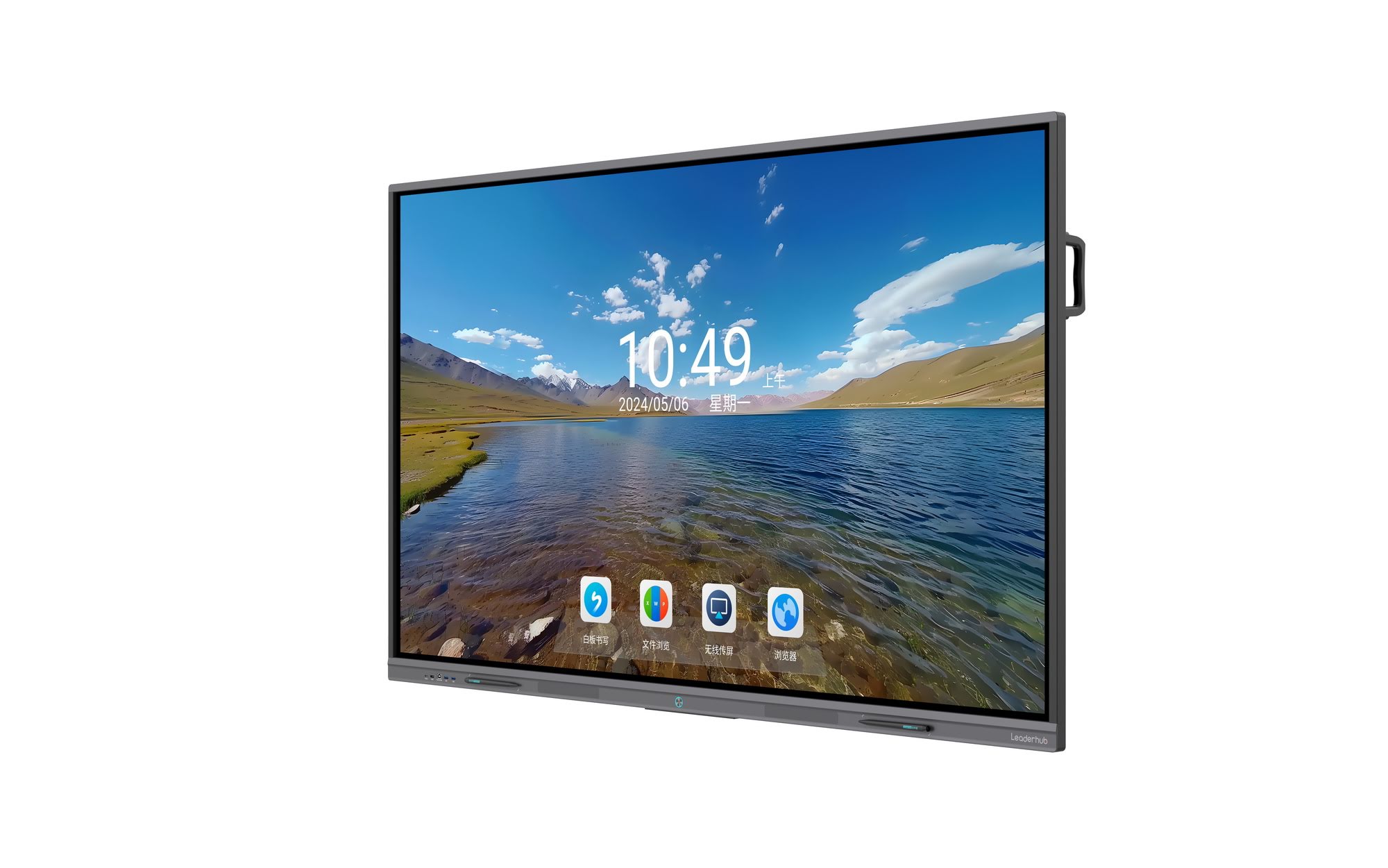
Assessing Debates with a Digital Rubric
Build your rubric as a table on the board and score in real time. Students benefit enormously from seeing why they lost or won points. A simple four-criteria rubric is enough for most classes:
| Criterion | What Judges Look For | Points |
|---|---|---|
| Argument Quality | Clear claim, logical warrant, relevant impact | 0–5 |
| Use of Evidence | Credible sources shown and explained on the board | 0–5 |
| Rebuttal & Clash | Directly addresses opposing points rather than repeating | 0–5 |
| Delivery | Eye contact, pacing, respectful tone, time management | 0–5 |
Tip: assign two student judges to score on tablets mirrored to the board. Peer assessment doubles engagement and teaches the rubric from the inside out.
What to Look for in a Smart Board for Debate Activities
Not every interactive display is equally suited to fast, multi-speaker activities. Prioritize these features:
- Screen size of 75″ or larger for classes of 25+ so the back row can read evidence cards. A 65″ panel is fine for seminar rooms or small groups.
- 20-point or higher multi-touch so two debaters can annotate at the same time without lag.
- 4K anti-glare glass to keep text crisp under classroom lighting.
- Split-screen and floating widgets for the timer-plus-flow-sheet layout described above.
- Wireless casting from Android, iOS, Windows and Chromebook devices.
- Built-in microphone array and camera if you plan to host inter-school or hybrid debates.
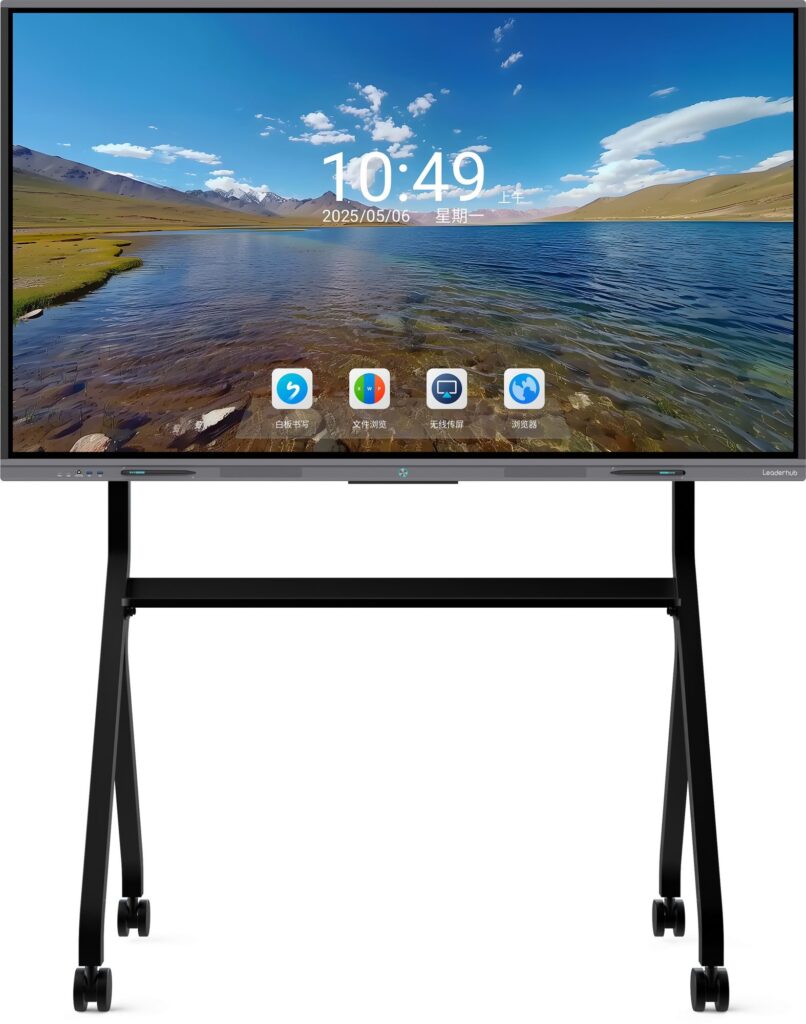
- Mobile stand option for flexible seating formats.
For a fuller feature checklist, see our guide to interactive smart whiteboards for education, and for guidance on selecting technology responsibly, the UNESCO guidance on choosing technology in education is a useful framework for school leaders.

Recommended Leaderhub Panels for Debate Classrooms
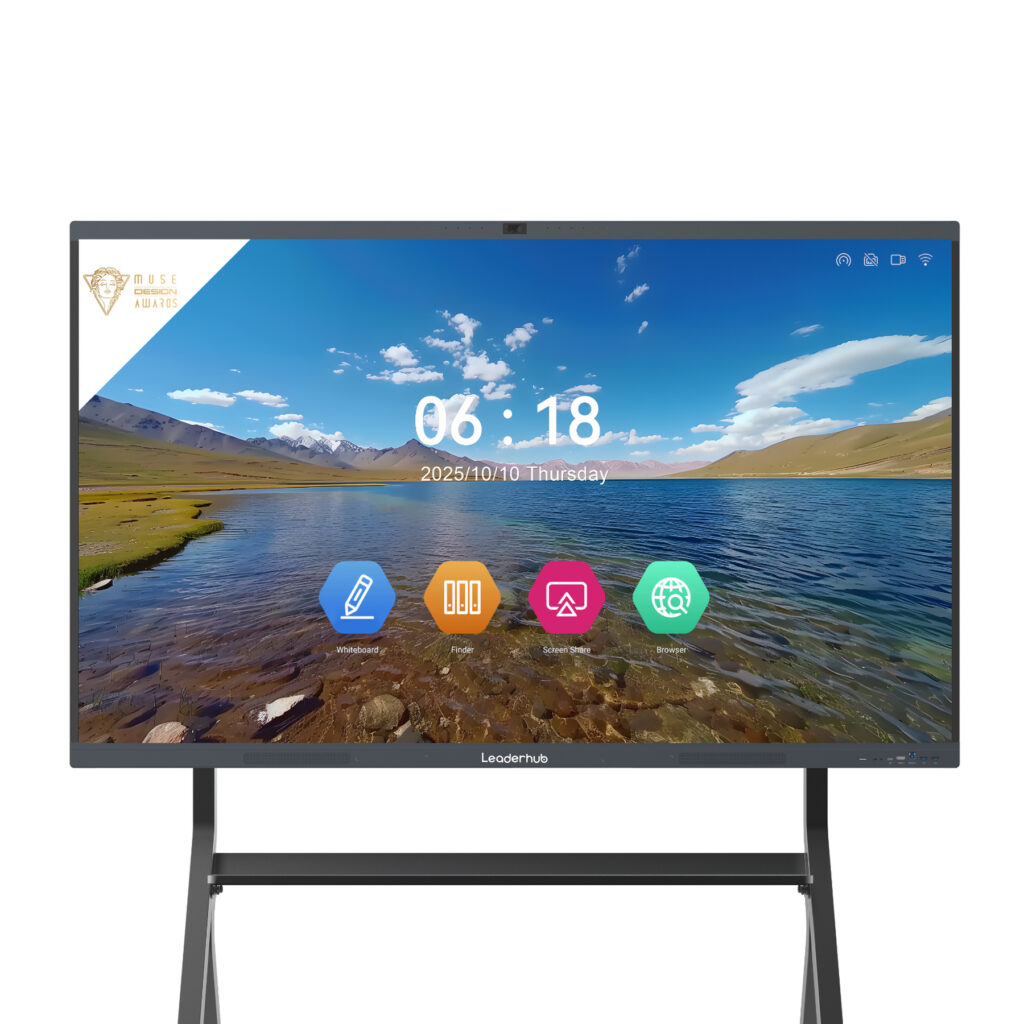
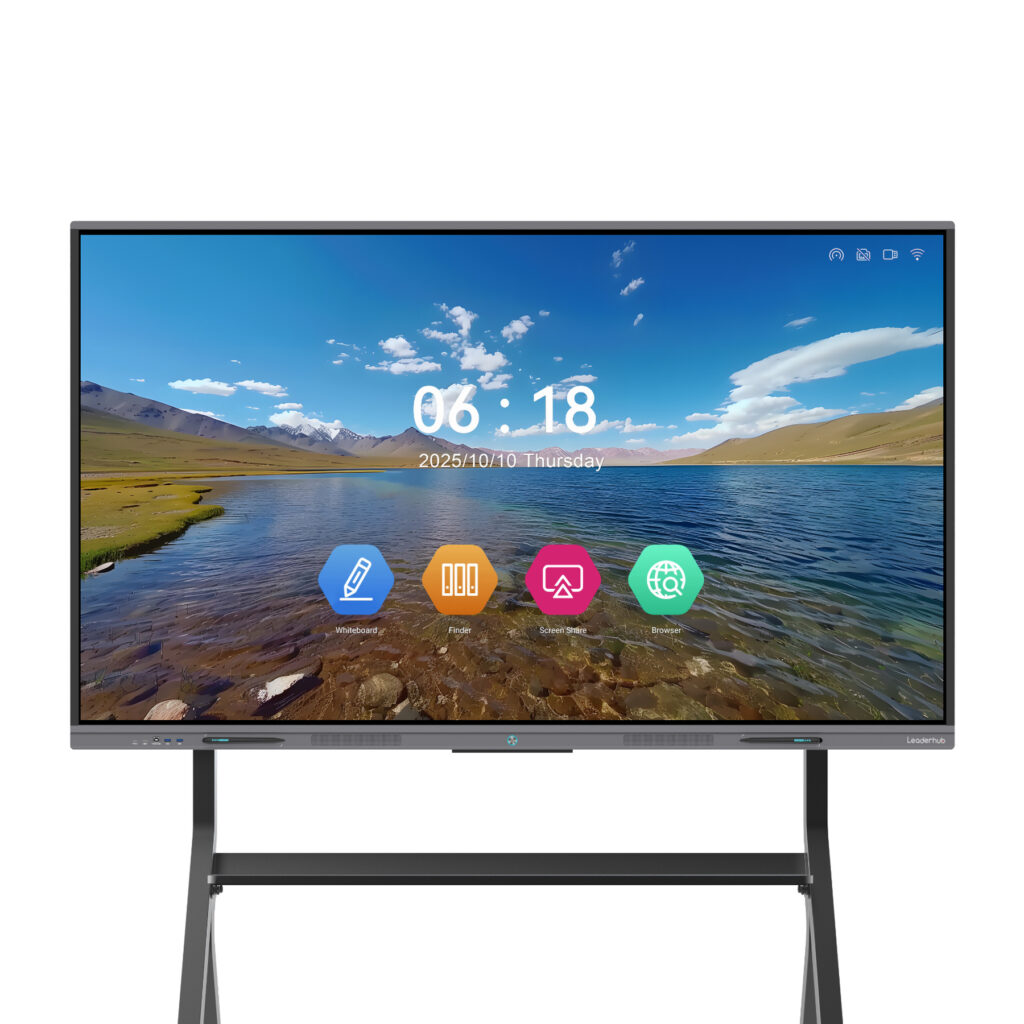
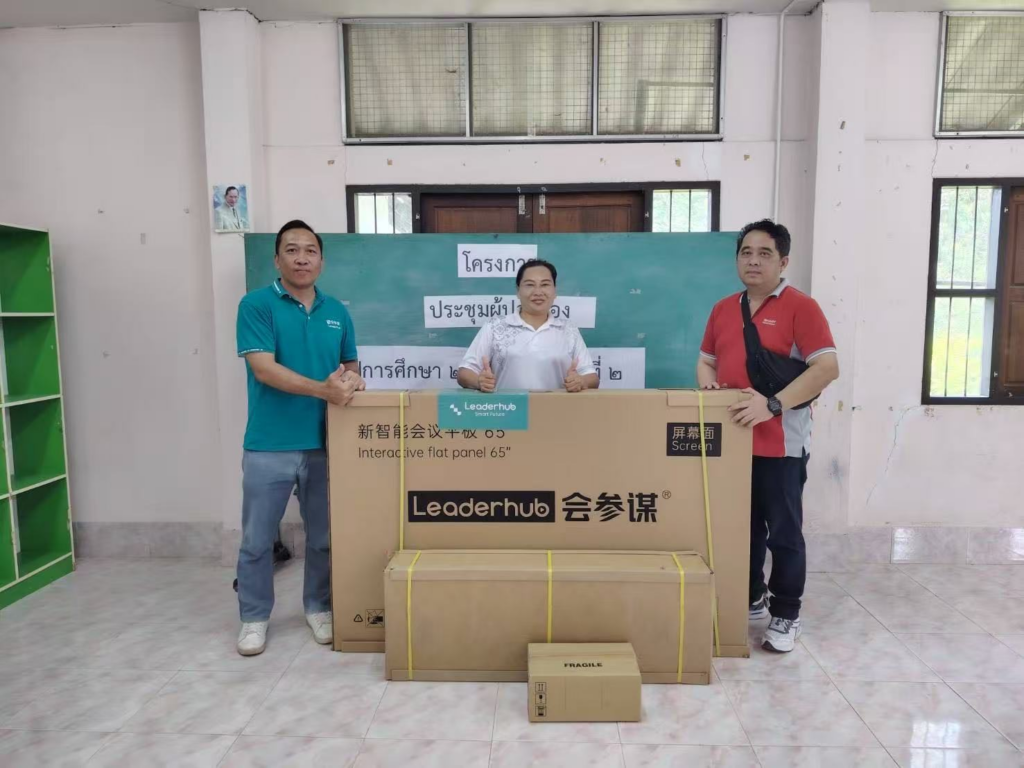
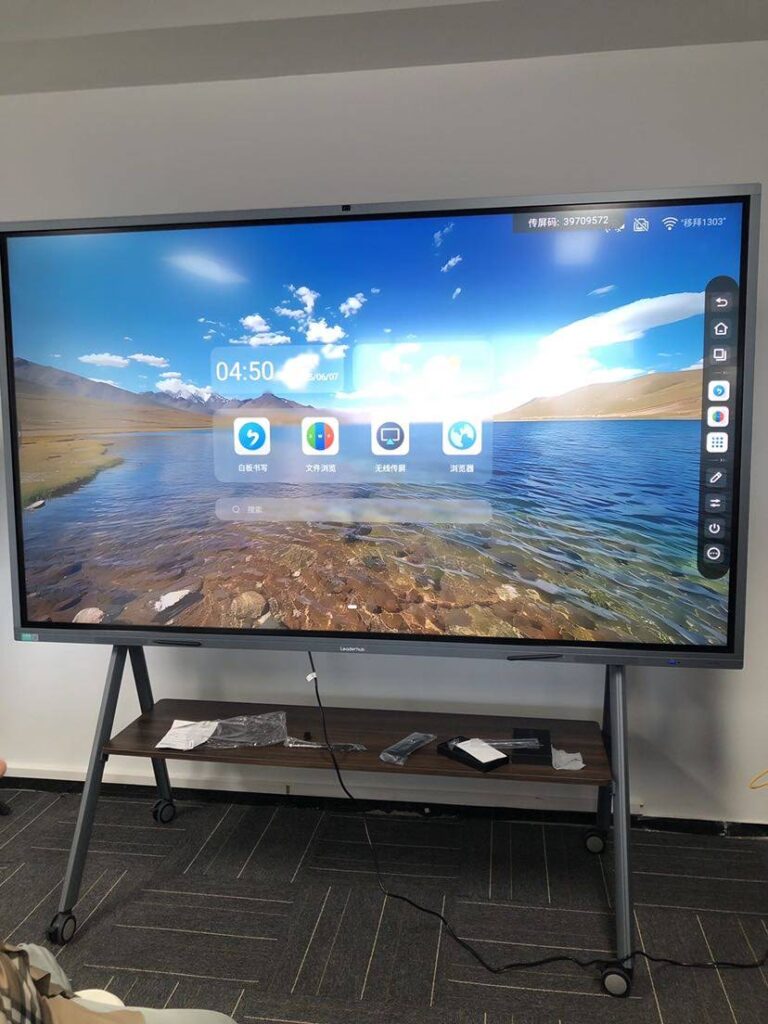
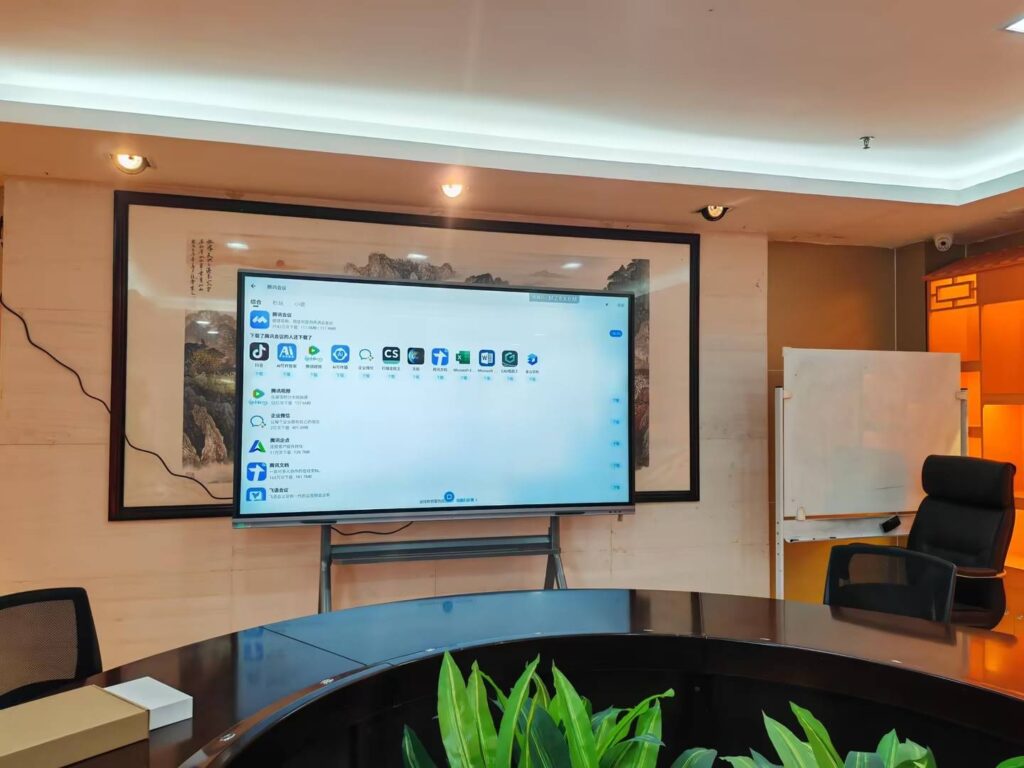
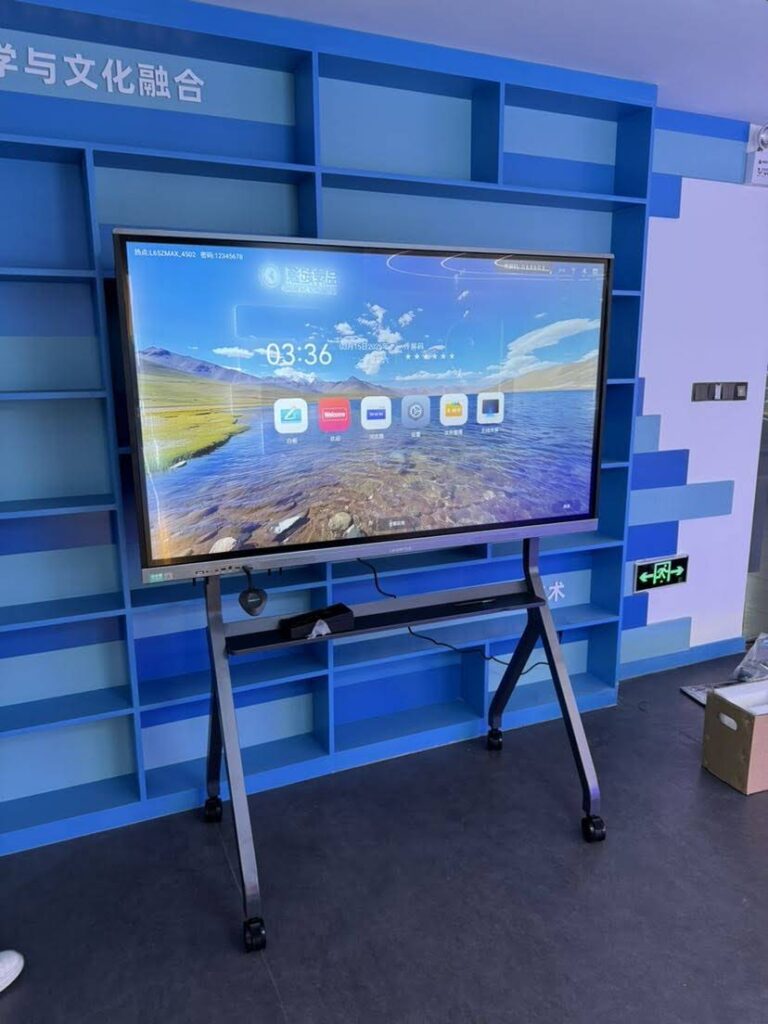
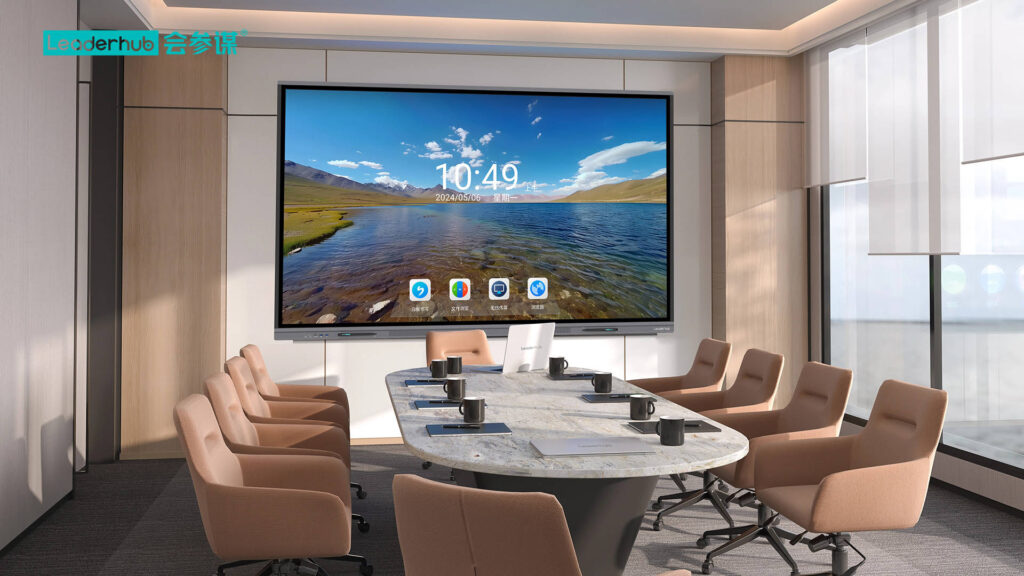
Leaderhub is a Shenzhen-based interactive-display manufacturer with 16 years of experience, serving schools and businesses in 82+ countries. Its education-focused panels combine 4K touchscreens, Android-based whiteboard apps, wireless casting and optional mobile stands — exactly the toolkit debate teachers need.
| Model | Ideal Classroom | Price |
|---|---|---|
| Leaderhub L65ZM 65″ Interactive Whiteboard | Seminar rooms, debate clubs up to 15 students | $1,099 |
| Leaderhub L75HM 75″ Smart Whiteboard | Standard classrooms of 25–35 students | $1,599 |
| Leaderhub L86ZM 86″ Interactive Whiteboard | Lecture halls, auditoriums, inter-school tournaments | $1,699 |
| Leaderhub U55Pro 55″ Mobile Interactive Panel | Flexible rooms, fishbowl and rotating-group debates | $2,499 |
Common Mistakes to Avoid
- Letting the screen become a slideshow. Debate is about speaking; limit screen shares and keep annotations quick.
- Forgetting to save. Snapshot the flow sheet after each phase so disputes about “who said what” can be settled instantly.
- One speaker, one touch. Encourage teams to use multi-touch so that a partner can add evidence while the speaker talks.
- Ignoring sightlines. Test the view from the back corners before class and increase pen thickness or font size accordingly.
- Skipping the pre/post poll. It is the simplest, most motivating measure of persuasive success.
Frequently Asked Questions
Do I need special debate software for a smart board?
No. The built-in whiteboard, timer, browser and screen-share functions on most Android-based interactive panels cover 90% of debate needs. Free web tools for polling and timers fill the rest.
Can younger students (ages 8–11) use a smart board for debates?
Absolutely. Tag-team and four-corners formats with on-screen sentence starters (“I agree because…”, “One piece of evidence is…”) scaffold speaking for elementary and ESL learners.
How do I run a hybrid or inter-school debate?
Panels with integrated cameras and microphone arrays let a remote team join through Zoom, Teams or Google Meet. Share the whiteboard window so both sides annotate the same flow sheet.
Which screen size should my school choose?
As a rule of thumb: 65″ for up to 15 students, 75″ for 25–35, and 86″ or larger for lecture halls. Learn more in our full range of interactive displays and accessories.
Final Thoughts
A smart board for classroom debate activities turns a loosely organized discussion into a structured, visual and evidence-rich learning experience. With a clear screen layout, a visible timer, live polls and a digital rubric, students argue better, listen more carefully and reflect more deeply. Start with one format from this guide, save your templates, and your debate lessons will get faster and sharper every term. Ready to equip your classroom? Contact the Leaderhub team for education pricing and a tailored recommendation.