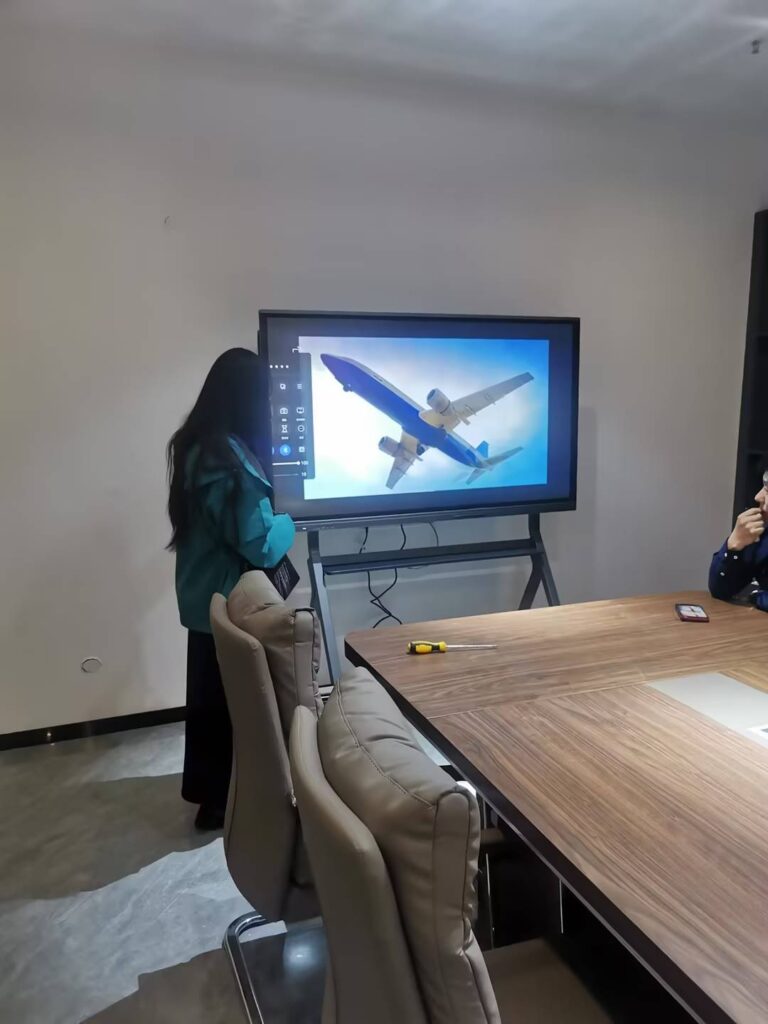
how to fix smart board touch screen issues usually starts with the simplest checks first. In many cases, the problem is caused by loose cables, dirty sensors, the wrong input source, outdated drivers, or a calibration mismatch rather than a major hardware failure.
This guide walks you through a practical troubleshooting process for classrooms, meeting rooms, and training spaces. If you need a replacement device while you troubleshoot, you can also explore our Smart Whiteboards and Interactive Displays.
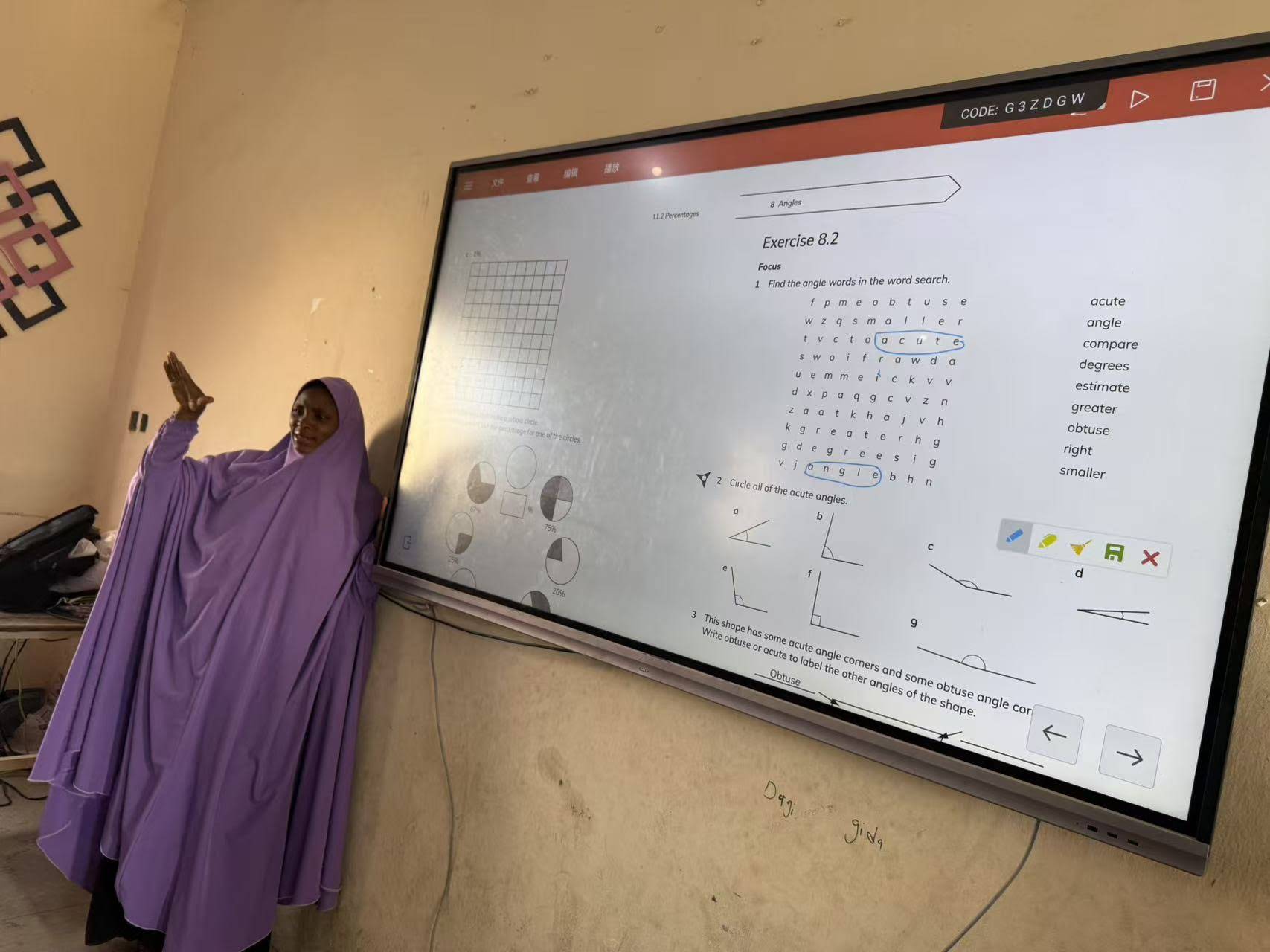
Why a Smart Board Touch Screen Stops Responding
Before you replace parts, identify whether the issue is complete touch failure, partial dead zones, ghost touches, or laggy response. Each symptom usually points to a different cause.
- No touch response: often power, cable, driver, or USB communication related.
- Touch offset: usually calibration, resolution, or display scaling issues.
- Random touches: may be caused by dirt, reflections, electrical interference, or a failing touch module.
- Only some areas work: often indicates hardware wear or sensor damage.
Step-by-Step Troubleshooting Guide
1. Confirm the display is powered on correctly
Check the power LED, input source, and screen brightness. A screen that appears “dead” may actually be on the wrong input or in sleep mode.
- Verify the power cable is firmly connected.
- Try a different wall outlet or power strip.
- Switch to the correct HDMI/Type-C/OPS input.
- Wake the unit using the physical power button.
2. Inspect all touch-related cables
Most smart boards use a separate USB connection for touch. If HDMI is connected but USB is loose, the image may show normally while touch fails completely.
- Re-seat the USB cable on both ends.
- Try another USB port if available.
- Replace damaged cables with certified alternatives.
- Keep the touch USB cable away from high-power adapters and signal noise sources.

3. Clean the screen and bezel area
Dust, fingerprints, and residue can interfere with infrared or capacitive touch detection. Use a soft microfiber cloth and a screen-safe cleaner.
- Power off the board first.
- Clean the bezel edges and corners carefully.
- Remove tape, stickers, or markers near the frame.
- Check for objects blocking the sensors.
4. Restart the board and the connected PC
A full restart clears temporary driver glitches and reinitializes touch communication. If the board uses an OPS or mini PC, reboot both the display and the computer.
- Turn off the display.
- Restart the connected computer.
- Power the display back on.
- Test touch after the system fully loads.
5. Recalibrate the touch system
If touches register in the wrong place, the board likely needs calibration. This is one of the most common fixes for offset touch or cursor drift.
- Open the board’s touch or pen settings.
- Run the calibration tool.
- Tap the targets accurately with a finger or stylus.
- Save the settings and retest across the full screen.
6. Check display resolution and scaling
Wrong resolution can make touch feel inaccurate, especially after switching computers. Set the native resolution recommended by the display manufacturer.
| Issue | Most Likely Cause | Recommended Fix |
|---|---|---|
| Touch does not work at all | USB disconnected, driver issue, wrong input | Reconnect USB, restart, reinstall driver |
| Touch is offset | Calibration or resolution mismatch | Recalibrate and set native resolution |
| Ghost touches | Dirty surface, interference, damaged touch layer | Clean screen, isolate interference, inspect hardware |
| Dead zones | Sensor damage or panel wear | Test with another source, contact support |
7. Update touch drivers and firmware
Outdated firmware or a corrupted driver can break touch recognition, especially after operating system updates. Install the latest updates from the device manufacturer or connected PC vendor.
- Update the touch driver.
- Update firmware if the model supports it.
- Restart after each update.
- Test with a different computer to isolate the source of the problem.
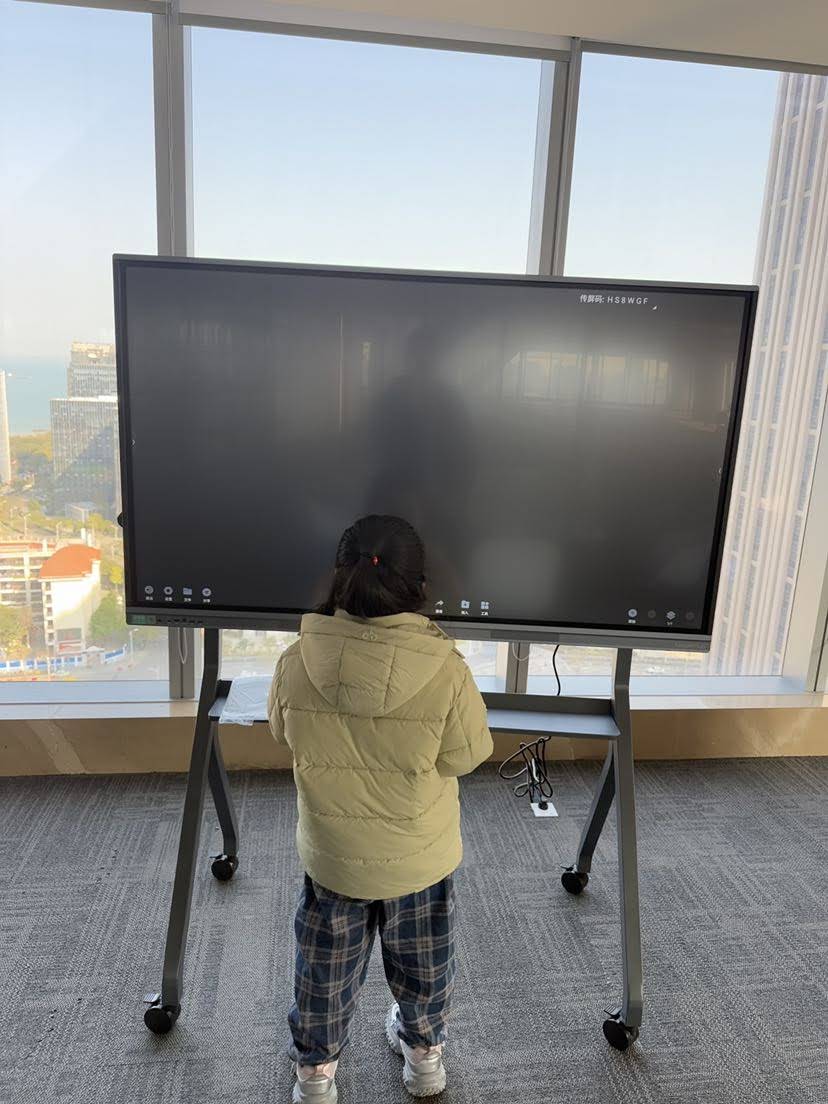
8. Test the board with another device
This is one of the fastest ways to decide whether the issue is with the board or the connected PC. If touch works on one device but not another, the fault is likely software-related.
- Connect a laptop, OPS, or mini PC.
- Use a different USB cable.
- Confirm the same input source is selected.
- Compare touch performance on each device.
9. Check for electrical interference
Power adapters, wireless devices, and poorly shielded cables can create interference that causes unstable touch behavior.
- Move power bricks away from the display cable path.
- Separate USB and power cables where possible.
- Turn off nearby devices temporarily.
- Retest after simplifying the setup.
10. Inspect for physical damage
If the screen has a crack, bent frame, liquid exposure, or visible sensor damage, software fixes may not solve the problem. At that point, the touch layer or controller board may need professional repair.
Quick Fix Checklist
- Restart the display and computer.
- Reconnect the USB touch cable.
- Clean the screen and bezel.
- Run touch calibration.
- Set the native resolution.
- Update drivers and firmware.
- Test with another device.
When to Replace the Touch Component
If the board still has dead zones, persistent ghost touches, or total touch failure after all steps, the hardware may be failing. This is more common on heavily used classroom and conference room displays.
Consider replacement or professional service when:
- Touch fails on multiple computers.
- Calibration does not hold after reboot.
- The issue worsens after cleaning and cable replacement.
- The panel shows signs of impact or moisture damage.
Best Practices to Prevent Future Touch Problems
Good maintenance reduces downtime and extends the lifespan of your smart board.
- Keep the screen clean and dry.
- Use high-quality cables and adapters.
- Install firmware updates regularly.
- Avoid running cables under heavy foot traffic.
- Turn off the board properly instead of unplugging it.
- Train users not to press hard on the panel.
For schools and workplaces, structured technology planning also helps. Resources like the UNESCO Global Education Monitoring Report and ISTE Standards emphasize reliable, purposeful use of interactive technology.
Need a Reliable Replacement or Upgrade?
If troubleshooting shows the hardware is nearing end of life, browse our smart whiteboard collection or contact our team for deployment advice and product selection.
Leaderhub brings 16 years of interactive-display expertise to organizations in 82 countries, helping users choose dependable touch solutions for education, meetings, and collaboration.
Contact Us
|
Shop Products
|
Mini PCs for Stable Touch Setup