Buying computers for a school is rarely as simple as picking a model and placing an order. Every device touches dozens of stakeholders, from the Year 3 teacher who needs a reliable screen at the front of the room to the IT coordinator who has to image, secure, and repair hundreds of machines over five years. A well-run school computer procurement process balances learning goals, technical requirements, budget limits, and long-term support so that the technology actually gets used rather than gathering dust in a storage cupboard.
This guide walks you through the full journey: assessing needs, comparing device types, setting realistic budgets, running a transparent procurement process, and planning for deployment and lifecycle management. Whether you are a school principal, a district technology director, or a procurement officer at a private academy, the framework below will help you make confident, defensible decisions.
Why School Computer Procurement Needs a Strategy, Not Just a Purchase Order
Research from the OECD Digital Devices Research consistently shows that simply adding more devices to a classroom does not improve outcomes. What matters is how devices are chosen, integrated, and supported. UNESCO makes the same point in its Choosing Technology in Education guidance, which asks schools to consider appropriateness, equity, scalability, and sustainability before signing any contract.
In practice, a strategic approach to school computer procurement delivers four benefits:
- Lower total cost of ownership because devices are matched to real use cases instead of over- or under-specified.
- Higher adoption rates because teachers are involved early and training is budgeted from day one.
- Fewer support tickets thanks to standardised configurations and manageable device fleets.
- Compliance with funding rules, data protection laws, and accessibility standards.
Step 1: Assess Your School’s Real Needs
Before looking at a single spec sheet, map out who will use the devices, where, and for what. A needs assessment keeps the conversation anchored in teaching and learning rather than in marketing claims.
Identify Your User Groups
- Students (1:1 or shared carts): web research, document creation, coding, assessments, creative media.
- Teachers: lesson planning, grading, presentation, video conferencing, driving the front-of-class display.
- Computer labs and STEM rooms: CAD, video editing, programming environments, simulations.
- Administration and front office: student information systems, finance software, printing, security.
- Shared spaces: libraries, staff rooms, and assembly halls that need digital signage or collaboration tools.
Audit What You Already Have
List every existing device with its age, operating system, warranty status, and condition. Devices older than five years, or those that no longer receive security updates, should be prioritised for replacement. Also audit your network capacity, power outlets, charging infrastructure, and storage, since these frequently become the hidden bottleneck in device rollouts.
Involve Teachers and Students Early
Form a small procurement committee that includes classroom teachers, the IT lead, a finance representative, and ideally a student voice. Their input will reveal practical issues, such as whether a device fits in a primary school desk tray or whether a keyboard is suitable for small hands, that spreadsheets never capture.
Step 2: Choose the Right Device Type for Each Scenario
There is no single “best school computer.” Most schools end up with a blended fleet in which each device type is deployed where it performs best. The table below summarises the main options.
| Device Type | Best For | Strengths | Watch Out For |
|---|---|---|---|
| Chromebooks | Student 1:1 programmes, shared carts | Low cost, fast boot, simple cloud management | Limited offline and heavy-software use; auto-update expiry dates |
| Windows laptops | Teachers, secondary students, specialist subjects | Broad software compatibility, flexible configurations | Higher price and management overhead |
| Tablets | Early years, SEN support, mobile learning | Touch-first, lightweight, long battery life | Weak for typing-heavy tasks; accessory costs add up |
| Mini PCs | Computer labs, classroom display drivers, admin desks, libraries | Compact, energy-efficient, easy to mount, hard to steal or damage | Needs separate monitor and peripherals |
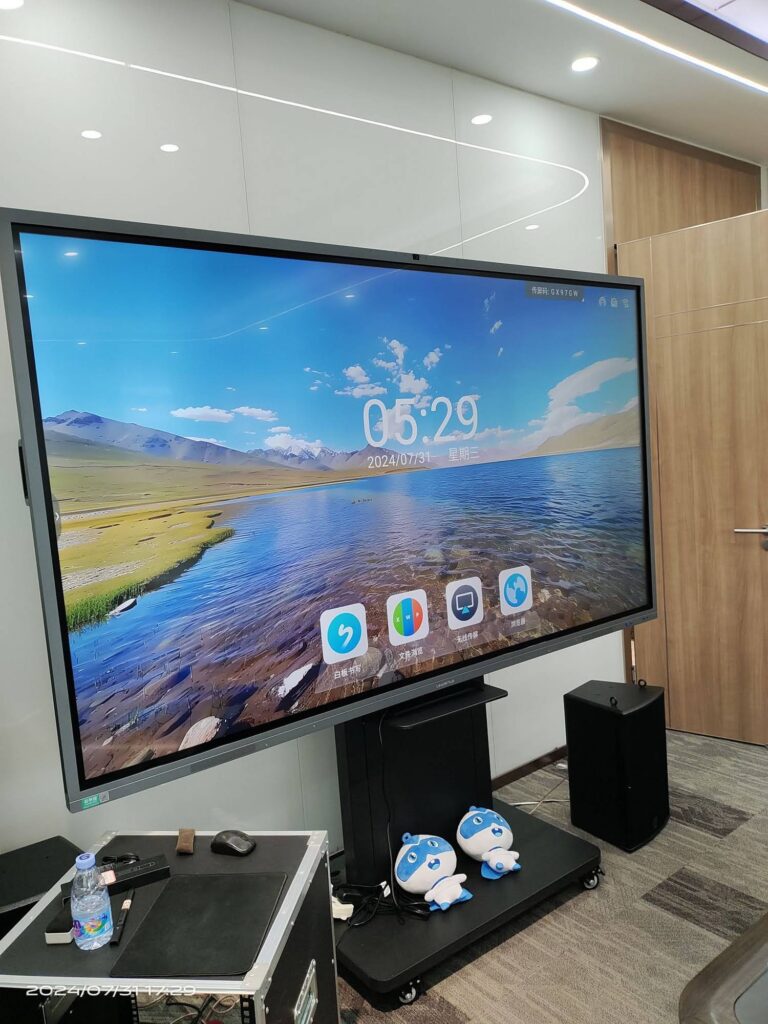
| Interactive flat panels | Front-of-class teaching, collaboration spaces | Replaces projector and whiteboard; multi-touch; built-in Android | Largest single-item cost; requires wall or trolley mounting |
Why Mini PCs Are Gaining Ground in Schools
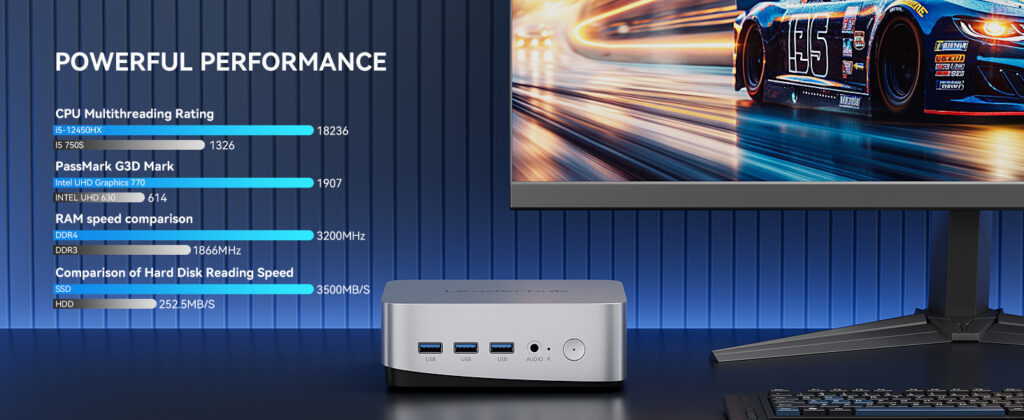
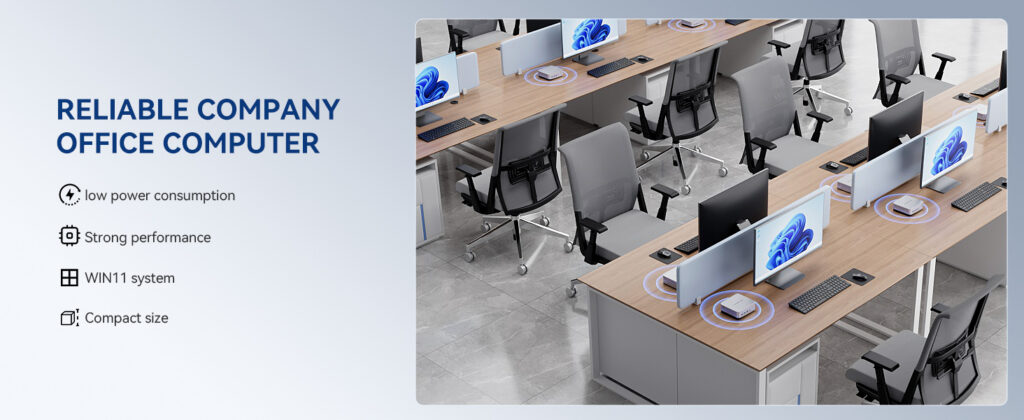
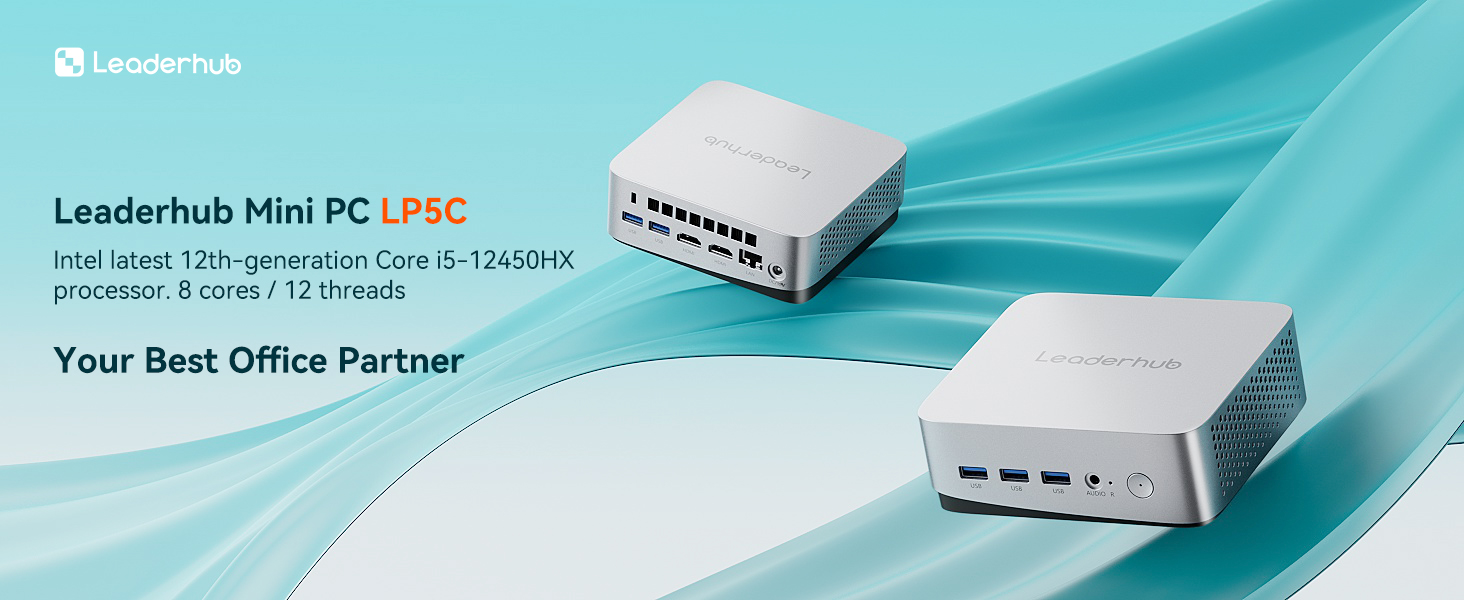
Many districts are rediscovering the desktop form factor through mini PCs. These palm-sized machines mount behind a monitor or an interactive display, draw a fraction of the power of a tower, and can be locked down physically and digitally. In a computer lab, a mini PC fleet means fewer breakages than laptops, no battery degradation, and a consistent setup that is easy to re-image. Paired with an interactive panel, a mini PC gives teachers a full Windows environment for specialist software while the panel handles touch annotation and screen sharing.
Step 3: Define the Specifications That Actually Matter
Specification creep is one of the biggest budget killers in school computer procurement. Define minimum and recommended specs per user group and resist the urge to buy premium hardware for tasks that do not need it.
| Component | Student / General Use | Teacher / Admin | STEM / Media Lab |
|---|---|---|---|
| Processor | Intel N100 class or equivalent | Intel Core i5 class | Core i5 / i7 or Ryzen 7 class |
| Memory | 8 GB | 16 GB | 16–32 GB |
| Storage | 256–512 GB SSD | 512 GB SSD | 1 TB SSD |
| Connectivity | Wi-Fi 6, USB-C | Wi-Fi 6, Gigabit Ethernet, HDMI | Wi-Fi 6E, 2.5G Ethernet, dual display outputs |
| Warranty | 3 years minimum | 3 years, next-business-day | 3–5 years on-site |
Non-Negotiables for Any School Device
- Manageability: support for your MDM or domain tools (Google Admin, Intune, Jamf, etc.).
- Security: TPM 2.0, secure boot, and a clear operating-system update roadmap.
- Durability: drop-tested chassis for student laptops; fanless or dust-resistant designs for labs.
- Accessibility: screen readers, magnification, and alternative input support built in.
- Energy efficiency: low idle power draw reduces running costs across hundreds of units.
Step 4: Build a Realistic Budget Using Total Cost of Ownership
The sticker price is typically only 50–60% of what a device costs over its life. A total cost of ownership (TCO) model captures everything else so that finance teams are not surprised in year two.
| Cost Category | Typical Share of TCO | What to Include |
|---|---|---|
| Hardware | 50–60% | Devices, monitors, cases, charging carts, mounts |
| Software and licences | 10–15% | OS, MDM, productivity suites, filtering, classroom management |
| Infrastructure | 10–15% | Wi-Fi upgrades, cabling, power, storage and security |
| Training | 5–10% | Teacher PD, digital-lead time, student onboarding |
| Support and repairs | 10–15% | Extended warranty, spares pool, technician time, disposal |
Budgeting Tips That Save Schools Money
- Plan on a 4–5 year refresh cycle and replace 20–25% of the fleet every year to avoid budget spikes.
- Keep a 3–5% spares pool so that a broken device never stops a lesson.
- Standardise on as few models as possible; every extra model multiplies imaging, training, and spare-part costs.
- Compare outright purchase, leasing, and device-as-a-service options against your funding rules.
- Choose a mix of front-of-class displays and compact computers; a 65-inch interactive panel plus a mini PC often costs less over five years than a projector, whiteboard, speakers, and a tower PC combined.
Step 5: Run a Transparent, Competitive Procurement Process
Public and grant-funded schools usually have formal procurement thresholds, but even private institutions benefit from a structured process. The UK Department for Education’s School Technology Planning resources offer a useful template that translates well to other countries.
A Six-Stage Procurement Workflow
- Write a clear specification based on your needs assessment, including quantities, delivery dates, warranty terms, and training requirements.
- Check framework agreements and consortia that may already offer pre-negotiated education pricing.
- Issue an RFQ or RFP to at least three vendors and give them enough time to respond properly.
- Request evaluation units and run a two- to four-week pilot with real teachers and students.
- Score bids on weighted criteria rather than price alone, for example 40% total cost, 25% fit to specification, 20% support and warranty, 15% pilot feedback.
- Negotiate and document the final contract, including delivery schedule, asset tagging, and return or recycling terms.
Questions to Ask Every Vendor
- How long will this exact model remain available, and what is the firmware and OS update commitment?
- Can devices arrive pre-imaged, asset-tagged, and enrolled in our management platform?
- What is the realistic repair turnaround time, and is there an advance-replacement option?
- Do you offer education pricing, bulk discounts, or bundled training?
- Are there reference schools of a similar size we can speak to?
Step 6: Plan Deployment, Security, and Lifecycle Management
A smooth rollout is as important as a smart purchase. Schedule deliveries during holidays where possible, stage devices in a secure room, and deploy by phase (for example one year group or one building at a time) so that the IT team can resolve issues before scaling up.
Security and Safeguarding Essentials
- Enforce content filtering and monitoring that meets your national safeguarding requirements.
- Use role-based accounts and multi-factor authentication for staff.
- Encrypt storage on all portable devices and enable remote wipe.
- Publish an acceptable-use policy for students, parents, and staff.
Lifecycle and Sustainability
Track every device in an asset register from purchase to disposal. Repair rather than replace where economical, redeploy older units to lower-demand roles such as library catalogues or digital signage, and partner with a certified e-waste recycler at end of life. Energy-efficient hardware such as fanless mini PCs can cut electricity consumption in a 30-seat lab by hundreds of kilowatt-hours a year.
Sample Procurement Configurations for Common School Scenarios
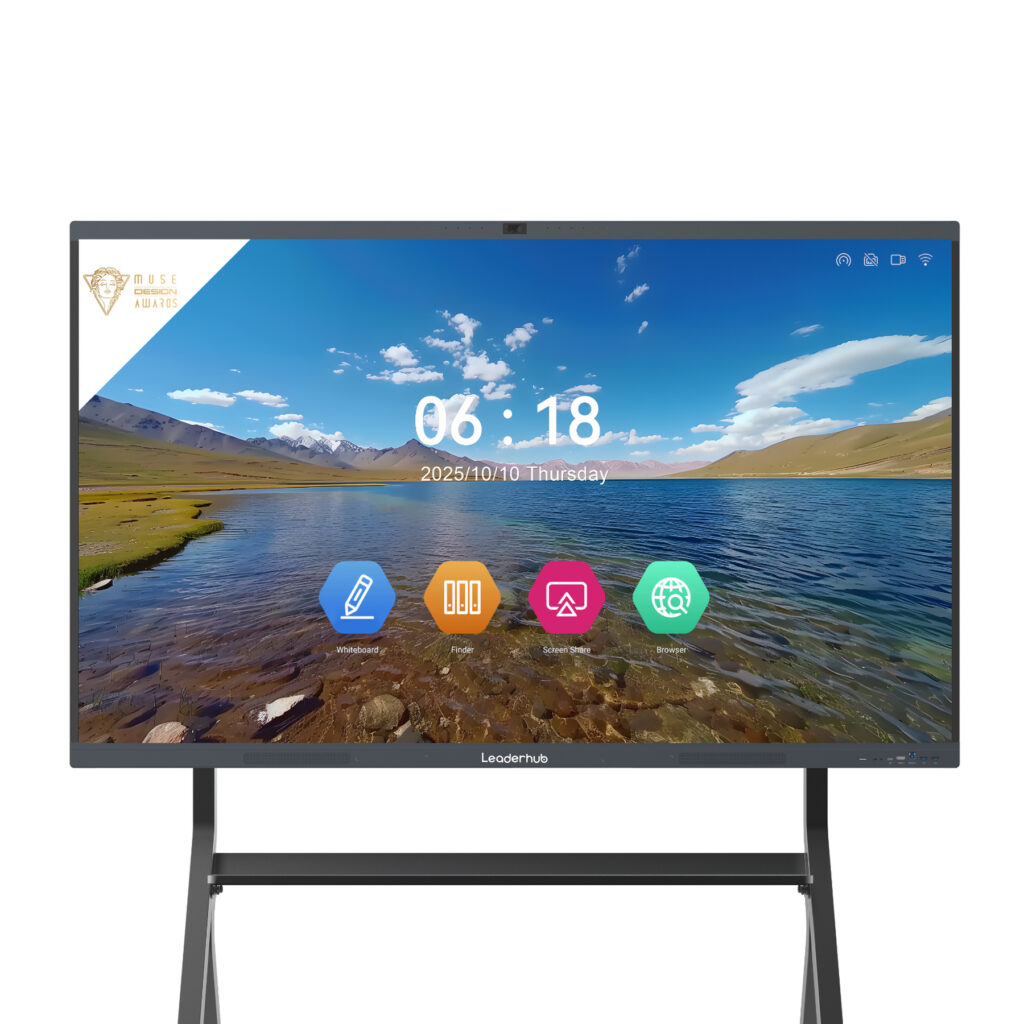
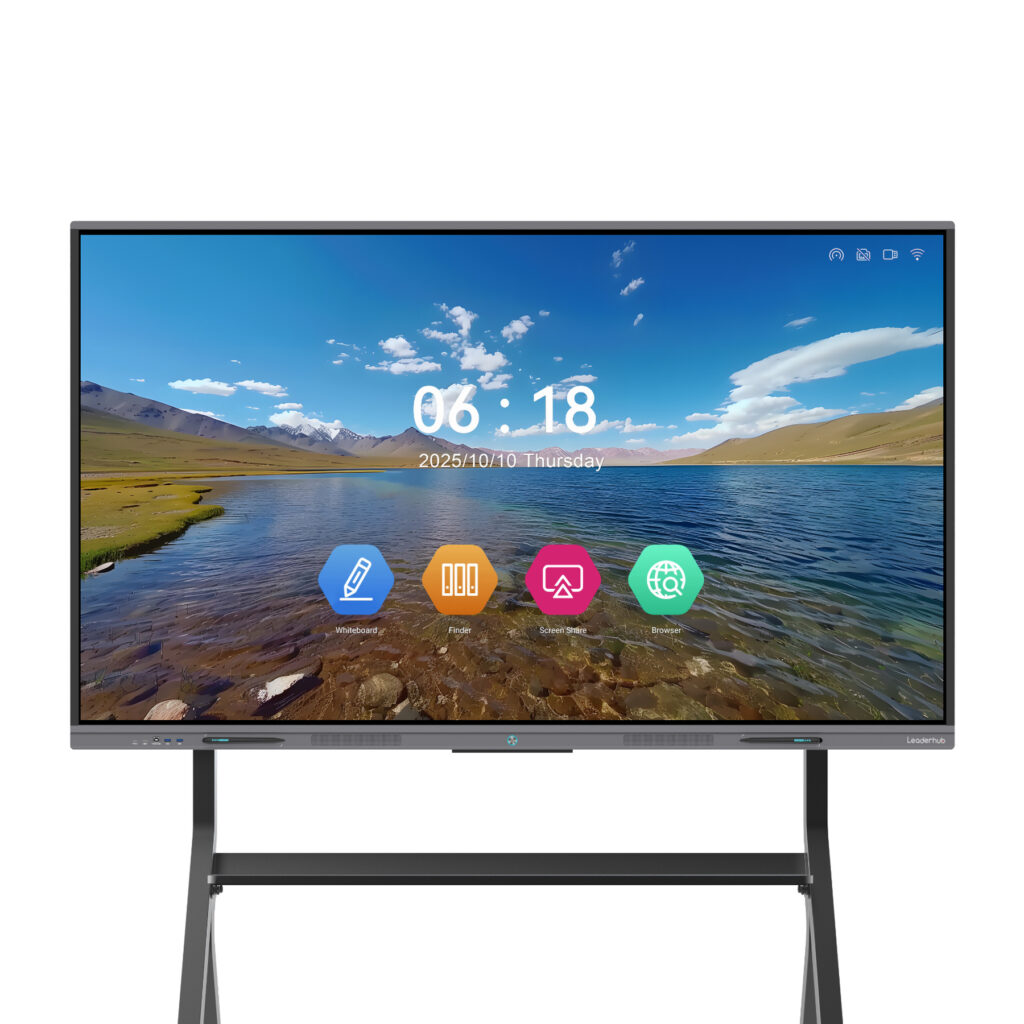
To make the framework concrete, here are three reference configurations using products from LeaderHub, a Shenzhen-based manufacturer with 16 years of experience in interactive displays and compact computing, serving education and enterprise customers in more than 82 countries. Prices are list prices and typically qualify for education or volume discounts.
| Scenario | Recommended Devices | Indicative Unit Price | Why It Works |
|---|---|---|---|
| Standard classroom | L65ZM 65″ 4K Interactive Whiteboard + LP1C Mini PC | $1,099 + $399 | Replaces projector, whiteboard, and speakers; Intel N100 mini PC handles everyday Windows software |
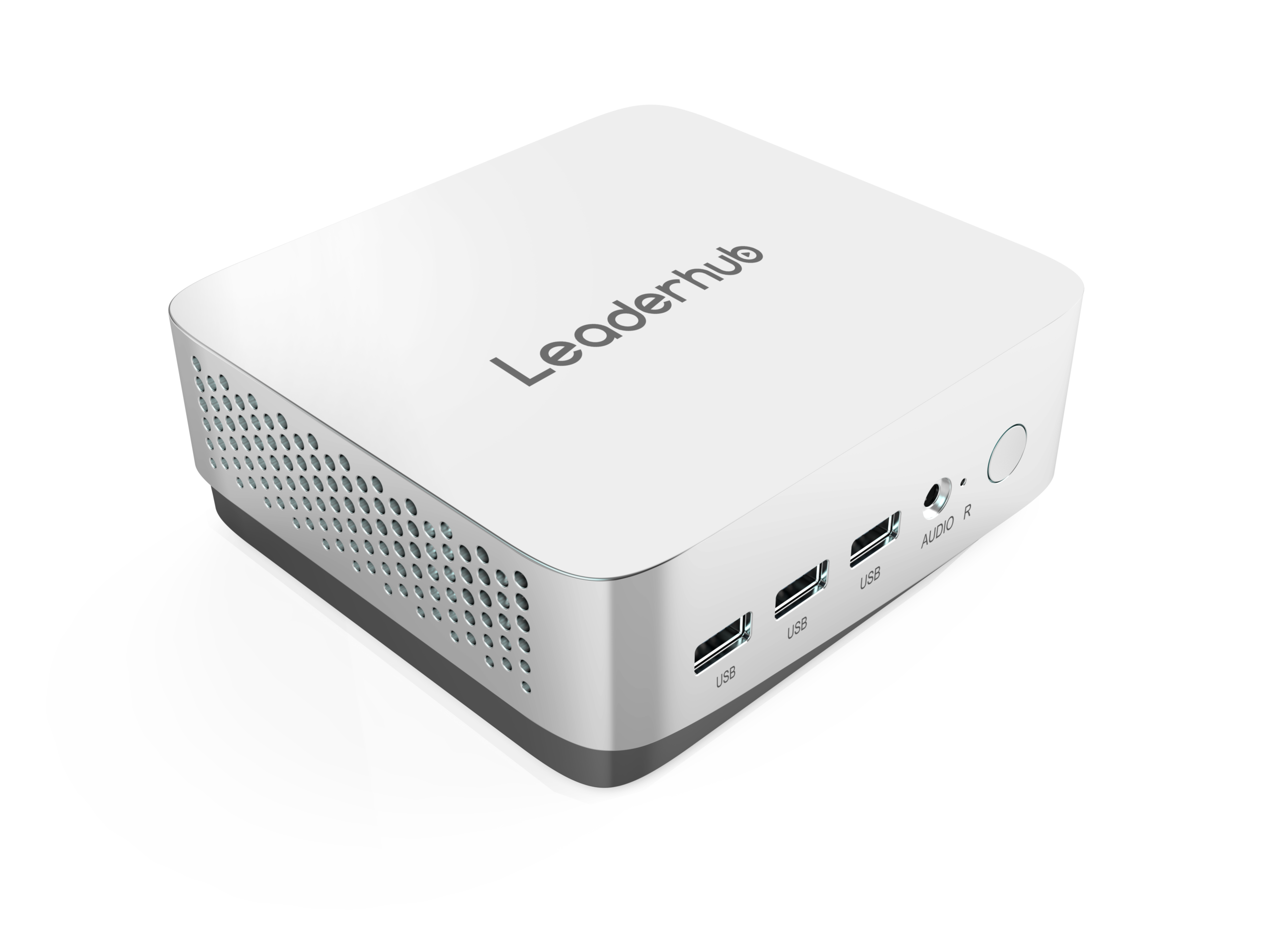
| Large classroom / lecture room | L75HM 75″ Smart Whiteboard + LP5C Mini PC | $1,599 + $799 | Larger viewing distance; Core i5 class performance for multimedia and multitasking |
| STEM / media lab workstation | AD8 Mini PC + standard monitor | $999 per unit | High-performance compact desktop for coding, design, and video editing with minimal desk footprint |
| Flexible / shared learning space | U55Pro 55″ Mobile Interactive Flat Panel | $2,499 | Wheels between rooms; ideal for breakout areas, libraries, and small-group teaching |
You can browse the full range of smart whiteboards and compact PCs, or request a tailored quotation for multi-classroom deployments.

Common School Computer Procurement Mistakes to Avoid
- Buying for the demo, not the classroom. Impressive features that teachers never use add cost without value.
- Forgetting infrastructure. A new 1:1 programme on an old Wi-Fi network will fail on day one.
- Skipping the pilot. Small-scale testing reveals ergonomic, software, and charging issues cheaply.
- Ignoring end-of-support dates. Devices that stop receiving updates become a security liability.
- Under-budgeting training. As Choosing an Interactive Display for K-12 notes, professional development is what turns hardware into learning gains.
- Choosing too many models. Fleet diversity quietly multiplies support costs.
School Computer Procurement Checklist
| Phase | Key Actions |
|---|---|
| Plan | Needs assessment, asset audit, stakeholder committee, learning objectives defined |
| Specify | Device types per user group, minimum specs, warranty, management and security requirements |
| Budget | Five-year TCO, refresh cycle, spares pool, training and infrastructure allowance |
| Procure | Frameworks checked, three or more quotes, pilot completed, weighted scoring, contract signed |
| Deploy | Phased rollout, pre-imaging, asset tagging, teacher training, acceptable-use policy |
| Sustain | Help-desk process, usage review, annual refresh planning, responsible disposal |
Frequently Asked Questions
How many computers does a school need?
It depends on your pedagogical model. A 1:1 programme requires one device per student plus spares, while a shared model typically works with one device for every two to three students alongside well-equipped labs. Every teaching space should have a reliable front-of-class display and a dedicated teacher computer.
Should schools buy laptops or desktops?
Laptops and Chromebooks suit mobility and 1:1 use, while desktops and mini PCs are more durable, cheaper to maintain, and better for labs, libraries, and classroom display stations. Most schools benefit from a combination.
How often should school computers be replaced?
Plan for four to five years for most devices, and six to seven years for interactive flat panels. Rolling replacement of around a quarter of the fleet each year keeps budgets predictable.
What is the biggest hidden cost in school computer procurement?
Support and infrastructure. Network upgrades, charging solutions, technician time, and repairs regularly account for 30–40% of lifetime cost. Build them into the budget from the start.
Can a mini PC replace the built-in Android system on an interactive panel?
Yes. Many schools pair an interactive display with a mini PC so teachers can run full Windows applications, specialist curriculum software, and district management tools while still using the panel’s touch and annotation features.
Final Thoughts
Successful school computer procurement is a cycle of planning, specifying, budgeting, buying, deploying, and reviewing. Keep learning outcomes at the centre, insist on total cost of ownership rather than headline prices, pilot before you scale, and standardise wherever possible. Do that, and the devices you buy this year will still be serving teachers and students effectively five years from now.
Ready to equip your classrooms and labs? Explore interactive displays and mini PCs designed for education, or talk to a specialist about volume pricing and deployment support for your school.