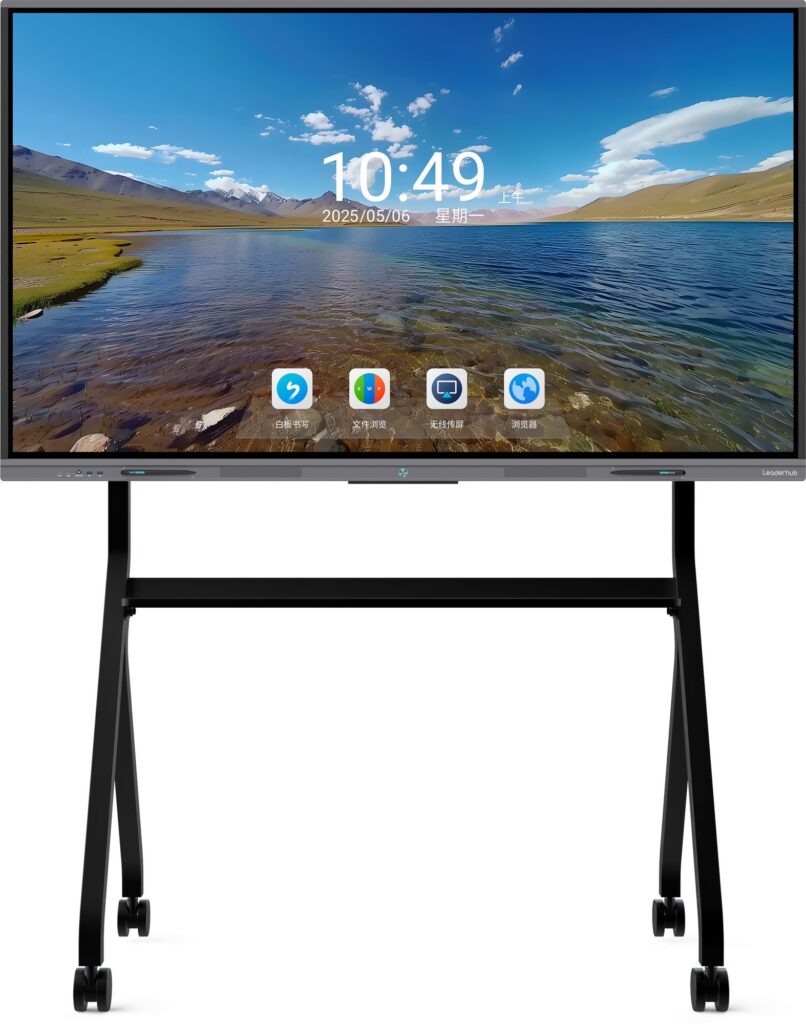
Creating engaging smart board activities is easier when you follow a clear classroom workflow: set a goal, choose an interaction style, build the board layout, and test everything before students arrive. If you are searching for
how to create smart board activities that keep learners focused, this guide gives you a practical process you can use for any subject and grade level.
Why Smart Board Activities Work So Well
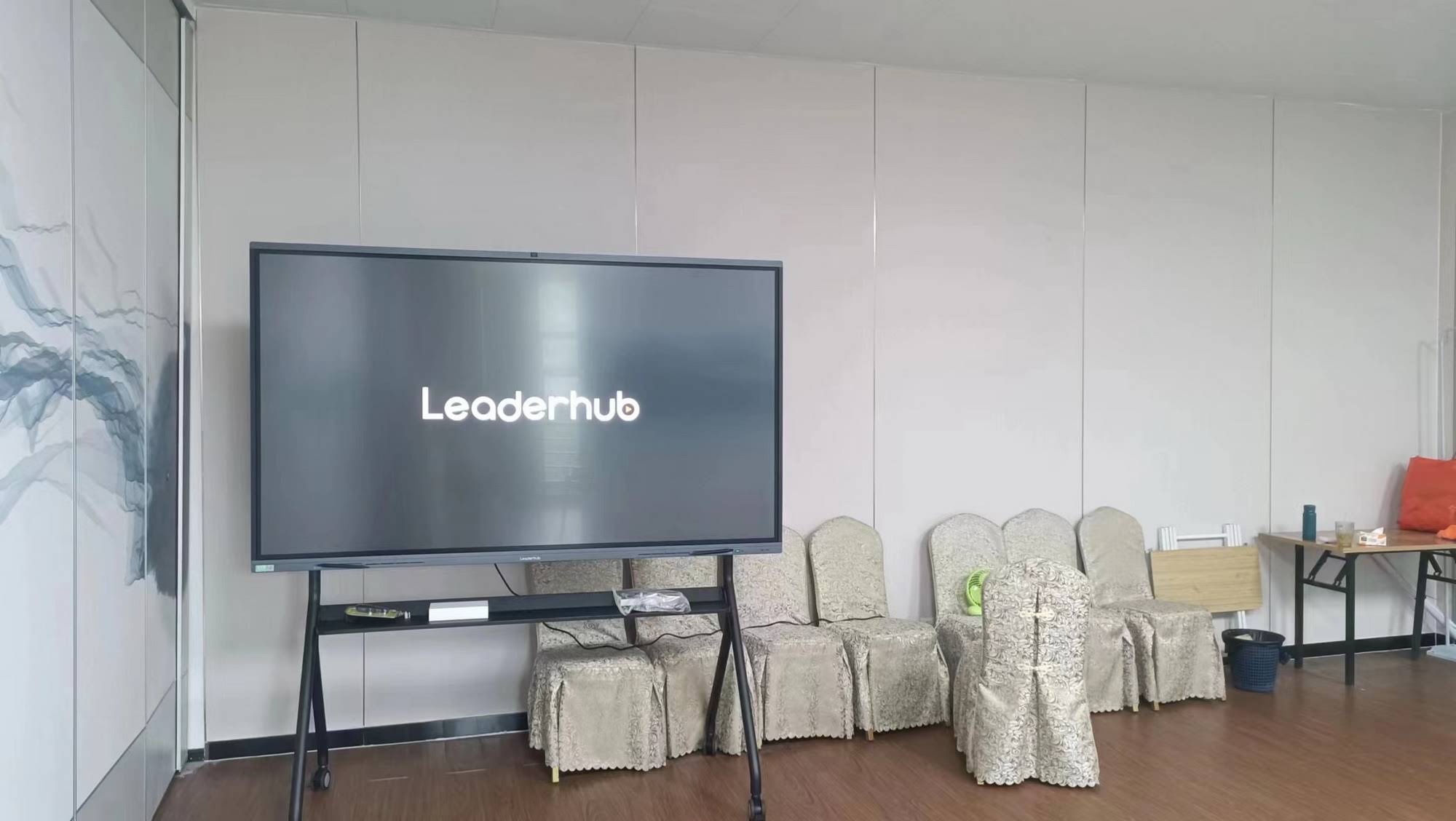
Smart boards turn passive lessons into hands-on experiences. Instead of only watching or listening, students can drag, sort, write, match, vote, and collaborate directly on the screen. That active participation supports retention and makes it easier to check understanding in real time.
For teachers who want evidence-based direction, it helps to review resources like
UNESCO Technology Guidance
and
ISTE Standards
before designing digital classroom tasks.
Step 1: Start With One Clear Learning Objective
Every effective activity begins with a single outcome. Ask yourself: what should students know, say, solve, or create by the end of the lesson?
- Knowledge goal: identify key vocabulary, facts, or concepts.
- Skill goal: compare, classify, explain, or calculate.
- Participation goal: ensure every student interacts at least once.
Keep the objective visible on the board so students understand the purpose of the activity from the start.
Step 2: Choose the Best Activity Format
Different lesson goals call for different interaction formats. A quick warm-up may need a poll, while a science review may work better as a sorting or labeling task.
| Activity Type | Best For | Simple Example |
|---|---|---|
| Drag-and-drop | Sorting and matching | Match vocabulary words to definitions |
| Annotation | Reading, analysis, correction | Underline evidence in a paragraph |
| Reveal and guess | Review and engagement | Uncover clues to identify a geography term |
| Class voting | Quick checks for understanding | Choose the best solution to a math problem |
Step 3: Build a Clean Board Layout
A smart board activity should feel simple, not crowded. Use one main instruction, one visual area, and one interaction area. Students should know exactly where to look and what to do.
A reliable layout formula
- Top: title or task direction.
- Middle: image, question, chart, or prompt.
- Bottom: answer choices, draggable items, or reflection box.
Use large, readable text and leave enough empty space so touch interactions remain accurate, especially on smaller classroom screens.
Step 4: Add Interactive Elements That Match the Lesson
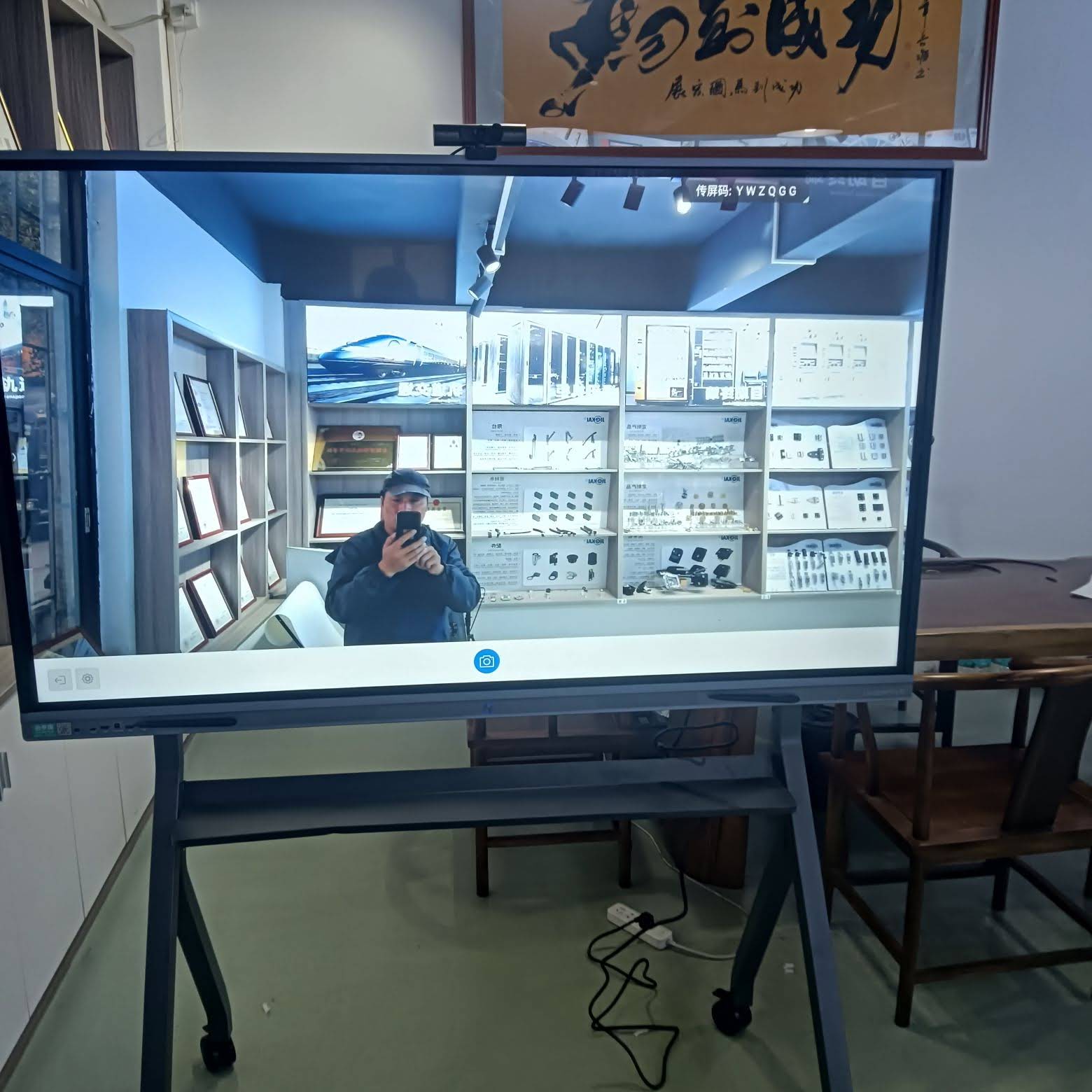
The best activities are not just “fun”; they are matched to a learning purpose. Choose one or two interaction types that support the lesson instead of using every tool at once.
- Drag and sort: great for categories, parts of speech, or historical timelines.
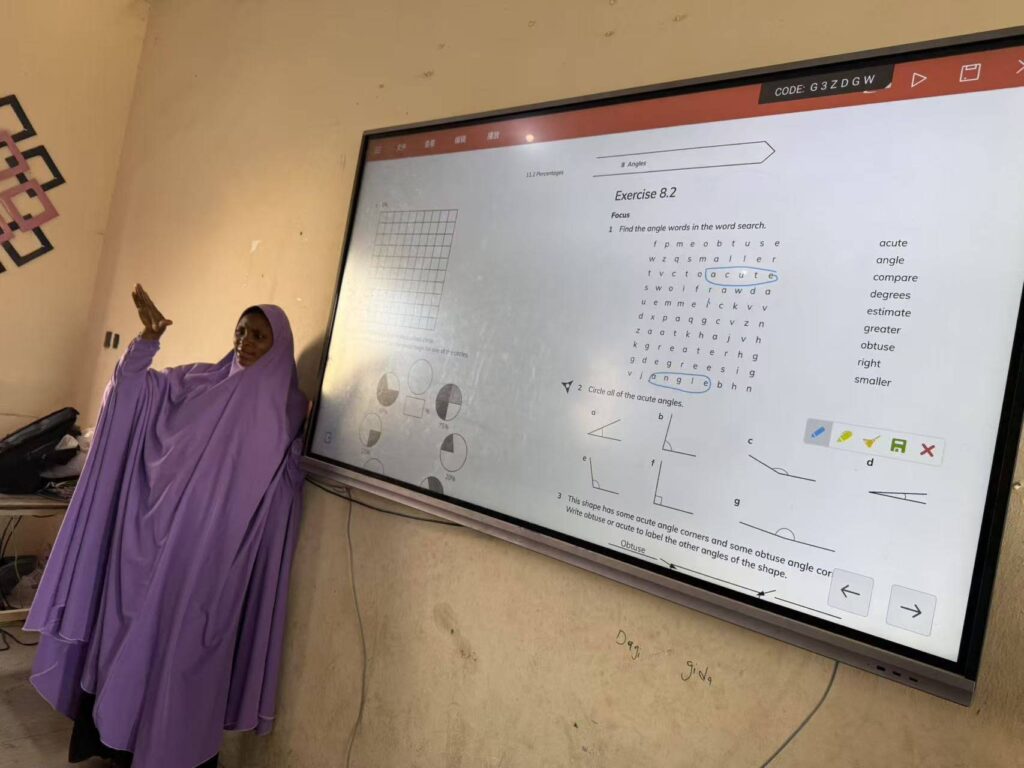
- Highlight and circle: useful for reading comprehension and grammar correction.
- Label the image: ideal for science, geography, and vocabulary lessons.
- Tap-to-reveal: perfect for review games and mystery clues.
- Class poll: fast, low-pressure way to check understanding.
If you want more ideas for classroom-ready devices, browse the smart whiteboards collection or explore the main
product shop.
Step 5: Prepare Your Assets Before Class
A smooth smart board lesson depends on preparation. Gather the files and links you need ahead of time so you are not searching during instruction.
- Save your slides, images, and worksheets in one folder.
- Check that every video, link, and audio clip opens correctly.
- Resize images so they load quickly and display clearly.
- Duplicate any templates you want students to reuse.
- Keep a backup version in PDF or image format.
For a touchscreen lesson with stronger visual impact, a larger display can help groups work together more easily. You can also compare hardware options on this
75-inch interactive whiteboard
page if you need a classroom-ready reference.
Step 6: Test the Activity Like a Student Would
Before class, do a quick walkthrough. Tap every button, drag every object, and try each transition. This helps you catch broken links, tiny touch targets, or unclear instructions.
- Can students understand the directions in 5 seconds or less?
- Are the draggable items large enough for fingers?
- Does the activity work from both the teacher position and student side?
- Is the scoring or answer reveal obvious?
Simple Smart Board Activity Ideas You Can Use Tomorrow
If you need a fast start, begin with one of these low-prep formats and adapt it to your subject area.
- Word sort: vocabulary, science terms, or grammar categories.
- Image label: body parts, map features, or machine components.
- Error hunt: let students find and correct mistakes on the board.
- Sequencing task: place events, steps, or story points in order.
- Exit ticket: one question at the end of the lesson for quick assessment.
| Template | What Students Do | Teacher Benefit |
|---|---|---|
| Warm-up poll | Choose an answer quickly | Checks prior knowledge instantly |
| Board sort | Move items into groups | Reinforces classification skills |
| Label challenge | Drag labels to the correct place | Improves recall and precision |
| Review game | Reveal answers and discuss | Makes review more motivating |
Common Mistakes to Avoid
- Putting too much text on one screen.
- Using activities without a clear learning purpose.
- Making touch targets too small for student hands.
- Forgetting to test links, audio, or embedded media.
- Choosing complex interactions when a simple one would work better.
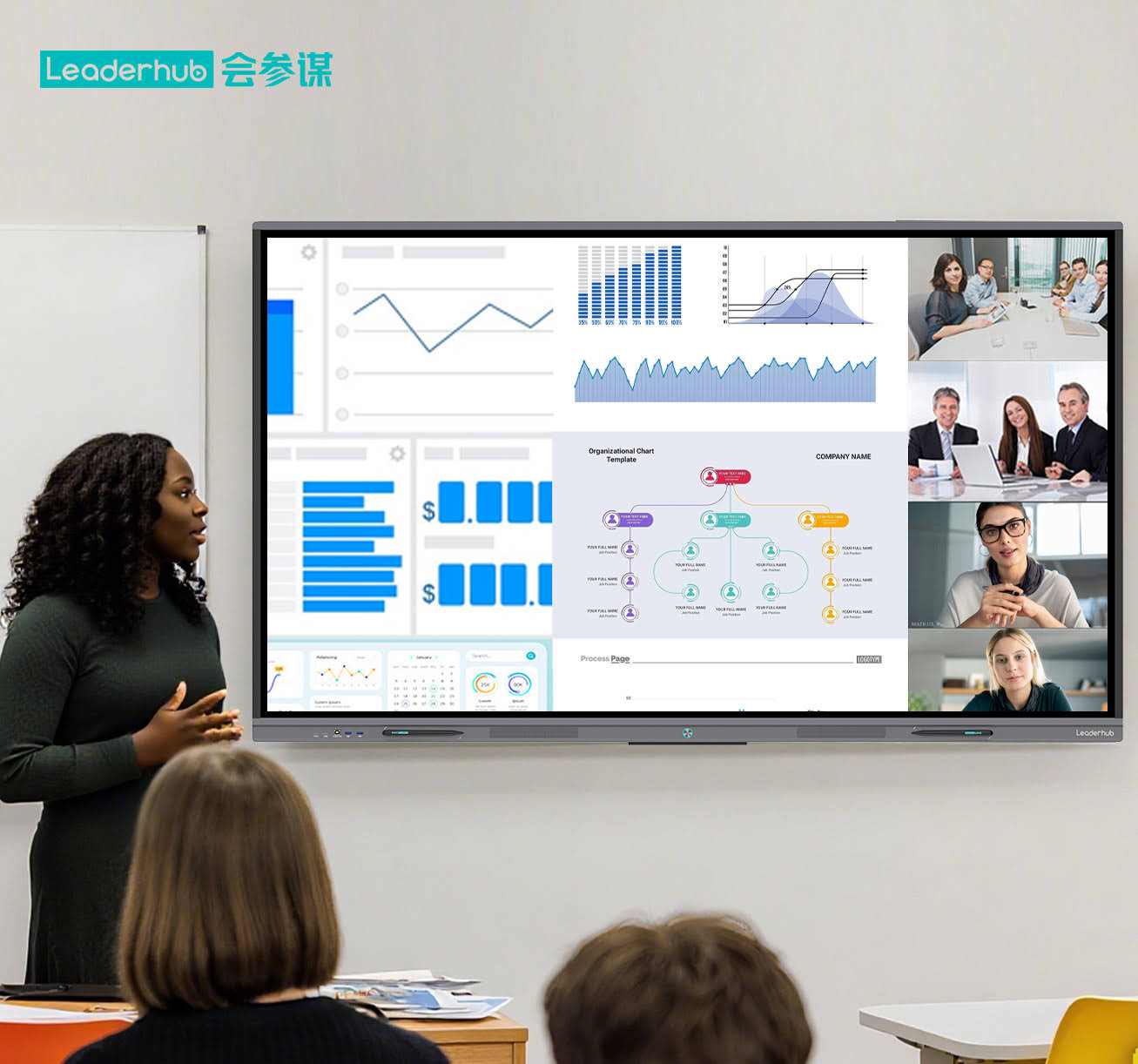
Keep in mind that technology should support instruction, not replace it. A great smart board activity still depends on strong teacher guidance, clear questioning, and purposeful discussion.
A Quick Checklist for Building Better Activities
- One goal per activity.
- One main task on each screen.
- One backup for every important file.
- One chance to let students interact early.
- One reflection question at the end.
If you are ready to expand your classroom setup, explore more options in the smart whiteboards category, or
contact us when you need help choosing the right display for your room. For larger collaborative lessons, Leaderhub offers classroom-ready solutions that support touch, annotation, and group interaction.