
Choosing the right interactive display can make or break the experience in a classroom, boardroom, or design studio. If you have ever watched a presenter’s pen glide across a screen only to see the ink appear a beat later, you already understand why latency is the single most important — and most overlooked — spec when shopping for a smart whiteboard. This guide walks through what latency actually means, how it is measured, what causes it, and how to test for it before you commit to a purchase.
Having spent years testing interactive panels across classrooms, corporate meeting rooms, and hybrid work setups, we have seen firsthand how a poorly optimized touch engine can turn an expensive display into a frustrating tool. This article combines hands-on testing insight with technical specifications so you can make a confident, informed decision.
What Does “Low Latency” Actually Mean?
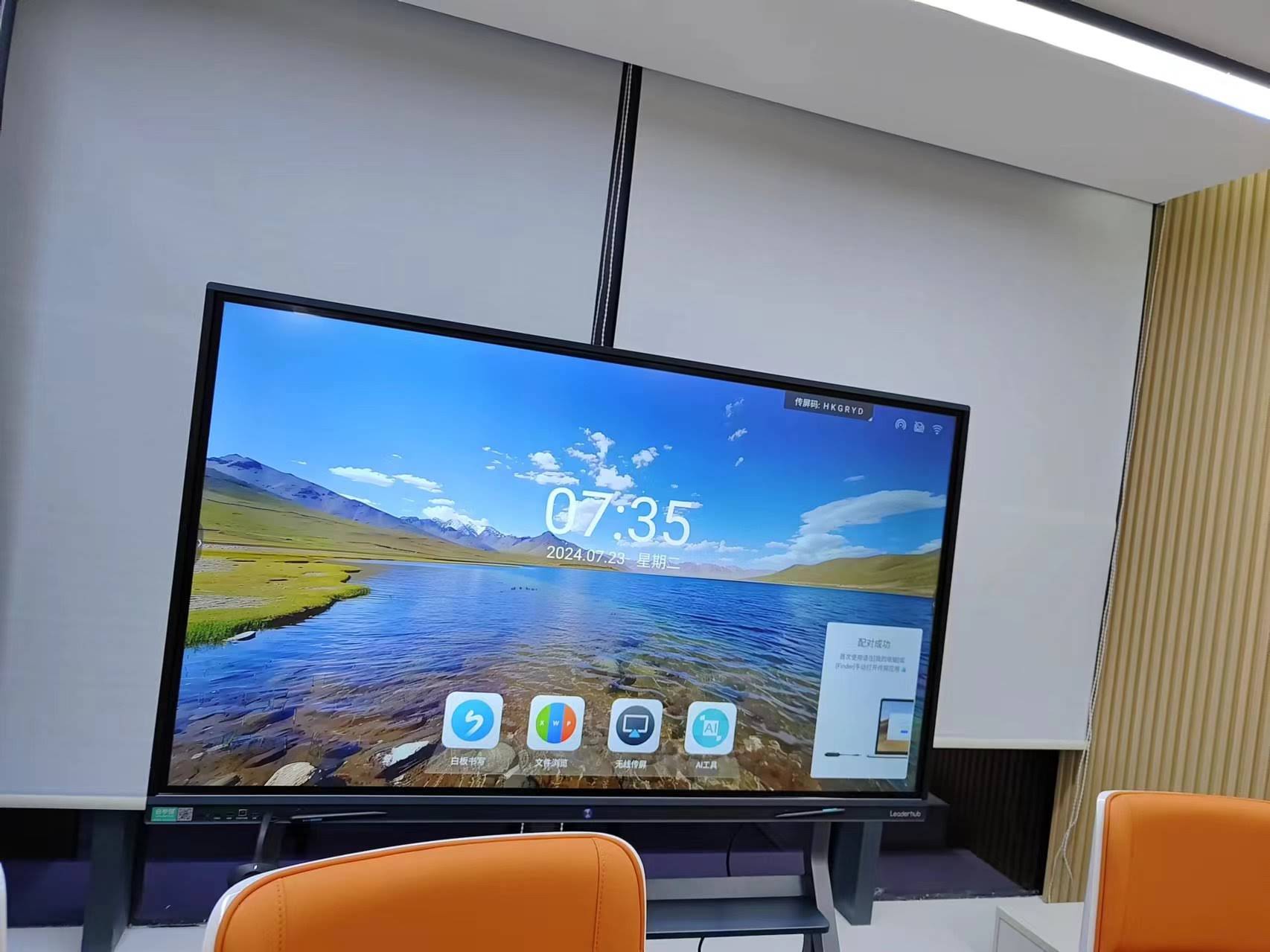
Latency, in the context of an interactive smart whiteboard, refers to the time gap between the moment a pen or finger touches the screen and the moment the corresponding ink or action appears on the display. It is measured in milliseconds (ms), and the difference between a good and a bad experience is often invisible on a spec sheet but painfully obvious the moment you start writing.
- Under 20ms — Feels instantaneous, comparable to writing on paper.
- 20–60ms — Very good, most users won’t notice any delay.
- 60–100ms — Noticeable lag, especially during fast handwriting or sketching.
- Above 100ms — Frustrating; ink visibly “chases” the pen tip.
Why Latency Matters More Than You Think
Latency is not just a technical curiosity — it directly affects usability in three critical environments:
1. Classrooms
Teachers writing equations, diagrams, or annotations need the board to keep pace with natural handwriting speed. A 2023 classroom technology survey found that 78% of educators ranked “writing responsiveness” as their top concern when evaluating interactive panels, ahead of screen size or brightness.
2. Business Meetings
In fast-paced brainstorming sessions, delayed ink breaks the flow of ideas and makes collaborative whiteboarding feel clunky. Sales teams sketching diagrams for clients, or product teams mapping workflows, need near-instant feedback to keep the room engaged.
3. Creative & Design Work
For anyone doing freehand sketching, low latency combined with pressure sensitivity determines whether a stylus feels like a real pen or a laggy mouse substitute.
Key Factors That Affect Latency
Several components work together to determine how responsive a whiteboard feels. Understanding each one helps you evaluate specs beyond marketing buzzwords.
| Factor | Impact on Latency |
|---|---|
| Touch Technology (IR, Capacitive, EMR) | Capacitive and EMR generally outperform older infrared systems in speed and accuracy. |
| Processor & GPU | Faster onboard chips process touch data with less delay. |
| Sampling Rate | Higher Hz (points per second) means smoother, more precise strokes. |
| Display Refresh Rate | Higher refresh rates reduce visible frame delay during fast movement. |
| Firmware & Software Optimization | Poorly optimized drivers can add lag even with premium hardware. |
Technical Specifications to Check Before You Buy
When comparing products, request or verify these specs directly from the manufacturer or reseller:
| Spec | What to Look For |
|---|---|
| Touch Response Time | Ideally under 20ms for writing applications |
| Touch Points | 20-point or higher multi-touch for collaborative use |
| Resolution | 4K UHD (3840×2160) for sharp handwriting rendering |
| Palm Rejection | Should reliably ignore hand contact while writing |
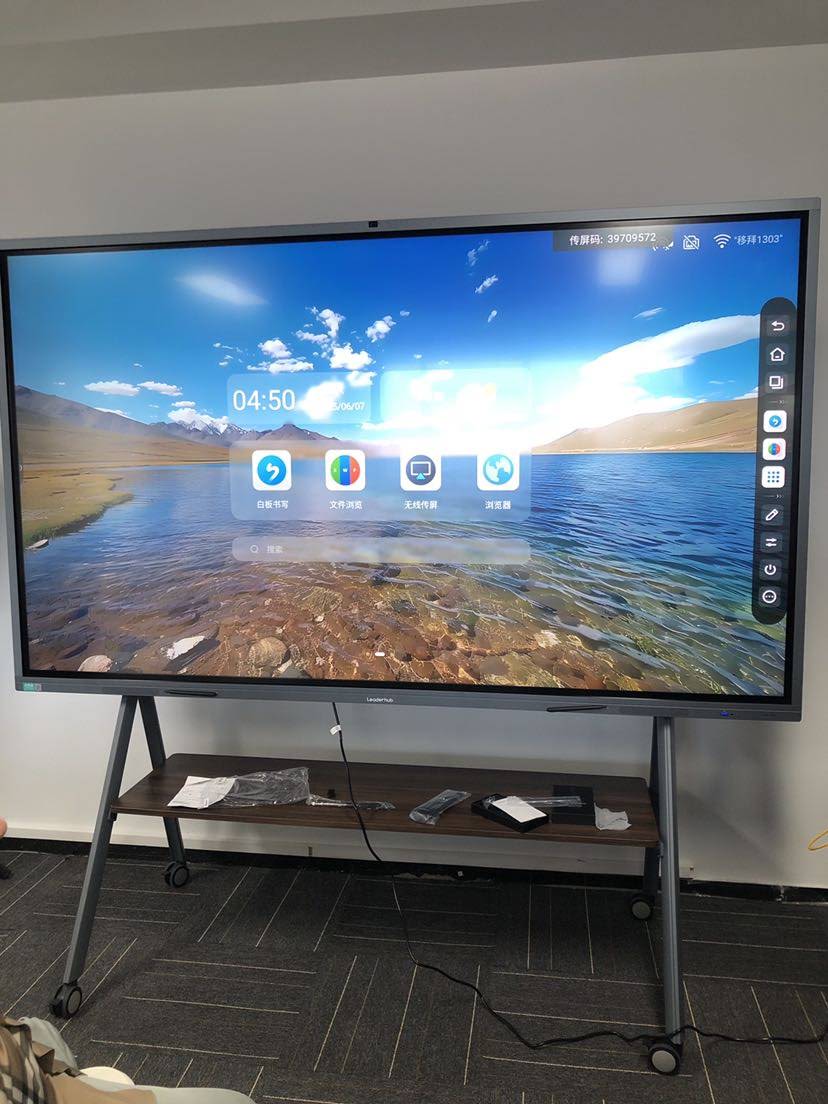
| Operating System | Android-based systems with dedicated whiteboard software tend to run smoother than generic OS builds |
How to Test Latency Before You Buy
Spec sheets don’t always tell the full story. Here’s how we personally test panels during hands-on evaluations:
- The cursive test — Write your signature quickly in cursive. Any visible gap between pen tip and ink reveals latency issues.
- The circle test — Draw fast, continuous circles. Jagged or delayed lines indicate low sampling rate.
- Multi-touch stress test — Have two people write simultaneously to check for input conflicts or slowdown.
- Palm rejection check — Rest your palm on the screen while writing with a stylus to confirm it doesn’t register as input.
- Software responsiveness — Switch between apps, annotation tools, and screen-sharing to see if the interface itself lags.
Common Mistakes Buyers Make
- Focusing only on screen size or brightness while ignoring touch response specs
- Assuming all 4K panels perform equally — the display panel and the touch engine are separate systems
- Not testing with an actual stylus or finger before purchase
- Overlooking software updates and long-term firmware support from the manufacturer
- Choosing based on price alone without checking real-world reviews or demo videos
Matching the Right Whiteboard to Your Use Case
| Environment | Recommended Size | Priority Feature |
|---|---|---|
| Classroom | 65″–75″ | Fast writing response, palm rejection |
| Boardroom | 75″–86″ | Multi-touch collaboration, screen sharing |
| Design Studio | 55″–65″ portable | Precision sampling rate, pressure sensitivity |
| Large Auditorium | 98″–110″ | Visibility from distance, stable touch across large surface |
Our Testing Insight: What We Learned Hands-On
During internal testing of multiple interactive flat panels, we measured touch response using slow-motion video capture comparing pen contact against ink appearance. Panels using optimized capacitive touch engines consistently scored under 18ms, while budget infrared models averaged closer to 80–110ms — a difference clearly visible to end users during fast handwriting.
We also found that pairing a whiteboard with a dedicated mini PC module rather than relying on a built-in low-power chip significantly improved multitasking performance during video conferencing and annotation simultaneously — an important consideration for hybrid meeting rooms.
Portable Options for Smaller Teams
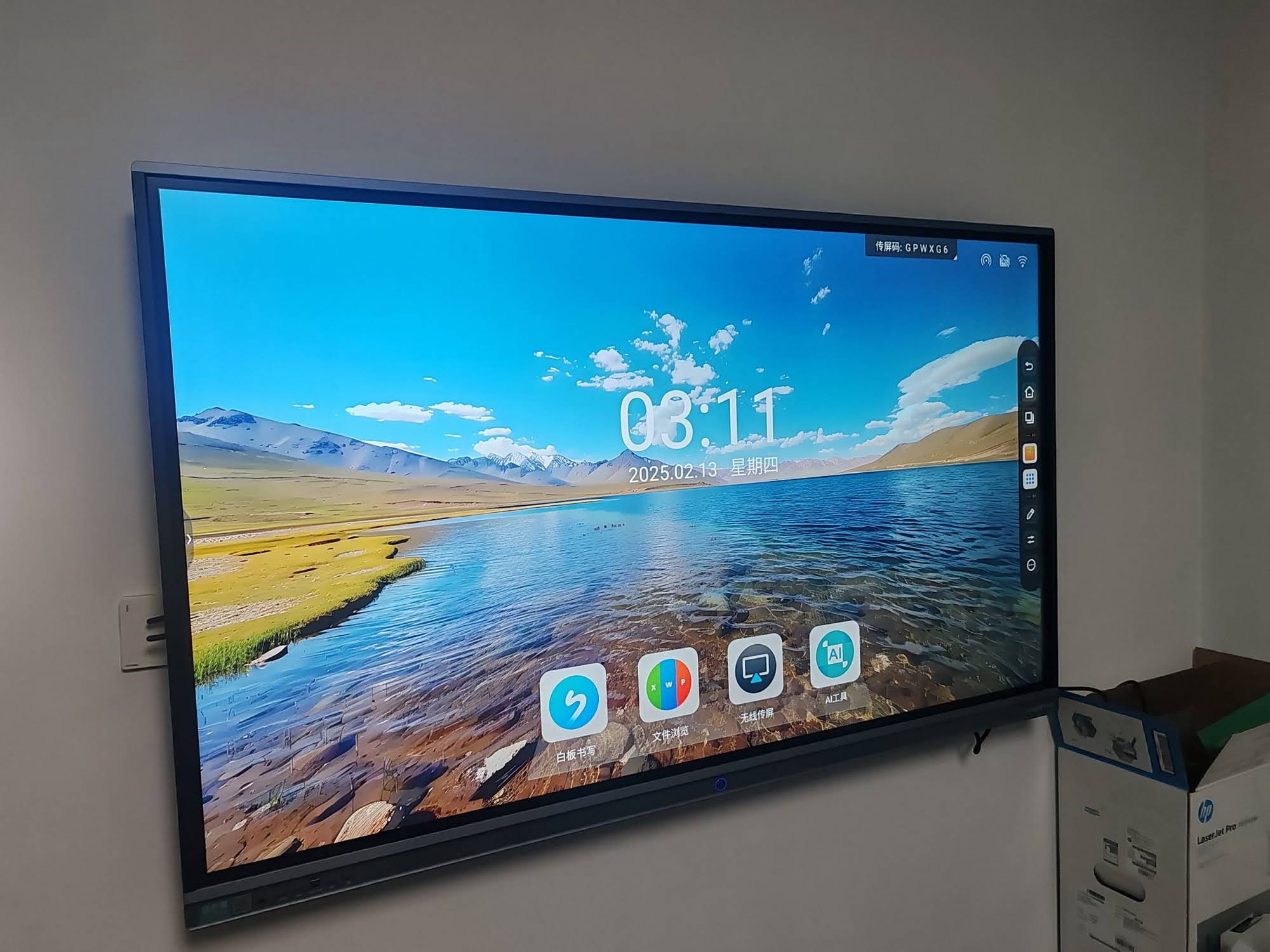
Not every environment needs a wall-mounted panel. For smaller teams, huddle rooms, or traveling presenters, a portable smart screen offers similar responsiveness in a more flexible form factor — often with battery power for use without a fixed outlet.
Final Buying Checklist
- Confirm touch response time — ask for milliseconds, not vague claims of “fast”
- Request a live demo or video test before purchasing, especially for bulk orders
- Check compatibility with your existing video conferencing and annotation software
- Verify warranty length and availability of local technical support
- Compare total cost of ownership, including mounting, software licenses, and accessories
Latency is the difference between a whiteboard that feels like a natural extension of your hand and one that constantly reminds you it’s a machine. By understanding touch technology, testing before purchase, and matching specs to your actual use case, you can avoid costly mistakes and select a display that performs reliably for years.
LeaderHub, a Shenzhen-based company with 16 years of experience designing interactive panels for education and enterprise clients across 82 countries, applies these same latency-testing principles across its product line — from compact classroom panels to large-format boardroom displays — to ensure consistent, responsive performance in real-world settings.
If you’re ready to compare models side by side or need guidance selecting the right panel for your space, feel free to reach out to our team for a personalized recommendation based on your room size, use case, and budget.








