
Choosing the right interactive display for a large classroom is one of the most important technology decisions a school or training institution will make this year. Unlike a small meeting room or a home office, a large classroom presents unique challenges: sightlines from the back row, ambient lighting from windows, the need for durable touch surfaces that survive daily use by dozens of students, and software that keeps 30+ learners engaged at once. This guide walks through the practical, experience-based criteria that education technology buyers use when evaluating smart whiteboards for classrooms seating 25 students or more.
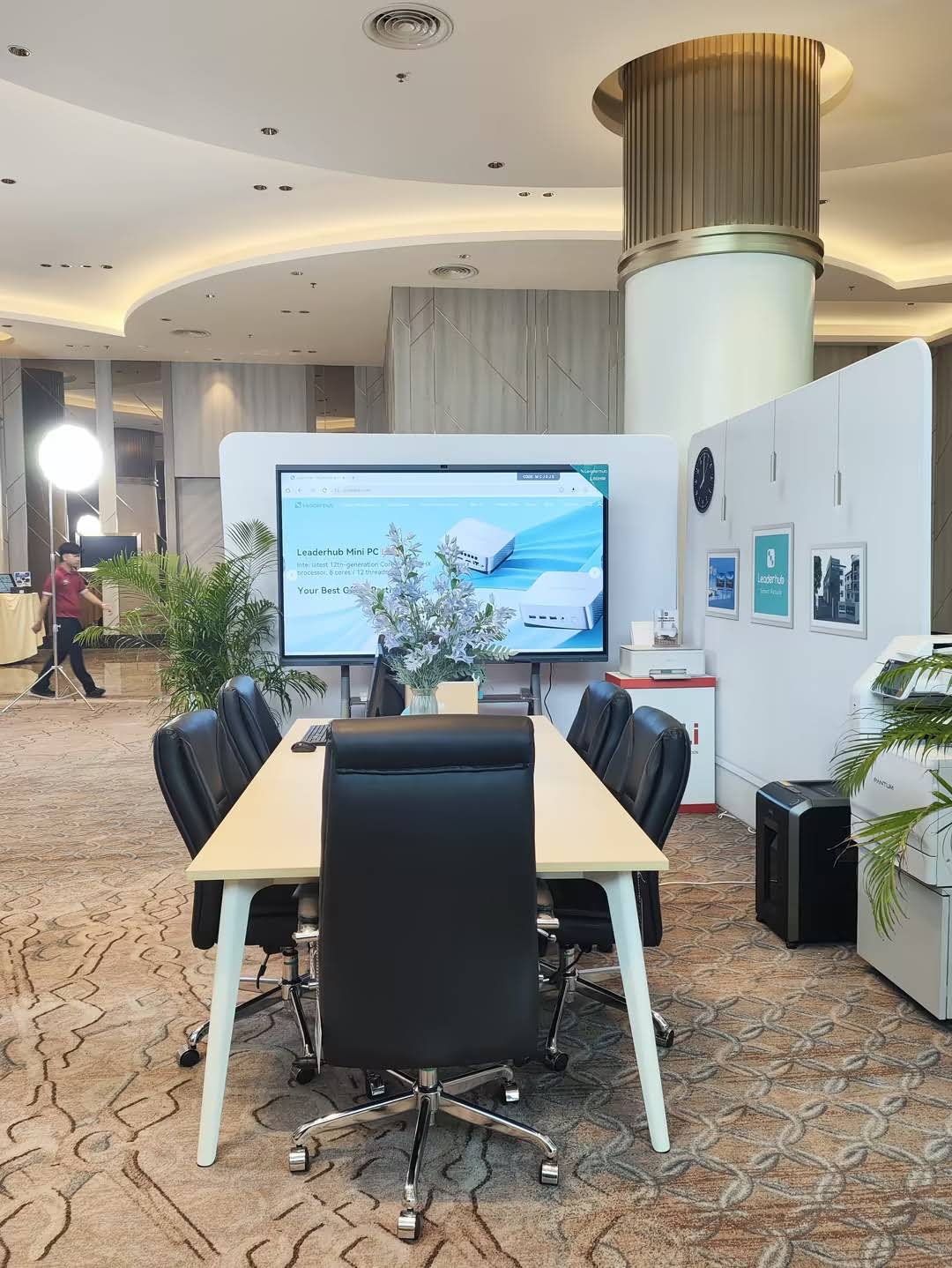
Why Classroom Size Changes Everything
A 55-inch panel that works perfectly in a boardroom will feel undersized in a lecture hall with 40 seats. Visibility distance is governed by a simple rule of thumb used by AV integrators: the last row of students should be no farther from the screen than roughly six times the diagonal screen size for text-heavy content. For a classroom that is 9-10 meters deep, this typically means a screen of at least 75 inches, with 86-inch or even 110-inch panels recommended for auditoriums and lecture theaters.
Key Factors to Evaluate Before You Buy
Based on feedback from hundreds of school IT administrators and training center managers, the following factors consistently determine whether a smart whiteboard performs well in a large-classroom environment over its full lifecycle:
| Factor | Why It Matters | Recommended Spec |
|---|---|---|
| Screen Size | Back-row legibility | 75″–110″ |
| Resolution | Sharp text and diagrams | 4K UHD (3840×2160) |
| Brightness | Overcoming window glare | 400+ nits, anti-glare glass |
| Touch Points | Group collaboration | 20+ simultaneous touch points |
| Durability | Daily heavy use | Tempered anti-shatter glass |
| Warranty | Long-term cost of ownership | 3 years or more |
Screen Size Guide by Classroom Type
- Standard classroom (20-25 students): 65″-75″ panel is usually sufficient.
- Large classroom (30-40 students): 75″-86″ panel with 4K resolution.
- Lecture hall or auditorium (50+ students): 98″-110″ panel, often paired with a secondary display for the front rows.
- STEM labs and design studios: mid-size 55″-65″ panels on rotating stands allow flexible group work.
Touch Technology and Interaction Quality
Infrared (IR) touch technology remains the industry standard for large-format interactive whiteboards because it supports 20 or more simultaneous touch points at a lower cost than capacitive alternatives. In practice, this means multiple students can write, draw, and annotate on the same screen at once — a feature that has become essential for collaborative STEM and language-learning lessons. Palm rejection and stylus precision are equally important; a panel that misreads a resting hand as a drawing command will frustrate teachers within the first week of use.
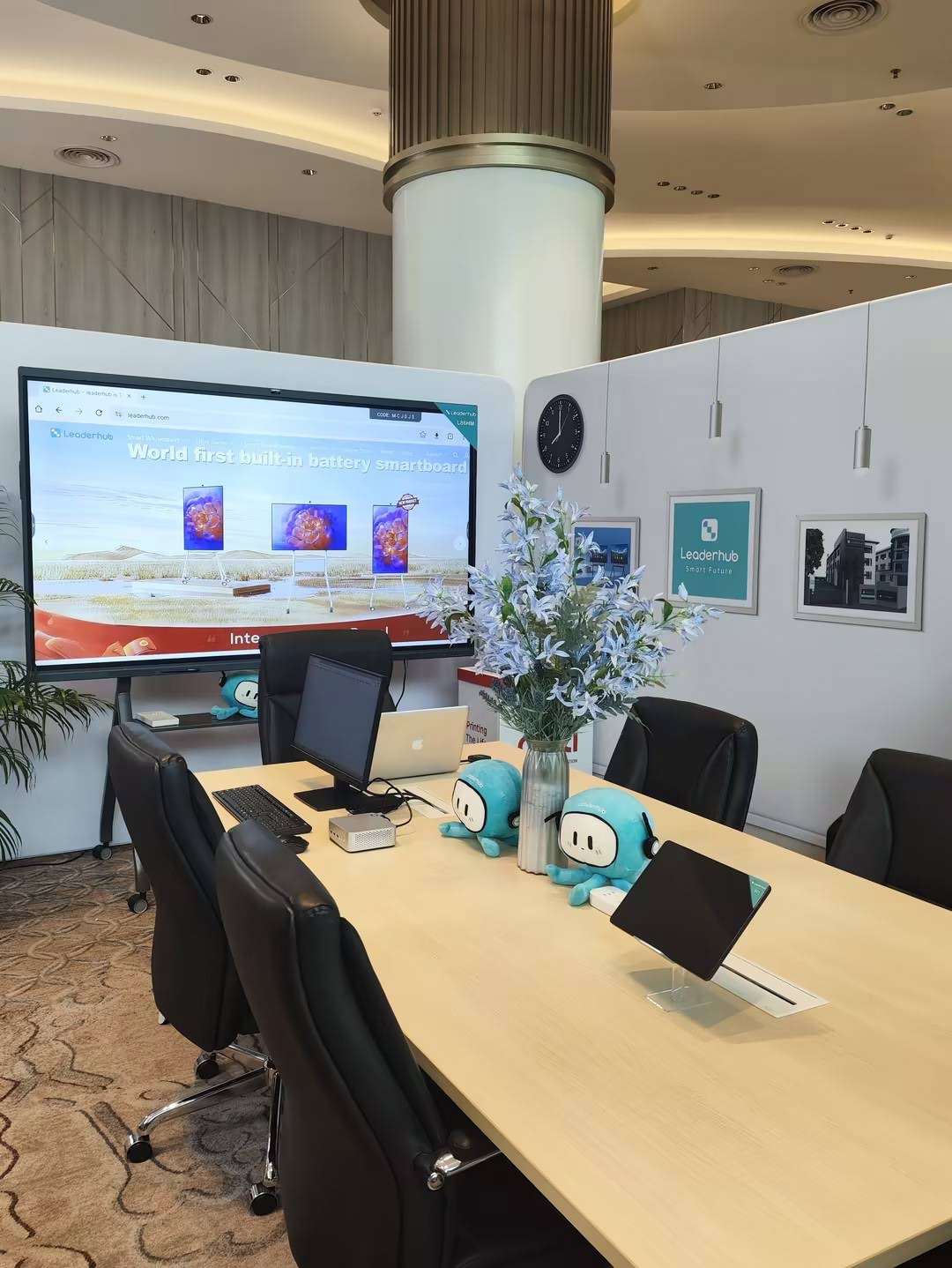
Brightness, Contrast, and Anti-Glare Performance
Large classrooms are frequently lit by rows of windows, and afternoon sunlight can wash out a low-brightness panel almost entirely. Independent testing from AV integrators consistently shows that panels with anti-glare tempered glass and brightness above 400 nits maintain readability even in bright, unshaded rooms. Contrast ratio matters too — a minimum of 1200:1 keeps handwriting and fine diagrams legible from 8-10 meters away, which is critical for subjects like mathematics and chemistry where notation clarity affects comprehension.
Audio, Connectivity, and Classroom Integration
A whiteboard is only as effective as the ecosystem around it. For large rooms, built-in stereo speakers rated at 2x15W or higher are recommended to project audio evenly across 40+ seats without external amplification. Connectivity should include HDMI in/out, USB-C with power delivery for laptop mirroring, wireless screen casting, and — increasingly important — a built-in or slot-in mini PC so teachers are not dependent on a separate computer cart. This single-device approach reduces setup time between classes, which matters enormously in schools running back-to-back periods.
Software Ecosystem and Ease of Use
Hardware specifications only tell half the story. The operating system and pre-loaded educational software determine how quickly teachers adopt the technology day to day. Look for:
- An intuitive whiteboard app with infinite canvas, handwriting-to-text conversion, and shape recognition.
- Native screen-mirroring apps for both Android and iOS devices without additional dongles.
- Cloud file access (Google Drive, OneDrive) so lesson materials load instantly.
- Remote device management (MDM) so IT staff can push updates across an entire school from one dashboard.
Durability and Total Cost of Ownership
Large classrooms see far more daily touch-cycles than a typical office meeting room — often 6-8 hours of continuous use. This makes physical durability a genuine cost driver, not just a technical spec. Panels built with 4mm or thicker anti-shatter tempered glass, sealed edge bezels to prevent dust ingress, and metal (rather than plastic) chassis tend to have significantly lower failure rates over a 5-year deployment. When comparing quotes, always factor in the warranty length; a 3-year warranty with on-site support typically saves schools thousands of dollars in replacement costs compared to a 1-year standard warranty.
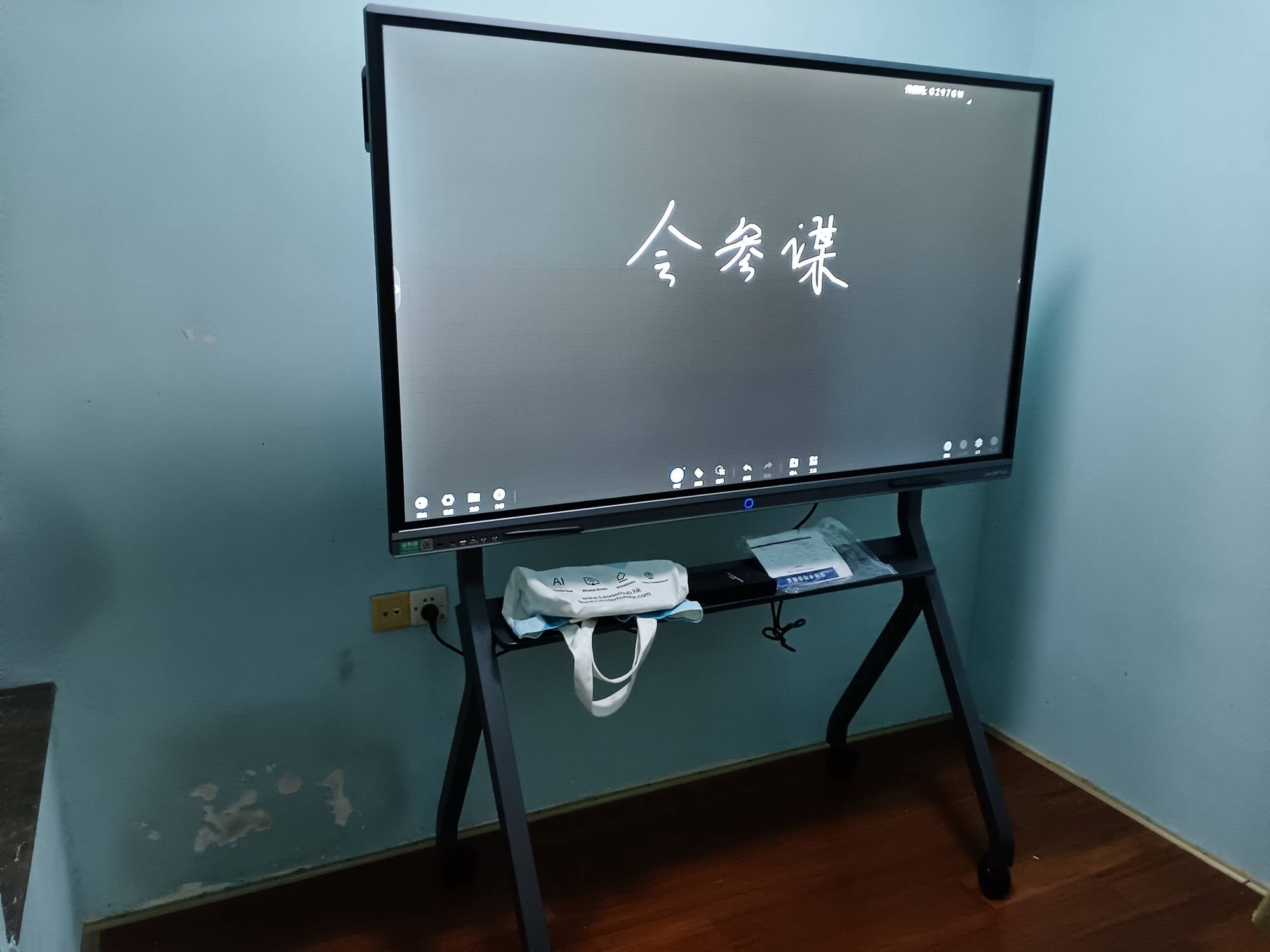
Real-World Example: Upgrading a University Lecture Hall
One vocational training center in Southeast Asia recently replaced a projector-and-marker setup in a 45-seat lecture hall with an 86-inch 4K interactive flat panel. According to the facilities team, student engagement scores in post-lesson surveys rose noticeably within the first semester, largely attributed to clearer visuals from the back row and the ability for instructors to annotate diagrams live rather than switching between static slides. This mirrors a broader trend reported by education technology researchers: classrooms equipped with large-format interactive displays see measurable increases in student participation compared to projector-only setups, primarily due to improved visibility and real-time interactivity.
Comparing Panel Sizes at a Glance
| Model | Size | Best For |
|---|---|---|
| L65HM | 65″ | Standard classrooms |
| L75HM | 75″ | Large classrooms |
| L86HM | 86″ | Lecture halls |
| L110H | 110″ | Auditoriums |
Budgeting: Balancing Quality and Cost
Budget is always a factor, especially for public schools and training institutions purchasing multiple units. A practical approach is to prioritize screen size and durability for large rooms, since these two factors most directly affect daily usability and lifespan. Mid-tier models in the 75″-86″ range typically offer the best balance of price and performance for most large classrooms, while premium 4K panels with built-in mini PCs are worth the additional investment for flagship lecture halls used across multiple departments.
Quick Checklist Before Purchase
- Measure the room depth and calculate the minimum screen size needed.
- Confirm brightness and anti-glare rating suit the room’s window exposure.
- Check touch-point count for group collaboration needs.
- Verify warranty length and availability of local technical support.
- Test the software interface with actual teaching staff before a bulk order.
Final Thoughts
Selecting the best smart whiteboard for a large classroom comes down to matching screen size and brightness to the room’s dimensions, ensuring multi-touch responsiveness for collaborative learning, and choosing a durable build backed by a solid warranty. Companies like LeaderHub, which has spent 16 years specializing in interactive panels and mini PCs for education and enterprise use across 82 countries, design their large-format panels specifically around these classroom realities — from anti-glare 4K displays to built-in mini PC options that simplify daily setup. Taking the time to evaluate these factors carefully will help schools and training centers make a technology investment that serves students effectively for years to come.








