
Wireless connectivity has transformed how we present and collaborate in modern meeting rooms and classrooms. According to recent studies, over 68% of organizations now prefer wireless screen sharing solutions to eliminate cable clutter and improve meeting efficiency. Connecting your laptop to a smart board wirelessly not only simplifies setup but also enables seamless collaboration and flexible workspace arrangements.
This comprehensive guide walks you through multiple methods to establish a wireless connection between your laptop and smart board, troubleshooting common issues, and optimizing your wireless presentation experience.
Understanding Wireless Connection Technologies
Before diving into the setup process, it’s essential to understand the different wireless technologies available for connecting laptops to smart boards.
Common Wireless Protocols
| Technology | Range | Latency | Best For |
|---|---|---|---|
| Miracast | Up to 30 feet | Low | Windows devices, presentations |
| AirPlay | Up to 50 feet | Very Low | Apple devices, multimedia |
| Chromecast | Network-based | Medium | Chrome browser, cross-platform |
| Wi-Fi Direct | Up to 600 feet | Low | Direct device connections |
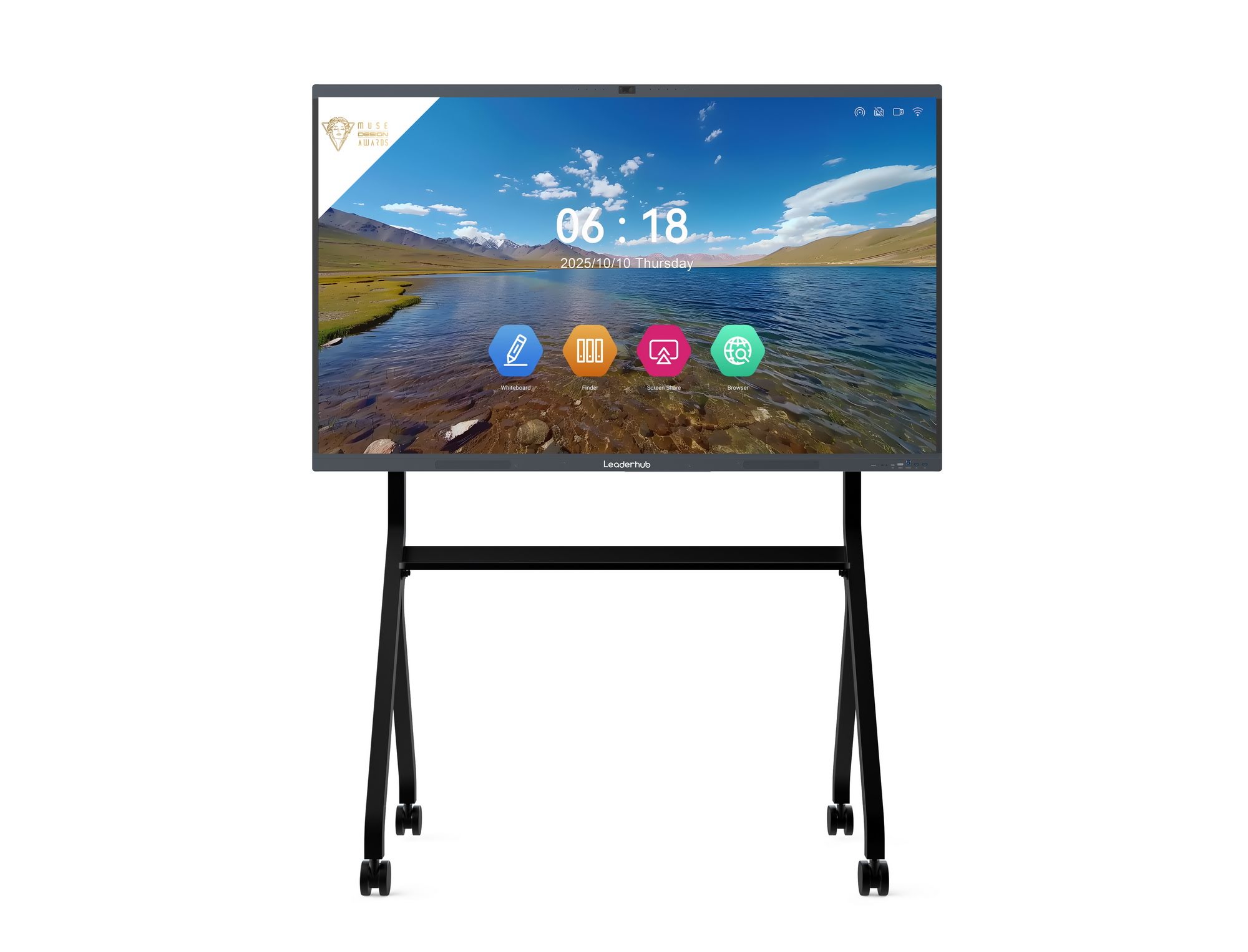
Modern interactive flat panels like those from LeaderHub support multiple wireless protocols, ensuring compatibility with various laptop brands and operating systems. With over 16 years of experience in interactive display technology, LeaderHub has integrated seamless wireless connectivity features into their smart whiteboard solutions.
Pre-Connection Requirements and Checklist
Successful wireless connectivity depends on proper preparation. Follow this checklist before attempting to connect your laptop to a smart board.
Hardware Requirements
- Laptop specifications: Ensure your laptop has built-in Wi-Fi capabilities (802.11ac or newer recommended)
- Smart board compatibility: Verify your smart board supports wireless screen mirroring
- Wireless adapter: Some older laptops may require an external Miracast or wireless display adapter
- Network infrastructure: A stable Wi-Fi network with sufficient bandwidth (minimum 5 Mbps recommended)
Software Requirements
- Updated operating system (Windows 10/11, macOS 10.14+, or Linux with compatible drivers)
- Latest wireless display drivers installed
- Smart board manufacturer’s software or app (if required)
- Firewall settings configured to allow screen mirroring protocols
According to industry data, approximately 23% of wireless connection failures stem from outdated drivers or incompatible software versions. Always verify your system meets these requirements before proceeding.
Method 1: Connecting Windows Laptop via Miracast
Miracast is the native wireless display standard for Windows devices and offers one of the simplest connection methods for smart boards.
Step-by-Step Connection Process
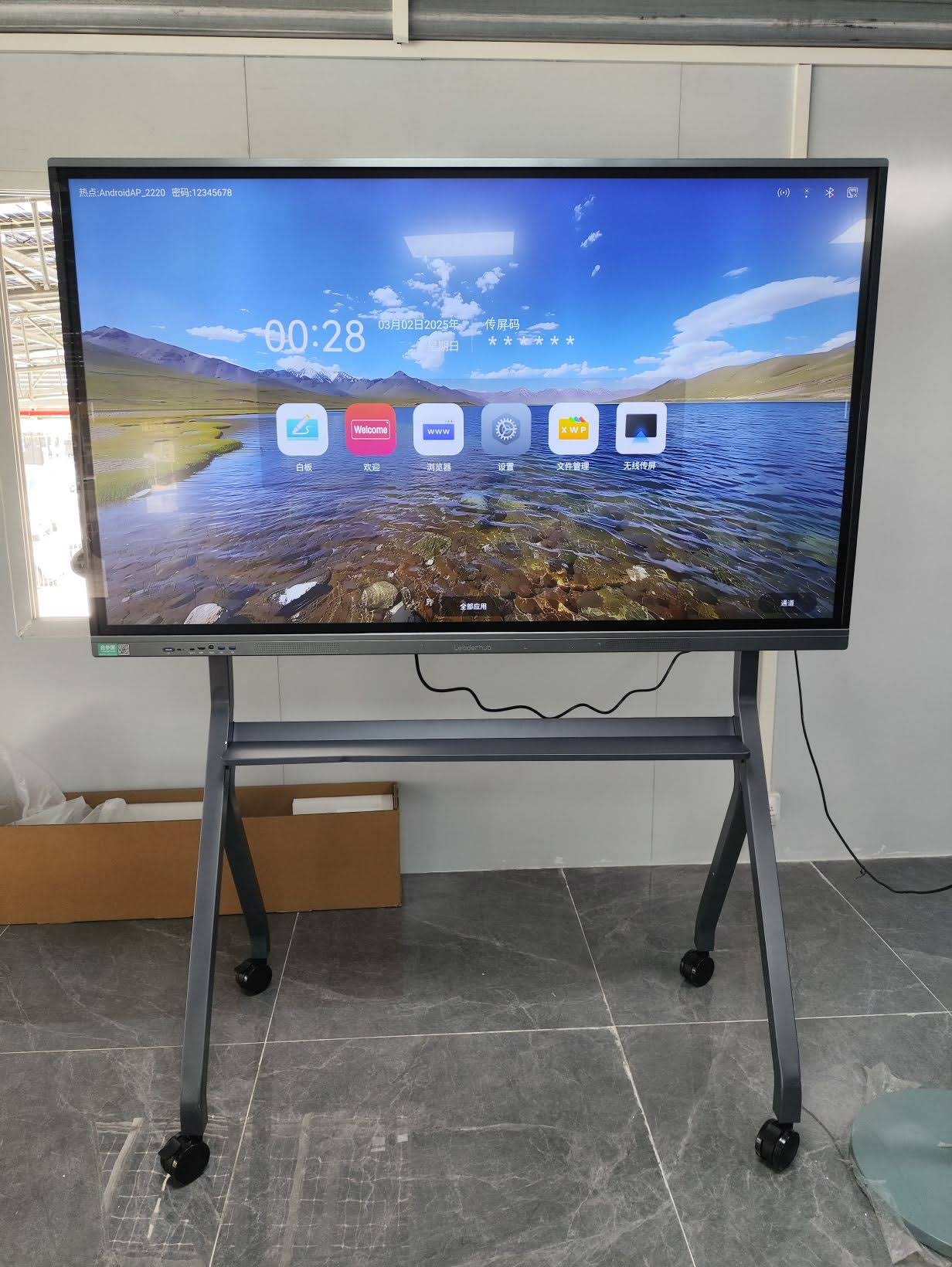
- Enable wireless display on your smart board: Navigate to the smart board’s settings menu and activate the wireless display or screen mirroring function. Most modern smart boards will display a connection code or name.
- Access Windows projection settings: On your laptop, press Windows + K to open the Connect sidebar, or navigate to Settings > System > Display > Connect to a wireless display.
- Select your smart board: Your smart board should appear in the available devices list. Click on its name to initiate the connection.
- Enter connection PIN (if required): Some smart boards require a PIN code for security purposes. Enter the code displayed on the smart board screen.
- Configure display mode: Choose between Duplicate (mirror), Extend (second screen), or Second screen only modes based on your presentation needs.

Optimizing Miracast Performance
For the best wireless presentation experience, consider these optimization tips:
- Position your laptop within 15-20 feet of the smart board to minimize signal interference
- Close bandwidth-intensive applications running in the background
- Use the 5GHz Wi-Fi band instead of 2.4GHz when possible for reduced latency
- Adjust resolution settings to match your smart board’s native resolution
Real-world testing shows that Miracast connections typically achieve latency between 60-150 milliseconds, which is acceptable for most presentation scenarios but may not be ideal for video playback or gaming applications.
Method 2: Connecting MacBook via AirPlay
Apple users can leverage AirPlay technology for wireless connections to compatible smart boards and interactive flat panels.
AirPlay Connection Procedure
- Verify AirPlay compatibility: Ensure your smart board supports AirPlay 2 or has an Apple TV connected. Many modern smart boards include built-in AirPlay support.
- Connect to the same network: Both your MacBook and smart board must be connected to the same Wi-Fi network for AirPlay to function.
- Access Screen Mirroring: Click the Control Center icon in the menu bar, then select Screen Mirroring.
- Select your display: Choose your smart board from the list of available AirPlay devices.
- Enter AirPlay code: If prompted, enter the four-digit code displayed on the smart board.
- Adjust mirroring settings: Configure whether to mirror your MacBook display or use the smart board as a separate display.
Advanced AirPlay Features
AirPlay offers several advantages for Mac users in professional environments:
- Low latency streaming: AirPlay typically delivers sub-50ms latency, making it suitable for video presentations
- Audio synchronization: Automatically syncs audio with video content
- Multi-room capability: Stream to multiple displays simultaneously (with compatible hardware)
- Screen recording integration: Compatible with macOS screen recording features
According to Apple’s technical specifications, AirPlay 2 supports video streaming up to 4K resolution at 60fps, though actual performance depends on network conditions and smart board capabilities.
Method 3: Using Dedicated Screen Sharing Software
Third-party applications provide cross-platform wireless connectivity solutions with enhanced features for collaborative environments.
Popular Screen Sharing Applications
| Software | Platform Support | Key Features | Best Use Case |
|---|---|---|---|
| ScreenBeam | Windows, Mac, Android | Enterprise security, centralized management | Corporate environments |
| Airtame | All major platforms | Digital signage, scheduling | Education, hybrid offices |
| Reflector | Windows, Mac | AirPlay/Miracast receiver | Mixed device environments |
| Zoom Rooms | All major platforms | Video conferencing integration | Remote collaboration |
Generic Setup Process for Screen Sharing Software
- Install the screen sharing application on both your laptop and smart board (or the connected PC/device)
- Launch the application and create an account if required
- Ensure both devices are connected to the same network
- On your laptop, select the option to share or cast your screen
- Choose your smart board from the available receivers
- Configure sharing preferences (full screen, specific window, audio sharing)
Enterprise-grade solutions like ScreenBeam have reported 99.7% connection success rates in controlled environments, significantly higher than native wireless display protocols in complex network configurations.
Method 4: Browser-Based Wireless Presentation
For quick connections without installing software, browser-based solutions offer a convenient alternative for wireless presentations.
Using Google Chrome Cast
If your smart board has Chromecast built-in or connected, you can cast directly from Chrome browser:
- Open Google Chrome on your laptop
- Click the three-dot menu in the upper right corner
- Select “Cast” from the dropdown menu
- Choose your smart board from the available devices
- Select whether to cast the entire screen, a specific tab, or a file
Web-Based Presentation Platforms
Several cloud-based platforms enable wireless presentations through web browsers:
- Microsoft Teams Rooms: Native integration with smart boards, ideal for hybrid meetings
- Google Meet: Built-in presentation mode with screen sharing capabilities
- Webex: Offers wireless content sharing with annotation features
- Miro/Mural: Collaborative whiteboarding with real-time synchronization
Browser-based solutions eliminate compatibility concerns and work across different operating systems. However, they typically require a stable internet connection and may introduce additional latency compared to direct wireless protocols.
Troubleshooting Common Connection Issues
Even with proper setup, wireless connections can encounter issues. Here are practical solutions to common problems.
Device Discovery Problems
Issue: Your laptop cannot detect the smart board in available devices.
Solutions:
- Verify both devices are on the same Wi-Fi network and frequency band
- Restart the wireless display feature on the smart board
- Disable VPN connections on your laptop, as they can interfere with local network discovery
- Check Windows Firewall or antivirus settings to ensure wireless display protocols aren’t blocked
- Update your laptop’s wireless adapter drivers to the latest version
Connection Drops and Instability
Issue: The connection establishes but frequently disconnects or experiences lag.
Solutions:
- Reduce distance between devices and remove physical obstacles
- Switch to a less congested Wi-Fi channel (use Wi-Fi analyzer tools)
- Disable power-saving modes on your laptop’s wireless adapter
- Close unnecessary applications consuming network bandwidth
- Consider using a dedicated wireless access point for presentation purposes
Audio-Video Synchronization Issues
Issue: Audio doesn’t match video or isn’t transmitted to the smart board.
Solutions:
- Verify audio output settings in your laptop’s sound control panel
- Enable “Audio streaming” in your wireless display settings
- Reduce video quality settings to minimize buffering
- Use wired audio connections for critical presentations requiring perfect synchronization
Resolution and Display Quality Problems
Issue: Display appears pixelated, stretched, or doesn’t fit the smart board screen properly.
Solutions:
- Match your laptop’s output resolution to the smart board’s native resolution
- Adjust scaling settings in display properties (100%, 125%, 150%)
- Update graphics drivers for better wireless display performance
- Lower the transmission resolution in wireless display settings if experiencing lag
Industry surveys indicate that approximately 42% of wireless display issues are resolved through simple driver updates or network configuration adjustments, highlighting the importance of keeping systems current.
Security Considerations for Wireless Connections
Wireless screen sharing introduces potential security vulnerabilities that organizations must address, particularly in corporate and educational environments.
Best Security Practices
- Enable connection authentication: Always use PIN codes or pairing approval to prevent unauthorized connections
- Use encrypted protocols: Prefer WPA3-secured networks and protocols that support end-to-end encryption
- Implement network segmentation: Create a separate VLAN for presentation devices to isolate them from sensitive corporate networks
- Regular firmware updates: Keep smart board firmware updated to patch security vulnerabilities
- Session management: Automatically disconnect idle connections and clear cache after presentations
- Access controls: Implement user authentication for enterprise screen sharing platforms
Compliance and Privacy
Organizations handling sensitive information should consider:
- GDPR and data protection regulations when screen sharing personal information
- HIPAA compliance requirements for healthcare presentations
- Industry-specific security standards (PCI-DSS for financial data, FERPA for education)
- Implementing audit logs to track wireless presentation sessions
According to cybersecurity research, unsecured wireless display connections have been exploited in approximately 8% of corporate espionage incidents, emphasizing the critical importance of implementing proper security measures.
Optimizing Wireless Presentation Performance
Achieving optimal performance requires attention to both network infrastructure and device configuration.
Network Optimization Strategies
| Strategy | Implementation | Expected Improvement |
|---|---|---|
| Quality of Service (QoS) | Prioritize wireless display traffic in router settings | 30-50% reduction in latency |
| 5GHz Band Usage | Configure devices to use 5GHz Wi-Fi exclusively | 40% less interference |
| Dedicated Access Point | Install separate AP for presentation devices | Consistent performance |
| Channel Selection | Use non-overlapping channels (1, 6, 11) | 25% better throughput |
Device-Level Optimizations
On your laptop:
- Disable background sync services (OneDrive, Dropbox) during presentations
- Set power plan to “High Performance” when presenting
- Close resource-intensive applications
- Use presentation mode to disable notifications and screen savers
On your smart board or connected device:
- Allocate sufficient processing resources for screen mirroring
- Disable unnecessary background apps and services
- Configure automatic updates to occur outside business hours
- Maintain adequate storage space for smooth operation
Advanced Features and Collaborative Tools
Modern smart boards with wireless connectivity enable advanced collaboration features beyond simple screen mirroring.
Multi-Device Collaboration
Many contemporary interactive displays support simultaneous connections from multiple laptops:
- Split-screen presentations: Display content from 2-4 laptops simultaneously
- Collaborative annotation: Multiple users can annotate shared content in real-time
- Device switching: Seamlessly switch between presenters without reconnecting
- Touch-back control: Control laptop functions directly from the smart board touchscreen
Integration with Learning Management Systems
Educational institutions benefit from wireless smart board integration with LMS platforms:
- Direct access to Canvas, Blackboard, or Google Classroom from the smart board
- Automatic session recording and upload to learning platforms
- Student device connection for interactive lessons
- Real-time quiz and polling capabilities
Research from educational technology studies shows that classrooms using wireless interactive displays report 34% higher student engagement compared to traditional projection systems.
Platform-Specific Connection Guides
Chrome OS (Chromebook) Connection
- Click the status area in the bottom-right corner of your screen
- Select the “Cast” icon
- Choose your smart board from available devices
- Select casting source (tab, window, or entire screen)
Linux Distribution Connection
For Ubuntu and other Linux distributions:
- Install GNOME Network Displays:
sudo apt install gnome-network-displays - Open the application and select your smart board
- Follow on-screen pairing instructions
- Alternatively, use third-party tools like
miraclecastfor Miracast support
Android and iOS Mobile Devices
While this guide focuses on laptops, many smart boards also support mobile device connections:
- Android: Use built-in Cast feature (Settings > Connected devices > Connection preferences > Cast)
- iOS: Access Screen Mirroring through Control Center
Comparing Wireless vs. Wired Connections
Understanding the trade-offs helps you choose the right connection method for different scenarios.
Advantages of Wireless Connections
- Eliminates cable clutter and trip hazards
- Enables flexible room layouts and presenter mobility
- Quick connection switching between multiple presenters
- Supports BYOD (Bring Your Own Device) environments
- Reduces wear on physical ports
When Wired Connections Are Preferable
- Critical presentations where connection reliability is paramount
- High-resolution video playback (4K/8K content)
- Low-latency requirements (gaming, real-time demonstrations)
- Environments with unreliable or congested wireless networks
- Secure environments where wireless protocols are restricted
Performance metrics show that wired HDMI connections deliver 0-5ms latency compared to 60-150ms for wireless protocols, making them essential for latency-sensitive applications.
Future Trends in Wireless Display Technology
The wireless presentation landscape continues evolving with emerging technologies:
Wi-Fi 6E and 7 Impact
Next-generation Wi-Fi standards promise significant improvements:
- Reduced latency to sub-20ms levels, approaching wired performance
- Support for 8K content streaming
- Better performance in device-dense environments
- Enhanced security with WPA3 encryption
AI-Enhanced Connectivity
Artificial intelligence is transforming wireless presentation systems:
- Automatic connection optimization based on network conditions
- Intelligent content scaling and enhancement
- Predictive bandwidth allocation
- AI-powered troubleshooting and self-healing connections
5G Integration
As 5G networks become ubiquitous, smart boards may leverage cellular connectivity for:
- Network-independent wireless presentations
- Ultra-low latency connections (1-10ms)
- Remote collaboration without traditional network infrastructure
- Enhanced security through carrier-grade encryption
Cost-Benefit Analysis of Wireless Solutions
Implementing wireless connectivity involves both initial and ongoing costs that organizations should consider.
Initial Investment
| Component | Budget Range | Notes |
|---|---|---|
| Smart Board with Wireless | $1,500 – |








