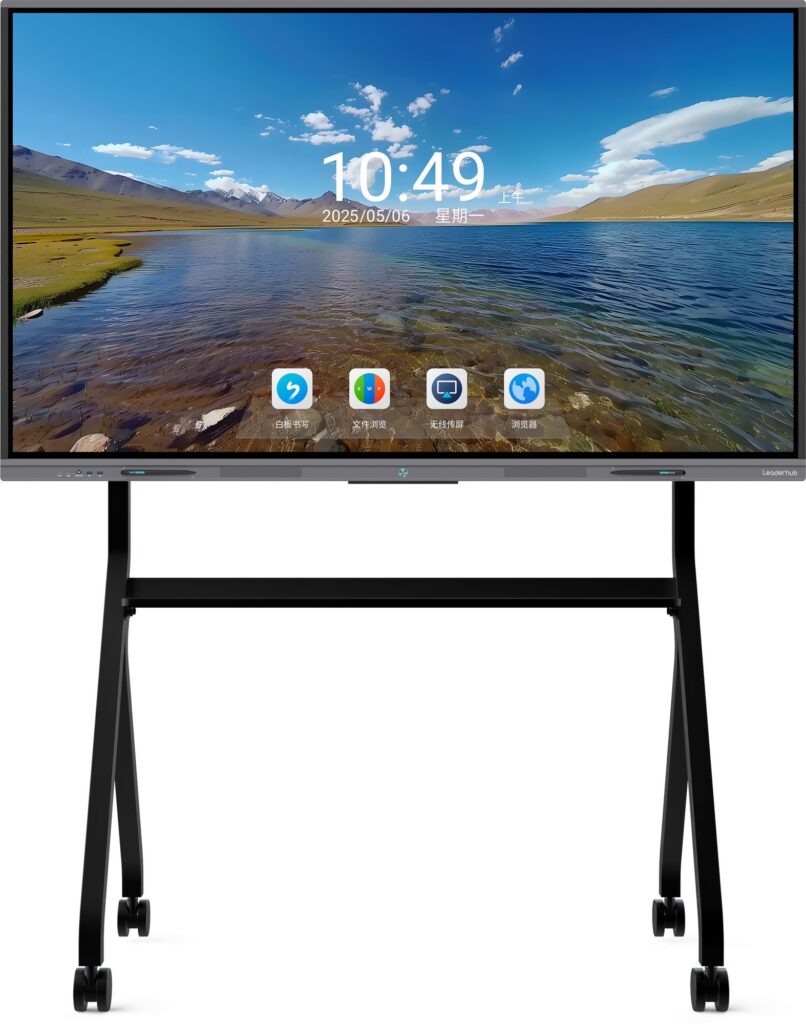
Casting a laptop to a smart board has become an essential skill for teachers, business professionals, and IT administrators who want to share content quickly during meetings, lessons, or presentations. Whether you are working in a classroom or a corporate boardroom, understanding how to mirror your laptop screen onto a large interactive display can dramatically improve collaboration and engagement.
In this guide, we will walk through every practical method for casting a laptop to a smart board, covering Windows, macOS, and cross-platform solutions. We will also explain common troubleshooting tips based on real deployment experience from education and enterprise environments.
Why Casting to a Smart Board Matters
Smart boards have replaced traditional projectors and whiteboards in many schools and offices because they allow real-time interaction, annotation, and multi-user collaboration. According to a 2023 EdTech adoption survey, more than 68% of classrooms in developed markets now use some form of interactive display technology. Casting a laptop screen to these boards enables presenters to control content directly from their device while the audience views everything on a larger, touch-enabled surface.
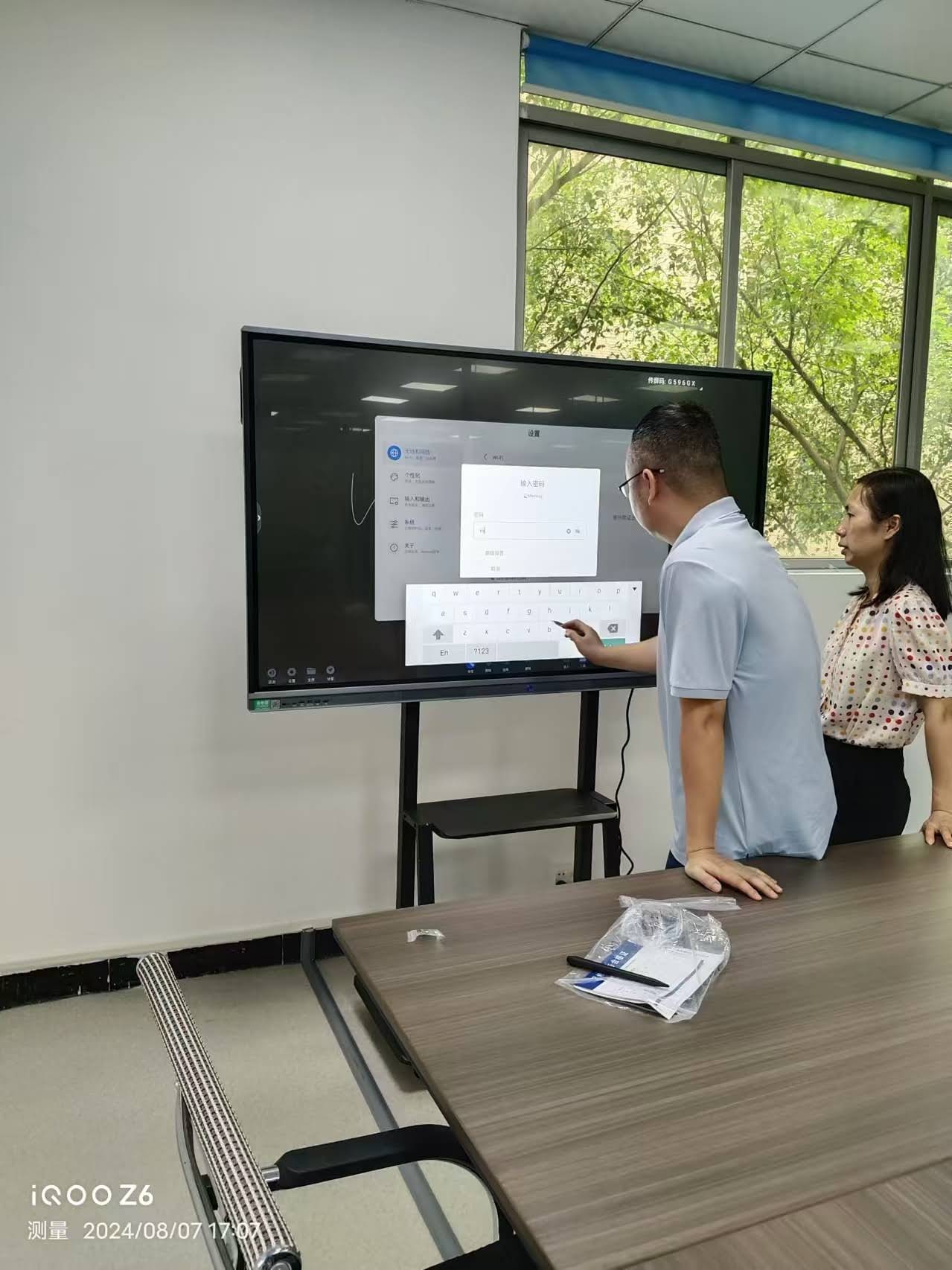
Common Use Cases
- Classroom lessons where teachers cast lesson plans from a laptop
- Business meetings requiring shared screen presentations
- Remote training sessions with hybrid audiences
- Creative brainstorming sessions using annotation tools
Step-by-Step: How to Cast a Laptop to a Smart Board
There are several reliable methods to mirror or extend your laptop display to a smart board. Below is a breakdown of the most common approaches used in real-world settings.
Method 1: Wired Connection (HDMI or USB-C)
This is the simplest and most stable method, especially for environments where Wi-Fi bandwidth is limited.
- Locate the HDMI or USB-C port on both your laptop and the smart board.
- Connect the cable directly between the two devices.
- Select the correct input source on the smart board (usually labeled HDMI1, HDMI2, or Type-C).
- Your laptop screen should now display automatically. If not, press Windows + P (on Windows) or check Display Preferences (on Mac) to select “Duplicate” or “Extend.”
Method 2: Wireless Casting via Miracast (Windows)
Most modern Windows laptops support Miracast, a wireless display protocol built into Windows 10 and 11.
- Ensure the smart board has Miracast receiving capability enabled.
- On your laptop, press Windows + K to open the “Cast” panel.
- Select the smart board from the list of available devices.
- Wait a few seconds for the connection to establish, then your screen will mirror wirelessly.
Method 3: AirPlay for macOS Users
If your smart board supports AirPlay (common in many interactive flat panel models), Mac users can mirror their screens without cables.
- Connect both the Mac and smart board to the same Wi-Fi network.
- Click the Control Center icon on the Mac menu bar.
- Select “Screen Mirroring” and choose the smart board from the list.
- Enter the AirPlay code if prompted on the board’s display.
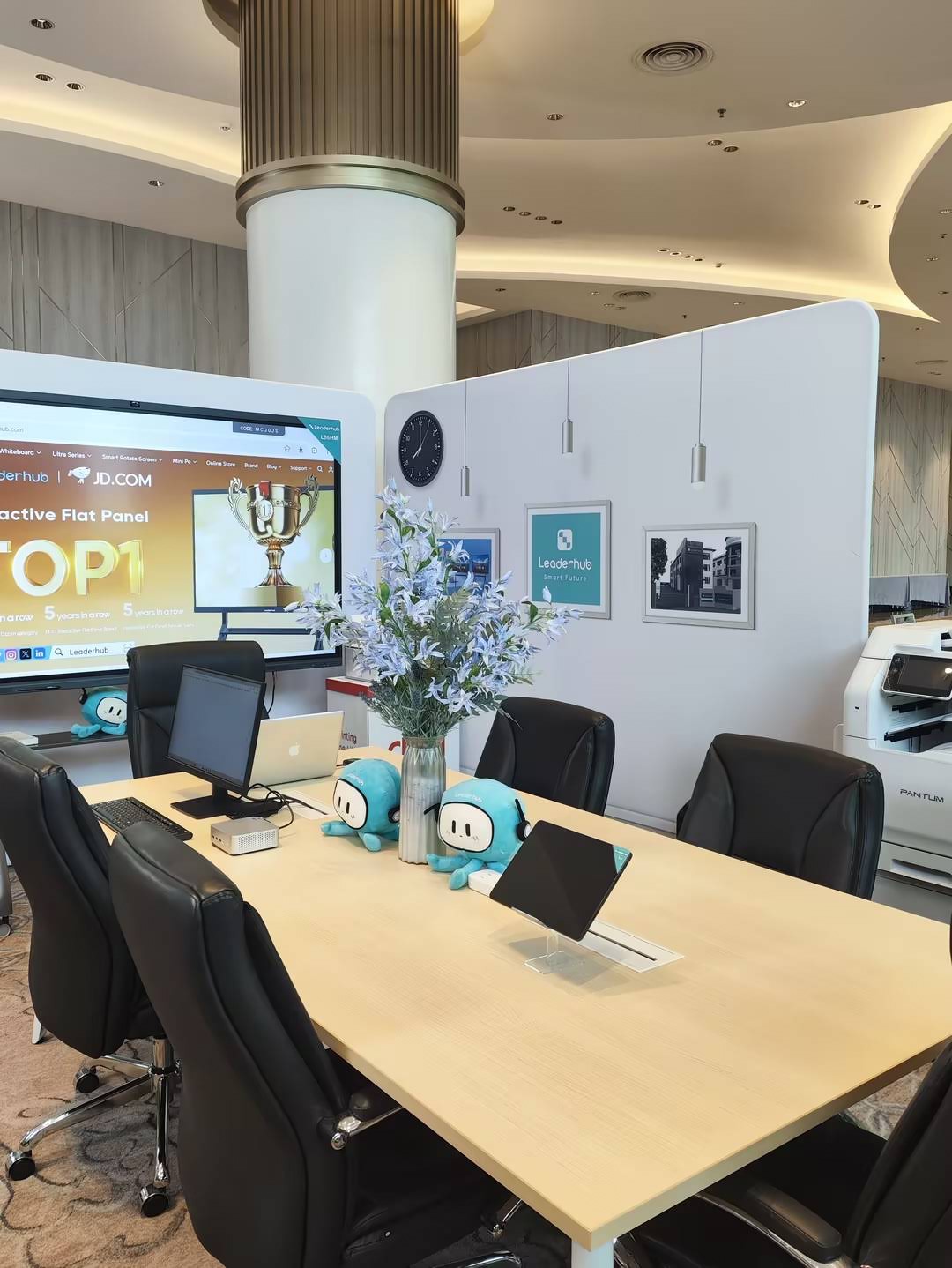
Method 4: Using a Dedicated Casting App or Dongle
Many organizations use third-party wireless presentation systems, such as Google Chromecast, Barco ClickShare, or manufacturer-specific casting dongles, to simplify the process further. These devices plug into the smart board’s USB or HDMI port and allow one-click casting from any laptop with compatible software installed.
Comparison of Casting Methods
| Method | Best For | Latency | Setup Difficulty |
|---|---|---|---|
| HDMI / USB-C Cable | Stable presentations | None | Easy |
| Miracast | Windows users, quick meetings | Low | Moderate |
| AirPlay | Mac / iOS users | Low | Easy |
| Dongle / App-Based | Enterprise meeting rooms | Very Low | Easy |
Troubleshooting Common Casting Issues
Even with the right setup, users occasionally run into connectivity problems. Below are solutions based on frequently reported issues from IT support teams managing interactive flat panels in schools and offices.
1. Smart Board Not Detected
Ensure both devices are on the same network for wireless casting, and check that the smart board’s wireless display feature is enabled in its settings menu.
2. Audio Not Transmitting
Some HDMI setups only carry video signals if the correct audio output is not selected. Go to your laptop’s sound settings and manually select the smart board as the audio output device.
3. Screen Resolution Mismatch
If text appears blurry or cropped, adjust your laptop’s display resolution to match the native resolution of the smart board, typically 3840×2160 for 4K panels.
4. Lag During Wireless Casting
Wireless casting can experience latency in crowded Wi-Fi environments. Switching to a 5GHz network or using a wired connection resolves this in most cases.
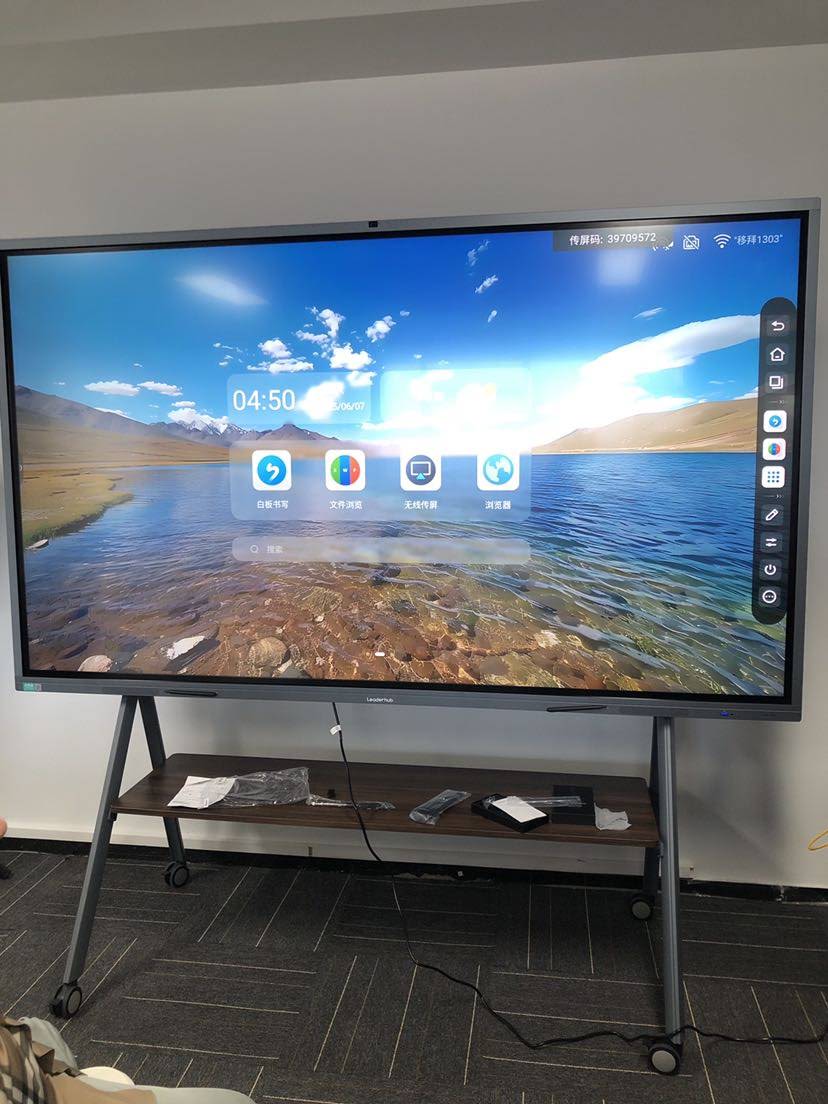
Best Practices for a Smooth Casting Experience
- Always test your connection before an important meeting or lesson.
- Keep your laptop’s operating system and drivers updated to avoid compatibility issues.
- Use wired connections for mission-critical presentations where reliability is essential.
- Label smart board input sources clearly if multiple devices are used in a shared space.
- Train staff or students on basic troubleshooting steps to reduce downtime.
Why Reliable Smart Board Technology Matters
Not all smart boards offer the same level of casting reliability. Panels with outdated wireless chipsets or limited software support often cause frustrating delays during presentations. This is why choosing a well-engineered smart whiteboard with robust wireless casting capabilities is critical for organizations that rely on daily screen sharing.
With more than 16 years of experience designing interactive display technology, Leaderhub has developed smart whiteboards and interactive flat panels that support multiple casting protocols, including Miracast, AirPlay, and USB-C direct connection, ensuring compatibility across Windows, macOS, iOS, and Android devices. Our products are currently used in more than 82 countries, supporting classrooms, meeting rooms, and training centers where dependable screen casting is a daily necessity.
Expert Tips from IT Professionals
According to classroom technology specialists, the most common cause of failed casting attempts is network interference rather than hardware malfunction. IT administrators recommend segmenting Wi-Fi networks specifically for casting devices to reduce congestion, particularly in schools where dozens of devices connect simultaneously.
Enterprise AV consultants also emphasize the importance of firmware updates. Many interactive display manufacturers release periodic updates that improve wireless casting stability, security, and compatibility with the latest operating systems.
Frequently Asked Questions
Can I cast my laptop to a smart board without Wi-Fi?
Yes. Using an HDMI or USB-C cable allows you to mirror your laptop screen without any network connection required.
Does casting work the same way on all smart boards?
Not exactly. Casting protocols vary by manufacturer, so it’s important to check whether your smart board supports Miracast, AirPlay, or a dedicated casting app before attempting a wireless connection.
Why does my screen look stretched on the smart board?
This usually happens due to resolution or aspect ratio mismatches. Adjusting your laptop’s display settings to match the board’s native resolution typically resolves the issue.
Final Thoughts
Casting a laptop to a smart board doesn’t have to be complicated. Whether you choose a simple wired connection or a wireless method like Miracast or AirPlay, understanding the right setup for your device and environment will save time and reduce technical frustration. For organizations seeking dependable smart board solutions with strong casting compatibility, investing in high-quality interactive display hardware is a practical long-term decision that improves both classroom learning and business collaboration.