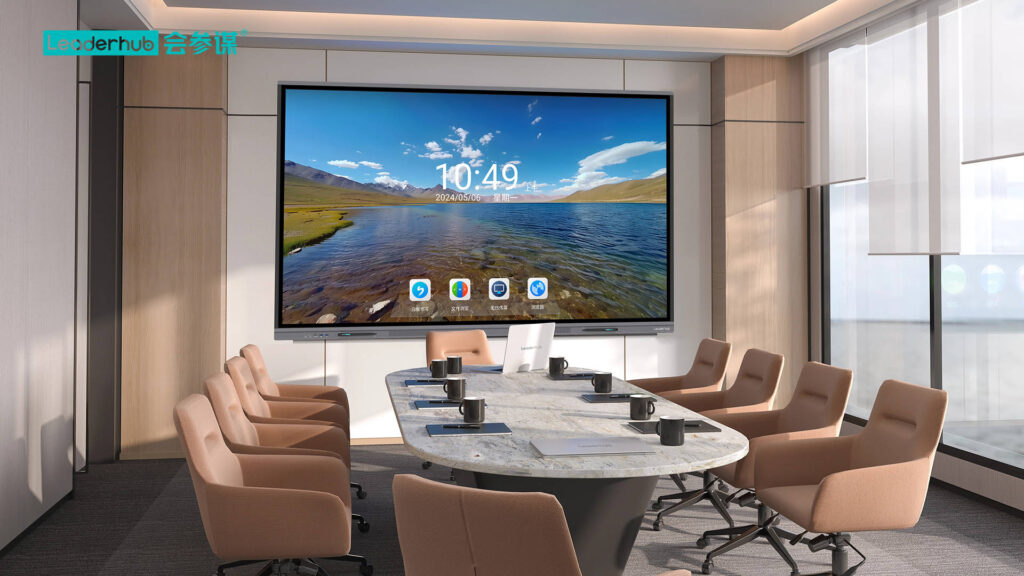
Choosing the right interactive display for your classroom, office, or training center can feel overwhelming. With dozens of brands, screen sizes, and features on the market, it is easy to end up confused about what actually matters. This guide breaks down the buying process into simple, practical steps so you can make a confident decision—whether you are equipping a single meeting room or rolling out devices across an entire school district.
What Is a Smart Board and Why Does It Matter?
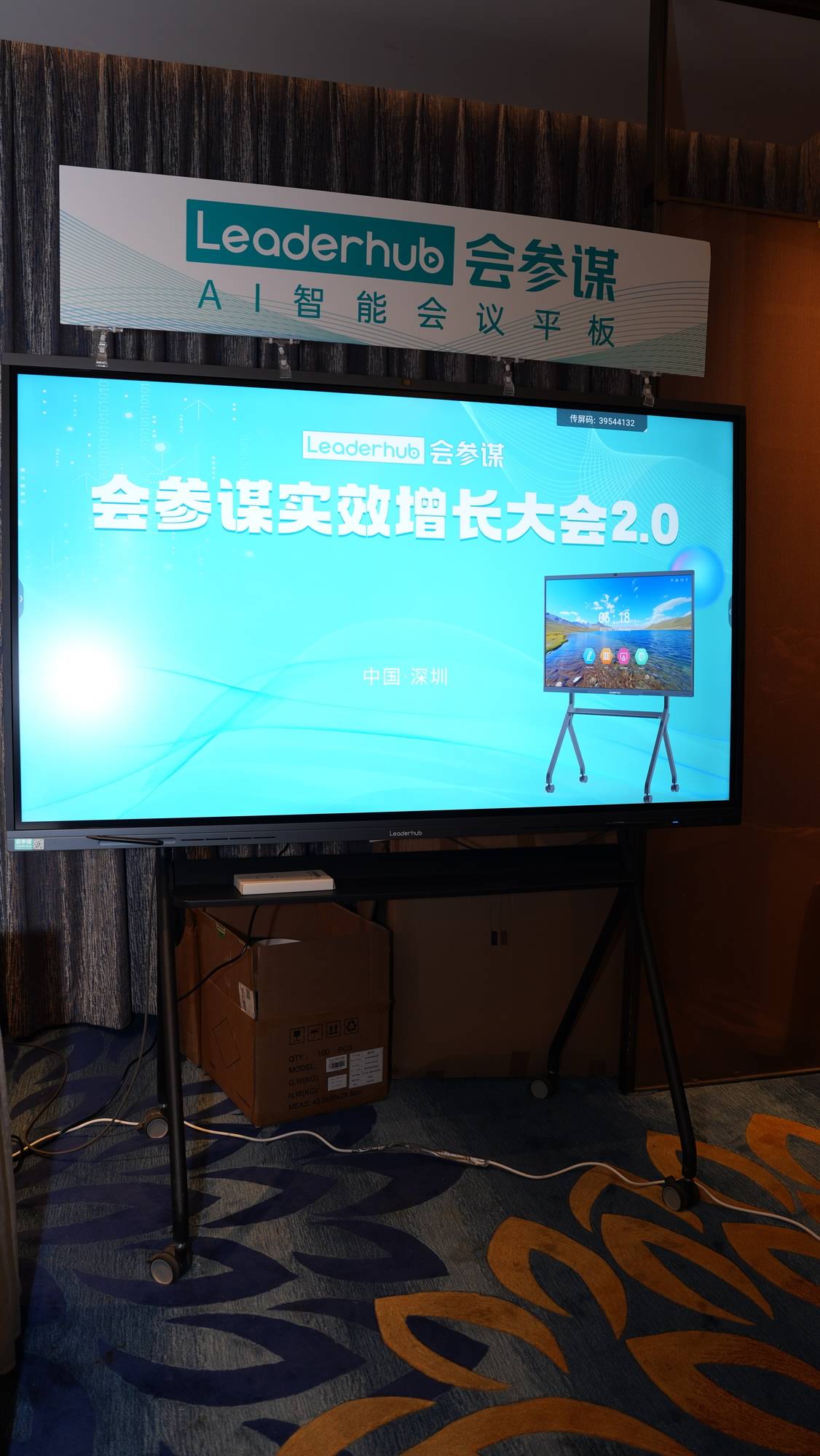
A smart board, also known as an interactive flat panel or interactive whiteboard, is a large touch-enabled display that allows users to write, annotate, share content, and collaborate in real time. Unlike traditional projectors or static whiteboards, modern smart boards combine a 4K display, built-in computer, annotation software, and often AI-powered tools for note recognition, video conferencing, and file sharing.
According to industry research, schools and businesses that adopt interactive displays report measurable improvements in engagement and meeting efficiency. In our own experience working with education and enterprise clients across 82+ countries, we have seen that the right smart board can reduce meeting setup time by more than half and significantly increase student participation in digital lessons.
Step 1: Define Your Use Case
Before comparing specs, ask yourself where and how the smart board will be used. This single decision shapes almost every other choice you make.
- Classrooms: Prioritize durability, anti-glare glass, and education-specific software like lesson templates and quizzes.
- Meeting rooms: Focus on video conferencing integration, wireless screen sharing, and cloud collaboration tools.
- Training centers: Look for multi-user annotation, recording features, and content playback.
- Creative workspaces: Consider stylus precision, color accuracy, and file export options.
Step 2: Choose the Right Screen Size
Screen size directly affects visibility and usability. A board that is too small will strain viewers at the back of the room; one that is too large may overwhelm a compact space.
| Room Size | Recommended Screen Size | Typical Use |
|---|---|---|
| Small huddle room (2–6 people) | 55–65 inches | Quick meetings, brainstorming |
| Standard classroom | 65–75 inches | Daily lessons, group activities |
| Large conference room | 75–86 inches | Presentations, video calls |
| Auditorium or training hall | 86+ inches | Large audience presentations |
Step 3: Evaluate Display Quality and Touch Technology
Not all touch panels are created equal. When comparing models, pay attention to these technical factors:
- Resolution: A true 4K UHD panel ensures sharp text and clear images, especially important for detailed diagrams or shared documents.
- Touch technology: Infrared and capacitive touch technologies are the most common. Capacitive touch typically offers faster response and supports more simultaneous touch points, which matters for group collaboration.
- Anti-glare glass: Reduces reflections from overhead lighting, improving visibility from any angle in the room.
- Palm rejection and writing latency: Low-latency writing feels closer to pen on paper, which is critical for teachers and presenters who write frequently.
Step 4: Check the Operating System and Software Ecosystem
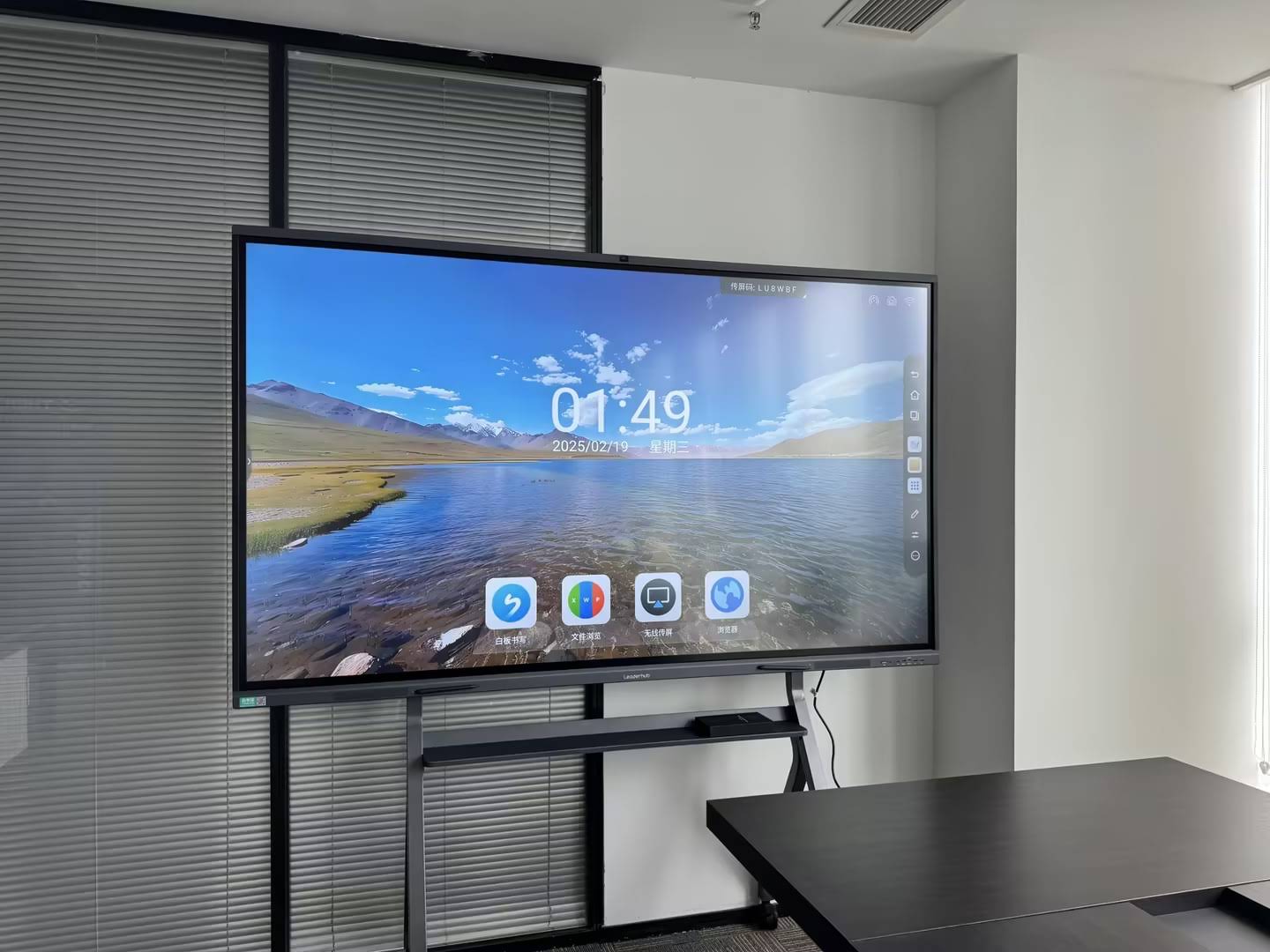
The hardware is only half the story—software determines how usable the board actually is day to day. Most modern displays run on Android for built-in apps and Windows for full desktop functionality, and some offer dual-system switching.
Look for these software capabilities:
- Built-in annotation and whiteboarding tools
- Screen sharing from laptops, tablets, and phones (wired and wireless)
- Cloud storage and file syncing
- Video conferencing compatibility (Zoom, Teams, Google Meet)
- AI features such as handwriting-to-text conversion and automatic meeting summaries
As AI continues to reshape collaboration, more manufacturers are integrating smart recognition tools directly into their interactive whiteboard software, reducing the need for third-party apps.
Step 5: Consider Connectivity and Compatibility
A smart board is only as useful as its ability to connect with the devices people already use. Before purchasing, confirm the unit supports:
- HDMI, USB-C, and VGA input ports
- Wi-Fi and Bluetooth connectivity
- OPS (Open Pluggable Specification) slot for a built-in or removable mini PC
- Compatibility with both Windows and Mac devices
A built-in or slot-in mini PC is particularly valuable because it allows the board to function as a standalone computer without needing an external laptop connected at all times—useful for shared spaces where multiple people rotate through presentations.
Step 6: Think About Total Cost of Ownership
Purchase price is only one part of the equation. When budgeting, factor in:
- Installation costs: Wall mounting, stands, or mobile carts
- Warranty coverage: Most reputable manufacturers offer 2–5 years on panels and components
- Software licensing: Some advanced collaboration tools require ongoing subscriptions
- Maintenance and support: Access to local technical support or remote diagnostics
Organizations planning large-scale deployments—such as school districts or corporate campuses—should also inquire about volume pricing and OEM/ODM customization options, which can significantly reduce per-unit costs while ensuring consistent specifications across every device.
Step 7: Verify Manufacturer Reliability and Support
Because a smart board is a long-term investment, the reputation and stability of the manufacturer matter as much as the specs on paper. Ask potential suppliers:
- How long have they been manufacturing interactive displays?
- Do they have quality certifications and consistent production standards?
- What markets and countries do they currently serve?
- Do they offer local technical support or remote troubleshooting?
For example, Leaderhub has spent more than 16 years developing interactive display technology, with products currently deployed in over 82 countries across education, enterprise, and government sectors. This kind of track record generally translates into more stable firmware updates, better component sourcing, and faster resolution of technical issues after purchase.
Common Mistakes to Avoid When Buying a Smart Board
Even experienced procurement teams sometimes overlook important details. Here are the most frequent mistakes we have observed:
- Buying based on price alone: Ultra-low-cost panels often use inferior touch sensors that degrade quickly with heavy use.
- Ignoring room lighting conditions: A glossy screen in a sunlit room will suffer from glare regardless of resolution.
- Overlooking software updates: Some budget brands stop supporting firmware updates after a year or two, leaving devices vulnerable to compatibility issues.
- Underestimating installation requirements: Large panels need proper wall reinforcement or mobile stands rated for their weight.
Smart Board vs. Traditional Projector: A Quick Comparison
| Feature | Smart Board | Traditional Projector |
|---|---|---|
| Touch interaction | Yes | No (requires separate board) |
| Image brightness | Consistent, unaffected by ambient light | Reduced visibility in bright rooms |
| Maintenance | Minimal, no bulb replacement | Bulb replacement needed periodically |
| Software integration | Built-in apps and cloud tools | Requires external computer |
Real-World Example: How the Right Panel Improves Collaboration
A mid-sized training organization we worked with previously relied on projectors paired with separate whiteboards for hands-on workshops. Trainers spent an average of 10–15 minutes per session just switching between devices and re-adjusting projection angles. After upgrading to a single interactive flat panel with built-in annotation and wireless screen sharing, setup time dropped to under two minutes, and trainers reported being able to save and distribute session notes instantly to attendees—something that was previously impossible with static whiteboards.
This kind of practical improvement illustrates why the buying decision should focus not just on specifications, but on how the device fits into daily workflows.
Frequently Asked Questions
How long do smart boards typically last?
With proper care, a quality interactive display generally lasts 6–8 years before hardware upgrades become worthwhile, though display panels themselves are rated for tens of thousands of hours of use.
Can a smart board replace a computer entirely?
Yes, if it includes a built-in Android system or a slot-in mini PC running Windows, it can function as a standalone device without needing an external computer connected.
What is the difference between infrared and capacitive touch?
Infrared touch uses sensors around the screen edge to detect touch points, while capacitive touch uses a conductive glass layer for faster, more precise, multi-touch input—similar to a smartphone screen.
Is OEM/ODM customization worth considering for bulk purchases?
For organizations purchasing in volume, working directly with a manufacturer offering OEM and ODM services often results in better pricing, consistent specifications, and customization options tailored to specific regional or institutional requirements.
Final Checklist Before You Buy
- Confirm the screen size matches your room dimensions
- Verify touch technology and display resolution meet your needs
- Check software compatibility with your existing devices and platforms
- Review warranty terms and available technical support
- Compare total cost of ownership, not just upfront price
- Research the manufacturer’s industry experience and global track record
Buying a smart board does not have to be complicated once you break the decision into clear steps: define your use case, match the screen size to your room, evaluate display and touch quality, confirm software and connectivity, and choose a manufacturer with a proven track record. Taking the time to compare these factors carefully will help you select an interactive display that serves your classroom, meeting room, or training center reliably for years to come.