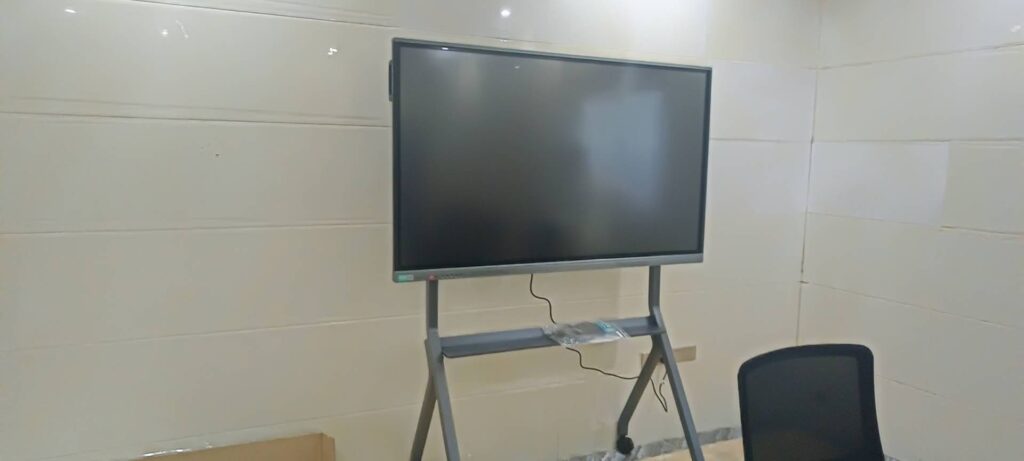
If you are searching for how to lock smart board screen, the good news is that most interactive panels offer several easy ways to stop unauthorized access. Whether your smart board is used in a classroom, meeting room, training center, or shared office, the right lock settings can protect files, reduce accidental changes, and keep your display ready for the next user.
In this guide, you will learn the most practical screen-lock methods, how to choose the right one for your environment, and how to combine software and physical security for better control.
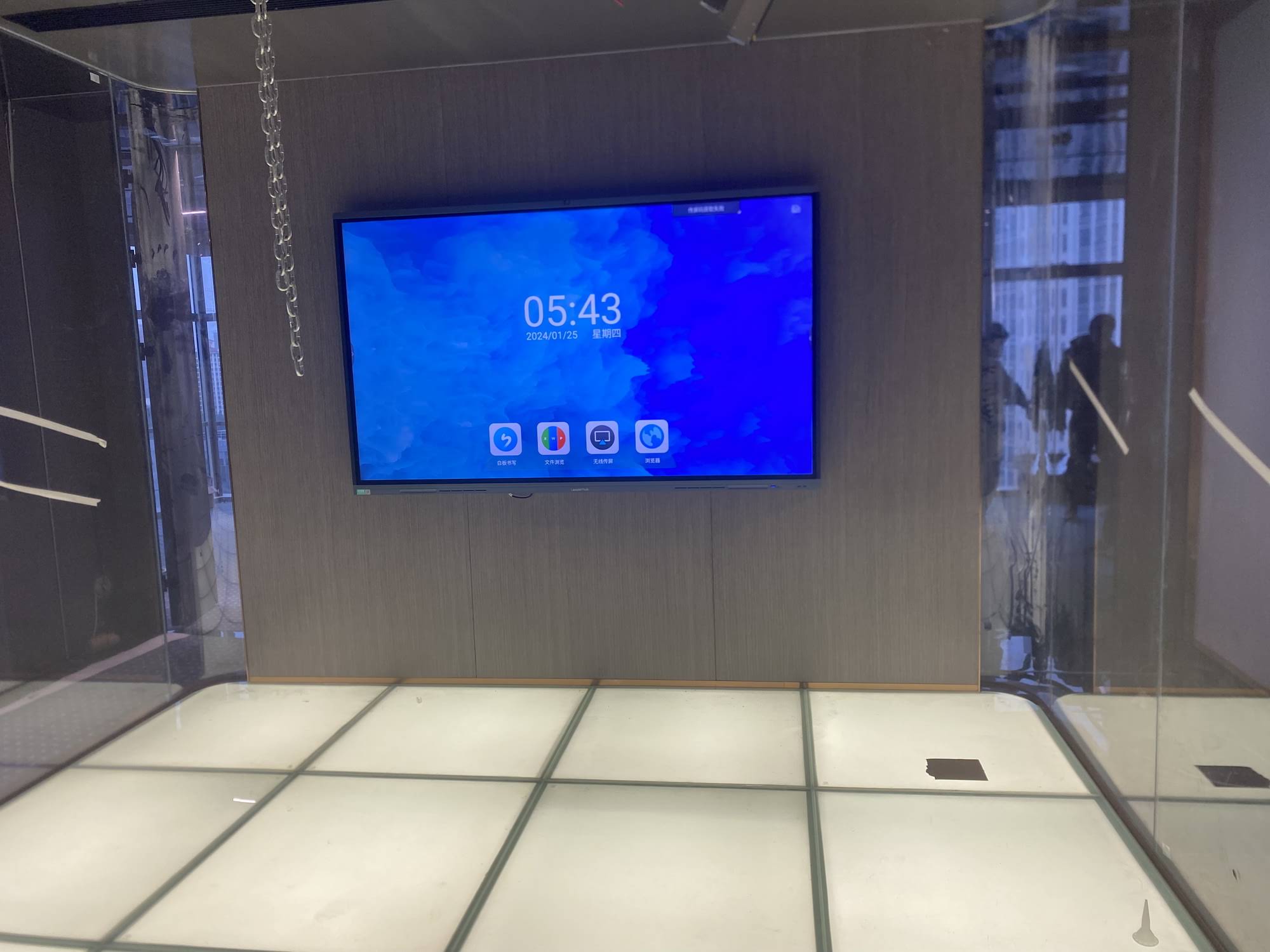
Quick Answer: The Fastest Ways to Lock a Smart Board Screen
The fastest method depends on the operating system, but in most cases you can lock a smart board screen by using one of these options:
- Screen lock or kiosk mode to prevent app switching.
- Admin PIN or password to restrict settings access.
- Touch lock to keep the display visible but disable interaction.
- USB and input source lock to stop unauthorized device changes.
- Remote device management for IT teams controlling multiple boards.
Why Locking a Smart Board Screen Matters
Smart boards are designed for shared use, which makes them convenient but also more vulnerable in open environments. Without a lock, users may:
- open private files or presentations by accident,
- change display settings or volume,
- launch apps that should stay hidden,
- access stored whiteboard notes, browser tabs, or cloud accounts,
- disconnect cables or switch to another input source.
For schools and training spaces, security also supports safer digital use. If your organization wants to align screen usage with best practices, resources like the UNESCO Technology Recommendations and ISTE Education Technology Standards can be helpful references.
Method 1: Use the Built-In Screen Lock
Many smart boards include a native lock feature in the settings menu. This is the simplest option when you want to keep the display on but block unwanted interaction.
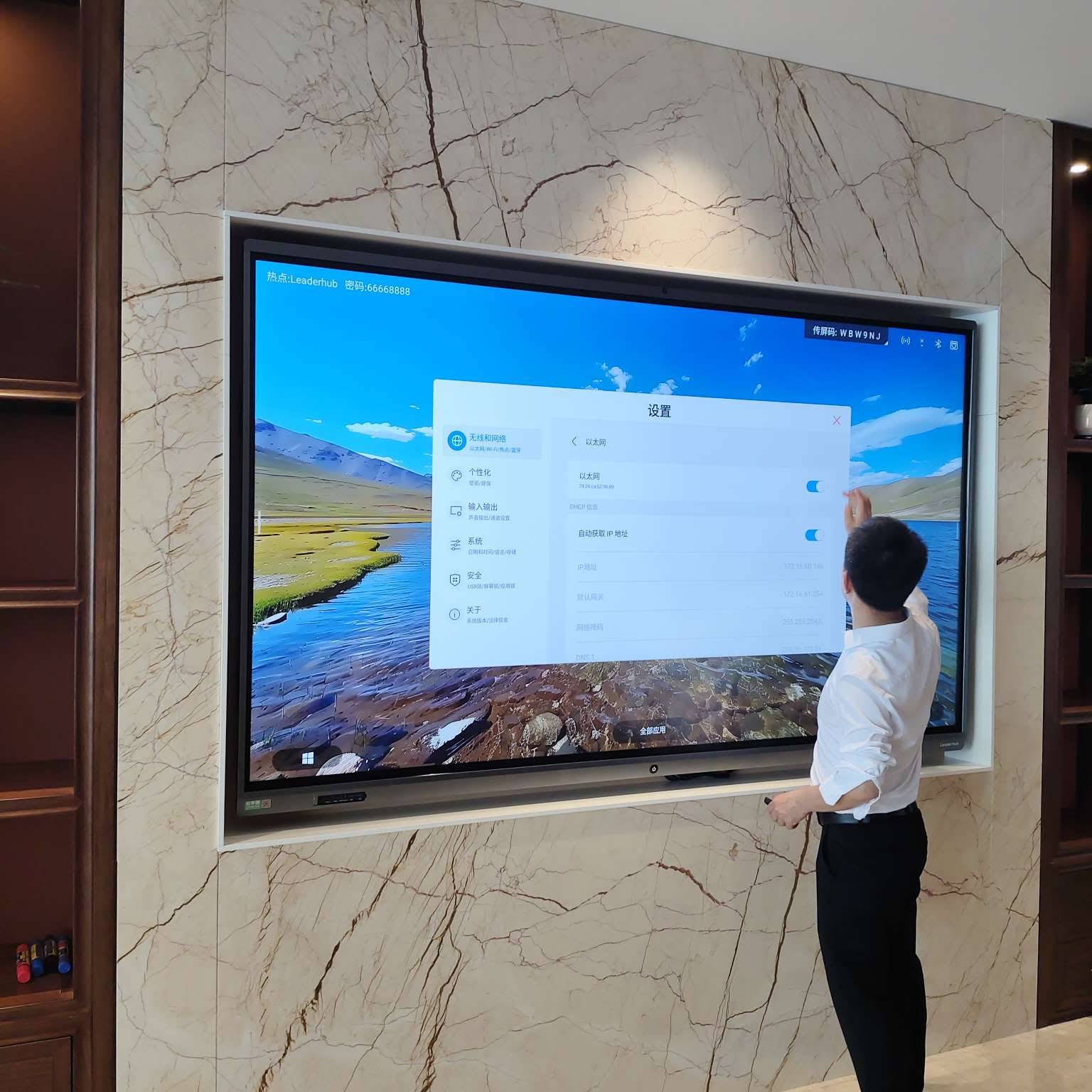
- Open the Settings menu.
- Look for Security, Lock Screen, or Device Protection.
- Set a PIN, password, or pattern.
- Choose whether to lock the home screen, settings, or all touch input.
- Save and test the lock before sharing the board.
Best for
Classrooms, offices, and shared meeting rooms where you need a simple local lock.
Method 2: Enable Kiosk Mode or App Lock
Kiosk mode is ideal when a smart board should run only one app, such as a whiteboard, conferencing tool, or presentation platform. It blocks users from leaving the chosen app and reduces the chance of accidental misuse.
- Restrict access to only approved apps.
- Hide system menus and navigation bars.
- Prevent downloads or browser access.
- Keep users focused on one task.
If you are deploying devices for education or training, kiosk mode can be paired with smart whiteboards that support collaborative work while staying protected.
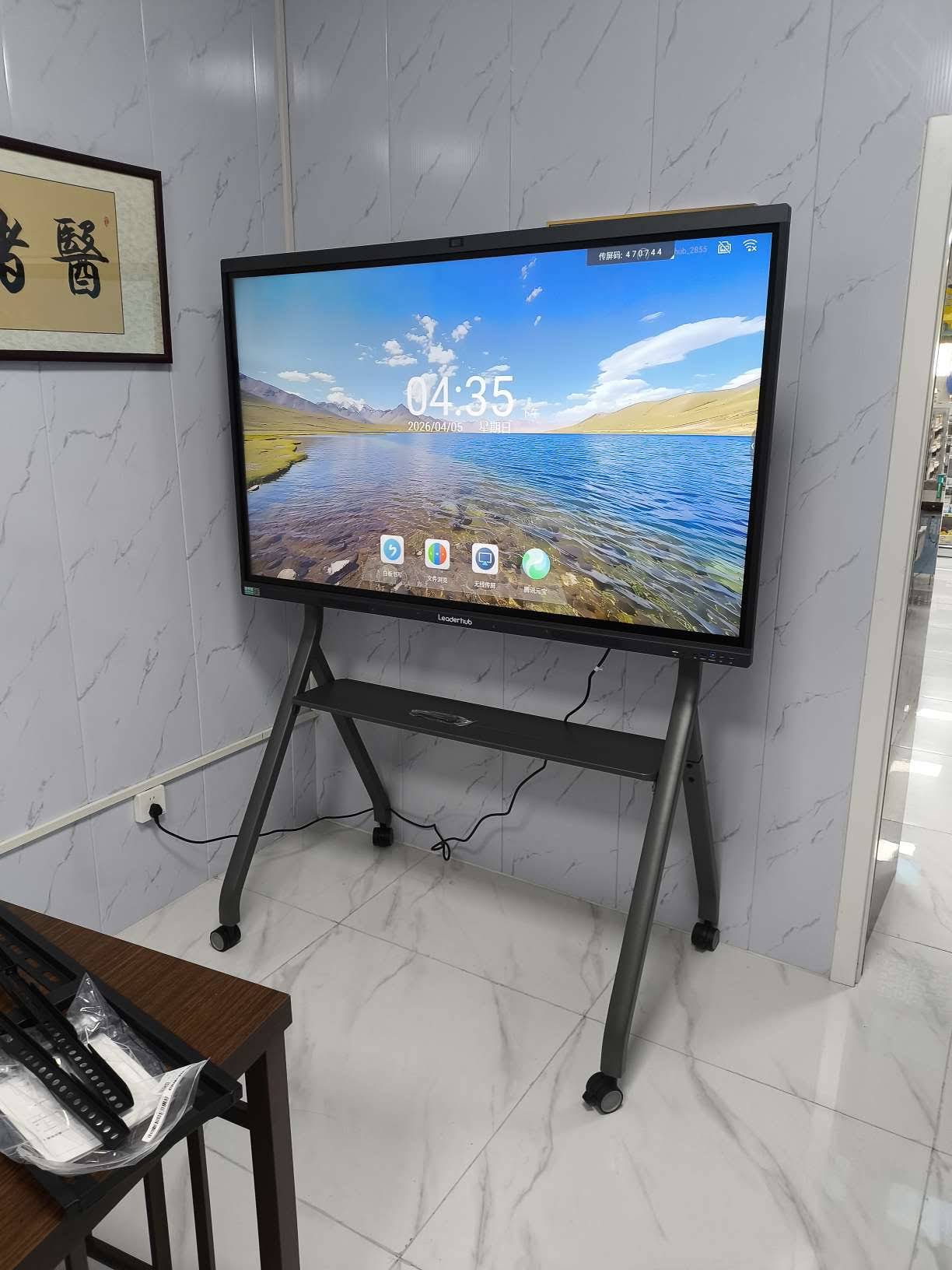
Method 3: Lock Touch Input Without Turning Off the Display
Sometimes you want the screen visible for a presentation, digital signage, or a paused lesson, but you do not want anyone touching it. In that case, use touch lock or panel lock.
This option is useful when:
- a presenter steps away for a moment,
- students are gathered around the board before class starts,
- you want to display instructions without enabling edits,
- you need to prevent accidental annotations during a meeting.
Method 4: Protect Administrator Settings with a PIN
Even if users can interact with the board, they should not be able to change critical settings. A strong admin PIN helps protect:
- network configuration,
- Bluetooth and Wi-Fi settings,
- firmware updates,
- input source selection,
- account and device permissions.
For schools and companies, separating user access from admin access is one of the easiest ways to reduce risk.
Method 5: Lock Inputs, Ports, and External Devices
Unauthorized access is not only about touch control. Someone may connect a USB drive, laptop, or HDMI device and switch the board to a different source. To prevent that:
- disable unused ports in settings,
- lock the input selector,
- turn off auto source switching,
- use cable management or port covers where possible.
Security tip
In public or high-traffic spaces, combine software locks with physical placement strategies so users cannot easily reach unused ports.
Method 6: Use Remote Management for Multi-Room Control
If your organization manages several interactive displays, remote management is the most efficient solution. IT teams can push policies, set restrictions, and update security options from one dashboard.
- Apply the same lock policy across all rooms.
- Monitor which devices are online.
- Push updates outside class or meeting hours.
- Recover control faster if a device is misconfigured.
Comparison Table: Which Lock Method Should You Use?
| Lock Method | Best For | Main Benefit |
|---|---|---|
| Screen lock | General shared use | Stops casual unauthorized access |
| Kiosk mode | Classrooms, signage, demo units | Keeps users inside one approved app |
| Touch lock | Meetings and presentations | Displays content without edits |
| Admin PIN | IT-managed environments | Protects system settings |
| Input/port lock | Open or public spaces | Prevents external source switching |
A Step-by-Step Security Setup for Most Smart Boards
If you want a practical setup that works in most environments, follow this order:
- Set an admin password.
- Turn on screen lock or kiosk mode.
- Disable unused apps and browser shortcuts.
- Lock the input source and unused ports.
- Set the screen timeout and sleep behavior.
- Test the device from a standard user account.
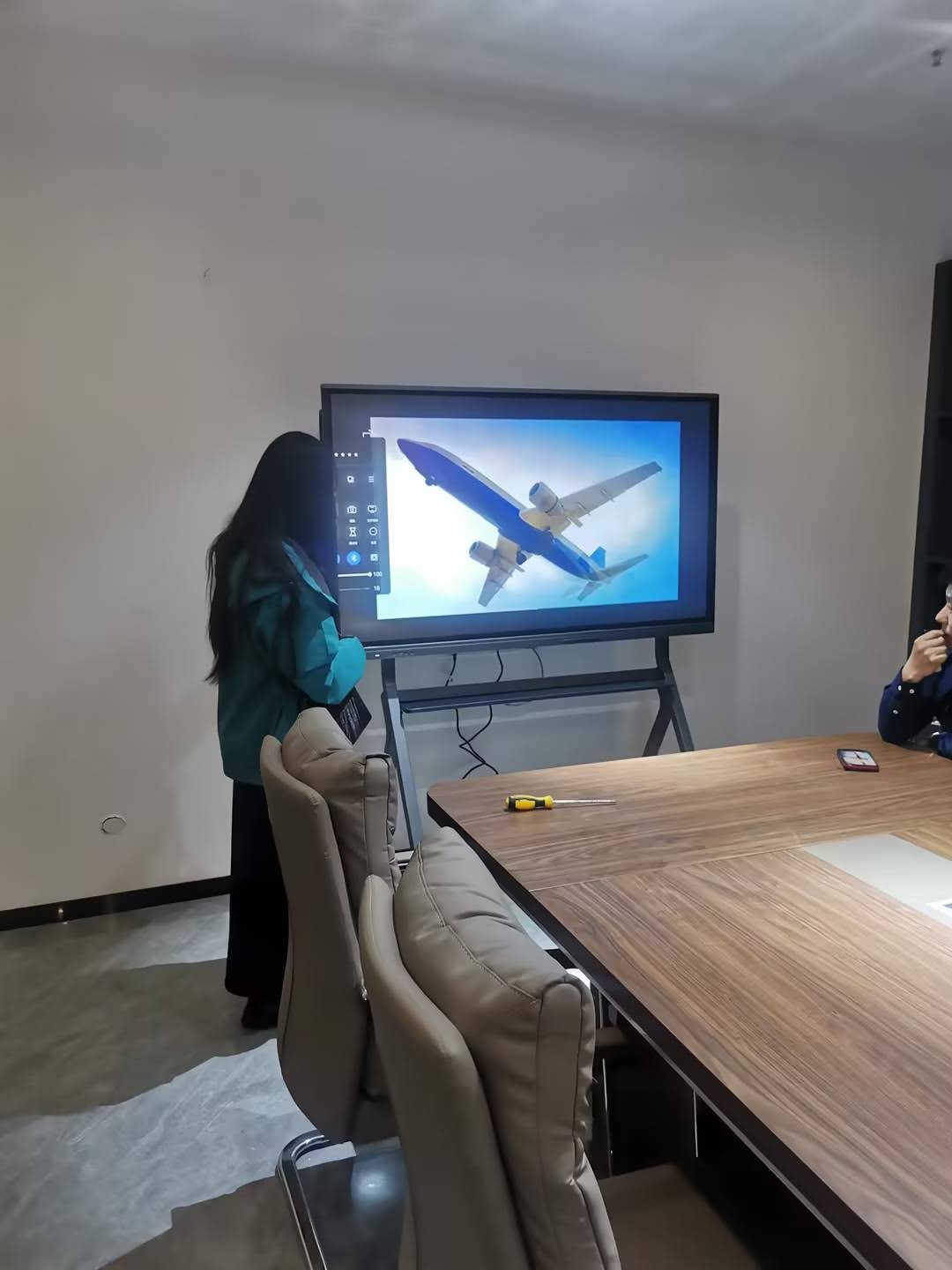
Extra Tips to Prevent Unauthorized Access
- Use unique passwords instead of default credentials.
- Change admin PINs after staff turnover or room reassignments.
- Keep firmware updated to reduce security vulnerabilities.
- Enable auto-lock after inactivity.
- Restrict guest access when private files are stored locally.
- Log out of cloud services after every session.
If your board runs Windows or Android
Windows-based panels often rely on assigned access, local user permissions, or third-party management tools. Android-based panels usually provide more direct lock, kiosk, or app-pin controls in the system settings. In both cases, the goal is the same: keep the display usable while limiting what unauthorized users can open, change, or delete.
Recommended Hardware for Secure Smart Board Workflows
If you are building a secure collaboration setup, pairing your board with the right hardware can help. For example:
- a dedicated mini PC for controlled presentations,
- a mobile display for flexible room usage,
- a touchscreen panel with strong user/admin separation,
- remote management tools for centralized oversight.
You can also explore rotating screens for flexible collaboration, or use mini PCs when you want to keep computing functions more tightly controlled.
FAQ: How to Lock Smart Board Screen
Can I lock a smart board without turning it off?
Yes. Use touch lock, kiosk mode, or a screen lock feature so the display stays on while interaction is limited.
What is the safest option for a school smart board?
For schools, the safest setup is usually a combination of admin PIN protection, kiosk mode, auto-lock, and restricted input sources.
How do I stop students or visitors from changing settings?
Hide the settings menu behind an admin password and disable access to system controls for standard users.
Do I need physical security too?
Yes. Software locks are important, but room access, cable control, and device placement also help prevent tampering.
Choose a Secure Smart Board Setup That Fits Your Space
The right lock method depends on how your smart board is used. A classroom may need kiosk mode and quick admin control, while a conference room may only need touch lock and password protection. If you are comparing models or planning a secure deployment, Leaderhub offers multiple display options, and you can browse the shop or contact us for guidance.