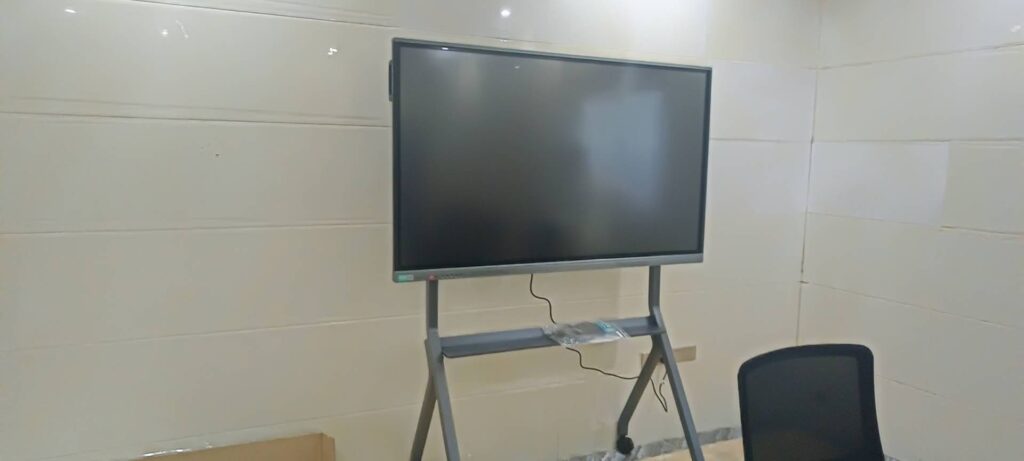
A smart board and a mobile phone can work together in seconds when you use the right connection method. Whether you want to share a presentation, show photos, control lessons, or join a meeting, this guide explains how to connect smart board with mobile in a clear, practical way.
For schools, offices, and hybrid workspaces, mobile-to-board sharing is now a must-have. Leaderhub, a Shenzhen-based interactive display company with 16 years of experience, has seen how much faster collaboration becomes when users can mirror a phone screen directly to a smart board.
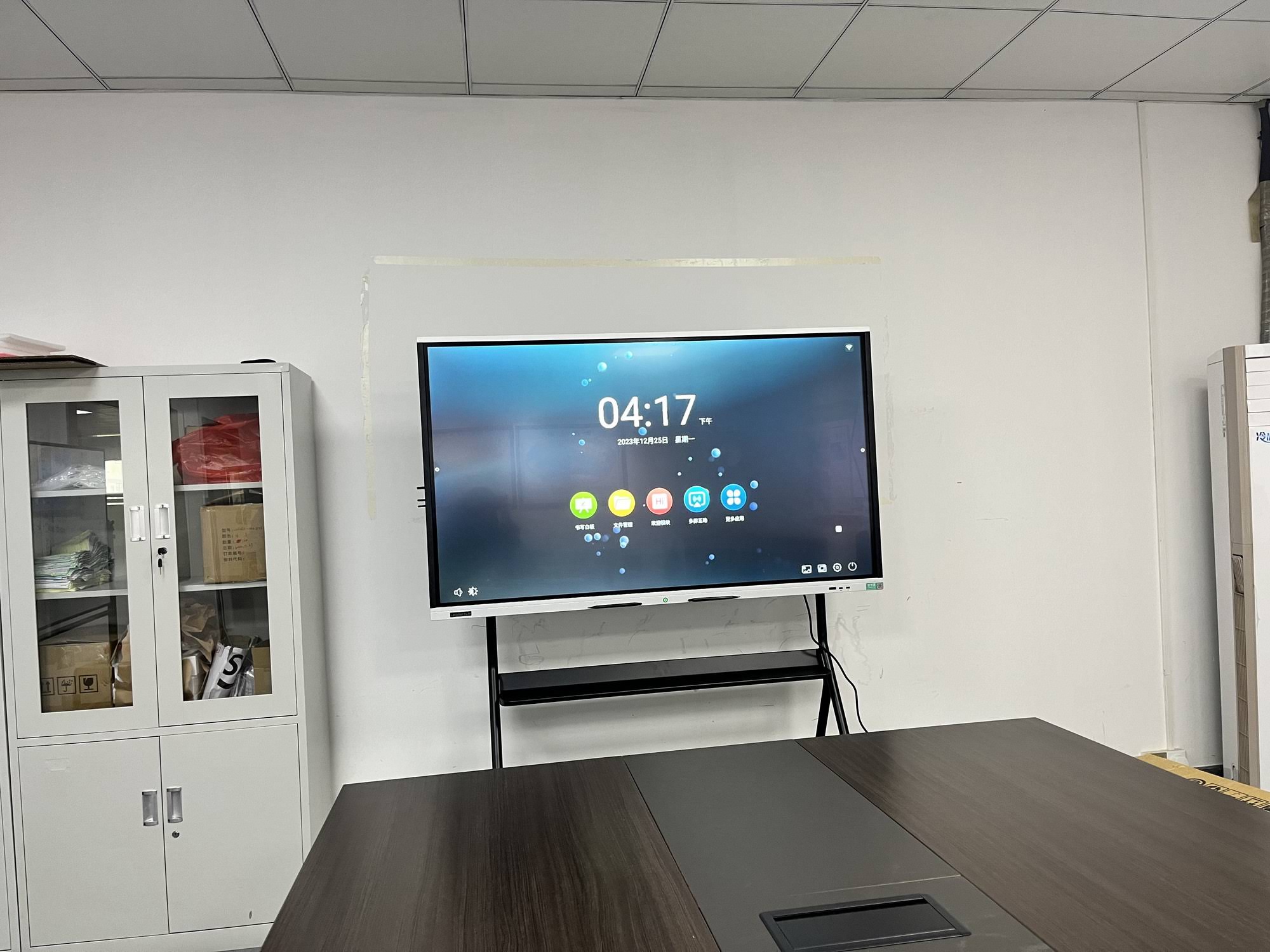
What You Need Before Connecting
Before you start, make sure both devices are ready. A smooth connection usually depends on a few simple checks:
- Wi-Fi: Both devices should be on the same network for wireless casting.
- Power: Keep the smart board and phone charged or plugged in.
- Compatible system: Check whether your board supports Android, iPhone, screen mirroring, or an app-based connection.
- Updated software: Install the latest system updates on the phone and smart board.
If you are selecting hardware for classrooms or meeting rooms, these product pages may help: smart whiteboards, rotating screens, and mini PCs.
Best Ways to Connect a Smart Board to a Mobile Phone
There is no single method for every device. The best option depends on your phone model and the board’s operating system.
| Connection Method | Best For | Main Benefit |
|---|---|---|
| Wireless screen mirroring | Android and iPhone users | Fast, cable-free sharing |
| Casting app | Interactive boards with built-in software | Extra tools like annotation and remote control |
| USB-C / HDMI adapter | Phones with video output support | Stable and low-latency connection |
| Bluetooth pairing | Audio or remote functions | Useful for sound and accessory control |
Step-by-Step: How to Connect Smart Board with Mobile
-
Turn on the smart board
Wake up the display and open the home screen. If your board has a casting app, open it first.
-
Connect both devices to the same Wi-Fi network
This is the most important step for wireless mirroring. If the devices are on different networks, they may not detect each other.
-
Open screen mirroring on your phone
On Android, look for names like Cast, Smart View, or Wireless Display. On iPhone, open Control Center and tap Screen Mirroring.
-
Select the smart board from the device list
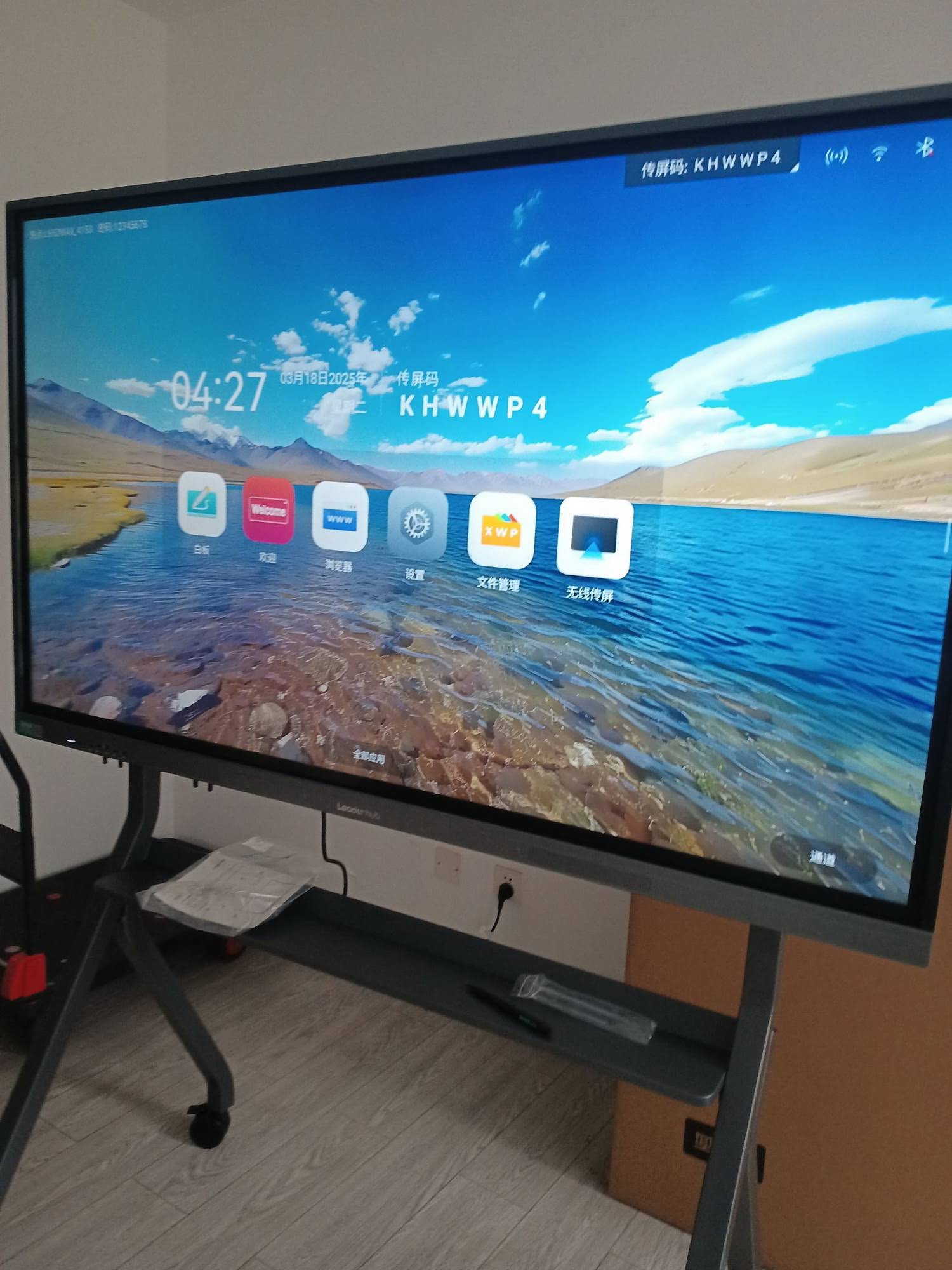
Choose the board name shown on the screen. In some cases, you may need to scan a QR code or enter a PIN code.
-
Confirm the connection on the smart board
Many smart boards ask you to accept the incoming connection before the phone screen appears.
-
Adjust display settings
Switch between portrait and landscape mode, enable full screen, or turn on touch control if supported.
-
Start sharing content
Open videos, slides, web pages, or apps on your phone and display them instantly on the smart board.
How to Connect by Device Type
Android Phone
- Swipe down from the top of the screen.
- Tap Cast, Smart View, or Wireless Display.
- Choose the smart board name.
- Accept the connection if a prompt appears.
iPhone
- Open Control Center.
- Tap Screen Mirroring.
- Select the board from the list.
- Enter the code shown on the smart board if required.
Phone with USB-C or HDMI Output
- Use the correct adapter or cable.
- Connect the phone to the board or to the board’s external input source.
- Choose the correct input channel on the smart board.
- Check if the phone needs permission to output video.
Troubleshooting Common Problems
If the connection fails, use this quick checklist:
- Cannot find the board: Confirm that both devices are on the same Wi-Fi network.
- Connection is slow: Restart the router or move closer to the access point.
- No image on the board: Check input source, adapter type, and mirroring permissions.
- Audio not working: Turn up the volume on both devices and verify media output settings.
- Touch control not responding: Make sure your smart board model supports phone-to-board touch interaction.
Practical Tips for Better Screen Sharing
- Use landscape mode for presentations, videos, and slides.
- Close background apps on your phone to reduce lag.
- Keep notifications off during demos to avoid distractions.
- Test before meetings so you can solve issues early.
- Choose a stable network if multiple users are sharing the same board.
Why Mobile-to-Board Connection Matters
Connecting a phone to a smart board makes collaboration more flexible. Teachers can show learning apps, sales teams can present instantly, and trainers can annotate live content without moving files between devices.
According to the UNESCO Technology Recommendations, digital tools work best when they are easy to access and aligned with real classroom or workplace needs. That is exactly why simple phone-to-board connectivity is so valuable.
Recommended Smart Board Use Cases
| Scenario | What You Can Do From Mobile | Result |
|---|---|---|
| Classroom teaching | Show videos, quizzes, and lesson apps | Higher engagement |
| Business meetings | Present slides, dashboards, and documents | Faster decision-making |
| Training sessions | Annotate content and share notes live | More interactive learning |
Useful Internal Resources
- U55Pro Interactive Flat Panel for mobile-friendly collaboration spaces.
- L75HM Interactive Smart Whiteboard for classrooms and conference rooms.
- Shop all products for display and collaboration solutions.
- Contact us for OEM/ODM and project support.
FAQ
Can I connect any phone to a smart board?
Most modern Android and iPhone devices can connect wirelessly. For older phones, a cable adapter or a third-party casting app may be needed.
Do I need internet to mirror my phone?
Not always. Some boards support direct wireless display, but many setups still work better when both devices are on the same Wi-Fi network.
What is the easiest way for beginners?
Wireless mirroring is usually the easiest. It avoids cables and lets you start sharing in just a few taps.
Why does my smart board not show up on my phone?
The most common reasons are network mismatch, outdated software, or disabled mirroring settings on the board.
With the right setup, connecting a smart board to a mobile phone becomes a fast, reliable workflow for teaching, presenting, and collaborating. Start with the same Wi-Fi, choose the correct casting method, and test the connection before your live session.