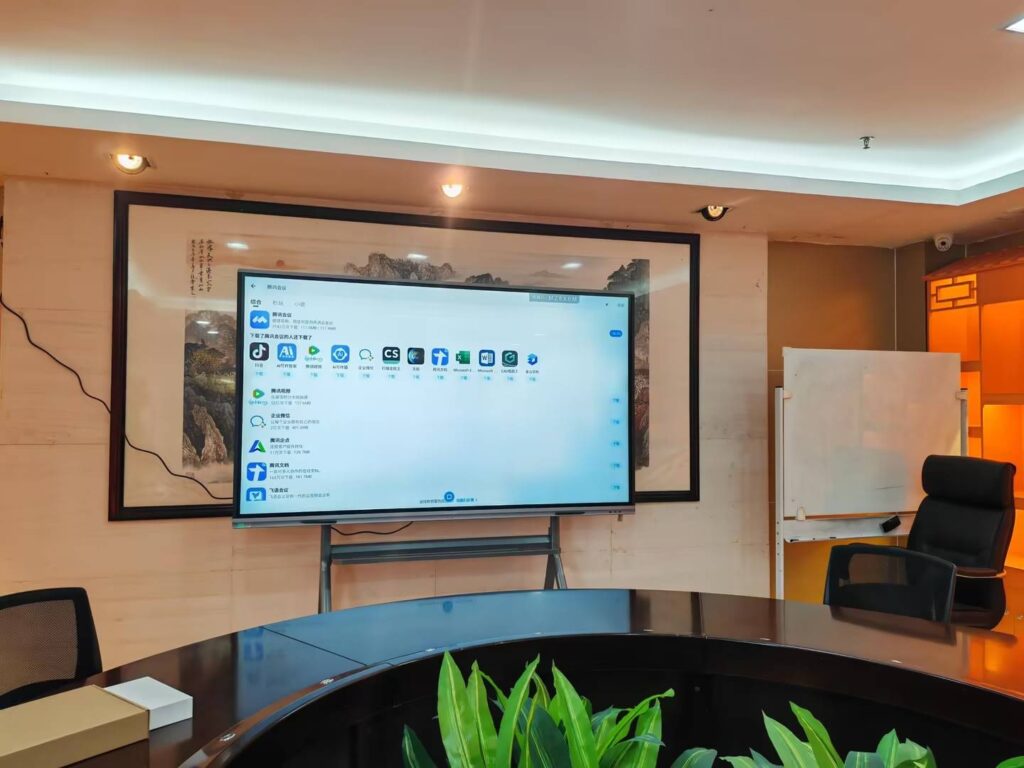
Connecting your phone to a smart board is one of the fastest ways to share content, control presentations, and make meetings or lessons more interactive. Whether you want to mirror your screen, cast a video, or open a document on a bigger display, this guide shows you how to connect phone to smart board step by step.
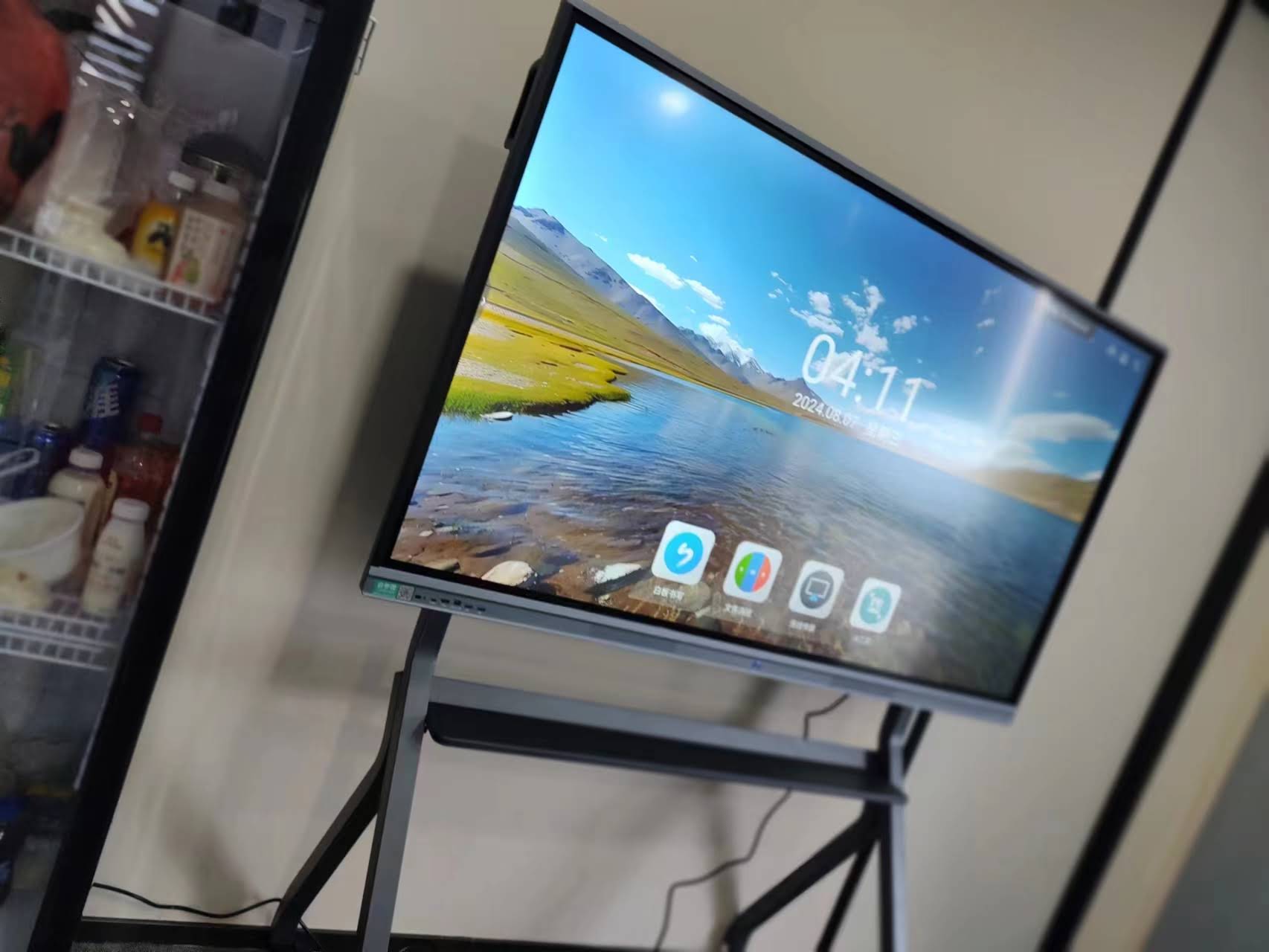
Most modern smart boards support multiple connection methods, including USB-C, HDMI with an adapter, Wi-Fi casting, and screen mirroring apps. The right method depends on your phone model, the smart board’s operating system, and whether you want a wired or wireless setup.
What You Need Before You Start
Before connecting, check these basics to avoid common issues:
- A compatible smart board with screen sharing or input ports
- Your phone charged above 20% for stable casting
- The right cable or adapter if using a wired connection
- Wi-Fi access if you plan to cast wirelessly
- Permission on the board if it is shared in a classroom or office
If you are evaluating display options for classrooms or offices, you can explore smart whiteboards, mini PCs, or all products to build a better collaboration setup. Leaderhub has 16 years of interactive-display experience and serves global education and business users.
Quick Comparison: Best Ways to Connect a Phone to a Smart Board
| Connection Method | Best For | Pros | Things to Watch |
|---|---|---|---|
| USB-C / HDMI wired | Presentations, stable sharing | Low lag, reliable signal | Needs adapter and compatible ports |
| AirPlay / iPhone casting | Apple users | Easy wireless sharing | Both devices must be on the same network |
| Android screen mirroring | Android phones | Fast and convenient | Feature names vary by brand |
| Third-party casting app | Mixed-device environments | Works across platforms | May need installation and permissions |
Method 1: Connect Your Phone with a Cable
This is the most stable option if you need smooth video playback or low-latency screen sharing.
Step 1: Check your phone port
Identify whether your phone uses USB-C, Lightning, or another connector. Android devices often support USB-C video output, while iPhones may need a Lightning-to-HDMI adapter or a wireless method.
Step 2: Find the smart board input
Look for an HDMI, USB-C, or screen-share input on the board. Some interactive displays also support touch-back control after the connection is established.
Step 3: Connect the adapter or cable
Plug the adapter into your phone, then connect the other end to the board. Switch the board’s source to the correct input if it does not change automatically.
Step 4: Confirm display output
If the screen appears, you are ready. If not, try a different cable, reselect the input source, or unlock your phone to allow display access.
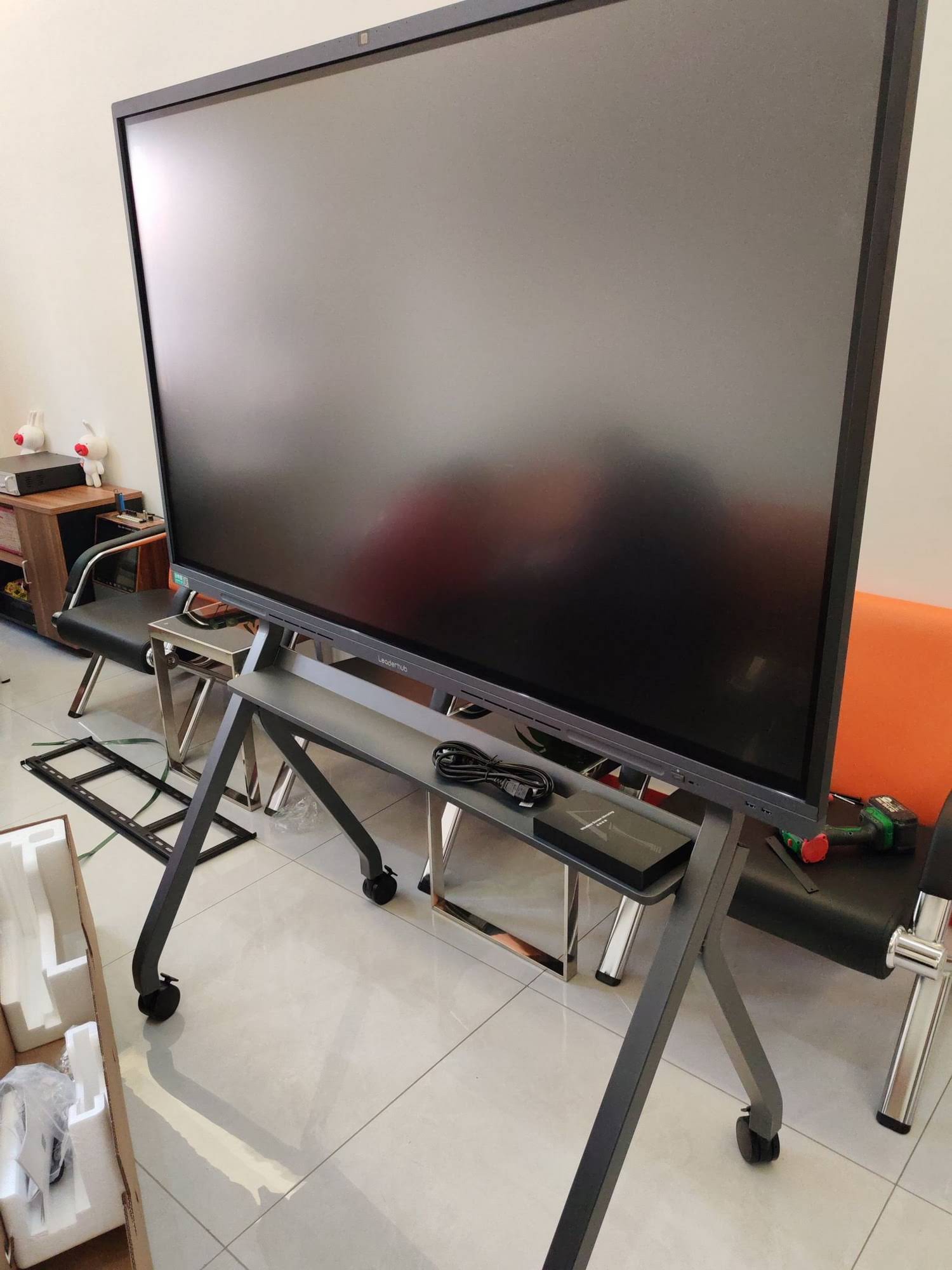
Method 2: Connect Your Phone Wirelessly
Wireless casting is ideal for classrooms, team meetings, and quick collaboration because it removes cable clutter and lets you move freely.
For iPhone users
- Make sure the smart board supports AirPlay or a compatible mirroring app.
- Connect both devices to the same Wi-Fi network.
- Open Control Center on your iPhone.
- Tap Screen Mirroring.
- Select the smart board name from the list.
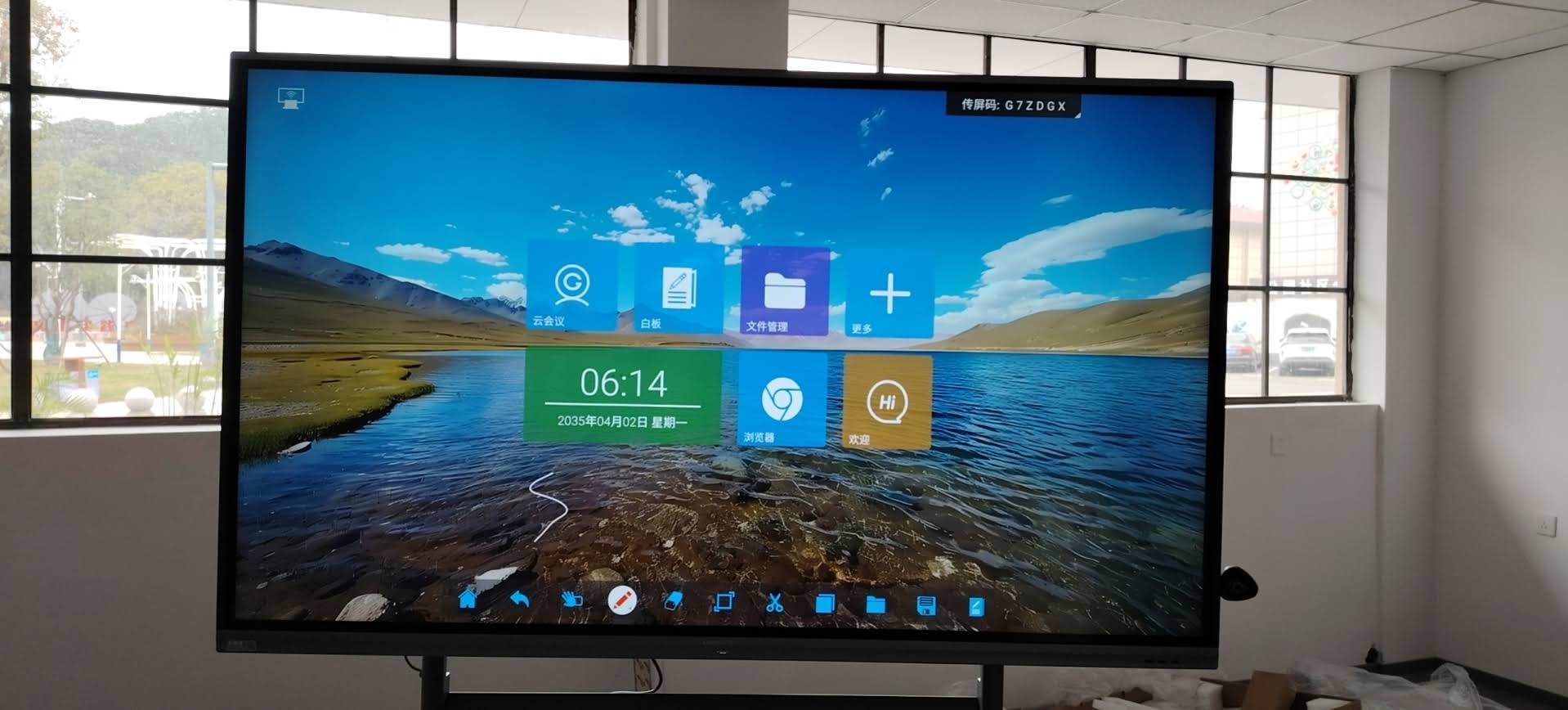
- Enter the code shown on the board if prompted.
For Android users
- Swipe down to open Quick Settings.
- Look for Cast, Smart View, Screen Share, or Wireless Projection.
- Tap the option and choose the smart board.
- Approve any pairing request on the board.
Android branding differs by manufacturer, so your device may use a different name for casting. If you do not see the feature, check your phone settings or use a supported app.
Method 3: Use a Browser-Based or App-Based Connection
Some smart boards support browser-based casting or companion apps. This is useful in shared environments where IT teams want more control over access.
- Open the cast app on the smart board
- Scan a QR code or enter a pairing code from your phone
- Allow permissions for screen sharing
- Start mirroring from the app interface
If your organization uses digital learning or collaboration tools, it can help to review trusted guidance such as the UNESCO Technology Recommendations or ISTE Education Technology Standards when planning classroom deployment.
Common Problems and How to Fix Them
| Problem | Likely Cause | Solution |
|---|---|---|
| No signal on the board | Wrong input source | Select the correct HDMI/USB-C input on the board |
| Phone not detected | Unsupported cable or adapter | Use a certified adapter or switch to wireless casting |
| Laggy video | Weak Wi-Fi or overloaded network | Move closer to the router or use a wired connection |
| No audio | Phone output settings | Check volume, mute settings, and board audio input |
Best Practices for Smooth Screen Sharing
- Keep both devices updated to reduce compatibility issues.
- Use the same Wi-Fi network for wireless casting.
- Close background apps that may consume bandwidth or battery.
- Test the connection before meetings or class time.
- Use landscape mode for slides, charts, and videos.
- Turn on Do Not Disturb to avoid notifications appearing on the board.
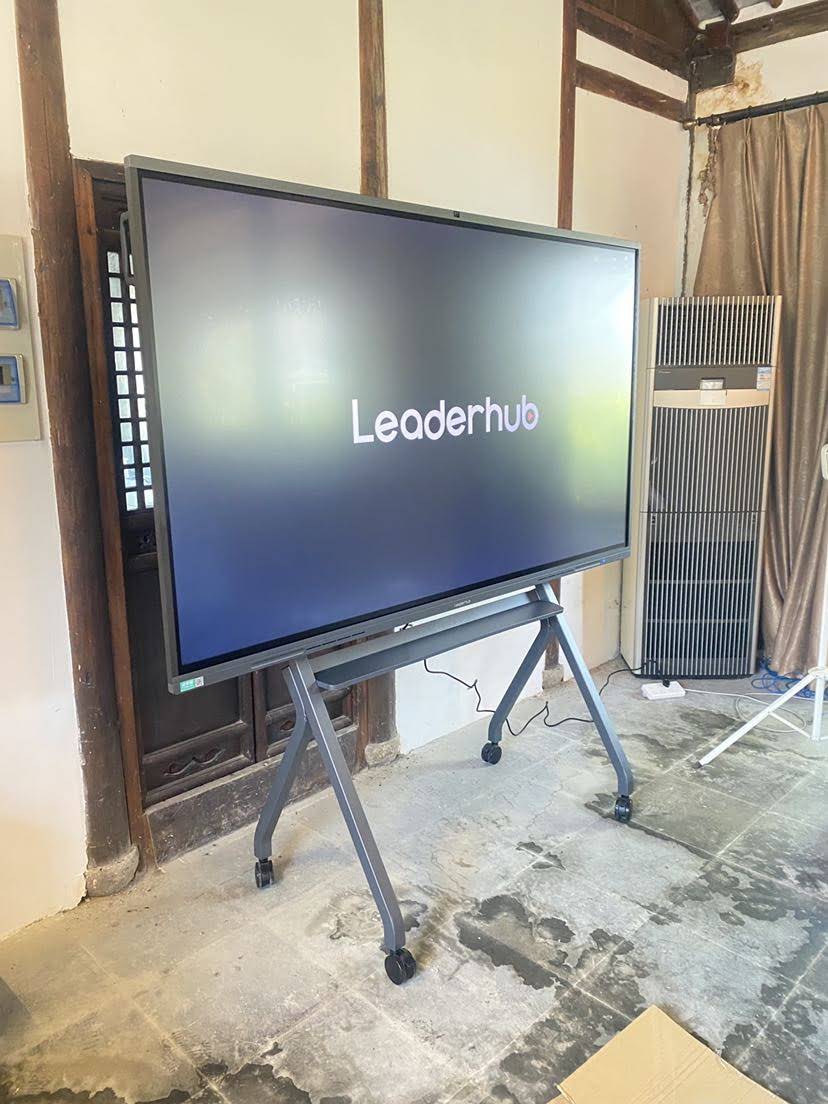
Choosing the Right Smart Board for Phone Connectivity
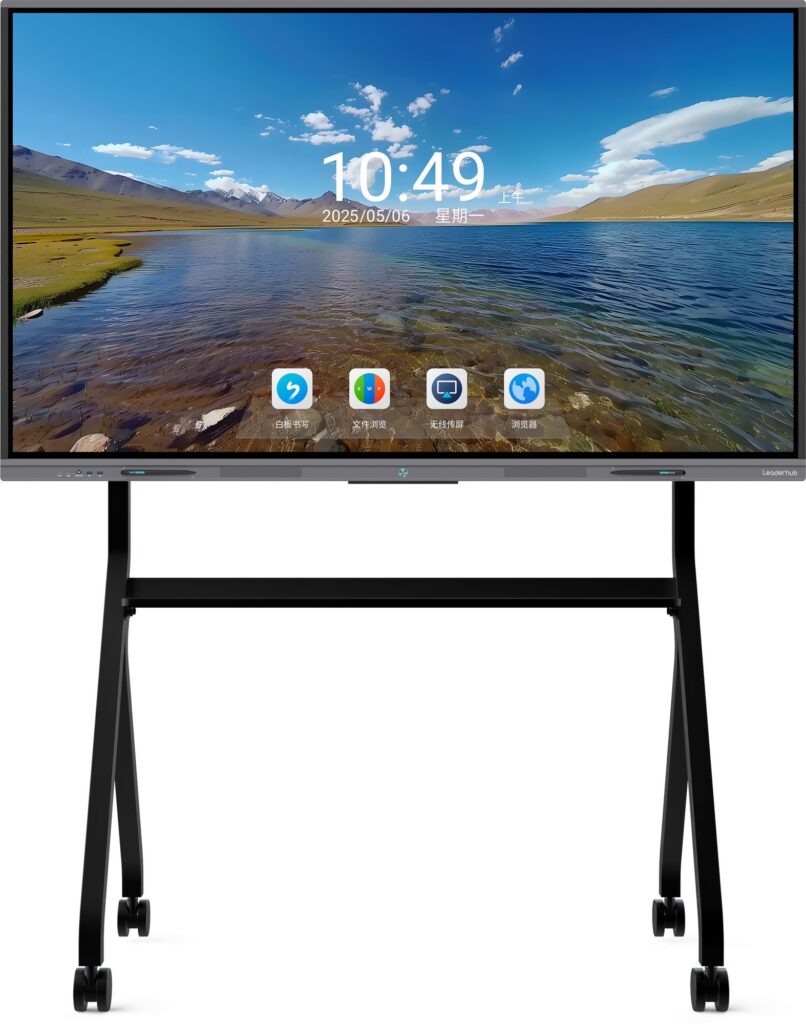
If you frequently connect a phone to a smart board, prioritize models with strong wireless support, responsive touch, and multiple ports. For smaller spaces, a 65-inch board may be enough. For boardrooms or training rooms, a larger model can improve visibility.
| Recommended Product | Best Use | Price |
|---|---|---|
| L65HM Interactive Smart Whiteboard | Small teams and classrooms | $1299.00 |
| L75HM Interactive Smart Whiteboard | Medium meeting rooms | $1599.00 |
| U55Pro Interactive Flat Panel | Mobile collaboration and flexible use | $2499.00 |
| LP5C Mini PC | Windows-based smart board setup | $799.00 |
For school IT teams, pairing a smart board with a reliable mini PC can improve app compatibility and make phone sharing more consistent across users.
FAQ: How to Connect Phone to Smart Board
Can I connect any phone to any smart board?
Not always. The best connection method depends on your phone’s operating system, the board’s ports, and wireless features. Some combinations work best with adapters, while others support instant casting.
Is wireless or wired connection better?
Wired connection is usually better for stability and low lag. Wireless connection is better for convenience and mobility. If you are presenting video or teaching live, wired is often safer; for quick collaboration, wireless is easier.
Why does my phone connect but the screen is black?
This usually happens because of a cable problem, an unsupported adapter, or a protected app. Try a certified cable, switch inputs, and test with a different app or file.
Can I control the smart board from my phone?
Some boards support limited remote control or annotation features through companion apps. Touch-back and remote tools depend on the brand and software version.
Final Setup Checklist
- Confirm your phone type and port
- Choose wired or wireless connection
- Select the correct input on the smart board
- Test audio, video, and touch response
- Keep backup cables and adapters nearby
Once you know how to connect phone to smart board, sharing content becomes much faster and more professional. With the right setup, your phone can instantly turn into a powerful presentation tool for meetings, classrooms, and collaborative work.
Explore more options with
contact us
or browse rotating screens
and smart whiteboards
to find the best display for your workflow.