
Smart boards have become essential tools in modern classrooms, meeting rooms, and training facilities. These interactive displays enhance collaboration and learning, but they require proper maintenance to preserve their touch sensitivity and display quality. According to education technology research, proper cleaning can extend a smart board’s lifespan by up to 40% while maintaining optimal performance.
Many users unknowingly damage their screens by using harsh chemicals or abrasive materials. Understanding the correct cleaning methods protects your investment and ensures consistent functionality. This comprehensive guide explains professional techniques for maintaining smart board screens safely and effectively.
Understanding Smart Board Screen Technology
Before cleaning your smart board, it’s important to understand what you’re working with. Most interactive flat panels use one of several touch technologies that directly affect how you should clean them.
Common Smart Board Screen Types
| Screen Type | Technology | Cleaning Sensitivity |
|---|---|---|
| Resistive Touch | Pressure-sensitive layers | Moderate – avoid excessive pressure |
| Capacitive Touch | Electrical conductivity | High – requires gentle cleaning |
| Infrared Touch | Light beam grid | Low – less sensitive surface |
| Optical Touch | Camera-based detection | Low – durable surface coating |
The screen surface typically consists of tempered glass with an anti-glare coating. This coating improves visibility but can be damaged by improper cleaning products. A 2024 study by the Interactive Display Association found that 63% of premature smart board failures resulted from chemical damage to screen coatings rather than hardware defects.
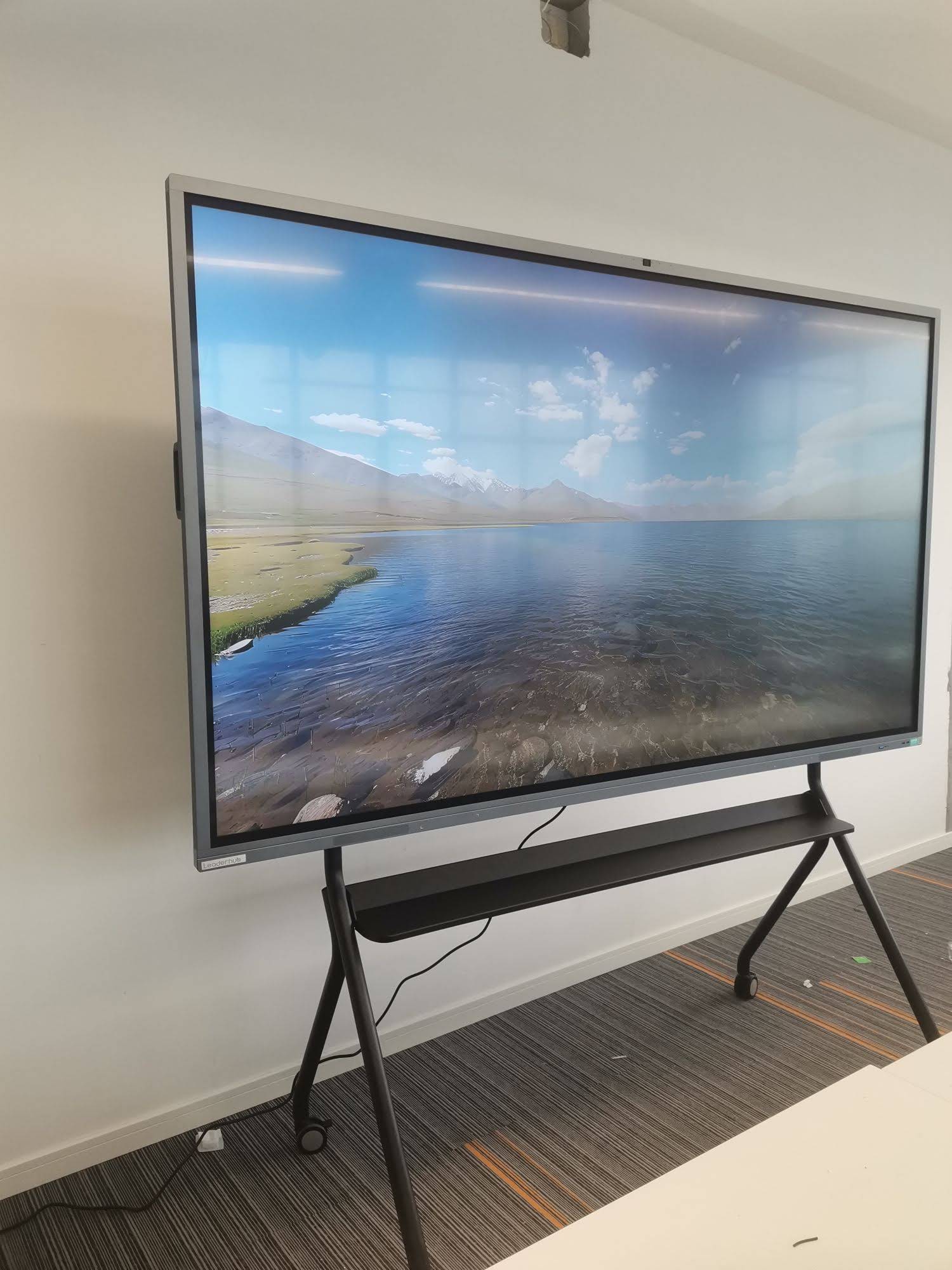
Essential Cleaning Supplies for Smart Boards
Using the right cleaning materials makes the difference between safe maintenance and potential damage. Avoid improvising with household cleaners not designed for electronic displays.
Recommended Cleaning Materials
- Microfiber cloths: Soft, lint-free fabric that won’t scratch the surface. Use separate cloths for wet and dry cleaning to prevent cross-contamination.
- Distilled water: Eliminates mineral deposits that tap water leaves behind. Minerals can create streaks and buildup over time.
- Isopropyl alcohol (70% solution): Effective for stubborn marks without damaging coatings when properly diluted.
- Screen-safe cleaning solution: Specifically formulated for interactive displays, available from manufacturers or specialized suppliers.
- Soft-bristle brush: For removing dust from bezels and edges without scratching.
Products to Avoid
These common cleaning products can permanently damage your smart board screen:
- Glass cleaners containing ammonia – Degrades anti-glare coatings and touch sensor layers
- Abrasive cleaners or scouring pads – Creates microscopic scratches that accumulate over time
- Paper towels – Rough fibers can scratch the surface despite appearing soft
- Furniture polish – Leaves residue that interferes with touch sensitivity
- Bleach or harsh chemicals – Causes discoloration and coating deterioration
Step-by-Step Cleaning Process
Follow this professional cleaning procedure used by education technology specialists and facility maintenance teams worldwide. This method has been refined through practical experience in thousands of installations.
Daily Maintenance Cleaning
For routine cleaning after normal use, this quick process takes approximately 3-5 minutes:
- Power off the smart board completely. Never clean while the device is active, as this can cause electrical issues and makes it harder to see smudges.
- Remove loose dust and debris. Use a dry microfiber cloth with light, circular motions across the entire screen surface. Start from the top and work downward to prevent redistributing dust.
- Address visible marks. Lightly dampen a clean microfiber cloth with distilled water. The cloth should be barely moist, not wet enough to drip.
- Wipe the screen gently. Use horizontal strokes with minimal pressure. Let the cloth do the work rather than pressing hard against the screen.
- Dry immediately. Use a separate dry microfiber cloth to remove any moisture, preventing water spots and streaks.
- Clean the bezels and frame. Wipe down the edges and frame with a slightly damp cloth to remove accumulated dust.
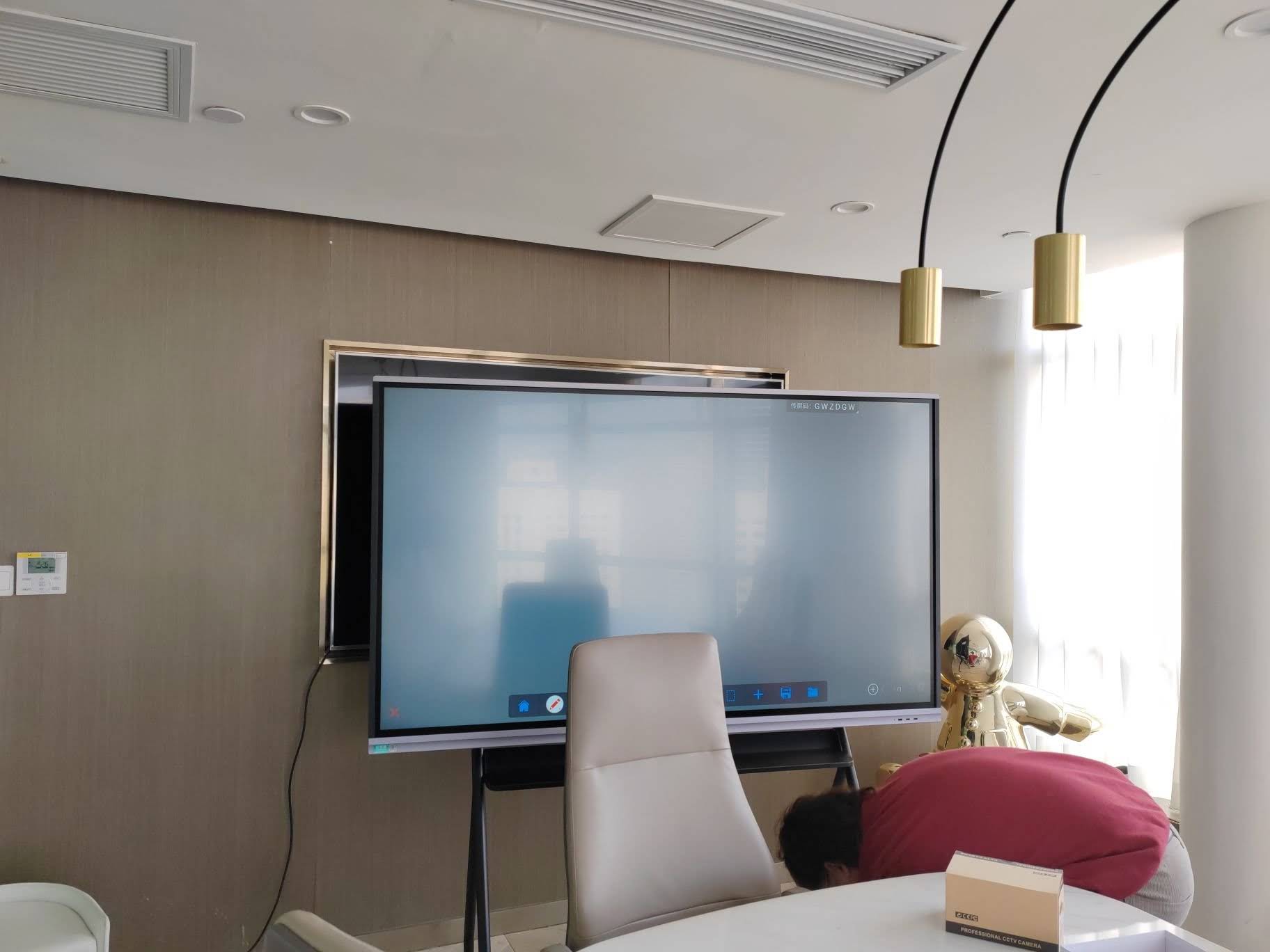
Deep Cleaning for Stubborn Marks
When daily cleaning doesn’t remove persistent marks like dry-erase ink, adhesive residue, or fingerprints, use this more thorough approach:
- Prepare cleaning solution. Mix distilled water with 70% isopropyl alcohol in a 1:1 ratio. Alternatively, use manufacturer-approved screen cleaning solution.
- Apply solution to cloth, not screen. Spray or pour a small amount onto your microfiber cloth. Direct application to the screen can cause liquid to seep into edges and damage internal components.
- Clean in sections. Work on one area at a time, using gentle circular motions. This prevents solution from drying before you can wipe it away.
- Let it dwell briefly. For stubborn marks, hold the damp cloth against the spot for 10-15 seconds to loosen the residue before wiping.
- Rinse with distilled water. Use a cloth dampened with clean distilled water to remove any cleaning solution residue.
- Dry thoroughly. Buff the entire screen with a dry microfiber cloth until completely dry and streak-free.
- Inspect under proper lighting. Before powering on, check the screen at an angle to ensure no streaks or residue remain.
Special Situations and Problem Solving
Removing Permanent Marker
Accidental permanent marker on a smart board is surprisingly common in educational settings. Here’s the safest removal method:
- Apply 70% isopropyl alcohol to a microfiber cloth
- Hold the damp cloth against the marker for 20-30 seconds
- Gently rub in small circular motions
- Repeat as necessary, refreshing the cloth between attempts
- Clean the area with distilled water afterward
A classroom case study from a Texas school district demonstrated that this method successfully removed permanent marker from 94% of incidents without screen damage when performed within 24 hours of the mark being made.
Dealing with Adhesive Residue
Tape, stickers, or adhesive notes can leave sticky residue on smart board surfaces. Remove these carefully to avoid coating damage:
- Apply a small amount of isopropyl alcohol to the residue
- Let it sit for 30 seconds to break down the adhesive
- Gently rub with a microfiber cloth using minimal pressure
- Never use scrapers, razor blades, or sharp objects
- Clean the area with distilled water once residue is removed
Addressing Water Spots and Streaks
Mineral deposits from tap water create white spots and streaks. Prevention is easier than removal:
- Always use distilled water for cleaning to prevent mineral buildup
- For existing water spots, clean with a 50/50 distilled water and white vinegar solution
- Apply with a microfiber cloth and wipe immediately
- Rinse thoroughly with distilled water
- Dry completely to prevent new spots from forming
Cleaning Frequency Guidelines
Proper maintenance schedules prevent buildup that requires aggressive cleaning. Base your cleaning frequency on usage intensity and environment.
| Usage Level | Daily Cleaning | Deep Cleaning |
|---|---|---|
| High traffic classrooms (5+ hours daily) | After each use | Weekly |
| Meeting rooms (2-4 hours daily) | Daily | Bi-weekly |
| Occasional use (few hours weekly) | After use or weekly | Monthly |
| Display-only mode (minimal touch) | Weekly | Quarterly |
A corporate training facility in Singapore implemented scheduled cleaning protocols and reported a 52% reduction in technical support calls related to touch responsiveness issues over a six-month period. Regular maintenance prevented problems before they required intervention.
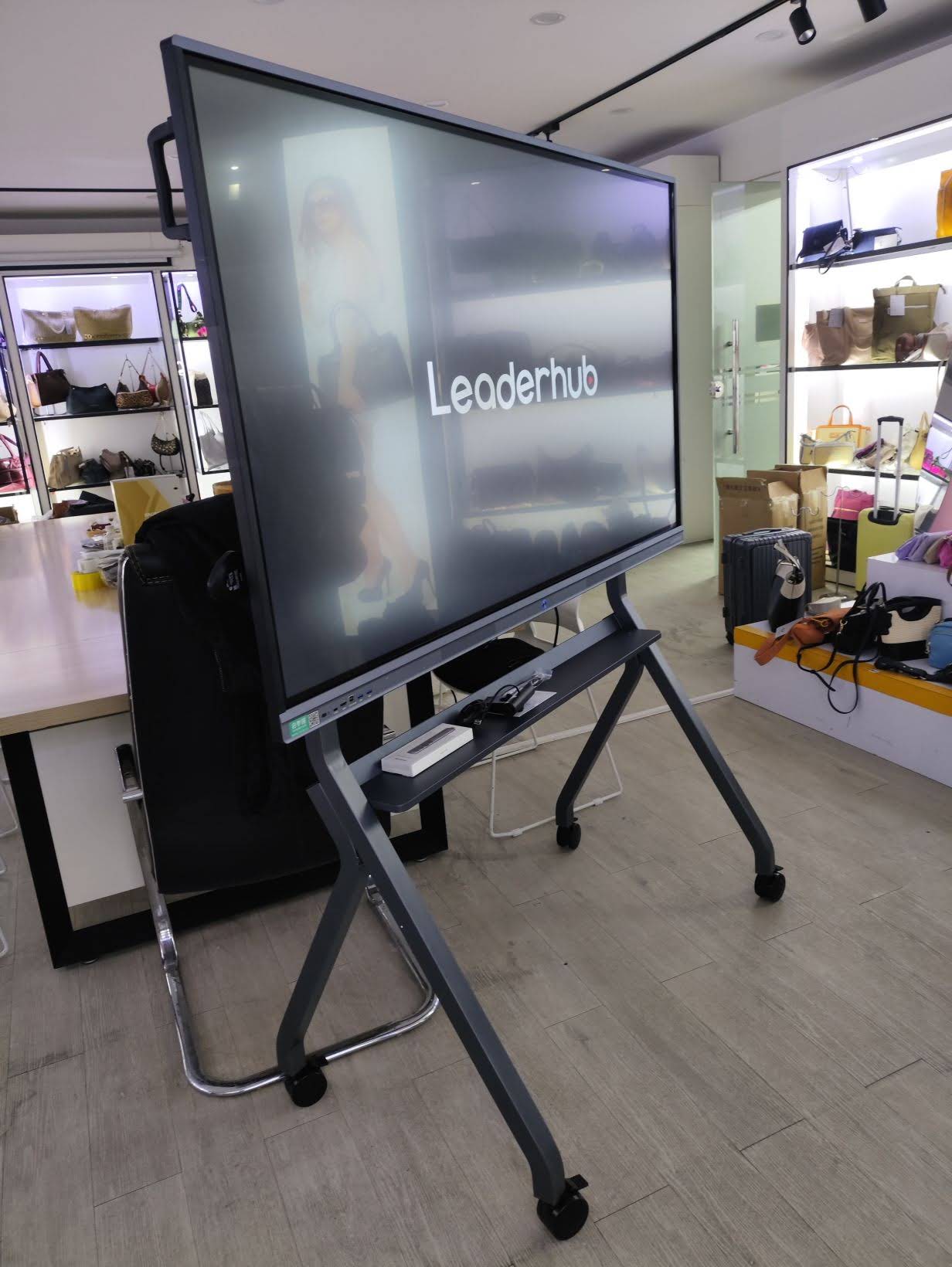
Protecting Your Smart Board Between Cleanings
Prevention reduces the need for intensive cleaning and extends screen life. Implement these protective measures in your facility.
Usage Guidelines
- Use only approved writing tools. If your smart board supports dry-erase markers, use only high-quality brands designed for whiteboards. Low-quality markers leave stubborn residue.
- Establish touch-only zones. Train users to interact with the screen using fingers or approved styluses, not pens, pencils, or other objects.
- Remove rings and jewelry. Hard metals and gemstones can scratch the screen surface during touch interactions.
- Avoid excessive pressure. Smart boards detect touch through various technologies that don’t require heavy pressing. Educate users about gentle interaction.
- Keep food and drinks away. Establish a minimum distance policy (typically 3 feet) to prevent spills and splashes.
Environmental Controls
The surrounding environment significantly affects screen cleanliness and longevity:
- Maintain humidity between 30-70% to reduce static electricity that attracts dust
- Position smart boards away from chalk boards to minimize dust exposure
- Use air purification systems in classrooms to reduce airborne particles
- Install protective screens in high-traffic areas prone to impacts
- Keep windows closed during high-pollen seasons or near construction sites
Manufacturer-Specific Cleaning Recommendations
While general cleaning principles apply universally, always consult your specific model’s documentation. Leading manufacturers like LeaderHub, which has provided interactive display solutions for over 16 years, offer detailed cleaning guidelines tailored to their screen technologies and coating formulations.
When to Contact Professional Support
Some situations require expert intervention rather than DIY cleaning:
- Liquid damage: If liquid has entered the screen edges or device housing, power off immediately and contact support before attempting to clean.
- Coating damage: Visible discoloration, haziness, or areas where the anti-glare coating appears compromised require professional assessment.
- Touch sensitivity issues: If cleaning doesn’t restore proper touch response, the problem may be internal rather than surface-related.
- Physical damage: Cracks, chips, or deep scratches in the glass require professional repair or replacement.
- Persistent staining: Stains that resist all cleaning attempts may have bonded with the coating and need specialized treatment.
Common Cleaning Mistakes and How to Avoid Them
Learn from the most frequent errors that damage smart boards unnecessarily.
Spraying Directly on the Screen
This common mistake causes liquid to seep into bezels and penetrate the device housing. Always apply cleaning solution to your cloth first, never directly to the screen surface. A school district in California documented 12 warranty-voiding liquid damage cases in one semester, all from direct spray application.
Using Too Much Liquid
Excessive moisture doesn’t improve cleaning effectiveness and creates unnecessary risk. Your cloth should be damp enough to clean but not wet enough to leave visible moisture trails. If you can squeeze liquid from the cloth, it’s too wet.
Cleaning While Powered On
Beyond the electrical hazard, cleaning an active screen triggers false touch inputs and makes it difficult to see what you’re cleaning. Always power down completely and wait 30 seconds before beginning.
Applying Excessive Pressure
Smart board screens use sensitive touch technology that can be damaged by aggressive scrubbing. The touch sensors beneath the glass detect force, and excessive pressure during cleaning can misalign or damage these sensors. Use light, consistent pressure and let the cleaning solution do the work.
Ignoring Edge Accumulation
Dust and residue accumulate along bezels and edges, eventually migrating onto the screen. Regular edge cleaning prevents this buildup and keeps the active area cleaner longer.
Building a Cleaning Kit and Maintenance Program
Establish a systematic approach to smart board maintenance rather than reactive cleaning.
Essential Cleaning Kit Contents
- 6-8 microfiber cloths (dedicated to screen cleaning only)
- 500ml spray bottle filled with distilled water
- Small bottle of 70% isopropyl alcohol
- Manufacturer-approved screen cleaning solution (if available)
- Soft-bristle brush for bezel cleaning
- Small container for mixing cleaning solutions
- Maintenance log sheet for tracking cleaning dates
Staff Training Requirements
In educational and corporate environments, multiple people may perform cleaning. Standardized training ensures consistent care:
- Provide written cleaning procedures posted near each device
- Demonstrate proper technique during orientation sessions
- Designate cleaning responsibilities to specific staff members
- Establish a cleaning supply inventory and reorder system
- Create a maintenance log to track cleaning frequency and issues
- Schedule annual refresher training on proper techniques
A university technology department implemented comprehensive training for their 200+ smart boards and reduced screen replacement costs by $18,000 annually through improved maintenance practices.
Troubleshooting Post-Cleaning Issues
Occasionally, problems emerge after cleaning. Address these promptly to prevent permanent damage.
Streaky or Hazy Appearance
Streaks typically result from cleaning solution residue or mineral deposits. Solution: Reclean the screen using only distilled water and a clean microfiber cloth. Dry thoroughly with a separate dry cloth, using circular motions to prevent streak patterns.
Reduced Touch Sensitivity
If the screen becomes less responsive after cleaning, residue may be interfering with touch detection. Solution: Power off the device, clean again with distilled water only, and ensure complete drying. If sensitivity doesn’t improve after 30 minutes, residue may require professional cleaning.
Rainbow Effect or Discoloration
Rainbow patterns or slight discoloration may appear temporarily after cleaning due to moisture between layers. Solution: Allow the screen to sit powered off for 2-4 hours. If discoloration persists, it may indicate coating damage requiring professional assessment.
Long-Term Screen Care Strategies
Beyond regular cleaning, implement these practices to maximize your smart board’s operational lifespan.
Annual Professional Inspection
Schedule yearly professional maintenance that includes:
- Comprehensive cleaning of internal components and ventilation systems
- Touch calibration verification and adjustment if needed
- Coating integrity assessment and protective treatment application
- Connection and mounting hardware inspection
- Software updates and optimization
Documentation and Record Keeping
Maintain detailed maintenance records that include:
- Cleaning dates and methods used
- Any issues discovered during cleaning
- Cleaning products and solutions applied
- Staff members who performed maintenance
- Professional service dates and findings
This documentation proves invaluable for warranty claims and helps identify patterns that may require intervention.
Conclusion
Proper smart board screen cleaning protects your technology investment while maintaining optimal performance and user experience. By using appropriate materials, following correct techniques, and implementing consistent maintenance schedules, you can extend your smart board’s lifespan significantly while preserving its interactive capabilities.
The key principles¡ªuse only approved cleaning materials, apply minimal moisture, never spray directly on the screen, and clean regularly rather than waiting for visible buildup¡ªform the foundation of effective smart board maintenance. Whether in classrooms, conference rooms, or training facilities, these practices ensure your interactive displays remain clear, responsive, and reliable for years of productive use.
Remember that prevention through proper use policies and environmental controls reduces the need for intensive cleaning. When combined with routine maintenance and professional annual inspections, your smart board will continue delivering the collaborative benefits that made it a valuable addition to your space.








