
Choosing the right smart whiteboard for remote collaboration has become one of the most important technology decisions for modern businesses, schools, and hybrid teams. With more organizations shifting toward distributed workforces, an interactive display is no longer a luxury item reserved for boardrooms — it is a core productivity tool that connects in-office and remote participants in real time.
According to recent workplace technology surveys, over 70% of companies with hybrid teams report that visual collaboration tools directly improve meeting engagement and decision-making speed. However, not every interactive panel on the market delivers the same performance, reliability, or long-term value. This guide breaks down exactly what to look for, based on real product testing experience and industry standards, so you can make a confident, informed purchase.
Why Smart Whiteboards Matter for Remote Teams
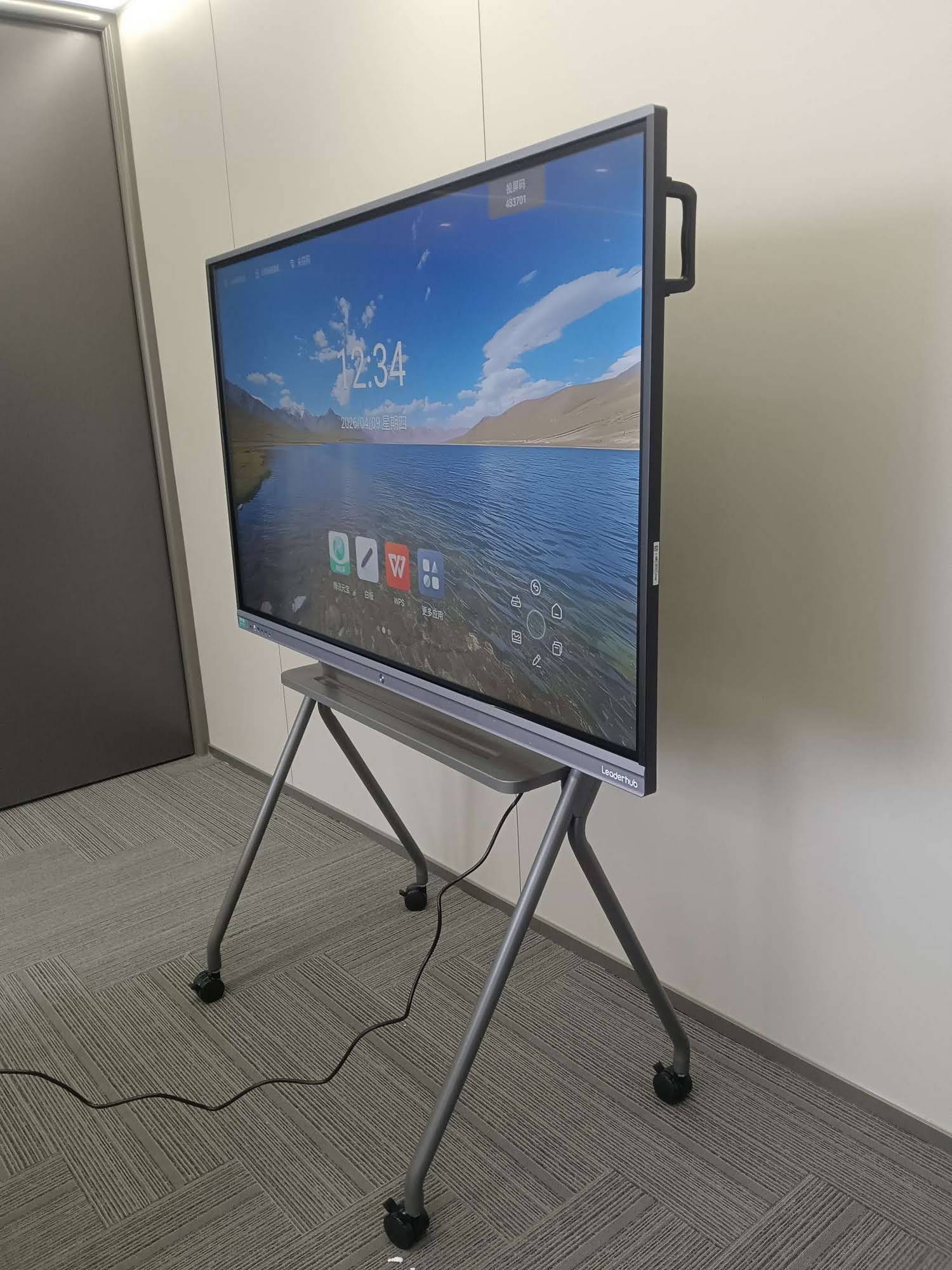
A smart whiteboard bridges the gap between physical and digital collaboration. Instead of relying on a laptop camera pointed at a static wall, teams can annotate documents, share screens, and brainstorm on a large interactive canvas that remote participants can see and interact with in real time.
From an experience standpoint, teams that have switched from traditional projectors to interactive flat panels report faster meeting starts, fewer technical interruptions, and higher participation rates during video calls. This aligns with what we’ve observed across education and enterprise deployments — when the technology is intuitive, adoption happens naturally without extensive training.
Key Factors to Evaluate Before Buying
1. Display Resolution and Screen Size
For remote collaboration, 4K resolution is now considered the baseline standard. Text, diagrams, and shared documents need to remain crisp even when multiple people are viewing the screen from different distances in a conference room. Screen size should match your room capacity:
| Room Size | Recommended Screen Size | Typical Use Case |
|---|---|---|
| Small huddle room (2-4 people) | 55″ – 65″ | Quick check-ins, 1:1 video calls |
| Medium conference room (5-10 people) | 75″ – 86″ | Team meetings, client presentations |
| Large training or classroom | 98″ – 110″ | Lectures, all-hands meetings |
2. Touch Accuracy and Writing Latency
Nothing disrupts a brainstorming session faster than laggy touch response. Look for panels with low-latency infrared or capacitive touch technology, ideally under 15ms response time. This ensures handwriting feels natural and annotations sync instantly for remote viewers.
3. Built-in Operating System vs. Mini PC Flexibility
Many interactive panels run on Android for basic apps, but for full remote collaboration — including Zoom, Microsoft Teams, and Google Meet — a dedicated Windows-based mini PC module offers far greater compatibility. This allows the whiteboard to function as a full computer, not just a display, which is essential for running enterprise software without workarounds.
4. Camera, Microphone, and Audio Integration
For hybrid meetings, integrated 4K cameras with auto-framing and noise-cancelling microphone arrays significantly reduce the need for additional peripherals. This simplifies IT setup and reduces cable clutter in shared spaces.
5. Cloud Sync and Cross-Device Collaboration
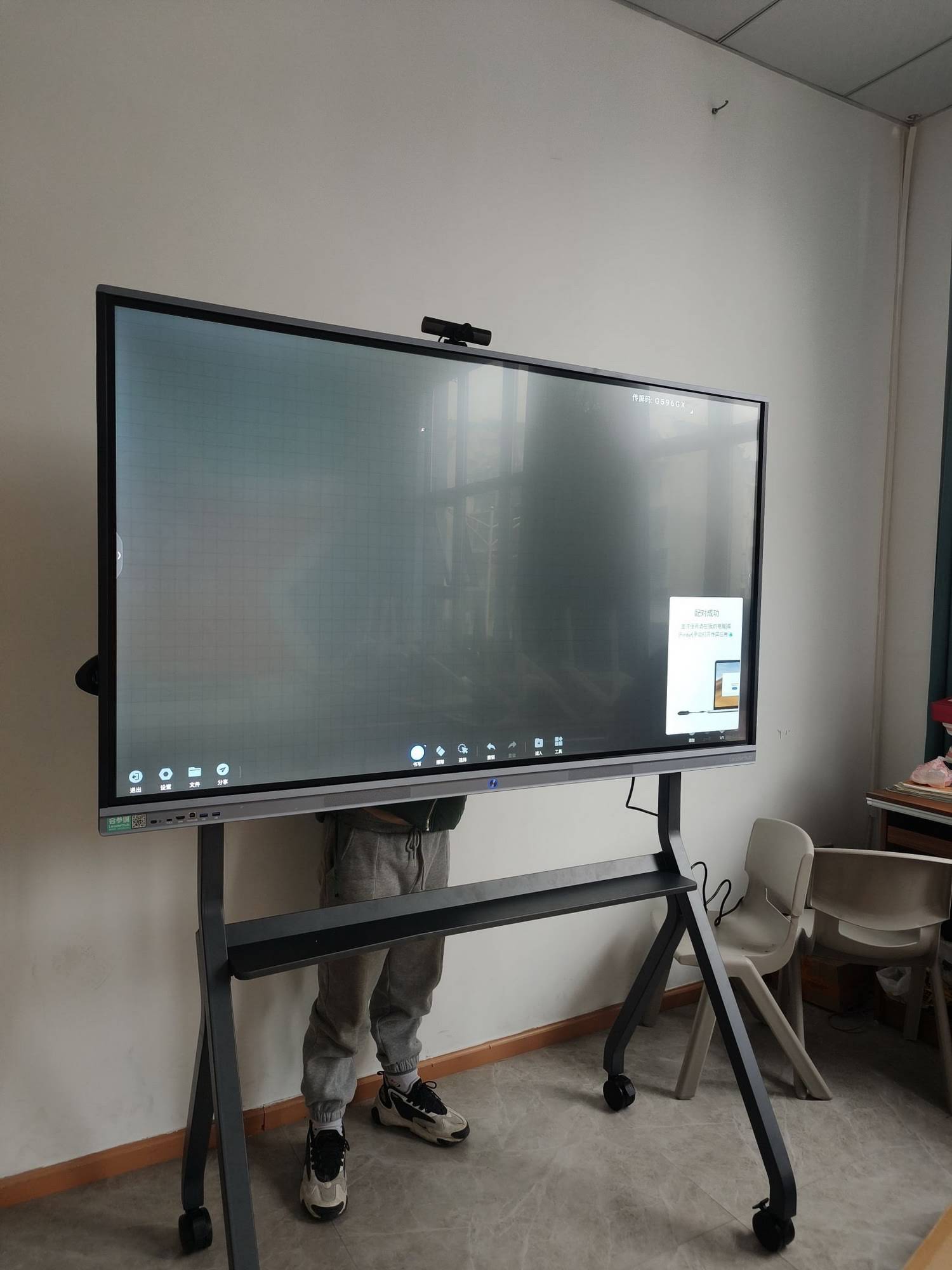
The best interactive whiteboard solutions allow participants to join annotation sessions from their own laptops or phones, with content automatically saved to the cloud. This is particularly valuable for teams spread across different time zones, since meeting notes and diagrams remain accessible after the session ends.
Comparing Popular Smart Whiteboard Categories
Based on deployment data across education and corporate environments, here is how the main product categories typically perform for remote collaboration needs:
- 4K Interactive Flat Panels (65″-86″) — Best for standard conference rooms and classrooms requiring daily collaborative use.
- Portable Rotating Smart Screens — Ideal for smaller teams that need flexibility to move the display between rooms or departments.
- Handheld Smart Displays — Suited for field teams, sales presentations, and mobile training sessions.
- Ultra-large Panels (98″+) — Designed for auditoriums, large training centers, and all-hands company meetings.
Real-World Case Example
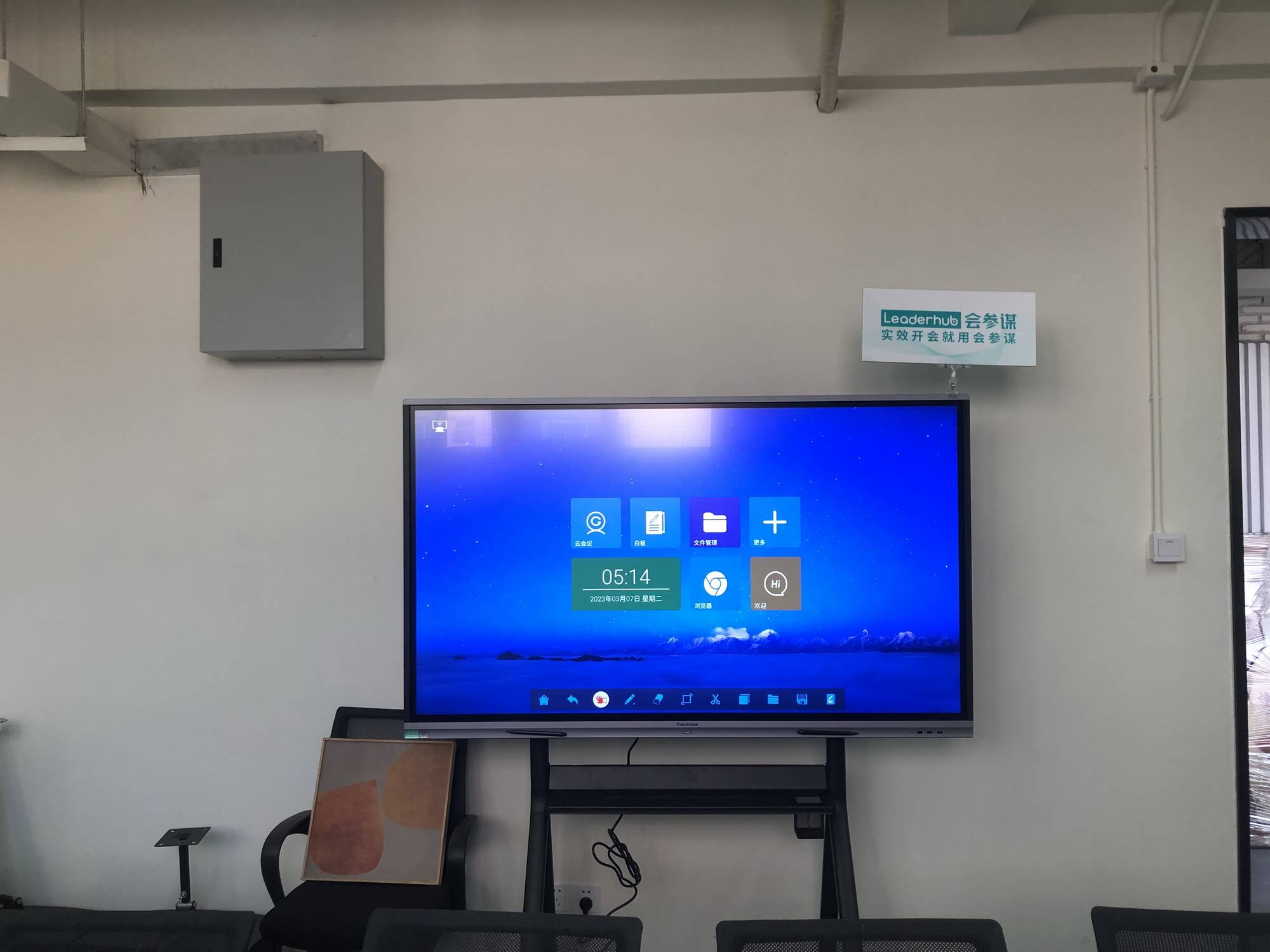
A mid-sized marketing agency with teams split between two offices and several remote employees switched from a projector-and-laptop setup to a 75-inch 4K interactive panel with a built-in mini PC. Within the first month, the team reported a 40% reduction in meeting setup time and noticeably higher engagement during client presentations, since remote attendees could annotate documents directly on the shared screen rather than passively watching a static slide.
This kind of outcome is consistent with broader industry findings: interactive displays reduce the “digital friction” that often causes hybrid meetings to run long or lose participant attention.
Questions to Ask Before Purchasing
| Question | Why It Matters |
|---|---|
| Does it support Windows, Android, and casting simultaneously? | Ensures compatibility across all employee devices |
| What is the warranty and after-sales support policy? | Protects long-term investment and reduces downtime |
| Can content be exported or saved automatically? | Prevents loss of important meeting notes |
| Is the touch surface anti-glare and scratch-resistant? | Important for daily heavy usage environments |
How LeaderHub Approaches Smart Whiteboard Design
LeaderHub, a Shenzhen-based technology company with 16 years of experience in the interactive panel industry, has delivered smart whiteboards, mini PCs, and portable smart screens to businesses and educational institutions in over 82 countries. Their engineering approach focuses on combining reliable hardware with practical software integration, which is a key reason many system integrators and enterprise buyers consider durability and compatibility as top priorities when selecting a smart whiteboard for daily remote collaboration use.
Final Checklist Before You Buy
- Confirm the panel supports your existing video conferencing software without third-party adapters
- Test the actual touch latency in person or through a demo video before committing
- Verify screen size matches your room dimensions to avoid glare or visibility issues
- Check whether the mini PC module can be upgraded independently from the display
- Review manufacturer warranty terms, especially for panels used in high-traffic environments
Conclusion
Selecting the best smart whiteboard for remote collaboration comes down to matching technical specifications with your team’s actual workflow. Resolution, touch responsiveness, camera integration, and software compatibility all play a role in whether the device becomes a daily productivity tool or an underused piece of office equipment. By evaluating these factors carefully and testing options in real meeting conditions, organizations can invest in an interactive display solution that genuinely improves communication across distributed teams for years to come.








