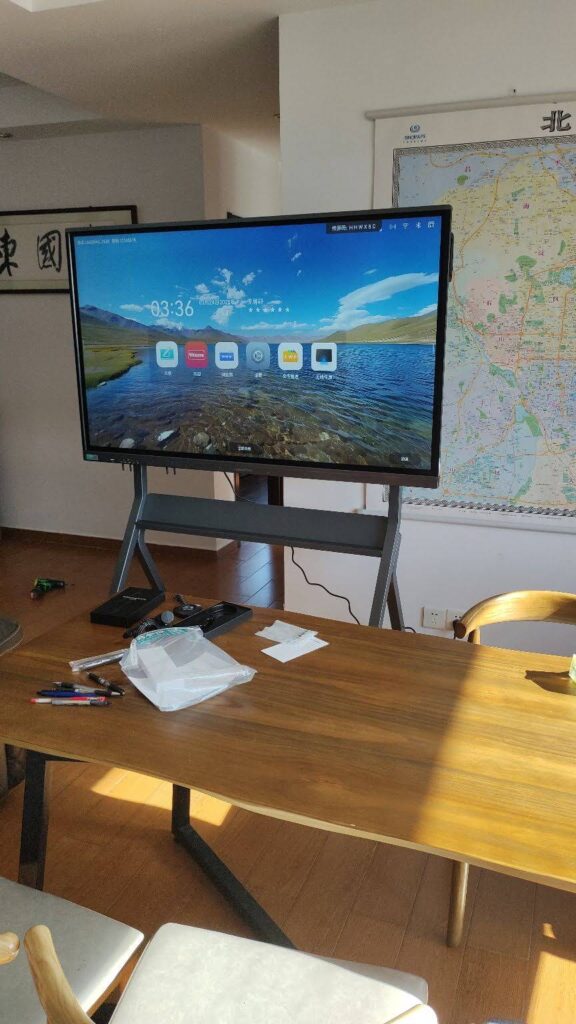
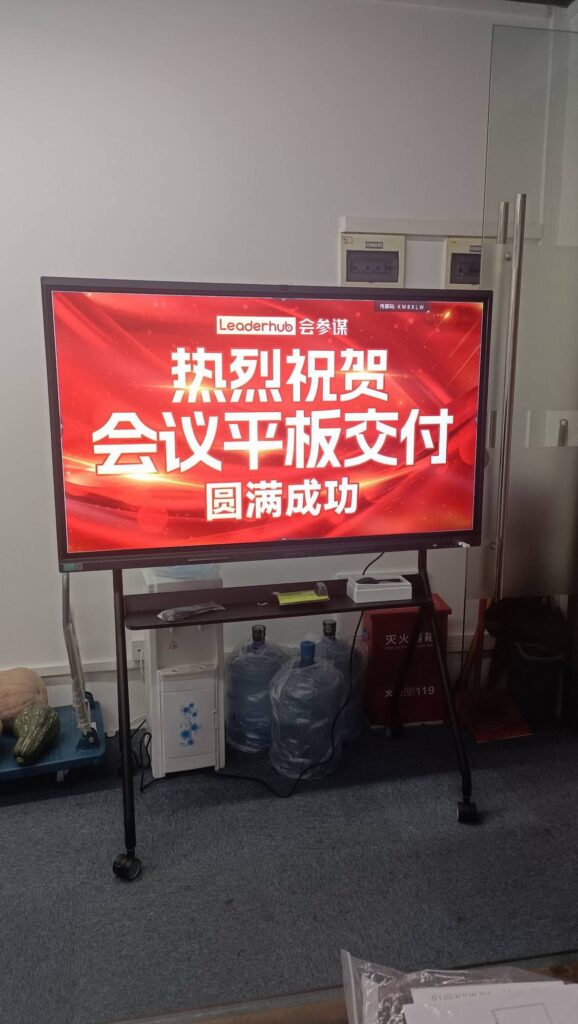
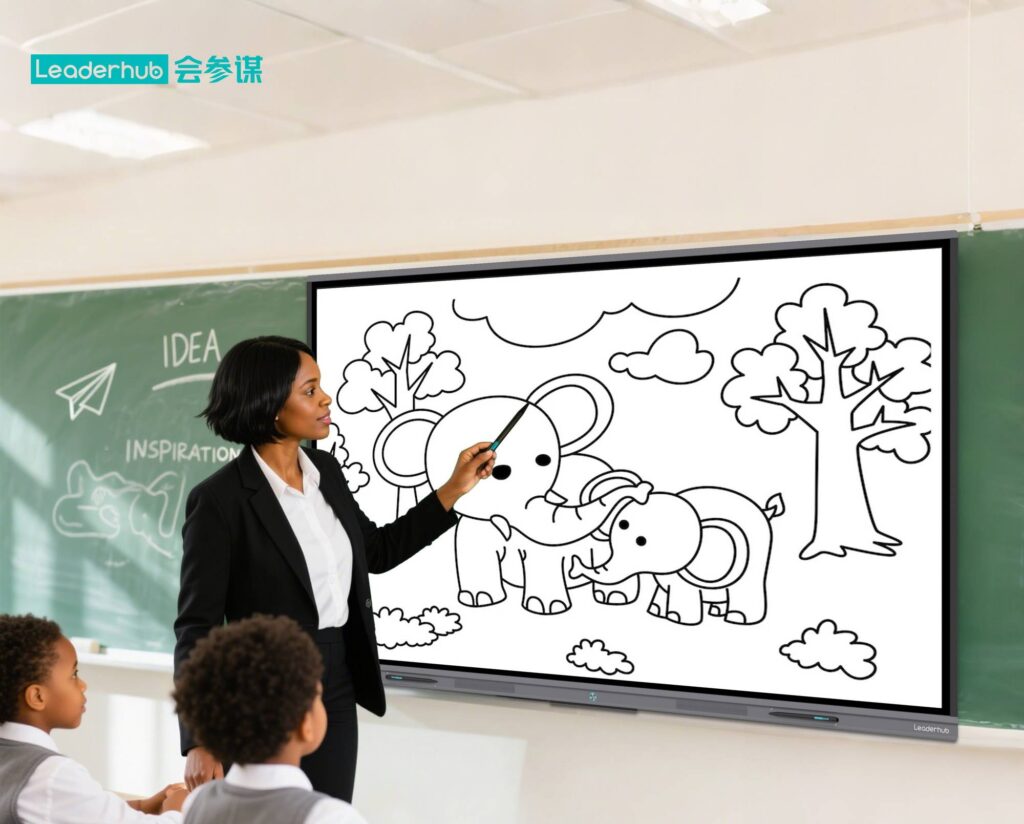
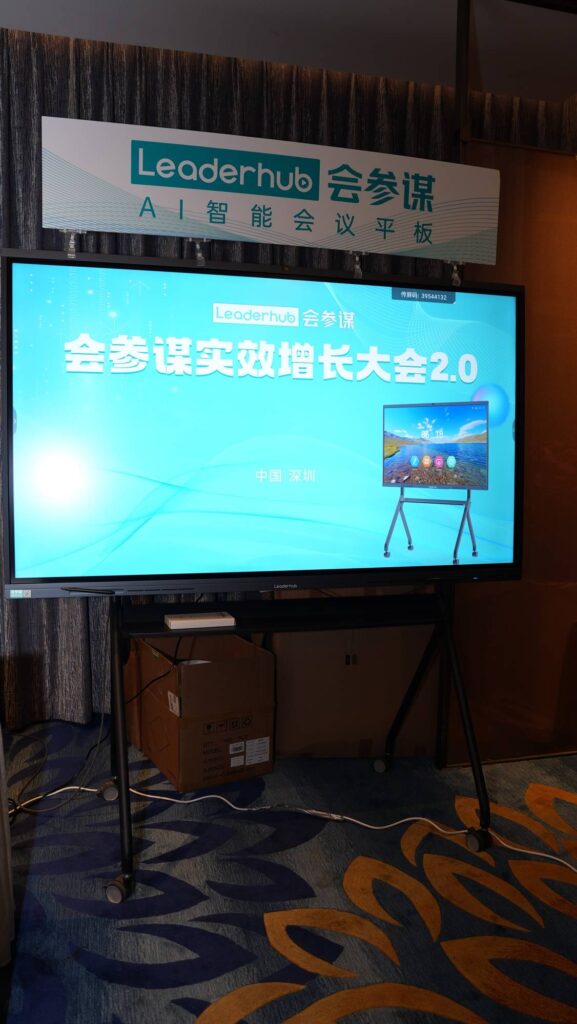
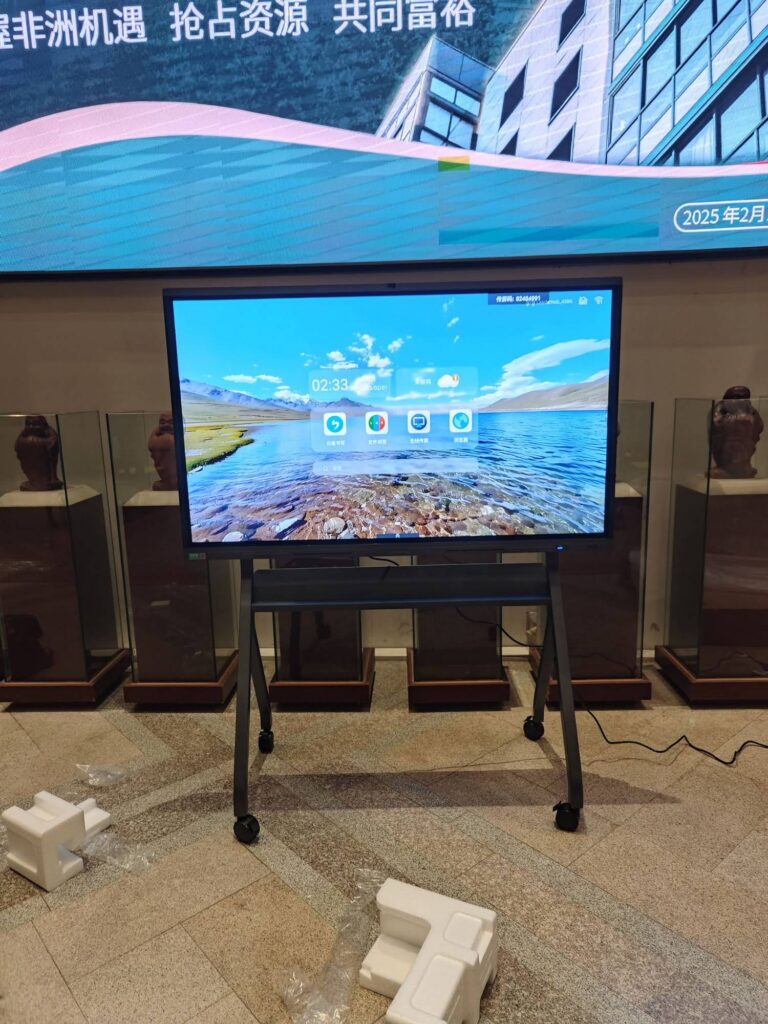
Choosing the best smart boards for classrooms in 2026 is no longer just a technology decision — it is a teaching decision. The right interactive display shapes how lessons are delivered, how students participate, and how much time teachers spend on setup versus instruction. This guide walks you through what matters most, compares the top interactive displays for teachers and schools, and helps you match the right panel to your classroom size and budget.
Why Classrooms Are Switching to Interactive Displays in 2026
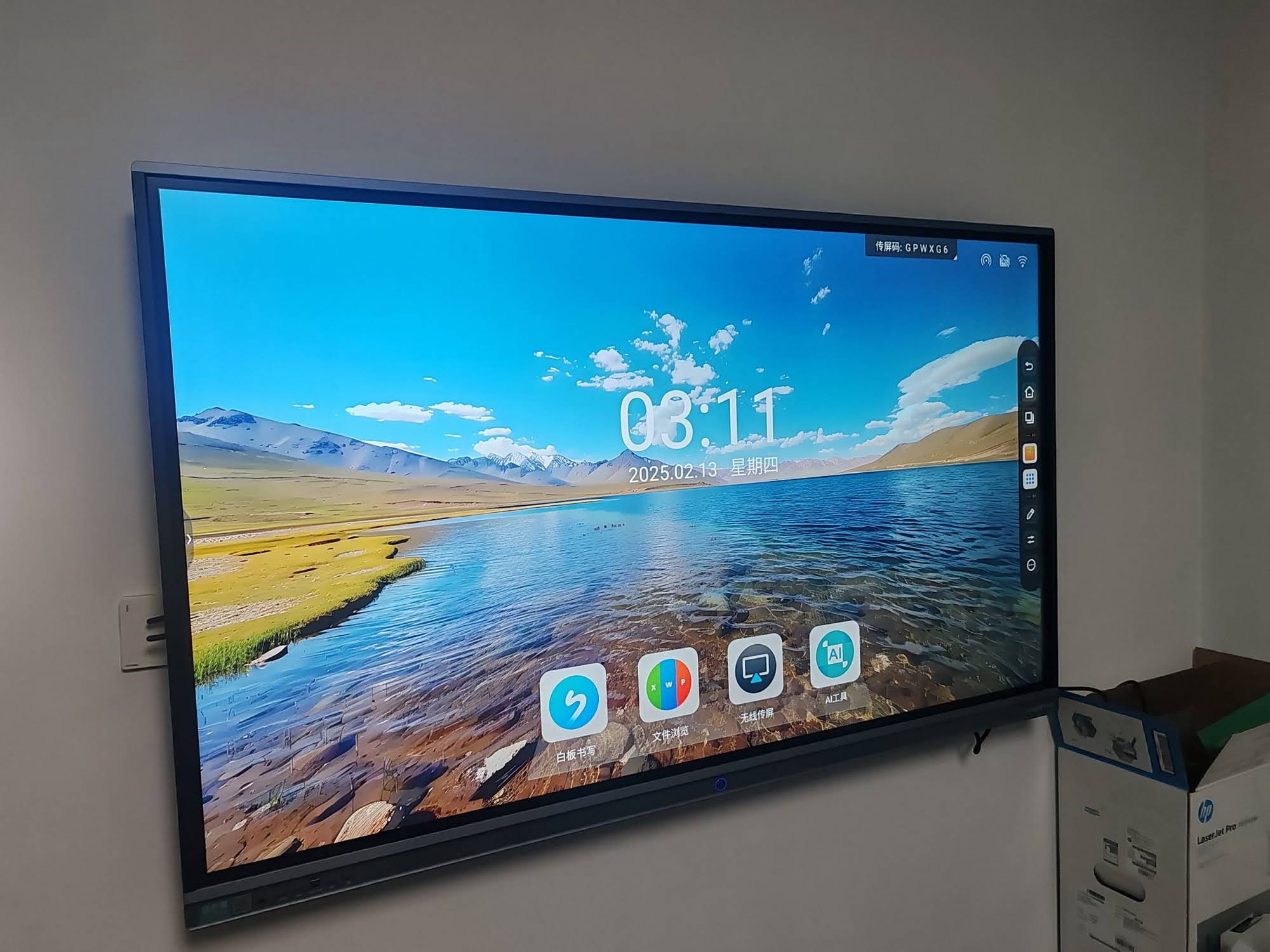
Traditional projectors and chalkboards are quickly disappearing from schools. Interactive flat panels combine a 4K display, multi-touch whiteboarding, wireless screen sharing, and built-in Android or Windows systems in a single device. For teachers, that means fewer cables, fewer bulbs to replace, and lessons that can be saved and shared instantly.
Global education bodies have also made it clear that technology should serve pedagogy, not replace it. The UNESCO Technology in Education Report stresses that digital tools deliver the strongest results when they are purpose-built for learning and properly supported. Likewise, the OECD Digital Education Outlook 2026 highlights that interactive, collaborative displays can improve engagement when teachers are trained to use them effectively.
What Teachers Gain From a Smart Board
- ✔ Annotate directly over PDFs, slides, videos, and web pages
- ✔ Let multiple students write on the board at the same time
- ✔ Mirror tablets, laptops, or phones wirelessly in seconds
- ✔ Save every lesson as an image or PDF and share with absent students
- ✔ Run hybrid or remote classes with built-in cameras and microphones
What Makes the Best Smart Boards for Classrooms in 2026?
Not every interactive display is suitable for school use. Classrooms demand bright, durable, easy-to-manage panels that work day after day with minimal IT support. Here are the features that separate a good classroom display from a great one.
1. Display Quality and Screen Size
A 4K UHD resolution ensures small text and diagrams stay sharp even from the back row. Anti-glare glass is essential in rooms with large windows, and brightness of 350–450 nits keeps content readable without dimming the lights. Screen size should follow the room: 65″ for small classrooms, 75″ for standard rooms, and 86″ or larger for lecture halls.
2. Touch Accuracy and Writing Feel
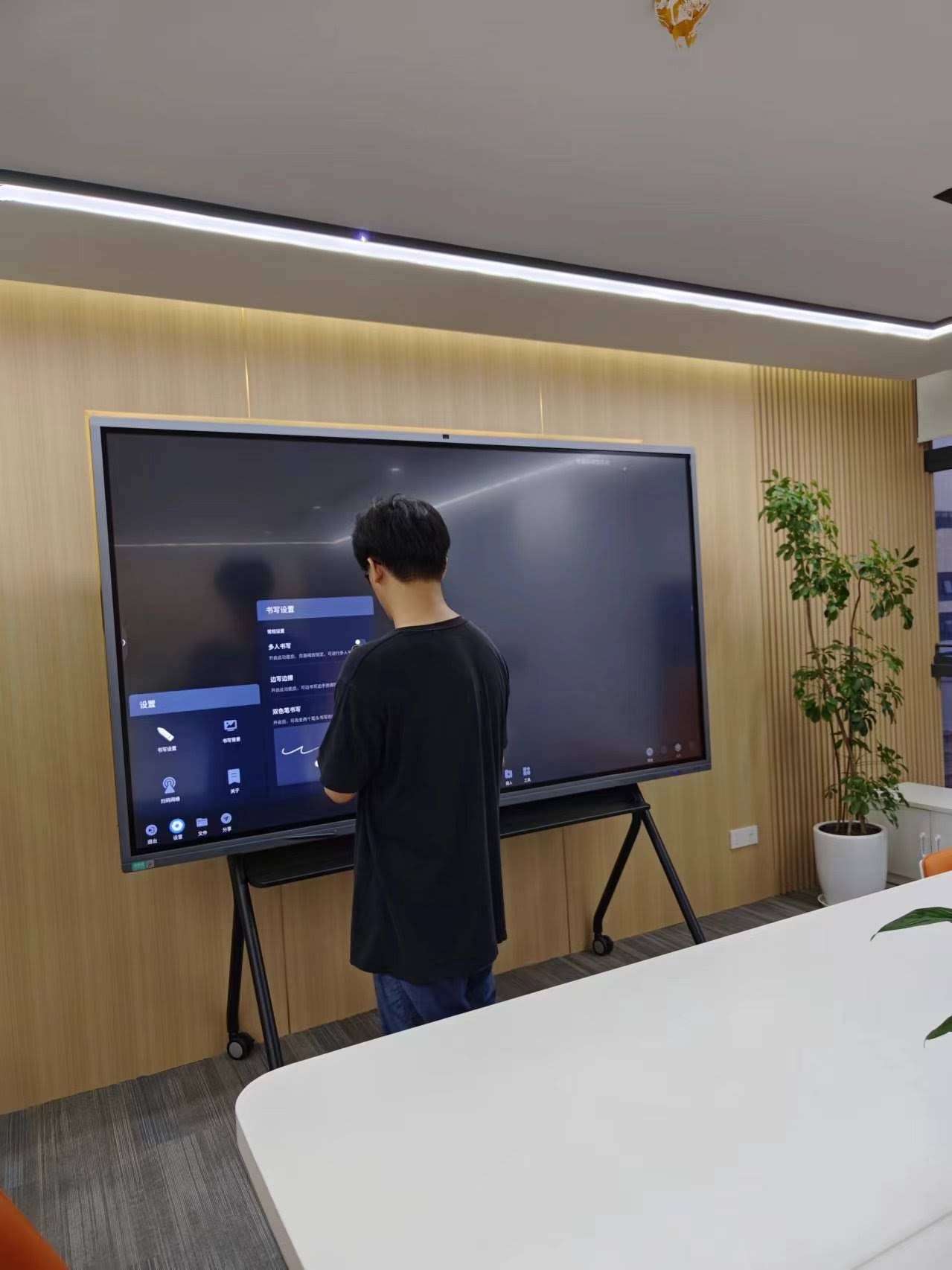
Look for 20-point or higher multi-touch, low writing latency, and palm rejection. Students should be able to rest a hand on the glass while writing, just as they would on paper. Dual-pen support with automatic color switching is a welcome bonus for math and science classes.
3. Built-in Software and Operating System
The best interactive displays ship with a modern Android system, a full-featured whiteboard app, and wireless casting that works with Windows, macOS, iOS, Android, and Chromebooks. Schools running Windows-based curricula should also consider pairing the panel with an OPS module or a compact mini PC for full desktop compatibility.
4. Durability and Safety
Tempered glass rated at 7H or higher, eye-care low blue light modes, and flicker-free backlights protect both the hardware and the students. Fanless designs reduce noise and dust intake, extending the life of the panel.
5. Connectivity and Future-Proofing
Multiple HDMI inputs, USB-C with power delivery, and front-facing ports make daily use far simpler. Wi-Fi 6 and Bluetooth 5 support keep the display compatible with the devices students will carry over the next five years.
| Feature | Minimum for Classrooms | Why It Matters |
|---|---|---|
| Resolution | 4K UHD (3840 × 2160) | Readable text from the back of the room |
| Touch Points | 20+ simultaneous | Supports group activities and games |
| Glass | Tempered, anti-glare, 7H | Survives years of daily student use |
| Wireless Casting | Cross-platform, 4+ devices | Students share work from any device |
| Eye Protection | Low blue light, flicker-free | Reduces fatigue over long school days |
| Warranty | 3 years or more | Protects district budgets long term |
Top Interactive Displays for Teachers and Schools
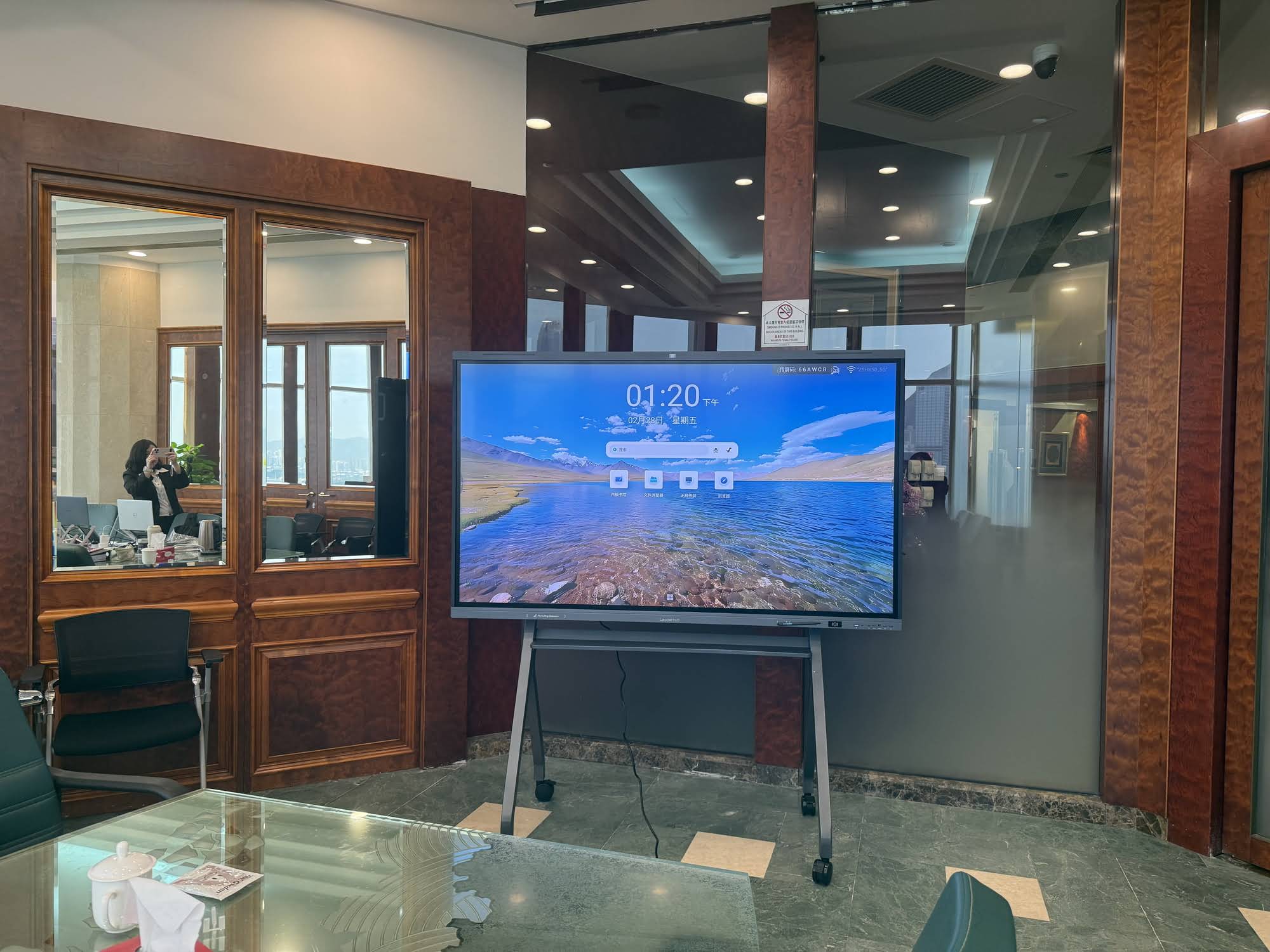
Below are our top picks for 2026, selected for their balance of display quality, classroom-friendly features, and price. All models in this list offer 4K resolution and multi-touch writing, so the right choice mostly depends on room size and budget. You can browse the full lineup in the smart whiteboard collection.
Best Value for Small Classrooms: L65ZM 65″ Interactive Whiteboard
The L65ZM 65″ Interactive Whiteboard is the most affordable way to bring 4K touch interaction into a classroom. It is ideal for rooms of up to 20 students, early-years classrooms, resource rooms, and small tutoring centers. At $1,099, it allows schools to equip several rooms without stretching the budget.
Best Overall for Standard Classrooms: L75ZM 75″ Interactive Whiteboard
For most K–12 classrooms, 75 inches is the sweet spot. The L75ZM 75″ Smart Panel delivers enough screen real estate for split-screen teaching — a video on one side, annotations on the other — while remaining easy to mount and service. Priced at $1,399, it is one of the strongest value propositions among the best smart boards for classrooms in 2026.
Best for Large Classrooms and Lecture Rooms: L86ZM 86″ Interactive Whiteboard
When a room holds 30 or more students, an 86″ display keeps everyone engaged. The L86ZM 86″ Interactive Whiteboard gives science labs, music rooms, and lecture halls a cinematic canvas at $1,699 — a price that was unthinkable for this size category just a few years ago.
Best Flexible Design: HM Series (65″ / 75″ / 86″)
The HM Series, available in 65″, 75″, and 86″ sizes, adds a rotatable, award-winning design that lets teachers switch between landscape and portrait orientation. Portrait mode is especially useful for displaying long documents, vertical timelines, poetry, or coding exercises. The design was recognized by the Leaderhub HM Series Muse Design Award listing.
Best Premium Teaching Panel: L75H Pro Interactive Flat Panel
The L75H Pro 4K Interactive Flat Panel is built for schools that want higher performance for hybrid teaching, STEM simulations, and heavy multitasking. It is a strong fit for secondary schools, colleges, and teacher-training institutions.
Best Mobile Option: U55Pro 55″ Mobile Smart Display
Not every school can mount a panel in every room. The U55Pro 55″ Mobile 4K Smart Display rolls between classrooms, libraries, and breakout spaces, making it perfect for shared facilities, special-education programs, and makerspaces.
Best for Auditoriums: L110H 110-Inch Interactive Flat Panel
For auditoriums, assembly halls, and university lecture theatres, the L110H 110-Inch Interactive Flat Panel replaces projector systems entirely with a bright, touch-enabled 4K surface that remains legible in rooms with full lighting.
| Model | Size | Best For | Price |
|---|---|---|---|
| L65ZM | 65″ | Small classrooms, tutoring centers | $1,099 |
| L65HM | 65″ | Flexible rooms needing rotation | $1,299 |
| L75ZM | 75″ | Standard K–12 classrooms | $1,399 |
| L75HM | 75″ | Language, coding, and design classes | $1,599 |
| L86ZM | 86″ | Large classrooms, labs | $1,699 |
| L75H Pro | 75″ | Hybrid teaching, STEM, higher education | $2,399.40 |
| U55Pro | 55″ Mobile | Shared spaces, libraries, makerspaces | $2,499 |
| L86HM | 86″ | Premium large rooms with rotation | $3,199 |
| L110H | 110″ | Auditoriums, lecture theatres | $7,999 |
How to Choose the Right Screen Size for Your Classroom
Screen size is the single most common mistake schools make. A panel that is too small forces students to squint; one that is too large can overwhelm a compact room and increase cost unnecessarily. Use the viewing-distance rule: the farthest student should sit no more than roughly six times the screen height away.
| Room Type | Typical Students | Max Viewing Distance | Recommended Size |
|---|---|---|---|
| Small classroom / tutoring room | 10–20 | Up to 5 m | 65″ |
| Standard classroom | 20–30 | Up to 6.5 m | 75″ |
| Large classroom / lab | 30–45 | Up to 8 m | 86″ |
| Lecture hall / auditorium | 60+ | 10 m and beyond | 110″ |
Budgeting for Smart Boards: Total Cost of Ownership
The purchase price is only part of the equation. When comparing the best smart boards for classrooms in 2026, school administrators should evaluate the full cost over a five-to-seven-year lifecycle.
- Hardware: The panel itself, wall mount or mobile stand, and any OPS or mini PC module.
- Installation: Mounting, cabling, and network configuration — usually a one-time cost.
- Software and licenses: Many panels include whiteboard and casting software at no extra charge; confirm this before buying.
- Maintenance: Projector-based systems need lamp replacements every 2–3 years; LED panels do not.
- Energy: A modern 75″ panel typically consumes less power than an older projector plus a separate PC.
- Training: Budget time for professional development so the hardware actually changes classroom practice.
For a practical framework on evaluating district needs before purchasing, see this guide on Choosing an Interactive Display for K-12.
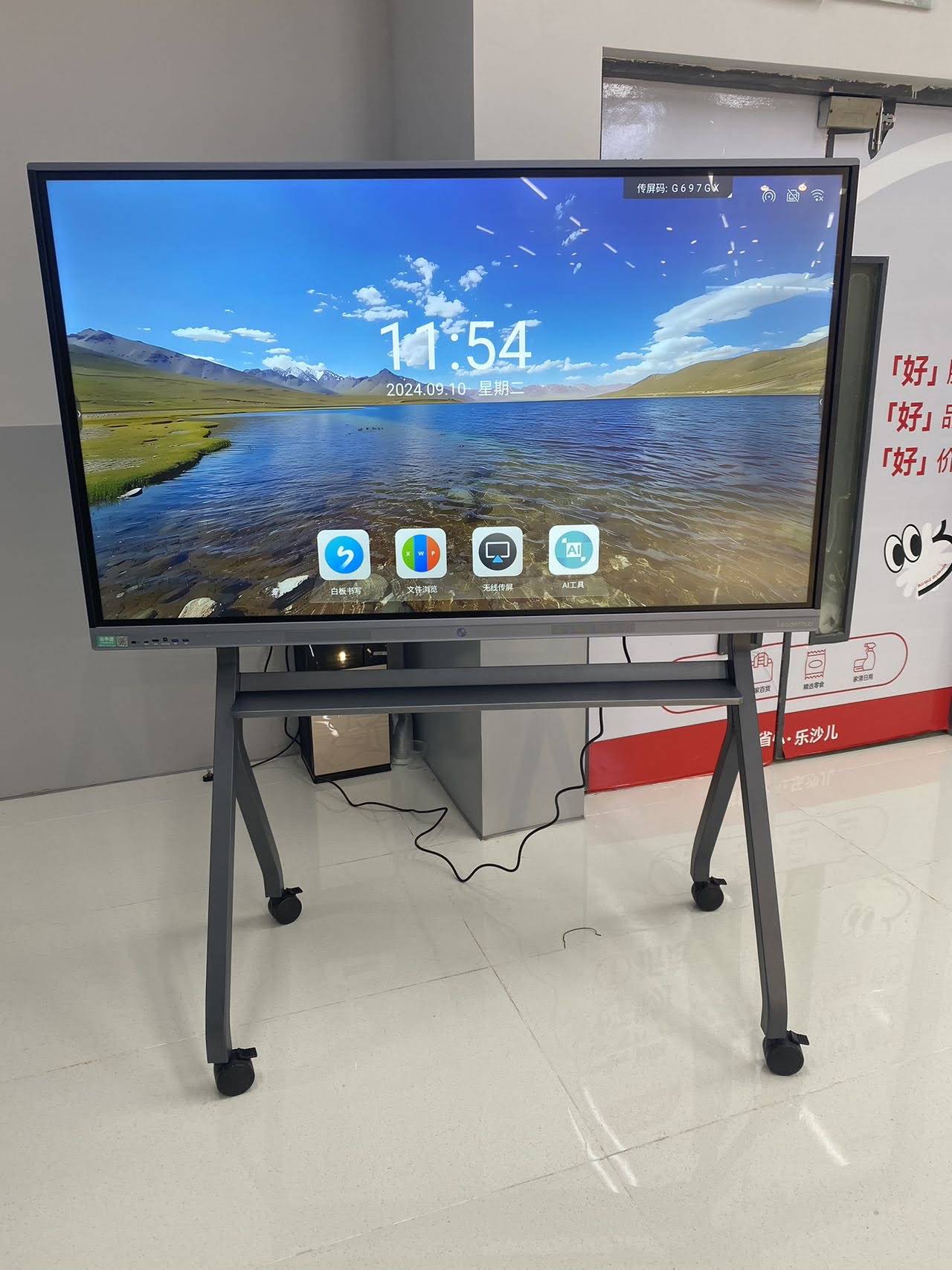
Getting the Most From Your Interactive Display
Hardware alone does not improve learning outcomes. The OECD Digital Teaching Guidance and the ISTE Standards for Educators both emphasize that teacher confidence is the deciding factor in whether classroom technology succeeds. Here is a simple rollout plan that works for most schools.
A Four-Week Teacher Onboarding Plan
- Week 1 – Basics: Turning on, switching sources, opening the whiteboard, saving lessons.
- Week 2 – Casting: Mirroring teacher and student devices wirelessly; using split screen.
- Week 3 – Interactivity: Multi-student writing, quizzes, timers, and annotation over video.
- Week 4 – Sharing: Exporting lessons as PDFs, QR code sharing, and cloud storage.
Classroom Management Tips
- Create a shared “lesson template” so teachers start every class with a consistent layout.
- Use screen lock or presenter mode during tests to keep the display focused.
- Pair the panel with a compact mini PC if your curriculum relies on Windows-only software.
- For small-group stations, a portable touch screen such as the U24M handheld smart screen lets students work independently and then cast results to the main board.
Quick tip: Ask vendors for a demo unit before a district-wide purchase. Testing writing latency, glare, and casting reliability in a real classroom reveals far more than a spec sheet.
Frequently Asked Questions
What size smart board is best for a classroom?
For a standard classroom of 20–30 students, a 75″ panel offers the best balance of visibility and cost. Smaller rooms do well with 65″, while rooms of 30+ students benefit from 86″.
Are interactive flat panels better than interactive projectors?
In most cases, yes. Flat panels are brighter, require no lamp replacements, produce no shadows, and offer far more precise touch. Over a five-year period they are usually cheaper to own.
Do smart boards work without an internet connection?
Yes. Whiteboarding, annotation, and local file playback all work offline. Internet is only needed for cloud features, browsing, and video conferencing.
Can students connect their own devices?
Modern panels support wireless casting from Windows, macOS, iOS, Android, and Chromebooks, often with several devices displayed on screen at once. Teachers can approve or deny each connection.
How long does a classroom smart board last?
A quality LED interactive display is typically rated for 50,000 hours of use — roughly 15–20 years of school days — making it one of the longest-lasting investments in a classroom.
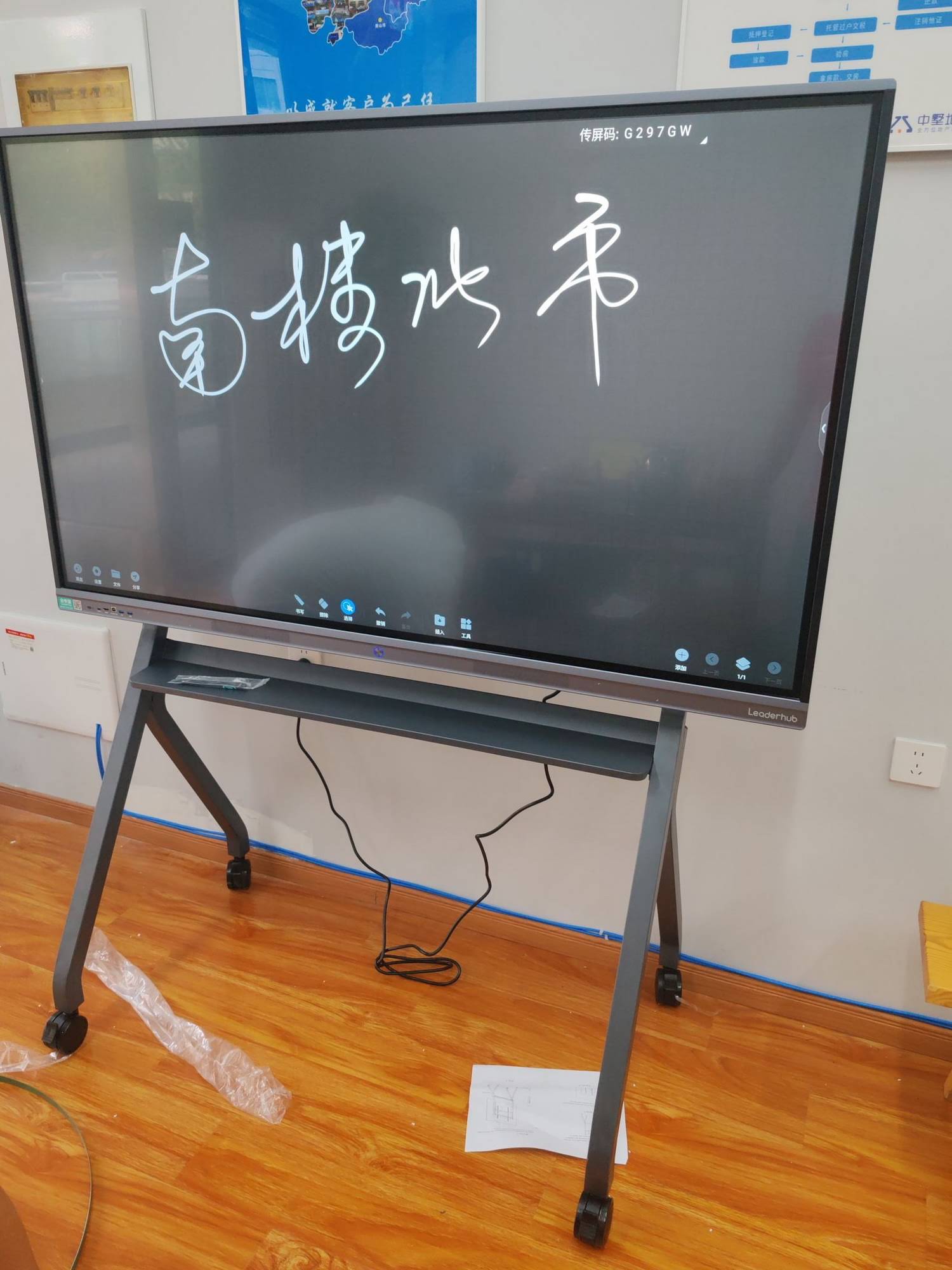
Final Thoughts: Picking the Right Smart Board for Your School
The best smart boards for classrooms in 2026 share a few traits: sharp 4K displays, responsive multi-touch writing, effortless wireless sharing, and a price that lets schools equip more than one room. For most schools, the 75″ L75ZM is the most sensible starting point, with the 65″ L65ZM for smaller rooms and the 86″ L86ZM for large classrooms. Schools seeking rotation, mobility, or auditorium-scale displays will find the HM Series, U55Pro, and L110H well suited to those specialized needs.
All the displays featured in this guide are manufactured by Leaderhub, a Shenzhen-based technology company with 16 years of interactive-display expertise, ranked No.1 in its JD.com subcategory and trusted by education, enterprise, and government customers in more than 82 countries. Its mission — AI Changes Life — focuses on making interactive technology accessible and affordable for schools of every size.
Ready to upgrade your classrooms? Explore the full range of interactive displays or contact the team for education pricing, bulk orders, and OEM/ODM options.