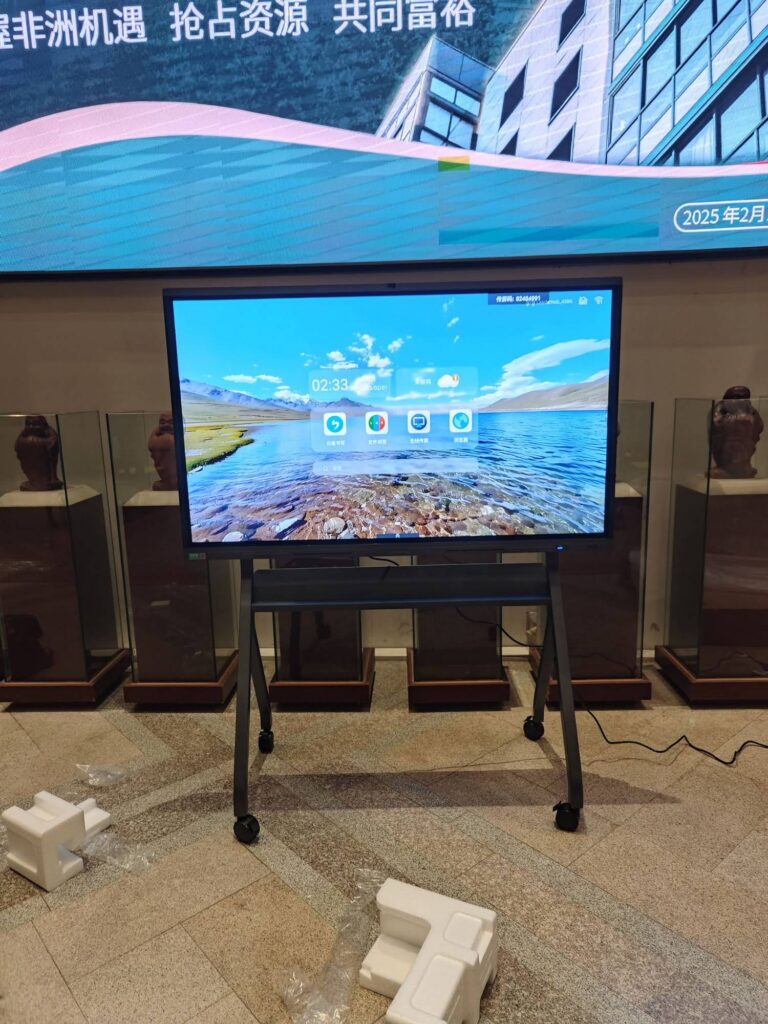
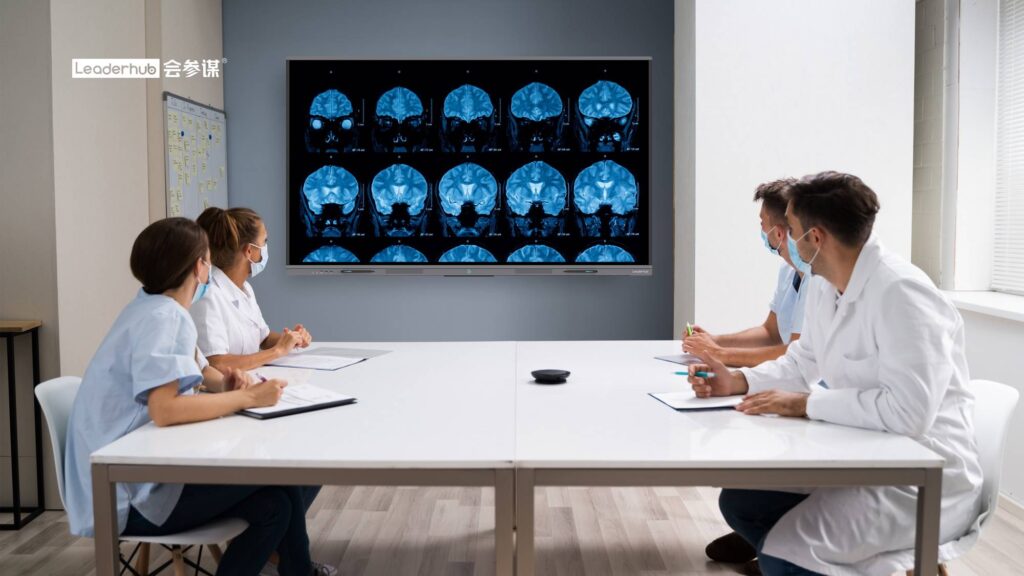
Walking up to a smart board with a laptop and a tangle of HDMI cables is quickly becoming a thing of the past. Today, almost every modern interactive display supports wireless screen mirroring, which means your iPhone or Android phone can become a presentation remote, a document camera, and a content source in a matter of seconds. In this guide, you will learn exactly how to connect your phone to a smart board wirelessly, which method works best for your device, and how to fix the most common connection problems along the way.
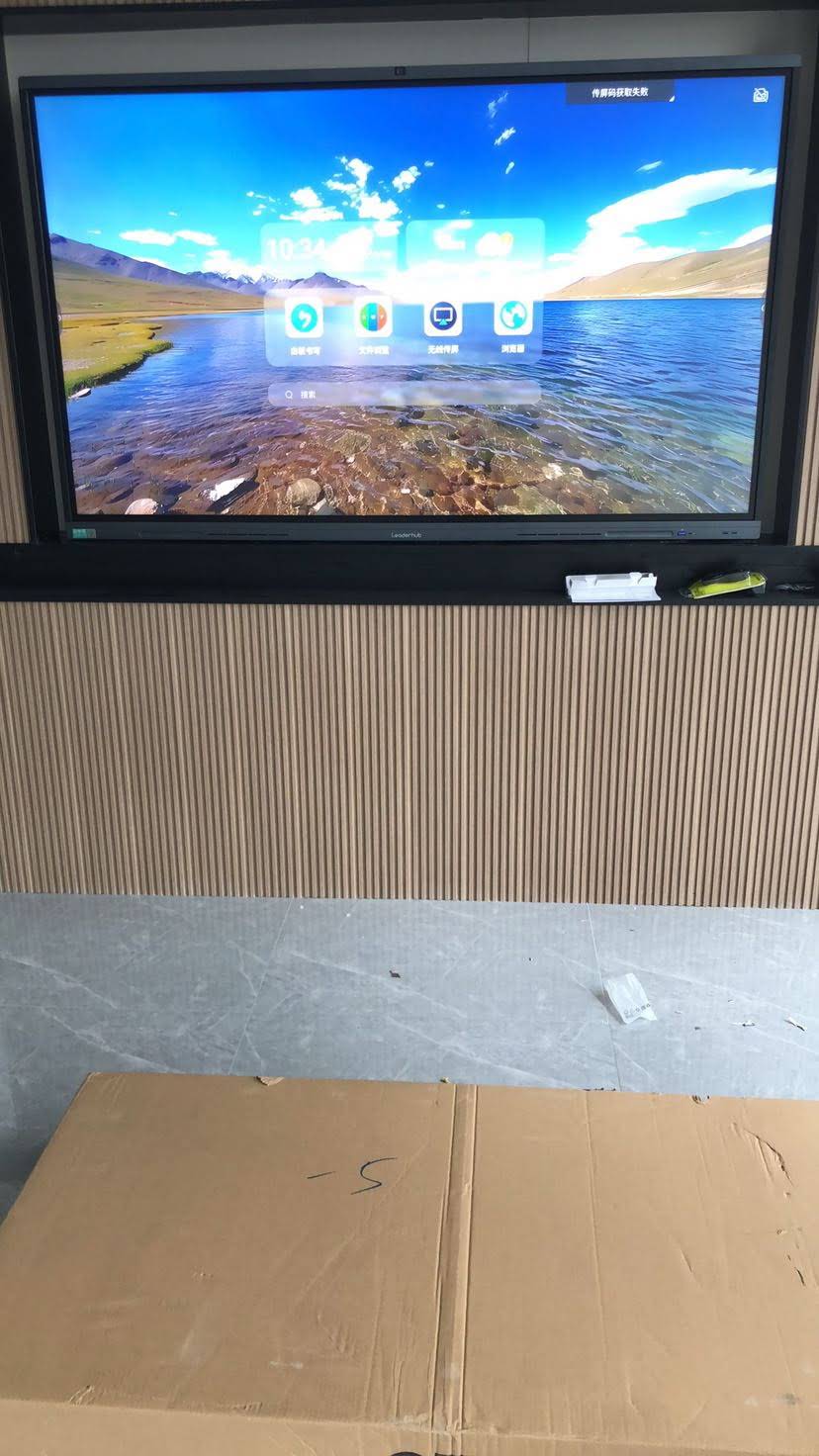
Why Connect Your Phone to a Smart Board Wirelessly?
Wireless casting is not just a convenience feature. For teachers, trainers, and business presenters, it changes how a room works. Instead of standing behind a podium, you can move freely, hand the phone to a student, or let a colleague share their screen without swapping cables.
- Zero setup time: No adapters, no dongles hunting, no “which port is this?” moments.
- Freedom of movement: Present from anywhere in the room while controlling the board from your palm.
- Instant content sharing: Photos, PDFs, videos, live camera feeds, and apps appear on the big screen in real time.
- Multi-user collaboration: Many interactive panels allow 4 or more phones to cast simultaneously in a split-screen layout.
- Safer classrooms and offices: Fewer cables on the floor means fewer trip hazards and less wear on ports.
Research consistently shows that interactive displays increase participation when they are easy to use. The UNESCO Technology in Education Report highlights that classroom technology delivers the most value when it removes friction rather than adding it, and wireless phone casting is one of the simplest examples of that principle in action.
Before You Start: A Quick Checklist
Most wireless connection failures come down to one of a few basic issues. Run through this list before you try any of the methods below.
| Requirement | Why It Matters |
|---|---|
| Same Wi-Fi network | AirPlay, Google Cast, and most casting apps require the phone and the board to be on the same local network (or the board’s own hotspot). |
| Smart board casting feature enabled | Look for “Screen Share,” “Wireless Display,” “Cast,” or “Mirror” in the board’s app launcher or settings menu. |
| Updated phone OS | iOS 12+ and Android 8+ offer the most stable mirroring. Older versions may lack native casting options. |
| Board firmware up to date | Casting protocols are updated often; outdated firmware is a leading cause of “device not found” errors. |
| Screen-share code or PIN | Many boards display a short code on screen to prevent unauthorized casting. Have it visible before you begin. |
Wireless Connection Methods Compared
There is no single “right” way to connect a phone to a smart board. The best option depends on your phone, your board’s operating system, and whether you need to mirror the entire screen or just share a file.
| Method | Works With | Best For | Limitations |
|---|---|---|---|
| AirPlay | iPhone, iPad, Mac | Full-screen mirroring with audio | Board must support AirPlay receiver |
| Miracast / Smart View | Most Android phones | Direct peer-to-peer mirroring, no router needed | Not available on iPhone or some Pixel devices |
| Google Cast | Android and iPhone (app-level) | Casting YouTube, Slides, Chrome tabs | Full-screen mirroring only on Android |
| Built-in screen share app | iPhone and Android | Multi-user split screen, remote touch control | Requires a one-time app download |
| Wireless dongle | Any device with the paired transmitter | Guest users and secured networks | Extra hardware cost; phones usually need USB-C |
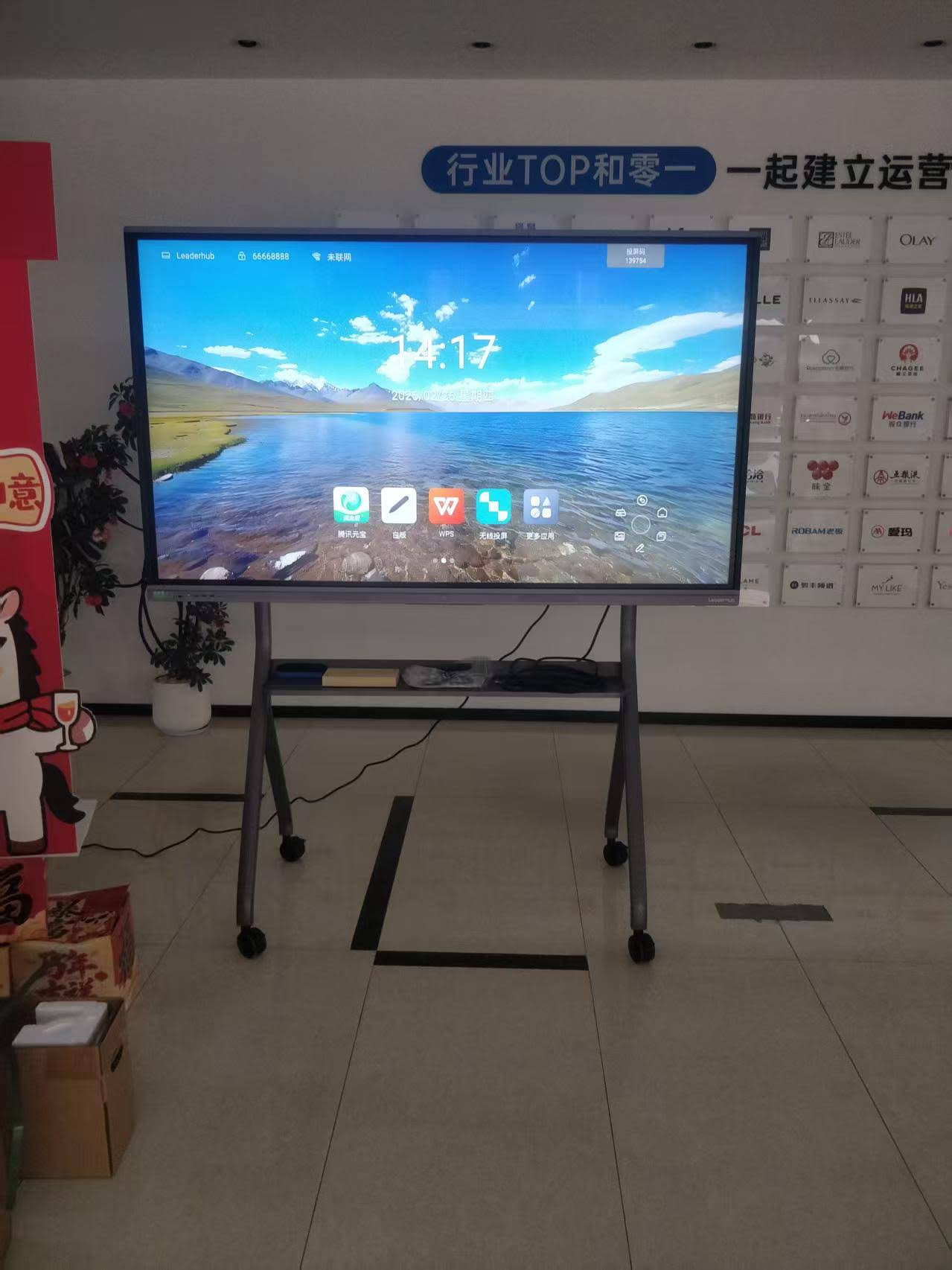
How to Connect an iPhone to a Smart Board Wirelessly
Apple devices do not support Miracast, so iPhone users rely on either AirPlay or a dedicated screen-sharing app. Fortunately, nearly every Android-based interactive panel released in the last few years includes an AirPlay-compatible receiver.
Method 1: Screen Mirroring with AirPlay
- On the smart board, open the Screen Share or Wireless Display app and confirm that AirPlay is turned on. Note the device name shown on screen (for example, “Meeting Room 3”).
- Connect your iPhone to the same Wi-Fi network as the board. If the board is broadcasting its own hotspot, join that instead.
- Swipe down from the top-right corner of your iPhone (or up from the bottom on older models) to open Control Center.
- Tap Screen Mirroring, the icon with two overlapping rectangles.
- Select the smart board’s name from the list.
- If prompted, enter the four-digit code displayed on the board.
- Your iPhone screen will appear on the board within a few seconds. Rotate your phone to landscape for a full-width view.
To stop mirroring, open Control Center again, tap Screen Mirroring, and choose Stop Mirroring.
Method 2: Using the Board’s Screen-Sharing App
Most interactive flat panels ship with a companion app (common names include ScreenShare, EShare, Bytello Share, or a brand-specific app). This route gives you more than mirroring: you can send individual files, use your phone as a touchpad, and even take a photo of a paper worksheet and push it straight to the board.
- Scan the QR code shown in the board’s screen-share app, or download the app from the App Store.
- Open the app and allow it to discover devices on the local network.
- Tap the board’s name and enter the PIN if required.
- Choose Mirror Screen, Share File, or Camera depending on what you want to display.
- For full mirroring, iOS will ask you to confirm via the Screen Recording broadcast prompt. Tap Start Broadcast.
Method 3: Casting from Specific Apps
If you only need to play a video or present a slideshow, many apps such as YouTube, Google Slides, and Keynote include a cast icon. Tap it, select the board, and the content plays natively on the display while your phone remains free for notes. This uses less battery and bandwidth than full-screen mirroring.
How to Connect an Android Phone to a Smart Board Wirelessly
Android users have the widest range of options because the platform supports Miracast natively. The exact menu names vary by manufacturer, which is the main source of confusion, so the table below maps the terminology.
| Phone Brand | Feature Name | Where to Find It |
|---|---|---|
| Samsung | Smart View | Quick Settings panel |
| Google Pixel | Screen Cast | Quick Settings or Google Home app |
| Xiaomi / Redmi | Cast | Settings > Connection & Sharing |
| Huawei / Honor | Wireless Projection | Quick Settings panel |
| OnePlus / OPPO / Vivo | Screencast / Screen Mirroring | Settings > Connection > Cast |
| Motorola / Sony / Others | Cast / Wireless Display | Settings > Connected Devices |
Method 1: Miracast (Smart View, Cast, Wireless Projection)
- On the smart board, open the wireless display app and make sure Miracast is enabled. Some boards call this “Android Cast” or simply “Mirror.”
- On your phone, swipe down twice to open the full Quick Settings panel.
- Tap the casting tile (Smart View, Cast, Screen Cast, or Wireless Projection).
- Wait for the board’s name to appear and tap it. Because Miracast uses Wi-Fi Direct, you do not necessarily need to be on the same router network.
- Accept the connection on the board if a confirmation dialog appears, or enter the on-screen PIN.
- Your phone screen is now mirrored. Most phones let you choose between phone aspect ratio and full screen from the casting notification.
Method 2: Google Cast via the Google Home App
If your board runs a Google-certified Android TV layer or includes a Chromecast built-in receiver, this is the most reliable path for Pixel users.
- Install the Google Home app and sign in.
- Ensure both devices share the same Wi-Fi network.
- Tap the board’s tile in the Google Home app, then tap Cast my screen.
- Confirm the prompt and tap Start now.
Method 3: Dedicated Screen-Sharing App
Just like on iPhone, the board’s own screen-share app unlocks extra functions on Android: file transfer, remote touch control of the board from your phone, split-screen casting with up to four devices, and a “desktop sync” mode that lets you see and annotate the board’s screen on your handset. Download the app from the QR code on the board, connect using the device code, and choose the mode you need.
Sharing Multiple Phones on One Smart Board
One of the most powerful features of modern interactive panels is multi-screen casting. In a classroom, four students can present their work side by side; in a sales meeting, two teams can compare proposals instantly.
- Open the board’s screen-share app and enable Multi-Screen or Split Screen mode.
- Each participant connects using the same device code from their phone (iPhone and Android can mix freely).
- The host taps any tile on the board to enlarge it to full screen, or drags tiles to rearrange them.
- Enable Moderator Mode so that only the teacher or meeting lead decides which screen goes live, which prevents accidental interruptions.
If you are comparing panels for this kind of group work, the interactive smart whiteboard range lists the maximum simultaneous casting devices for each model, which is a key spec to check before purchasing.
Troubleshooting: When Your Phone Won’t Connect
Even with everything set up correctly, wireless connections occasionally fail. The following fixes resolve the vast majority of issues.
| Problem | Likely Cause | Solution |
|---|---|---|
| Board does not appear in the device list | Different networks, or guest Wi-Fi with client isolation | Join the same SSID, or connect to the board’s own hotspot. Ask IT to allow mDNS/multicast on the VLAN. |
| Connects then drops after a few seconds | Weak signal or 2.4 GHz congestion | Switch both devices to a 5 GHz network and move closer to the access point. |
| Video is laggy or stuttering | High-resolution mirroring over a busy network | Lower the casting quality in the app, or cast the video from within the app (YouTube, etc.) instead of mirroring. |
| No sound on the board | Phone audio routed locally; board volume muted | Raise phone media volume, check the board’s volume, and disable Bluetooth headphones. |
| Black screen when playing streaming apps | DRM-protected content blocks mirroring | Use the app’s native cast button rather than full-screen mirroring. |
| PIN rejected or “Connection refused” | Code expired or board already at device limit | Refresh the code on the board and disconnect idle devices. |
Quick reset trick: If nothing else works, toggle airplane mode on your phone for ten seconds, restart the screen-share app on the board, and try again. This clears cached discovery data on both sides.
Practical Tips for Teachers and Business Presenters
For Classrooms
- Enable the board’s PIN requirement so students cannot cast without permission.
- Use your phone’s camera as a live document camera to show handwriting, experiments, or textbook pages.
- Keep a laminated card near the board with the Wi-Fi name and step-by-step casting instructions for substitute teachers.
- Frameworks such as the ISTE Standards for Educators encourage student-led presentation, and multi-screen casting is a simple way to put that into practice.
For Meeting Rooms
- Turn on Do Not Disturb before mirroring to keep private notifications off the big screen.
- Assign a dedicated “presentation” Wi-Fi SSID to avoid corporate network restrictions.
- For guest visitors who cannot join your network, keep a wireless HDMI dongle in the room as a backup.
- Use the board’s annotation layer to mark up a cast phone screen, then save the result as a PDF and email it to attendees.
Smart Boards with Built-In Wireless Casting for Phones
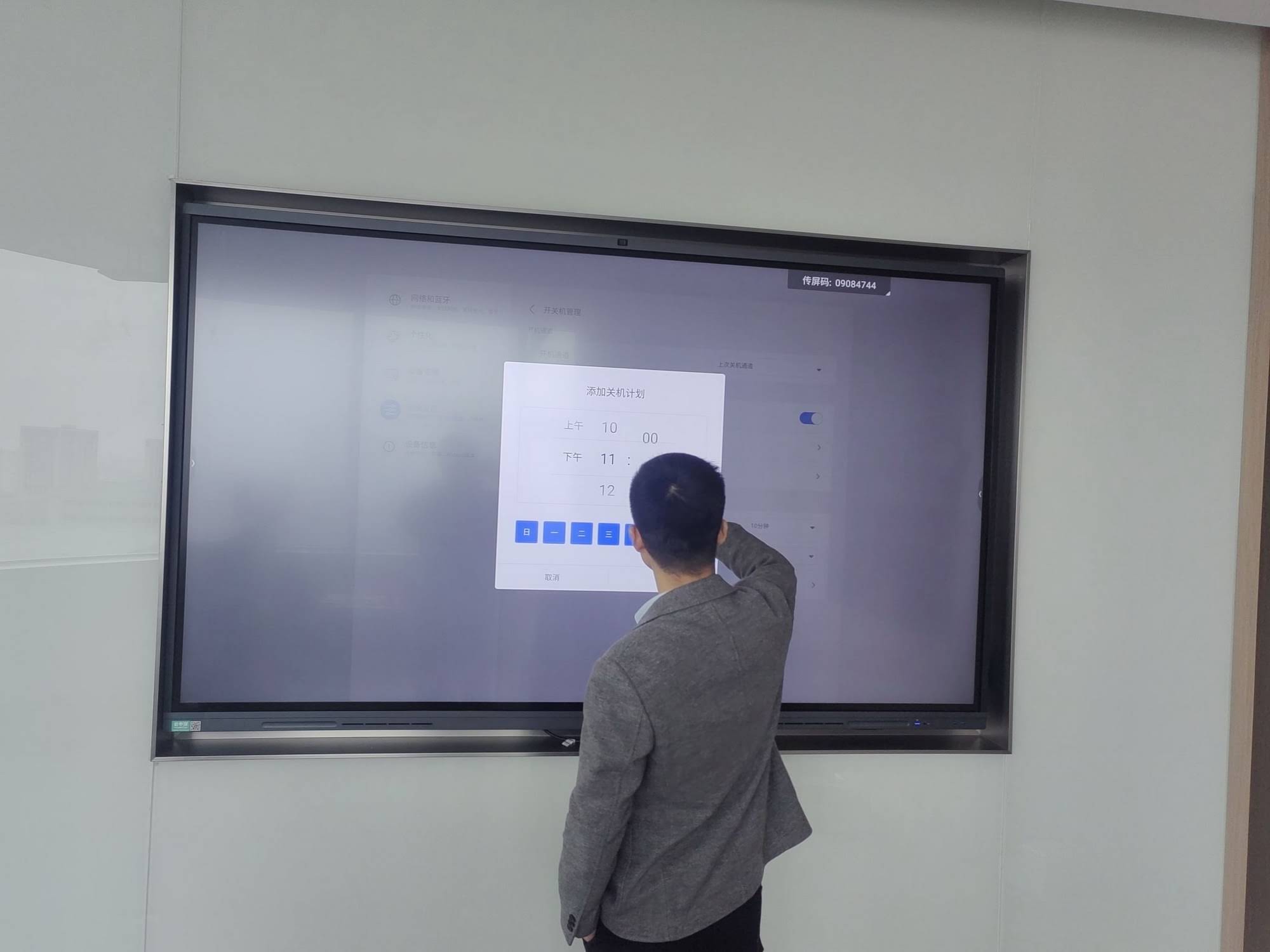
If your current display requires a third-party dongle for every phone, upgrading to a panel with native AirPlay, Miracast, and Google Cast support will eliminate most of the frustration described above. The models below all include integrated wireless screen sharing, 4K resolution, and multi-device split-screen casting.
| Model | Size | Ideal Setting | Price |
|---|---|---|---|
| L65ZM Interactive Whiteboard | 65″ 4K | Small classrooms, huddle rooms | $1,099 |
| L75HM Smart Whiteboard | 75″ 4K | Standard classrooms, mid-size meeting rooms | $1,599 |
| L86ZM Interactive Whiteboard | 86″ 4K | Lecture halls, boardrooms | $1,699 |
| U55Pro Mobile Interactive Flat Panel | 55″ 4K, battery-powered | Flexible spaces, training rooms without fixed AV | $2,499 |
These panels are produced by LeaderHub, a Shenzhen-based manufacturer with 16 years of interactive-display experience and customers in more than 82 countries. Every model ships with a built-in screen-share app for iPhone and Android, so wireless casting works out of the box without additional licenses or hardware. You can browse the full catalog or request a quote for bulk classroom or office deployments.
Frequently Asked Questions
Can I connect my phone to a smart board without Wi-Fi?
Yes. Android phones can use Miracast, which creates a direct Wi-Fi Direct link between the phone and the board, no router required. iPhones need either the board’s own hotspot or a wireless dongle, because AirPlay does not support peer-to-peer connections on most interactive panels.
Does wireless casting work with both iPhone and Android on the same board?
Absolutely. Modern interactive panels run multiple receiver protocols simultaneously, so one person can AirPlay from an iPhone while another casts from a Samsung Galaxy, and both can appear on screen at the same time in split-screen mode.
Is there a delay when mirroring my phone?
Typical latency is between 100 and 300 milliseconds on a healthy 5 GHz network, which is unnoticeable for slides, documents, and most videos. Fast-paced games or precise drawing may feel slightly delayed; for those use cases, a wired USB-C to HDMI connection is still preferable.
Can I control the smart board from my phone?
Yes, when you use the board’s screen-share app. The “remote control” or “touchpad” mode turns your phone into a trackpad and keyboard, and “desktop sync” lets you view and annotate the board’s current screen from anywhere in the room.
Why does my iPhone show the board but the connection fails?
This is almost always a network policy issue. Many school and corporate networks block the multicast traffic that AirPlay relies on. Try the board’s hotspot, or ask your IT team to whitelist the board’s IP address and enable Bonjour forwarding between VLANs.
Final Thoughts
Learning how to connect your phone to a smart board wirelessly takes only a few minutes, but it permanently changes how you present and teach. iPhone users should start with AirPlay through Control Center, Android users with Smart View or Cast in Quick Settings, and anyone who wants multi-user collaboration should install the board’s native screen-share app. Keep both devices on the same 5 GHz network, update firmware regularly, and you will rarely need to reach for a cable again.
Ready to move away from cables entirely? Explore the latest interactive smart whiteboards with built-in wireless casting, or talk to a specialist about the right size and configuration for your classroom or meeting room.