
Smart Board for Teaching YouTube Lessons in the Classroom Effectively
Unlock the power of visual learning by integrating high-definition educational videos with cutting-edge touch technology. Create interactive, engaging, and collaborative classroom environments today.
Why YouTube Has Become the Ultimate Teaching Assistant
In the contemporary educational landscape, visual media plays a pivotal role in student comprehension and engagement. YouTube hosts millions of high-quality educational videos, covering everything from complex chemical reactions and historical documentaries to step-by-step coding tutorials. However, simply playing a video on a static screen often leads to passive consumption, where students disengage and lose focus.
To maximize the educational value of digital media, educators require a dynamic tool that transforms video watching into an active, participatory learning experience. A smart board for teaching YouTube bridging the gap between passive viewing and interactive learning. By allowing teachers to pause, annotate, dissect, and collaborate directly on top of streaming content, smart interactive displays turn standard web videos into comprehensive, multi-sensory lessons.
“Active video-based learning increases concept retention by up to 60% compared to traditional lecture-based methods.” — Educational Technology Research
Key Features of an Effective Smart Board for YouTube
Not all interactive screens are created equal. To deliver seamless video-based lessons, a smart board must combine high-speed processing, crisp visual clarity, and responsive touch controls.
Real-time Annotation
Write, draw, and highlight directly on top of streaming YouTube videos. Pause a clip of a biological process and label the cellular structures on screen using multi-touch digital ink.
Split-Screen Multitasking
Run your YouTube browser on one half of the screen while keeping your digital whiteboard canvas open on the other. Students can take notes alongside the visual presentation.
4K UHD Visual Clarity
Ensure every student in the room can read tiny text and observe fine details in high-definition video clips, even under bright classroom lighting conditions.
Projectors vs. Interactive Smart Boards for YouTube Teaching
| Feature | Traditional Classroom Projector | LeaderHub Interactive Smart Board |
|---|---|---|
| Interactivity | None (Static display only) | 20-point touch, pen input, and gestures |
| Video Quality | Often washed out by ambient light | Vibrant 4K UHD with anti-glare glass |
| Annotation | Requires dry-erase board next to screen | Write directly over live or paused YouTube videos |
| System Integration | Requires external laptop and complex cables | Built-in Android OS & optional Intel Mini PC (OPS) |
| Audio Performance | Weak external speakers or laptop speakers | High-fidelity built-in stereo soundbars |
How to Teach YouTube Lessons Effectively
Simply pressing play is not enough. Follow this pedagogical workflow to turn video viewing into an immersive, interactive study session.
Curate & Prepare with Built-in Browsers
Before the class starts, utilize the built-in Android browser or the integrated Windows Mini PC on your LeaderHub Smart Board to pre-load your YouTube materials. Organize your playlist or use educational extensions to bypass distractions.
- Create dedicated playlists for different subjects to save classroom transition time.
- Install ad-blockers or use YouTube Premium to eliminate disruptive advertisements.
- Set up bookmarks of timestamps to jump instantly to the most critical portions of the video.
Execute Interactive Pauses & Annotations
Do not let the video run continuously. Pause at key moments to ask questions, explain complex terminology, or highlight visual elements. The annotation tool of the smart board allows you to draw directly on top of the paused frame.
- Use different ink colors to categorize concepts (e.g., green for causes, red for effects).
- Have students come up to the board and circle key objects in the video frame.
- Save screenshots of annotated frames directly to the local storage for review later.
Encourage Collaborative Split-Screen Activities
Utilize the split-screen functionality of the LeaderHub interactive board. Play the YouTube video on the left side of the screen, and open the digital whiteboard canvas on the right side. This enables real-time note-taking and diagramming.
- Assign student groups to summarize the video’s arguments on the whiteboard side.
- Drag and drop screenshots from the video directly into the whiteboard workspace.
- Run interactive quizzes (like Kahoot or Quizlet) alongside the video for instant assessment.
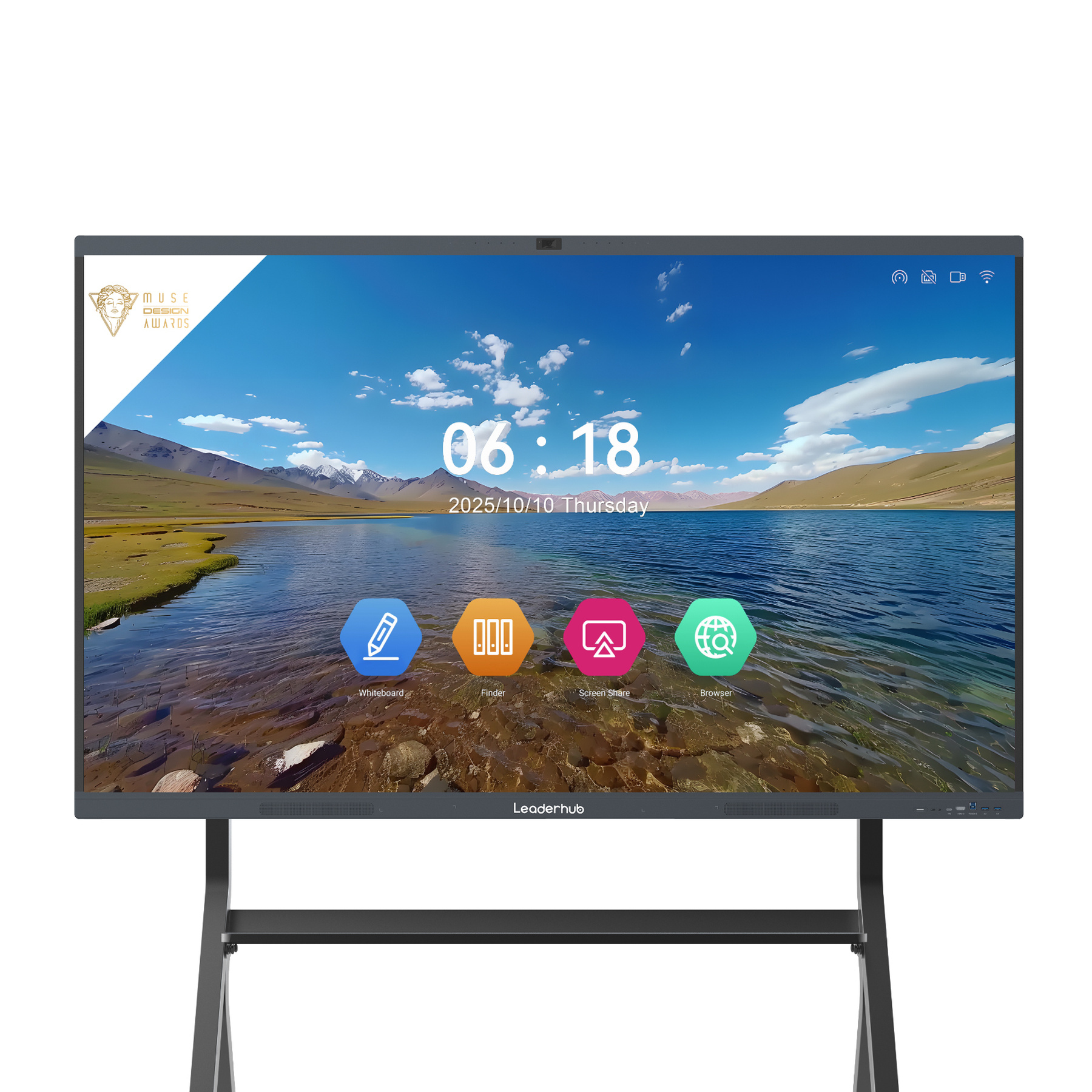
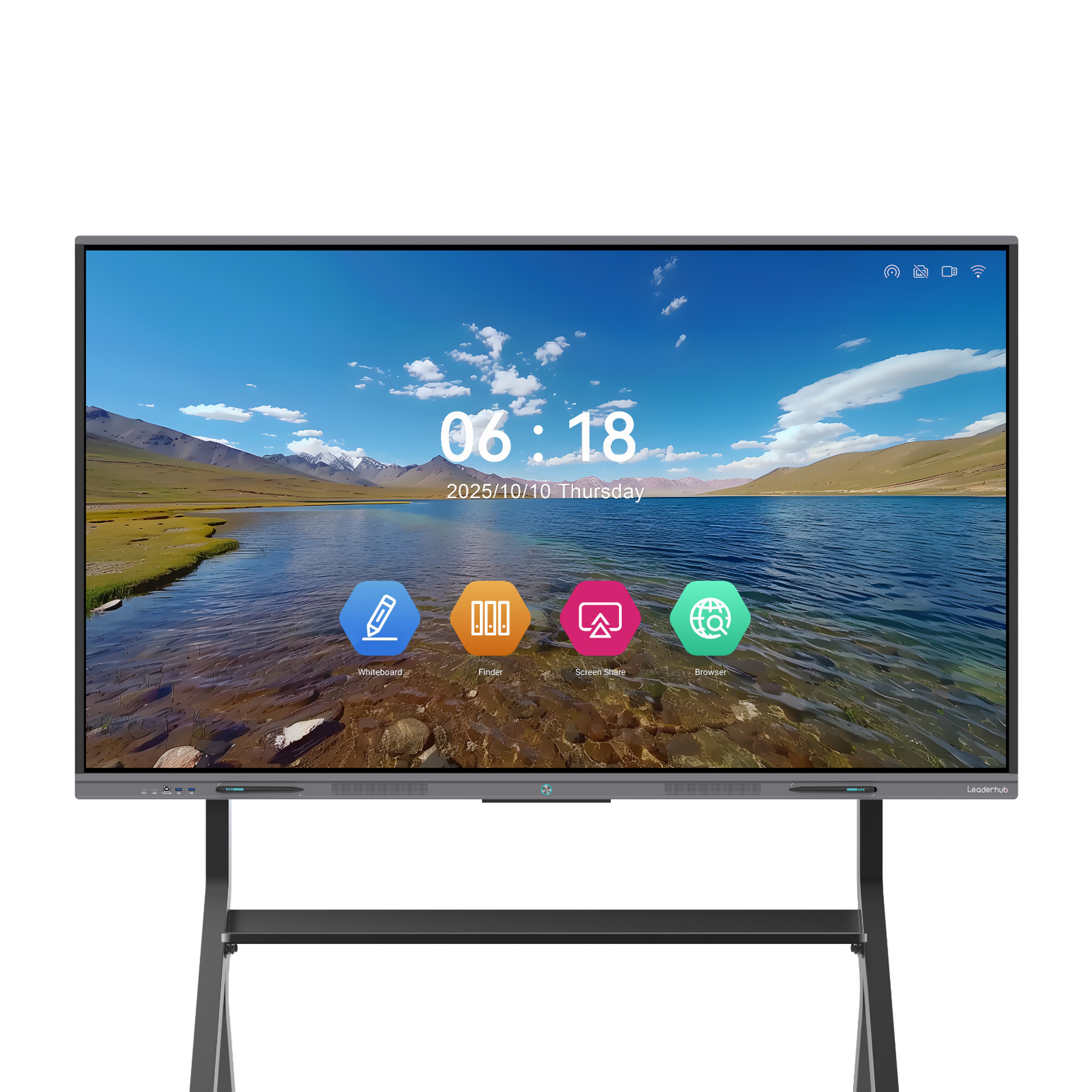
Recommended LeaderHub Interactive Displays
Select the perfect hardware solution to run YouTube lessons, interactive quizzes, and collaborative whiteboard sessions in your classroom.
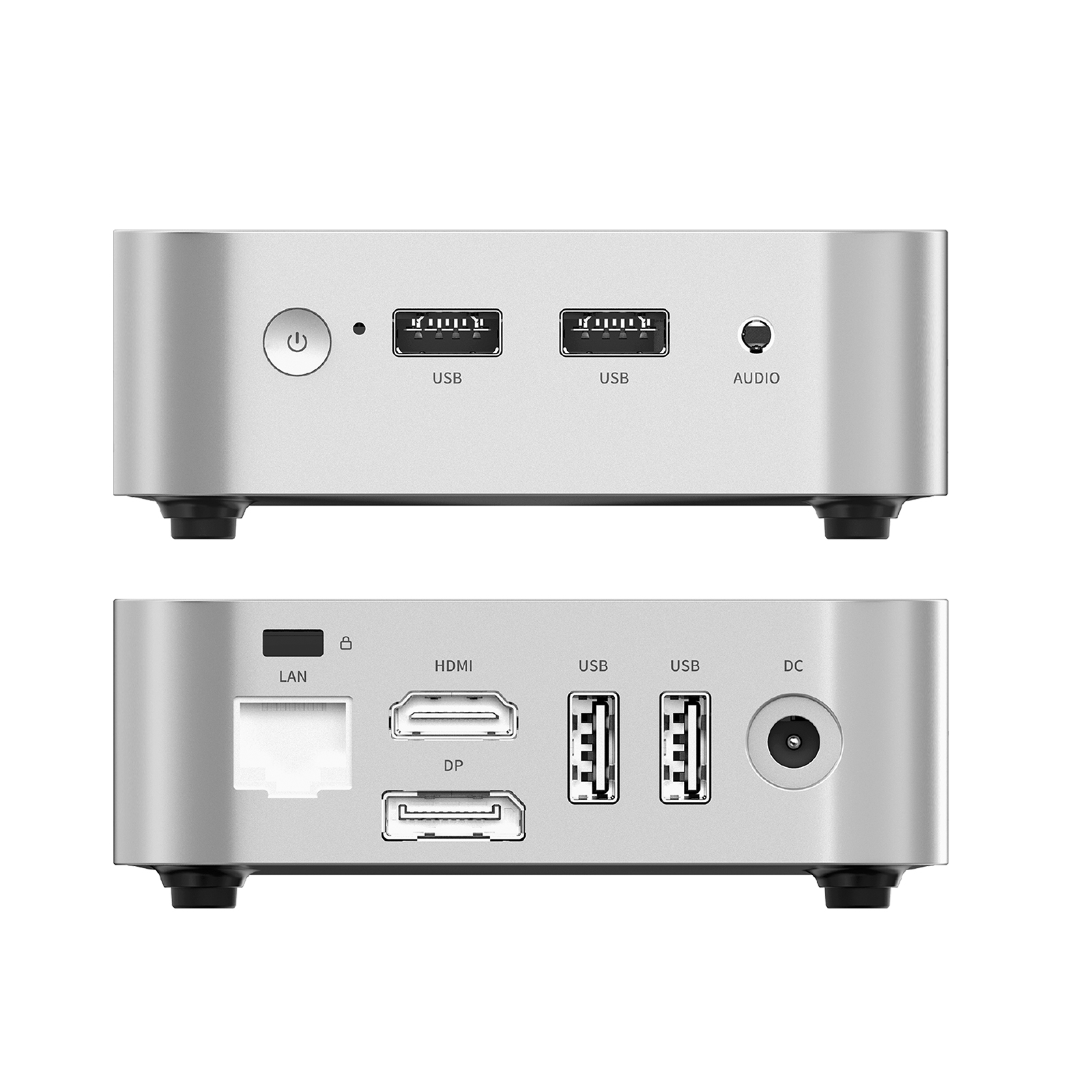
Why an Integrated Mini PC (OPS) is Crucial for YouTube Teaching
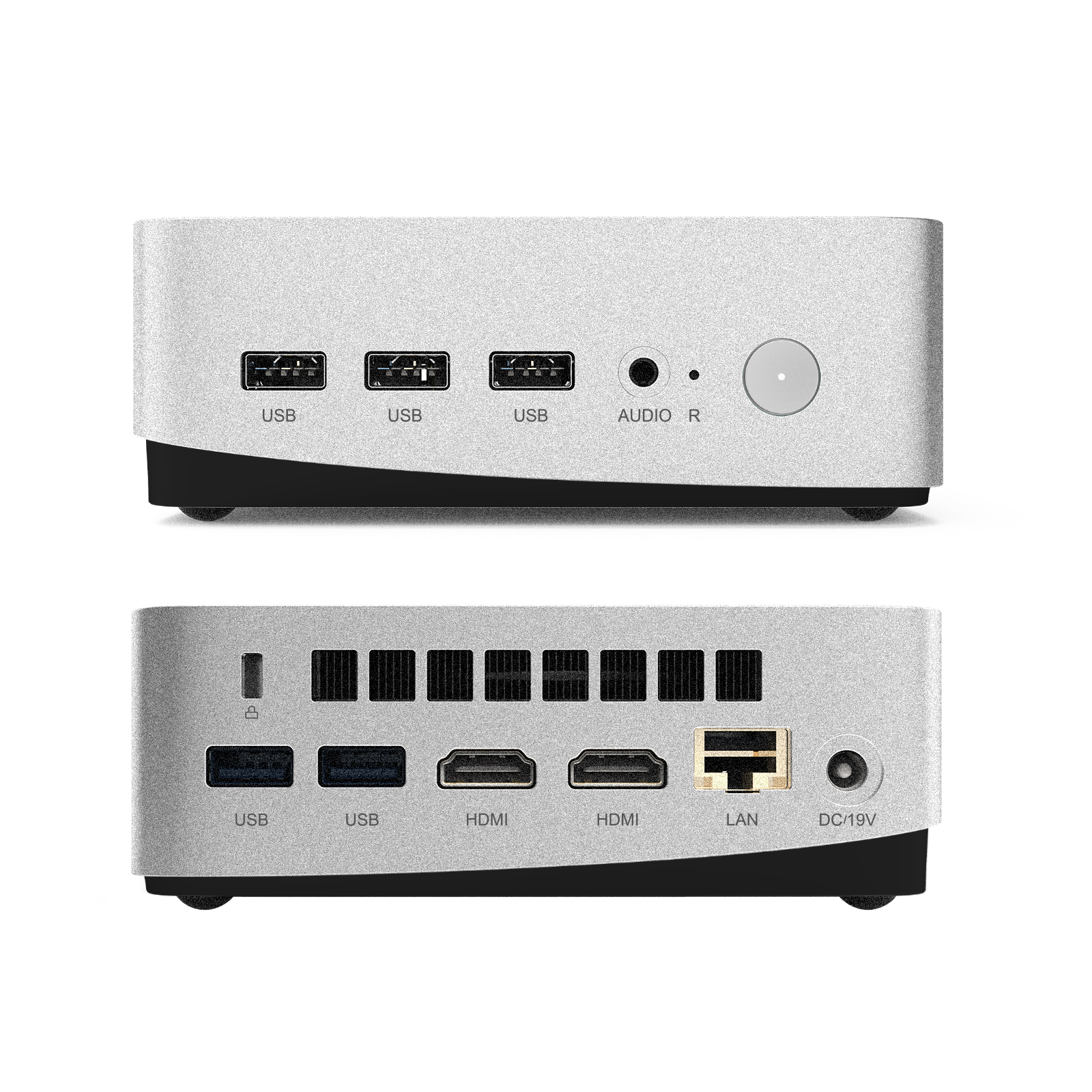
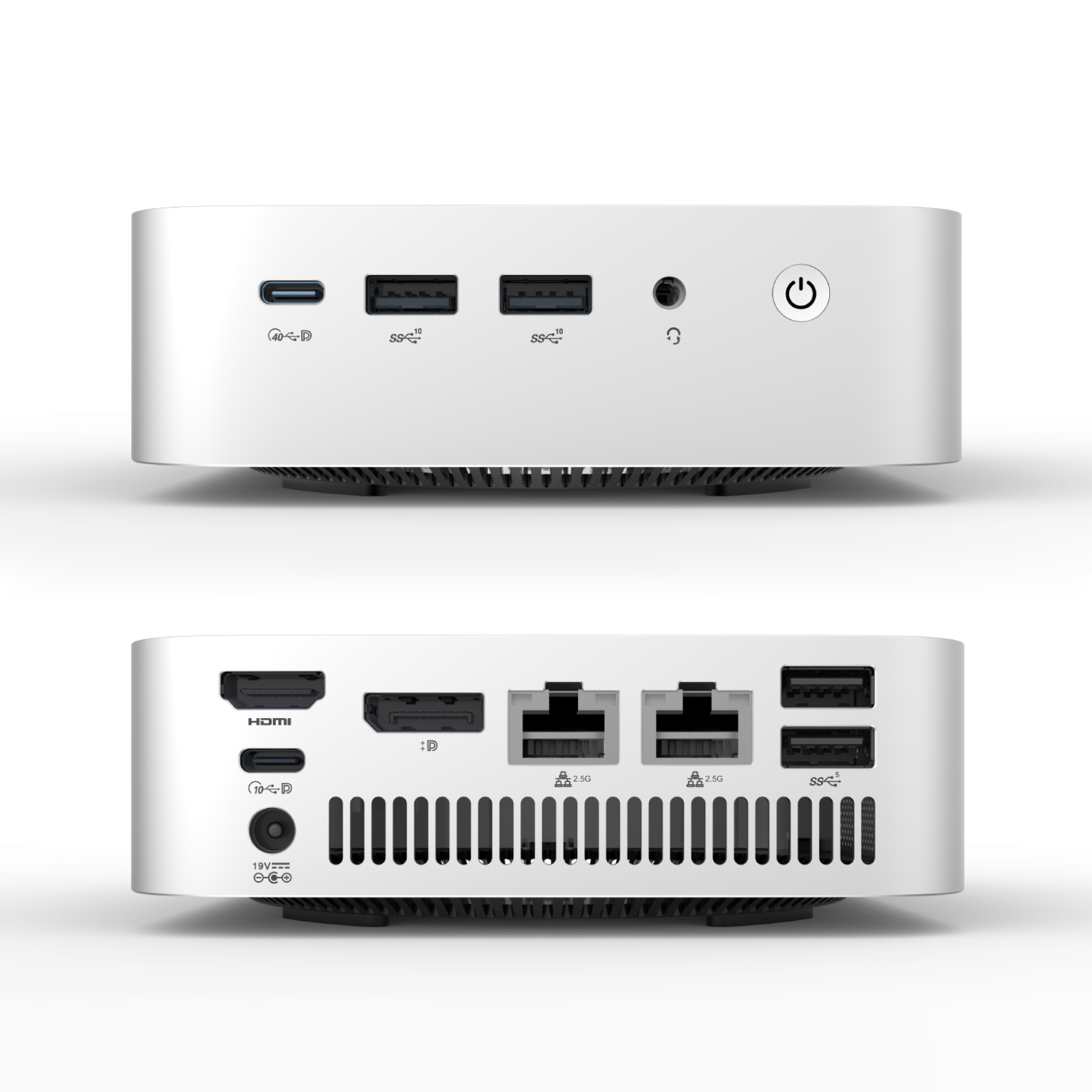
While the built-in Android system on modern smart boards is excellent for basic tasks, running high-definition YouTube videos alongside heavy interactive software benefits greatly from a dedicated computer module. An OPS Mini PC slot-in module transforms your interactive display into a full-fledged Windows 11 desktop.
With an integrated Intel-powered Mini PC, teachers can access desktop-grade browsers like Google Chrome or Microsoft Edge. This allows for seamless execution of advanced ad-blockers, educational browser extensions, classroom management dashboards, and high-performance video rendering without any lag or buffering issues.
Smart Board Applications & Demonstrations
See how educators and professionals around the world deploy LeaderHub smart boards in dynamic learning environments.
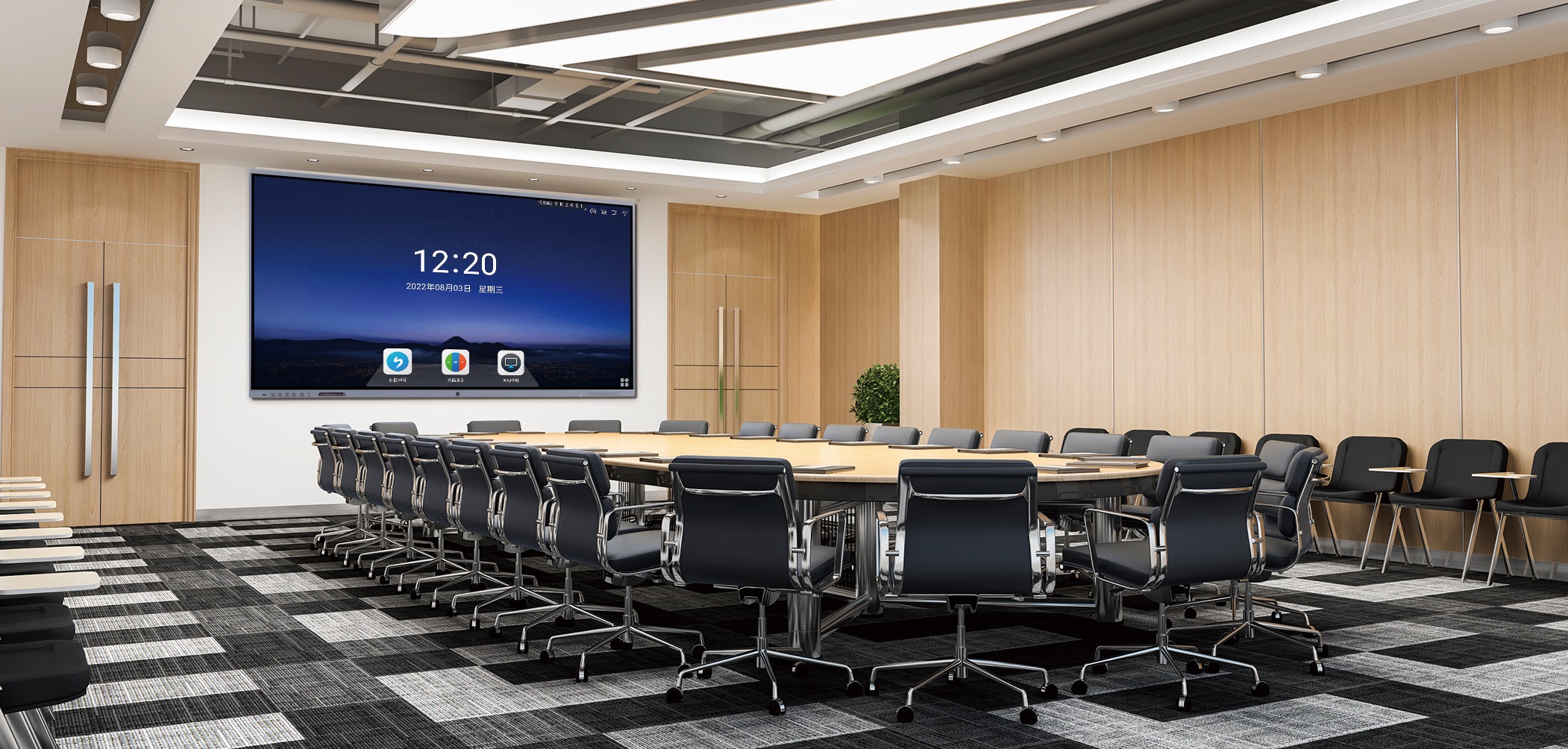
Smart Board in Action
Experience interactive technology designed for modern education and business environments.
Interactive Display Demonstration
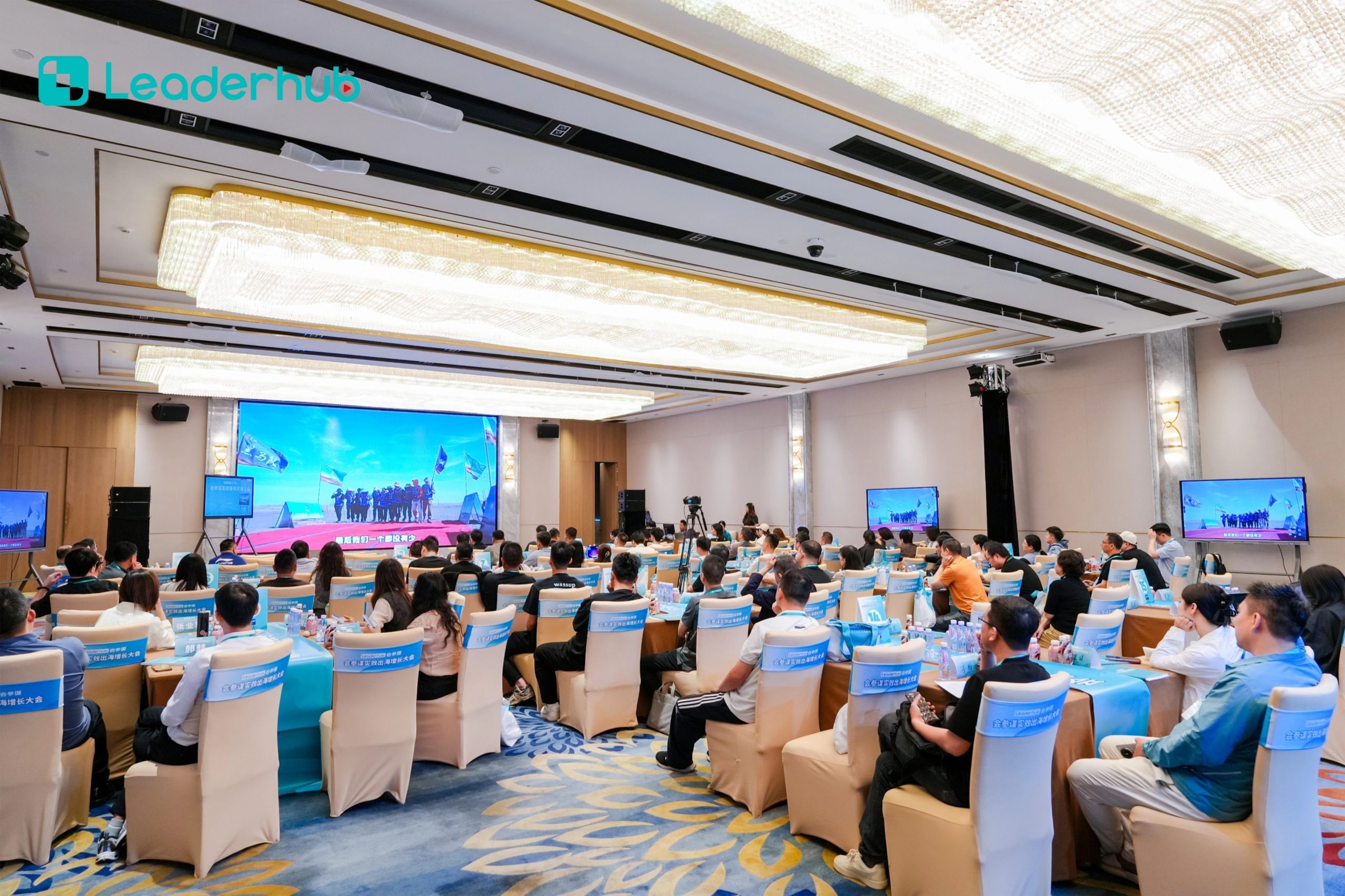
Explore intuitive touch interaction and smart collaboration features during group lessons.
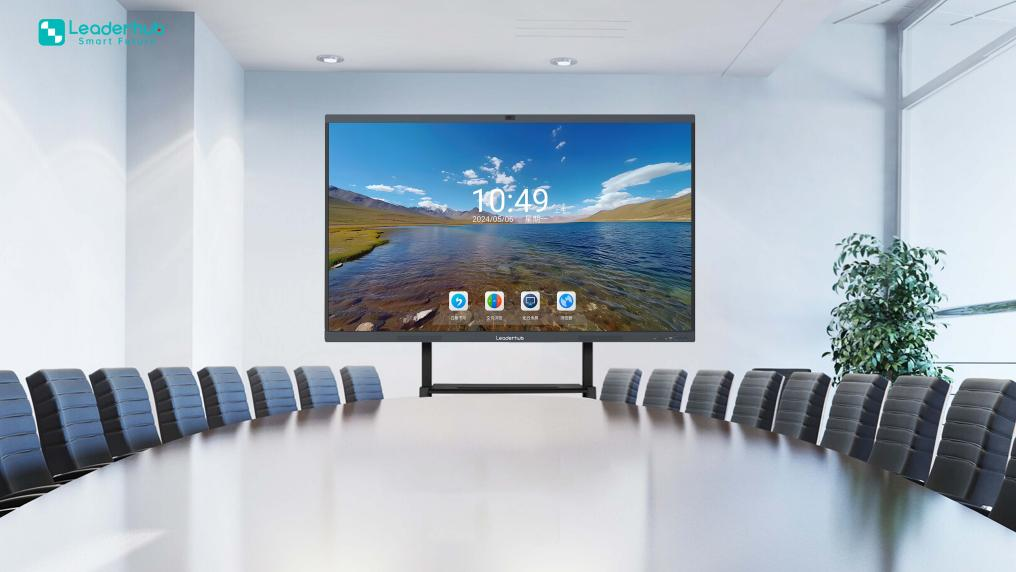
Classroom Application
Deliver highly interactive lessons using multimedia, annotation tools, and real-time student polling.
Who We Are: LeaderHub
LeaderHub is a Shenzhen-based technology company with 16 years of professional experience in the interactive panel industry. We specialize in smart whiteboards, interactive flat panels, mini PCs, and portable smart screens — delivering innovative solutions to education, enterprise, and creative professionals in 82 countries worldwide.
We are committed to helping educational institutions and small-to-medium enterprises access the best technology. By combining hardware innovation with AI, we continuously optimize learning and interaction efficiency — making every lesson more effective and convenient.
- NO.1 in JD.com subcategory
- Annual Most Invested-Value Brand
- Annual Consumer Trustworthy Brand
- Shenzhen Famous Brand
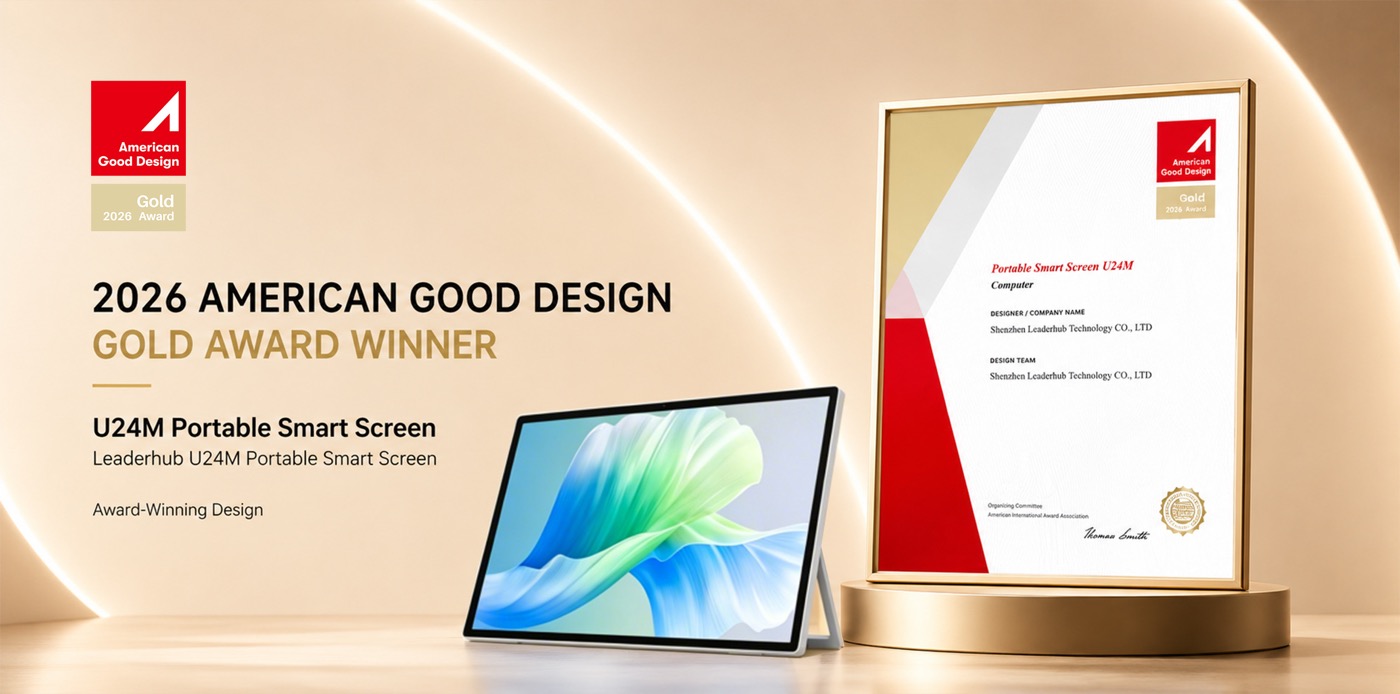
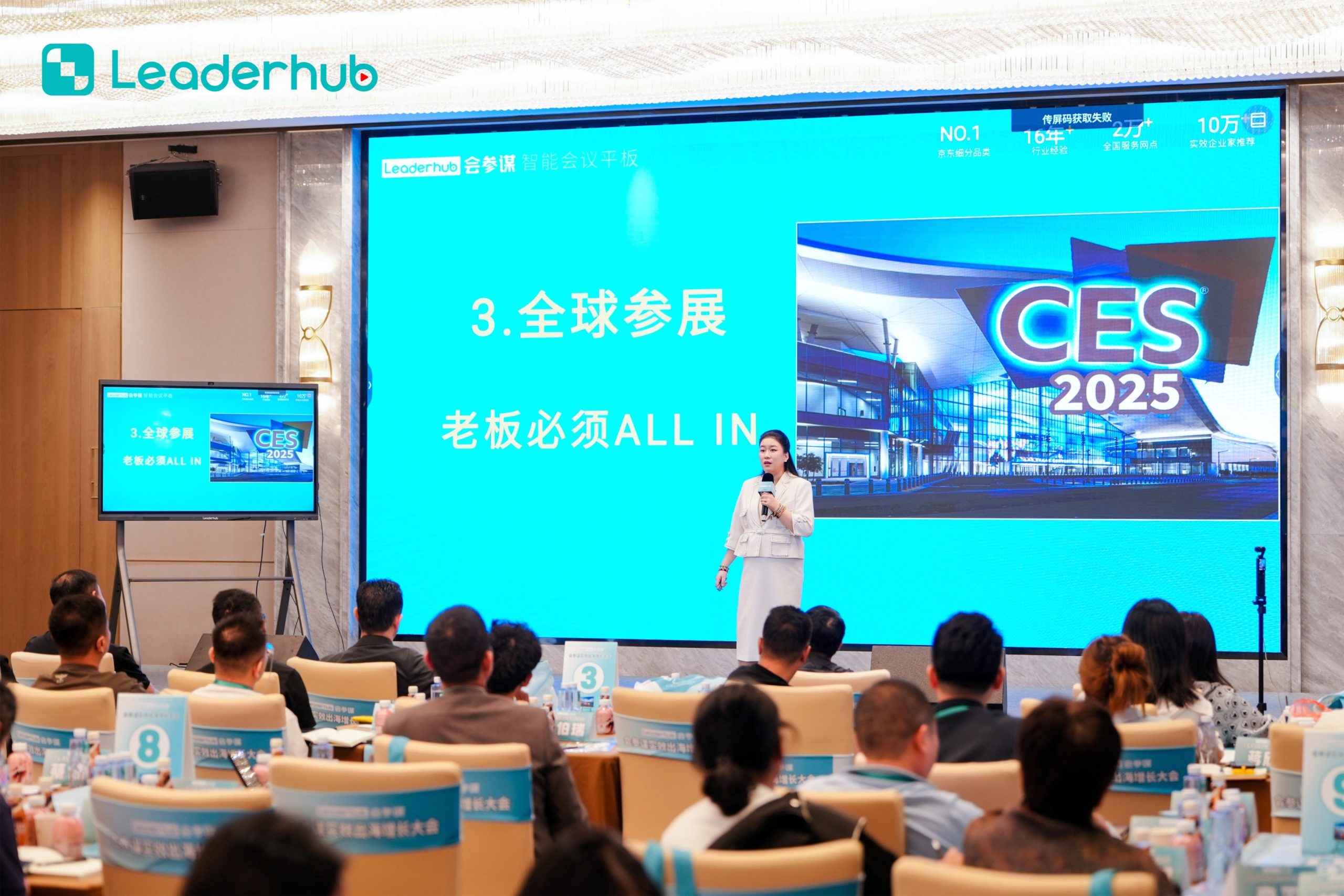
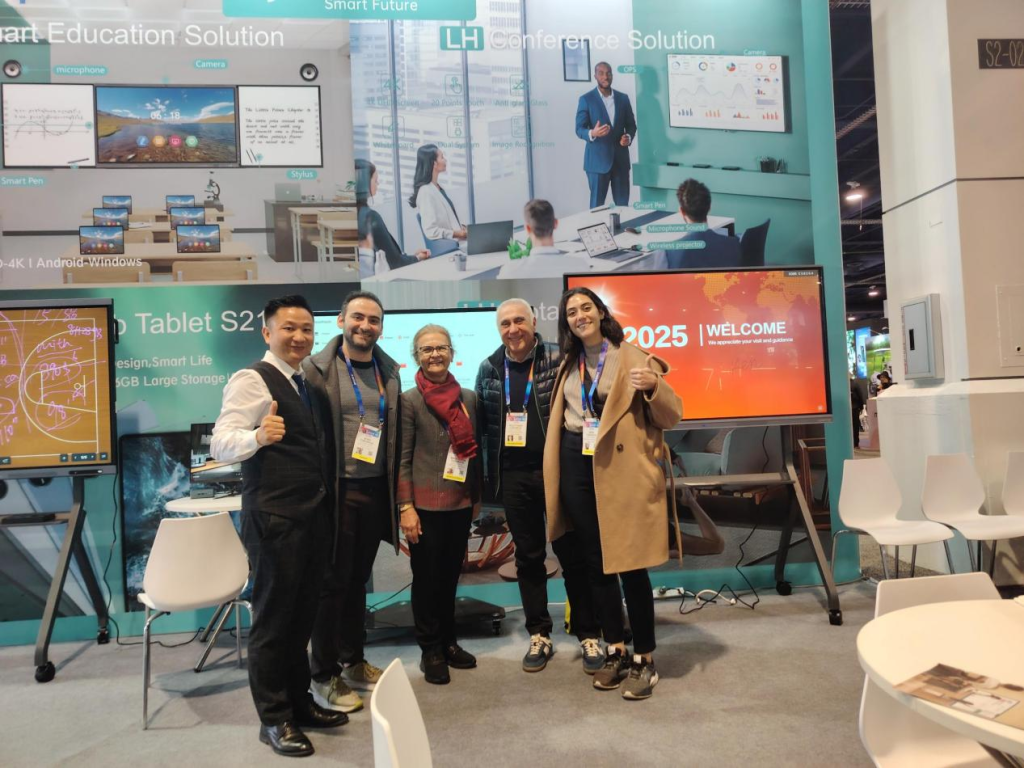
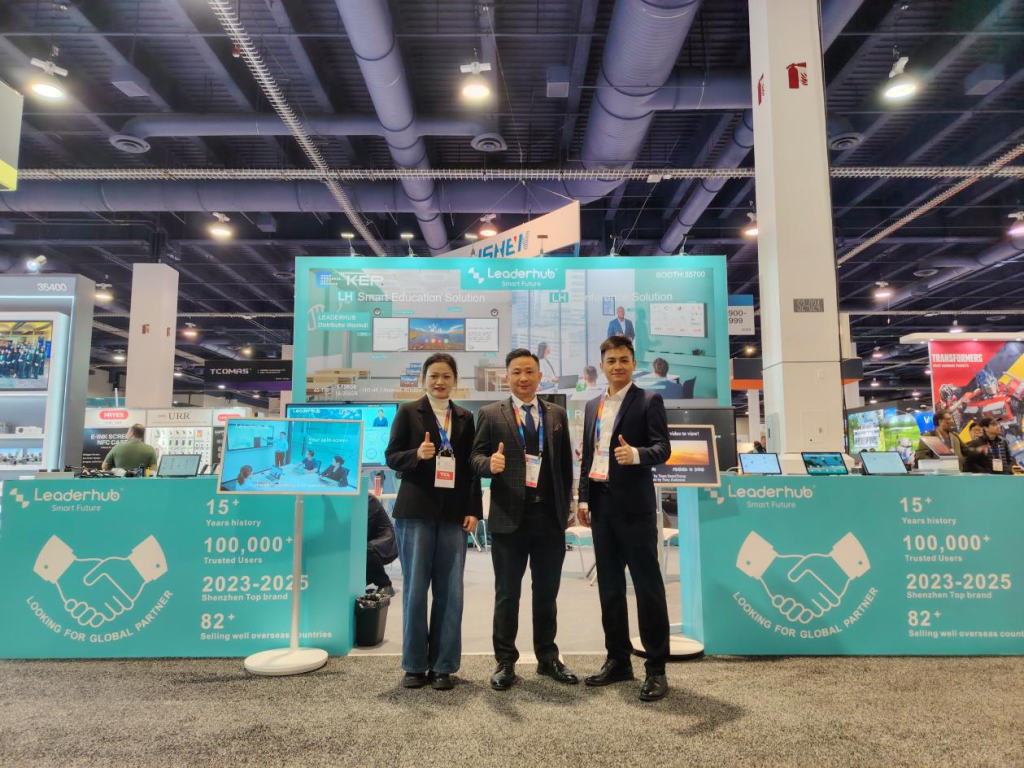
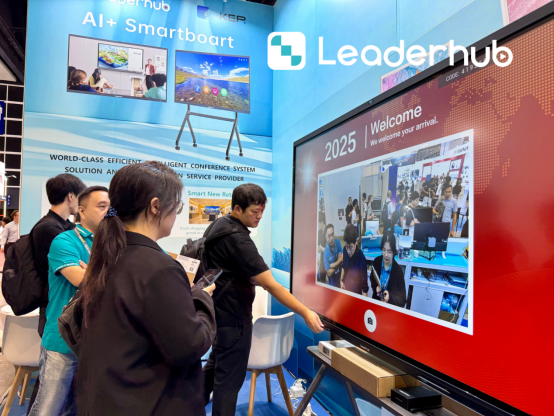
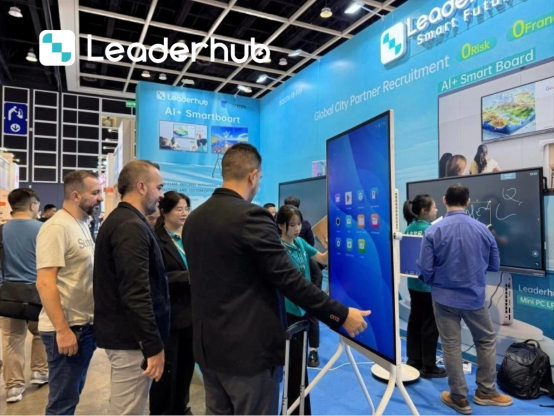
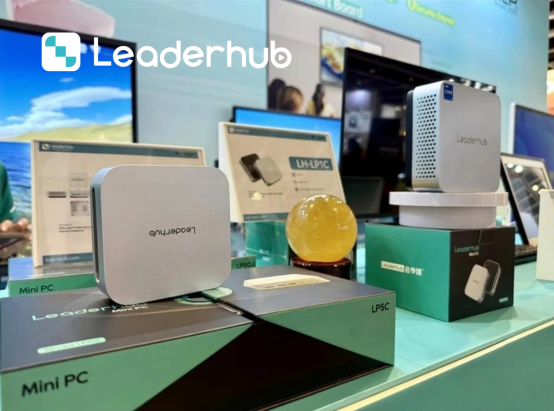
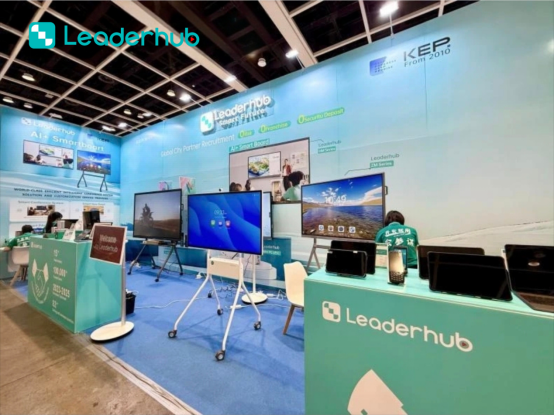
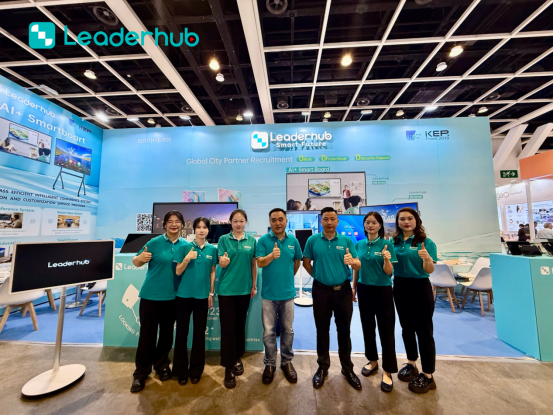
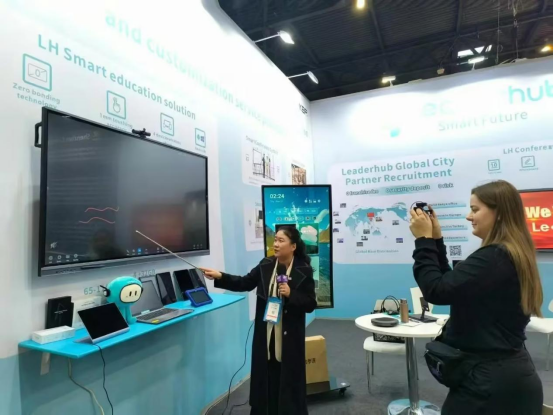
Meet LeaderHub at Global Electronics Exhibitions
We actively participate in major electronics and technology exhibitions around the world, connecting with distributors, system integrators, and education providers.
Frequently Asked Questions
Get answers to common queries regarding using smart boards for YouTube lessons and classroom integration.
1. Can I run YouTube lessons directly on the smart board without connecting a laptop?
Yes, absolutely. LeaderHub smart boards come with a built-in Android operating system and dual-band Wi-Fi. You can open the pre-installed web browser or download the YouTube application directly onto the screen to play videos without any external laptop.
2. How do I write or draw on top of a playing YouTube video?
Every LeaderHub smart board features an overlay annotation tool. Simply swipe up from the bottom of the screen or press the floating pen icon on either side of the display. This freezes the frame (or lets it run in the background) and allows you to write notes, circle objects, and save screenshots instantly.
3. Do LeaderHub smart boards support wireless casting from student devices?
Yes. Our screens support multi-device wireless screen sharing. Students can cast their tablets, laptops, or smartphones directly to the board. This allows them to share their own YouTube findings or collaborative projects with the entire class in a split-screen format.
4. What is the advantage of adding a Mini PC (OPS) module?
An OPS Mini PC installs directly into the side slot of the smart board, providing a full Windows environment. This is highly recommended for schools that rely on specific desktop browsers, ad-blockers, Google Classroom extensions, or heavier school management software that runs best on Windows.
Ready to Upgrade the Way You Meet, Teach, and Create?
Empower your educators and engage your students with the ultimate smart board for teaching YouTube lessons and interactive curricula.
