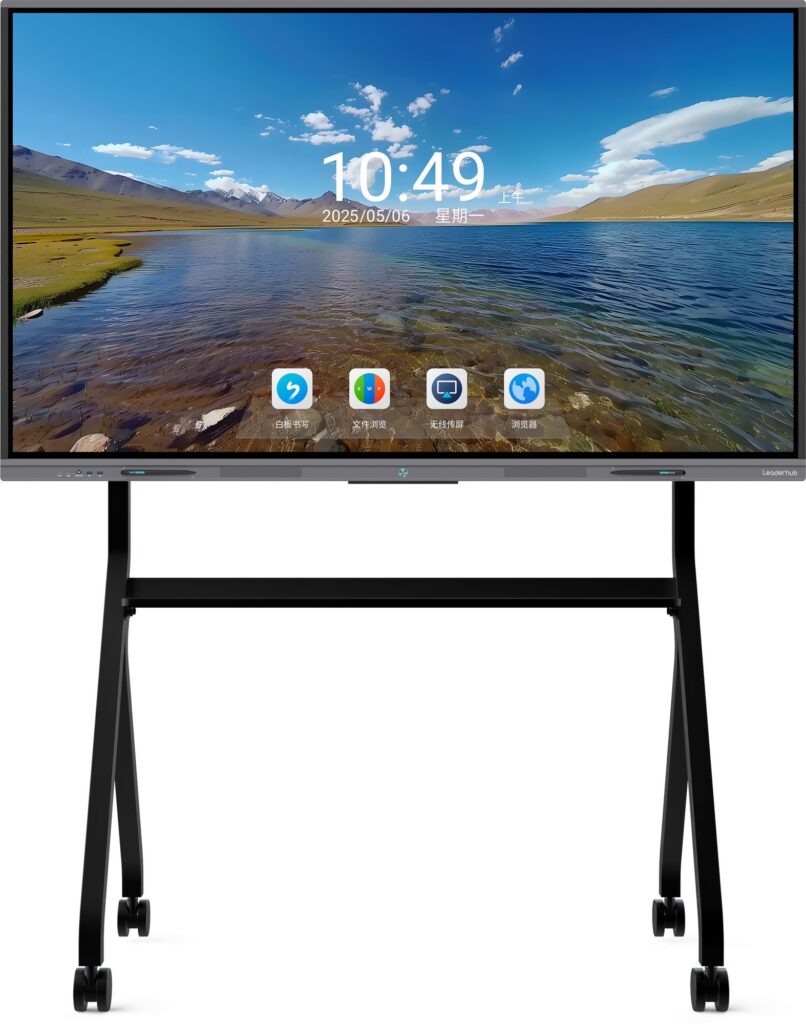
Connecting to a smart board has become an essential skill in modern classrooms, meeting rooms, and collaborative workspaces. Whether you’re presenting a project, teaching a lesson, or facilitating a team discussion, understanding how to establish a reliable connection between your device and an interactive flat panel is fundamental to productive collaboration. This comprehensive guide walks you through every connection method across different devices and operating systems, ensuring you can start your presentation without technical delays.
Understanding Smart Board Connection Options
Before diving into device-specific instructions, it’s important to understand the various connection methods available. Modern smart boards support multiple connectivity options to accommodate different hardware and user preferences.
Wired Connection Methods
Wired connections offer the most stable and reliable performance, particularly for presentations involving high-resolution video or real-time collaboration. HDMI cables remain the industry standard for digital displays, providing both video and audio transmission through a single cable. USB-C connections have gained popularity, especially with newer laptops, offering power delivery alongside data transfer. DisplayPort cables serve as another professional-grade option, commonly found in desktop workstations and high-end laptops.
| Connection Type | Best For | Maximum Resolution | Audio Support |
|---|---|---|---|
| HDMI | Universal compatibility | 4K @ 60Hz | Yes |
| USB-C | Modern laptops, single cable solution | 4K @ 60Hz | Yes |
| DisplayPort | Professional workstations | 8K @ 60Hz | Yes |
| VGA (Legacy) | Older equipment | 1080p | No (requires separate audio cable) |
Wireless Connection Methods
Wireless connectivity eliminates cable clutter and provides flexibility for presenters to move freely around the room. Most modern smart boards support wireless screen mirroring through technologies like Miracast, AirPlay, and proprietary wireless presentation systems. According to a 2025 workplace technology survey, 68% of organizations now prefer wireless connectivity for its convenience and seamless multi-device switching capabilities.
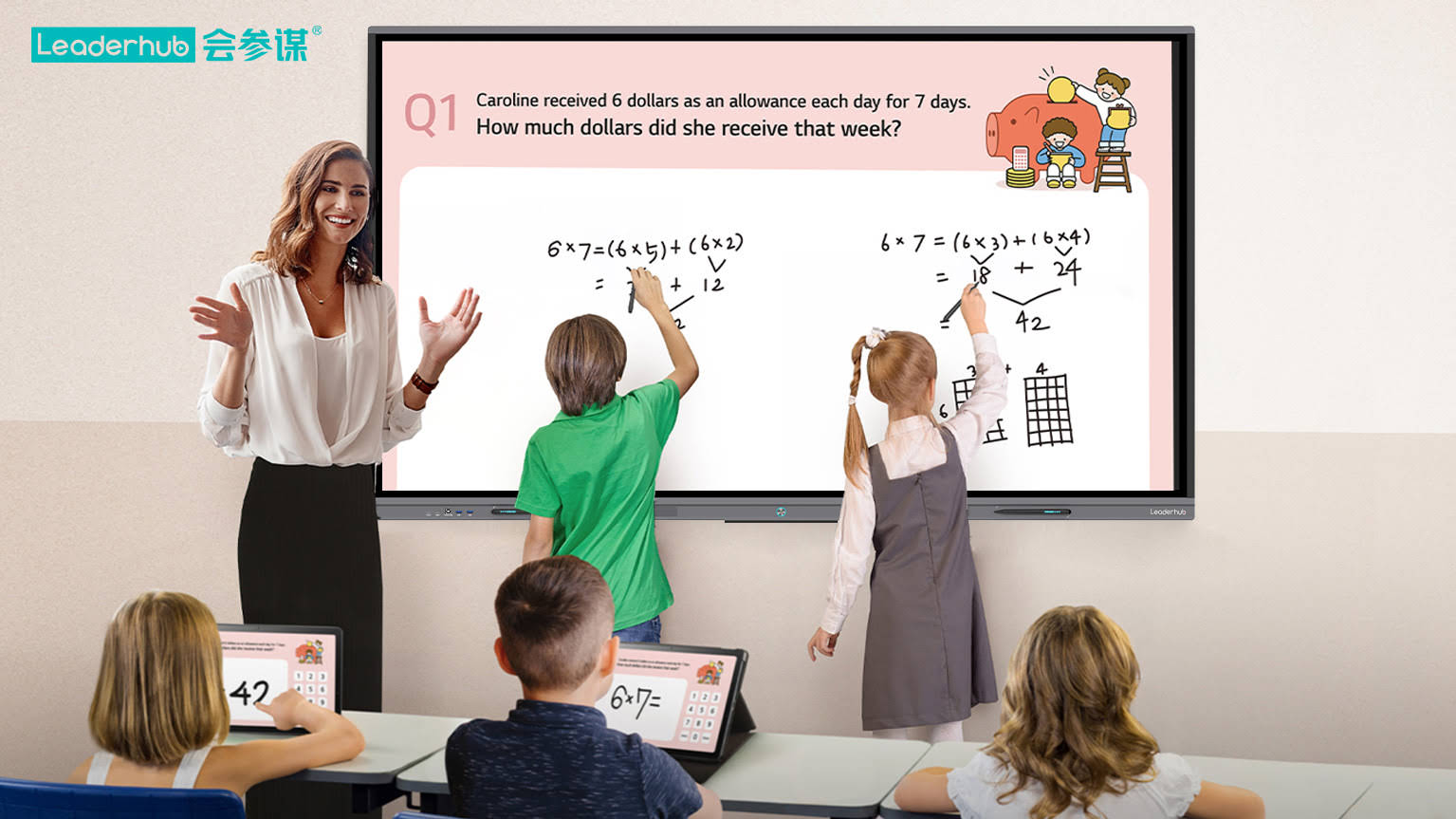
Connecting Windows Laptops to Smart Boards
Windows devices offer extensive compatibility with smart whiteboards through both wired and wireless methods. The process varies slightly depending on your Windows version, but the fundamental steps remain consistent.
Wired Connection Setup for Windows
For a wired connection, follow these steps to establish a reliable link between your Windows laptop and the smart board:
- Identify your laptop’s video output port ¨C Modern Windows laptops typically feature HDMI, USB-C, or DisplayPort connections. Check your device specifications if you’re uncertain.
- Select the appropriate cable ¨C Use a cable that matches both your laptop’s output and the smart board’s input. If port types don’t match, obtain a certified adapter.
- Connect the cable firmly ¨C Insert one end into your laptop and the other into the smart board’s input port. Ensure both connections are secure to prevent signal interruption.
- Power on the smart board ¨C If not already active, turn on the display and wait for it to complete its startup sequence.
- Select the correct input source ¨C Using the smart board’s remote or on-screen menu, navigate to the input that corresponds to your connection port (e.g., HDMI 1, USB-C).
- Configure display settings on Windows ¨C Press Windows + P to open the projection menu. Select your preferred display mode: Duplicate (mirror your screen), Extend (use the smart board as a second display), or Second screen only.
Windows 11 introduced enhanced display management features. To access advanced settings, right-click on the desktop and select “Display settings.” Here you can adjust resolution, orientation, and multiple display arrangements. For optimal performance, ensure your graphics drivers are current by checking Windows Update or visiting your laptop manufacturer’s support website.
Wireless Connection for Windows Devices
Windows 10 and 11 support native wireless display technology through Miracast. To connect wirelessly:
- Verify that your smart board supports Miracast or has a wireless receiver enabled
- On your Windows laptop, press Windows + K to open the “Connect” sidebar
- Wait for your smart board to appear in the available devices list
- Click on the smart board name to initiate the connection
- Enter the PIN code if prompted (this appears on the smart board’s display)
- Choose your projection mode once connected
For enterprise environments with dedicated wireless presentation systems, install the manufacturer’s software beforehand. Companies like Leaderhub, with over 16 years of experience in interactive display technology, often provide proprietary applications that offer enhanced functionality beyond standard Miracast, including annotation tools, multi-user collaboration, and cloud integration.
Connecting Mac Computers to Smart Boards
Mac computers integrate seamlessly with smart boards through Apple’s AirPlay technology and traditional wired connections. The process differs slightly from Windows but remains straightforward.
Wired Setup for MacBooks and iMacs
Modern MacBooks primarily use USB-C/Thunderbolt ports, while older models feature HDMI or Mini DisplayPort connections:
- Determine your Mac’s available ports ¨C MacBook Pro and Air models from 2016 onwards use USB-C exclusively. Older MacBooks may have HDMI or Thunderbolt 2 (Mini DisplayPort).
- Obtain the necessary cable or adapter ¨C For USB-C Macs connecting to HDMI smart boards, use a USB-C to HDMI adapter or cable. Apple’s official adapters ensure compatibility, though certified third-party options work equally well.
- Make physical connections ¨C Connect your Mac to the smart board and power on both devices.
- Select the input on the smart board ¨C Switch to the appropriate input channel.
- Configure display preferences on macOS ¨C Click the Apple menu, select “System Settings” (macOS Ventura and later) or “System Preferences” (earlier versions), then “Displays.” macOS typically auto-detects external displays.
- Arrange your displays ¨C In the Displays settings, click “Arrange” to position your screens logically. Choose between mirroring or extended desktop mode.
Using AirPlay for Wireless Mac Connections
AirPlay provides a seamless wireless connection option if your smart board supports it. Many modern interactive displays include built-in AirPlay compatibility:
- Ensure both your Mac and smart board are connected to the same Wi-Fi network
- Click the Control Center icon in the menu bar (or the Screen Mirroring icon in older macOS versions)
- Select “Screen Mirroring”
- Choose your smart board from the list of available AirPlay devices
- Enter the AirPlay code displayed on the smart board if prompted
- Adjust mirroring options as needed from the Screen Mirroring menu
AirPlay connections maintain high video quality while supporting audio transmission, making them ideal for multimedia presentations. The technology automatically adjusts streaming quality based on network conditions, though a strong Wi-Fi signal ensures the best experience.
Connecting Chromebooks to Smart Boards
Chromebooks have become increasingly popular in educational environments, and their connection process to smart boards emphasizes simplicity and cloud integration.
Wired Chromebook Connections
Most Chromebooks feature USB-C ports that support video output, though some models include HDMI ports:
- Identify your Chromebook’s ports ¨C Check for USB-C, HDMI, or DisplayPort connections.
- Connect using the appropriate cable ¨C USB-C to HDMI adapters are commonly needed for Chromebooks.
- Select the input on your smart board ¨C Choose the matching input source.
- Configure display settings ¨C Click the system tray (bottom-right corner), select “Settings,” then “Device,” and finally “Displays.”
- Choose your display mode ¨C Select “Mirror Built-in Display” or “Use as Extended Display” depending on your needs.
Wireless Casting from Chrome OS
Chromebooks natively support Chromecast technology, making wireless connections particularly straightforward when your smart board has Chromecast built-in or connected:
- Open the Chrome browser on your Chromebook
- Click the three-dot menu icon in the upper-right corner
- Select “Cast” from the dropdown menu
- Choose your smart board from the available devices
- Select whether to cast a specific tab, the entire desktop, or a file
- Click “Share” to begin casting
For educational settings, Google Classroom integration allows teachers to share content directly to smart boards with enhanced classroom management features. This integration has proven particularly effective in K-12 environments where Chromebook deployment exceeds 50% in many districts.
Connecting Mobile Devices to Smart Boards
Smartphones and tablets offer convenient wireless connectivity for presentations and content sharing, though capabilities vary by operating system.
iOS Device Connection Methods
iPhones and iPads connect to smart boards primarily through AirPlay or wired connections using appropriate adapters:
Wireless AirPlay connection:
- Swipe down from the upper-right corner to access Control Center (iPhone X and later) or swipe up from the bottom (earlier models)
- Tap “Screen Mirroring”
- Select your smart board from the available devices
- Enter the AirPlay code if required
Wired connection using Lightning to HDMI adapter:
- Connect Apple’s Lightning Digital AV Adapter to your iOS device
- Plug an HDMI cable into the adapter
- Connect the HDMI cable to the smart board
- Select the appropriate input on the smart board
- Your iOS device screen will automatically mirror to the display
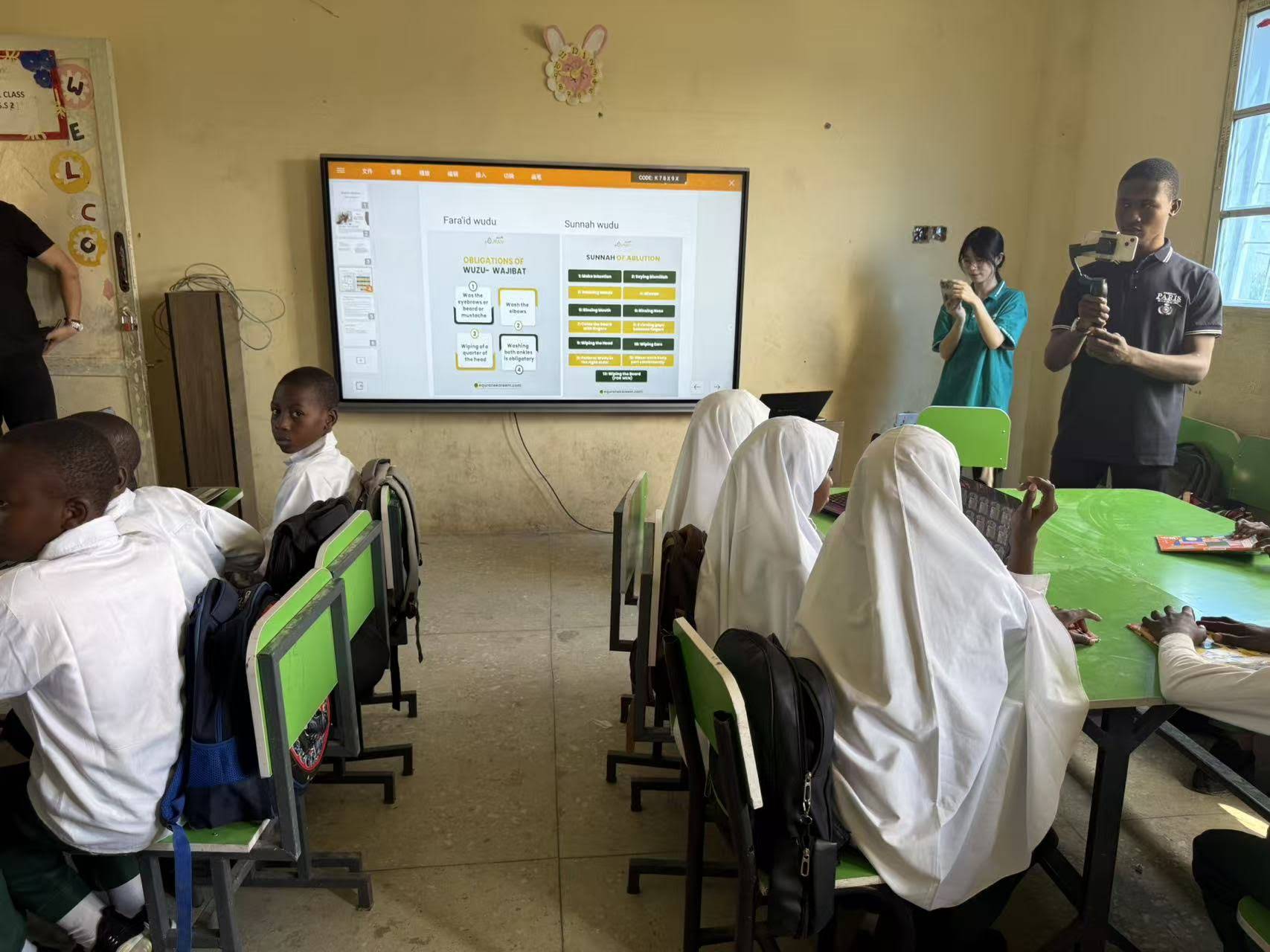
Android Device Connection Options
Android smartphones and tablets support various casting technologies depending on the device manufacturer and smart board capabilities:
Most Android devices support Google Cast (formerly Chromecast) for wireless connections:
- Swipe down to open Quick Settings
- Tap “Cast,” “Smart View,” or “Screen Mirroring” (terminology varies by manufacturer)
- Select your smart board from the available devices
- Confirm the connection when prompted
Samsung devices offer additional connectivity through DeX mode, which provides a desktop-like interface when connected to compatible displays. For wired connections, use a USB-C to HDMI adapter compatible with your Android device’s video output capabilities.
Troubleshooting Common Connection Issues
Even with straightforward connection procedures, technical challenges occasionally arise. Understanding common problems and their solutions minimizes disruption during critical presentations.
Display Not Detected Issues
When your device fails to recognize the smart board, try these systematic troubleshooting steps:
- Verify cable connections ¨C Disconnect and firmly reconnect both ends of the cable. Inspect cables for visible damage.
- Test alternative ports ¨C If your smart board has multiple inputs, try connecting to a different port.
- Update graphics drivers ¨C Outdated drivers frequently cause detection failures. Download the latest drivers from your computer manufacturer’s website.
- Try a different cable ¨C Cables can fail internally without obvious external damage.
- Restart both devices ¨C Power cycle your computer and the smart board completely.
- Check display settings manually ¨C Force your computer to detect displays through system settings rather than relying on automatic detection.
Wireless Connection Problems
Wireless connectivity issues often stem from network configuration or interference:
| Problem | Possible Cause | Solution |
|---|---|---|
| Smart board not appearing in device list | Different Wi-Fi networks | Ensure both devices connect to the same network |
| Intermittent connection drops | Weak Wi-Fi signal or interference | Move closer to the router or reduce interference sources |
| Laggy or choppy video | Network bandwidth limitations | Disconnect other devices from Wi-Fi or use a wired connection |
| Cannot enter PIN code | Security feature timeout | Restart the connection process and enter the code more quickly |
Resolution and Display Quality Issues
Image quality problems typically relate to resolution mismatches or scaling settings. To optimize display quality:
- Manually set your computer’s output resolution to match the smart board’s native resolution (typically 1920¡Á1080 or 3840¡Á2160)
- Disable display scaling if content appears blurry or improperly sized
- Ensure your cable supports the resolution you’re attempting to display (older HDMI 1.4 cables cannot carry 4K@60Hz signals)
- Adjust the smart board’s picture settings (sharpness, contrast) for optimal viewing conditions
Optimizing Your Smart Board Connection Experience
Beyond basic connectivity, implementing best practices ensures reliable performance and extends equipment lifespan.
Network Infrastructure Considerations
For environments with multiple smart boards and frequent wireless presentations, robust network infrastructure becomes critical. Dedicated wireless access points in meeting rooms prevent bandwidth competition with other office traffic. Implementing Quality of Service (QoS) rules that prioritize presentation traffic reduces latency and prevents stuttering during video playback.
According to network performance studies conducted in 2024, conference rooms equipped with Wi-Fi 6 access points show 47% fewer wireless presentation interruptions compared to those using older Wi-Fi 5 technology. Organizations planning smart board deployments should consider network upgrades as part of their total implementation strategy.
Cable Management and Maintenance
Professional installations benefit from organized cable management:
- Use cable clips or raceways to prevent trip hazards and cable damage
- Label all cables clearly to simplify troubleshooting
- Keep spare cables readily available in presentation spaces
- Periodically inspect cables for wear, especially near connectors where flexing causes stress
- Use cable retractors or tidies to manage excess cable length professionally
Pre-Presentation Connection Checklist
Arriving early and following a systematic connection checklist prevents delays when presentations begin:
- Test your connection method at least 15 minutes before your presentation
- Verify audio output is working correctly (many presenters forget to test sound)
- Confirm your content displays properly at the smart board’s resolution
- Have a backup connection method ready (carry both a USB-C adapter and an HDMI cable)
- Know how to quickly switch inputs on the smart board
- Save a local copy of presentation files in case cloud access fails
- Test interactive features if your presentation uses touch or pen input
- Use dedicated presentation VLANs ¨C Isolate smart board network traffic from primary corporate networks
- Enable PIN-based connection authentication ¨C Prevent unauthorized screen casting
- Implement session timeouts ¨C Automatically disconnect idle presentations to prevent content exposure
- Disable automatic screen recording features ¨C Ensure recordings require explicit user consent
- Keep firmware updated ¨C Manufacturers regularly release security patches addressing discovered vulnerabilities
- Clear browsing history and cached files if using the smart board’s built-in browser
- Log out of all accounts accessed during the presentation
- Disconnect from Wi-Fi networks before leaving the room
- Reset the smart board to its default input screen
Advanced Connection Features and Collaboration Tools
Modern smart boards extend beyond simple screen mirroring to offer sophisticated collaboration capabilities that enhance team productivity and learning outcomes.
Multi-Device Simultaneous Connection
Advanced interactive display solutions support multiple simultaneous connections, allowing several participants to share content without disconnecting previous presenters. This feature proves particularly valuable in dynamic meetings where participants need to reference different sources quickly.
Split-screen modes enable side-by-side comparison of content from different devices. For example, during design reviews, team members can display their laptop screens alongside tablets showing reference images, creating a more comprehensive discussion environment.
Cloud Integration and Remote Collaboration
Cloud-connected smart boards facilitate hybrid work environments where some participants join remotely while others collaborate in person. Content shared to the smart board automatically syncs to cloud platforms, enabling remote participants to view and interact with the same materials through video conferencing applications.
Organizations using cloud-enabled collaboration platforms report 34% faster decision-making in hybrid meetings compared to traditional presentation setups, according to 2025 workplace productivity research. This improvement stems from simultaneous access to materials rather than sequential screen sharing.
Interactive Annotation and Whiteboarding
Beyond displaying content, smart boards allow real-time annotation over presented materials. Presenters can highlight key points, draw diagrams, and capture spontaneous ideas directly on the display. These annotations can be saved and distributed to participants, creating valuable meeting records.
Touch-enabled smart boards support natural gesture interactions¡ªpinch to zoom, swipe to navigate, and multi-finger drawing for collaborative annotation. When multiple users connect simultaneously, each participant can annotate using their own device, creating truly collaborative sessions.
Security Considerations for Smart Board Connections
As smart boards increasingly connect to corporate networks and handle sensitive information, security measures become essential.
Network Security Best Practices
Implement these security measures to protect content during wireless presentations:
Data Residue and Privacy Protection
Smart boards with built-in computing capabilities may store temporary files or connection history. After presentations containing sensitive information:
Organizations in regulated industries (healthcare, finance, legal) should establish clear smart board usage policies that address data handling, screen capture restrictions, and mandatory content clearing procedures.
Future Trends in Smart Board Connectivity
The landscape of interactive display technology continues evolving, with several emerging trends reshaping how we connect and collaborate.
AI-Enhanced Connection Management
Artificial intelligence increasingly optimizes connection processes. Smart boards equipped with AI can automatically detect device types and select optimal connection protocols, eliminating manual configuration. Machine learning algorithms predict common connection preferences based on user behavior, streamlining repetitive tasks.
Voice-activated connection commands represent another frontier. Rather than navigating menus, presenters simply state “connect my laptop” and the system handles authentication and display configuration automatically. This hands-free approach particularly benefits users with accessibility needs.
5G and Wi-Fi 7 Integration
Next-generation wireless technologies promise dramatically improved connection reliability and performance. Wi-Fi 7, with its multi-link operation capability, maintains stable connections even in congested network environments. Lower latency makes wireless connections indistinguishable from wired alternatives for latency-sensitive applications.
5G cellular connectivity enables truly mobile collaboration scenarios where smart boards connect directly to cellular networks, bypassing traditional Wi-Fi infrastructure entirely. This capability particularly benefits temporary event spaces, outdoor environments, and locations lacking robust network infrastructure.
Universal Connectivity Standards
Industry efforts toward universal wireless display standards aim to eliminate compatibility confusion. The emerging Wireless Display Standard 2.0 specification provides unified protocols supporting seamless connections across different manufacturers’ devices and operating systems. This standardization reduces the technical expertise required for successful connections, democratizing access to advanced collaboration technology.
Conclusion
Mastering smart board connectivity transforms presentations and collaboration sessions from potentially frustrating technical exercises into smooth, productive experiences. Whether choosing wired reliability or wireless flexibility, understanding your options and following systematic connection procedures ensures successful presentations every time.
The investment in learning proper connection techniques pays dividends through reduced setup time, fewer technical interruptions, and more confident presentations. As smart board technology continues advancing with AI integration, cloud connectivity, and improved wireless standards, the fundamental connection principles outlined in this guide remain applicable while expanding possibilities for innovative collaboration.
Remember that successful smart board connectivity combines technical knowledge with practical preparation. Test connections before critical presentations, maintain backup connection options, and stay informed about your specific smart board model’s capabilities. With these foundations in place, you’ll confidently connect any device to any smart board, focusing your energy on delivering impactful content rather than troubleshooting technical difficulties.