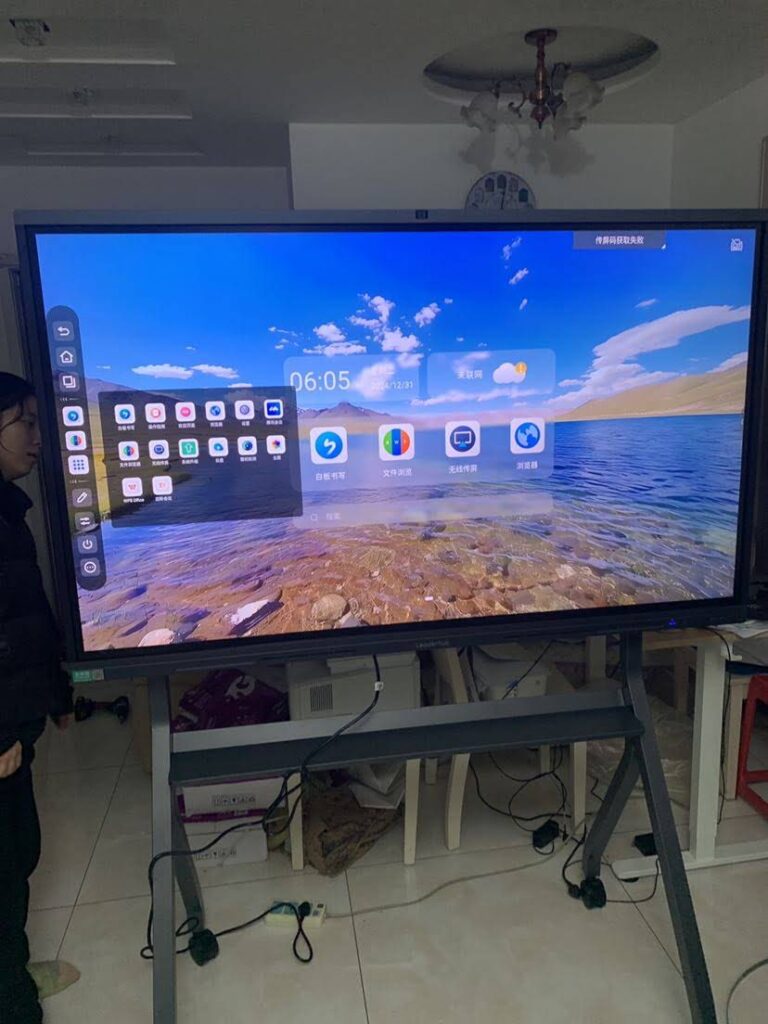
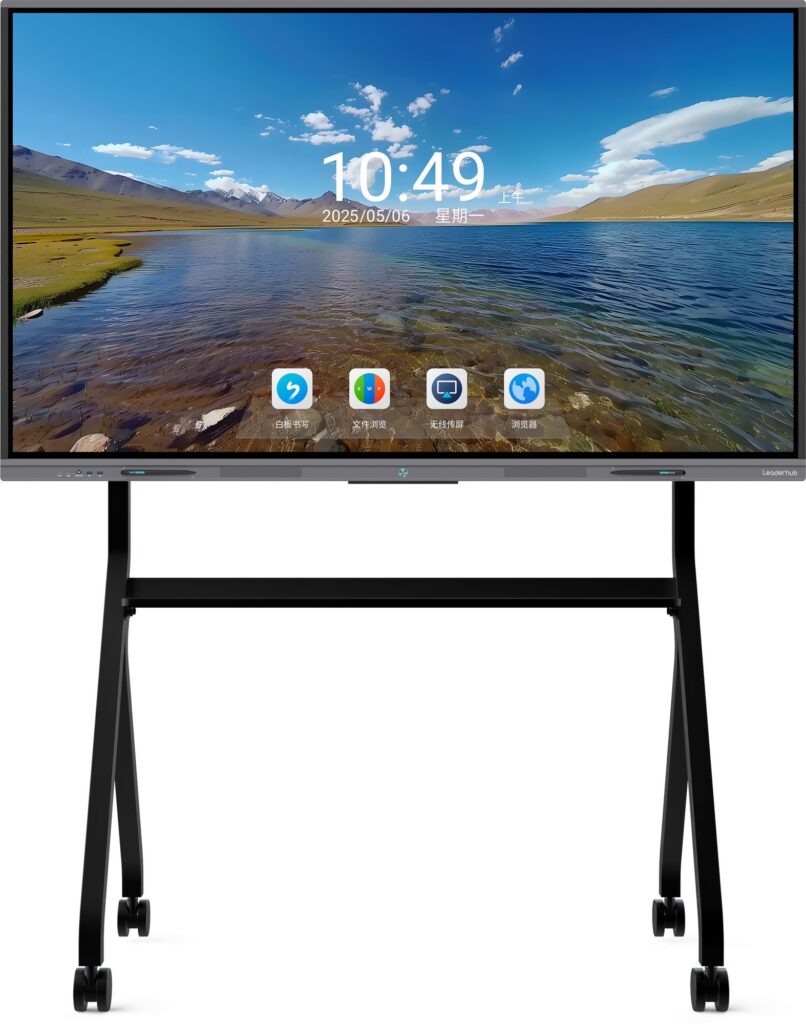
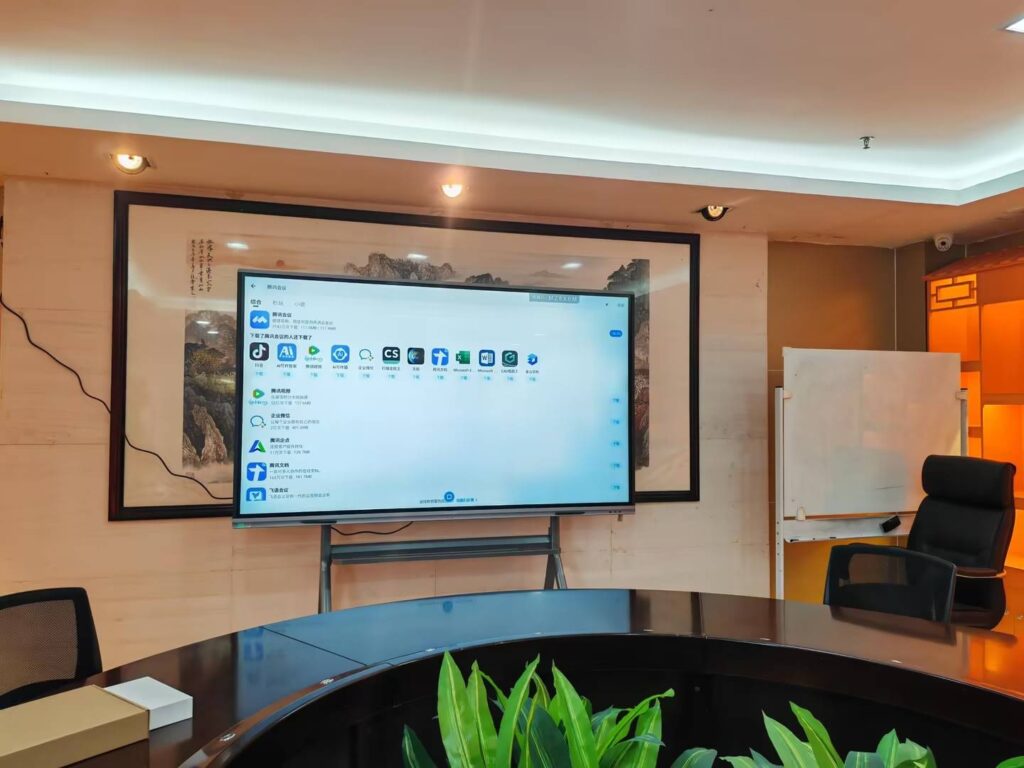
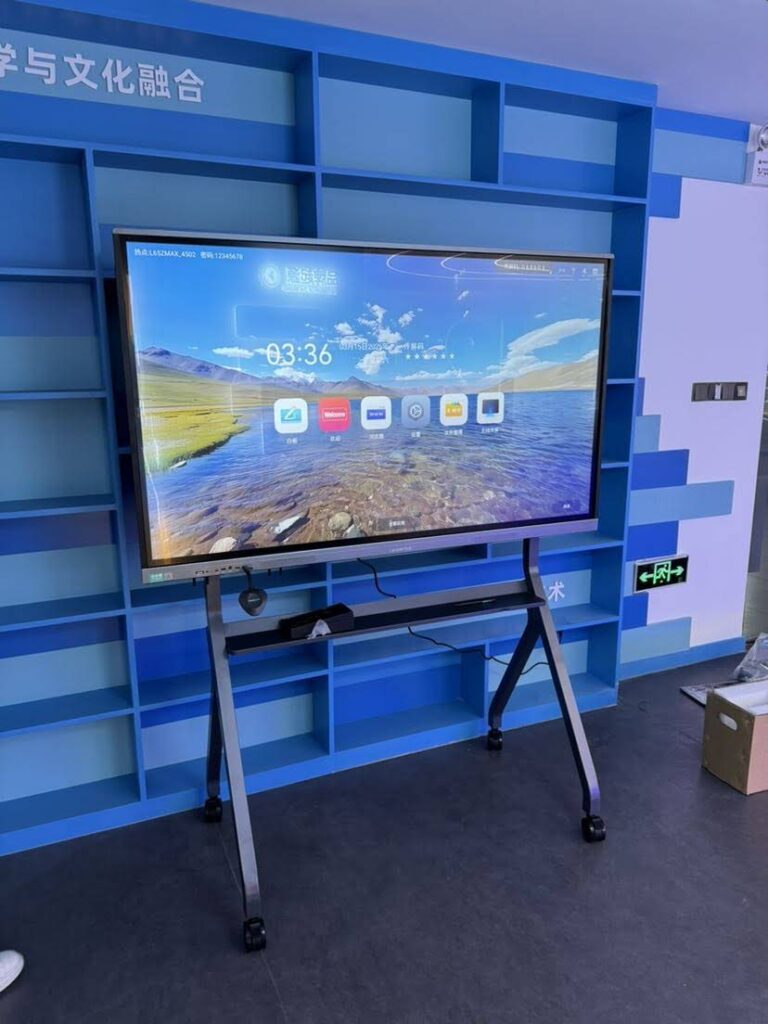
Interactive whiteboards, commonly called smart boards, have revolutionized how we teach, present, and collaborate. From corporate boardrooms to elementary classrooms, these large touchscreen displays combine traditional whiteboard functionality with powerful digital capabilities. But how exactly does a smart board work? Let’s break down the technology, components, and practical applications that make these devices essential tools in modern education and business.
What Is a Smart Board?
A smart board is an interactive display system that responds to touch input, stylus gestures, or digital pens, allowing users to control content directly on the screen. Unlike traditional whiteboards that only accept dry-erase markers, smart boards integrate computing power, touch detection technology, and display capabilities into one seamless device.
These systems typically connect to a computer or operate as standalone devices with built-in operating systems. Users can write notes, draw diagrams, manipulate images, browse the internet, run applications, and save their work digitally¡ªall from the board’s surface.
Core Components of a Smart Board
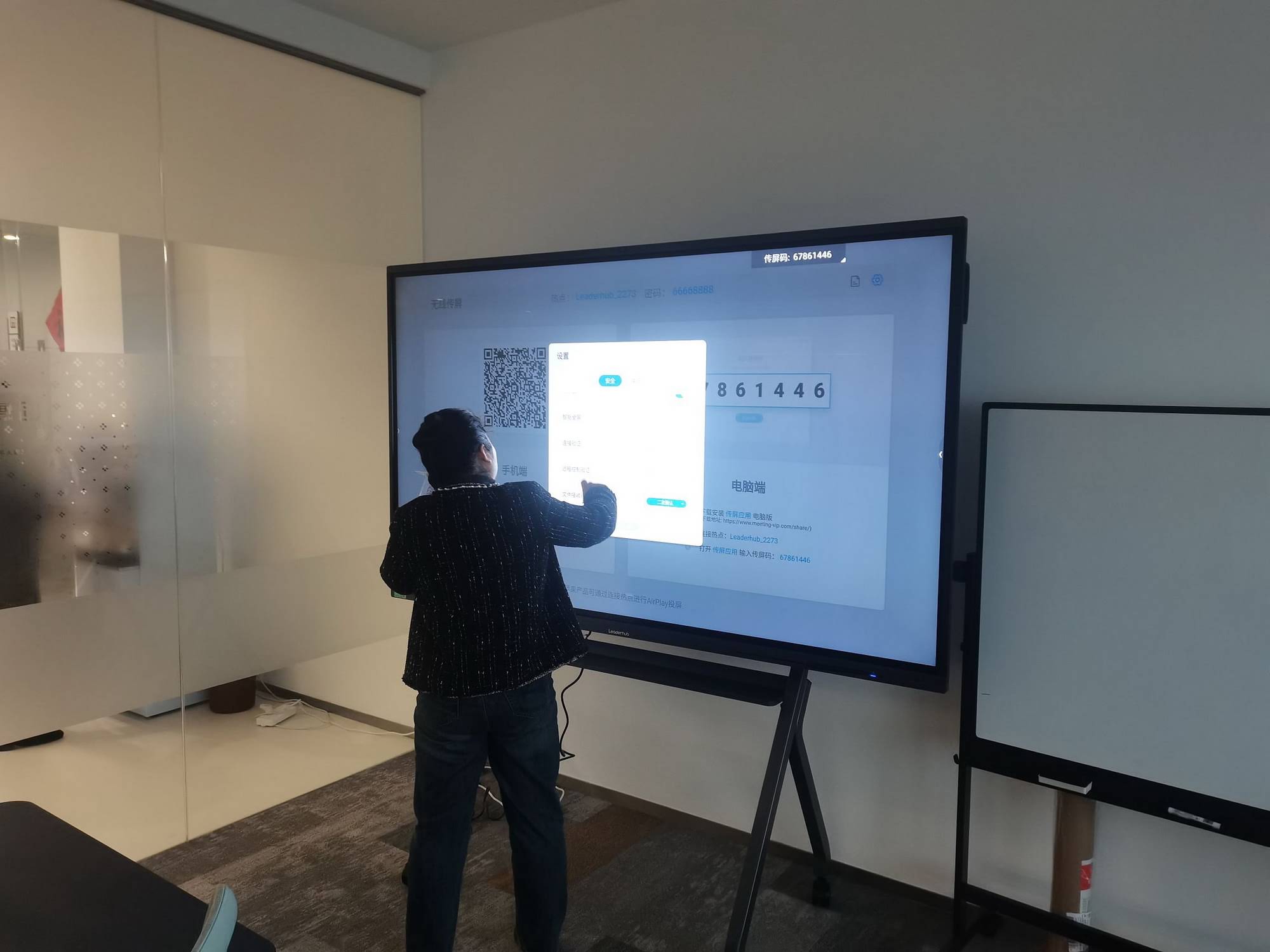
Understanding how smart boards function requires looking at their key hardware and software components:
Display Panel
The display panel forms the visible surface where content appears. Most modern smart boards use LED or LCD technology to produce high-resolution images. Commercial-grade panels typically range from 55 inches to 98 inches diagonally, with 4K resolution becoming standard in premium models. The panel must be durable enough to withstand repeated touching while maintaining image clarity and color accuracy.
Touch Detection System
The touch detection system represents the core innovation that makes a whiteboard “smart.” Several technologies accomplish this:
- Infrared Technology: Uses an invisible grid of infrared light beams across the screen surface. When you touch the screen, you interrupt these beams, and sensors detect the exact location based on which beams were broken.
- Capacitive Touch: Similar to smartphone screens, capacitive systems detect the electrical properties of your finger. They support multi-touch gestures and provide highly responsive interaction.
- Resistive Touch: Consists of two conductive layers separated by a small gap. Pressure from a finger or stylus brings these layers into contact, registering the touch location.
- Optical Sensors: Digital cameras in the board’s corners track the position of special pens or your fingers using image recognition algorithms.
According to industry data from 2025, infrared and capacitive technologies dominate the commercial smart board market due to their accuracy, multi-touch capabilities, and durability.
Processing Unit
Smart boards contain a built-in computer system, typically running Android, Windows, or custom operating systems. This processing unit handles:
- Touch input processing and gesture recognition
- Running interactive software and applications
- Managing network connectivity (WiFi, Bluetooth, Ethernet)
- Controlling display output and audio
- Storing and accessing files locally or from cloud services
High-quality smart boards feature quad-core or octa-core processors with sufficient RAM (4GB to 8GB) to handle multiple applications simultaneously without lag.
Connectivity Options
Modern smart boards offer extensive connectivity to integrate with existing technology ecosystems:
| Connection Type | Purpose | Common Use Cases |
|---|---|---|
| HDMI | Video and audio input | Connecting laptops, document cameras |
| USB | External device connection, touch control | Flash drives, keyboards, mice, cameras |
| WiFi | Wireless networking | Internet access, wireless screen sharing |
| Bluetooth | Wireless peripherals | Wireless keyboards, speakers, headphones |
| Ethernet | Wired network connection | Stable internet, network management |
Software Ecosystem
The software transforms hardware capabilities into practical functionality. Smart board software typically includes:
- Annotation Tools: Digital pens, highlighters, shapes, and text tools for marking up content
- Whiteboarding Applications: Infinite canvas environments for brainstorming and diagramming
- Screen Sharing: Wireless presentation from laptops, tablets, and smartphones
- File Management: Access to local storage, USB drives, and cloud services like Google Drive or OneDrive
- Video Conferencing Integration: Built-in support for Zoom, Microsoft Teams, Google Meet
- Educational Apps: Subject-specific tools, interactive lessons, and assessment software
Leading manufacturers like Leaderhub, with over 16 years of experience developing interactive display technologies, integrate AI-powered features that enhance collaboration and productivity in their smart whiteboard solutions.
How Touch Detection Works: A Technical Deep Dive
The most critical function of any smart board is accurately detecting where and how users interact with the screen. Let’s examine the most common touch technologies in detail:
Infrared Touch Technology
Infrared systems create an invisible grid of light beams just above the screen surface. LED emitters along two adjacent edges project infrared light across the screen, while photodetectors on the opposite edges receive these beams.
When you touch the screen, your finger blocks specific horizontal and vertical beams. The system’s processor calculates the exact touch point by determining which beams were interrupted. This technology offers several advantages:
- Works with fingers, gloved hands, styluses, or any pointing object
- Supports simultaneous multi-touch from multiple users (typically 20+ touch points)
- No special coatings required on the glass surface, providing excellent durability
- High accuracy with minimal calibration requirements
Capacitive Touch Technology
Capacitive systems rely on the electrical properties of the human body. The screen contains a transparent conductive layer that maintains an electrostatic field. When your finger touches the screen, it draws a tiny electrical charge, creating a voltage drop at that specific location.
Controllers at each corner of the screen measure these changes and calculate the precise touch coordinates. Capacitive technology delivers:
- Extremely responsive, smooth touch experience
- Support for complex multi-touch gestures (pinch-to-zoom, rotation, swipe)
- Excellent clarity since only a thin conductive layer covers the display
- Long lifespan with no moving parts
However, capacitive screens typically only respond to conductive materials (bare fingers or special styluses), not regular pens or gloved hands.
Resistive Touch Technology
Resistive touchscreens use two thin, electrically conductive layers separated by an air gap. When you press the screen, these layers make contact. Voltage measurements at the contact point determine the touch location.
While less common in premium smart boards today, resistive technology remains cost-effective and works with any pointing device. Its main limitations include:
- Reduced image clarity due to additional layers
- Limited multi-touch capability
- Susceptibility to scratches on the flexible top layer
Smart Board Operating Modes
Smart boards typically operate in several distinct modes, each optimized for different tasks:
Standalone Mode
In standalone mode, the smart board functions as an independent computer. Users access the built-in operating system, run installed applications, browse the internet, and create content without connecting external devices. This mode works well for:
- Quick brainstorming sessions
- Digital signage and announcements
- Video conferencing when combined with a built-in camera
- Running educational apps or training programs
Extended Display Mode
When connected to a computer via HDMI or USB, the smart board can function as an extended desktop. The board displays what’s on the connected computer while also sending touch input data back to control the computer.
This mode enables users to run desktop applications, access specialized software, or present PowerPoint slides while maintaining full touch control directly on the large display.
Screen Share Mode
Wireless screen sharing allows multiple participants to display their laptop or mobile device screens on the smart board without cables. Most systems support:
- Multiple devices sharing simultaneously (split-screen viewing)
- Remote annotation where presenters can mark up shared content from their device
- Secure, password-protected connections
- Cross-platform compatibility (Windows, macOS, iOS, Android)
Whiteboarding Mode
Dedicated whiteboarding applications provide an infinite digital canvas where users can write notes, draw diagrams, insert images, and organize ideas freely. Advanced features include:
- Handwriting recognition that converts written text to typed text
- Shape recognition that transforms rough sketches into perfect geometric shapes
- Sticky notes and organizational templates
- Multi-page documents with easy navigation
- Export options (PDF, image files, native formats)
Real-World Applications and Use Cases
Smart boards deliver value across numerous settings. Here’s how different sectors leverage this technology:
Education Sector
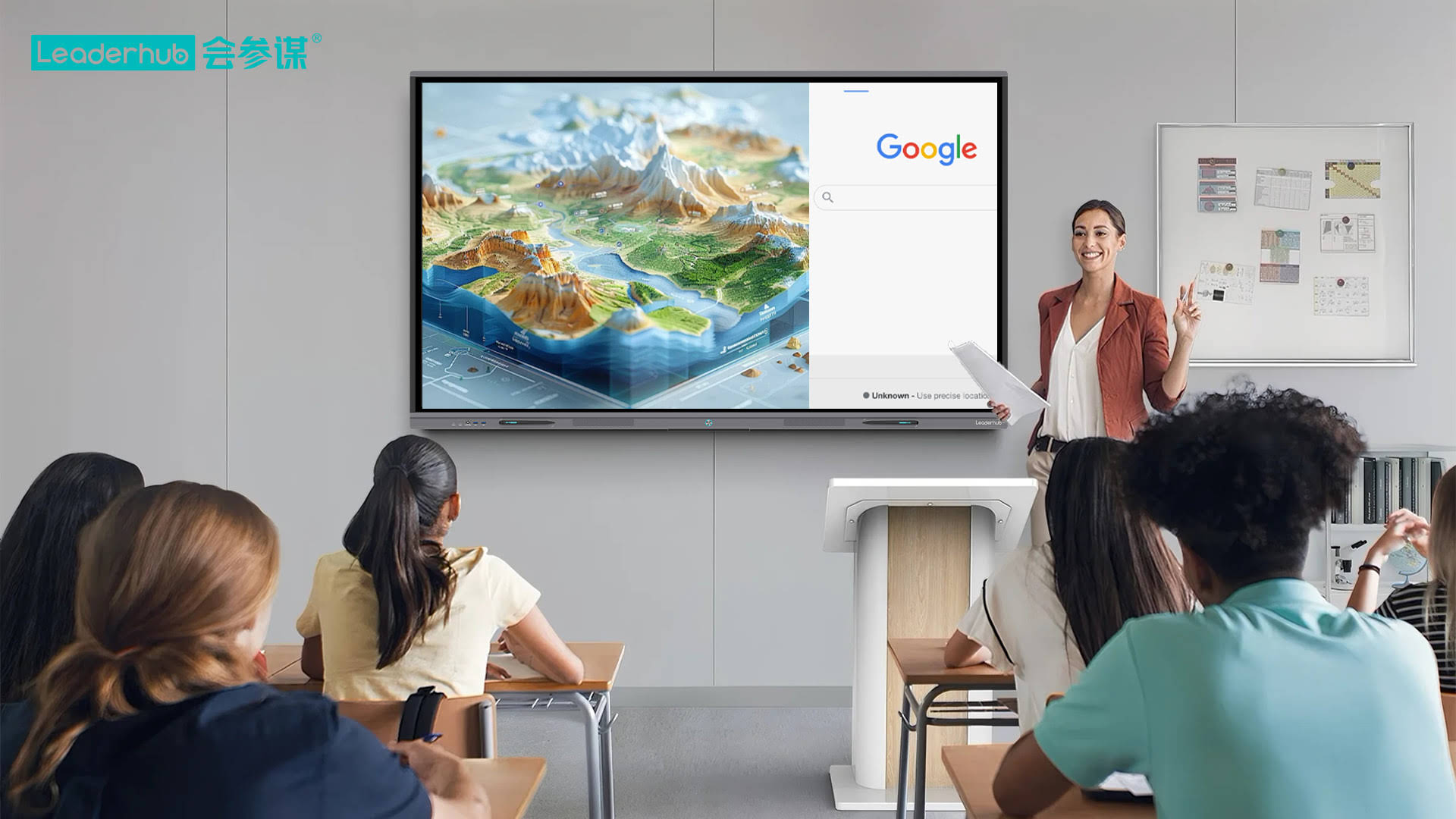
In classrooms worldwide, smart boards have become central to interactive learning. Teachers use them to:
- Display multimedia content (videos, animations, simulations) that engages visual learners
- Annotate lessons in real-time while explaining complex concepts
- Access educational apps that gamify learning and provide instant feedback
- Conduct virtual field trips and connect with experts remotely
- Save lesson content for absent students or review purposes
A 2024 study by the Education Technology Association found that classrooms using interactive whiteboards showed 27% higher student engagement compared to traditional teaching methods. Students reported that visual demonstrations and hands-on interaction with content improved their understanding of difficult subjects.
Corporate Environment
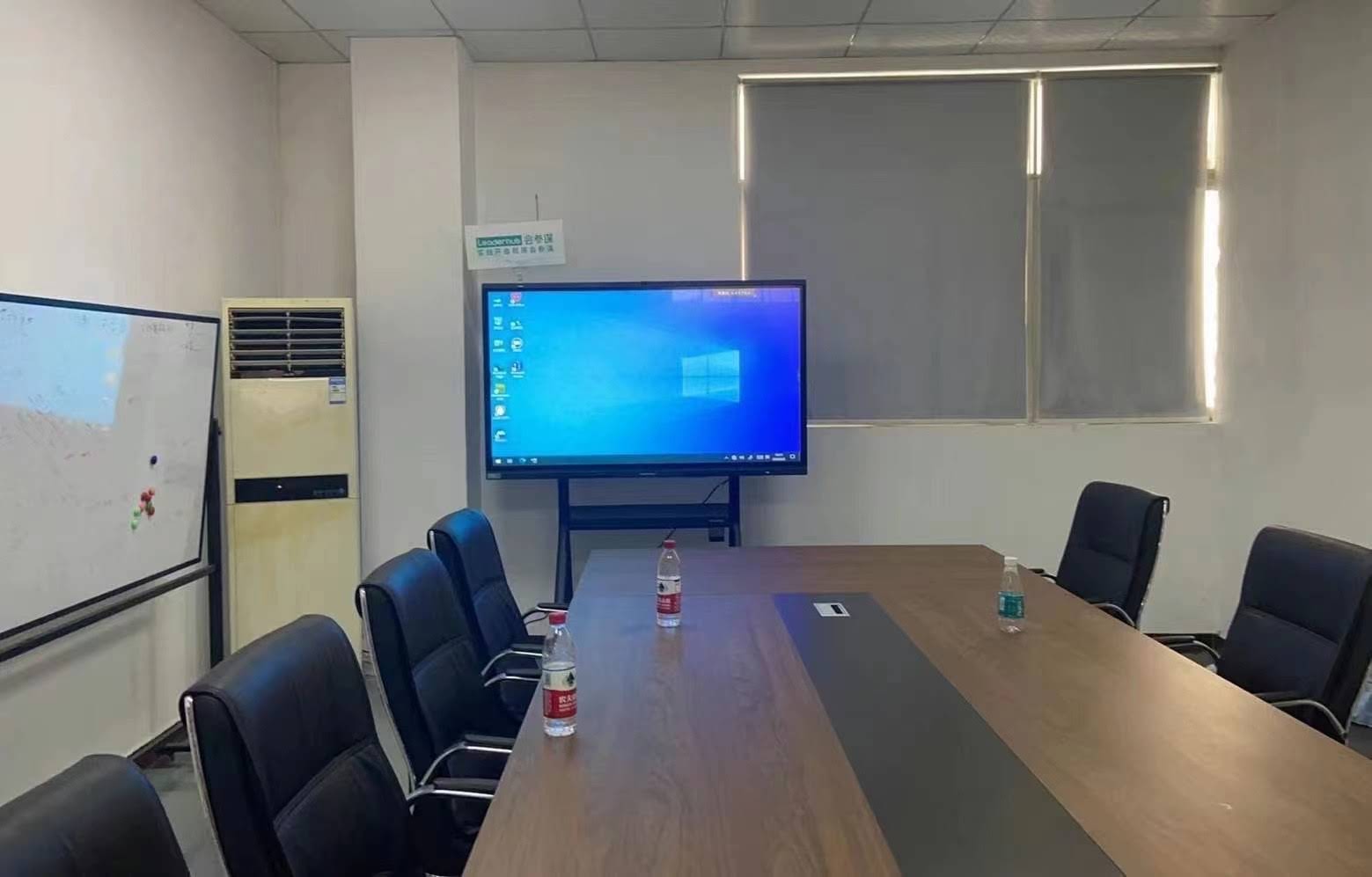
Businesses adopt smart boards to enhance meetings, presentations, and collaborative work:
- Sales Presentations: Interactive product demonstrations that allow prospects to explore features hands-on
- Strategy Sessions: Visual brainstorming where teams map ideas, draw connections, and refine concepts collaboratively
- Training Programs: Interactive workshops where instructors demonstrate software, annotate processes, and engage participants
- Remote Collaboration: Hybrid meetings where remote and in-office participants share a digital workspace
- Data Analysis: Displaying dashboards, manipulating charts, and discussing metrics with teams
According to workplace productivity research, meetings using interactive collaboration tools are 35% more efficient and produce 40% more actionable outcomes compared to traditional presentation-only formats.
Healthcare and Medical Training
Medical professionals use smart boards for:
- Displaying patient imaging (X-rays, MRIs, CT scans) during consultations
- Annotating anatomy diagrams during medical education
- Conducting telemedicine appointments with visual aids
- Training simulations where students practice procedures on interactive models
Design and Creative Industries
Architects, designers, and creative teams leverage smart boards to:
- Review and mark up design drafts collaboratively
- Present concepts to clients with interactive walkthroughs
- Sketch initial ideas that can be captured and refined digitally
- Compare design iterations side-by-side
Key Advantages of Smart Board Technology
Smart boards deliver tangible benefits that justify their adoption across industries:
Enhanced Engagement
Interactive content captures attention more effectively than static slides or traditional whiteboards. Movement, color, multimedia elements, and hands-on interaction activate multiple senses, improving information retention and focus.
Improved Collaboration
Multiple users can interact with the board simultaneously, making it ideal for group activities. Whether brainstorming marketing campaigns or solving engineering problems, teams work more effectively when everyone can contribute directly to a shared visual workspace.
Flexibility and Versatility
A single smart board replaces multiple devices: traditional whiteboard, projector, computer, document camera, and television. This consolidation simplifies room setups, reduces cable clutter, and provides a unified interface for all presentation needs.
Digital Record Keeping
Everything created on a smart board can be saved, exported, and shared digitally. This eliminates the need to photograph whiteboard content or manually transcribe notes. Participants receive exact copies of what was discussed, including all annotations and contributions.
Remote Collaboration Support
Smart boards integrate seamlessly with video conferencing platforms, allowing remote participants to view the board, share their screens, and sometimes even control the board remotely. This capability has become essential in hybrid work environments.
Accessibility Features
Modern smart boards include accessibility enhancements such as:
- Text-to-speech and speech-to-text conversion
- High-contrast display modes for visually impaired users
- Closed captioning for video content
- Adjustable interface elements for users with motor difficulties
- Multi-language support
Installation and Setup Considerations
Proper installation maximizes the effectiveness of smart board technology:
Physical Mounting
Smart boards require sturdy wall mounting or mobile stands. Key considerations include:
- Height: The center of the screen should be at comfortable eye level for primary users (lower for children in elementary schools, higher for adult users)
- Viewing Angles: Position the board where audiences can see clearly without glare from windows or overhead lights
- Reach: Users should comfortably reach the entire screen without stretching or using step stools
- Wall Strength: Large smart boards (75″+ displays) are heavy and require mounting on reinforced walls or studs
Network Configuration
Connecting the smart board to your network enables key features:
- Internet access for web browsing and cloud services
- Screen sharing from other devices
- Video conferencing capabilities
- Software updates and remote management
- Integration with organizational systems (calendar, email, file storage)
IT administrators should configure network security settings, including firewall rules, access permissions, and content filtering appropriate for the environment.
Peripheral Integration
Enhance smart board functionality by connecting:
- Document Cameras: Display physical objects, textbooks, or handwritten work
- External Speakers: Improve audio quality for larger rooms
- Video Cameras: Enable video conferencing and recording
- Wireless Microphones: Ensure remote participants hear clearly
Maintenance and Longevity
Proper maintenance extends smart board lifespan and maintains performance:
Screen Cleaning
Clean the touchscreen regularly with:
- Microfiber cloths (never paper towels, which can scratch)
- Screen-safe cleaning solution or distilled water
- Gentle wiping motions, never aggressive scrubbing
Avoid ammonia-based cleaners or abrasive materials that can damage anti-glare coatings or touch sensors.
Software Updates
Regularly update the operating system and applications to:
- Receive security patches that protect against vulnerabilities
- Access new features and improvements
- Maintain compatibility with other devices and services
- Fix bugs that affect performance
Touch Calibration
If touch accuracy degrades over time, run the calibration utility built into most smart boards. This process re-establishes the relationship between touch positions and on-screen locations, restoring precision.
Component Lifespan
Understanding component lifespans helps plan replacements:
| Component | Typical Lifespan | Maintenance Notes |
|---|---|---|
| LED Display Panel | 50,000 – 100,000 hours | Minimal degradation, very reliable |
| Touch Sensors | 10+ years | Solid-state, no moving parts |
| Computing Components | 5-7 years | May become obsolete before failure |
| Speakers | 8-10 years | Moderate usage, good durability |
| Ports and Connectors | Varies widely | Depends on insertion/removal frequency |
Choosing the Right Smart Board
Selecting an appropriate smart board requires evaluating several factors:
Screen Size
Match screen size to room dimensions and audience size:
- 55″-65″: Small meeting rooms, offices (4-8 people)
- 75″-86″: Medium classrooms, conference rooms (10-20 people)
- 86″-98″: Large auditoriums, training centers (20+ people)
Consider viewing distance: audiences should sit at least 1.5x the screen width away for comfortable viewing.
Resolution
4K Ultra HD (3840 x 2160) is now standard for displays 65″ and larger, providing sharp text and detailed images. Lower resolutions appear pixelated on large screens, especially when displaying text-heavy content.
Touch Points
More simultaneous touch points enable more users to interact concurrently. Educational environments benefit from 20+ touch points, while business settings often function well with 10 touch points.
Operating System
Common choices include:
- Android: Familiar interface, extensive app ecosystem, generally lower cost
- Windows: Full PC compatibility, runs desktop software, higher performance
- Proprietary OS: Optimized for specific hardware, streamlined interface, may limit app availability
Software Compatibility
Verify the smart board supports your essential applications:
- Video conferencing platforms (Zoom, Teams, Google Meet)
- Productivity suites (Microsoft Office, Google Workspace)
- Industry-specific software (CAD programs, learning management systems)
- Screen sharing protocols (AirPlay, Miracast, Chromecast)
Warranty and Support
Commercial smart boards typically include 3-5 year warranties. Consider:
- What components are covered?
- Is on-site service available?
- How quickly are repairs completed?
- What technical support is provided?
Established manufacturers with extensive industry experience, such as companies serving 82+ countries globally, typically offer more reliable support networks and longer product lifecycles.
Future Developments in Smart Board Technology
Smart board innovation continues advancing rapidly. Emerging trends include:
AI Integration
Artificial intelligence enhances smart boards through:
- Intelligent Content Recognition: AI identifies handwritten text, mathematical equations, diagrams, and converts them to digital formats
- Real-Time Translation: Instant translation of written or spoken content for multilingual collaboration
- Smart Suggestions: AI recommends relevant content, templates, or tools based on context
- Automated Meeting Notes: AI captures key discussion points, action items, and decisions
- Voice Control: Natural language commands to control board functions hands-free
Enhanced Remote Collaboration
Next-generation features improve hybrid and remote work:
- 360-degree cameras that automatically frame active speakers
- Spatial audio that positions remote participants’ voices realistically
- Augmented reality overlays that merge physical and virtual workspaces
- Holographic displays enabling 3D visualization
Improved Energy Efficiency
Environmental concerns drive development of:
- Low-power displays with adaptive brightness
- Intelligent power management that enters sleep mode when unused
- Recyclable materials and sustainable manufacturing practices
Advanced Security Features
Enterprise security requirements lead to:
- Biometric authentication (fingerprint, facial recognition)
- Encrypted data transmission and storage
- Session isolation preventing data leakage between users
- Advanced network security protocols
Common Troubleshooting Issues
Understanding common problems helps maintain optimal performance:
Touch Not Responding
Possible causes and solutions:
- Screen needs cleaning¡ªdirt or residue interferes with touch detection
- Touch sensors require recalibration¡ªrun the calibration utility
- USB cable loose or damaged¡ªcheck physical connections
- Driver software outdated¡ªupdate touch controller drivers
Display Issues
If the image appears distorted, dim, or incorrectly colored:
- Check video cable connections (HDMI, DisplayPort)
- Verify resolution settings match the panel’s native resolution
- Adjust brightness and contrast settings
- Test with different input sources to isolate the problem
Network Connectivity Problems
When WiFi or network features fail:
- Verify network credentials are correct
- Check if the board is within WiFi range
- Restart the board’s network adapter
- Contact IT to verify firewall settings aren’t blocking the device
Software Crashes or Freezes
Application instability often results from:
- Insufficient memory¡ªclose unused applications
- Outdated software¡ªinstall available updates
- Corrupted files¡ªreinstall problematic applications
- Overheating¡ªensure ventilation openings aren’t blocked
Conclusion: The Value of Understanding Smart Board Technology
Smart boards represent sophisticated integration of display technology, touch detection systems, computing power, and intuitive software. By understanding how these components work together, users can maximize the technology’s potential in education, business collaboration, and creative work.
Whether you’re a teacher designing