Managing a handful of smart boards by walking from room to room with a USB stick is manageable. Managing fifty of them across three buildings is not. That is exactly where smart board mobile device management integration changes the game. By enrolling your interactive displays into the same MDM platform that already governs your laptops, tablets and phones, IT teams gain centralized control over apps, security policies, firmware and content — without ever touching the screen itself.
This guide walks you through the complete setup process: what MDM does for a smart board, how to prepare your network and devices, how to enroll Android-based interactive flat panels and Windows OPS modules, and how to maintain the fleet once it is live. Whether you run a K–12 school district, a university campus or a multi-office enterprise, the steps below will help you deploy faster and operate with fewer headaches.
Why Smart Boards Need Mobile Device Management
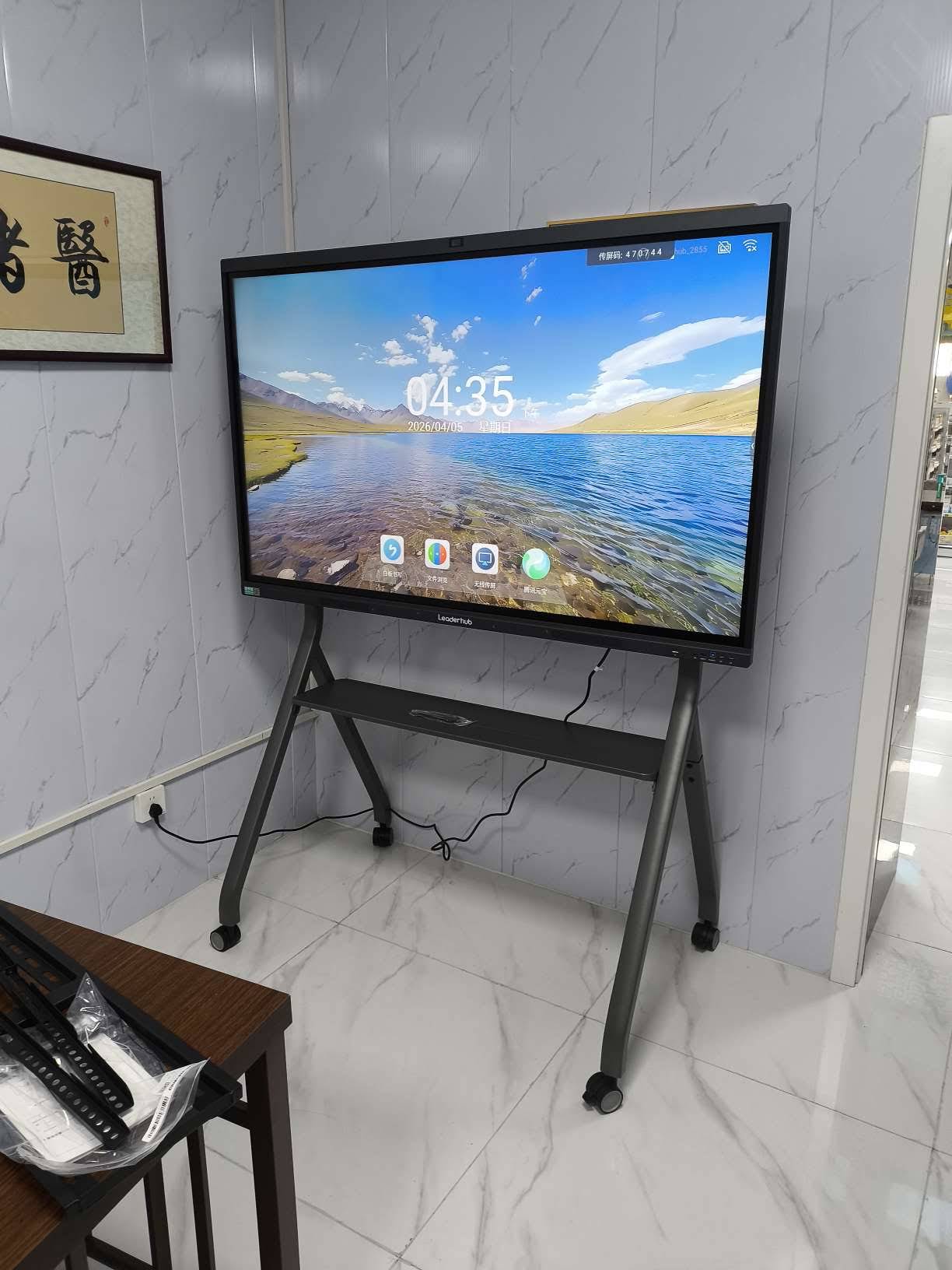
Most modern interactive flat panels run an Android operating system on an ARM processor, and many also accept a slot-in Windows OPS computer. In practice, that means each board is a full computing endpoint with Wi-Fi, storage, a browser, an app store and user accounts. Left unmanaged, these endpoints create the same risks as any other unmanaged device: outdated firmware, unauthorized apps, inconsistent settings and no visibility when something goes wrong.
Mobile device management solves this by treating the smart board as a managed device. Research summarized in the OECD Digital Education Outlook highlights that institutions see the strongest returns on classroom technology when infrastructure is governed systematically rather than device by device. MDM is the operational layer that makes systematic governance possible for displays.
Key Benefits of Integrating Smart Boards with MDM
- Zero-touch deployment: Boards automatically pull settings, Wi-Fi credentials and apps the moment they connect to the network.
- Centralized app management: Push whiteboarding, video-conferencing and screen-sharing apps to hundreds of panels in one action.
- Security policy enforcement: Lock down the Android launcher, restrict USB access, enforce screen-lock timers and disable unauthorized app stores.
- Remote troubleshooting: View device status, reboot panels, clear caches or take remote control of a screen without a site visit.
- Firmware and OS updates: Schedule updates overnight so classrooms and meeting rooms are never interrupted.
- Asset visibility: Track serial numbers, locations, uptime and usage analytics across every building.
Understanding the Two Management Layers in a Smart Board
Before enrolling anything, it is important to understand that a typical interactive panel may contain two separate operating systems that each need to be managed. The embedded Android system drives the touch interface, annotation tools and wireless casting. An optional Windows OPS module provides a full desktop environment. Each layer is managed by a different MDM channel.
| Management Layer | Operating System | Enrollment Method | Typical MDM Platforms |
|---|---|---|---|
| Embedded panel system | Android 11 / 13 / 14 | Android Enterprise (Device Owner), QR code, or vendor agent | Intune, Jamf Pro, Hexnode, Scalefusion, SOTI, Esper |
| Slot-in OPS computer | Windows 11 / 10 | Windows Autopilot, Azure AD join, provisioning package | Intune, SCCM/MECM, Workspace ONE |
| Vendor cloud console | Manufacturer firmware layer | Serial number or activation code binding | Manufacturer display-management portals |
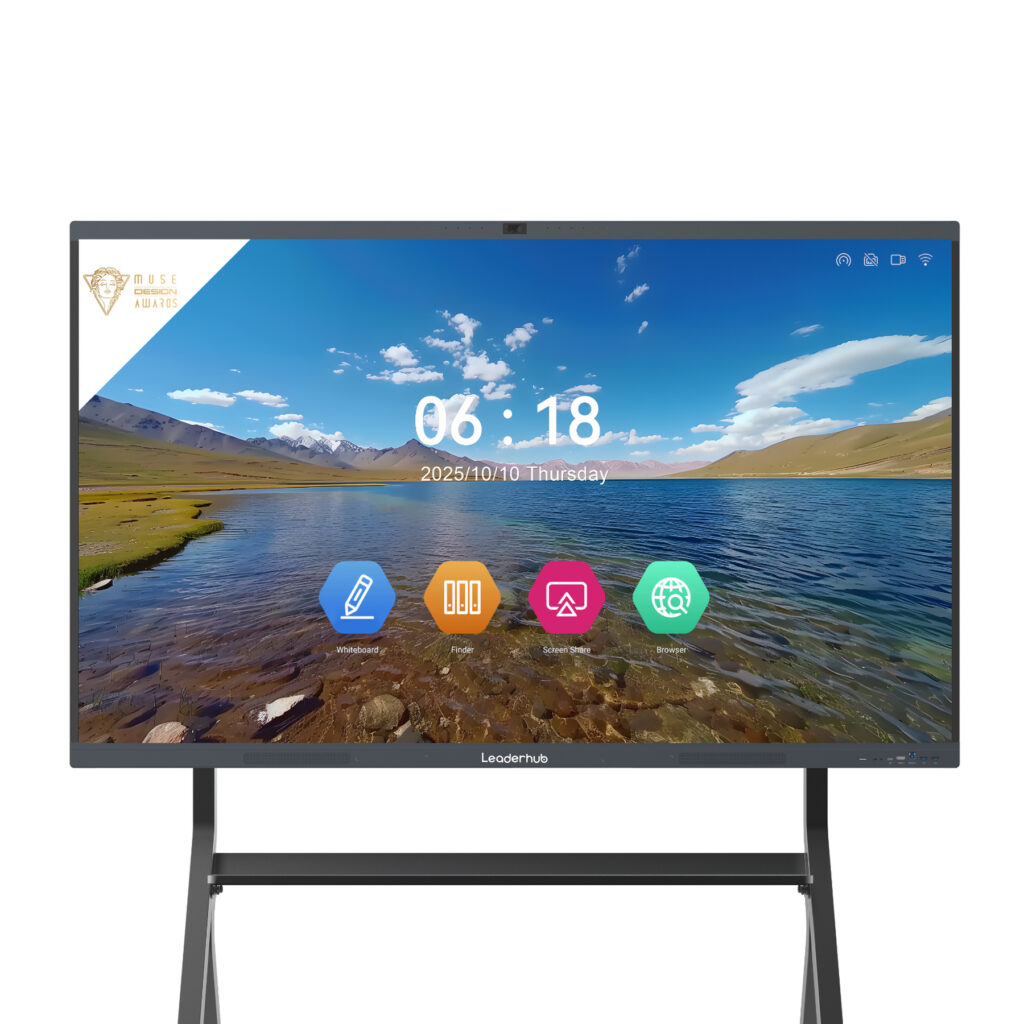
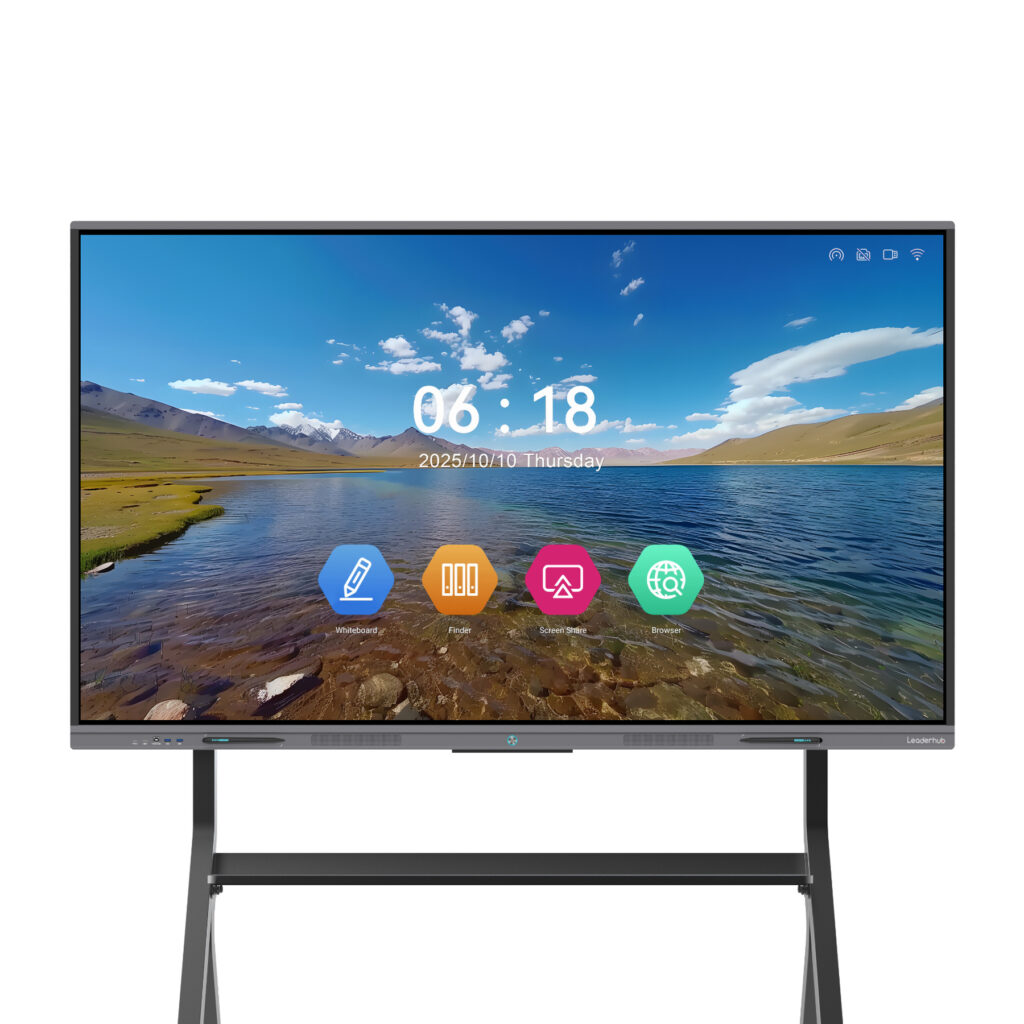
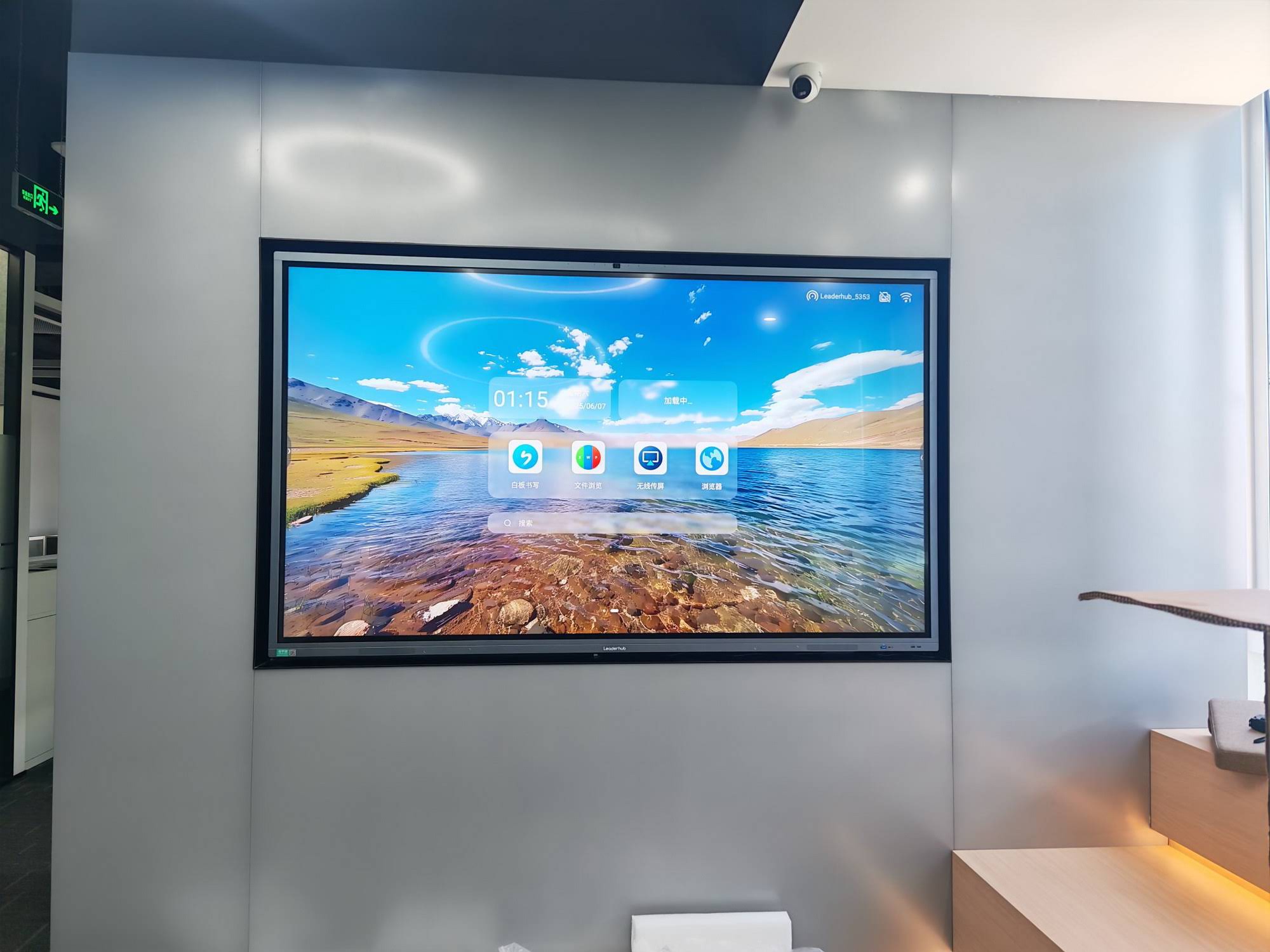
Panels such as the Leaderhub L75HM Interactive Smart Whiteboard run a modern Android build that supports Device Owner mode, which is the prerequisite for full MDM control. If you plan to add a Windows OPS module, you will manage it as a standard Windows endpoint alongside your existing PCs.
Step 1: Pre-Deployment Planning
A smooth integration starts long before the first board is unboxed. The planning phase defines who owns the devices, how they will be grouped, and what policies apply to each group.
Define Device Groups and Ownership
Most organizations segment smart boards by location and use case. A high school might create groups for science labs, general classrooms and the library, while an enterprise might separate huddle rooms, boardrooms and training centers. Each group receives its own configuration profile. Decide early whether boards will be shared devices with no personal accounts (recommended) or whether staff will sign in with individual credentials.
Audit Your Network Infrastructure
- Confirm Wi-Fi coverage at every mounting location, or plan Ethernet drops for maximum stability.
- Create a dedicated VLAN or SSID for display devices to isolate them from student or guest traffic.
- Whitelist MDM server endpoints, Google Play services and app CDN domains on your firewall.
- Verify that NTP time synchronization is reachable; certificate-based enrollment fails on devices with incorrect clocks.
- Allocate sufficient DHCP addresses or reserve static IPs for boards that act as casting receivers.
Choose the Right MDM Platform
If your organization already runs Microsoft 365, Intune is the natural choice because it manages both the Android panel and the Windows OPS from one console. Apple-centric schools often extend Jamf to cover Android panels through Android Enterprise. Organizations wanting purpose-built kiosk and signage controls frequently select Hexnode, Scalefusion or Esper. Guidance in the Education Technology Implementation report from the UK Department for Education stresses that platform choice should follow existing staff expertise rather than feature checklists alone.
Step 2: Preparing the Smart Board for Enrollment
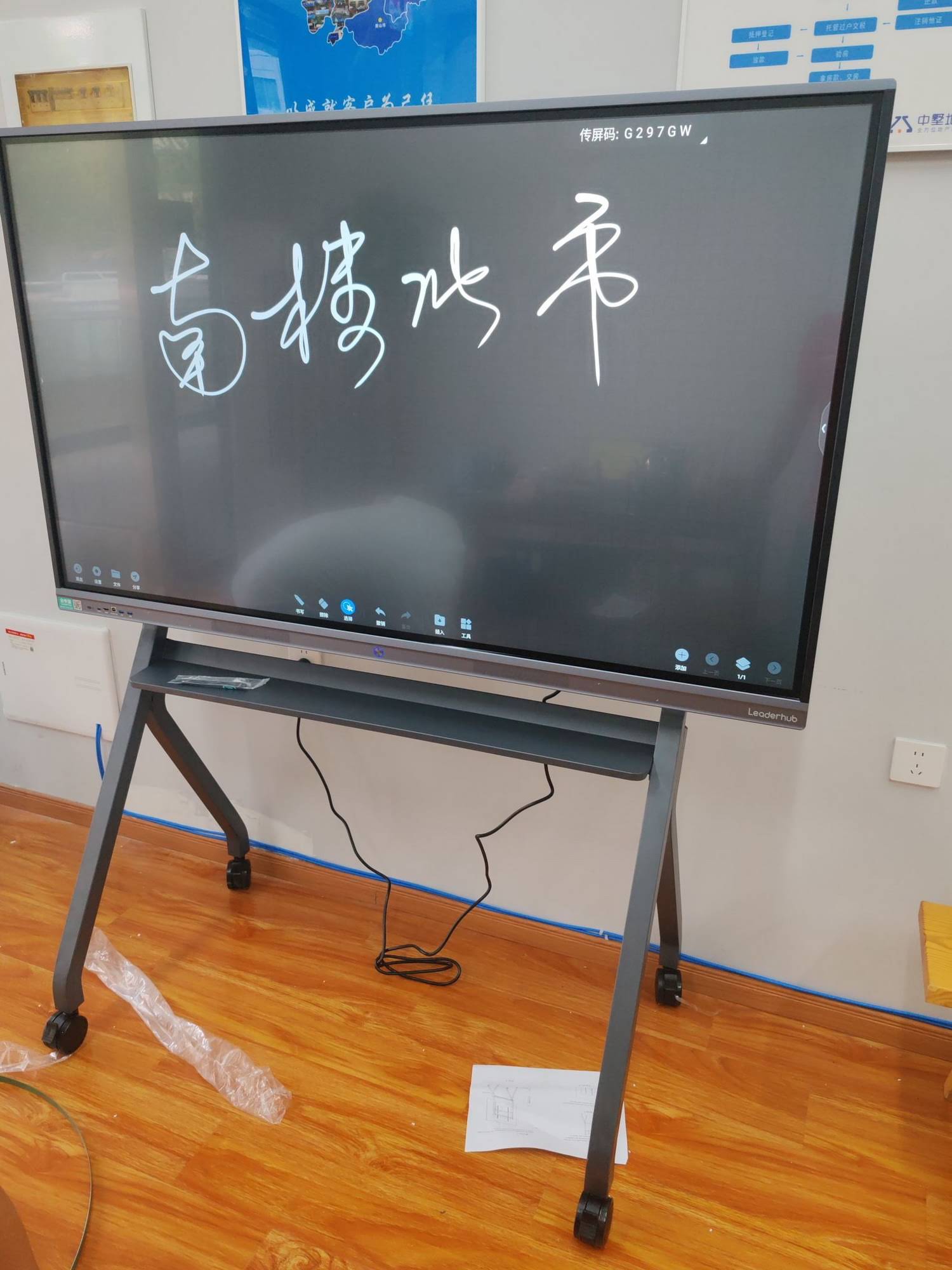
Android Enterprise enrollment requires the panel to be in a factory-fresh state so that the MDM agent can be set as Device Owner. Boards that have already been configured and used must be factory reset first.
Pre-Enrollment Checklist
- Update the panel firmware to the latest version available from the manufacturer before resetting.
- Record the serial number, MAC address and intended room location in your asset register.
- Perform a factory reset from the settings menu and allow the device to reboot to the welcome screen.
- Do not connect a Google account or skip through setup — stop at the first setup screen.
- Ensure the OPS module (if installed) is powered off during Android enrollment to avoid input-source confusion.
One practical note for Android-based panels: some interactive displays ship with a custom launcher that remains active even after MDM enrollment. If your policy requires a locked-down kiosk launcher, check that the manufacturer allows the default launcher to be replaced or hidden by the MDM agent. Panels built on Android 14, such as the Leaderhub U24M Handheld Smart Screen, generally offer the most complete Android Enterprise API support.
Step 3: Enrolling Android-Based Smart Boards
There are three common enrollment paths for Android panels. The one you use depends on your MDM platform, the number of boards and whether the manufacturer supports zero-touch provisioning.
| Enrollment Method | How It Works | Best For | Time per Device |
|---|---|---|---|
| QR Code Provisioning | Tap the welcome screen six times, scan a QR code generated by your MDM, and the agent installs automatically. | 1–50 boards, mixed vendors | 5–8 minutes |
| AFW# Token Enrollment | Enter afw#yourmdm in the Google account field during setup to trigger managed enrollment. | Boards without a camera or with QR scanning disabled | 6–10 minutes |
| Zero-Touch / Vendor Pre-Registration | Serial numbers are registered with the MDM before shipping; the board enrolls automatically on first network connection. | 50+ boards, district-wide rollouts | Under 2 minutes of hands-on time |
QR Code Enrollment Walkthrough
- In your MDM console, create an Android Enterprise enrollment profile for the smart board group and set the device type to Corporate-owned, fully managed or Dedicated device depending on whether you want kiosk behavior.
- Embed the Wi-Fi SSID and password in the enrollment profile so the board can connect without manual entry.
- Generate and print or display the QR code.
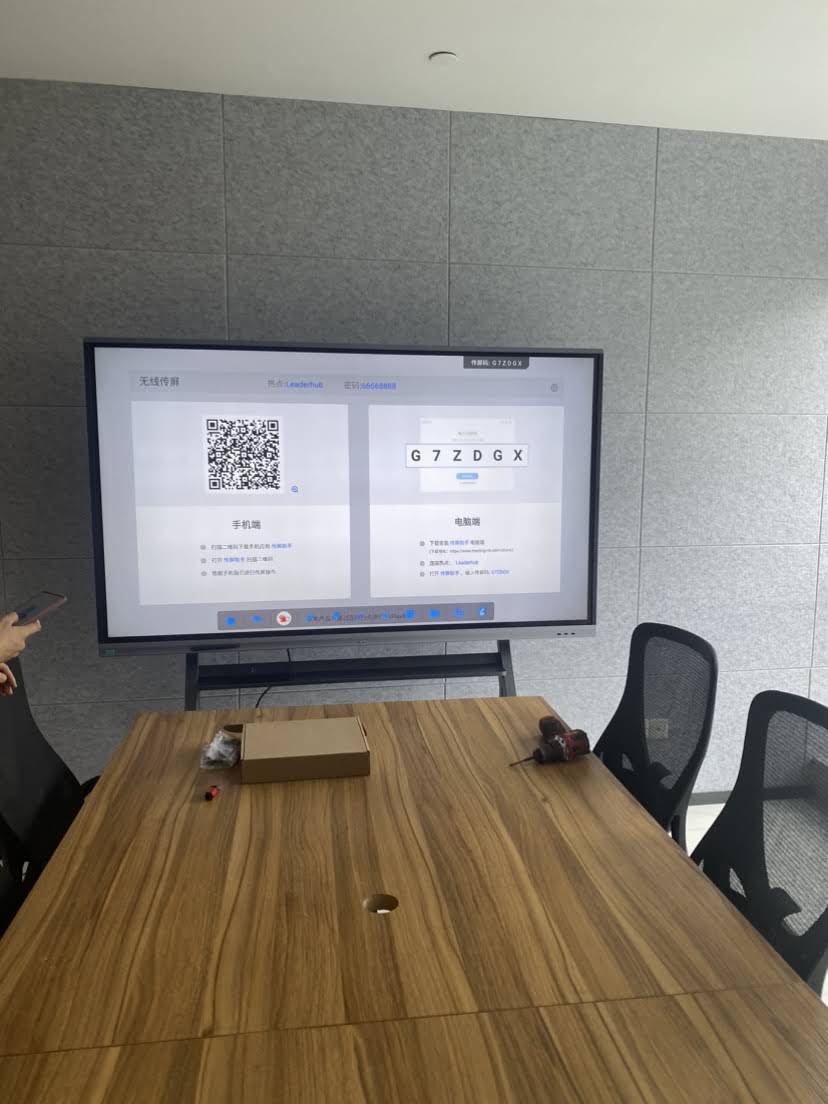
- On the factory-reset panel, tap the welcome screen six times in the same spot to launch the QR scanner.
- Scan the code. The board connects to Wi-Fi, downloads the MDM agent, sets it as Device Owner and reboots into the managed state.
- Confirm the device appears in your console, then assign it to the correct group so configuration profiles apply.
Enrolling the Windows OPS Module
Once the Android layer is managed, power on the OPS computer and treat it as a standard Windows endpoint. For Intune environments, register the hardware hash with Windows Autopilot so the module joins Azure AD and receives its configuration profile on first boot. For on-premises environments, a provisioning package on a USB drive or a domain-join script works equally well. Set the OPS to auto-login a shared room account and disable sleep so the panel remains ready for wireless presentation.
Step 4: Building Configuration Profiles and Security Policies
Enrollment gets the board into your console; configuration profiles determine how it behaves. The following policy areas cover the majority of education and enterprise requirements.
Recommended Policy Settings for Interactive Displays
| Policy Area | Education Setting | Enterprise Setting |
|---|---|---|
| Launcher mode | Multi-app kiosk with whiteboard, browser and LMS apps | Multi-app kiosk with Teams/Zoom Rooms, casting and whiteboard |
| App installation | Managed Google Play only; block sideloading | Managed Google Play only; block sideloading |
| USB storage | Read-only for teacher files | Disabled or read-only |
| Web content filtering | Enforce managed browser with safe-search and URL allow-list | Block personal email and file-sharing sites |
| Session data | Auto-clear annotations and browser history at end of day | Auto-clear after each meeting ends |
| Power schedule | On 7:30 AM, off 5:00 PM, weekends off | On 7:00 AM, standby after 30 minutes idle |
| Update window | Overnight or school holidays | Weekend maintenance window |
For schools, the policy framework should align with child-safety expectations. UNICEF’s guidance on Child Protection in Digital Education recommends that shared classroom devices never retain personal data between sessions and that web access be filtered at the device level in addition to the network level. MDM makes both requirements enforceable rather than aspirational.
Managing Wireless Casting and Screen Sharing
One policy area unique to smart boards is wireless presentation. Most panels support Miracast, AirPlay and Google Cast, along with the manufacturer’s own casting app. Use your MDM to configure a casting PIN requirement, limit casting to devices on the same VLAN, and disable casting protocols you do not support so users are not confused by multiple options. Pre-deploying the casting client to staff laptops through the same MDM closes the loop and creates a consistent experience in every room.
Step 5: Deploying Apps and Content at Scale
With policies in place, app deployment becomes a matter of approving titles in Managed Google Play and assigning them to device groups. Keep the installed set lean; a classroom board typically needs a whiteboard app, a browser, a video-conferencing client, a screen-sharing receiver and a document viewer. Everything else adds update overhead without adding value.
Best Practices for App Lifecycle Management
- Pin approved apps to the kiosk home screen in a consistent layout so staff find tools in the same place in every room.
- Set apps to auto-update during the maintenance window rather than on launch.
- Use managed app configurations to pre-fill server URLs, tenant IDs and sign-in options so users never see a setup wizard.
- Push a standardized wallpaper and screensaver containing room name and IT help-desk contact details.
- Use a pilot group of three to five boards to validate every new app or policy before rolling it out fleet-wide.
Content distribution also benefits from MDM. Digital-signage mode allows the panel to display announcements, timetables or emergency alerts when not in active use. Schedule content playlists centrally and let the MDM switch the board between signage and interactive modes based on the time of day.
Step 6: Ongoing Monitoring, Support and Compliance
Integration is not a one-time project. The real value of managing smart boards through MDM appears in the months and years after deployment, when remote support and automated compliance reduce the IT workload dramatically.
Remote Troubleshooting Workflow
- A teacher or room user reports an issue through the help desk.
- The administrator opens the device record in the MDM console and reviews online status, battery or power state, storage usage and last check-in time.
- If the board is online, the administrator initiates a remote view or remote control session to replicate the problem.
- Common fixes — clearing an app cache, reinstalling a client or restarting the panel — are applied remotely in minutes.
- If hardware intervention is required, the ticket is escalated with full diagnostic logs already attached.
Compliance Reporting and Auditing
MDM consoles generate reports on firmware versions, policy compliance, app inventory and device location. These reports support procurement cycles, insurance audits and data-protection reviews. Organizations following the ISTE Education Leader Standards often use MDM utilization data to demonstrate how classroom displays are actually being used, which in turn informs professional-development planning.
Common Integration Challenges and How to Solve Them
| Challenge | Likely Cause | Solution |
|---|---|---|
| QR scanner does not appear on welcome screen | Panel was not fully factory reset or firmware predates Android Enterprise support | Reset again from recovery; update firmware via USB first |
| Device enrolls but policies never apply | Device not assigned to a group, or firewall blocks MDM push notifications | Verify group membership; whitelist Firebase Cloud Messaging ports 5228–5230 |
| Manufacturer launcher overrides kiosk launcher | OEM launcher set as persistent system app | Use the vendor console to disable the OEM home app, or hide it via MDM app-visibility policy |
| Board shows offline intermittently | Wi-Fi power saving or DHCP lease expiry | Disable Wi-Fi sleep in the configuration profile; move to Ethernet where possible |
| Users bypass restrictions via input-source switch | Unmanaged OPS or HDMI device exposes unrestricted desktop | Enroll the OPS separately; lock input selection in the panel’s admin menu |
Choosing MDM-Ready Smart Boards
Not every interactive panel is equally friendly to centralized management. When evaluating hardware, look for the following characteristics that make smart board mobile device management integration straightforward rather than a workaround.
- Recent Android version: Android 11 or later for full Device Owner API support; Android 13 or 14 is preferable for long-term security patches.
- Google Mobile Services certification: Required for Managed Google Play; panels without GMS need vendor-specific app distribution.
- OPS slot compatibility: An Intel-standard OPS slot allows you to add a Windows module that your existing MDM already understands.
- Wired network port: Gigabit Ethernet delivers more reliable check-ins than Wi-Fi alone.
- Vendor management portal: Firmware-level controls for power schedules and input locking complement what MDM provides.
- Manufacturer support for enterprise deployments: A supplier who understands bulk serial-number registration saves weeks on large rollouts.
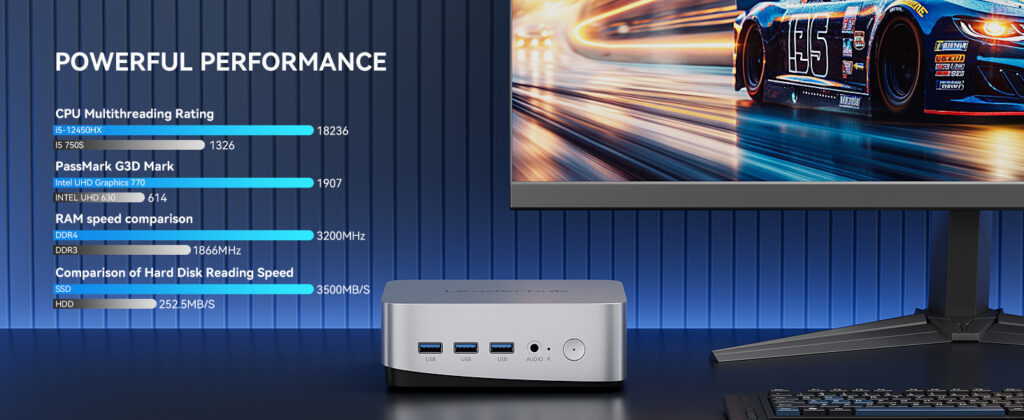
Leaderhub, a Shenzhen-based manufacturer with 16 years of interactive-display experience serving 82 countries, designs its smart whiteboards and interactive flat panels with these deployment realities in mind, offering Android-based panels in 65-inch, 75-inch and 86-inch sizes alongside OPS-compatible designs and compact mini PCs that can be managed as standard Windows endpoints. For organizations planning a fleet rollout, the full range of smart whiteboards covers classrooms, huddle rooms and large auditoriums under a single hardware standard, which simplifies policy design considerably.
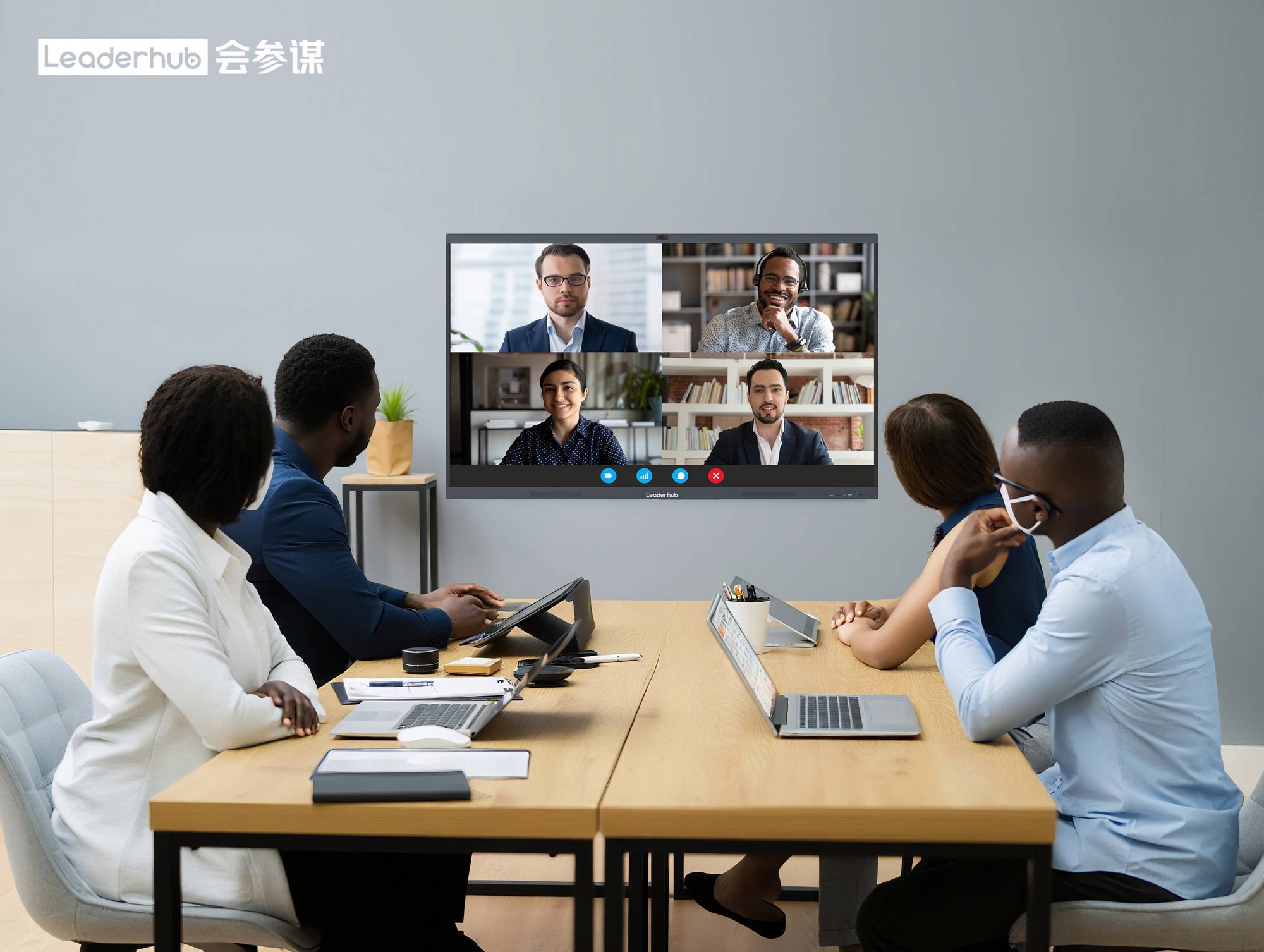
Sample Rollout Timeline for a 60-Board Deployment
| Phase | Duration | Key Activities |
|---|---|---|
| Planning | Week 1–2 | Device grouping, network audit, MDM platform configuration, policy drafting |
| Pilot | Week 3 | Enroll 5 boards, test every policy, gather feedback from teachers or room users |
| Staged rollout | Week 4–6 | Enroll 15–20 boards per week by building; verify each batch in console before moving on |
| Training | Week 5–7 | Short sessions for end users; runbook creation for help-desk staff |
| Stabilization | Week 8+ | Review compliance reports, tune power and update schedules, document lessons learned |
Frequently Asked Questions
Can I manage smart boards from different manufacturers in one MDM console?
Yes, provided each panel supports Android Enterprise. The MDM agent behaves the same way regardless of brand, although vendor-specific settings such as input locking or power schedules may still require the manufacturer’s own portal.
Do I need a Google account on each board?
No. With Device Owner enrollment, the MDM creates a managed Google Play account automatically. Staff never need to sign in with a personal or school Google account on the panel itself.
What happens if a board loses network connection?
Policies already applied remain in force. The board continues to operate in its locked-down state and simply resumes check-ins when connectivity returns. Only new policy changes and app updates are delayed.
Is MDM necessary for a small office with only two or three boards?
It is optional at that scale, but still valuable. Even a few boards benefit from remote reboot, scheduled updates and content clearing between meetings. Many MDM platforms offer free tiers for small device counts.
How does MDM interact with video-conferencing room systems?
Platforms such as Microsoft Teams Rooms on Android or Zoom Rooms have their own device-management portals. MDM manages the underlying operating system and security policies, while the conferencing portal manages the meeting application. The two layers complement each other.
Integrating smart boards with mobile device management transforms interactive displays from isolated gadgets into governed, secure and supportable infrastructure. The upfront investment in planning, network preparation and policy design is repaid many times over through zero-touch deployments, remote troubleshooting and consistent user experiences in every room. Start with a small pilot, validate each policy against real classroom or meeting-room use, and scale with confidence. If you are evaluating hardware for an upcoming rollout, the team at Leaderhub can be reached through the contact page to discuss MDM-ready configurations and bulk-deployment support.