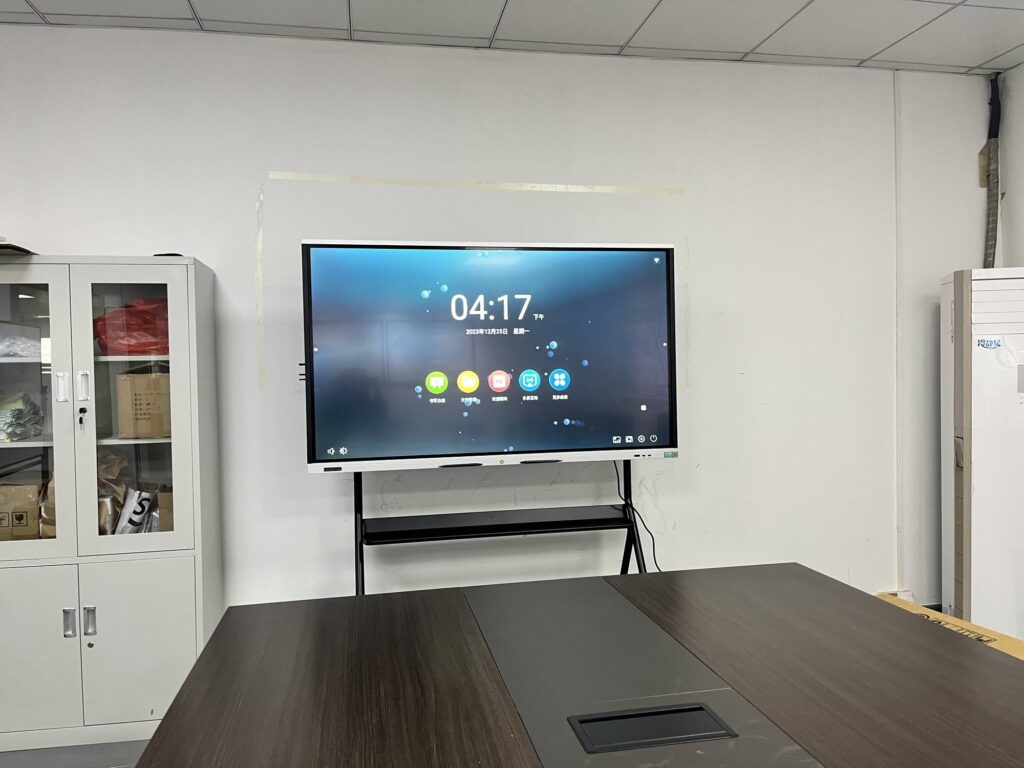
Walking into a meeting room or classroom with your MacBook and spending the first ten minutes hunting for the right dongle is a frustration almost everyone has lived through. The good news is that modern smart boards are built for wireless screen sharing, and macOS has native tools that make the whole process take less than a minute. This guide explains exactly how to connect a MacBook to a smart board wirelessly, covering AirPlay, Miracast-style casting apps, built-in smart board receivers and wireless dongles, plus the troubleshooting fixes that solve 90% of connection problems.
Why Connect a MacBook to a Smart Board Wirelessly?
Apple laptops are popular with teachers, designers, startup founders and consultants, but they ship with very few ports. A wireless connection removes the adapter problem entirely and gives you several practical advantages:
- Freedom to move — present from anywhere in the room, walk to the board, interact with students or colleagues.
- Faster switching — several people can share screens one after another without passing a cable around.
- Cleaner setup — no HDMI, USB-C or Thunderbolt adapters to lose or break.
- Touch-back control — many interactive flat panels let you control your Mac directly from the board’s touchscreen once you are mirrored.
Research from the OECD Digital Education Outlook highlights that the real value of classroom technology depends on how smoothly it fits into day-to-day teaching. Wireless screen sharing is one of the simplest ways to remove friction from that experience.
Before You Start: Quick Compatibility Checklist
Most failed connections come down to one of a handful of basics. Run through this list before trying any of the methods below.
| Check | What to Confirm | Why It Matters |
|---|---|---|
| Same Wi-Fi network | MacBook and smart board on the same SSID (not a guest network) | Most casting protocols discover devices via the local network |
| macOS version | macOS Monterey 12 or later recommended | Newer AirPlay and Screen Mirroring features need recent macOS |
| Smart board casting support | AirPlay, built-in receiver app, or wireless dongle | Determines which method you should use |
| Firewall / VPN | Temporarily disable VPN; allow screen sharing in firewall | VPNs often block device discovery on local networks |
| Firmware | Smart board updated to latest firmware | Fixes known casting bugs and improves stability |
Method 1: Connect via AirPlay (Easiest for Mac Users)
If your smart board supports AirPlay, this is the fastest and most reliable way to mirror a MacBook. Many modern interactive flat panels — including LeaderHub smart whiteboards running Android — include native AirPlay receiver support out of the box.
Step-by-Step AirPlay Instructions
- Turn on the smart board and make sure it is connected to the same Wi-Fi network as your MacBook.
- On the smart board, open the Screen Share or Wireless Casting app so it is in receiving mode. You will usually see a device name and sometimes a PIN code on screen.
- On your MacBook, click Control Center in the top-right menu bar (the icon with two toggle switches).
- Click Screen Mirroring.
- Select the smart board’s name from the list of available devices.
- If prompted, enter the PIN code shown on the smart board.
- Choose Mirror Built-in Display to duplicate your screen, or Use As Separate Display to extend your desktop.
To disconnect, open Control Center again, click Screen Mirroring and select the board name to stop sharing.
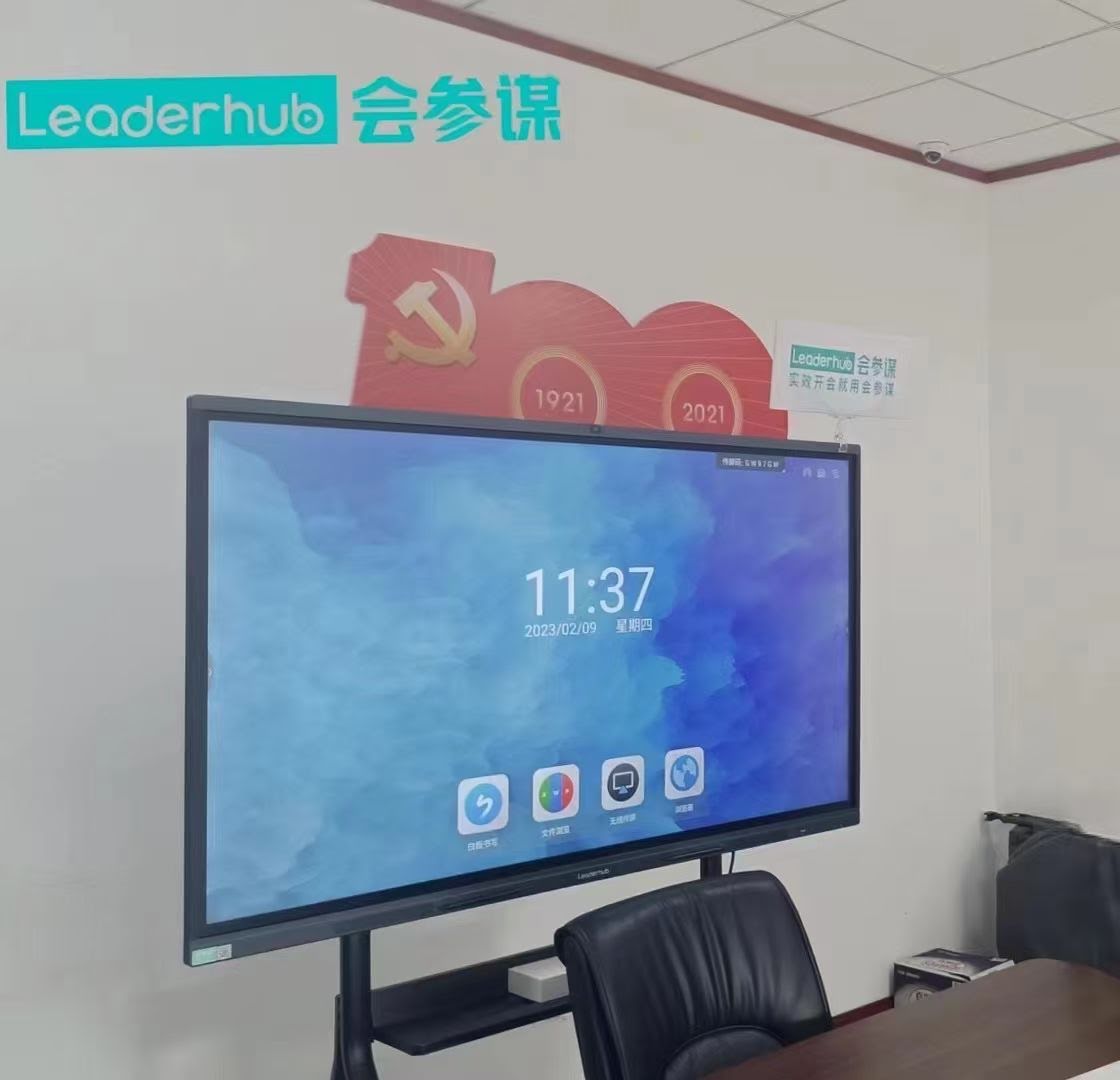
Pro Tip: Use “Separate Display” for Presentations
When you extend rather than mirror, you can keep your speaker notes in Keynote or PowerPoint on the MacBook while the audience only sees the slides on the smart board. This is a small change that makes presentations feel far more polished.
Method 2: Use the Smart Board’s Built-In Casting App
Many Android-based smart boards ship with their own screen-sharing software that supports macOS. The names vary by brand — EShare, ScreenShare Pro, BytelloShare and similar — but the workflow is nearly identical.
- On the smart board, open the casting app and note the download link or QR code displayed on screen.
- On your MacBook, visit that link and download the macOS client (usually a small .dmg file).
- Install the app and open it. The first time you run it, macOS will ask for Screen Recording permission — go to System Settings → Privacy & Security → Screen Recording and enable the app.
- The app will automatically detect smart boards on the same network. Select yours and enter the on-screen code if required.
- Click Share Screen to begin mirroring.
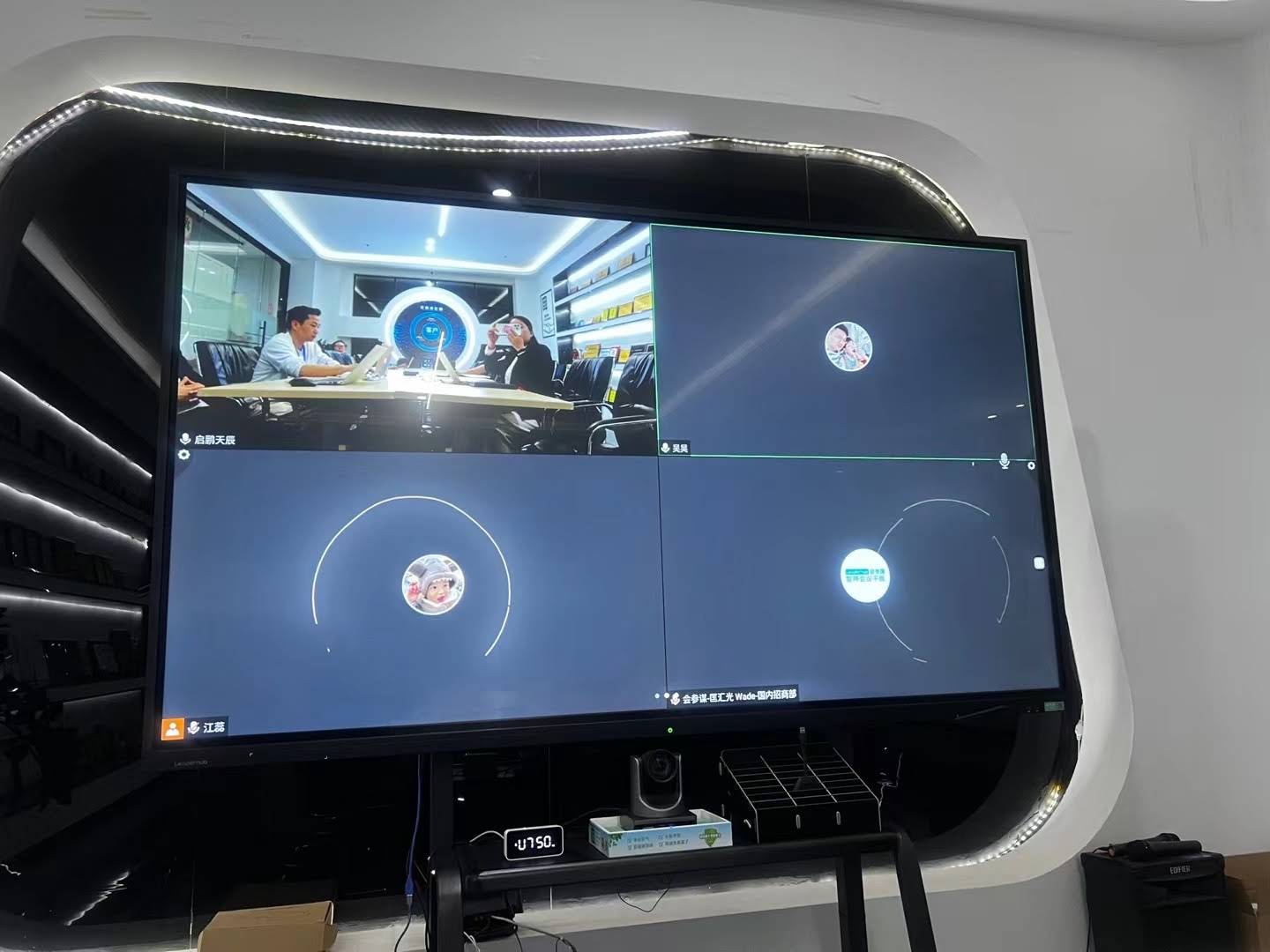
Built-in casting apps often unlock extra features that AirPlay doesn’t offer, such as multi-screen split casting (up to four devices on one board), touch-back control of your Mac from the panel, and file transfer between devices.
Method 3: Wireless Presentation Dongles
If the smart board is an older model without casting support, or if your IT policy blocks installing software, a wireless HDMI dongle kit is the simplest workaround. These kits include a transmitter that plugs into your MacBook’s USB-C port and a receiver attached to the board’s HDMI input.
- Plug the receiver into an HDMI port on the smart board and select that input.
- Plug the transmitter button into your MacBook (USB-C models work natively; older Macs may need an adapter).
- Wait for the pairing light to turn solid, then press the button to share.
Dongles create their own direct wireless link, so they work even when the Wi-Fi network is congested or restricted. The trade-off is that you still need to carry a small piece of hardware.
Comparison: Which Wireless Method Should You Choose?
| Method | Setup Time | Software Needed | Touch-Back Control | Best For |
|---|---|---|---|---|
| AirPlay | Under 30 seconds | None | Limited | Quick sharing, Apple-heavy teams |
| Built-in casting app | 2–3 minutes first time | Free client app | Yes | Classrooms, collaborative meetings |
| Wireless dongle | 1 minute | None | Usually no | Older boards, locked-down networks |
Troubleshooting: MacBook Won’t Connect to the Smart Board
Even with the right setup, wireless connections occasionally misbehave. Work through these fixes in order — the first three solve the vast majority of issues.
The smart board doesn’t appear in Screen Mirroring
- Confirm both devices are on the exact same Wi-Fi network. Corporate and school networks often separate 2.4 GHz and 5 GHz bands or isolate guest users.
- Turn off any active VPN on the MacBook.
- Toggle Wi-Fi off and on again on the Mac, then reopen Control Center.
- Restart the casting app on the smart board.
The connection drops or lags
- Move closer to the router or ask IT to prioritise the smart board on the network.
- Close bandwidth-heavy apps (cloud syncing, large downloads) on the MacBook.
- Lower the casting resolution inside the smart board app if that option exists.
There is video but no audio
- On the Mac, go to System Settings → Sound → Output and select the smart board as the output device.
- Check that the smart board volume is not muted.
Casting app shows a black screen
- Grant Screen Recording permission in System Settings → Privacy & Security, then quit and relaunch the app.
Choosing a Smart Board That Works Seamlessly with macOS
If you are buying new equipment for a school or office, picking a panel with strong wireless support saves endless headaches later. Look for these features:
- Native AirPlay receiver built into the board’s operating system.
- Cross-platform casting so Windows, Android and Chromebook users can share just as easily.
- Multi-device split screen for group work and side-by-side comparisons.
- Dual-band Wi-Fi 6 for stable high-resolution mirroring.
- 4K display so Retina-quality content from a MacBook looks sharp at room scale.
LeaderHub, a Shenzhen-based manufacturer with 16 years of interactive display expertise and customers in 82 countries, designs its panels around exactly these requirements. Popular options for Mac-friendly rooms include:
| Model | Size | Ideal Space | Price |
|---|---|---|---|
| LeaderHub L65ZM Interactive Whiteboard | 65″ 4K | Huddle rooms, small classrooms | $1099.00 |
| LeaderHub L75HM Smart Whiteboard | 75″ 4K | Standard classrooms, mid-size meeting rooms | $1599.00 |
| LeaderHub L86HM Smart Whiteboard | 86″ 4K | Lecture halls, boardrooms | $3199.00 |
| LeaderHub U55Pro Mobile Interactive Flat Panel | 55″ 4K | Flexible spaces, mobile presenting | $2499.00 |
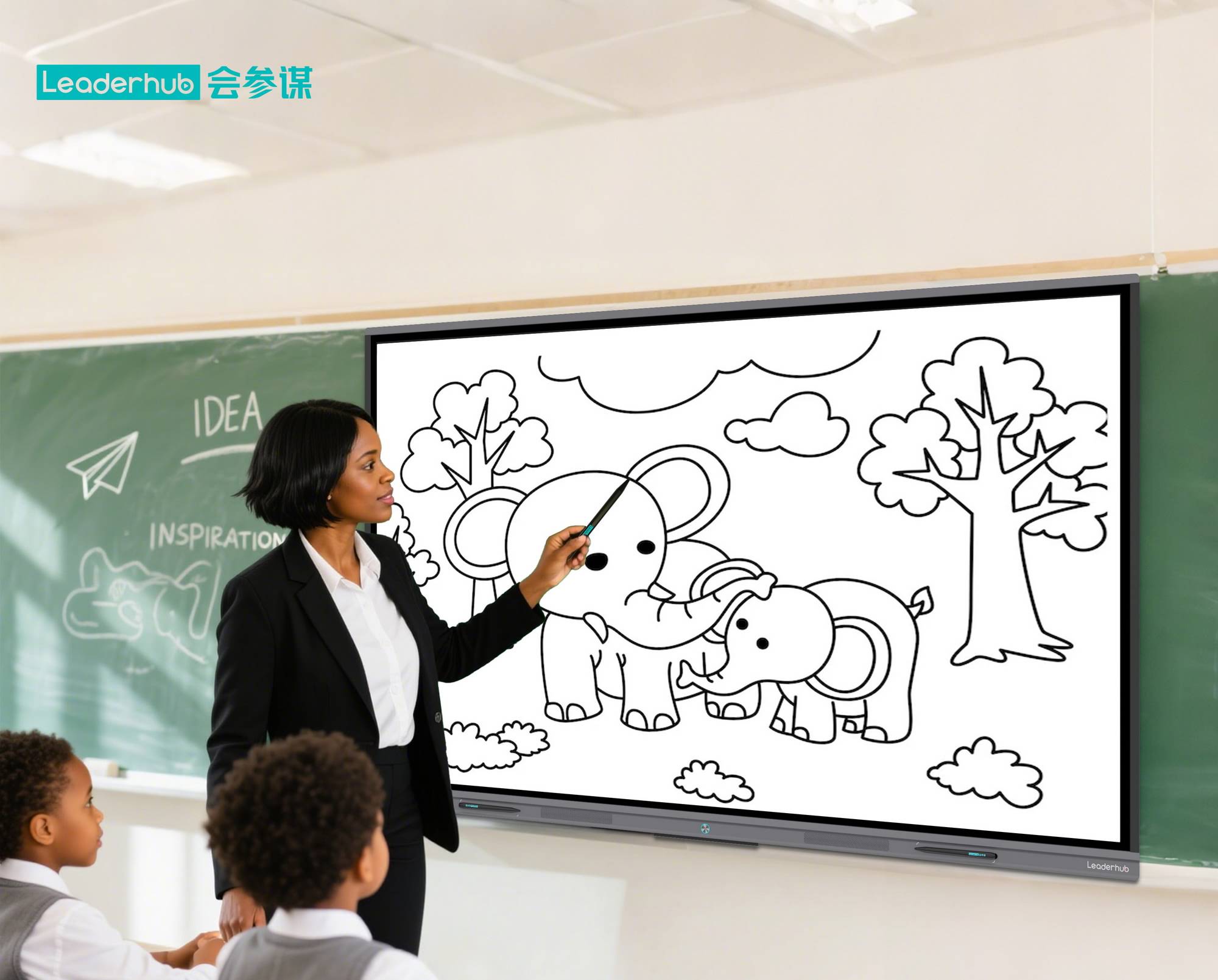
Tips for a Smoother Wireless Presenting Experience
- Rename your MacBook to something recognisable (System Settings → General → About → Name) so colleagues can identify it on shared boards.
- Enable Do Not Disturb or a Focus mode before mirroring so notifications don’t pop up on the big screen.
- Test the connection five minutes early, especially in rooms you haven’t used before.
- Keep a USB-C to HDMI adapter in your bag as a last-resort backup.
- For schools, the ISTE essential conditions framework is a helpful reference when planning network infrastructure that supports reliable wireless casting across many classrooms.
Frequently Asked Questions
Can I connect a MacBook to a smart board without Wi-Fi?
Yes. A wireless HDMI dongle kit creates a direct peer-to-peer link that does not rely on a router. Some smart boards also offer a built-in hotspot mode you can join directly from your Mac.
Does wireless mirroring support touch control from the board?
AirPlay is display-only. For touch-back control — where tapping the board moves the cursor on your Mac — use the smart board’s own casting client, which usually supports this feature on macOS.
Is there a noticeable delay when casting wirelessly?
On a healthy Wi-Fi network, latency is typically well under 100 ms and unnoticeable for slides, documents and web browsing. For fast-moving video, a dongle or wired connection delivers slightly smoother playback.
Can several MacBooks share to one smart board at the same time?
With a casting app that supports split-screen mode, yes — most panels allow up to four devices simultaneously, which is excellent for comparing student work or team proposals side by side.
Final Thoughts
Learning how to connect a MacBook to a smart board wirelessly comes down to matching the right method to your equipment: AirPlay for instant sharing, the board’s casting app for full interactivity, and a wireless dongle when networks or older hardware get in the way. Once set up, the whole process becomes a two-click habit that frees you to focus on teaching, presenting and collaborating rather than cables. If you are planning a new installation or upgrading older boards, get in touch with the LeaderHub team for advice on Mac-compatible interactive displays tailored to your space.