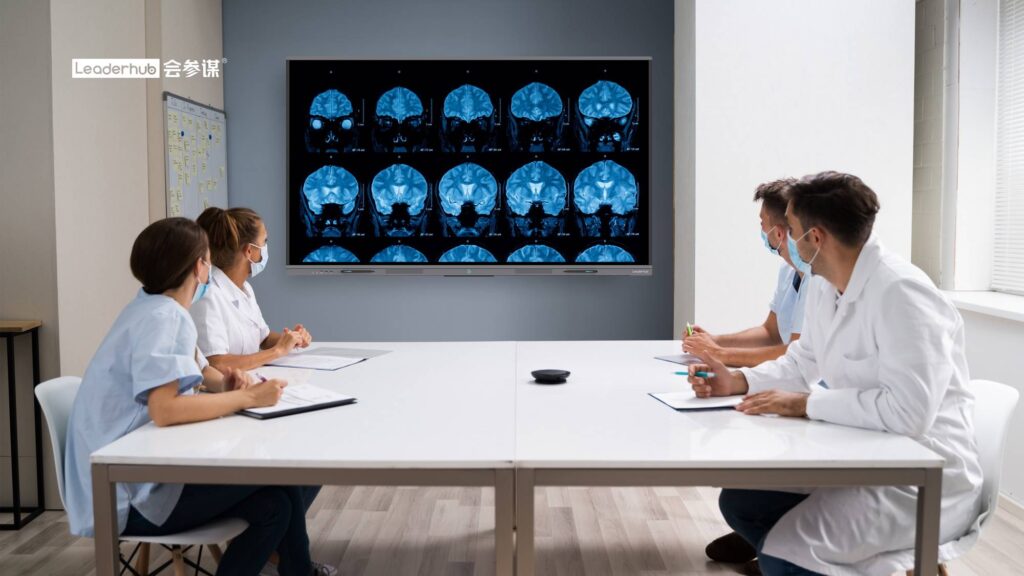
Every classroom holds a mix of learners: students who read quickly and students who struggle with small print, students who follow spoken instructions easily and students who need to see information to understand it, students at the front row and students at the back who can barely see the board. A smart board for accessible learning materials gives teachers a single tool that adapts content to all of these needs at once — enlarging text, adding captions, translating vocabulary, recording lessons and sharing every page directly to each learner’s device. This article explains how interactive displays remove common barriers to learning and what to look for when choosing one for an inclusive classroom.
Why Accessibility of Learning Materials Matters
Accessibility in education is not only about students with diagnosed disabilities. It is about making sure that every learner can perceive, understand and interact with the content being taught. The UNESCO Technology in Education Report highlights that technology delivers the greatest value when it addresses specific learning challenges rather than being added for its own sake — and accessibility is one of the clearest cases where the right display technology solves a real problem.
Traditional whiteboards, printed handouts and static projector slides create a surprising number of barriers:
- Visual barriers — small handwriting, low contrast markers, glare from projectors and distance from the board.
- Auditory barriers — lessons delivered only by voice with no visual or text reinforcement.
- Language barriers — multilingual classrooms where students are still building academic vocabulary.
- Cognitive and attention barriers — dense pages of information with no way to pause, replay or break content into steps.
- Physical barriers — boards mounted too high for wheelchair users or younger children to reach.
A smart board addresses each of these barriers through a combination of display quality, touch interaction, built-in software and connectivity. The sections below look at how.
How a Smart Board Removes Barriers to Learning
1. Larger, Clearer and Higher-Contrast Content
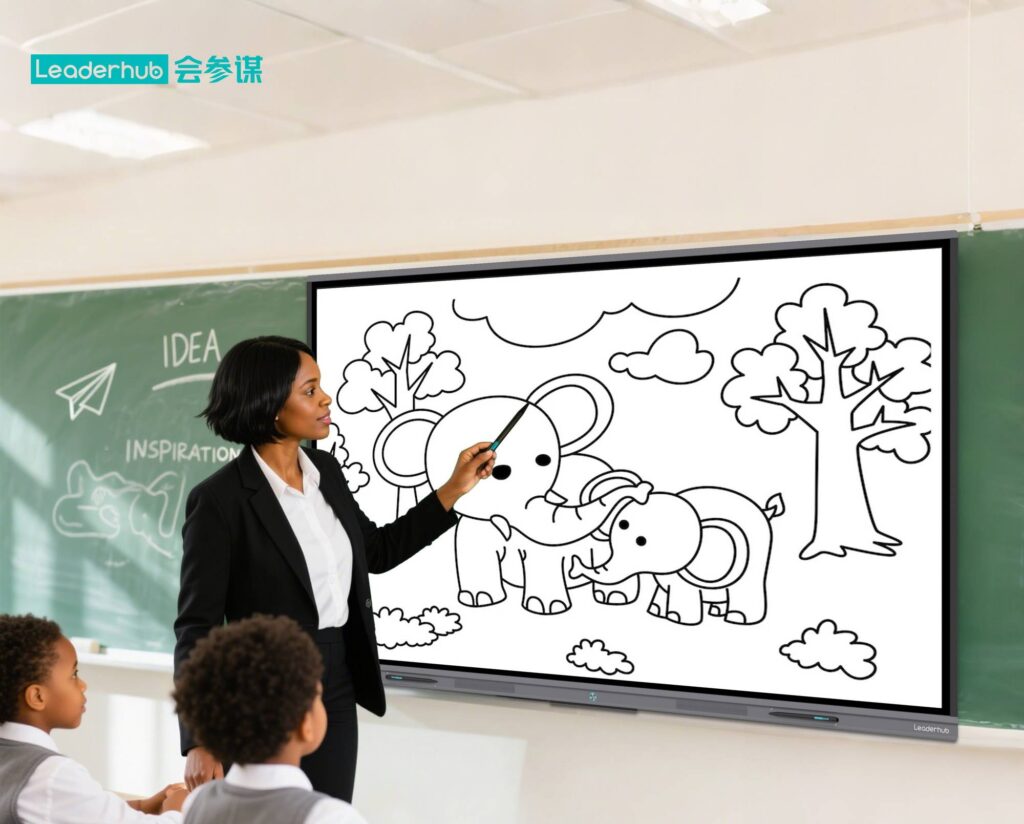
A 4K interactive display produces text and diagrams that remain sharp even when enlarged for students at the back of the room. Teachers can pinch-to-zoom into a map, a formula or a sentence in seconds, and anti-glare glass keeps content readable under classroom lighting. Students with low vision benefit from adjustable backgrounds and high-contrast pen colours, while every student benefits from content that is simply easier to see.
2. Multiple Ways to Present the Same Idea
Universal Design for Learning encourages offering information in more than one format. On a smart board, a teacher can write a definition, insert an image, play a short video and annotate it live — all on the same screen. Learners who process information visually, verbally or kinaesthetically each find an entry point to the lesson.
3. Built-In Assistive Features
Modern interactive flat panels run Android or Windows, which means accessibility tools are available directly on the board:
- Text-to-speech reads on-screen passages aloud for students with dyslexia or visual impairments.
- Handwriting recognition converts a teacher’s notes into clean, legible typed text.
- Live captioning and translation apps display spoken instruction as text in multiple languages.
- Screen magnifier and colour filters support students with low vision or colour-vision deficiency.
- Timers, split-screen and focus tools help learners with attention difficulties follow one step at a time.
4. Lesson Recording and Instant Sharing
Perhaps the most powerful accessibility feature is the ability to save every page of a lesson and share it instantly by QR code, cloud link or email. Students who were absent, who need more time, or who use their own screen readers at home receive the exact material presented in class. This is the kind of “digital learning for all” approach promoted in the UN Digital Learning initiative — content that follows the learner rather than staying on the wall.
5. Physical Reach and Flexible Positioning
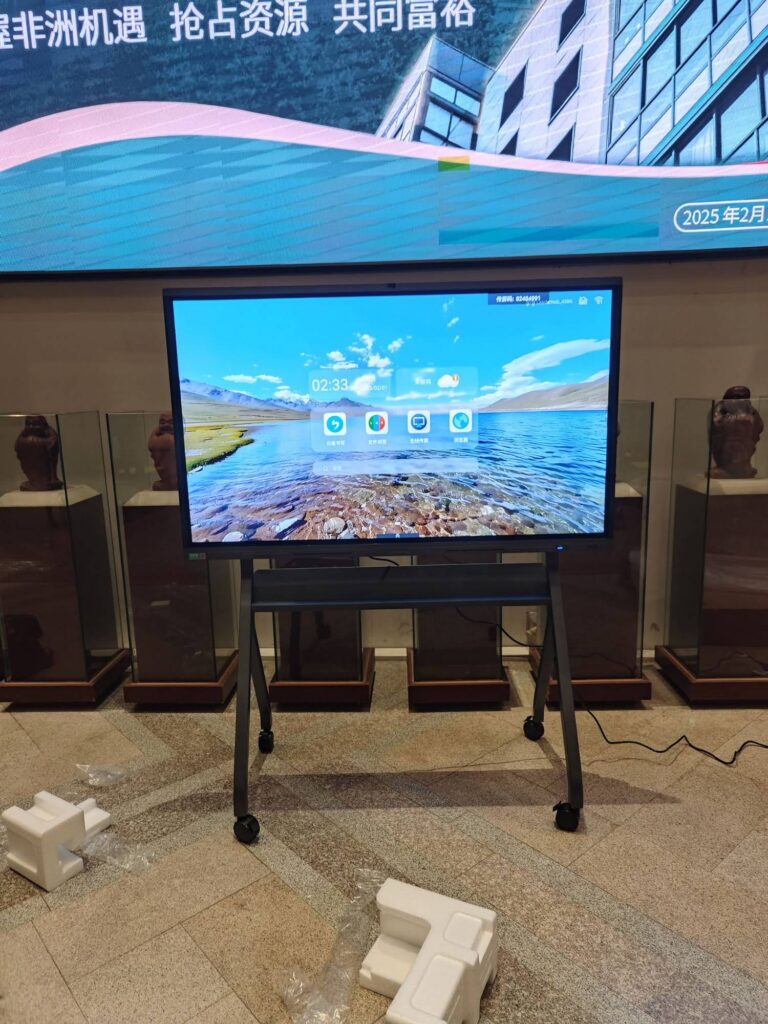
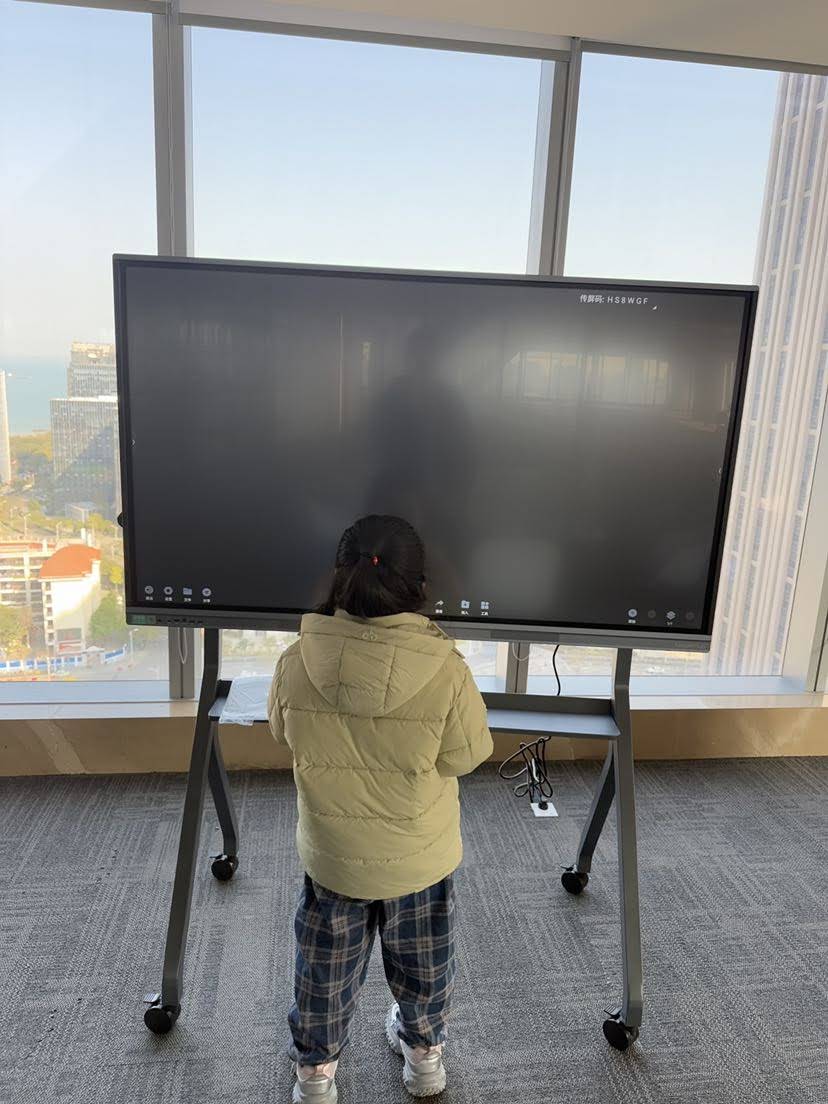
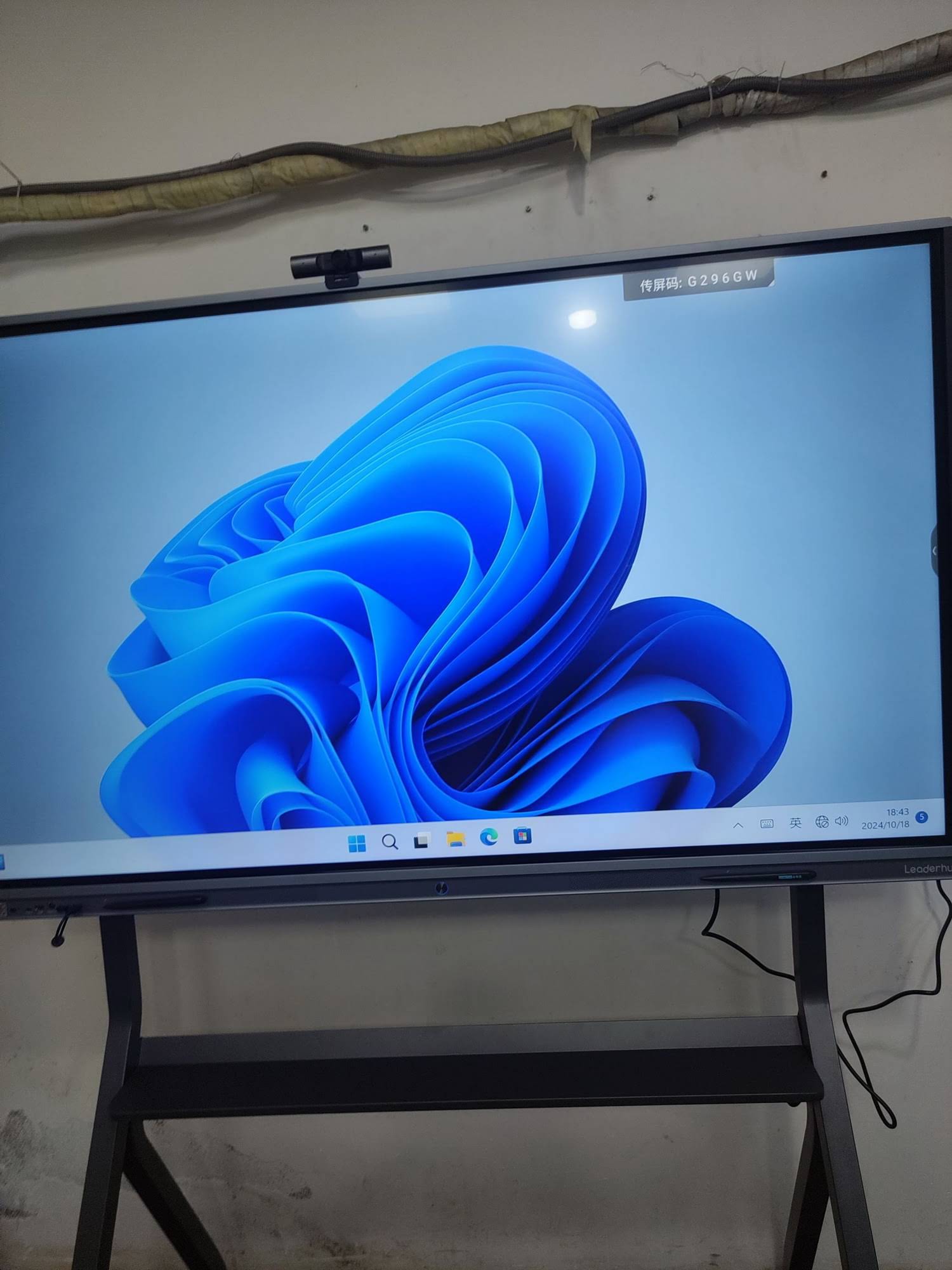
Height-adjustable mobile stands allow the board to be lowered for wheelchair users or young children, and rotated or moved between rooms. Multi-touch support means several students can work at the board together, which is especially valuable for collaborative and peer-supported learning.
Accessibility Barriers vs. Smart Board Solutions
| Learning Barrier | Traditional Classroom | Smart Board Solution |
|---|---|---|
| Low vision / distance | Small handwriting, glare, fixed size | 4K display, pinch-to-zoom, high-contrast modes, anti-glare glass |
| Hearing impairment | Spoken instruction only | Live captions, on-screen text, visual annotation |
| Language learners | Single-language materials | Instant translation, image-rich explanations, bilingual notes |
| Dyslexia / reading difficulty | Dense printed text | Text-to-speech, adjustable fonts and spacing, handwriting-to-text |
| Attention / processing speed | Content erased at end of lesson | Lesson recording, saved pages, step-by-step reveal, QR sharing |
| Physical reach | Fixed-height wall board | Height-adjustable mobile stand, multi-touch for group work |
Practical Classroom Scenarios
Primary School Literacy
A teacher displays a short story with enlarged text and highlights each sentence as it is read aloud using text-to-speech. Children with emerging reading skills follow the highlighted words, while visual learners see supporting images alongside the text. At the end of the lesson, the annotated story is shared to a class folder for home reading.
Secondary Science
During a chemistry lesson, the teacher annotates a 3D molecular model, records the explanation and splits the screen to show a video experiment beside the notes. A student with a hearing impairment reads the live captions; a student who missed the class watches the recording later with the exact same annotations.
Multilingual and Inclusive Classrooms
In classrooms where several home languages are spoken, key vocabulary is translated on screen in real time and paired with images. The UNICEF Digital Education Strategy stresses that inclusive digital tools should reach the most marginalised learners first — multilingual support on a shared classroom display is a direct, low-cost way to do so.
What to Look for in a Smart Board for Accessible Learning
Not every interactive display is equally suited to accessibility. When evaluating options, schools should check for the following:
- Resolution and brightness — 4K UHD with anti-glare treatment so enlarged text stays crisp in daylight classrooms.
- Screen size matched to room size — 65″ for small group rooms, 75″ for standard classrooms, 86″ or larger for lecture halls.
- Built-in operating system — Android or Windows access to accessibility apps without extra hardware.
- Whiteboard software with handwriting recognition, cloud saving and QR-code sharing.
- Multi-touch support — 20 or more touch points for collaborative tasks.
- Mobility options — height-adjustable or rotating stands for physical accessibility.
- Connectivity — wireless screen sharing so students can push their own work to the board and receive materials back.
The Choosing Technology in Education guidance from UNESCO recommends asking whether a tool is appropriate, equitable, scalable and sustainable before purchasing. Interactive displays score well on all four when they are selected with accessibility in mind and supported by teacher training.
Recommended Smart Boards for Inclusive Classrooms
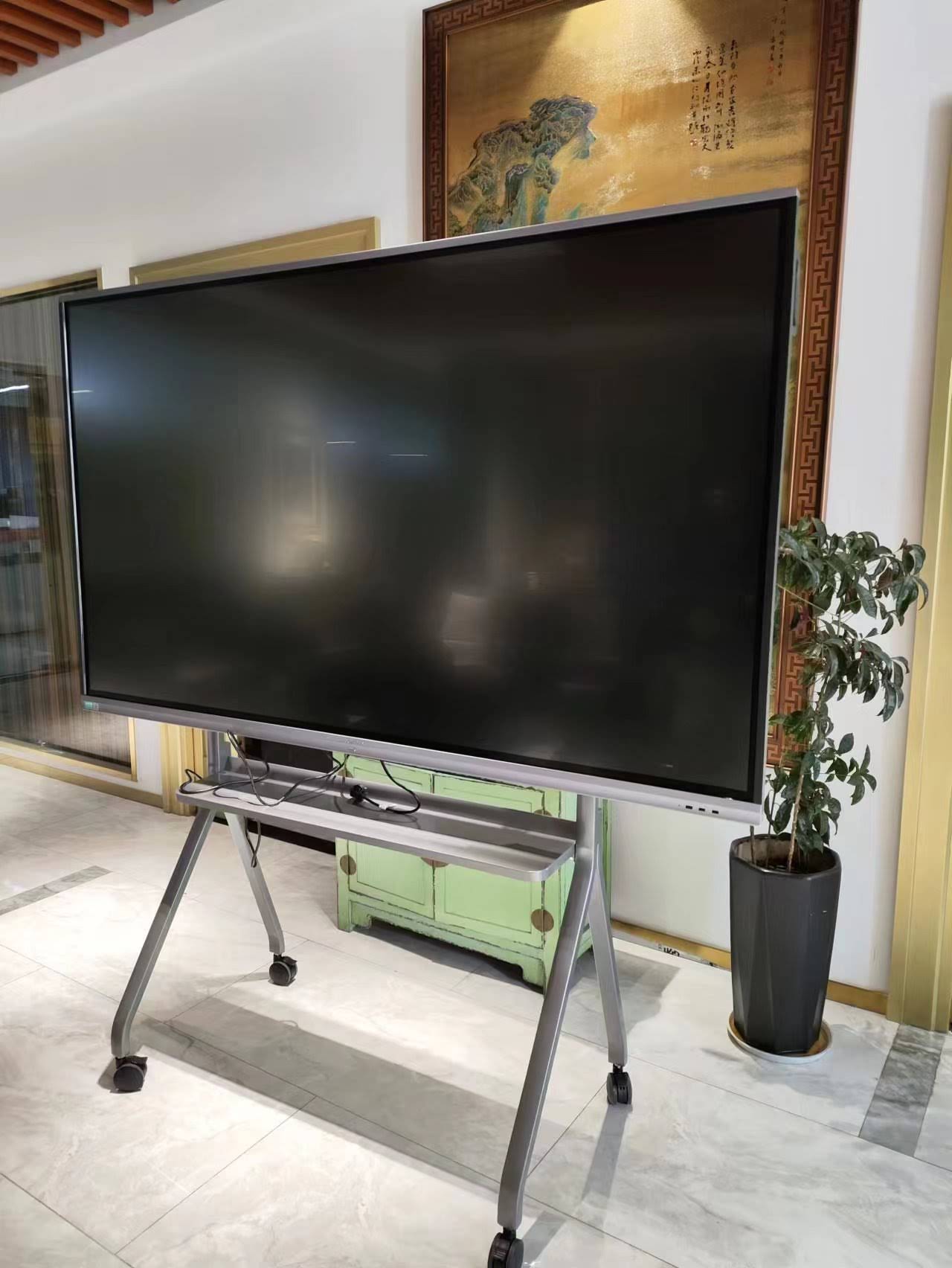
LeaderHub, a Shenzhen-based manufacturer with 16 years of interactive-display experience serving education providers in 82 countries, offers several panels that fit accessible learning environments. The table below summarises options across classroom sizes and budgets.
| Model | Size | Best For | Price |
|---|---|---|---|
| L65ZM Interactive Whiteboard | 65″ 4K | Small classrooms, resource rooms, special-education groups | $1,099 |
| L75HM Smart Whiteboard | 75″ 4K | Standard classrooms of 25–35 students | $1,599 |
| L86ZM Interactive Whiteboard | 86″ 4K | Large classrooms and lecture spaces where distance is a barrier | $1,699 |
| U55Pro Mobile Interactive Flat Panel | 55″ 4K Mobile | Shared or rotating use, height-adjustable for wheelchair access | $2,499 |
Schools that need a compact Windows-based engine to run specialised accessibility software alongside the panel can pair any display with a mini PC, and the full range of smart whiteboards covers sizes from 55″ to 110″.

Tips for Teachers: Getting the Most from an Accessible Smart Board
- Set default accessibility profiles — save a high-contrast, large-font template so every lesson starts in an accessible format.
- Record every lesson — even if no one asks, a saved recording becomes a revision resource for all students.
- Share before, not after — publish slides to student devices at the start so learners can follow along at their own zoom level.
- Use the board for student voice — let students cast their screens or write directly on the panel to build confidence.
- Combine with teacher training — the OECD Digital Teaching Guidance shows that professional development is the single biggest factor in whether classroom technology improves outcomes.
Frequently Asked Questions
Does a smart board replace individual assistive devices?
No. A smart board complements personal devices such as screen readers or hearing aids. Its strength is making the shared, front-of-class content accessible and then delivering that same content to each student’s own device.
What screen size is best for accessibility?
The larger the room, the larger the panel should be. A general guideline is that the furthest student should be no more than about six times the screen height away. For most classrooms, 75″ is a balanced choice; large rooms benefit from 86″ or above.
Can students with limited mobility use the board?
Yes. A height-adjustable mobile stand lets the board be lowered to a comfortable reach, and wireless screen sharing allows students to contribute from their seat using a tablet or laptop.
How does a smart board help students who are absent?
Every page, annotation and recording can be saved and shared via cloud link or QR code, so absent students receive the exact lesson materials rather than a second-hand summary.
Final Thoughts
Accessibility is not a feature that benefits a few students — it is a design principle that lifts the whole classroom. A well-chosen smart board for accessible learning materials turns one shared display into a tool that enlarges, captions, translates, records and distributes content so that every learner, regardless of ability or background, can engage with the lesson on equal terms. For schools planning an upgrade, start by auditing the barriers your students face today, then select a panel and stand configuration that directly removes them. To discuss classroom requirements or request a quotation, visit the contact page.