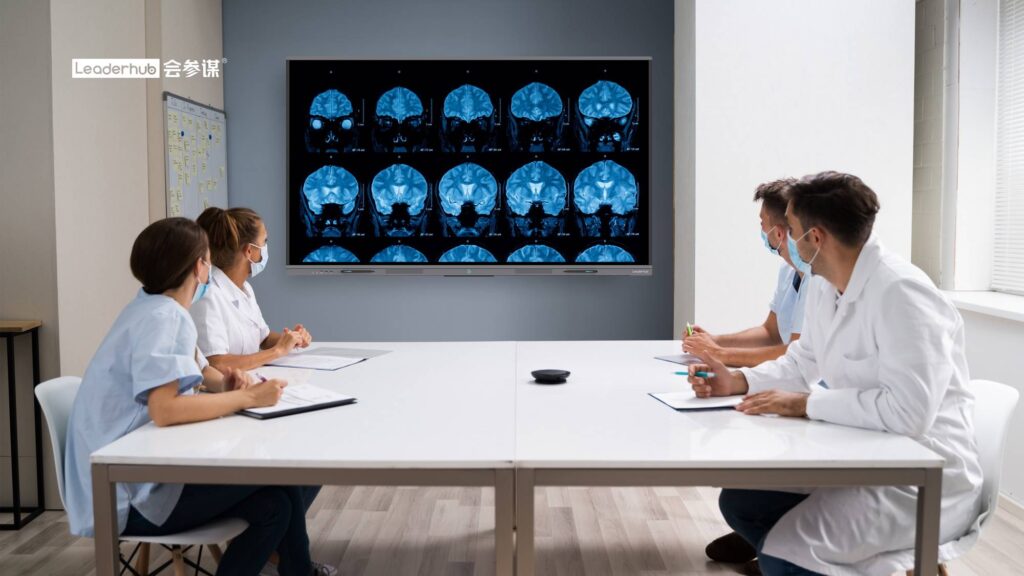
School improvement planning (SIP) is one of the most important leadership processes in any school. It shapes how a school sets goals, allocates resources, monitors student progress, and holds itself accountable to its community. Yet for many principals and leadership teams, the process still relies on printed binders, static spreadsheets, and whiteboards full of sticky notes that get erased at the end of the day.
A smart board for school improvement planning changes this picture. Interactive displays let leadership teams visualize data, co-author plans in real time, connect remote stakeholders, and keep every version of the plan saved and accessible. This guide explains how to use a smart board throughout the SIP cycle, the benefits you can expect, and the best practices that help school leaders get the most value from their investment.

What Is School Improvement Planning and Why Does Technology Matter?
School improvement planning is a structured, cyclical process in which a school analyzes its current performance, identifies priority areas, sets measurable goals, defines action steps, and monitors results. Most frameworks follow a similar sequence: assess, plan, implement, monitor, and review.
The challenge is that SIP involves many people and many data sources. Attendance records, assessment results, teacher surveys, budget figures, and parent feedback all need to be considered together. When these sit in separate files and are discussed around a conference table with paper handouts, important connections are easily missed. International bodies such as the OECD’s work on the digital transformation of schools emphasize that technology adds the most value when it supports collaborative decision-making rather than simply digitizing existing paperwork.
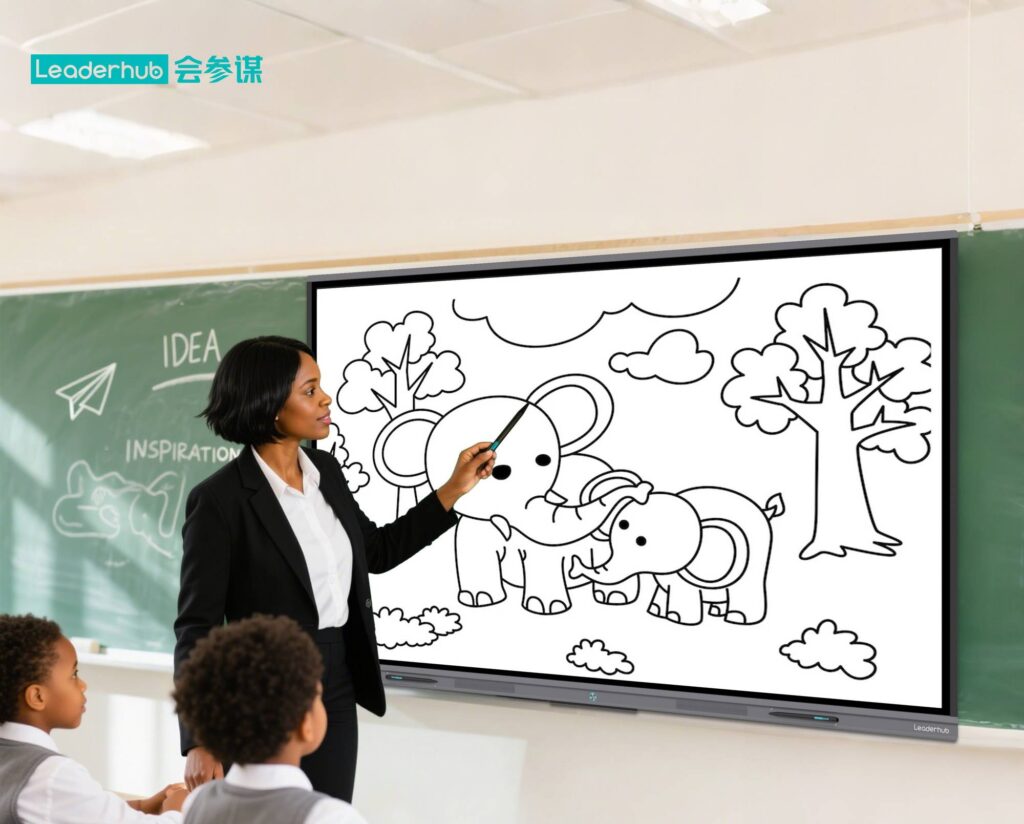
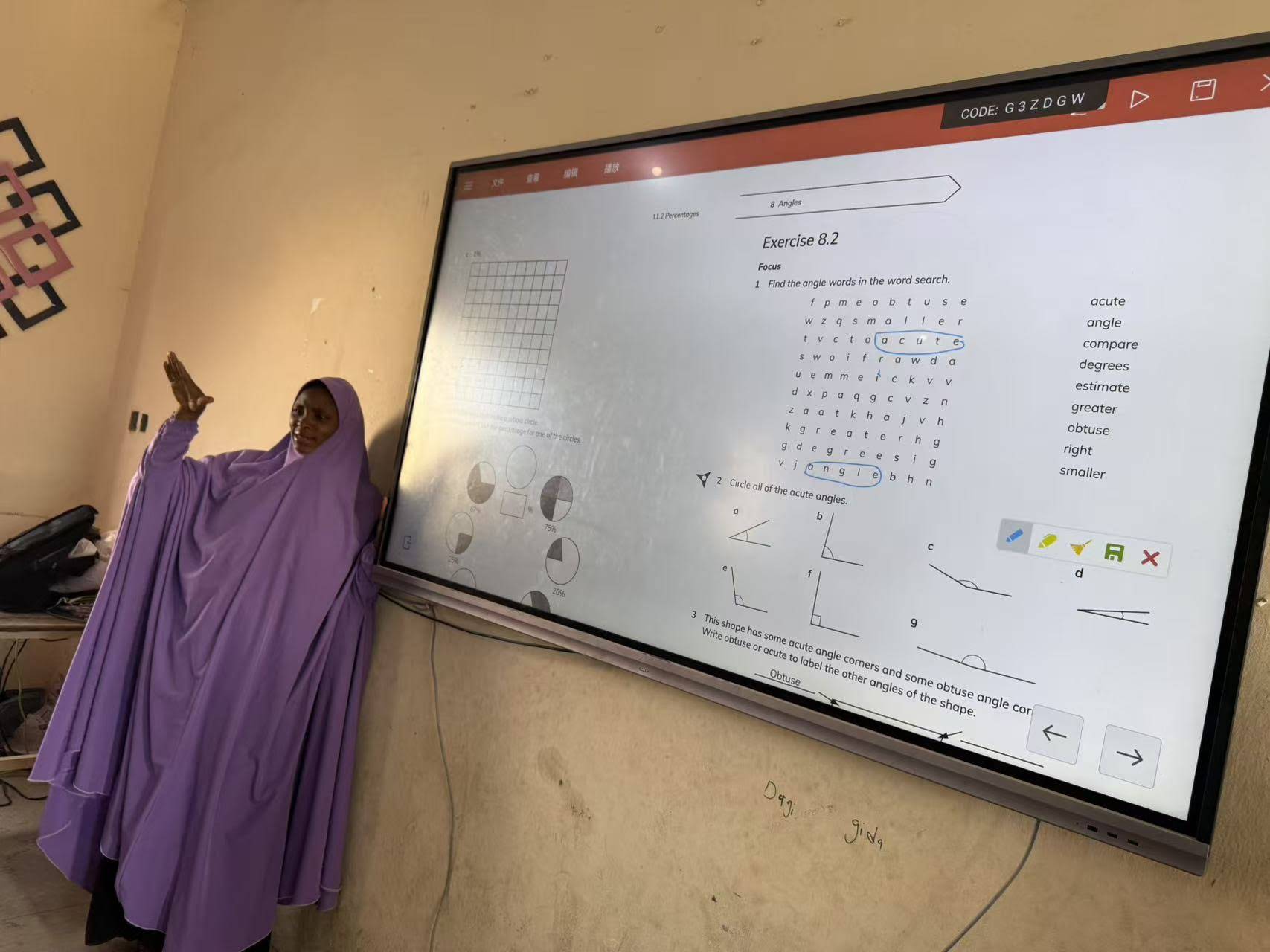
A smart board sits at the center of this collaborative process. It provides a single, large, shared surface where data can be displayed, annotated, and connected to action plans—visibly, together, and in real time.
Key Benefits of Using a Smart Board for School Improvement Planning
1. Data Becomes Visible and Discussable
Instead of asking team members to flip to page 14 of a printed report, a leadership team can open a dashboard on the smart board, zoom into a specific grade level, and annotate directly on the chart. Trends in reading scores, chronic absenteeism, or behavior referrals become shared visual evidence rather than abstract numbers.
2. Real-Time Collaboration Across Roles
Principals, department heads, counselors, and teacher leaders can all contribute to the same canvas. Multi-touch screens allow several people to write, move, and organize ideas simultaneously, which speeds up goal-setting workshops and keeps everyone engaged.
3. Nothing Gets Erased
Every brainstorm, every revised goal, and every assigned action step can be saved as a file, exported as a PDF, and shared with the full staff or school board. This creates an audit trail that is useful for accountability reviews and for onboarding new leadership team members.
4. Hybrid Participation for Stakeholders
Parents, district officials, and community partners cannot always attend in person. With built-in cameras, microphones, and video conferencing, a smart board lets remote participants see the plan being developed and contribute their input.
5. Continuous Monitoring Instead of Annual Reviews
Because the plan lives on the board and in the cloud, the leadership team can revisit it at every monthly meeting, update progress indicators, and adjust strategies promptly—turning the SIP from a compliance document into a living management tool.
Traditional SIP Workflow vs. Smart Board Workflow
| SIP Stage | Traditional Approach | Smart Board Approach |
|---|---|---|
| Needs Assessment | Printed reports, separate spreadsheets | Live dashboards, annotated charts, side-by-side data comparison |
| Goal Setting | Sticky notes on a wall, retyped later | Digital sticky notes, drag-and-drop prioritization, instant save |
| Action Planning | Word document edited by one person | Shared template co-edited by the whole team on screen |
| Stakeholder Input | In-person meetings only | Hybrid sessions with video conferencing and screen sharing |
| Progress Monitoring | Quarterly or annual review | Monthly check-ins with updated indicators displayed on the board |
| Documentation | Paper binders, scattered files | Cloud storage, version history, QR-code export |
Step-by-Step: Using a Smart Board Through the SIP Cycle
Step 1 – Conduct a Visual Needs Assessment
Start the planning session by opening your student information system, assessment platform, or a simple spreadsheet directly on the smart board. Use the annotation tools to circle outliers, highlight subgroups, and write questions next to the data. Split-screen mode is particularly useful here: display last year’s results on one side and this year’s on the other, then annotate the differences.
- Import attendance, discipline, and achievement data as images or live web pages.
- Use different pen colors for strengths, concerns, and open questions.
- Save the annotated screen as the first page of your SIP workspace.
Step 2 – Facilitate Root-Cause Analysis
Once priority areas are identified, use the digital whiteboard app to build fishbone diagrams, “five whys” chains, or cause-and-effect maps. Because the canvas is infinite, teams can keep expanding without running out of space. Team members can also share ideas from their own tablets or laptops via wireless screen casting.
Step 3 – Set SMART Goals Together
Create a goal-setting template on the board with columns for Specific, Measurable, Achievable, Relevant, and Time-bound. Draft goals as a group, then use the move and resize tools to rank them. The ISTE Education Leader Standards highlight that effective leaders use technology to model collaborative, data-informed decision-making—and co-writing goals on a shared screen is a direct example of this practice.
Step 4 – Build the Action Plan
Convert each goal into action steps with owners, timelines, resources, and success indicators. Many smart boards allow you to open Google Sheets, Microsoft Excel, or a project-management tool in a browser window and type directly on the touchscreen or with a wireless keyboard. Take a screenshot of the completed matrix and store it in the planning folder.
Step 5 – Share With Stakeholders
Export the plan as a PDF or share it via QR code so that teachers, parents, and board members can scan and download it instantly after the meeting. For broader input, schedule a hybrid town hall and use the board’s camera and microphones so remote families can participate.
Step 6 – Monitor and Adjust
Dedicate the first ten minutes of each leadership meeting to opening the SIP file on the smart board, updating progress indicators, and recording new decisions. Over a school year, this creates a complete record of how the plan evolved and why.
Smart Board Features That Matter Most for School Leaders
Not every interactive display is designed with leadership workflows in mind. When evaluating a smart board for school improvement planning, prioritize the following capabilities:
| Feature | Why It Matters for SIP |
|---|---|
| 4K Resolution | Dense data tables and charts stay legible from across the conference room |
| Multi-Touch (20+ points) | Several team members can write and move items at once |
| Wireless Screen Sharing | Department heads can display their own data without cables |
| Built-in Camera and Mic Array | Enables hybrid stakeholder meetings without extra equipment |
| Cloud Save and QR Export | Instant distribution of meeting outputs to all participants |
| Split-Screen Mode | Compare data sets or view a goal next to its evidence |
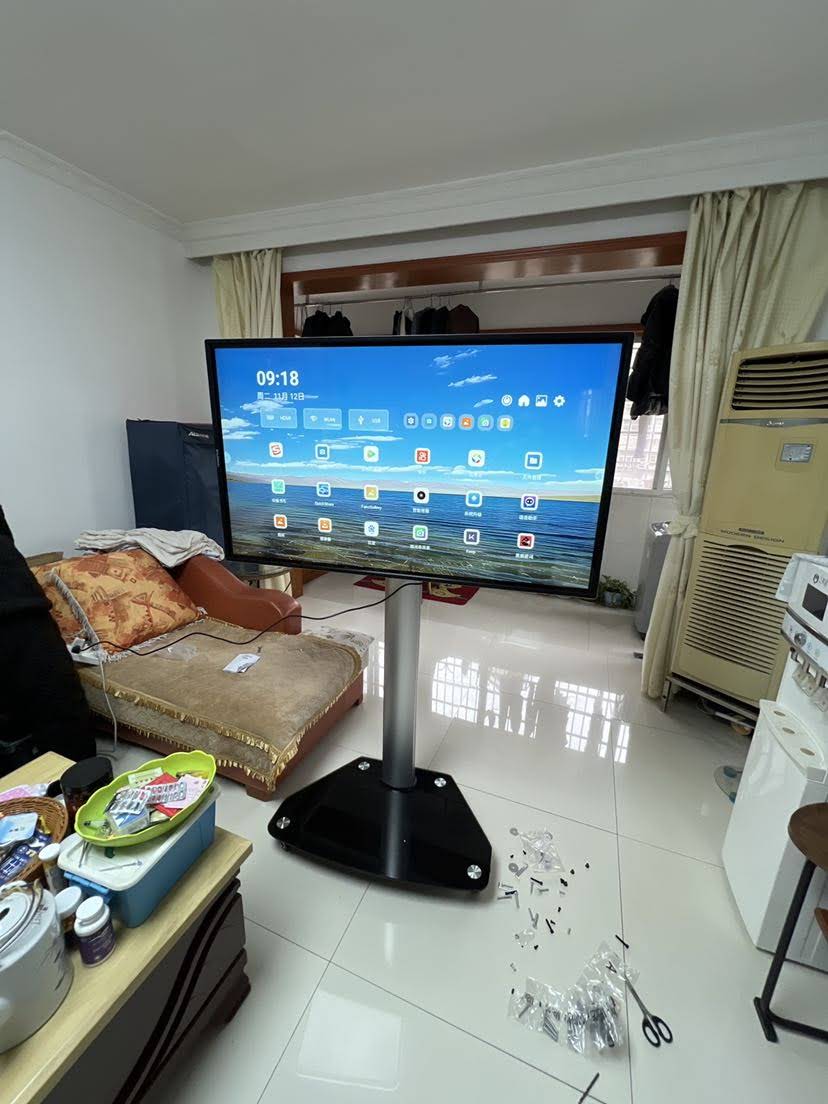
| Mobile Stand or Rotating Design | Move the board between the office, library, and staff room as needed |
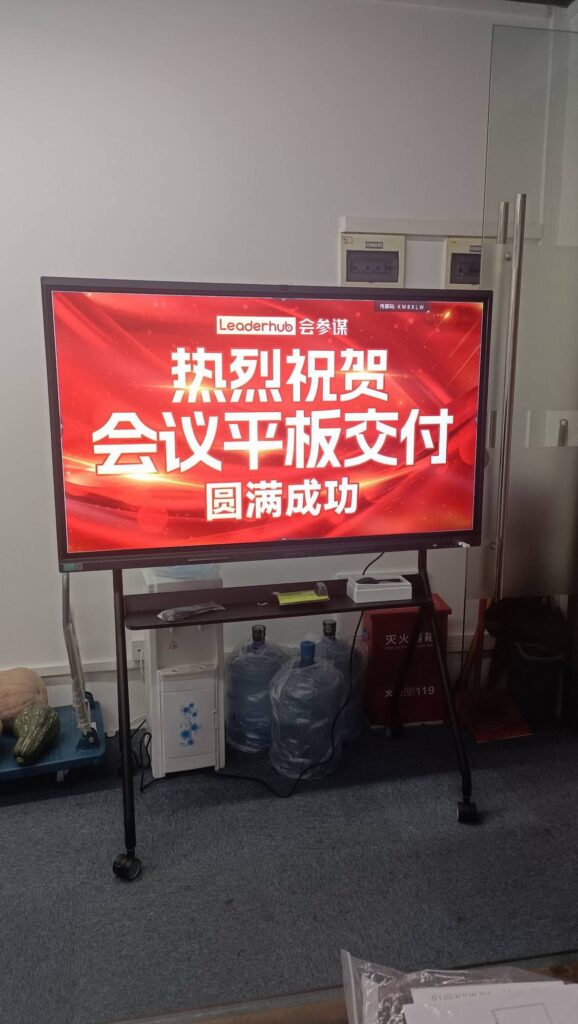
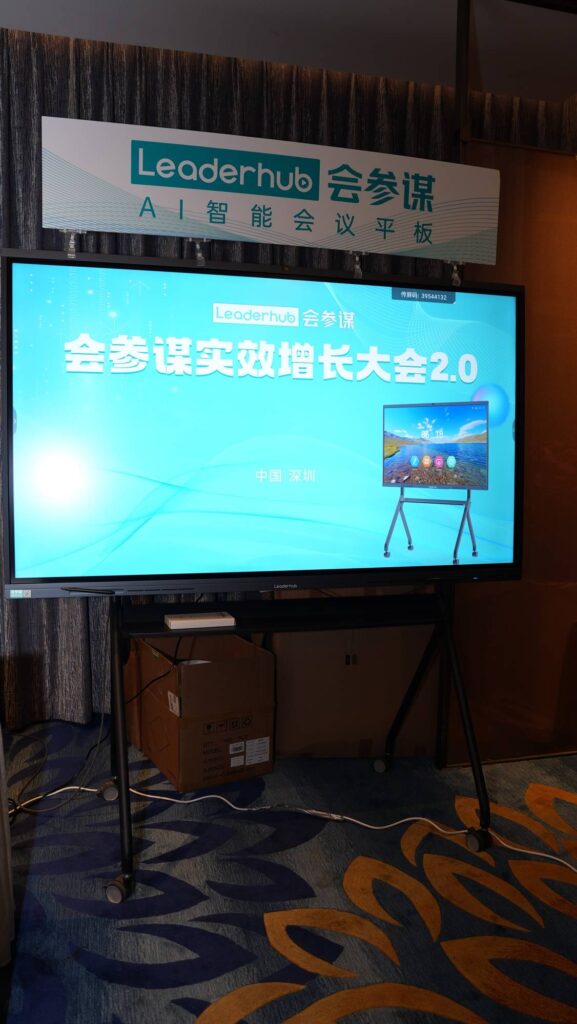
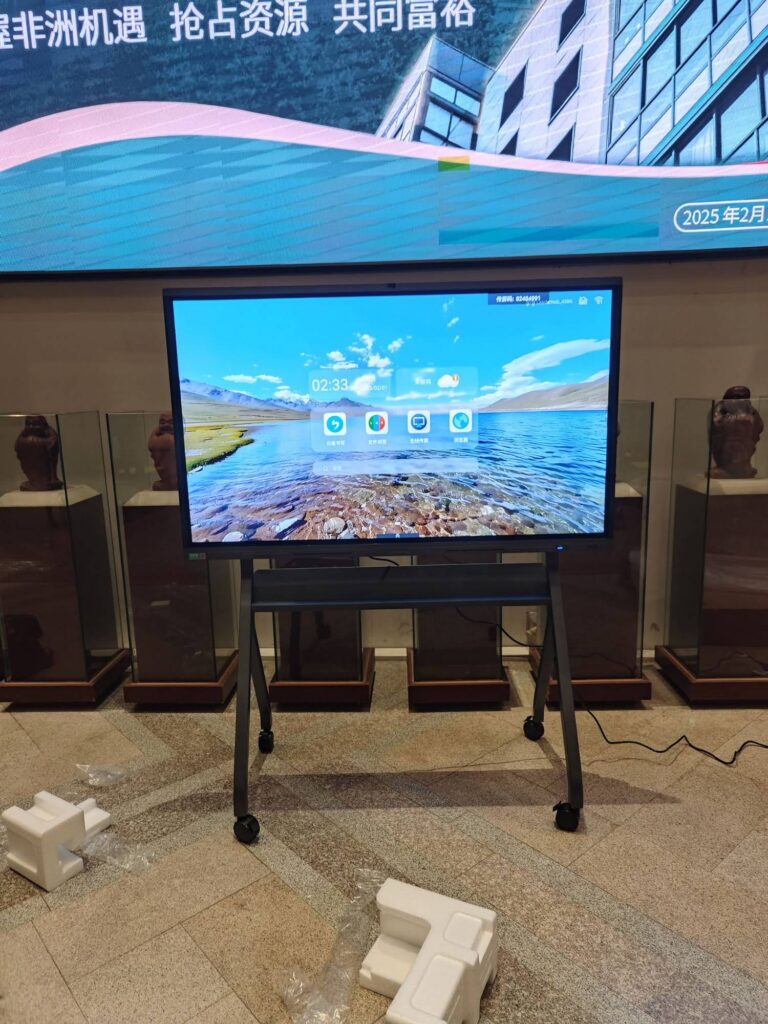
For leadership teams that need flexibility, mobile units such as the U55Pro 55-inch mobile interactive flat panel can travel between the principal’s office and larger meeting spaces, while larger fixed installations such as a 86-inch 4K interactive smart whiteboard suit dedicated planning rooms where the whole leadership team gathers.
Best Practices for Smart Board-Based School Improvement Planning
Establish a Consistent Digital Workspace
Create a dedicated SIP folder on the board or in connected cloud storage. Use a standard naming convention such as SIP_2026-27_Goal1_Literacy so files are easy to find during busy meetings.
Assign a Board Facilitator
One person should manage the screen during each session—opening files, switching between apps, and saving outputs—so the principal can focus on leading the discussion. Rotating this role also builds staff confidence with the technology.
Use Templates to Save Time
Pre-load templates for needs assessment, SWOT analysis, SMART goals, and action plans. Templates reduce setup time and ensure that every planning cycle follows the same structure, which makes year-over-year comparison easier.
Protect Student Data
When displaying student-level information, use the board’s privacy features, log out of accounts after meetings, and avoid saving identifiable data to shared public folders. The UNESCO guidance on choosing technology in education reminds school leaders to evaluate any technology against clear questions about appropriateness, equity, scalability, and sustainability—including how data is handled.
Train the Whole Leadership Team
Schedule a short training session before the first planning meeting of the year. Cover basics such as annotation, screen sharing, saving, and video conferencing. Teams that invest an hour in training typically save many hours over the course of the year.
Close Every Meeting With a Saved Artifact
Before anyone leaves the room, save the session, export a PDF, and share it via QR code or email. This simple habit ensures accountability and prevents the “what did we decide last time?” problem.
Extending the Smart Board Beyond the Leadership Team
Once a smart board is in place for planning, schools quickly discover additional uses that reinforce the improvement plan itself:
- Professional learning communities can analyze classroom data on the same board, aligning teacher-level discussions with school-wide goals.
- Staff meetings can display progress dashboards so that every teacher sees how collective efforts are moving the indicators.
- Parent evenings can present goals and results in an accessible, visual format.
- Student leadership groups can contribute ideas on the board, giving students authentic voice in the improvement process.
Schools operating on tight budgets can also pair a cost-effective interactive panel with a compact mini PC to run their preferred planning software, dashboards, and video conferencing tools without upgrading other hardware.
Choosing the Right Partner
Selecting hardware is only part of the decision. Schools benefit from working with a manufacturer that understands educational workflows and can support multi-room or multi-site deployments. LeaderHub, a Shenzhen-based interactive display company with 16 years of industry experience and products delivered to more than 82 countries, offers smart whiteboards, interactive flat panels, mini PCs, and portable smart screens designed for education and enterprise collaboration. You can browse the full smart whiteboard range or contact the team to discuss a configuration that fits your school’s planning rooms and budget.
Frequently Asked Questions
What size smart board is best for school improvement planning?
For a leadership team of six to twelve people in a standard conference room, a 65-inch or 75-inch panel is usually sufficient. Larger rooms or whole-staff sessions benefit from 86-inch or larger displays.
Do we need special software to use a smart board for SIP?
No. Most interactive displays include a built-in whiteboard app and a browser, so you can use the planning tools your school already relies on, such as Google Workspace or Microsoft 365.
Can remote stakeholders participate in planning sessions?
Yes. Smart boards with integrated cameras and microphones support Zoom, Microsoft Teams, and Google Meet, allowing remote participants to view the board and contribute in real time.
How do we keep student data secure on a shared display?
Use individual logins, enable screen lock when the board is unattended, store sensitive files in secure cloud folders rather than on the device, and sign out of all accounts at the end of each session.
Final Thoughts
A smart board for school improvement planning is not simply a bigger screen—it is a collaborative workspace that turns data into dialogue and plans into living documents. By making evidence visible, enabling real-time co-authoring, connecting remote stakeholders, and preserving every decision, interactive displays help school leaders move from annual compliance exercises to continuous, evidence-driven improvement. Start with clear workflows, train your team, and build the habit of saving and sharing every session, and your smart board will quickly become the center of your school’s improvement culture.