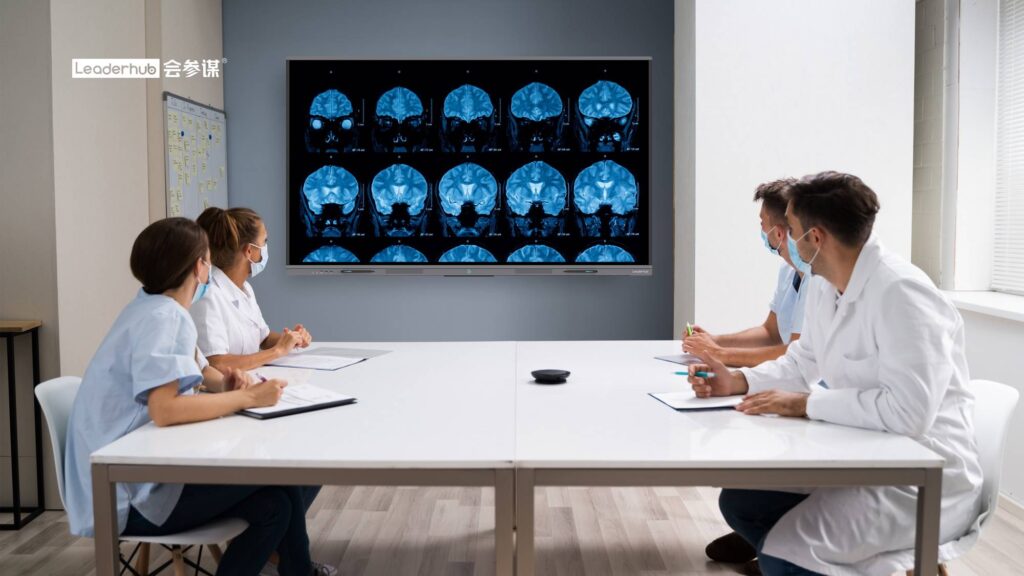
The flipped classroom has quietly become one of the most influential teaching models of the past decade. Instead of spending precious class time on lectures, teachers move direct instruction online and reserve face-to-face time for discussion, problem solving, and hands-on practice. But a flipped model is only as strong as the tools that support it. A smart board for flipped learning classrooms turns the front of the room from a one-way presentation surface into a shared workspace where students explain, annotate, debate, and build knowledge together. This guide explains how smart boards fit the flipped model, which features matter most, and how to use them to raise engagement and active learning every single day.
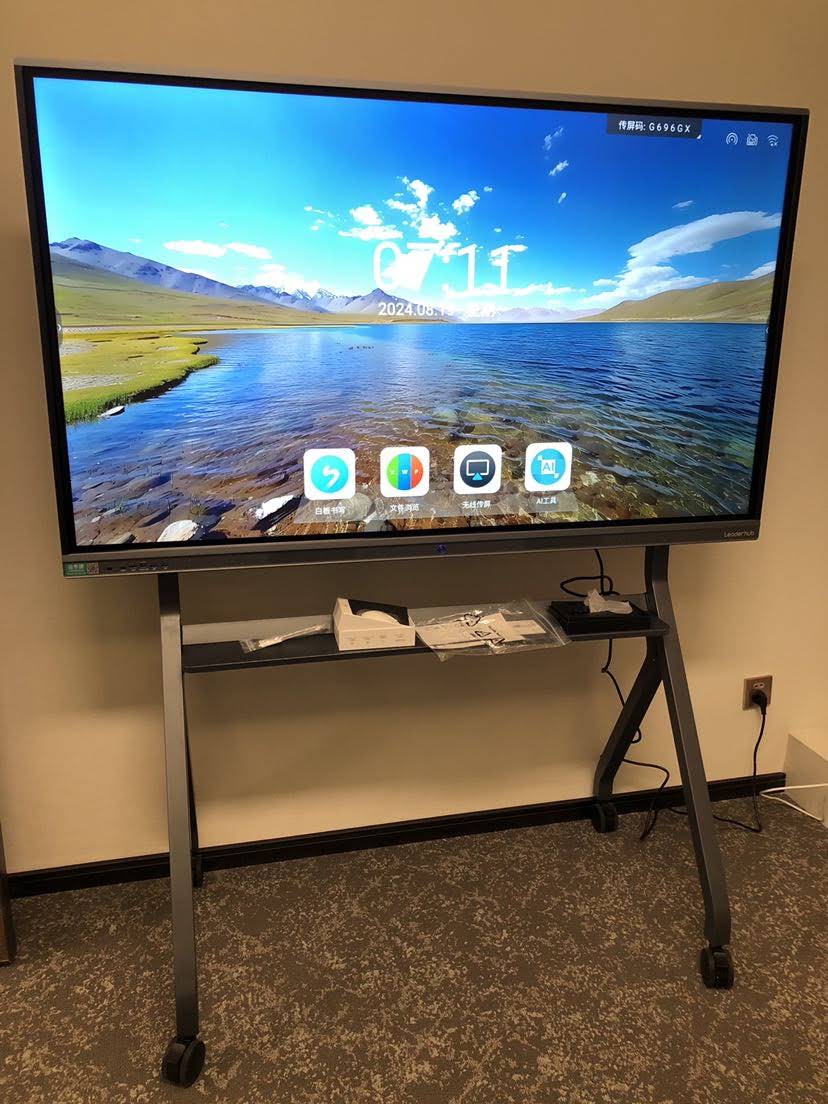
What Is a Flipped Learning Classroom?
In a flipped learning classroom, the traditional sequence of “lecture first, homework later” is reversed. Students meet new content before class through short videos, readings, or interactive modules. Class time is then devoted to applying that content with the teacher present to coach, correct misconceptions, and extend thinking.
The Flipped Model in Brief
- Before class: students watch a recorded mini-lesson or review digital notes at their own pace.
- During class: students work through problems, labs, debates, and group tasks with teacher guidance.
- After class: students review annotated class recordings, reflect, and prepare for the next cycle.
Research summarized in the UNESCO Technology in Education Report stresses that technology improves learning when it supports proven pedagogy rather than replacing it. The flipped classroom is exactly that kind of pedagogy, and the smart board is the hardware that makes the in-class portion genuinely interactive.
Why Smart Boards Are the Engine of Flipped Learning
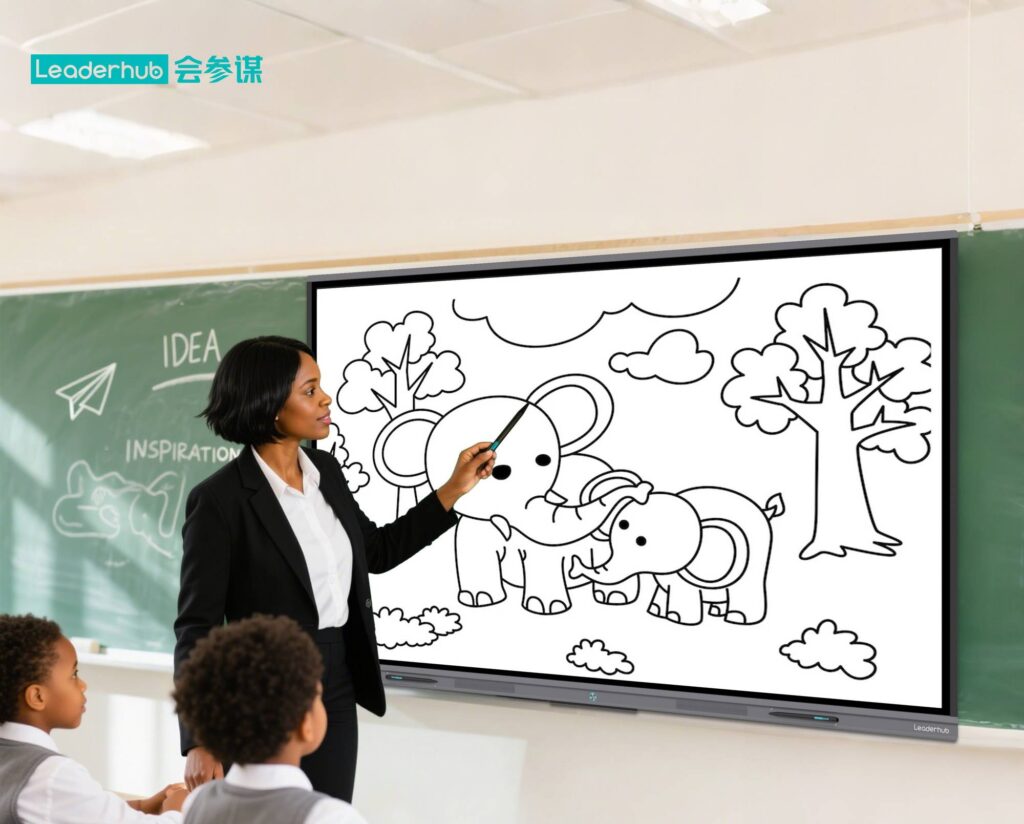
A projector and a laptop can display a slideshow, but they cannot invite twenty students to the front to manipulate content. A smart board can. Multi-touch input, built-in whiteboarding, wireless screen sharing, and cloud saving give teachers a surface that is designed for participation, not just presentation.
From Passive Viewing to Active Doing
Because students already encountered the lecture content at home, the smart board’s role in class is not to deliver information but to surface student thinking. Teachers display student work, compare approaches side by side, and let learners annotate each other’s reasoning in real time. The table below shows how the classroom experience changes.
| Classroom Element | Traditional Lecture Setup | Flipped Classroom with Smart Board |
|---|---|---|
| Who is at the front | The teacher, almost always | Students rotate to the board to explain and solve |
| Use of class time | Note taking and listening | Problem solving, peer teaching, feedback |
| Student work visibility | Hidden in notebooks | Cast from tablets and compared on screen |
| Record of the lesson | Erased from the whiteboard | Saved to the cloud and shared with absent students |
| Feedback loop | Delayed until homework is graded | Immediate, through polls and live annotation |
7 Ways a Smart Board Boosts Student Engagement in a Flipped Classroom
- Wireless screen casting. Students share their tablet or laptop screen to the board in seconds, so group solutions become the shared object of discussion.
- Multi-user touch. Two, four, or more students can write at the same time, which makes relay problem solving and collaborative mind mapping practical.
- Split-screen comparison. Teachers display two different student approaches side by side and ask the class to evaluate both.
- Instant polling and quizzes. A quick check at the start of class reveals who understood the pre-class video and who needs support.
- Recording and playback. The in-class annotation session can be captured and exported, turning today’s discussion into tomorrow’s revision material.
- Rich media annotation. Students pause a video, draw on a diagram, or label a map directly on the screen.
- Cloud-connected whiteboarding. Boards created in class are accessible from home, closing the loop between the pre-class and post-class phases.
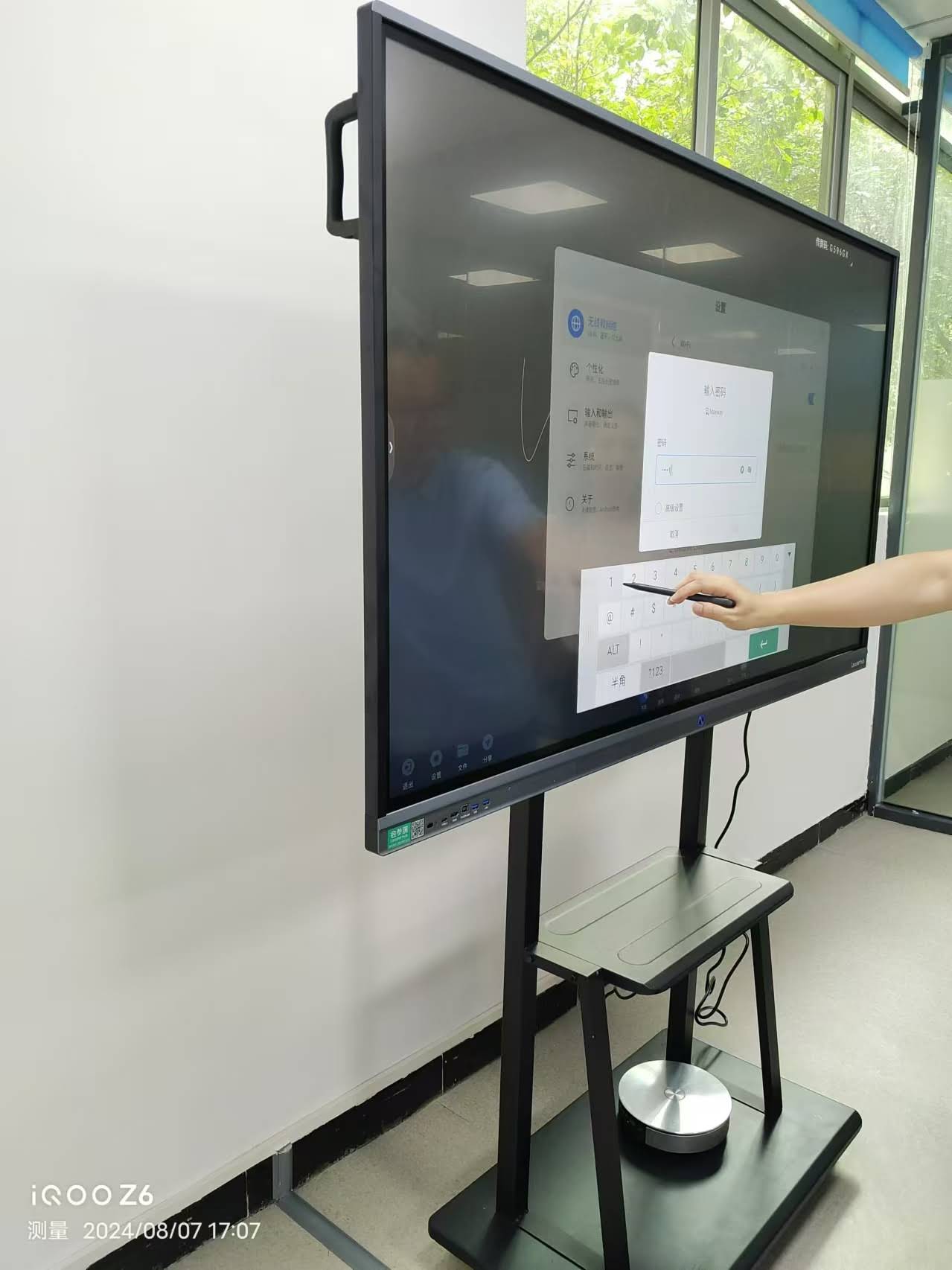
Active Learning Strategies You Can Run on a Smart Board
The following strategies are proven in flipped environments and become noticeably smoother when an interactive display anchors the room. Each one can be set up in minutes on any modern interactive smart whiteboard.
Peer Instruction
Pose a conceptual question on the board, let students vote individually, then discuss with a neighbor and vote again. The smart board displays both rounds of results so the class can see how discussion shifted the outcome. This routine alone can double participation in otherwise quiet classes.
Collaborative Problem Solving
Divide the board into zones and assign one group per zone. Groups solve the same problem in parallel while the teacher circulates. When time is up, every solution is already on screen, ready for comparison without any transcription delay.
Digital Gallery Walk
Students cast their group’s poster, code, or essay outline to the board one after another. Classmates leave annotated comments directly on each piece, and the final board is saved as a single document for later review.
Live Exit Tickets
Close the lesson with a one-question prompt on the board. Students respond from their devices, and the teacher scans the results in real time to plan the next pre-class video. This is the kind of responsive teaching that the EEF Digital Technology Guidance identifies as a high-impact use of classroom technology.
Pre-Class, In-Class, Post-Class: The Smart Board Workflow
One of the most underrated advantages of a smart board for flipped learning classrooms is continuity. The same device that records the pre-class lesson also runs the in-class activity and exports the post-class summary.
| Phase | Teacher Action on the Smart Board | Student Benefit |
|---|---|---|
| Pre-class | Record a 6–10 minute mini-lesson with the built-in camera and screen recorder | Learn at their own pace, pause and rewind as needed |
| Start of class | Launch a three-question readiness poll | See where they stand and where the class will focus |
| Core of class | Run group tasks, cast student screens, annotate solutions | Apply knowledge, receive immediate feedback |
| End of class | Save the annotated board and export as PDF or share link | Review the exact discussion later, including absent students |
| Post-class | Review poll data to plan the next recorded lesson | Receive pre-class content targeted to real gaps |
Choosing the Right Smart Board for a Flipped Learning Classroom
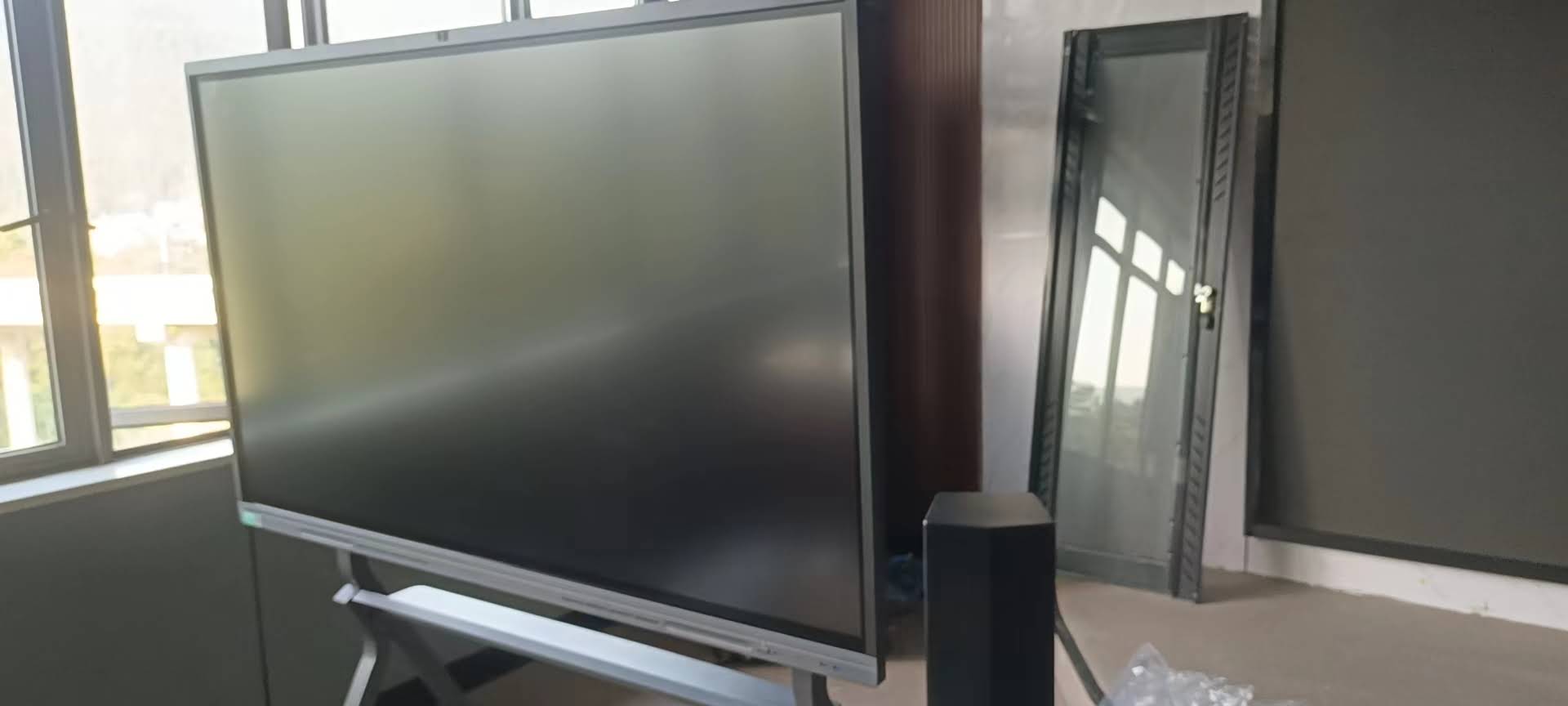
Not every interactive display is built for the demands of a flipped room. Screens that are too small, lag under multiple touch points, or lock content into a proprietary app will frustrate teachers and students alike. Use the checklist below when evaluating options.
Key Features Checklist
- 4K resolution so text and diagrams stay sharp from the back row.
- 20-point or higher multi-touch for simultaneous group writing.
- Wireless casting that works with Android, iOS, Windows, and Chromebook devices.
- Built-in whiteboard with cloud save and export to PDF or image formats.
- Integrated camera and microphone for recording pre-class lessons and supporting remote learners.
- Low-latency pen input so handwriting feels natural for math and language work.
- Open Android and optional Windows module so schools can run their existing LMS and video tools.
- Anti-glare, eye-care glass for long lessons under classroom lighting.
Screen Size Guide by Classroom Type
| Classroom Scenario | Recommended Size | Suggested Model |
|---|---|---|
| Small seminar room or tutoring center, up to 15 students | 65 inches | LeaderHub L65ZM 65″ Interactive Whiteboard |
| Standard K-12 classroom, 20–35 students | 75 inches | LeaderHub L75HM 75″ Smart Whiteboard |
| Large lecture room or STEM lab, 35+ students | 86 inches | LeaderHub L86ZM 86″ Interactive Whiteboard |
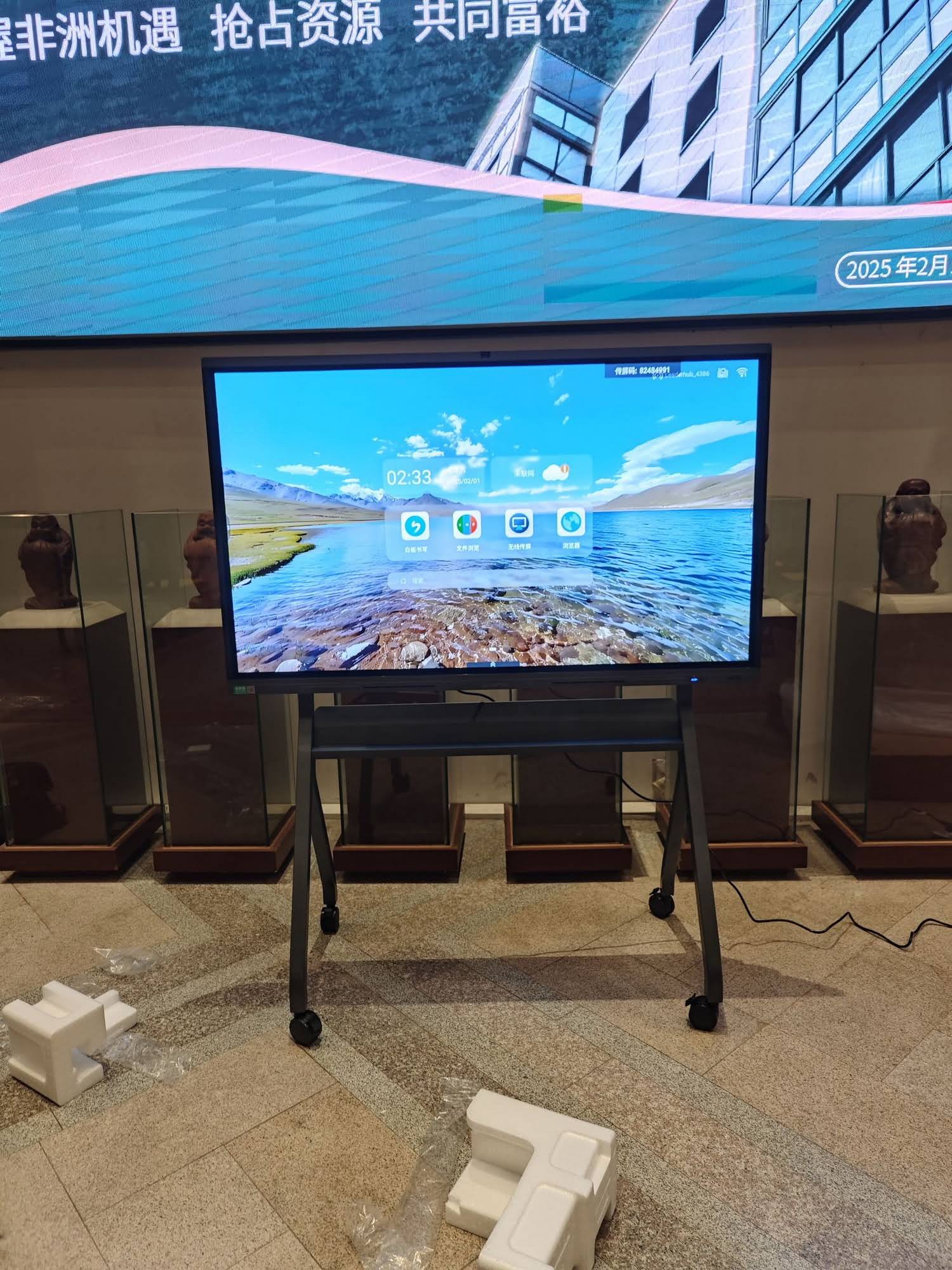
| Flexible or shared spaces that move between rooms | 55 inches, mobile stand | LeaderHub U55Pro 55″ Mobile Interactive Flat Panel |
Many schools pair the display with a compact mini PC so teachers can run Windows-based assessment software, video editors, and LMS platforms directly on the board without carrying a laptop.
Implementation Tips for Teachers and School Leaders
Hardware alone does not flip a classroom. The OECD Digital Education Outlook highlights that teacher confidence and well-designed routines are what turn digital tools into learning gains. The tips below help schools get there faster.
For Teachers
- Start with one unit, not the whole year. Flip a single topic and refine the routine before scaling.
- Keep pre-class videos under ten minutes and record them on the smart board itself so the visual style matches what students see in class.
- Build a predictable opening: poll, quick discussion, then group task. Students engage more when they know what to expect.
- Hand the pen to students early and often. The board belongs to the class, not only to the teacher.
- Save every board. A semester of saved sessions becomes a searchable revision library.
For School Leaders
- Align purchasing with the ISTE Standards for Educators so professional development and hardware goals reinforce each other.
- Budget for training hours, not just devices. Two short workshops per term usually deliver more value than one long onboarding day.
- Choose displays with open platforms to avoid being locked into a single software ecosystem.
- Pilot in two or three rooms with enthusiastic teachers, document results, and let them mentor colleagues.
Common Challenges and How to Overcome Them
| Challenge | Smart Board Solution |
|---|---|
| Students arrive without watching the pre-class video | Open with a short on-board poll; unprepared students watch a two-minute recap on a side screen while others begin the task |
| Only confident students volunteer to come to the board | Use anonymous screen casting so work is discussed before the author is revealed |
| Lesson content is lost at the end of the period | Enable automatic cloud save and share a QR code for instant access |
| Teachers feel the technology slows them down | Standardize three core routines on the board and practice them during PD until they become automatic |
| Hybrid or absent learners miss the discussion | Use the integrated camera to stream and record the session alongside the annotated board |
Measuring Engagement and Learning Outcomes
Engagement should be measured, not assumed. Smart boards make this easier because they generate data as a by-product of teaching. Track metrics such as the percentage of students who respond to in-class polls, the number of distinct students who write on the board each week, and the proportion of saved boards that students reopen at home. Combine these indicators with unit assessment scores to build a clear picture of whether the flipped model is working for your learners.
Schools that adopt this approach often report a noticeable shift within a single term: quieter students begin contributing through their devices, discussions become more evidence-based because the work is visible, and teachers spend less time re-explaining content and more time coaching.
Why Schools Choose LeaderHub for Flipped Learning
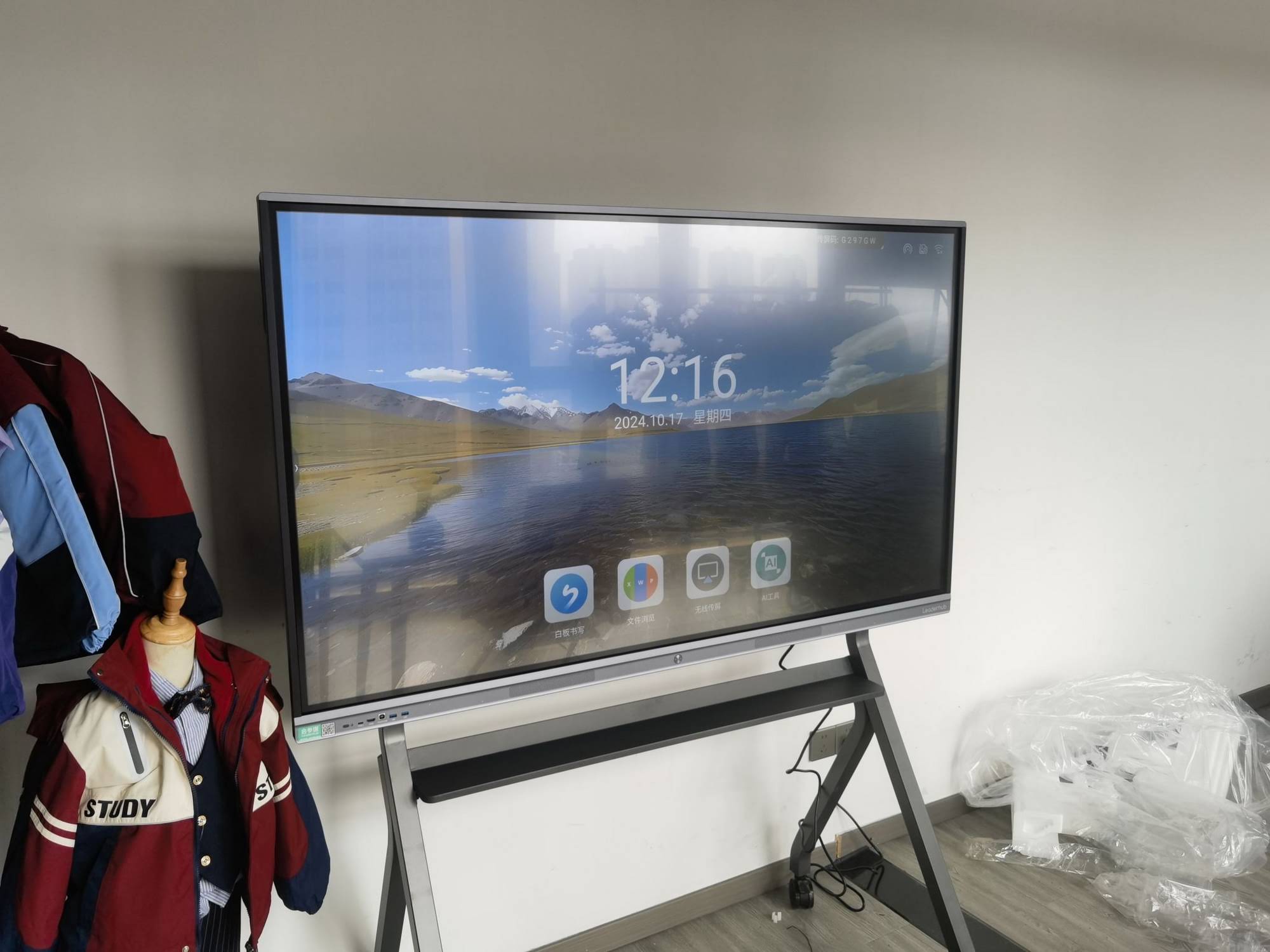
LeaderHub is a Shenzhen-based technology company with 16 years of experience in the interactive display industry, delivering smart whiteboards, interactive flat panels, mini PCs, and portable smart screens to education, enterprise, and creative users in 82 countries. Its education displays combine 4K touch, built-in recording, wireless casting, and open Android platforms, which are exactly the capabilities a flipped classroom depends on. Schools and training centers can explore the full range in the LeaderHub product shop or contact the LeaderHub team for classroom-specific recommendations and volume pricing.
Frequently Asked Questions
Do I need a smart board to run a flipped classroom?
You can flip a classroom with a projector, but the in-class phase relies on visible student work, collaboration, and fast feedback. A smart board makes those elements far easier and more consistent, which is why most schools that scale flipped learning invest in interactive displays.
What size smart board is best for a flipped learning classroom?
For a typical classroom of 20 to 35 students, a 75-inch 4K panel offers the best balance of visibility and cost. Larger rooms benefit from 86 inches, while small-group spaces work well at 65 inches.
Can students connect their own devices to the board?
Yes. Modern smart boards support wireless casting from Android, iOS, Windows, and Chromebook devices, so students can share their work from the seats without cables.
How do smart boards help students who miss class?
Because annotated boards and recorded sessions are saved to the cloud, absent students can review the exact discussion their classmates had, not just a slide deck.
Is the investment worth it for small schools and tutoring centers?
Entry-level 65-inch interactive whiteboards now start at just over a thousand dollars, and a single board can serve multiple classes per day. When paired with a flipped model, the increase in active learning time typically justifies the cost within the first year.