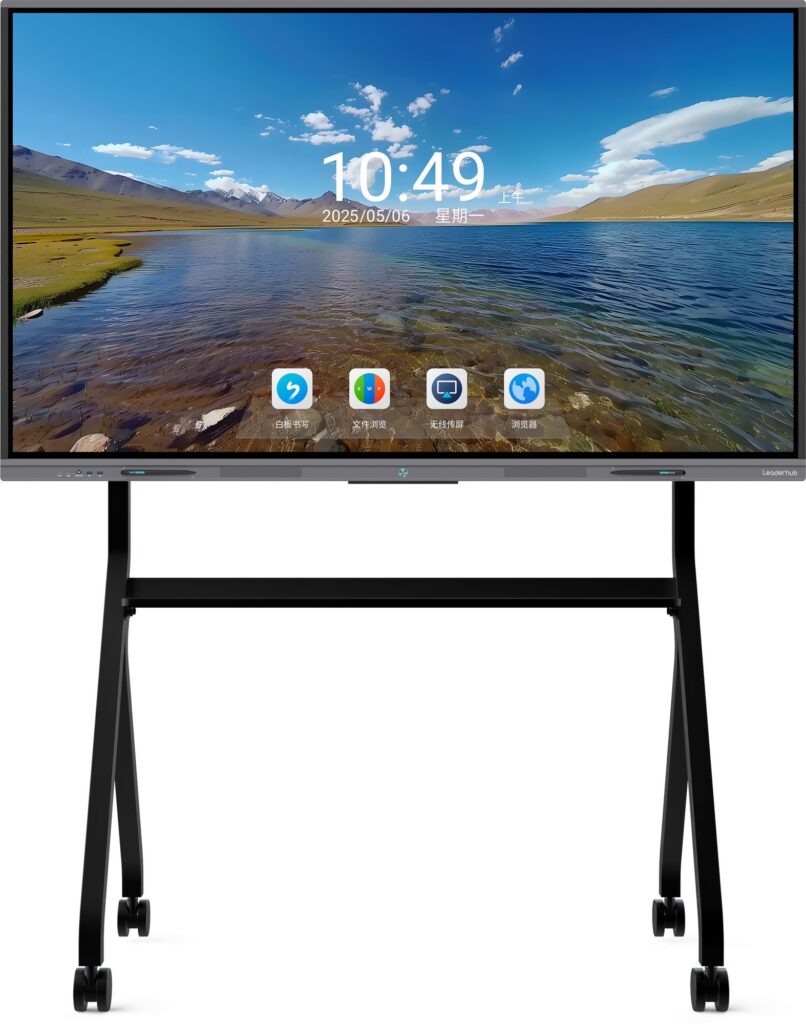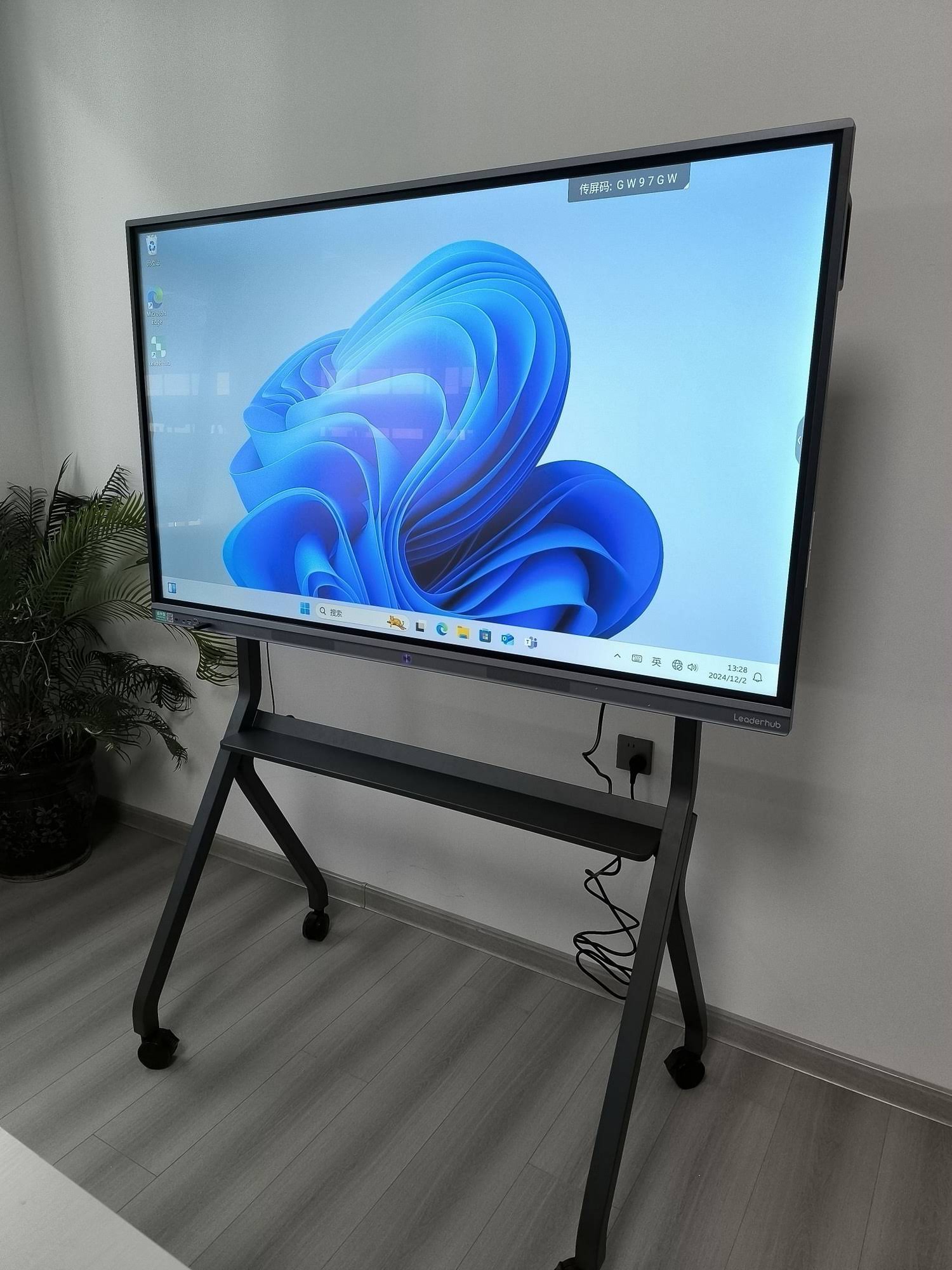
Learning how to control smart board with phone is one of the fastest ways to make meetings, lessons, and demos feel more flexible. Instead of walking back to the screen every few minutes, you can switch slides, launch apps, annotate content, and manage playback right from your phone.
At Leaderhub, interactive displays are built for simple, mobile-friendly collaboration, which is why phone control has become such a practical feature for classrooms, conference rooms, and training spaces.
Why Use Your Phone to Control a Smart Board?
A phone works as a compact remote, a wireless presenter, and sometimes even a secondary control panel. For teachers, sales teams, and trainers, this means fewer interruptions and smoother delivery.
- Move freely while presenting or teaching.
- Launch files, videos, and whiteboard tools without touching the board.
- Reduce cable clutter and setup time.
- Keep lessons and meetings more interactive.
If you are comparing display options, you can also explore our smart whiteboards and rotating screens for different room setups.
What You Need Before You Start
Before pairing your phone, make sure the basics are ready:
- A smart board with wireless casting or remote-control support
- A smartphone running iOS or Android
- Stable Wi-Fi on both devices
- The correct companion app if your board uses one
- Updated firmware on the board for the best compatibility
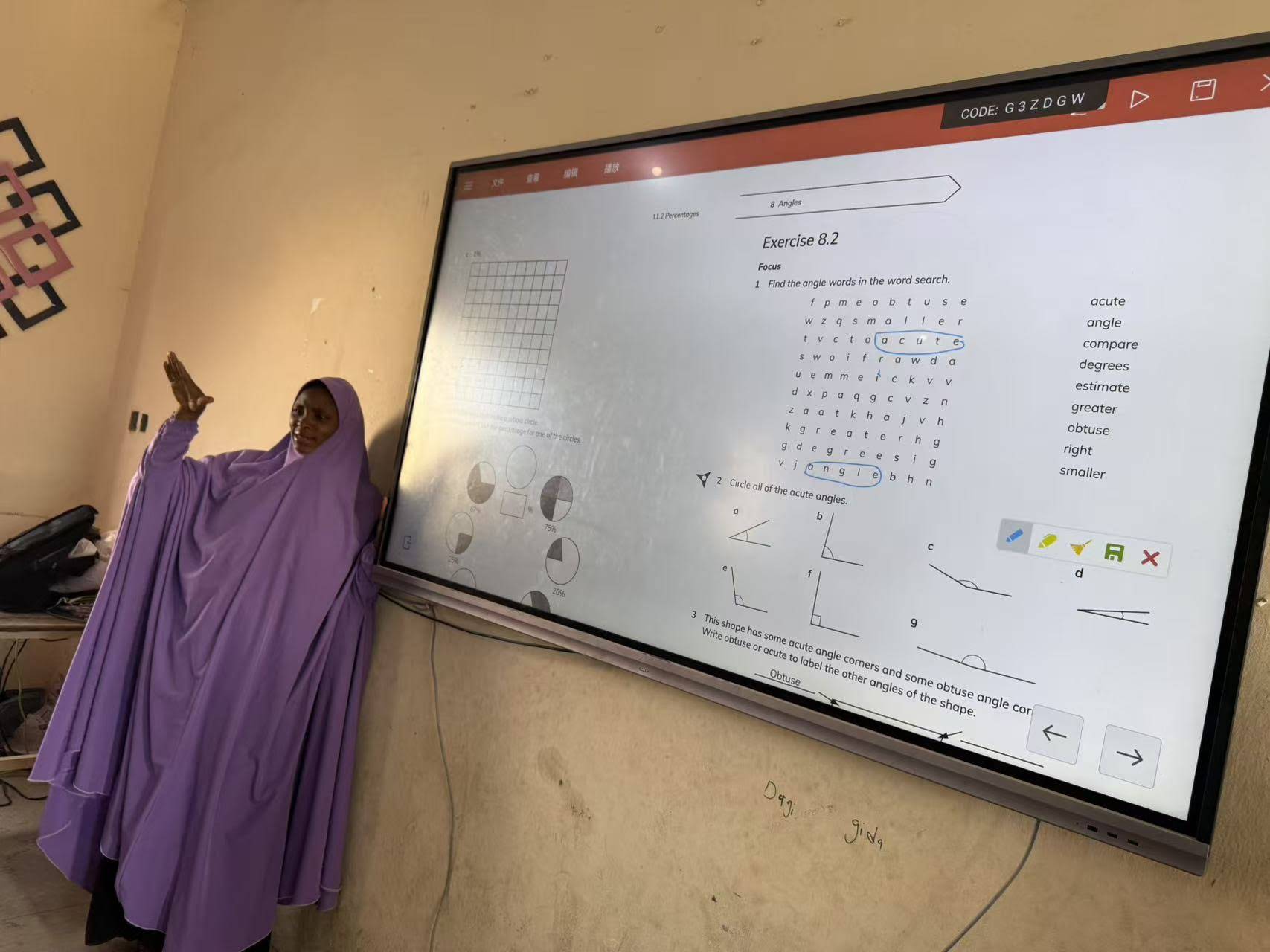
3 Simple Ways to Control a Smart Board with Your Phone
1. Use a dedicated companion app
Many smart boards support an app that turns your phone into a remote. Once paired, you can navigate pages, start whiteboarding, use the pointer, and control media playback.
2. Connect through Wi-Fi casting
If your board supports Miracast, AirPlay, or similar casting features, your phone can mirror content to the board and sometimes send control commands as well.
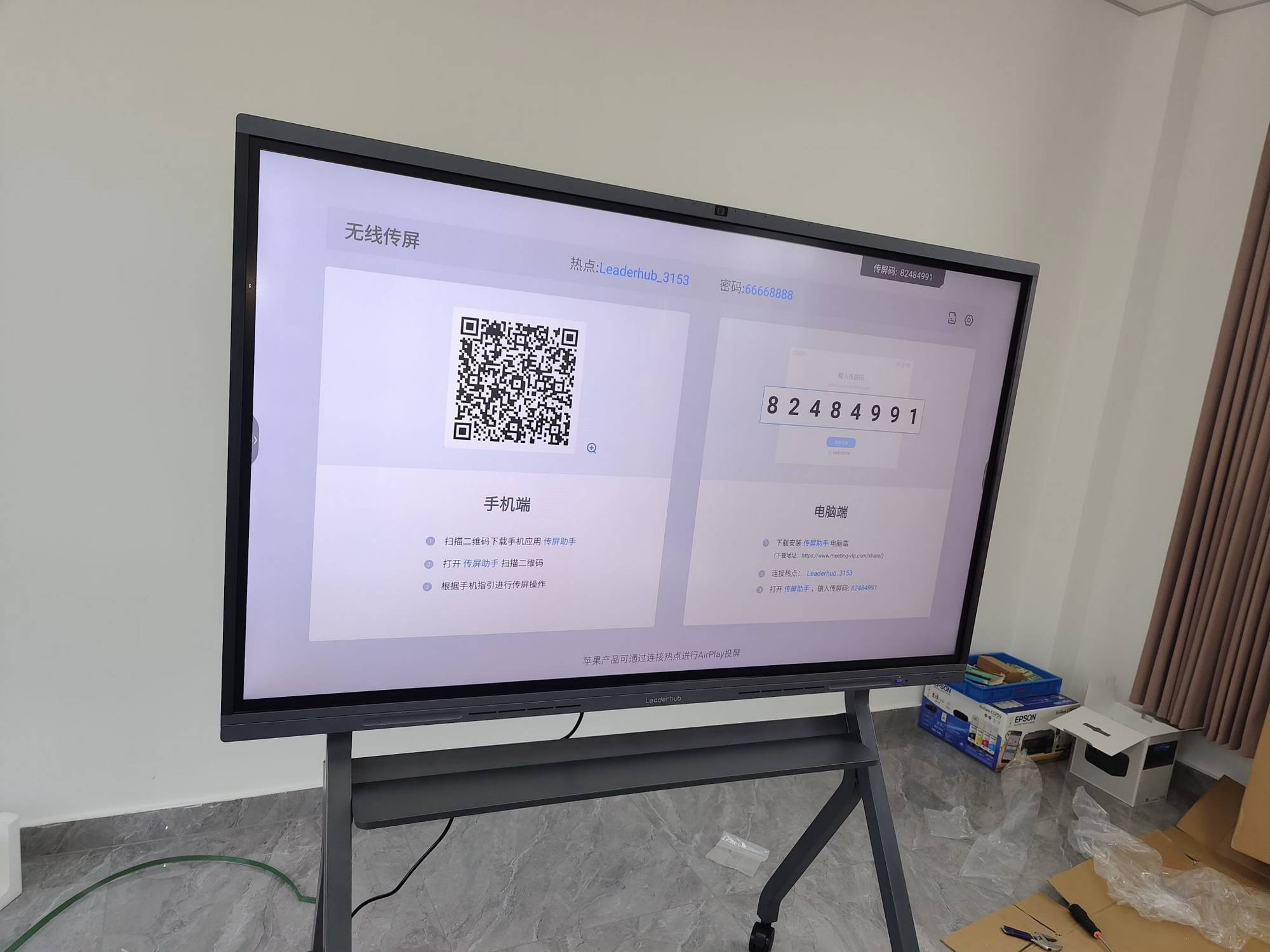
3. Pair with Bluetooth or QR code login
Some systems allow quick pairing through Bluetooth or a QR code shown on the screen. This is ideal when you need a fast, temporary connection for a meeting or demo.
| Control Method | Best For | Main Benefit |
|---|---|---|
| Companion app | Teachers, presenters, office teams | Full remote functions and easy navigation |
| Wi-Fi casting | Slides, videos, screen sharing | Fast wireless display connection |
| Bluetooth / QR pairing | Quick setup and guest users | Simple pairing with minimal steps |
Step-by-Step Setup Guide
Step 1: Put both devices on the same network
Open Wi-Fi on your phone and smart board, then connect both to the same router. A shared network is the most common requirement for remote control and casting.
Step 2: Open the phone control feature on the board
On the smart board, look for settings such as Remote Control, Mobile Device Control, Casting, or Companion App.
Step 3: Download the matching app on your phone
Search the board brand’s app in the App Store or Google Play. After installation, sign in or scan the pairing code shown on the board.
Step 4: Pair the phone and board
Use QR code scanning, Bluetooth discovery, or device code entry. Once paired, test basic actions such as page changes, cursor movement, and annotation.
Step 5: Check control permissions
If the app asks for microphone, camera, or local network access, allow the required permissions. Without them, the phone may connect but not control the board correctly.
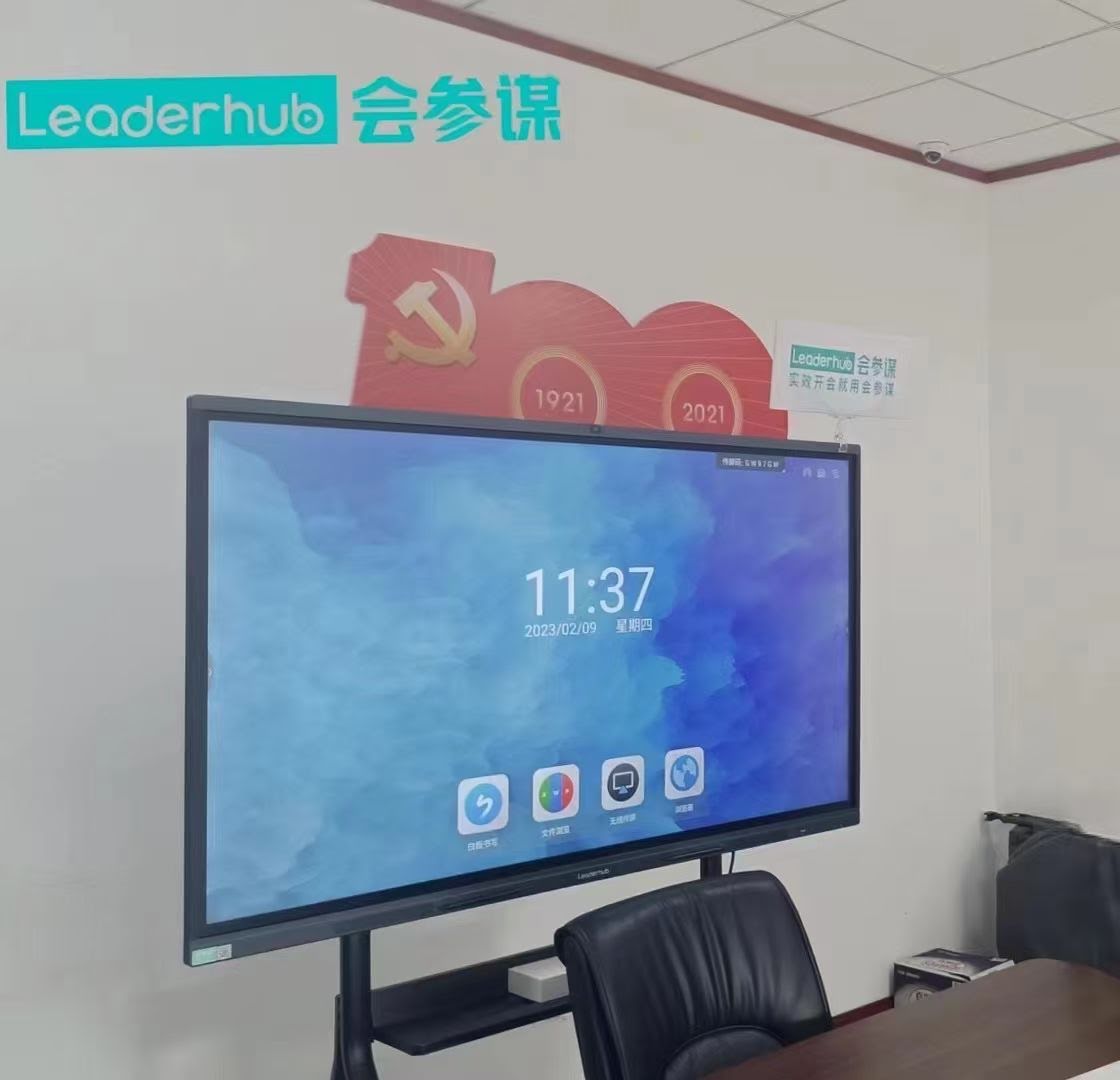
Best Settings for Smooth Phone Control
A good connection is not only about pairing. Small setting changes can make the experience much faster and more reliable.
| Setting | Recommended Choice | Why It Helps |
|---|---|---|
| Wi-Fi band | 5 GHz if available | Lower lag for real-time control |
| App updates | Keep current | Improves compatibility and stability |
| Board firmware | Latest version | Fixes pairing bugs and feature issues |
| Network access | Allow local network permission | Needed for discovery and casting |
Common Problems and Quick Fixes
- Phone cannot find the board: confirm both devices are on the same Wi-Fi and that discovery is enabled.
- Control is laggy: switch to a stronger network, reduce traffic, or move closer to the router.
- QR code will not scan: increase screen brightness and clean the camera lens.
- App connects but won’t control: check permissions and update the app.
Where Phone Control Makes the Biggest Difference
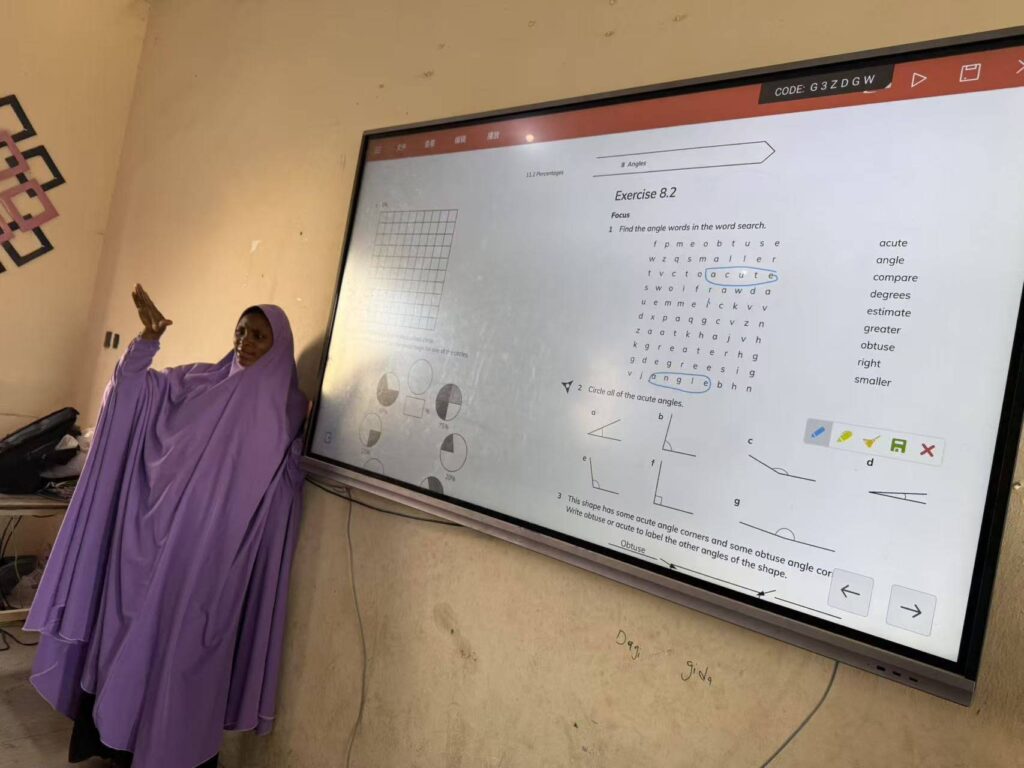
In classrooms: teachers can move around the room while managing lessons.
In meetings: presenters can switch slides without returning to the display.
In training rooms: facilitators can annotate and highlight key points on the fly.
In hybrid sessions: mobile control helps keep in-person and remote participants aligned.
Smart Board Models That Work Well with Mobile Control
If you want a reliable setup, choose a display designed for wireless collaboration and flexible device pairing. For example, you can compare models like
L65HM Interactive Smart Whiteboard,
L75H Pro Interactive Flat Panel,
and
U55Pro Mobile 4K Smart Display.
For compact control hubs in offices, a mini PC can also improve board performance and app responsiveness.
How to Make Phone Control More Effective
- Prepare the board before participants arrive.
- Save the pairing QR code in a visible location.
- Test casting, annotation, and page switching in advance.
- Keep a backup remote or USB-C adapter nearby.
- Use one device as the primary controller to avoid conflicts.
For broader guidance on digital learning and classroom technology, see the UNESCO Global Education Monitoring Report and ISTE Standards.
Final Setup Check
- Phone and smart board are on the same network
- App is installed and updated
- Permissions are enabled
- Pairing is confirmed
- Control actions work smoothly
Once these steps are in place, how to control smart board with phone becomes a simple workflow instead of a technical challenge. That means faster starts, smoother sessions, and a better experience for everyone in the room.
If you are ready to upgrade your setup, browse the shop or
contact our team to find the right interactive display for your space.