
Choosing the right connection interface for a smart whiteboard can make or break your daily workflow — whether you’re running a classroom, hosting a boardroom meeting, or managing a hybrid office setup. With so many display technologies, cable standards, and wireless casting protocols available today, it’s easy to feel overwhelmed. This guide breaks down everything you need to know about smart whiteboard connectivity, based on real deployment experience across education, corporate, and government sectors.
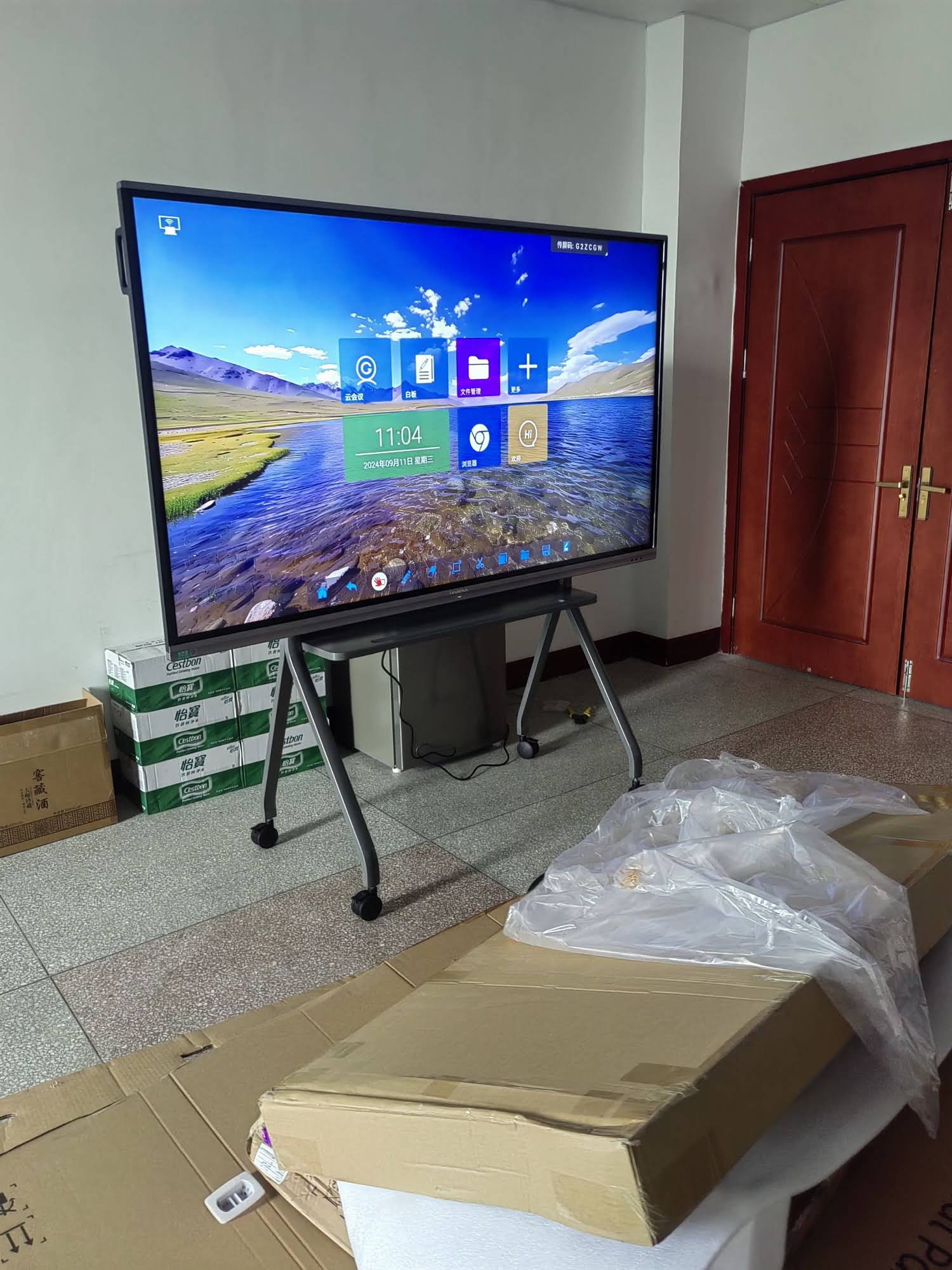
Why the Connection Interface Matters More Than You Think
Many buyers focus solely on screen resolution or touch sensitivity when shopping for an interactive smart whiteboard, overlooking the ports and wireless casting options that determine how easily the device integrates into daily operations. A mismatched interface means dongles, adapters, dropped connections, and frustrated users — problems that compound quickly in busy classrooms or back-to-back meeting rooms.
From our experience supplying interactive panels to 82 countries, connectivity complaints are the second most common support request after touch calibration. Getting the interface right the first time saves significant IT overhead down the line.
Common Connection Interfaces on Modern Smart Whiteboards
Today’s interactive flat panels typically offer a combination of wired and wireless options. Understanding each one helps you match your whiteboard to your existing hardware ecosystem.
| Interface Type | Best For | Max Resolution |
|---|---|---|
| HDMI 2.0/2.1 | Laptops, gaming consoles, media players | 4K @ 60Hz |
| USB-C (with DP Alt Mode) | MacBooks, ultrabooks, single-cable charging + display | 4K @ 60Hz + 65W PD |
| VGA | Legacy projectors, older desktops | 1080p |
| Wireless Casting (Miracast/AirPlay) | BYOD environments, quick guest presentations | Up to 4K depending on Wi-Fi |
| RS232/LAN (Control) | Centralized AV control systems | N/A (control signal only) |
Step-by-Step: How to Choose the Right Interface for Your Needs
Selecting the ideal connection setup depends on who will use the whiteboard, what devices they bring, and how the room is configured. Here’s a practical framework we recommend to schools, offices, and integrators.
1. Audit Your Existing Devices
Before purchasing, list every device type that will connect to the board — laptops, tablets, document cameras, video conferencing bars, or legacy PCs. If your organization still uses older desktops, ensure the panel includes a VGA input alongside modern HDMI/USB-C ports.
2. Consider Room Layout and Cable Runs
In large lecture halls or boardrooms where the whiteboard is mounted far from the presenter’s seat, long HDMI cables can suffer signal degradation. In these cases, a built-in mini PC module or wireless casting dongle eliminates cable-length issues entirely.
3. Prioritize USB-C for Mixed Device Environments
USB-C with DisplayPort Alt Mode and Power Delivery has become the fastest-growing standard because it combines video, data, and charging in a single cable. If your team primarily uses MacBooks or modern Windows ultrabooks, a whiteboard with dual USB-C touchback ports significantly reduces setup friction.
4. Evaluate Wireless Screen Sharing Needs
For BYOD (Bring Your Own Device) classrooms or client-facing meeting rooms, wireless casting is essential. Look for panels supporting Miracast, AirPlay, and Chromecast simultaneously — not just one protocol — to accommodate mixed device fleets without requiring app installs.

Interface Checklist by Use Case
- K-12 Classrooms: HDMI + USB-C + built-in Android OS for offline lesson delivery without external PC dependency.
- University Lecture Halls: Multiple HDMI inputs, RS232 control integration, and a dedicated interactive flat panel with OPS mini PC slot for centralized IT management.
- Corporate Boardrooms: USB-C single-cable connectivity, wireless casting for guest laptops, and video conferencing camera pass-through.
- Training Centers: Portable smart screens with battery power and rotating displays for flexible room configurations.
- Government & Public Sector: Secure wired connections (HDMI/VGA) with limited wireless exposure for compliance reasons.
Real-World Case Study: Interface Selection in Practice
During a 2024 deployment for a mid-sized training institute in Southeast Asia, the IT team initially selected panels based only on screen size, without considering staff device diversity. Instructors used a mix of older Windows laptops (HDMI/VGA only) and newer MacBooks (USB-C only). The mismatch caused daily setup delays averaging 8–10 minutes per session across 12 classrooms.
After switching to panels equipped with dual HDMI, dual USB-C, and built-in wireless casting, average connection time dropped to under 90 seconds. This single change improved instructional time utilization by roughly 12% across the semester — a clear demonstration of how interface planning directly impacts productivity.
Expert Insight
As an interactive display manufacturer with 16 years of experience serving education and enterprise clients in 82 countries, our engineering team consistently recommends prioritizing port diversity over port quantity. A whiteboard with two well-implemented USB-C ports and two HDMI inputs will outperform a panel with five ports of a single outdated standard.
Wired vs. Wireless: Which Should You Prioritize?
Neither wired nor wireless connectivity is universally “better” — the right balance depends on your environment’s reliability requirements and device flexibility needs.
| Factor | Wired Connection | Wireless Casting |
|---|---|---|
| Latency | Near-zero | Slight delay (network dependent) |
| Setup Speed | Requires cable/dongle | Instant with paired devices |
| Security | Higher (physical access needed) | Depends on network encryption |
| Multi-user Sharing | One device at a time | Multiple devices possible |
Future-Proofing Your Investment
Display technology evolves quickly, and today’s ideal interface may become tomorrow’s bottleneck. When budgeting for a smart whiteboard, consider these forward-looking factors:
- USB-C adoption is accelerating across laptop manufacturers, including budget models, making it increasingly future-proof compared to VGA or older HDMI standards.
- OPS (Open Pluggable Specification) slots allow you to upgrade the internal mini PC independently of the display panel, extending hardware lifespan by 3–5 years.
- Modular connectivity — panels supporting swappable I/O modules let you adapt to new standards (like USB4 or Thunderbolt) without replacing the entire unit.

Frequently Asked Questions
Can I connect multiple laptops to one smart whiteboard simultaneously?
Yes — most modern panels support split-screen input from two wired sources simultaneously, plus additional wireless casting connections, making multi-presenter sessions straightforward.
Do I need a separate PC, or does the whiteboard have one built in?
Many interactive panels, including LeaderHub’s smart whiteboard lineup, include a built-in Android OS for standalone use, while also offering OPS slots for optional Windows mini PC modules — giving you flexibility without mandatory external hardware.
Is VGA still necessary in 2025?
For most modern offices and schools, no — but institutions with significant legacy hardware inventories (common in government and some public education systems) still benefit from having at least one VGA input available.
Final Recommendations
Choosing the best connection interface isn’t about picking the newest technology — it’s about matching your whiteboard’s ports and wireless capabilities to the actual devices your team uses every day. Start by auditing your device ecosystem, prioritize USB-C for future flexibility, keep at least one legacy input if needed, and ensure robust multi-protocol wireless casting support for BYOD scenarios.
As a technology company with 16 years of dedicated experience in the interactive panel industry, LeaderHub designs its whiteboards, flat panels, and portable smart screens with exactly this kind of real-world connectivity diversity in mind — helping businesses, schools, and training centers reduce setup friction and maximize screen time for what actually matters: collaboration and learning.
Ready to find the right interactive display for your space? Explore LeaderHub’s product lineup or reach out to our team for a personalized connectivity consultation.








