You step up to the board in the middle of a lesson or meeting, press the pen to the glass, and… nothing. No line, no cursor, no response. If you are asking yourself “why is my smart board pen not working?”, the good news is that in the vast majority of cases the cause is something simple: a dead battery, a dirty infrared frame, a worn tip, or a software setting that quietly switched itself off. This guide walks you through the most common causes and gives you 9 easy fixes you can try in minutes, no technician required.
Quick Diagnosis: Match Your Symptom to the Likely Cause
Before you start pulling things apart, use the table below to narrow down what is going on. Most pen failures fall into one of these five categories.
| Symptom | Most Likely Cause | Jump to Fix |
|---|---|---|
| Pen does nothing, but finger touch works | Dead battery (active pen) or wrong pen type | Fix 1, Fix 3 |
| Pen and finger both unresponsive | Blocked IR frame, touch lock, or frozen system | Fix 2, Fix 5, Fix 6 |
| Lines appear offset from where you write | Calibration drift | Fix 4 |
| Broken, skipping, or jittery lines | Dirty screen, worn tip, or strong sunlight | Fix 2, Fix 5, Fix 8 |
| Pen works in some apps but not others | Software pen mode or driver issue | Fix 7, Fix 9 |
First, Know What Kind of Smart Board Pen You Have
Not all smart board pens work the same way, and the troubleshooting path depends heavily on the technology behind the glass. There are three main types:
- Passive pens on infrared (IR) boards – The most common type on modern interactive flat panels. The pen has no battery and no electronics; the board simply detects anything that breaks the invisible infrared grid along the bezel. Your finger, a passive stylus, or even a capped marker will all register.
- Active (battery-powered) pens – Used on many capacitive and some projector-based boards. These contain a battery, a pressure sensor, and often Bluetooth. If the battery is flat, the pen is dead.
- EMR (electromagnetic resonance) pens – Found on premium panels. The pen is powered by the screen itself but only works on its matching board; a different brand’s pen will usually not register.
If you are unsure which one you have, a simple test tells you a lot: touch the screen with your finger. If finger touch works but the pen does not, the problem is almost certainly with the pen itself. If neither works, the problem is with the board, its settings, or its connection.
9 Easy Fixes for a Smart Board Pen That Won’t Write
Fix 1: Check or Replace the Pen Battery
For active pens this is the number one cause. A pen with a weak battery may still light up its LED but fail to transmit reliably. Swap in a fresh AAA or AAAA battery, or if the pen is rechargeable, charge it for at least 30 minutes before testing again. Check that the battery contacts are clean and the battery is inserted in the correct orientation. If your pen has a pairing button, hold it for a few seconds after replacing the battery to re-establish the Bluetooth link.
Fix 2: Clean the Screen and the Infrared Frame
On IR panels, dust, chalk residue, whiteboard-marker ghosting, and even a sticky note resting on the bottom bezel can block the sensors. Power the board off, then:
- Wipe the glass with a dry or slightly damp microfiber cloth. Never spray liquid directly onto the panel.
- Run the cloth gently along the inside edge of the bezel on all four sides, where the IR emitters and receivers sit.
- Remove any magnets, tape, cables, or decorations touching the frame.
- Power back on and test the pen again.
A surprising number of “broken pen” support calls are solved by removing a piece of paper that slid into the bottom groove of the frame.
Fix 3: Make Sure You Are Using the Right Pen
Pens get mixed up between rooms all the time. An active pen from a projector-based board will not work on an infrared flat panel in “pen-only” mode, and an EMR pen will not register on a capacitive screen. Check the model printed on the pen against the model of your board. On IR panels, confirm the pen tip is thick enough to break the beam. Very fine-tipped styluses (under about 3 mm) are often ignored by the touch frame.
Fix 4: Recalibrate the Touch Screen
If the pen writes but the ink lands a centimetre away from the tip, the touch layer and the display have drifted out of alignment. This is common after the board has been moved, after a firmware update, or after a change in display resolution. Open the board’s settings menu, look for Calibration or Touch Alignment, and follow the on-screen crosshairs. If the board is connected to an external PC, calibrate from the PC side as well, because Windows and macOS keep their own touch mapping.
Fix 5: Eliminate Light Interference
Infrared touch frames can be confused by strong direct sunlight, halogen spotlights, or an infrared heater pointed at the screen. Symptoms include phantom touches, pens that work in the morning but not in the afternoon, or lines that break up near one edge of the board. Close the blinds, reposition lamps, or rotate the board slightly. If the problem goes away when the room is darker, you have found your culprit.
Fix 6: Restart the Board and Reconnect Cables
Software hangs happen. A full power cycle clears a frozen touch controller:
- Turn the panel off using the power button, not just standby.
- Unplug the power cable for 60 seconds.
- If a laptop or mini PC is connected, unplug and reseat the USB touch cable and the HDMI cable. The USB cable is what carries pen and touch data to the computer; HDMI alone only sends video.
- Power everything back on, board first, then the computer.
If you connect through a long USB extension or a docking station, try a direct cable under 3 metres. Low-quality extensions frequently drop the touch signal while the picture looks perfectly fine.
Fix 7: Update Firmware and Drivers
Manufacturers regularly release firmware fixes for touch sensitivity and pen recognition. Check the board’s Settings > System > Update menu, or download the latest touch driver from the manufacturer’s support page onto your connected PC. After updating, restart both devices. Schools that keep a consistent update routine report far fewer classroom interruptions, a point echoed in the UK Technology in Schools Survey, which highlights maintenance and technical support as key factors in whether classroom technology is actually used.
Fix 8: Inspect and Replace a Worn Pen Tip
Pen tips are consumables. After a year or two of heavy daily writing, a felt or plastic tip can wear flat, crack, or shrink below the size the touch frame can detect. Signs of a worn tip include scratchy lines, needing to press harder than before, and strokes that start late. Most boards ship with spare tips; otherwise they are inexpensive to order. On IR boards you can confirm the diagnosis instantly by writing with the back end of the pen. If that works, the tip is the problem.
Fix 9: Check the Whiteboard Software Settings
Finally, the pen may be working perfectly while the software ignores it. Look for these settings in your whiteboard or annotation app:
- Pen mode vs. select mode – If the app is in cursor or eraser mode, the pen moves objects instead of drawing.
- Touch lock or child lock – Many boards have a lock gesture or a remote-control button that disables touch input entirely.
- Palm rejection – If set too aggressively, resting your hand on the glass can cancel the pen stroke.
- Input source – When the board is showing an HDMI source, pen input is sent to that external device, not to the board’s own Android system. Switch sources and test again.
Troubleshooting Checklist by Board Technology
Because the three pen technologies fail in different ways, here is a condensed checklist you can print and keep next to the board.
| Board Type | Check First | Check Second | Rarely Needed |
|---|---|---|---|
| Infrared (IR) | Clean bezel, remove obstructions | Sunlight, tip size, calibration | Touch frame replacement |
| Capacitive / Active Pen | Battery, pairing | Driver update, USB cable | Pen replacement |
| EMR | Correct matching pen | Firmware, tip wear | Digitizer service |
Why Modern Interactive Flat Panels Have Fewer Pen Problems
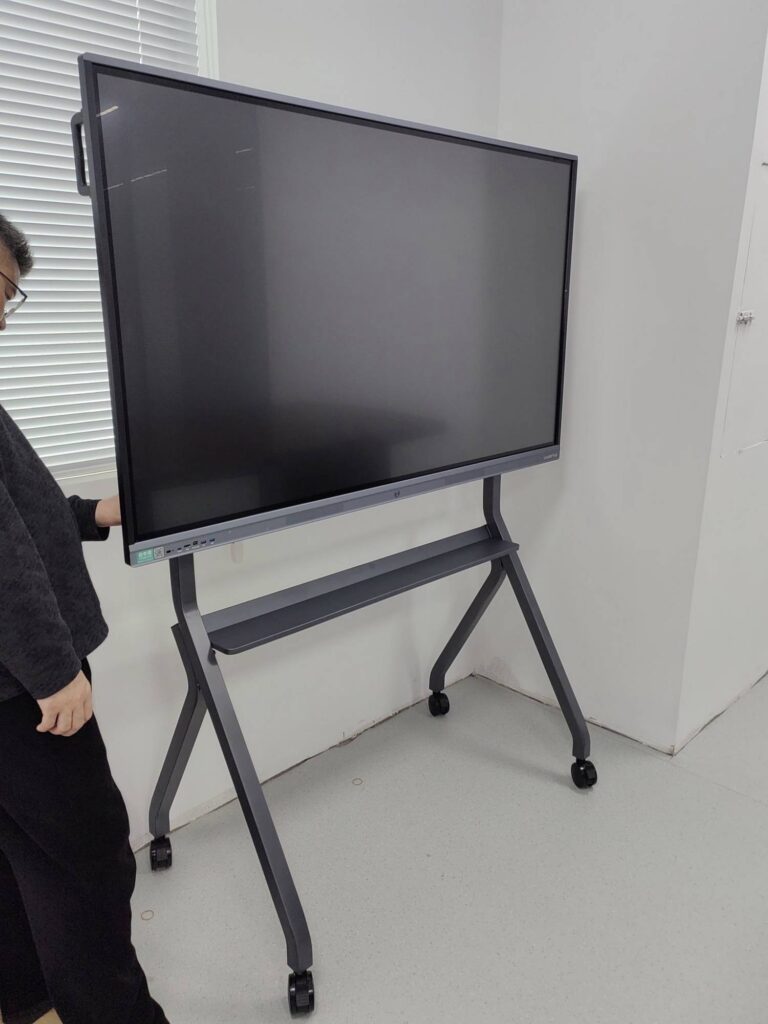
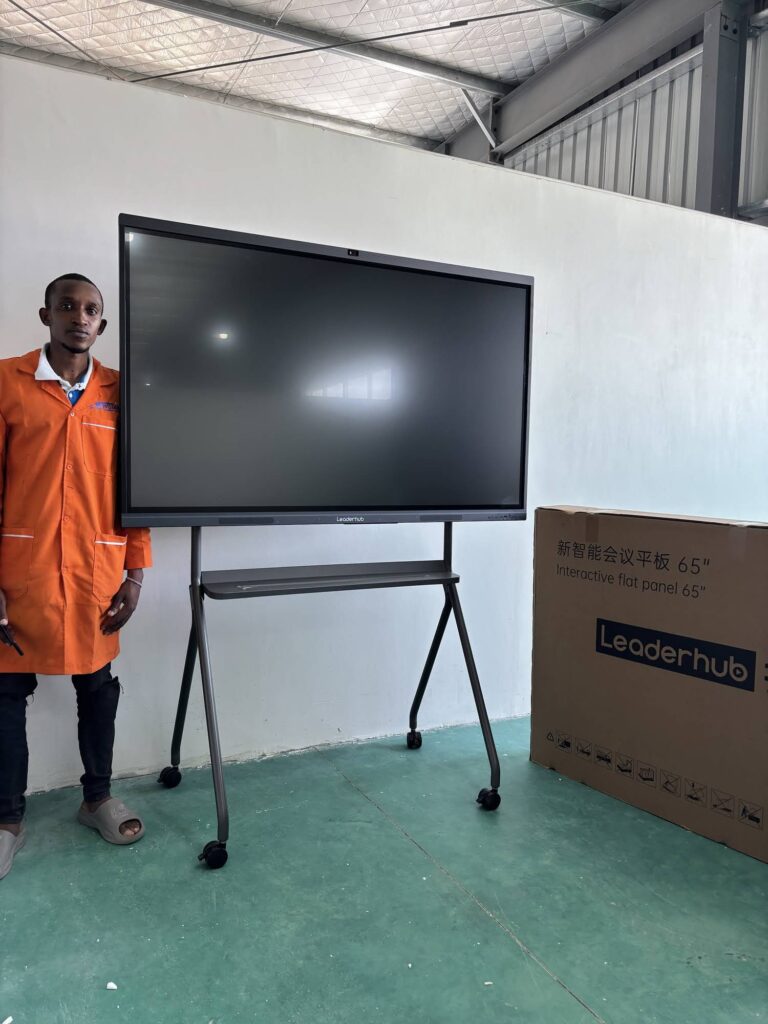
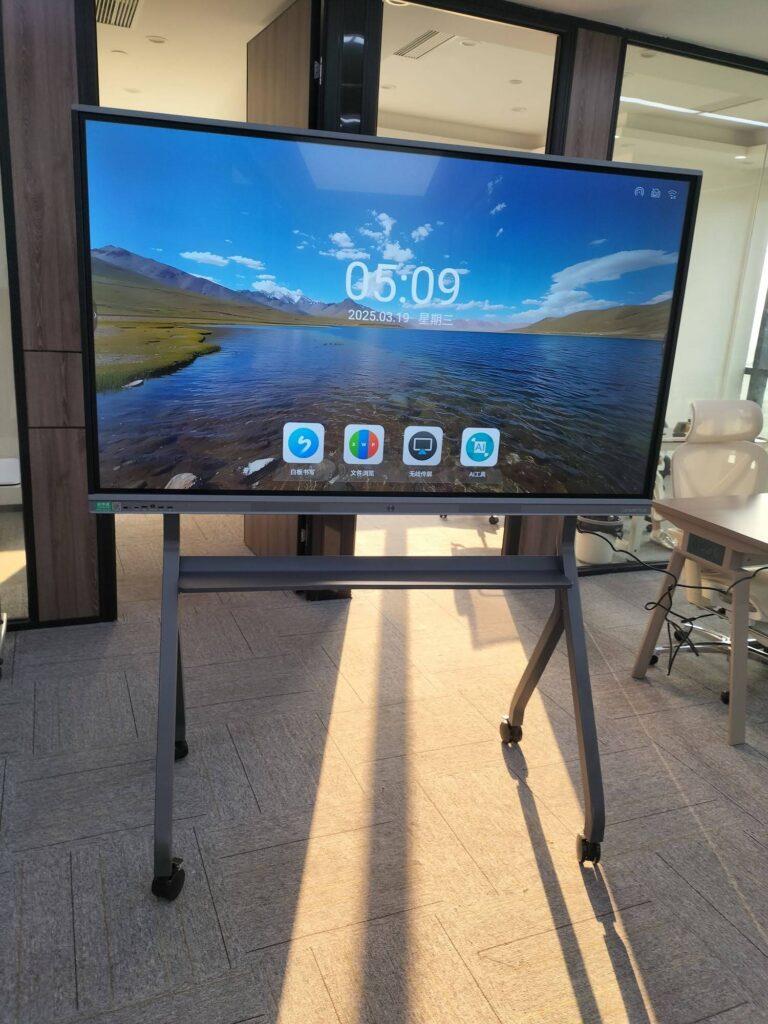
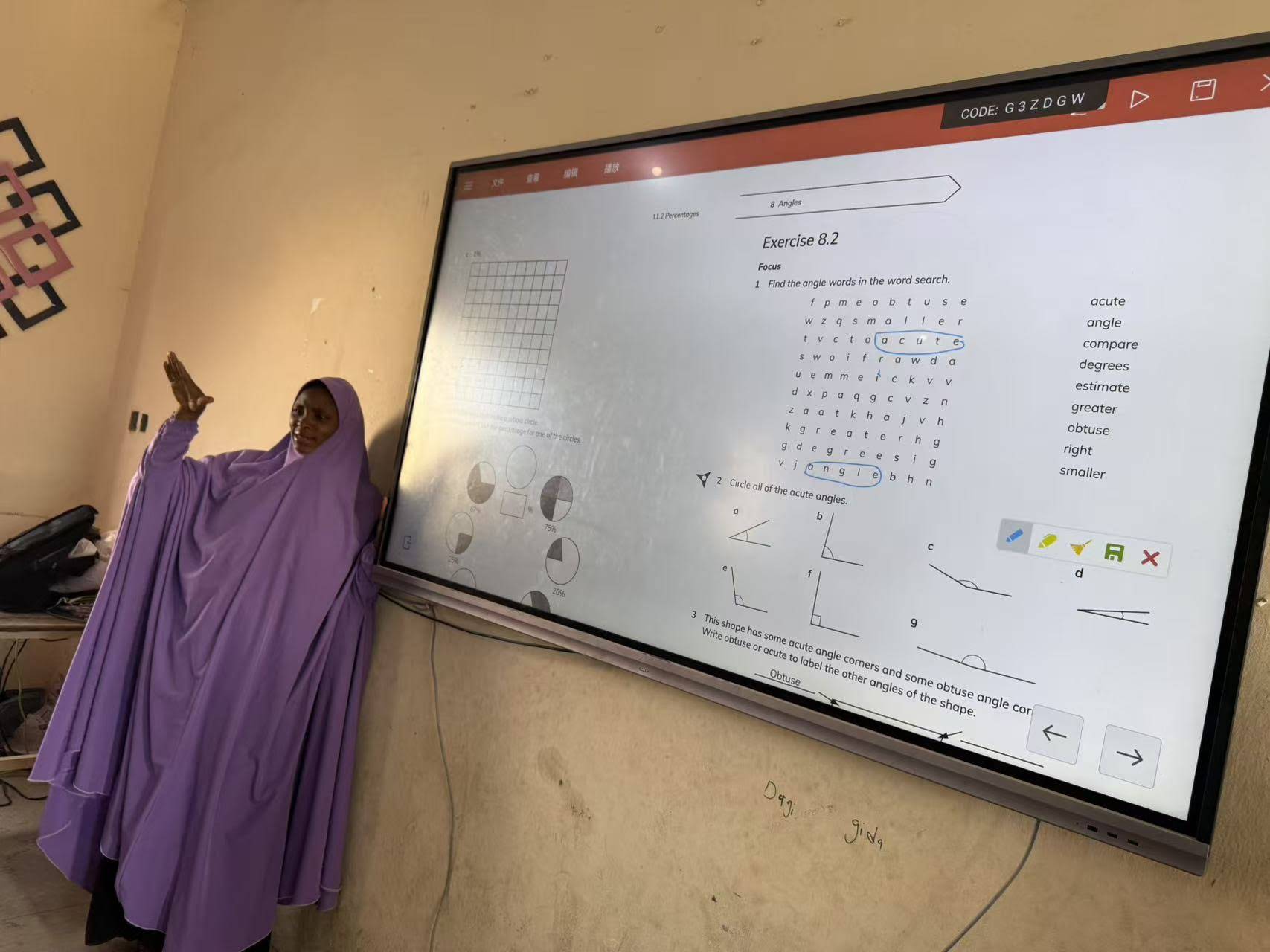
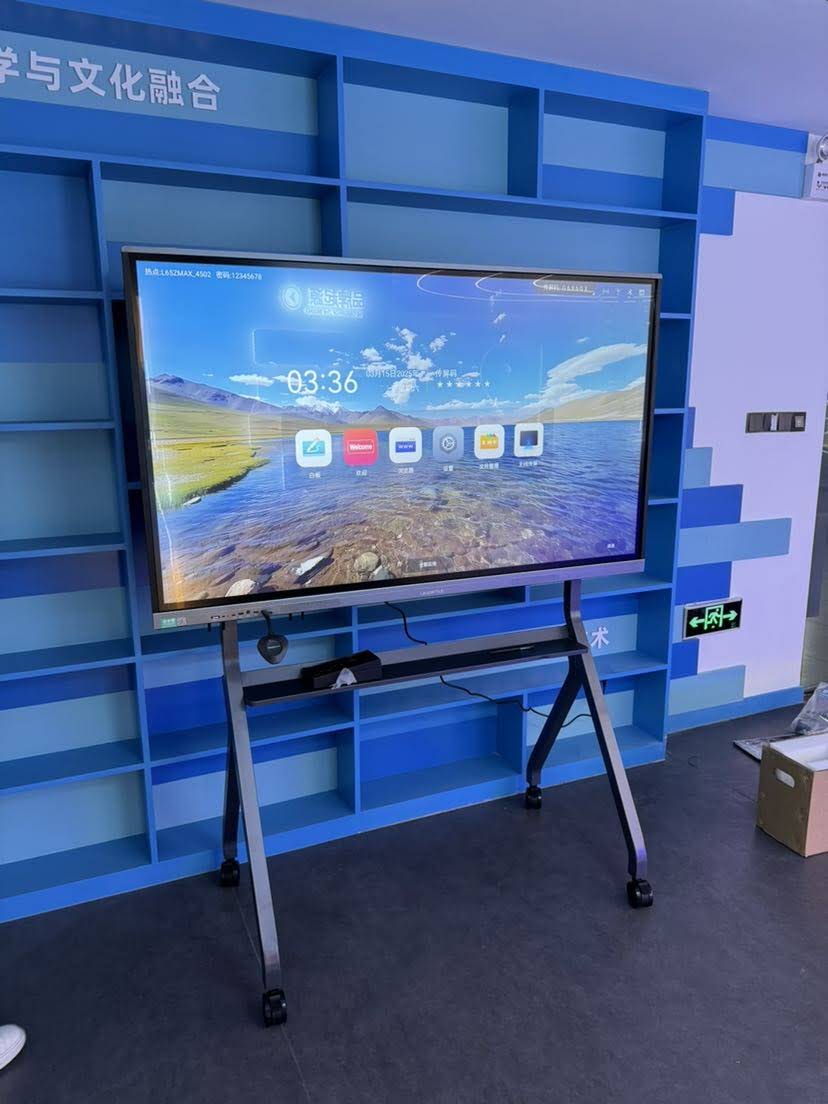
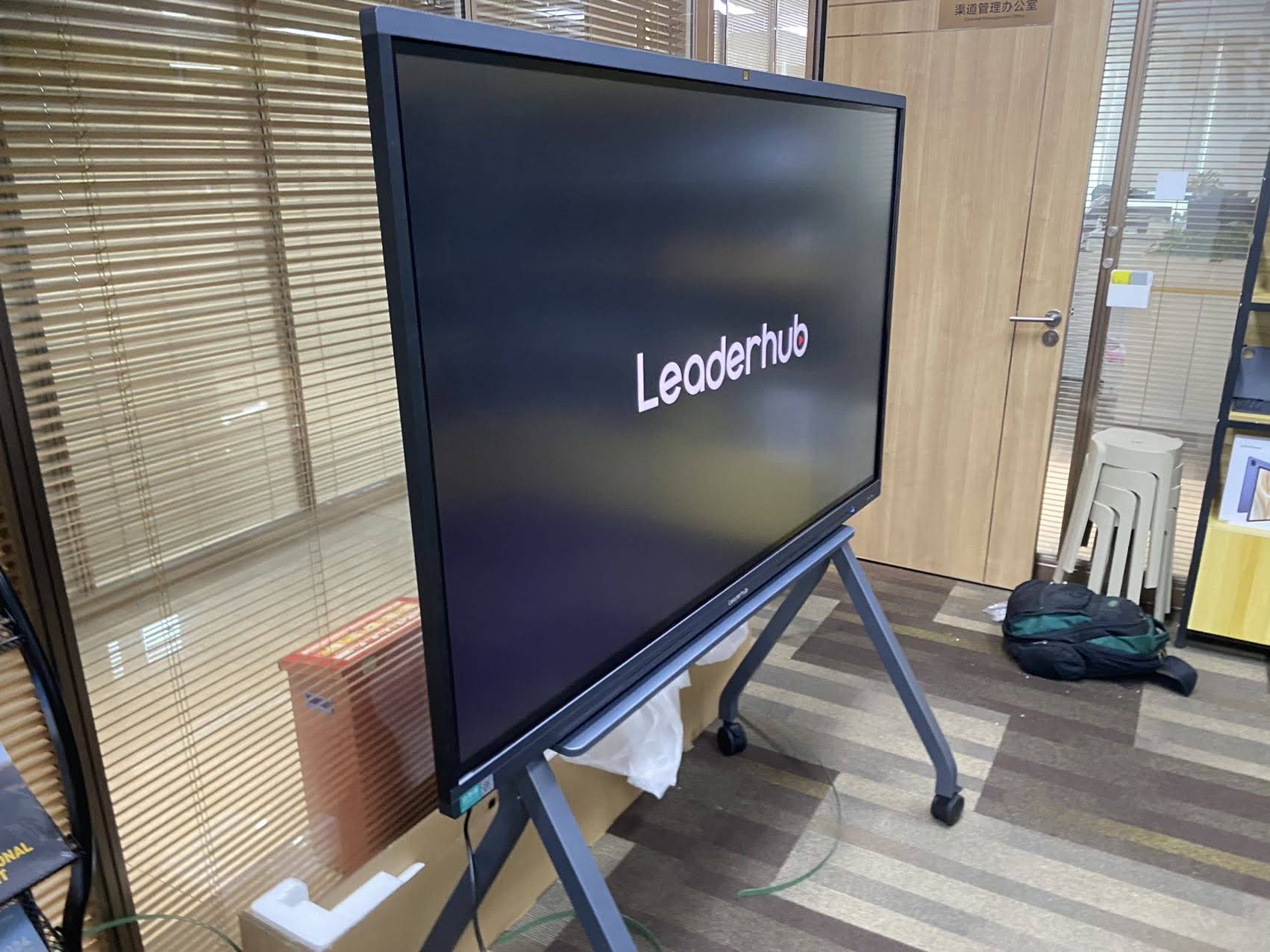
If you are fighting a pen on an older projector-based board, it may be worth knowing that current-generation interactive flat panels have largely designed the problem away. Infrared and in-cell touch panels use battery-free passive pens, so there is nothing to charge, pair, or lose signal with. Many support dual-pen writing with automatic colour and thickness per pen, 20- or 40-point multi-touch, and palm rejection tuned for classrooms. For example, a 65-inch 4K interactive smart whiteboard or a larger 86-inch 4K smart panel ships with passive pens that work out of the box, and if a pen is lost, a finger or any blunt stylus writes just as well.
LeaderHub, a Shenzhen-based interactive display manufacturer with 16 years of experience and customers in 82 countries, builds its smart whiteboards around this low-maintenance approach, with anti-glare tempered glass, replaceable pen tips, and over-the-air firmware updates that keep touch performance consistent over the life of the panel.
When to Contact Support Instead
If you have worked through all nine fixes and the pen still does not respond, it is time to escalate. Contact your supplier or IT team if you notice any of the following:
- A dead zone on the screen where neither pen nor finger registers, which usually points to a damaged IR emitter or a failed touch controller.
- Visible cracks in the glass or a bent bezel after the board was moved.
- The board’s own diagnostic menu reports a touch frame error.
- Pen input fails on every connected device and on the board’s internal system, even after a factory reset.
Before calling, write down the board model, firmware version, pen model, and exactly which fixes you have already tried. This can cut resolution time in half.
How to Prevent Pen Problems in the Future
Build a 60-second weekly routine
Wipe the glass and bezel, check that pens are in their holder, and glance for anything resting on the bottom frame. In classrooms, assign this to a student helper at the end of the week.
Keep spares on hand
Store two spare pens and a pack of replacement tips in the room. For active pens, keep a fresh battery taped inside the cabinet door.
Standardise your fleet
Schools and offices that run several different board brands spend far more time on pen confusion than those that standardise. If you are planning an upgrade across multiple rooms, choosing one platform and one pen type simplifies training and support. You can compare current options in the interactive display shop or contact the team for a multi-room quote.
Frequently Asked Questions
Why does my smart board pen work with my finger but not the pen?
On an active-pen board this almost always means a flat battery or a lost Bluetooth pairing. On an infrared board it usually means the pen tip is too thin for the touch frame to detect, or the board is set to a mode that filters small contact points. Try a thicker stylus or the back end of the pen to confirm.
Can I use any stylus on an infrared smart board?
Yes, in most cases. Infrared boards detect any object that interrupts the light grid, so a passive stylus, a capped marker, or a finger will all write. The only requirement is that the tip is wide enough, typically 3 mm or more.
Why is my pen writing in the wrong place?
This is a calibration issue, not a pen fault. Run the board’s touch calibration routine and, if an external computer is connected, calibrate from the operating system as well.
Why does the pen stop working in the afternoon?
Direct sunlight hitting the screen floods the infrared sensors. Close blinds or reposition the board. Anti-glare panels reduce but do not completely eliminate this effect.
How long should a smart board pen tip last?
With daily classroom use, a felt or plastic passive tip typically lasts 12 to 24 months. Replacement tips are inexpensive and take seconds to swap.
Most of the time, the answer to “why is my smart board pen not working” is sitting in the first three fixes: battery, cleaning, and the right pen. Work through the list in order, keep a couple of spares nearby, and you will rarely lose more than a minute of teaching or meeting time to a silent stylus again.