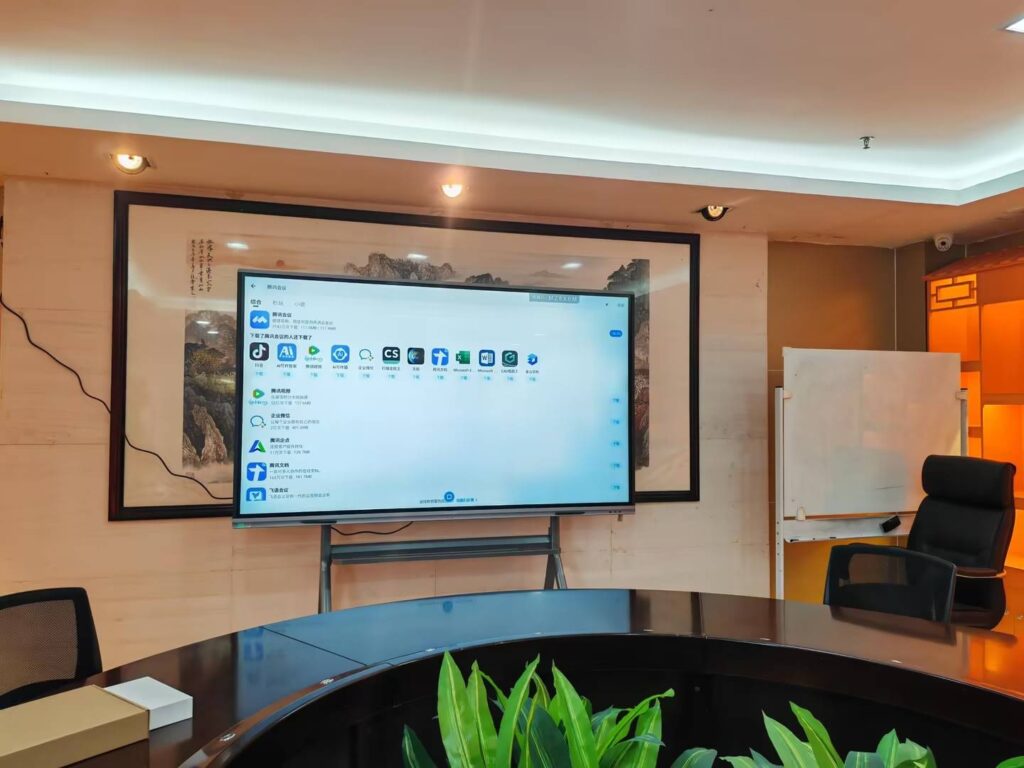
how to use smart board for teaching starts with a simple idea: make the lesson more interactive, more visual, and easier for students to follow. A smart board is not just a screen on the wall—it becomes your whiteboard, media center, annotation tool, and collaboration hub in one place.
When used well, it can help you explain concepts faster, save lesson prep time, and keep students engaged through touch, handwriting, video, and shared activities. For guidance on effective classroom technology, you can also review the UNESCO Global Education Monitoring Report and the ISTE Standards for Students.
1. Set Up the Smart Board the Right Way
Before you teach, make sure the hardware, software, and classroom layout all support smooth lessons. A good setup prevents delays and helps you focus on teaching instead of troubleshooting.
- Place the board at eye level for most students, with enough space for you to move naturally.
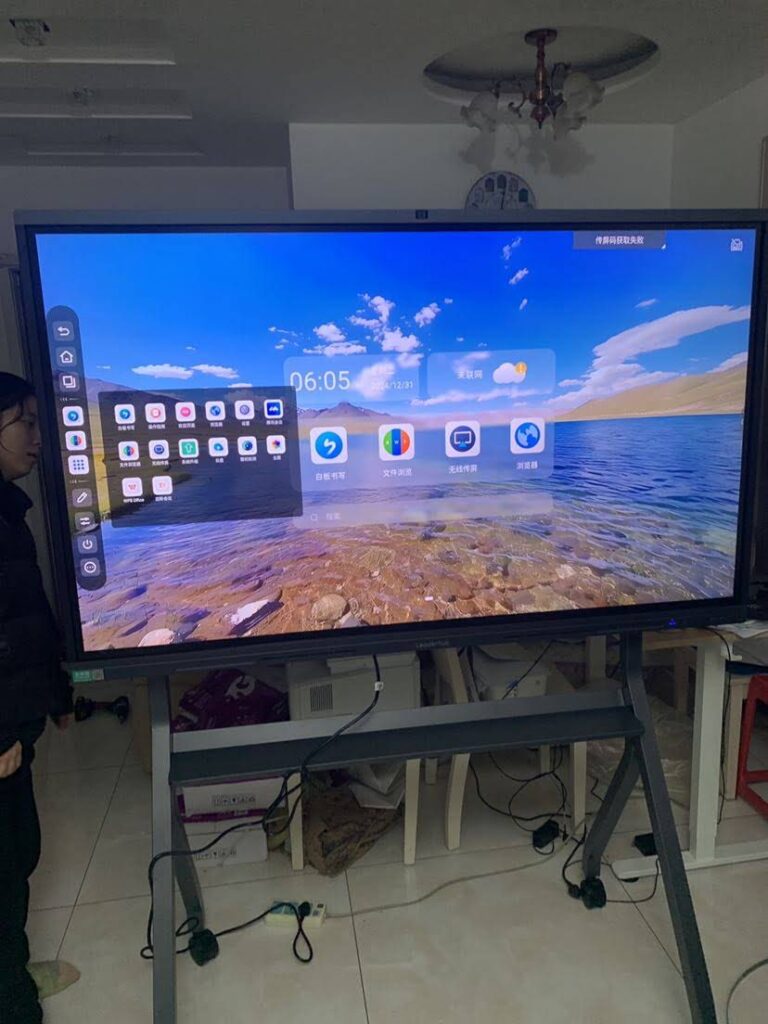
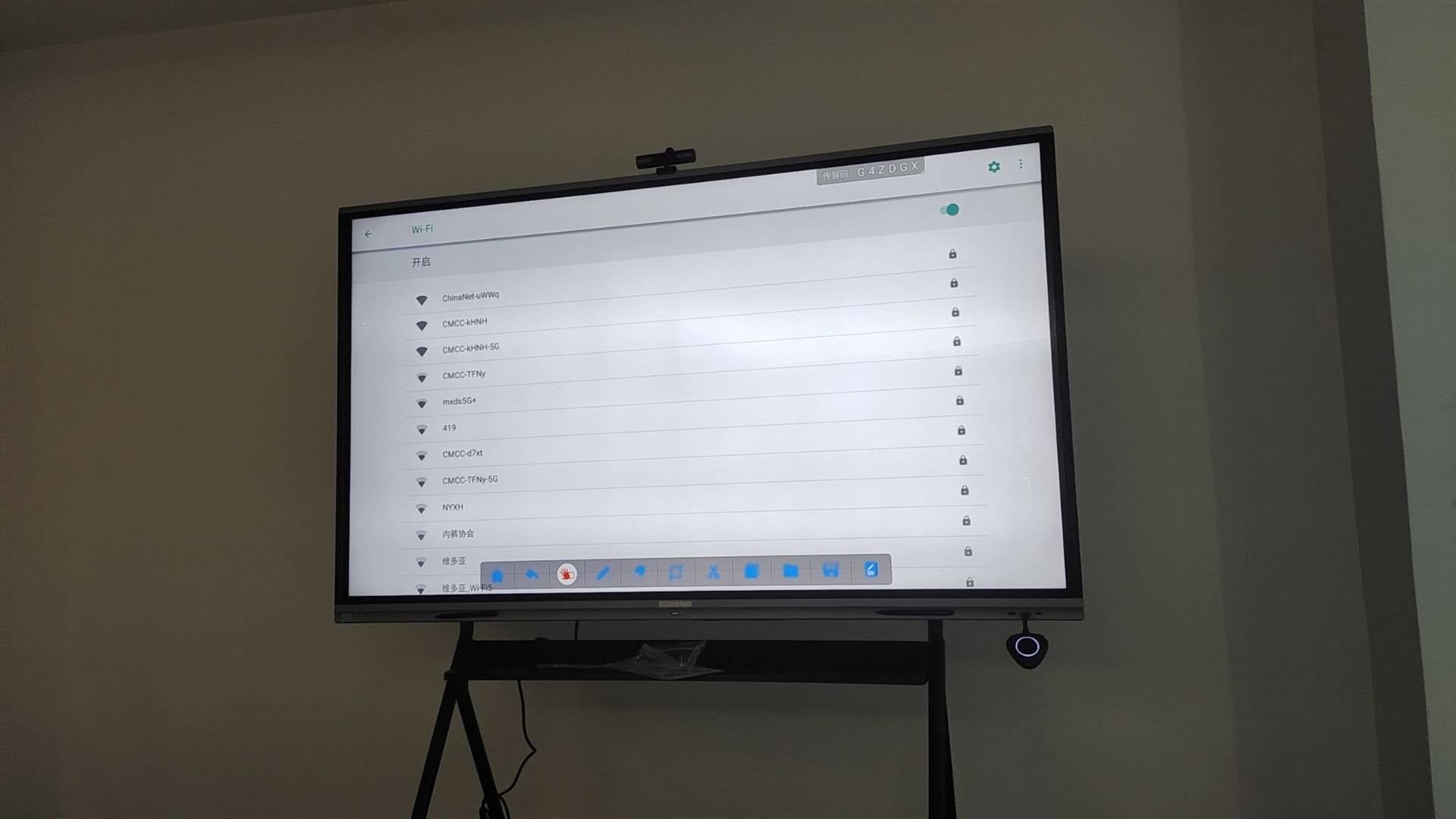
- Check power, HDMI/USB-C, Wi-Fi, and audio connections before class begins.
- Calibrate the touch screen if the board supports manual calibration.
- Log in to your account and open the apps or files you use most often.
- Create folders for subjects, grades, or units so lesson files are easy to find.
- Test sound and video playback if you plan to use multimedia.
2. Build a Simple Lesson Workflow
A smart board works best when every lesson follows a predictable structure. Students learn faster when they know when to listen, when to interact, and when to respond.
| Lesson Stage | What to Do on the Smart Board | Why It Works |
|---|---|---|
| Warm-up | Show a question, image, or short poll | Activates prior knowledge and gets attention quickly |
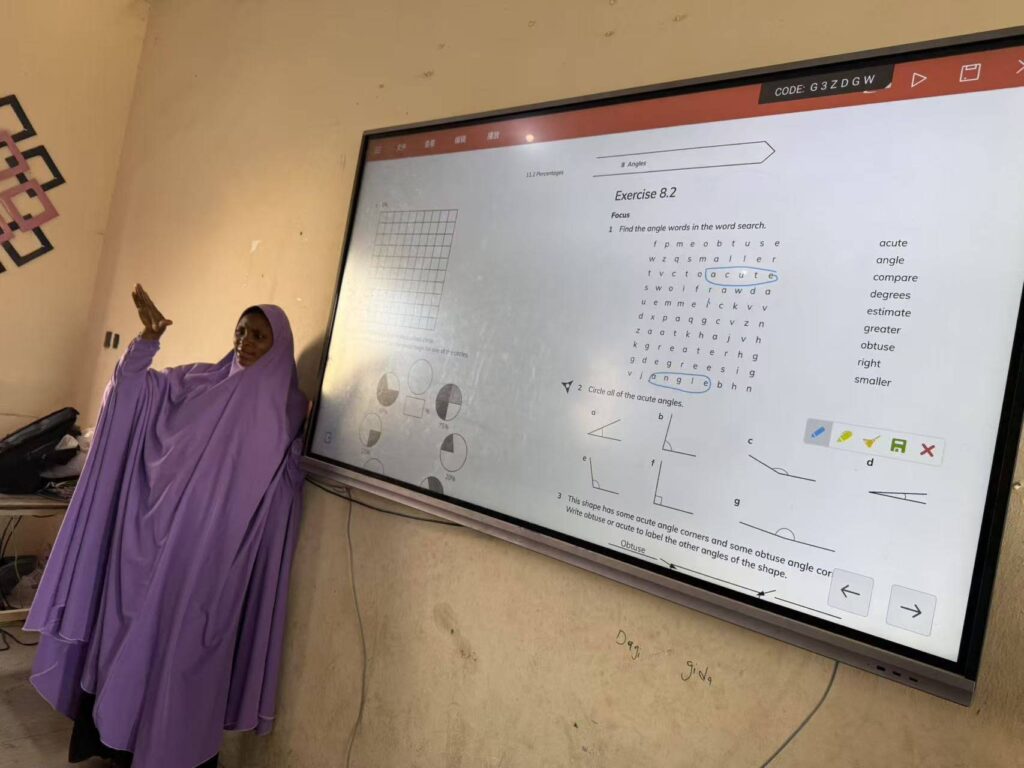
| Teach | Annotate diagrams, highlight key terms, and model steps | Makes abstract ideas easier to understand |
| Practice | Invite students to drag, write, sort, or label items | Turns passive learning into active learning |
| Review | Summarize the lesson with a concept map or exit ticket | Improves retention and checks understanding |
3. Use Smart Board Features That Save Time
Many teachers only use the board like a digital projector, but the real value comes from interactive features. Focus on tools that reduce friction during class.
| Feature | Classroom Use | Teaching Benefit |
|---|---|---|
| Annotation | Write on slides, images, or PDFs | Highlights important ideas instantly |
| Split screen | Show notes on one side and video on the other | Keeps context visible while explaining |
| Screen capture | Save board work after class | Lets students review notes later |
| Touch gestures | Zoom, move, or rotate objects | Makes demonstrations more dynamic |
| Wireless sharing | Cast from a laptop or tablet | Reduces cable switching and setup time |
4. Best Practices for Keeping Students Engaged
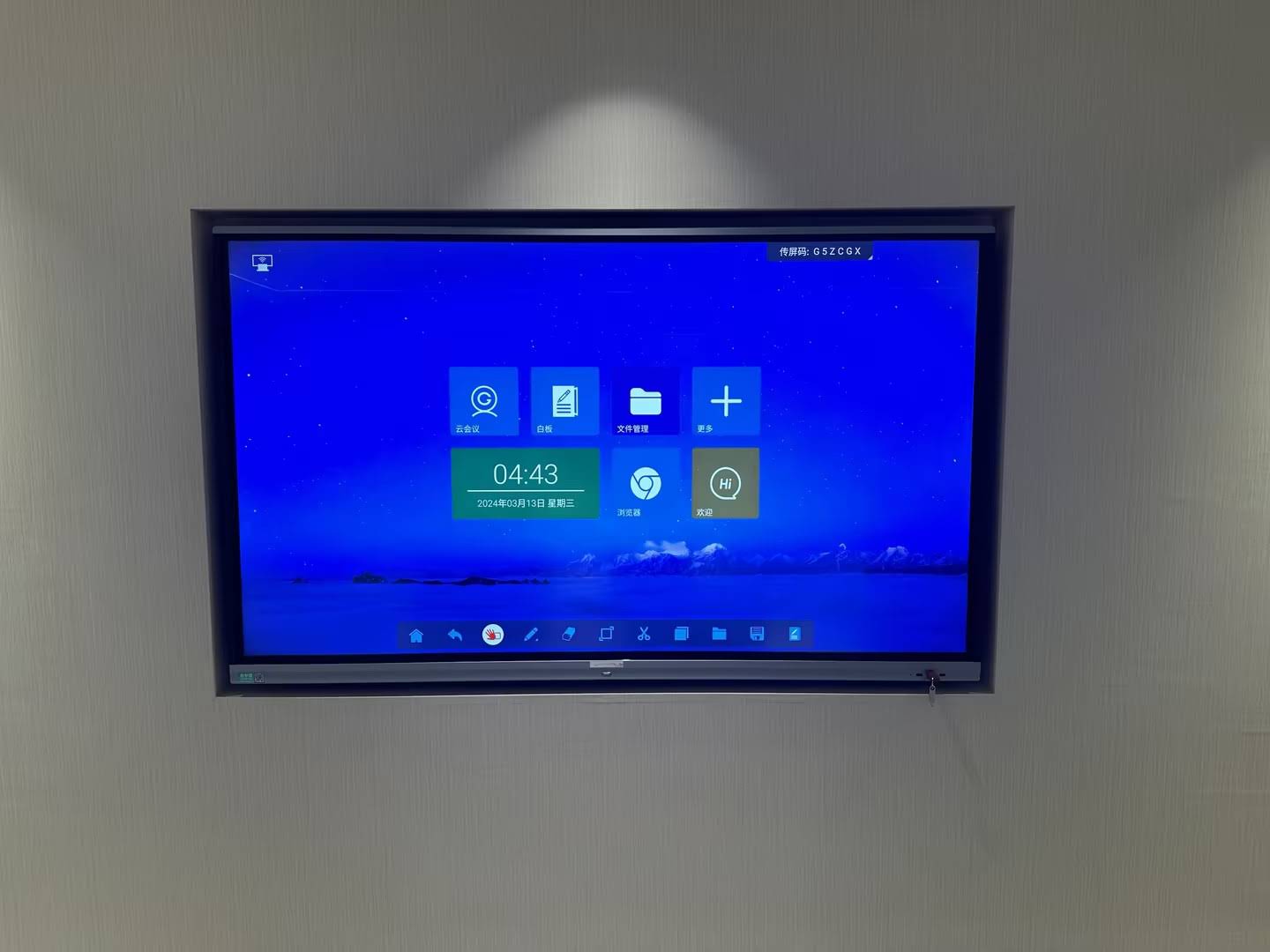
Engagement does not come from the screen itself. It comes from how you design the lesson around the screen.
- Keep each interaction short so more students get a chance to participate.
- Use visuals first, then explain the concept verbally.
- Mix teacher-led explanation with student-led board activities.
- Save board notes at the end of class and share them with students.
- Use color coding to separate definitions, examples, and questions.
- Invite students to solve problems directly on the board.
- Close each lesson with a quick review question or reflection prompt.
For broader teaching guidance, the UNESCO Digital Education resources and ISTE Standards for Educators are useful references.
5. A Simple 20-Minute Teaching Example
Here is a practical lesson flow you can adapt for almost any subject.
| Time | Smart Board Activity | Teacher Role | Student Role |
|---|---|---|---|
| 0–3 min | Show the day’s objective and a starter question | Frame the lesson | Think and respond |
| 3–8 min | Present slides with annotations and visuals | Explain key ideas | Listen and take notes |
| 8–15 min | Let students drag labels or solve a problem | Guide participation | Interact with the board |
| 15–20 min | Summarize and save the board content | Review the main points | Complete an exit response |
6. Common Mistakes to Avoid
Smart boards are powerful, but a few common mistakes can reduce their impact in class.
- Using the board only as a display, without interaction.
- Overloading each slide with too much text.
- Not testing audio, internet, or login access before class.
- Letting one student dominate every activity.
- Ignoring file organization, which makes lesson prep slower.
- Forgetting to save notes, screenshots, or annotations.
7. What to Look for When Choosing Classroom Hardware
If you are buying for a school, focus on durability, ease of use, and long-term support. A classroom display should help teachers work faster, not create more technical steps.
| Feature | Why It Matters | Recommended Priority |
|---|---|---|
| 4K display | Makes text and diagrams sharper | High |
| Multi-touch support | Allows collaboration with several users | High |
| Built-in whiteboard tools | Simplifies writing and annotation | High |
| USB-C and wireless casting | Speeds up device connection | High |
| Reliable processor | Helps apps run smoothly | Medium |
| Front-facing ports | Makes teacher access easier | Medium |
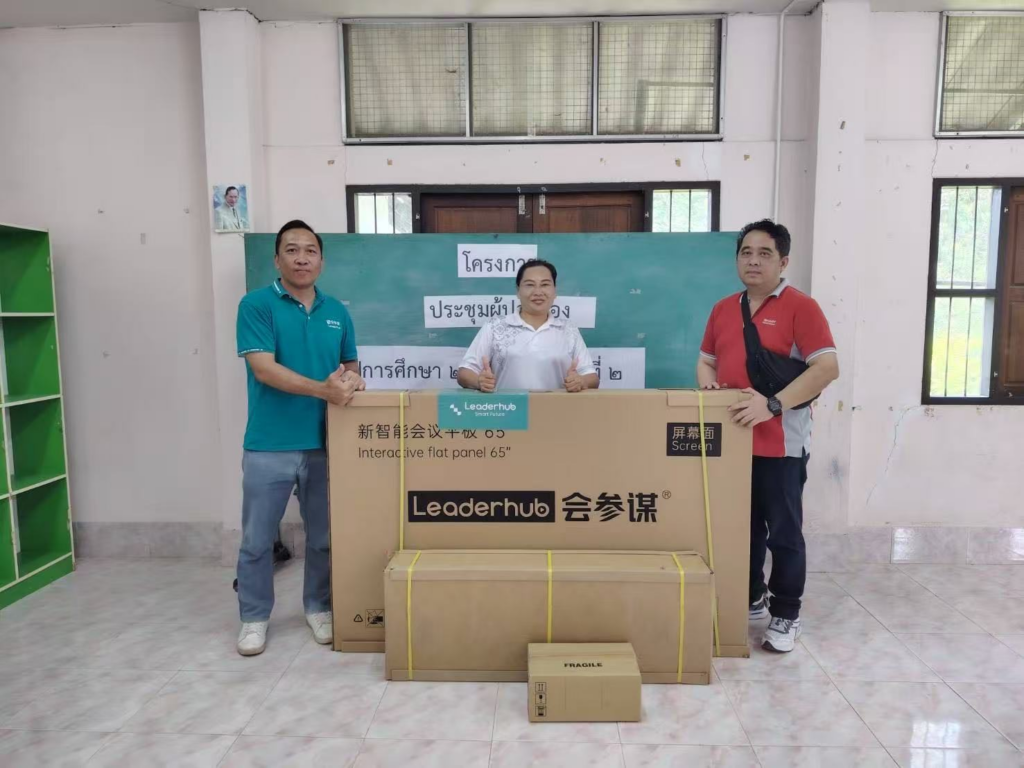
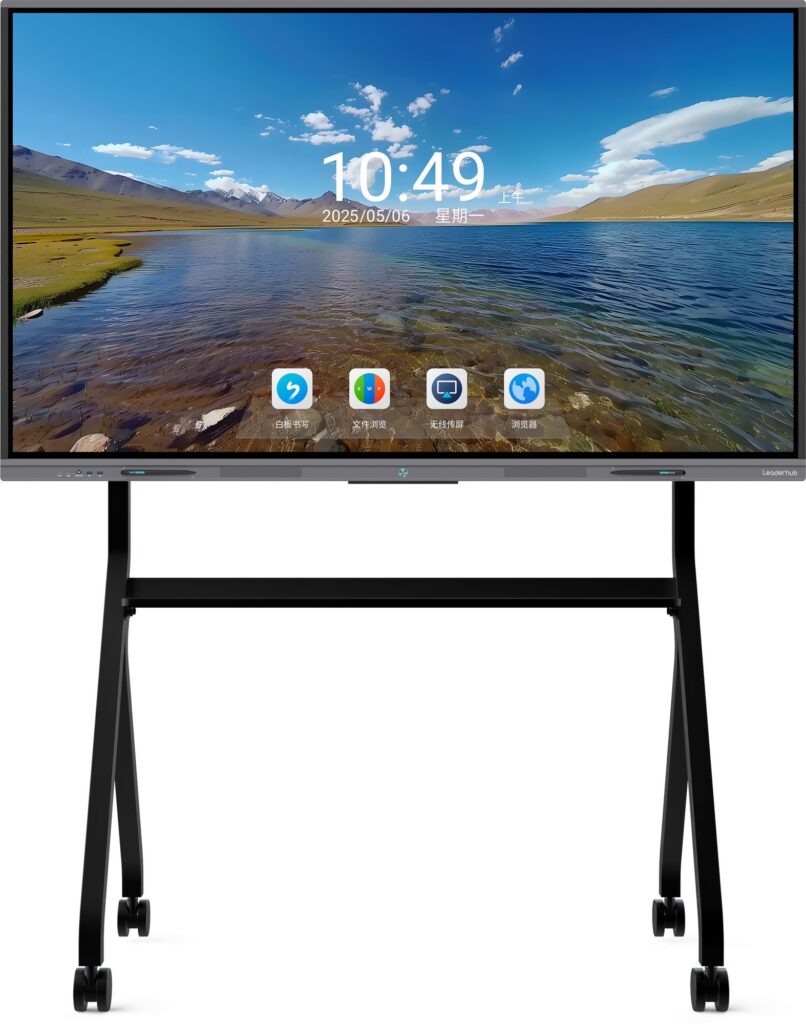
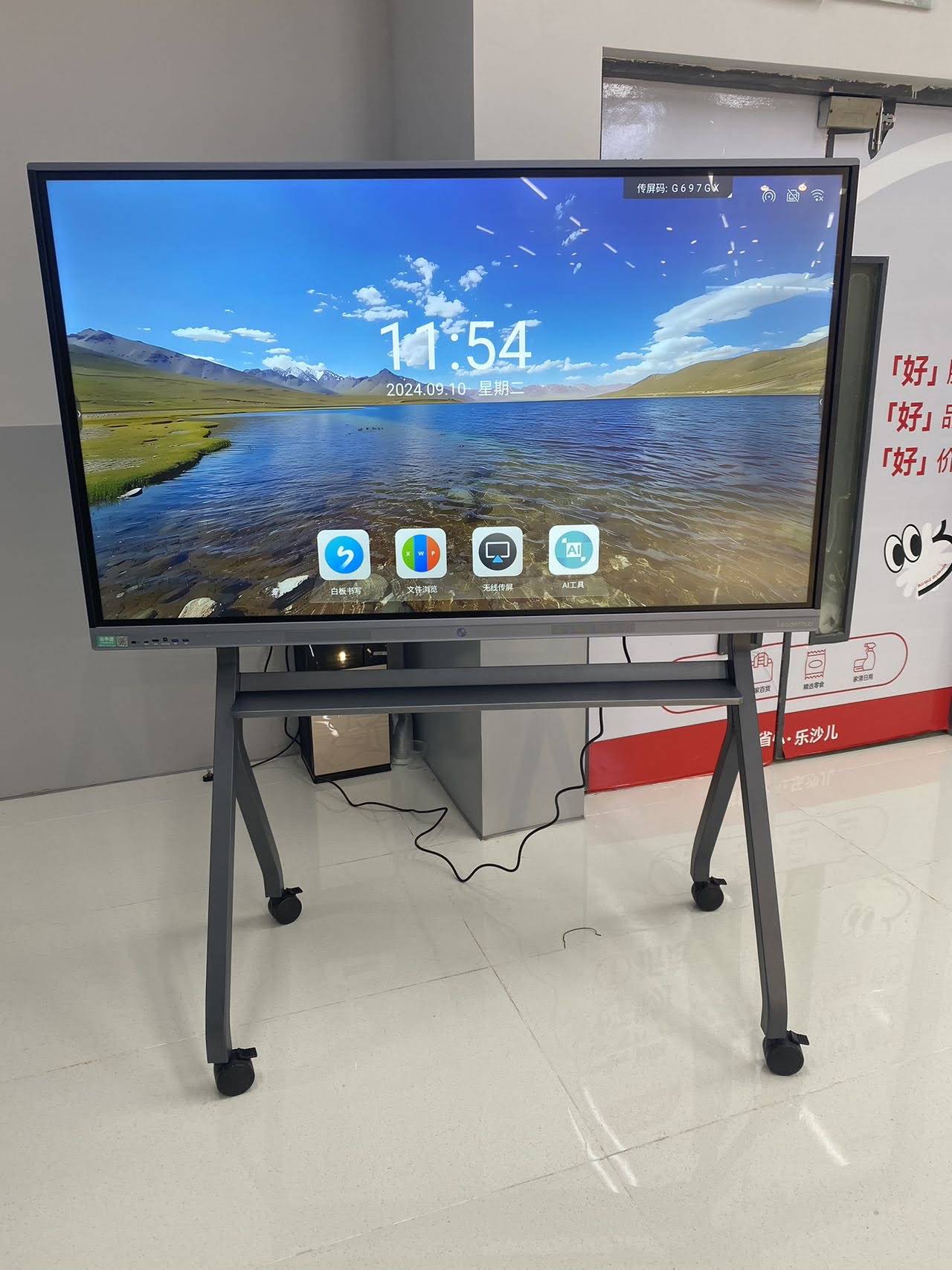
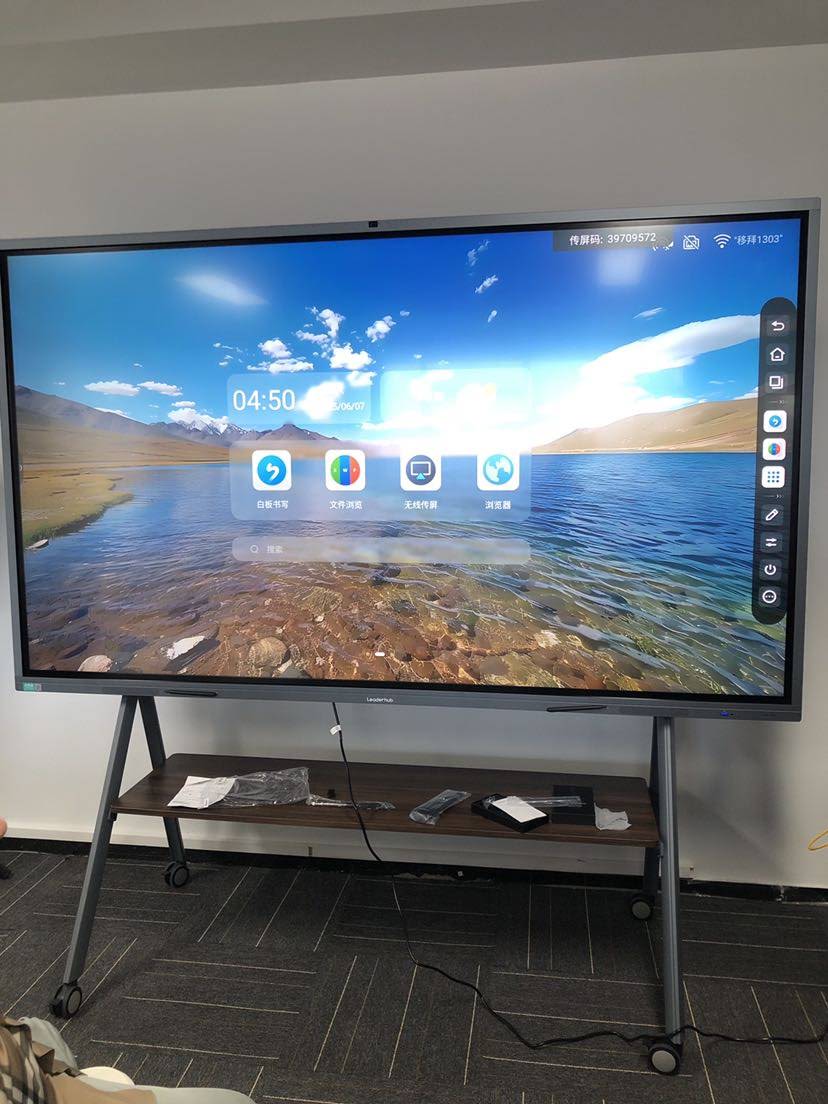
If you need classroom hardware, Leaderhub offers smart whiteboards, mini PCs, and other interactive display solutions for different teaching environments.
8. Smart Board Teaching Tips for Better Results
- Prepare a backup plan in case the internet is unstable.
- Keep a reusable template for quizzes, warm-ups, and review slides.
- Use one clear color for definitions and another for examples.
- Save board files in subject folders after every lesson.
- Combine the board with tablets, laptops, or student devices when possible.
- Use real-time drawing, highlighting, and dragging instead of long static slides.
9. Recommended Internal Resources
To explore more classroom-ready options, visit the shop, browse interactive smart boards, or check the latest setups with contact us.
When you combine the right hardware with a clear lesson structure, a smart board becomes one of the most effective teaching tools in the classroom.