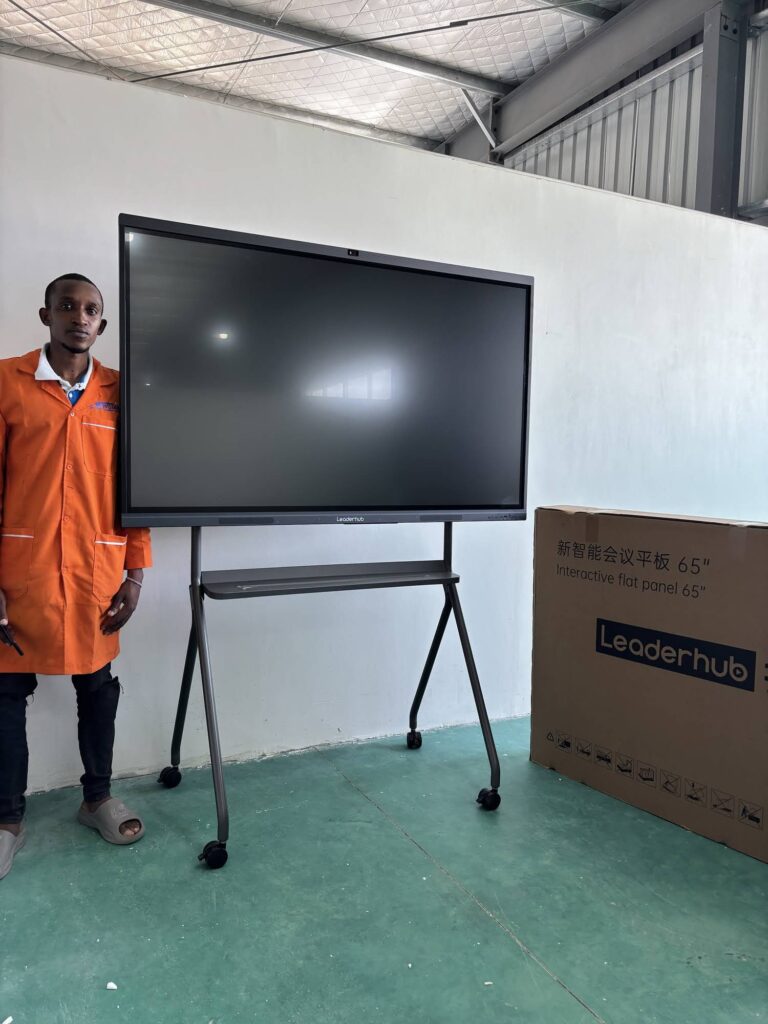
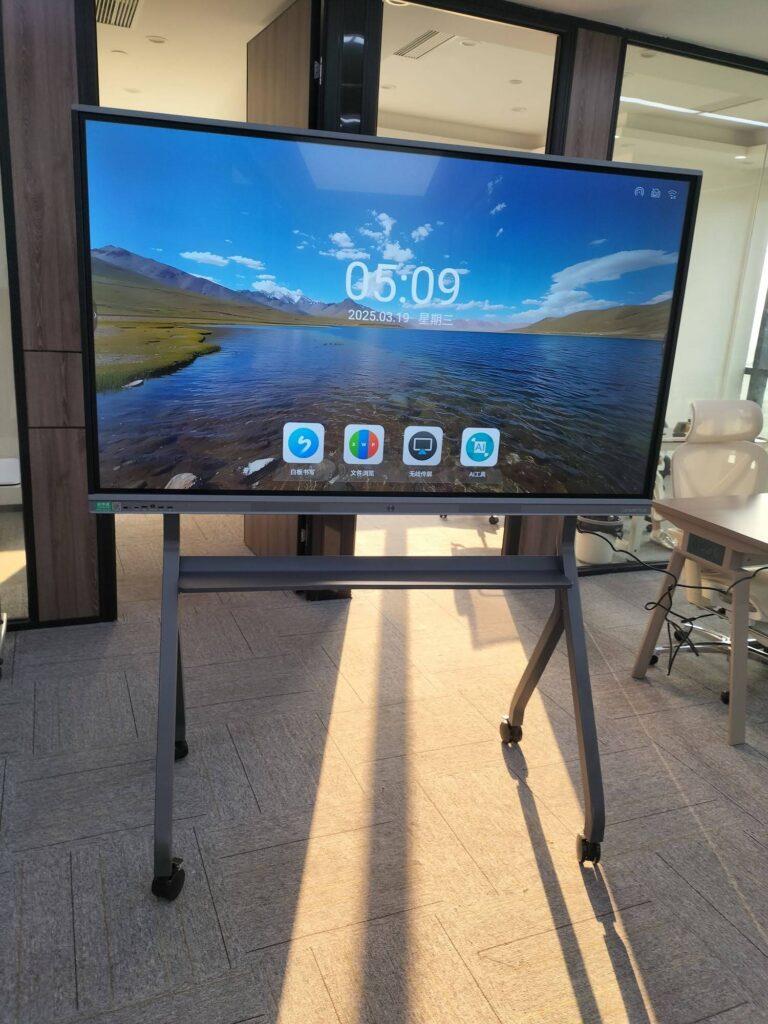
Event production is a race against the clock. Run-of-show changes, vendor arrivals, stage cues, seating charts, and last-minute client requests all land on the coordinator’s desk at the same time. A smart board for event production coordination turns that chaos into a single shared source of truth — a large interactive touchscreen where the whole crew can see, edit, and act on the same plan in real time. This guide explains what a smart board actually does in an event environment, how it improves outcomes, and how to set one up so it earns its place in your production office, backstage area, or on-site command center.
Why Event Teams Are Switching to Smart Boards
Traditional event coordination relies on printed run sheets, whiteboard markers, group chats, and a shared spreadsheet that someone forgets to refresh. Each tool holds a piece of the plan, and no single view shows everything. When a keynote speaker is delayed by fifteen minutes, that change has to be communicated to the stage manager, AV lead, catering, and security separately — and anyone who misses the message works from outdated information.
An interactive smart board solves this by consolidating planning into one large, always-visible display. Coordinators annotate schedules by hand, drag timeline blocks, pull up floor plans, join video calls with remote vendors, and save every version automatically. The board becomes the operational heartbeat of the event, visible to everyone who walks past it and accessible to those who cannot.
The Core Problems a Smart Board Fixes
- Version confusion — one live run-of-show replaces dozens of emailed PDFs.
- Slow handoffs — shift changes happen in front of the board, not through forwarded messages.
- Remote blind spots — off-site clients and suppliers see the same screen through built-in conferencing.
- Lost notes — handwritten annotations are saved as digital files instead of being erased at the end of the day.
- Siloed planning — logistics, creative, and technical teams collaborate on the same canvas.
Key Features That Matter for Event Production
Not every interactive display is suited to the pace of live events. Below are the features that make the biggest difference when you are coordinating crews, timelines, and venues under pressure.
| Feature | What It Does | Event Production Use Case |
|---|---|---|
| 4K Multi-Touch Display | Sharp visuals with 20+ simultaneous touch points | Several coordinators mark up a floor plan at once during a walkthrough |
| Infinite Digital Whiteboard | Unlimited canvas with pen, shapes, sticky notes, and layers | Build a visual run-of-show with color-coded cue blocks |
| Wireless Screen Sharing | Cast from laptops, tablets, and phones without cables | Lighting designer shares a cue sheet from a tablet in seconds |
| Built-In Video Conferencing | Integrated camera, microphone array, and conferencing apps | Daily stand-ups with remote clients and overseas vendors |
| Cloud Save & QR Export | Save sessions to cloud storage or scan a QR code to download | Crew photographs the updated plan before leaving the briefing |
| Split-Screen Mode | Display two or more sources side by side | Timeline on the left, live venue camera feed on the right |
| Mobile Stand & Battery Options | Roll the board between rooms or run without a wall outlet | Move the command board from load-in to backstage to the green room |
Benefits of Using a Smart Board for Event Production Coordination
1. Faster Decision-Making on Site
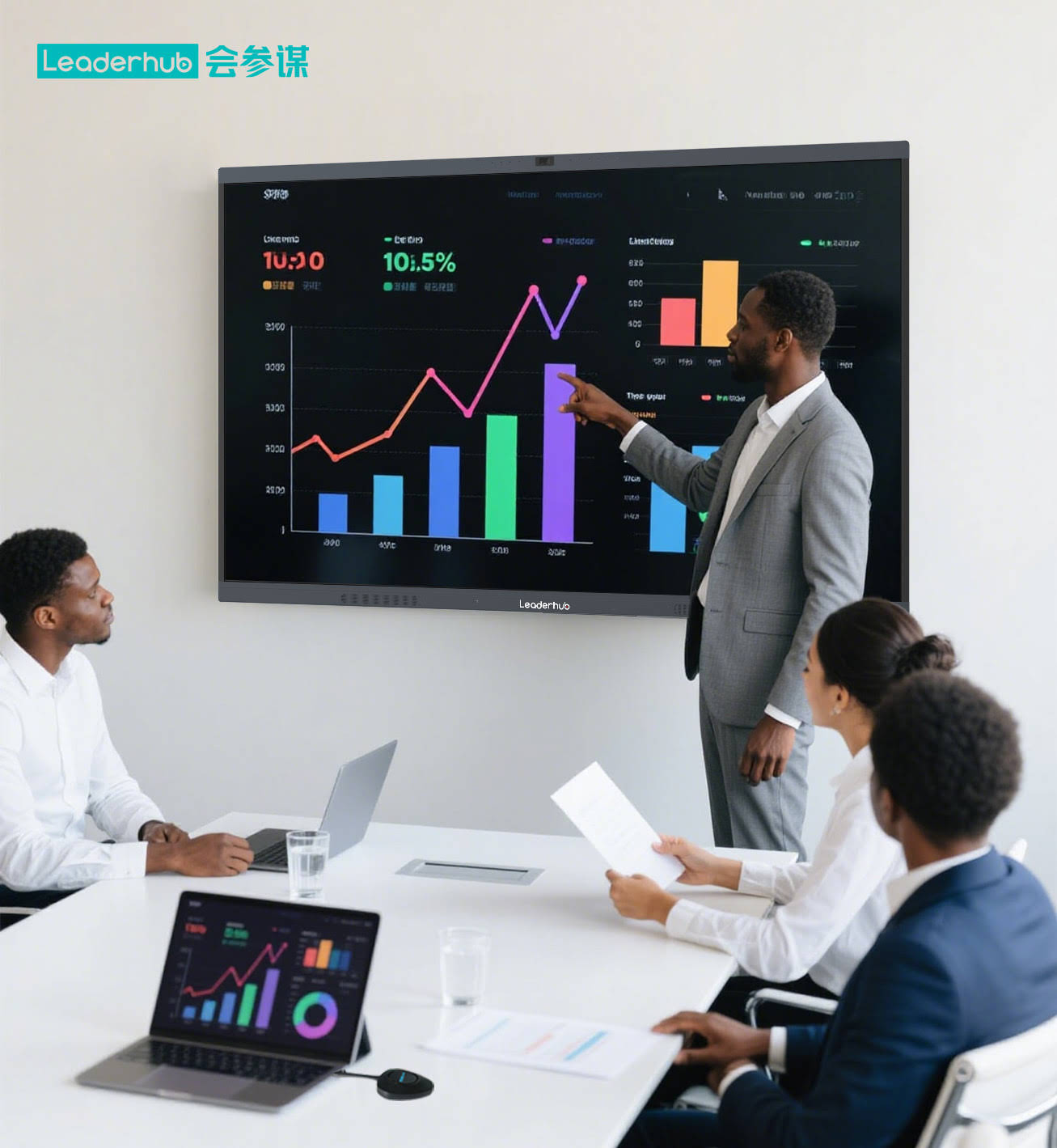
When the whole team can see the schedule, the venue map, and the vendor status on one screen, decisions happen in minutes rather than hours. A coordinator can drag a session block to a new slot, circle the affected rooms, and share the updated view instantly. There is no need to wait for someone to update a document and resend it.
2. Clearer Communication Across Departments
Event production brings together people who speak different professional languages — AV technicians, caterers, security, creative directors, and client representatives. A visual, touch-driven board gives everyone a shared frame of reference. Drawing an arrow from the loading dock to the stage communicates more clearly than a paragraph of text, and it does so in a way that crosses language barriers for international crews.
3. Seamless Hybrid Coordination
Many productions now involve remote stakeholders. Clients may approve designs from another city, and specialist vendors may join from overseas. With integrated conferencing, remote participants see the board, hear the room, and can even annotate from their own devices. Research from organizations such as AVIXA consistently shows that shared visual workspaces reduce misunderstandings in collaborative technical environments.
4. A Permanent Record of Every Change
Every annotation, timeline adjustment, and sign-off can be saved with a timestamp. After the event, this record supports post-mortem reviews, client reporting, and dispute resolution. For agencies managing multiple events per month, this archive becomes a reusable template library for future productions.
5. Professional Client Presentations
The same board used for internal coordination doubles as a presentation surface. Walk clients through the venue layout, show 3D renders, play sizzle reels, and capture their feedback directly on the design — all without switching devices or rooms.

How to Set Up a Smart Board for Event Coordination: Step by Step
Step 1 — Choose the Right Size and Mobility
Size depends on where the board lives. A permanent production office benefits from a 75-inch or 86-inch panel that an entire team can read from across the room. On-site command posts often need something more mobile. Consider these options:
- 65-inch panels — ideal for small production offices and client meeting rooms.
- 75-inch to 86-inch panels — best for main planning walls where multiple people work simultaneously.
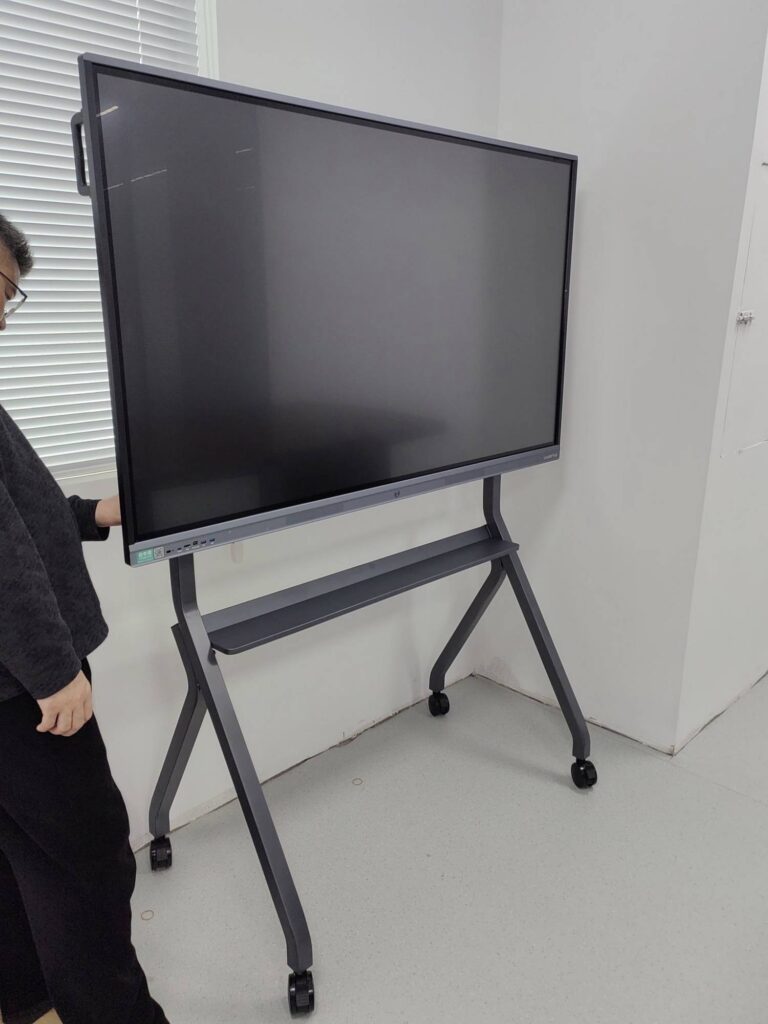
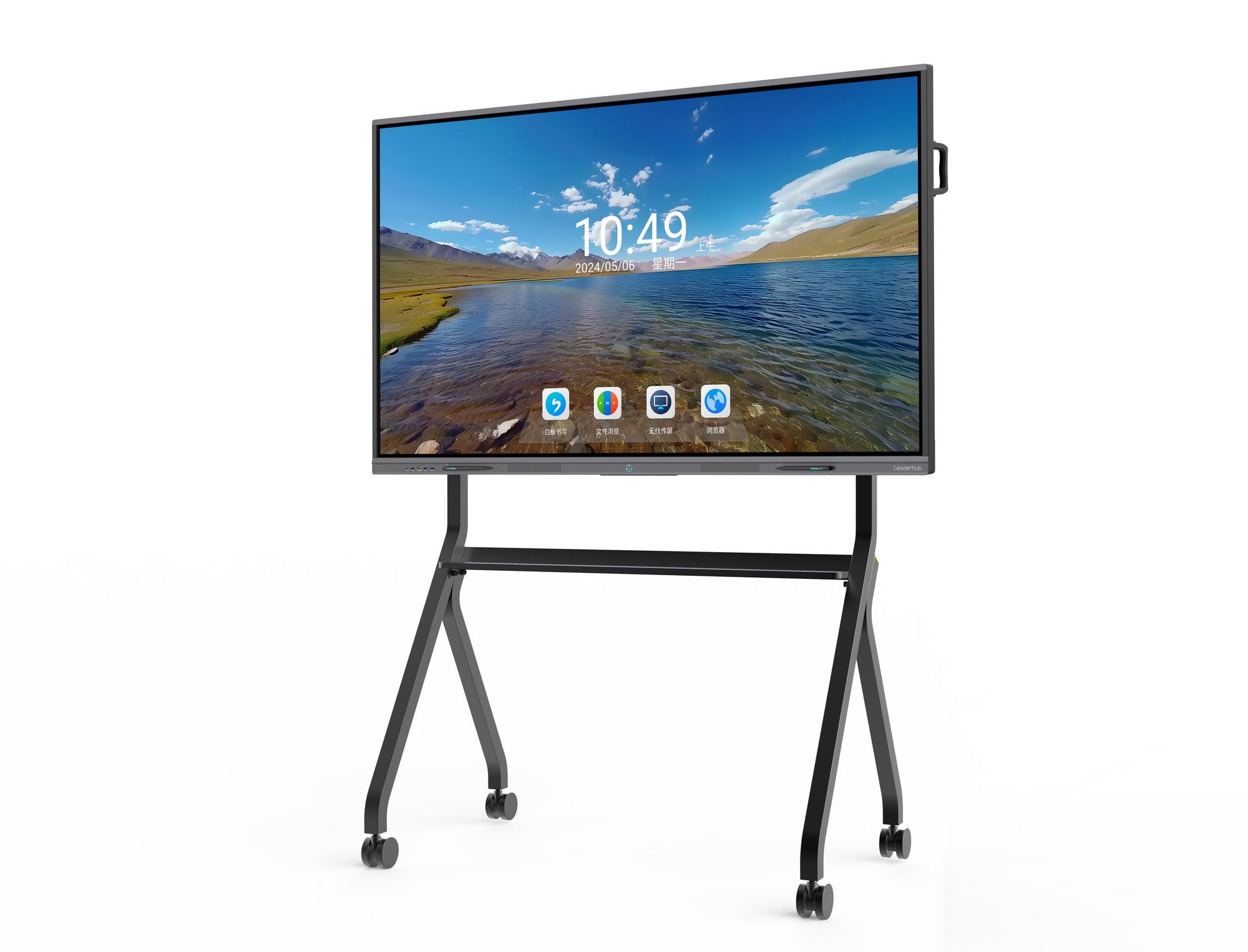
- Mobile 55-inch displays on wheeled stands — suited for venues where the command center moves during setup.
- Battery-powered rotating screens — useful for walkthroughs, backstage briefings, and outdoor staging areas without reliable power.
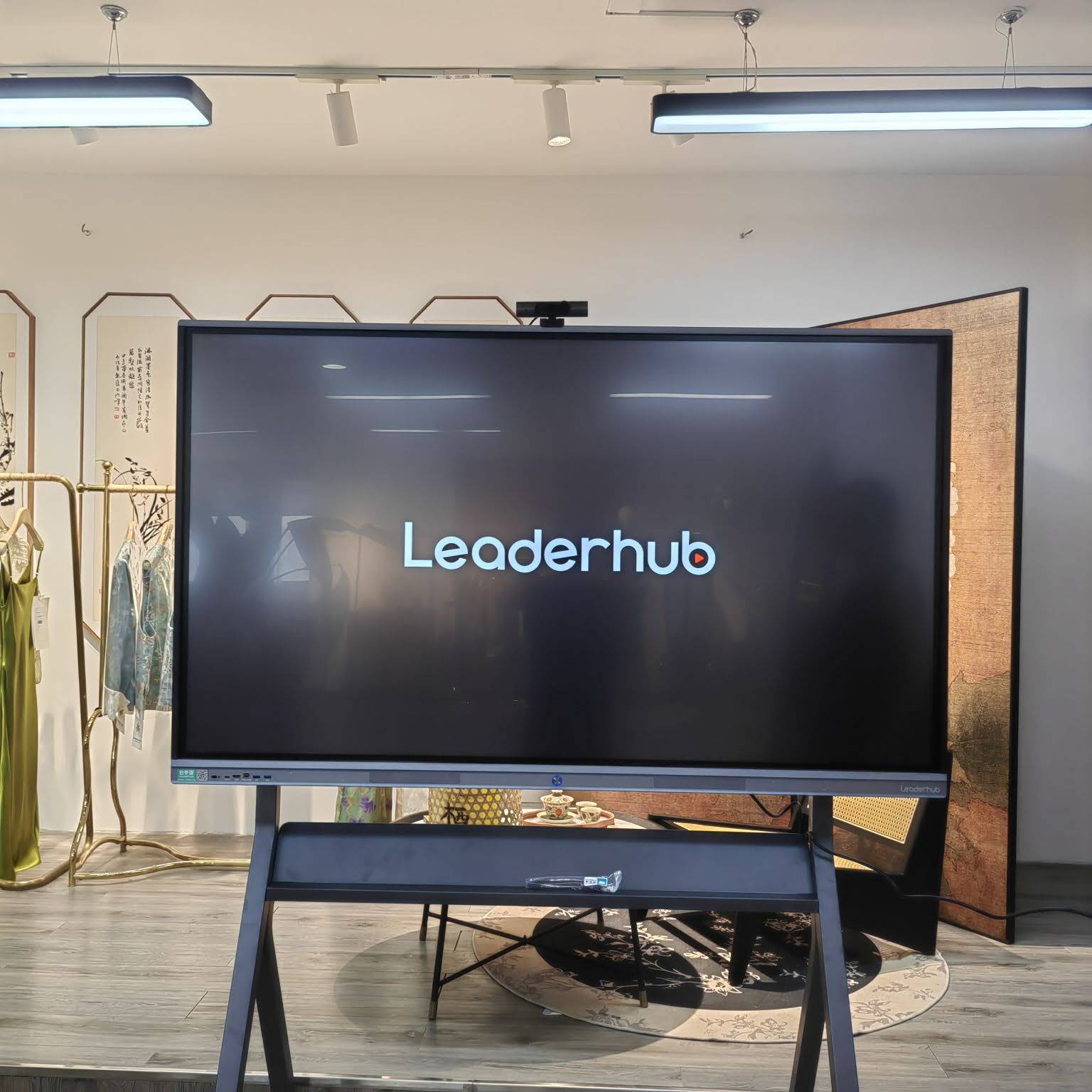
LeaderHub, a Shenzhen-based manufacturer with 16 years of interactive-display experience serving 82 countries, offers panels across each of these categories. For a central planning wall, the LeaderHub L86HM 86″ 4K Interactive Smart Whiteboard gives a production team room to display a full-day timeline alongside venue maps. For teams that need to move between rooms, the U55Pro 55″ Mobile 4K Smart Display rolls wherever coordination is happening.
Step 2 — Build Your Digital Run-of-Show Template
Before the event, create a master whiteboard file that contains the structure every event follows. A reliable template usually includes:
- A horizontal timeline divided into load-in, rehearsal, doors, show, and strike.
- Color-coded swim lanes for each department (AV, stage, catering, security, guest services).
- An embedded floor plan image with editable labels.
- A vendor contact panel with arrival windows.
- A “live issues” column for problems that need attention right now.
Save this as a template so every new production starts from a proven structure rather than a blank screen.
Step 3 — Connect Your Existing Tools
A smart board should complement the software your team already uses. Most interactive panels run Android with access to common apps, and many include slots for an optional PC module. Pairing a board with a compact computer such as the LeaderHub LP5C Mini PC lets you run full desktop project-management software, CAD viewers, and ticketing dashboards directly on the touchscreen.
Step 4 — Establish Board Etiquette
A shared board only works if the team agrees on how to use it. Set simple rules:
- Only the production manager moves timeline blocks; everyone else adds notes.
- Use a consistent color per department.
- Save and export at every shift change.
- Mark resolved issues rather than deleting them, so the history stays intact.
Step 5 — Run Daily Stand-Ups in Front of the Board
Begin each production day with a ten-minute briefing at the board. Walk the timeline left to right, confirm vendor arrivals, and flag risks. Remote participants join through the built-in camera and microphone. End by saving the session and sharing a QR code so the crew can download the day’s plan to their phones.
Smart Board Workflows for Different Event Types
| Event Type | Primary Coordination Challenge | How the Smart Board Helps |
|---|---|---|
| Conferences & Trade Shows | Dozens of parallel sessions and exhibitor logistics | Multi-track timeline with room-by-room status and speaker check-in tracking |
| Concerts & Festivals | Stage changeovers and crew safety across large sites | Site map annotations, changeover countdowns, and radio-channel assignments on one screen |
| Corporate Launches | Tight client approvals and brand consistency | Live design review with client sign-off captured directly on the board |
| Weddings & Private Events | Emotional stakes and vendor timing precision | Minute-by-minute flow visible to planner, caterer, photographer, and venue staff |
| Hybrid & Virtual Events | Synchronizing in-room and online production | Split-screen view of physical run-of-show and streaming dashboard |
Best Practices for Getting the Most From Your Smart Board
Keep the Board Visible and Central
Place the board where foot traffic naturally flows — near the production office entrance or beside the backstage coffee station. Visibility is what makes the board a shared reference rather than one more screen that only one person checks.
Use Layers to Separate Plan From Reality
Keep the approved plan on a locked base layer and put live changes on a separate annotation layer. This lets you compare what was planned against what actually happened during the post-event review.
Pair a Large Board With Portable Screens
The main board anchors the command center, but coordinators spend much of their day walking the venue. A battery-powered handheld display such as the LeaderHub U24M 24.5″ Handheld Smart Screen lets a stage manager carry the same shared canvas to the loading dock or the lighting grid and sync changes back to the master board.
Train the Whole Crew, Not Just the Coordinator
Spend twenty minutes during pre-production teaching every department lead how to add a note, share their screen, and export the board. Adoption rises sharply when people feel comfortable touching the screen themselves. Guidance from the Consumer Technology Association reinforces that hands-on onboarding is the strongest predictor of successful collaborative-technology rollout.
Back Up Automatically
Enable cloud sync so every save goes to shared storage. If the board loses power or the venue network drops, the plan still exists on every coordinator’s phone and laptop.
Common Mistakes to Avoid
- Treating it as a TV. If the board only displays a static spreadsheet, you lose the value of touch annotation and collaborative editing.
- Overloading the canvas. Keep each board view focused on one question — what is happening now, what is next, and what is at risk.
- Ignoring mobility needs. A wall-mounted panel in a locked office does nothing for a crew working at the loading dock. Choose a mounting option that matches your site.
- Skipping the template phase. Starting every event from a blank screen wastes setup time and causes inconsistent workflows between productions.
- Forgetting audio. Production offices are noisy. Make sure the board’s microphone array and speakers are strong enough for remote participants to follow along.
Choosing a Smart Board: A Quick Buyer’s Checklist
| Requirement | Minimum Recommendation for Event Production |
|---|---|
| Resolution | 4K UHD for readable floor plans and dense timelines |
| Touch Points | 20 or more for simultaneous multi-user annotation |
| Connectivity | Wi-Fi 6, Bluetooth, HDMI, USB-C, and wireless casting from all major operating systems |
| Conferencing | Integrated 4K camera and far-field microphones |
| Mounting | Wall mount for offices; wheeled stand or battery for on-site use |
| Software | Infinite whiteboard, cloud save, QR export, and optional PC module support |
| Support | Manufacturer warranty and responsive technical support across time zones |
You can compare the full range of sizes and mobility options in the smart whiteboard collection, or browse rotating and portable screens designed for teams on the move.
Frequently Asked Questions
Can a smart board replace our event management software?
No — and it should not try to. The board is the shared visual layer on top of your software. Run your scheduling and ticketing tools on the board’s built-in system or an attached mini PC, and use the touchscreen for the collaborative, human-facing coordination that spreadsheets handle poorly.
How do remote vendors interact with the board?
Through the integrated conferencing camera and microphone, remote participants see and hear the room. Many whiteboard apps also allow remote users to annotate from a browser or tablet, with their marks appearing on the main board in real time.
Is a smart board practical for outdoor events?
Yes, with the right form factor. Keep the large panel in a covered production tent or trailer, and use battery-powered portable screens for walkthroughs. Shade the screen from direct sunlight to maintain readability.
What size is best for a small event agency?
Most small teams start with a 65-inch or 75-inch panel. It is large enough for group planning yet fits in a standard office. Agencies that grow into larger productions often add a mobile unit for on-site use.
How long does it take a crew to learn the board?
Basic use — annotating, screen sharing, and saving — takes under half an hour. Building templates and integrating software takes a few sessions. Teams typically report full comfort after their second production.
Final Thoughts
Event production will always be fast and unpredictable, but the tools you coordinate with do not have to add to that pressure. A smart board for event production coordination gives your team one shared, touchable, always-current plan — visible to the crew in the room and the stakeholders a continent away. Choose a panel sized for your space, build a reusable template, connect the software you already trust, and run your stand-ups in front of the screen. The result is fewer missed cues, faster decisions, and a calmer production office on show day. If you would like help matching a display to your workflow, reach out to the LeaderHub team for a tailored recommendation.