
Sharing your screen to a smart board is one of the fastest ways to turn a lesson, meeting, or training session into an interactive experience. If you are searching for how to screen share with smart board, the process is usually simple: connect the board, enable mirroring or casting on your device, and choose the smart board from the available display list.
In most classrooms and conference rooms, screen sharing lets everyone see the same content in real time, whether you are presenting slides, walking through a website, or reviewing a live document. It also reduces the need for extra cables and makes collaboration more natural.
Quick tip: Before you begin, make sure your smart board and your laptop, tablet, or phone are on the same network if you plan to share wirelessly.
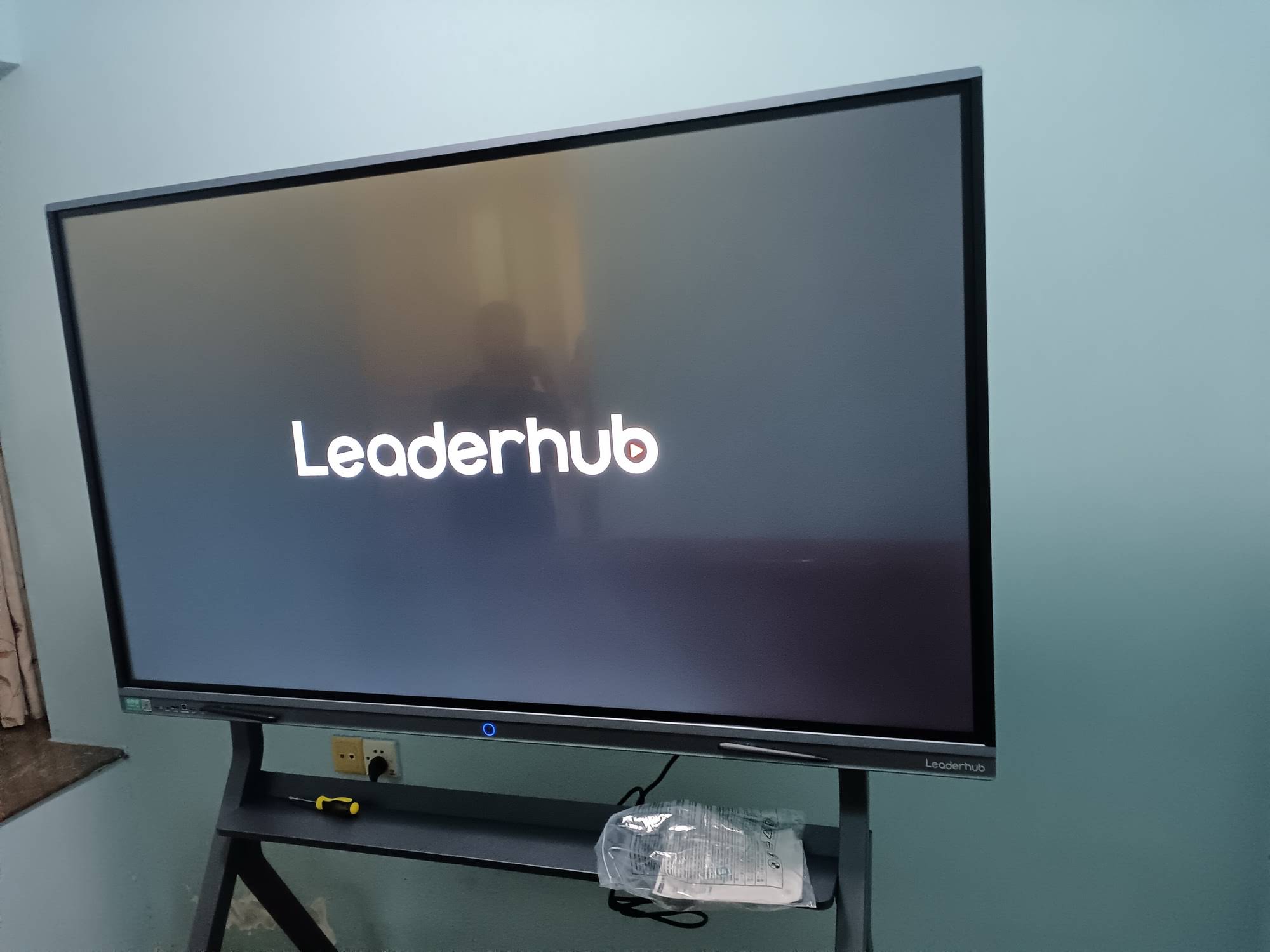
What You Need Before You Start
Most smart board screen sharing methods work smoothly when you prepare the basics first. Check the items below before you cast:
- A smart board or interactive flat panel with screen mirroring or casting support
- A compatible device such as Windows laptop, MacBook, Chromebook, iPhone, iPad, or Android phone
- Stable Wi-Fi or a direct wired connection
- The correct input/source selected on the board
- Updated software on both the board and your device
If you are choosing hardware for a classroom or boardroom, you may also want to review our smart whiteboards, browse mini PCs, or explore the rotating screens category for flexible collaboration setups.
How to Screen Share with Smart Board: Step-by-Step
-
Turn on the smart board.
Wake the display and confirm it is connected to power and the network. If the board has multiple input options, note which one is active.
-
Select the correct screen-sharing mode.
Open the board’s home menu and look for options such as Cast, Mirroring, Wireless Display, AirPlay, or Screen Share.
-
Enable mirroring on your device.
On your laptop, phone, or tablet, open the system casting tool. This may be called Project in Windows, Screen Mirroring on iPhone, or Cast on Android.
-
Choose the smart board from the device list.
Tap or click the board name when it appears. Some systems show a room name, device model, or QR code connection.
-
Confirm the connection.
Many boards require a code or approval prompt. Accept it on the board screen if needed.
-
Adjust display settings.
Once connected, switch to full-screen mode if needed, check audio output, and move windows so the audience can clearly view the content.
-
Test touch and annotation features.
If your board supports touch interaction, try drawing, highlighting, or opening a whiteboard app to confirm collaboration tools are working.
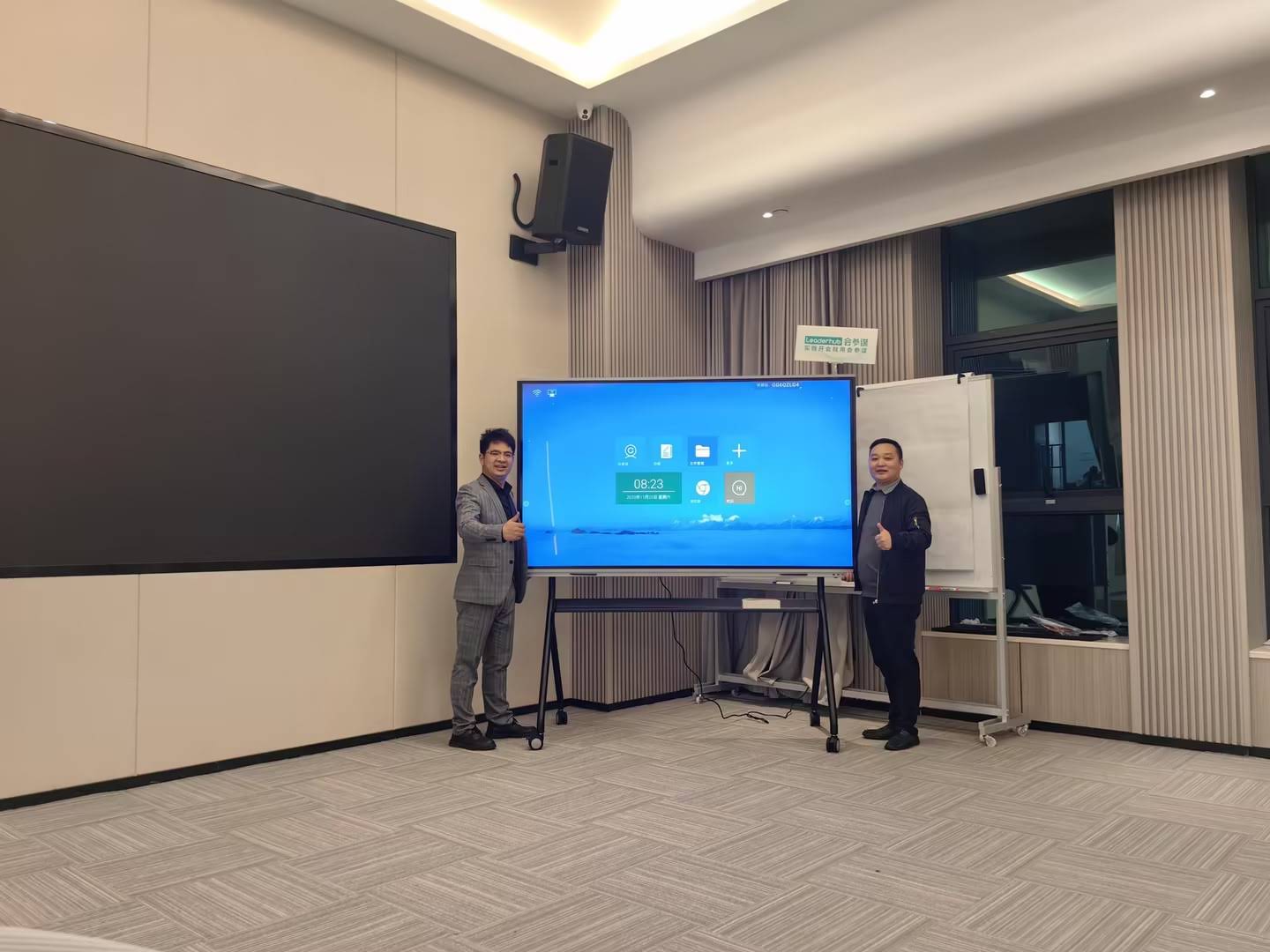
Connection Methods Compared
The best way to share a screen depends on your device and the features built into your smart board. This table gives you a fast overview:
| Method | Best For | Notes |
|---|---|---|
| HDMI cable | Stable presentations | Reliable and simple, but less flexible than wireless casting. |
| AirPlay | Apple devices | Ideal for iPhone, iPad, and Mac users. |
| Miracast / Wireless Display | Windows and Android | Works well in meeting rooms and classrooms with supported hardware. |
| Chromecast | Browser-based sharing | Useful for Chrome and Google Workspace workflows. |
| Built-in casting app | Interactive boards | Many smart boards include their own wireless sharing tools. |
Windows Laptop
- Press Windows + K to open the Connect panel.
- Select the smart board name from the list.
- If prompted, allow the connection on the board.
- Choose Duplicate or Extend depending on whether you want mirror mode or extra workspace.
MacBook
- Open Control Center and click Screen Mirroring.
- Pick the smart board or compatible receiver.
- Enter a code if the board requests one.
- Adjust scaling if the image looks cropped.
iPhone or iPad
- Swipe to open Control Center.
- Tap Screen Mirroring.
- Select the smart board device.
- Use Stop Mirroring when you are done.
Android Device
- Open quick settings and look for Cast, Smart View, or Wireless Display.
- Choose the board name.
- Allow permissions if the device asks for them.
- Rotate the screen for a better presentation view if necessary.
Chromebook
- Open the system tray and select Cast if available.
- Connect to the smart board receiver or mirrored display.
- Check that your browser tabs and apps are visible as expected.
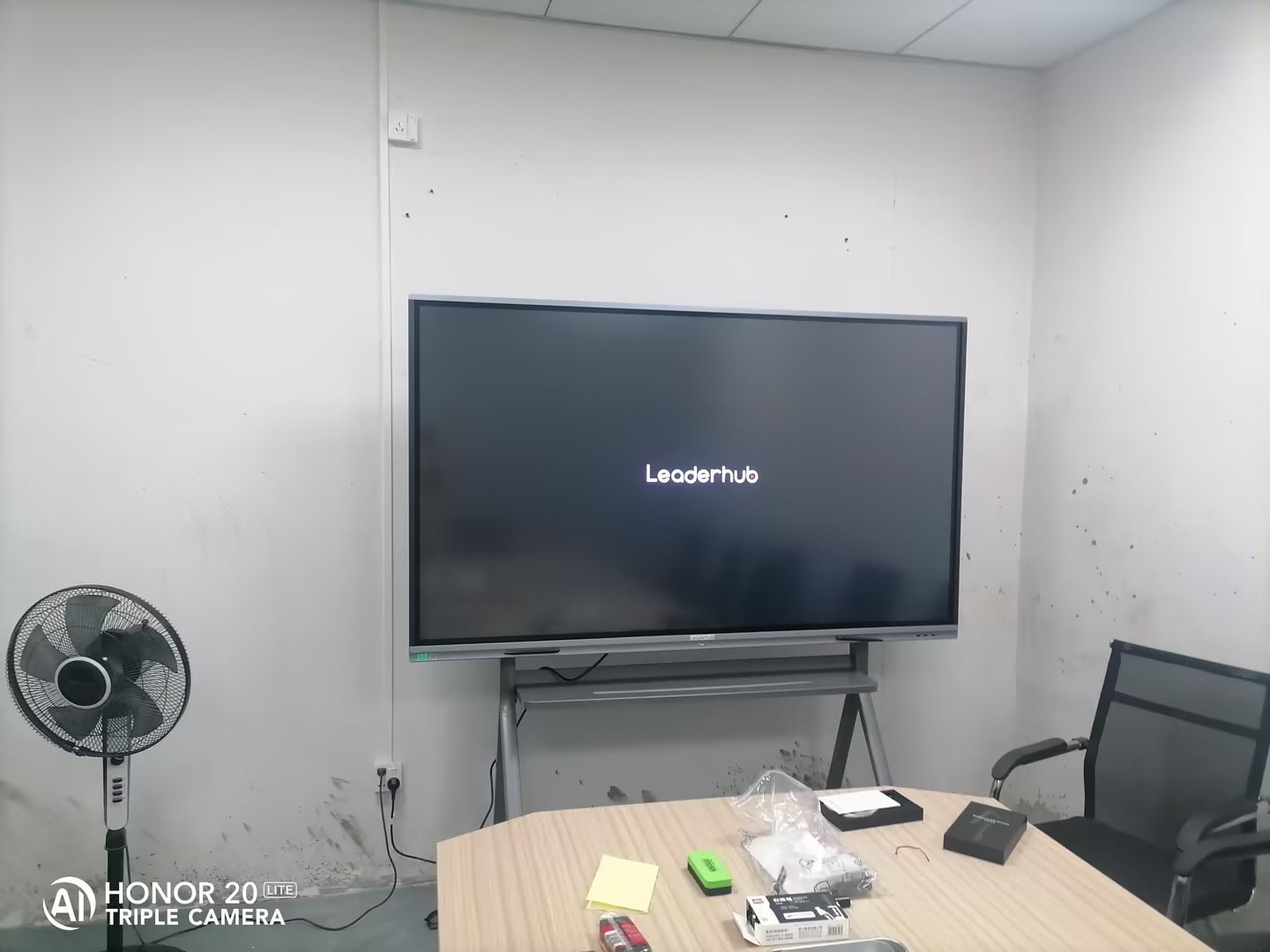
Best Practices for Smooth Screen Sharing
- Keep your device updated to reduce connection issues.
- Use a strong Wi-Fi signal or wired internet for stable casting.
- Close unnecessary apps before you start presenting.
- Test audio and video in advance if you plan to play media.
- Rename meeting rooms or receivers clearly so users can find them quickly.
- Keep the board firmware current for better compatibility.
Common Problems and Fixes
| Problem | Likely Cause | Quick Fix |
|---|---|---|
| Board does not appear | Different network or disabled casting | Check Wi-Fi, restart casting, and confirm the board’s share mode is active. |
| Lag or freezing | Weak signal or heavy network traffic | Move closer to the router or switch to HDMI. |
| No audio | Sound routed to the wrong output | Select the board or display audio in your device settings. |
| Crooked or cropped image | Display scaling mismatch | Change resolution or switch to duplicate mode. |
| Touch not working | Driver or calibration issue | Recalibrate the board and reconnect the device. |
When to Use Wireless vs. Wired Sharing
Wireless casting is best when you want fast collaboration and less cable clutter. Wired sharing is better when you need maximum stability, especially for long meetings, live demos, or high-resolution content.
- Wireless: convenient, flexible, and ideal for quick sharing
- Wired: reliable, low-latency, and easier to troubleshoot
For a deeper look at best practices in education technology, you can also review the UNESCO Technology Recommendations and the ISTE Education Technology Standards.
Related Smart Board Resources
- LeaderHub L75H Pro Interactive Flat Panel for meeting rooms and presentations
- Smart Whiteboards Collection for education and business use
- Shop All Products to compare available models
- Contact Us for project support and product questions
Frequently Asked Questions
Can I screen share to a smart board without cables?
Yes. Most modern smart boards support wireless casting through AirPlay, Miracast, Chromecast, or their own built-in sharing app.
Why does my phone not connect to the smart board?
The most common reasons are network mismatch, outdated software, or a disabled casting feature. Restart both devices and try again.
Is HDMI better than wireless sharing?
HDMI is often more stable, but wireless sharing is more convenient for everyday teaching and meetings. The best option depends on your environment.
Do all smart boards support screen sharing?
Not all models have the same features. Always check for screen mirroring, casting compatibility, and supported operating systems before buying.
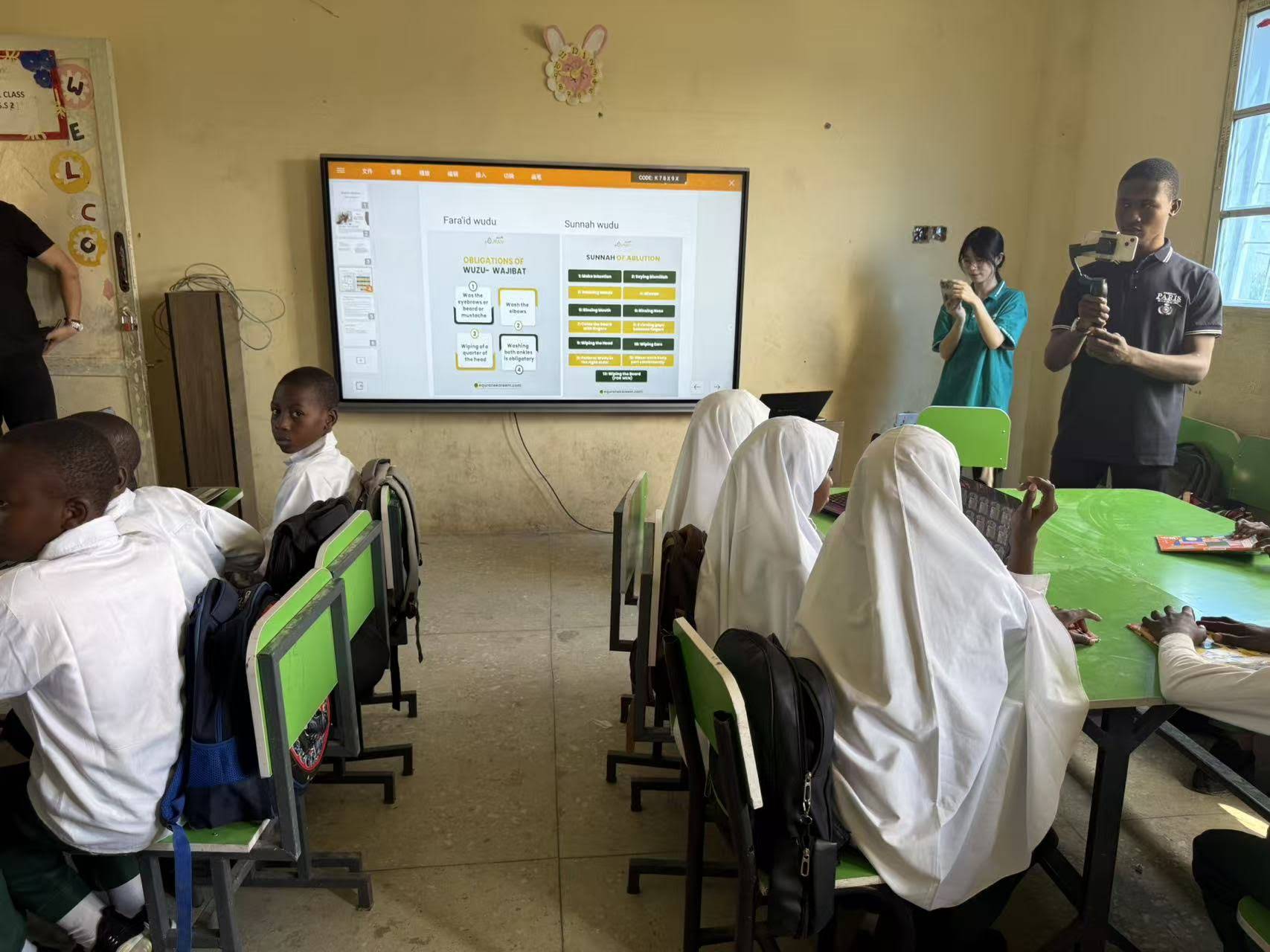
In classrooms, boardrooms, and hybrid workspaces, learning how to screen share with smart board helps teams present faster, collaborate better, and keep attention on the content instead of the cables. If you set up the connection carefully and choose the right sharing method, you can make every session more interactive and productive.
Smart board screen sharing is easiest when the device, network, and display are all aligned before the presentation starts.








