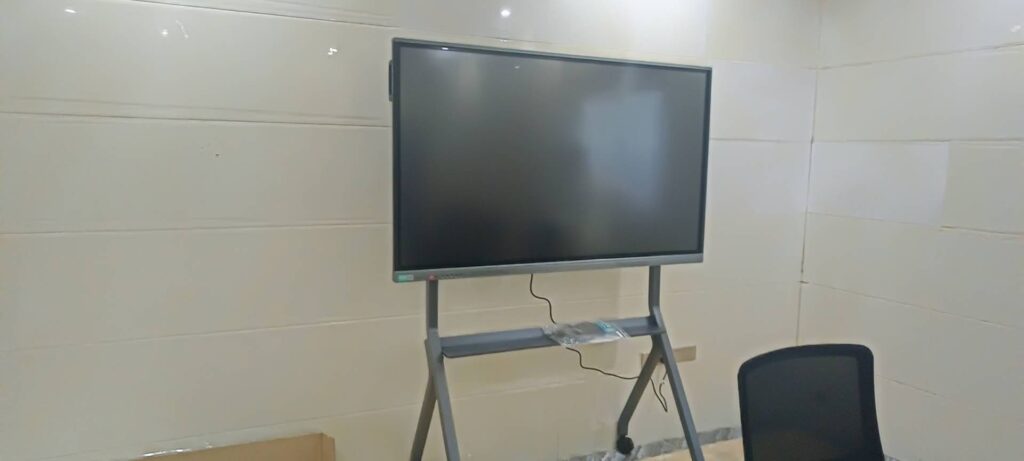
If you want to know how to mirror laptop to smart board for a classroom lesson, sales demo, or team meeting, the process is usually easier than it looks. In most cases, you only need the right cable or wireless casting option, a compatible display input, and a few quick settings on your laptop.
As a Shenzhen-based interactive-display manufacturer, Leaderhub has seen the smoothest setups combine a smart board, a stable network, and a simple casting workflow that anyone can repeat in seconds.
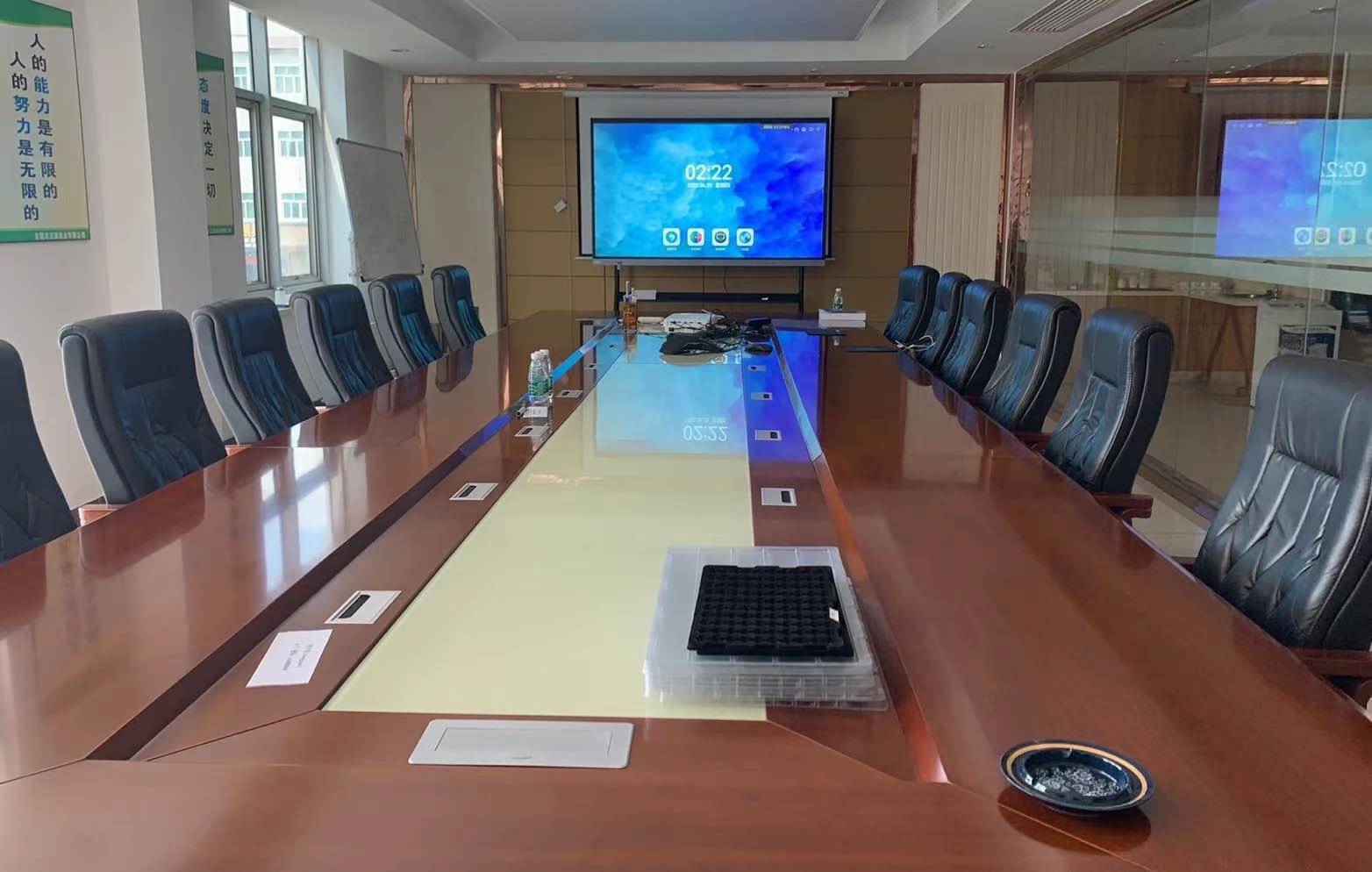
Quick Answer: The Easiest Ways to Mirror
You can mirror a laptop to a smart board in three common ways:
- HDMI cable for the most stable connection
- USB-C / display adapter for newer laptops and portable setups
- Wireless casting such as Miracast, AirPlay, or built-in screen sharing
If you need a display-ready setup, browse our smart whiteboards, pair them with a compact mini PC, or explore the latest options in the online shop.
What You Need Before You Start
Before you mirror, check these basics:
| Item | Why It Matters |
|---|---|
| Laptop | Must support HDMI, USB-C display output, or wireless casting. |
| Smart board | Needs the correct input source or built-in wireless receiver. |
| Cable or network | A reliable HDMI cable or strong Wi-Fi improves stability. |
| Adapter | USB-C to HDMI, Mini DisplayPort to HDMI, or similar adapter may be required. |
Step-by-Step Guide: How to Mirror Laptop to Smart Board
-
Turn on the smart board and choose the correct input source.
Use the remote, on-screen menu, or side controls to switch to HDMI, USB-C, or wireless casting mode.
-
Connect the laptop.
For wired mirroring, connect HDMI from the laptop to the smart board. If your laptop has only USB-C, use a compatible adapter or USB-C cable that supports video output.
-
Select the display mode on the laptop.
On Windows, press Windows + P and choose Duplicate. On Mac, open Control Center and choose Screen Mirroring.
-
Adjust resolution if needed.
If the image looks stretched, blurry, or cut off, set the laptop to a resolution that matches the board’s panel, such as 1080p or 4K.
-
Test audio and touch.
If your smart board includes speakers or touch control, confirm that sound and interaction are working before your presentation starts.
-
Save the setup.
For repeat use, keep the same cable path, input source, and Wi-Fi connection so every meeting starts faster.
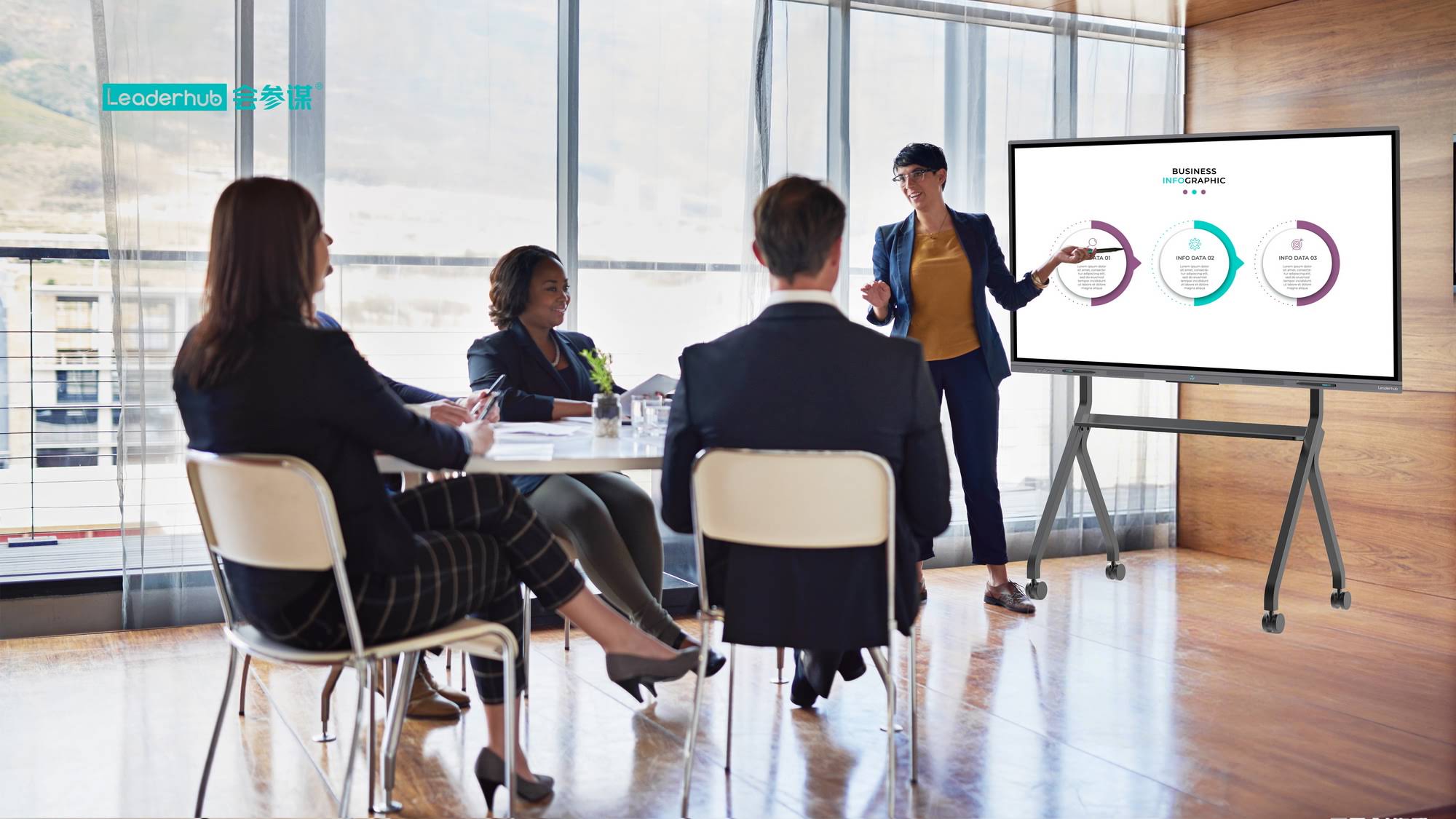
Wireless Mirroring: When It Works Best
Wireless mirroring is ideal for rooms where people switch presenters often. It reduces cable clutter and makes the room feel more flexible. However, it depends on a stable network and compatible devices.
- Windows laptops often use Miracast or a built-in cast function.
- MacBooks usually mirror through AirPlay-compatible receivers.
- Chromebooks may support casting through browser-based or system tools.
Tip: If the board is used for frequent teaching or conferencing, a dedicated wireless receiver or mini PC can make launching the session more dependable. You can also compare options on the mini PC page.
Wired vs. Wireless: Which One Should You Choose?
| Method | Best For | Main Advantage | Possible Drawback |
|---|---|---|---|
| HDMI | Classrooms, boardrooms, training rooms | Most stable and lowest-latency connection | Cable management required |
| USB-C | Modern laptops, minimal setups | One-cable video and sometimes charging | Not every USB-C port supports display output |
| Wireless | Hybrid meetings, quick sharing | Fast switching between users | Needs strong Wi-Fi and compatible software |
How to Mirror on Windows
Windows users can usually mirror in less than a minute:
- Connect HDMI or USB-C.
- Press Windows + P.
- Select Duplicate to show the same screen on the smart board.
- If needed, open Display Settings and adjust resolution or scaling.
How to Mirror on Mac
Mac users should check for AirPlay or direct cable output:
- Connect the proper adapter if using HDMI.
- Open Control Center and choose Screen Mirroring.
- Select the smart board or receiver from the list.
- Turn on Mirror Display if you want the same image on both screens.
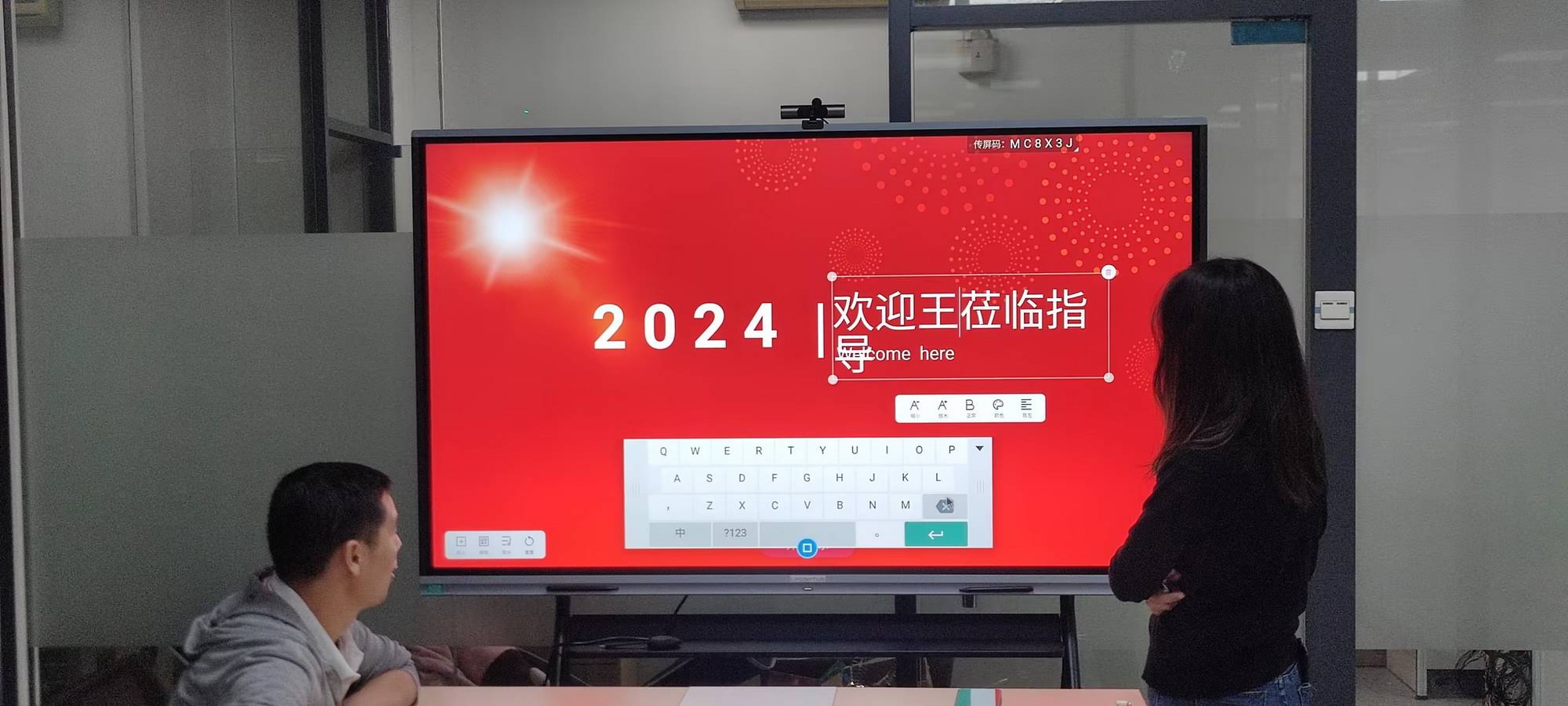
Troubleshooting Common Problems
| Problem | Likely Cause | Quick Fix |
|---|---|---|
| No signal | Wrong input source or loose cable | Recheck the input and reconnect the cable firmly |
| Black bars or cropped image | Resolution mismatch | Set the laptop to a native or recommended resolution |
| Wireless lag | Weak Wi-Fi or network congestion | Move closer to the router or switch to wired |
| No sound | Audio output not changed | Select the smart board or HDMI audio device in sound settings |
Best Practices for Smooth Presentations
- Test before the meeting so you can catch adapter or resolution issues early.
- Keep a spare cable in the room for fast recovery.
- Use duplicate mode when you want everyone to see exactly what you see.
- Close unnecessary apps to reduce pop-ups and distractions.
- Use a stable mount or cart if the board moves between rooms.
For schools and offices that want a more future-ready setup, guidance from UNESCO Technology Recommendations and ISTE Standards can help you choose tools that support learning and collaboration more effectively.
Choose the Right Smart Board Size
Board size affects visibility, touch comfort, and overall presentation quality. If your room is larger or the audience sits farther away, a bigger screen may be the better choice.
- 65-inch for compact classrooms and meeting rooms
- 75-inch for medium rooms and collaborative spaces
- 86-inch for larger training rooms and auditoriums
For example, a 75-inch 4K touchscreen model can be a strong fit when you want more screen space without making the room feel crowded.
FAQ
Can I mirror a laptop to a smart board without internet?
Yes. Wired HDMI or USB-C mirroring usually works without internet. Wireless casting may still work on a local network, but a cable is the safest offline option.
Why is the mirrored screen blurry?
The most common reason is a resolution mismatch. Set the laptop to the smart board’s native resolution or try a different scaling setting.
Can I use touch on the smart board while mirroring?
Yes, if the board supports touch interaction and the correct drivers or software are installed. Touch works best when the board and laptop are configured properly.
Is wireless mirroring good enough for teaching?
It can be, especially in a strong network environment. For high-stakes lessons or important presentations, many users still prefer a wired backup.
Final Setup Tip
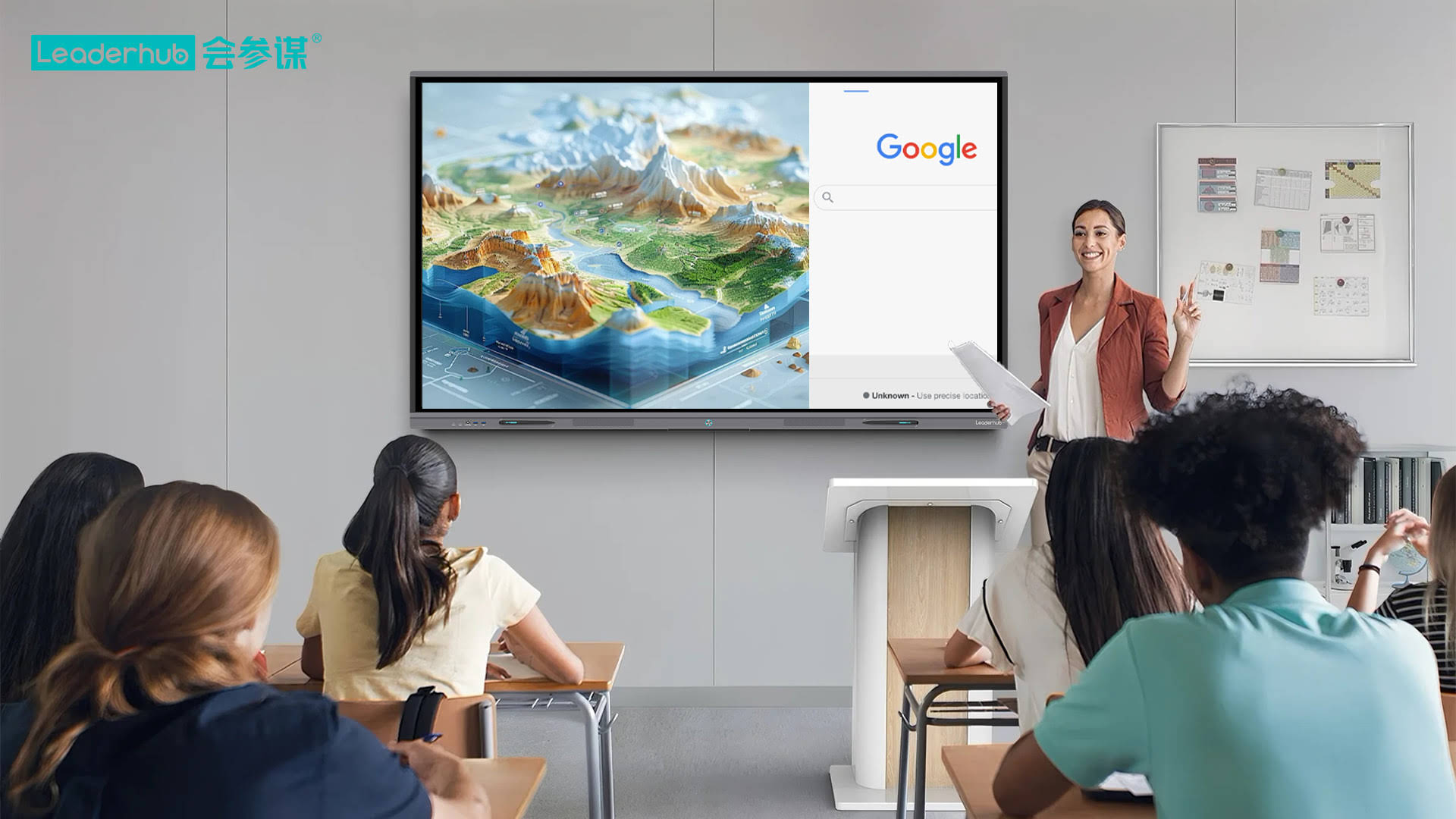
The best way to mirror a laptop to a smart board is to keep the workflow simple: choose one reliable connection method, test it once, and repeat the same steps every time. That consistency saves time, reduces technical issues, and makes every lesson or meeting feel more professional.
Ready to upgrade your display setup? Explore the contact page for project advice or compare hardware options on the smart whiteboards category.