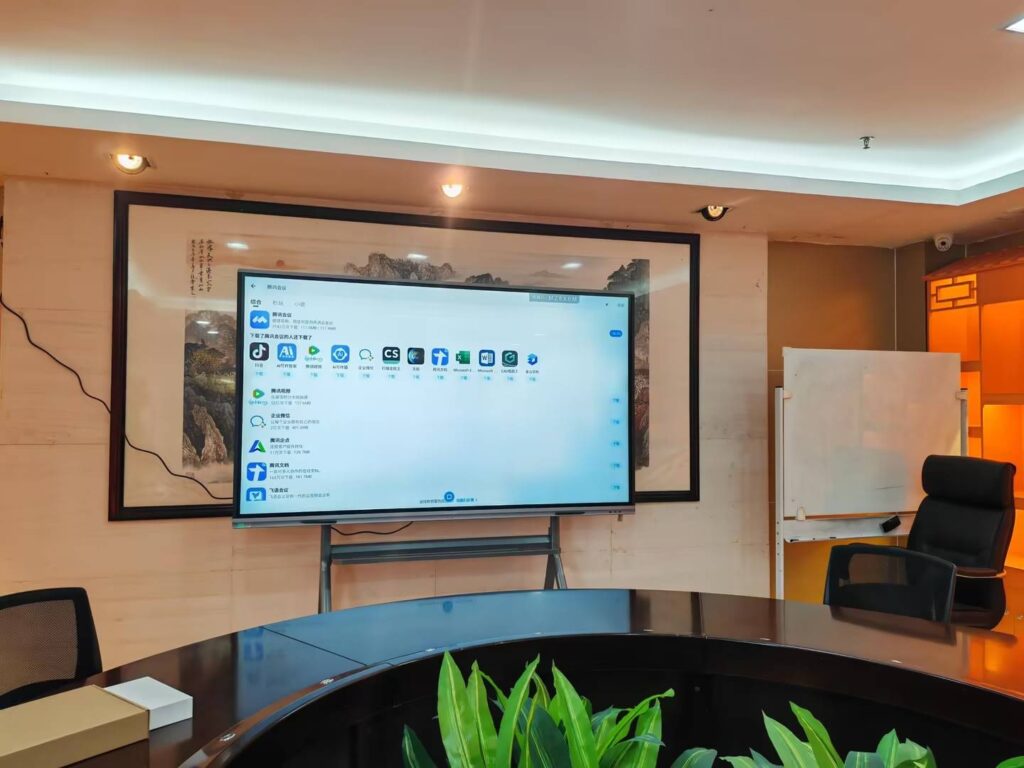
Smart boards are interactive display systems that combine touch control, digital annotation, wireless sharing, and multimedia playback in one screen. If you have ever wondered what do smart boards do, the short answer is: they make lessons, meetings, and presentations more visual, collaborative, and efficient.
Instead of writing on a static surface, users can write, erase, move objects, open apps, mirror devices, browse content, and save everything instantly. That makes a smart board useful for classrooms, boardrooms, training rooms, and hybrid workspaces.
Jump to benefits ·
See common uses ·
Learn how it works ·
Browse smart whiteboards
What Does a Smart Board Do?
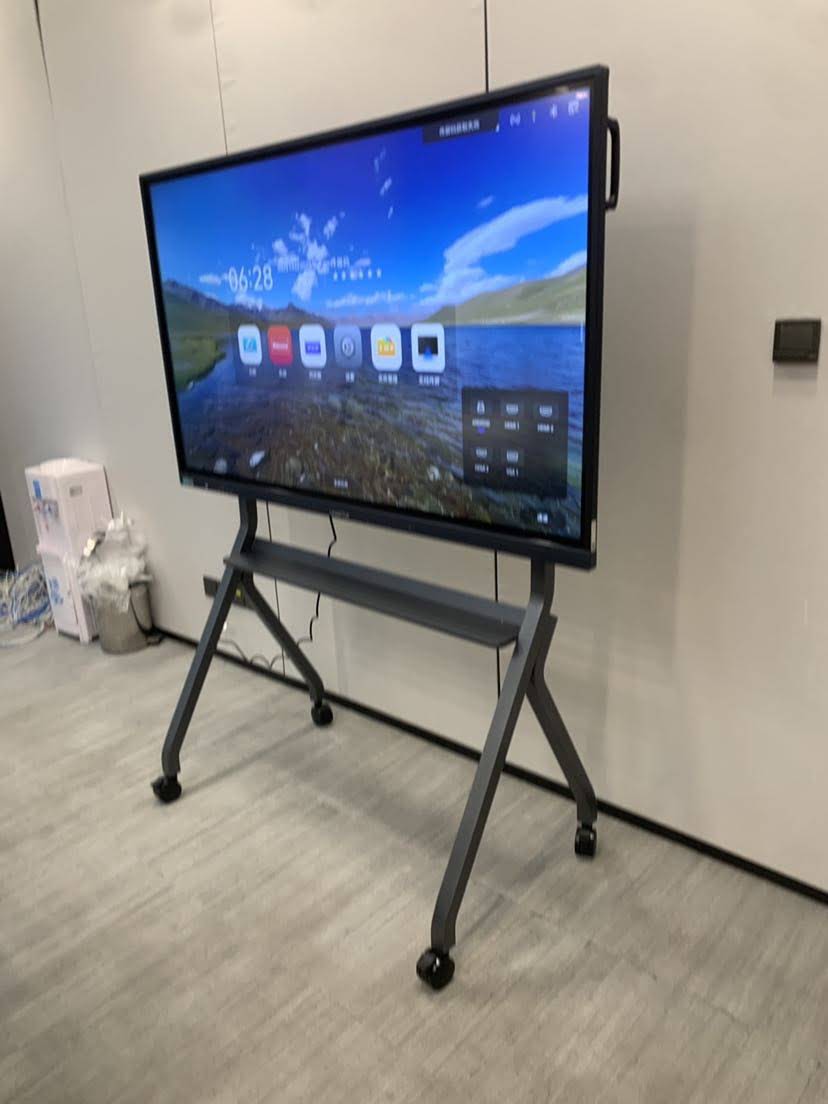
A smart board turns passive viewing into active participation. It acts as a digital hub where people can write, touch, present, collaborate, and share content without switching between multiple devices.
- Displays content clearly with large-format visuals and 4K resolution.
- Supports touch interaction so multiple users can write or move objects at once.
- Lets you annotate in real time on documents, slides, websites, and videos.
- Connects wirelessly to laptops, tablets, and phones for fast sharing.
- Saves notes and screenshots so nothing important gets lost after the session.
- Works as a collaboration center for meetings, teaching, brainstorming, and remote communication.
Key Benefits of Smart Boards
Smart boards are popular because they improve engagement and reduce friction in everyday communication. According to the UNESCO Global Education Monitoring Report and the ISTE Education Technology Standards, effective classroom technology should support learning, interaction, and responsible use. Smart boards fit that approach well.
| Benefit | Why It Matters | Best For |
|---|---|---|
| Better engagement | Touch interaction and visual content keep people involved. | Classrooms, workshops, training |
| Faster collaboration | Teams can write, edit, and brainstorm together in one place. | Meetings, project reviews, planning |
| Cleaner presentations | No markers, cables, or projector shadows to interrupt the flow. | Sales demos, lectures, pitches |
| Easy content saving | Notes and screenshots can be stored and reused instantly. | Teaching, training, documentation |
| Hybrid-ready workflow | Online participants can follow along through screen sharing and video conferencing. | Remote teams, hybrid classrooms |
For organizations comparing digital learning options, the World Bank EdTech resources also emphasize that technology works best when it improves access, interaction, and measurable learning outcomes.
Common Uses: Where Smart Boards Shine
1) Education
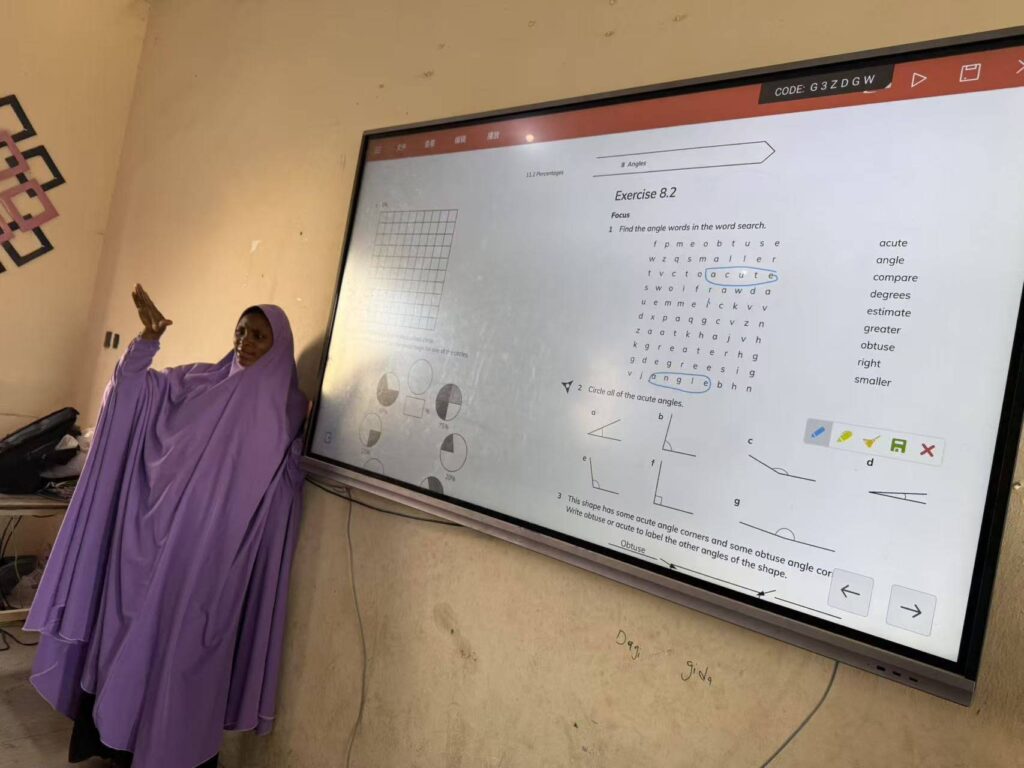
Teachers use smart boards to display lesson slides, draw diagrams, play videos, open learning apps, and annotate lessons in real time. Students can come to the front and solve problems directly on the screen, which makes the lesson more active and memorable.
2) Business Meetings
In meetings, a smart board can replace a projector and a traditional whiteboard at the same time. Teams can sketch workflows, review files, compare data, and capture action items without leaving the screen.
3) Training and Workshops
Trainers can use interactive slides, live quizzes, and annotations to keep sessions interactive. This is especially useful in onboarding, technical training, and sales enablement.
4) Creative and Design Sessions
Design teams and agencies often use smart boards for brainstorming, wireframing, mapping user journeys, and collecting feedback in one shared space.
How Smart Boards Work
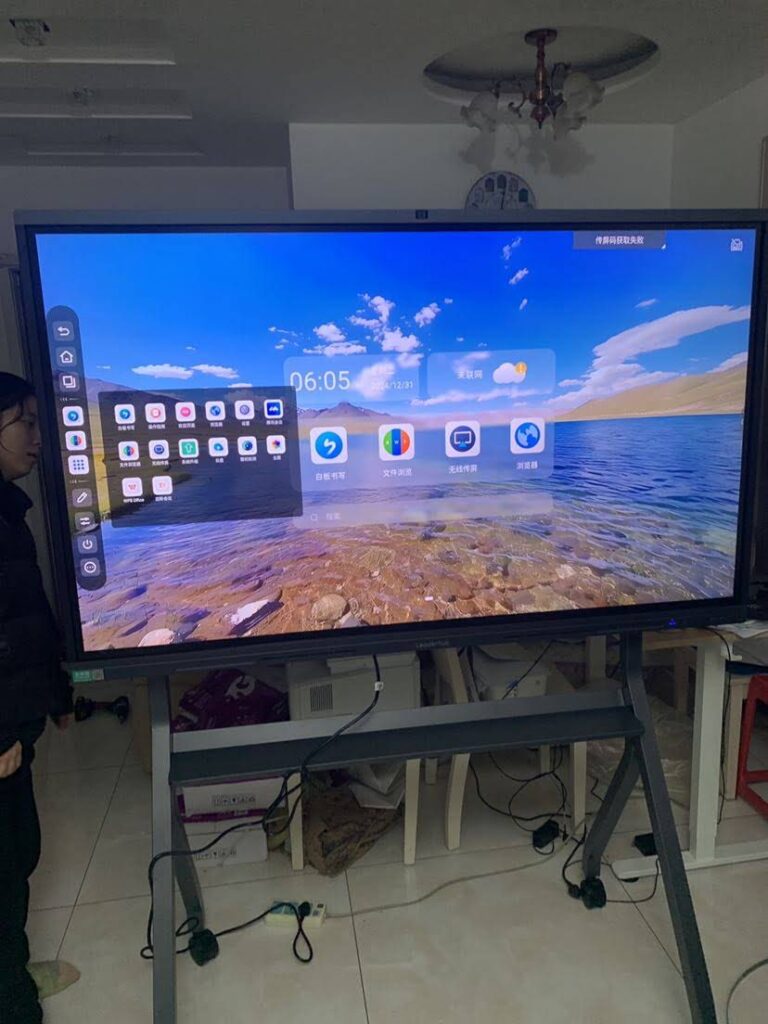
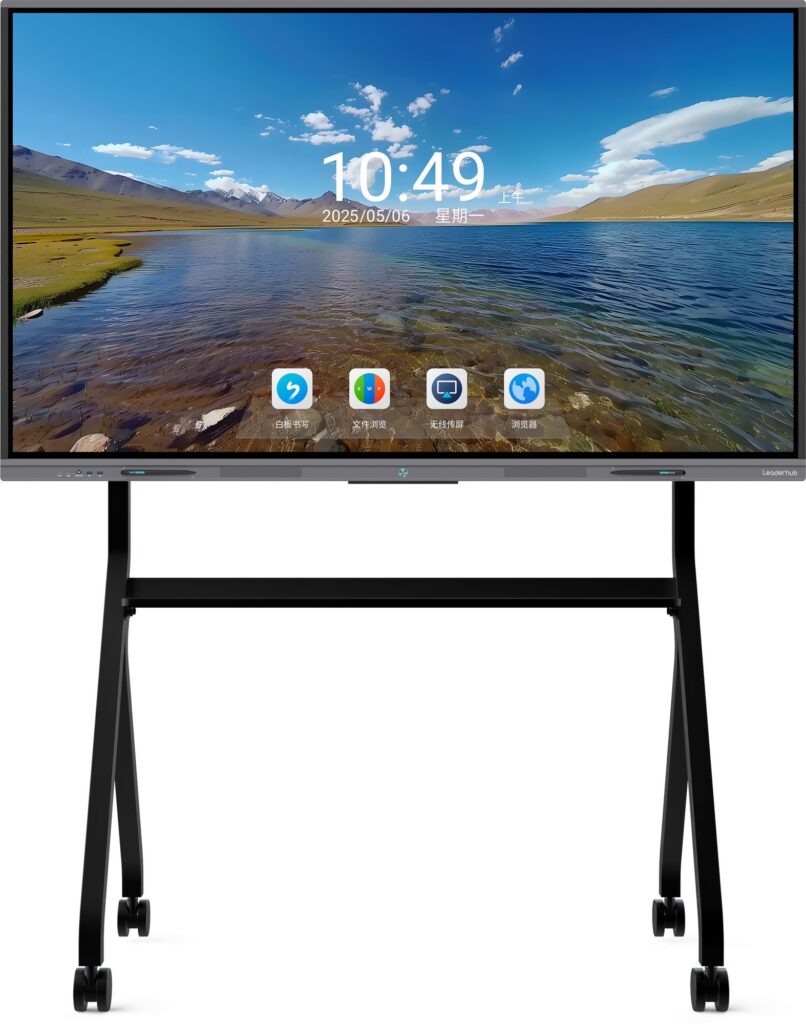
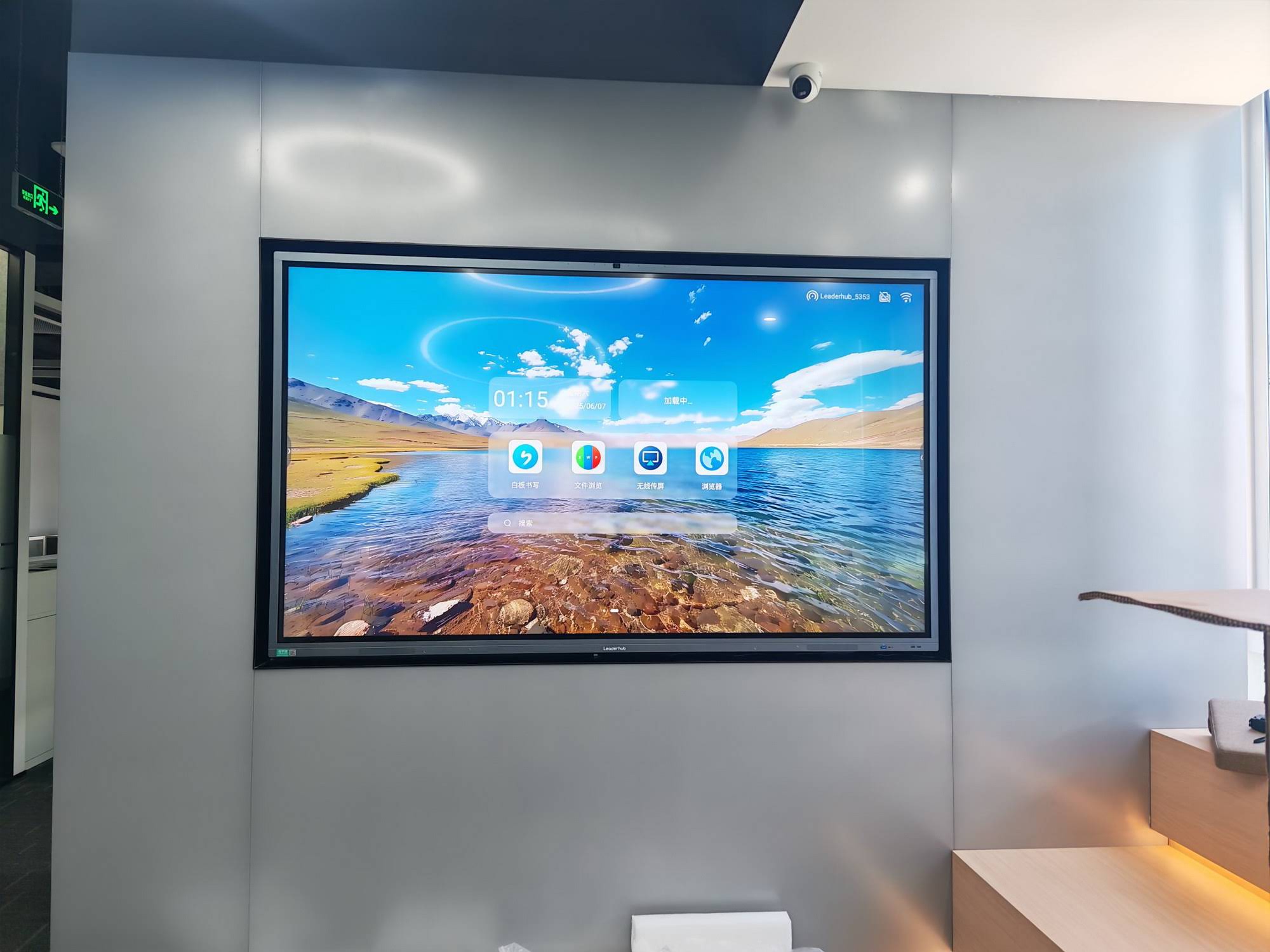
A smart board usually combines a large touch display, built-in software, and connectivity options such as Wi-Fi, Bluetooth, HDMI, USB, and casting tools. Some models run an Android system or connect with an external computer for more advanced apps.
- The display shows the content from the built-in system or a connected device.
- The touch layer detects input from fingers or a stylus.
- The software processes actions like writing, dragging, zooming, or opening apps.
- The system stores or shares content so users can continue later or send it to others.
In practical terms, this means you can open a presentation, draw on top of it, save the annotated version, and share it with your team in just a few taps.
| Component | What It Does |
|---|---|
| Touch display | Shows visuals and responds to touch input. |
| Operating system | Runs apps, tools, and file management features. |
| Annotation software | Lets users draw, highlight, and mark up content live. |
| Connectivity module | Enables screen sharing, casting, and device pairing. |
| Audio/video support | Improves meetings, lessons, and remote collaboration. |
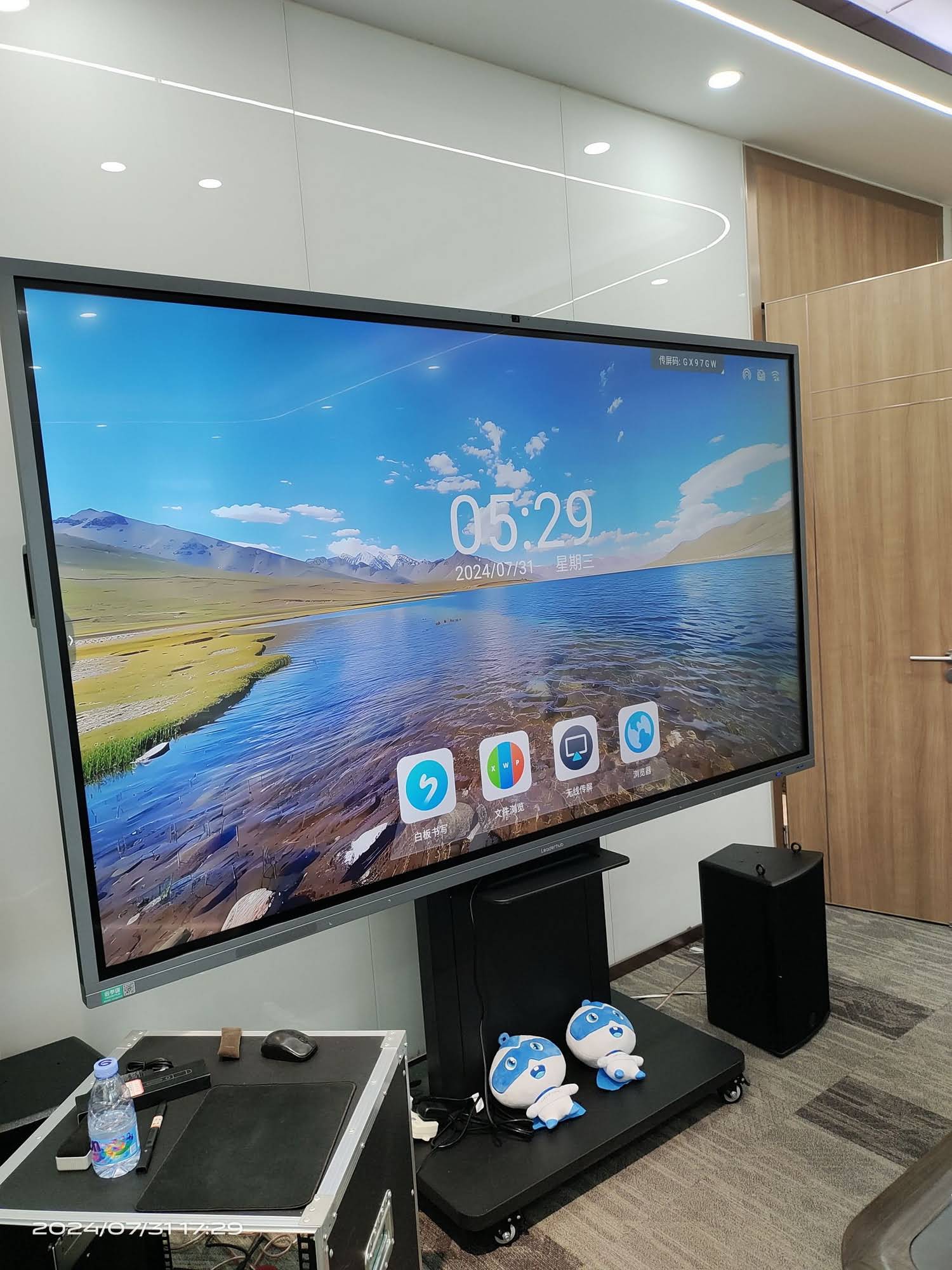
Smart Board vs Traditional Whiteboard
| Feature | Traditional Whiteboard | Smart Board |
|---|---|---|
| Writing | Marker-based | Finger, stylus, or touch |
| Content type | Handwritten only | Text, images, video, apps, files |
| Sharing | Must be photographed or copied manually | Can be saved and shared digitally |
| Collaboration | Limited to people in the room | Supports in-room and remote participation |
| Long-term use | Requires wiping and rewriting | Reusable templates and saved sessions |
How to Choose the Right Smart Board
- Screen size: Choose 65″, 75″, 86″, or larger based on room size and viewing distance.
- Touch accuracy: Look for smooth handwriting, low latency, and multi-touch support.
- Operating system: Check whether you need Android, Windows, or both.
- Connectivity: HDMI, USB-C, Wi-Fi, casting, and Bluetooth all matter for daily use.
- Software ecosystem: Annotation, whiteboarding, file sharing, and video conferencing tools should be easy to use.
- Mobility: For flexible rooms, consider a stand-mounted or portable setup.
If your workflow needs a complete room setup, you can also pair a board with mini PCs for better control and a cleaner installation, or explore a mobile interactive flat panel for more flexible meeting spaces.
Recommended Products for Different Scenarios
Below are a few practical options if you are comparing screen sizes and deployment styles:
| Product | Best Use | Why It Fits |
|---|---|---|
| 65″ Interactive Smart Whiteboard | Small classrooms and meeting rooms | Compact size with strong touch performance |
| 75″ Interactive Smart Whiteboard | Medium rooms and training spaces | Balanced viewing size and collaboration comfort |
| 86″ Interactive Smart Whiteboard | Large classrooms, conference rooms | Big-format visibility for larger groups |
| 75″ Interactive Flat Panel | Professional offices and hybrid meetings | Great for presentations and video conferencing |
Explore Products ·
Contact Us ·
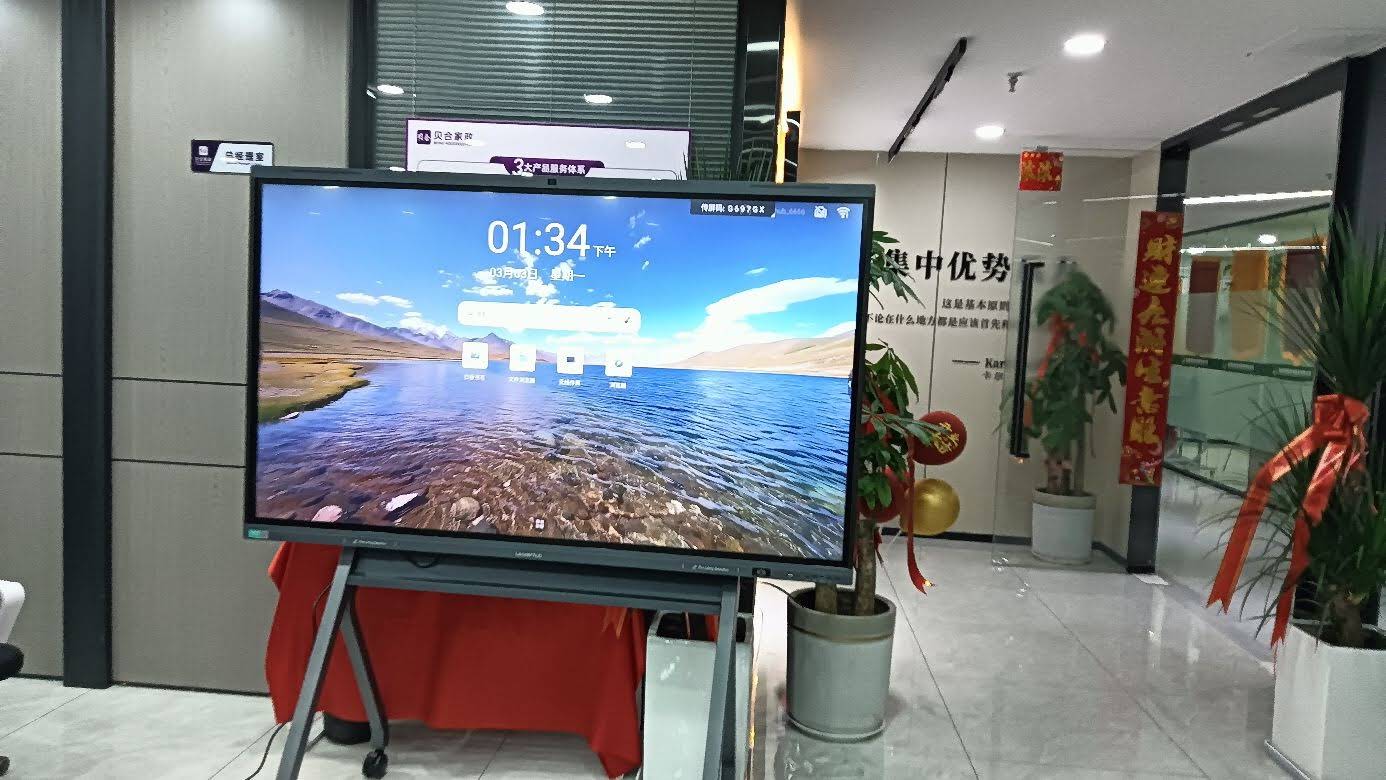
See rotating screens
Best Practices for Getting Real Value
- Use templates for recurring meetings and lessons.
- Keep frequently used apps pinned for faster access.
- Train teachers or presenters on basic touch and sharing features.
- Set clear rules for saving, naming, and exporting files.
- Combine the board with a stable network and good audio setup.
For schools and teams that want a reliable deployment, a smart board is most effective when it is part of a broader collaboration workflow — not just a display. That means pairing it with the right devices, the right software, and the right habits.
Final Takeaway
A smart board does much more than show slides. It helps people interact, annotate, share, save, and collaborate in real time. Whether you use it for teaching, presenting, or team planning, the real value comes from making information easier to understand and easier to act on.