
Smart boards have revolutionized how we present, teach, and collaborate in modern classrooms and meeting rooms. However, there are moments during presentations when you need to pause the screen temporarily¡ªwhether to maintain student focus, prevent accidental touches, or keep sensitive information visible without interaction. Learning how to freeze a smart board effectively can significantly improve your presentation control and classroom management.
In this comprehensive guide, we’ll walk you through multiple methods to freeze your smart board screen, disable touch functionality, and regain control when needed. Whether you’re an educator, corporate trainer, or business professional, these techniques will help you maximize your interactive display’s potential.
Understanding Smart Board Screen Freezing
Screen freezing on a smart board refers to temporarily locking the display image while disabling touch input. This feature proves invaluable in several scenarios:
- Preventing accidental touches during demonstrations
- Maintaining student attention on specific content
- Keeping reference materials visible while switching applications
- Protecting sensitive information from unauthorized interaction
- Facilitating group discussions without screen distractions
Unlike simply turning off the display, freezing preserves the current screen state while temporarily suspending interactivity. According to educational technology research, proper screen control techniques can improve student engagement by up to 34% by reducing visual distractions during critical teaching moments.
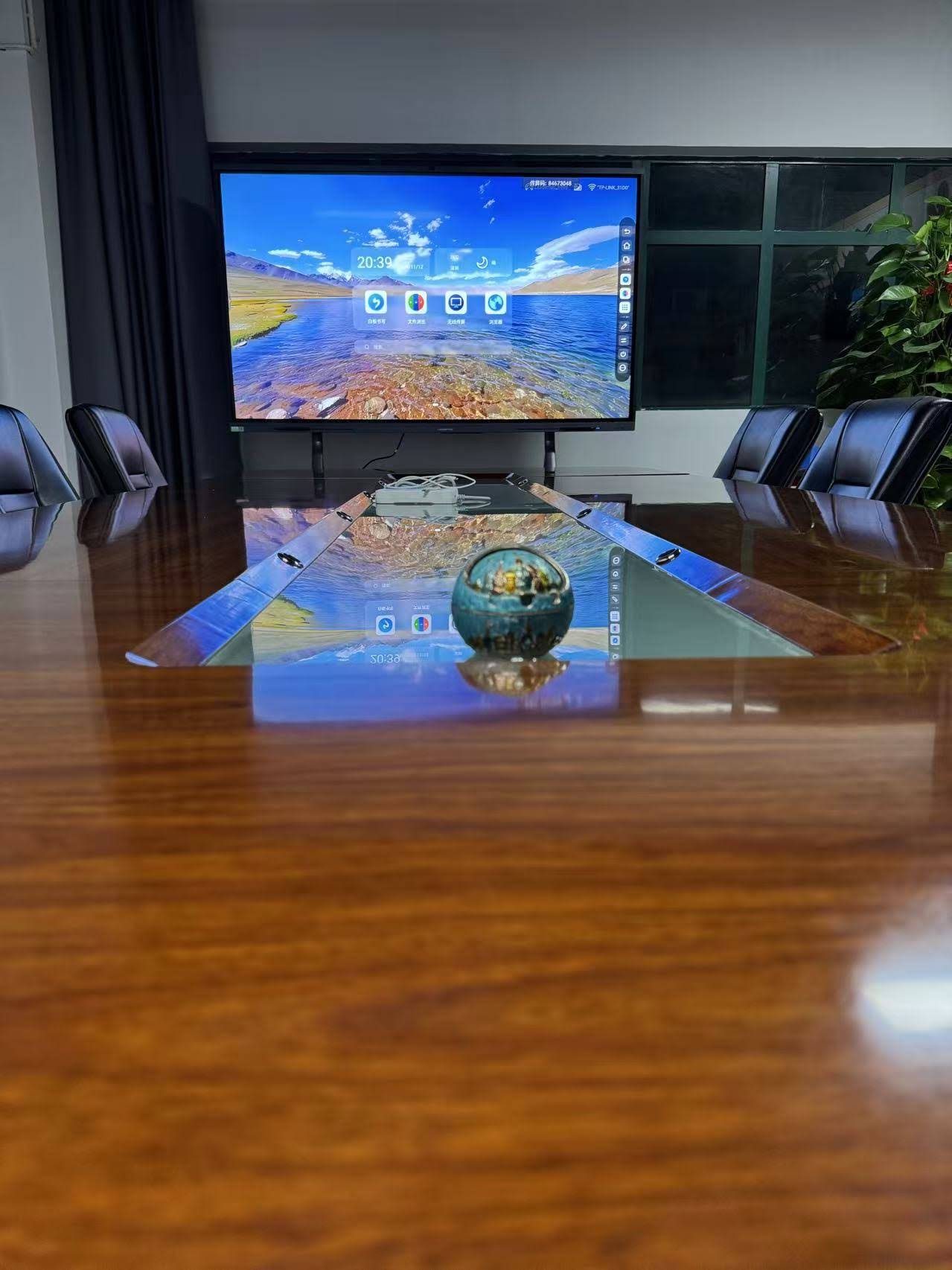
Method 1: Using Built-In Freeze Function
Most modern smart boards, including interactive flat panels from LeaderHub, come equipped with a dedicated freeze button or menu option. This remains the quickest and most reliable method for screen locking.
Step-by-Step Process:
- Locate the Freeze Button: Check your smart board’s physical control panel, typically found on the side or bottom bezel. Look for an icon resembling a pause symbol or snowflake.
- Press the Freeze Button: A single press will capture the current screen state and disable touch input immediately.
- Verify Freeze Status: Most boards display a visual indicator¡ªusually a border highlight or on-screen notification¡ªconfirming the frozen state.
- Continue Your Presentation: The screen remains visible but unresponsive to touch, allowing you to move around freely without triggering accidental inputs.
- Unfreeze When Ready: Press the freeze button again to restore full interactivity.
| Smart Board Brand | Freeze Button Location | Alternative Method |
|---|---|---|
| LeaderHub Interactive Panels | Side control panel or toolbar menu | Quick settings menu |
| SMART Board Series | Top toolbar or side buttons | SMART Notebook menu |
| Promethean ActivPanel | Bottom control bar | Screen Share settings |
| Generic Android Displays | Varies by manufacturer | Third-party apps required |
Method 2: Software-Based Screen Locking
When hardware buttons aren’t accessible or available, software solutions provide reliable alternatives for freezing your smart board display.
Using Presentation Software:
Many presentation applications include built-in freeze capabilities. In PowerPoint, for example, pressing B (black screen) or W (white screen) during slideshow mode effectively pauses visual input while maintaining your position. Similarly, specialized interactive whiteboard software often includes dedicated lock features.
Third-Party Screen Freeze Applications:
For Windows-based smart boards:
- ZoomIt (Microsoft): Press Ctrl+4 to freeze the screen while drawing annotations
- ScreenFreeze: Lightweight utility specifically designed for presentation control
- Epic Pen: Combines screen freezing with annotation capabilities
For Android-based interactive displays, apps like “Screen Pinning” (built into Android 5.0+) restrict interaction to a single app, effectively creating a locked state.
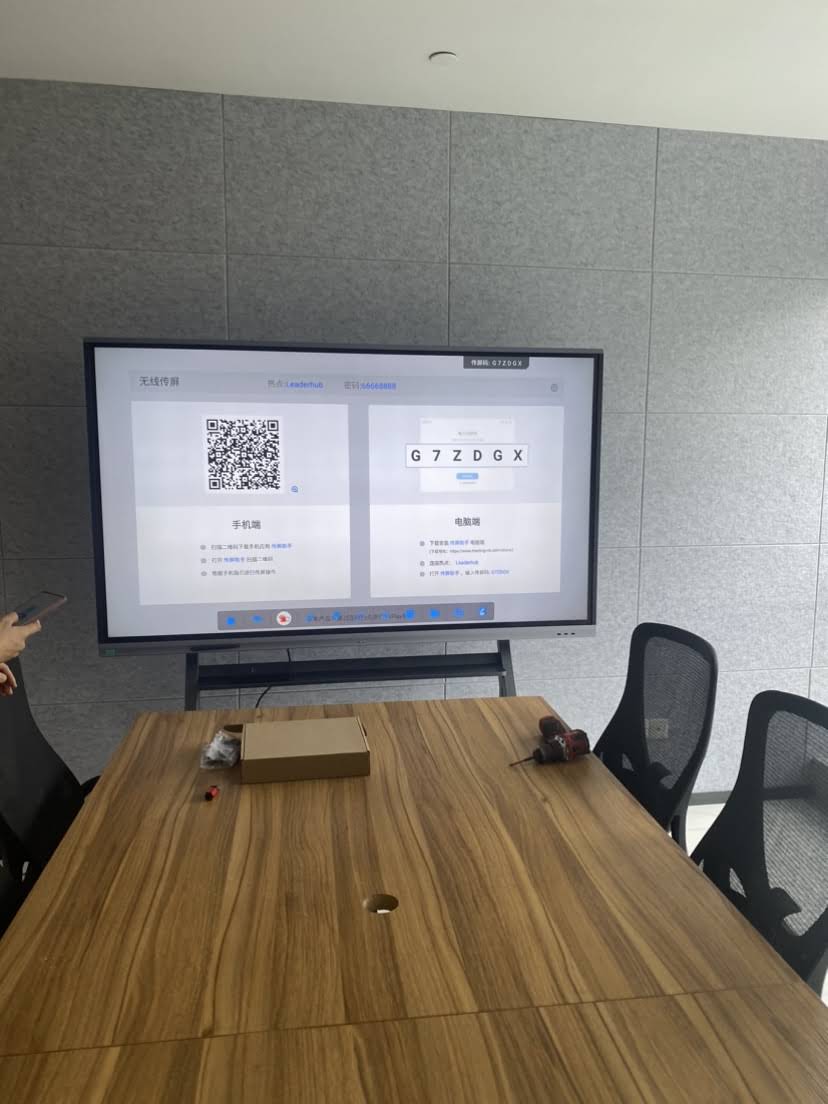
Method 3: Disabling Touch Input Temporarily
Sometimes you need to disable touch functionality without freezing the screen content¡ªparticularly useful when demonstrating software workflows or preventing accidental clicks.
Windows Touch Input Control:
- Open Device Manager (Windows key + X, then select Device Manager)
- Expand Human Interface Devices
- Locate HID-compliant touch screen
- Right-click and select Disable device
- Confirm the action when prompted
Important: This method requires mouse/keyboard access to re-enable touch. Consider creating a desktop shortcut for quick toggling using a batch script.
Android Touch Lock:
For Android-based smart boards, enable Screen Pinning:
- Open Settings ¡ú Security ¡ú Screen Pinning
- Enable the feature
- Open the app you want to display
- Tap Recent Apps button
- Swipe up on the app card and tap the pin icon
Method 4: Using Remote Control Features
Many smart boards support remote control through companion apps or wireless remotes, allowing you to freeze the screen from anywhere in the room.
Mobile App Control:
LeaderHub and other manufacturers provide mobile apps that mirror smart board controls on your smartphone or tablet. These apps typically include:
- Screen freeze/unfreeze buttons
- Touch input toggle
- Display brightness control
- Quick access to annotation tools
Download the manufacturer’s official app from Google Play or Apple App Store, connect to the same network as your smart board, and access freeze controls remotely¡ªparticularly useful for large classrooms or conference rooms.
Physical Remote Controls:
Some smart boards include infrared or Bluetooth remotes with dedicated freeze buttons. Check your product documentation or contact your supplier for compatible remote options.
Advanced Techniques: Custom Freeze Solutions
For tech-savvy users managing multiple smart boards or requiring specialized freeze behaviors, custom solutions offer greater flexibility.
AutoHotkey Scripts (Windows):
Create keyboard shortcuts to instantly disable touch input:
- Download and install AutoHotkey
- Write a script that toggles the HID touch device on/off
- Assign it to a custom hotkey combination
- Run the script at startup for always-available control
Network-Based Management:
Enterprise environments can implement centralized smart board control through management software platforms, allowing IT administrators to remotely freeze displays across multiple rooms simultaneously¡ªuseful for emergency announcements or school-wide testing scenarios.
Troubleshooting Common Freeze Issues
Even with proper technique, you may encounter challenges when freezing your smart board. Here are solutions to frequent problems:
Freeze Button Not Responding:
- Check if the board’s firmware needs updating
- Verify the control panel isn’t locked (some boards have child-lock features)
- Restart the smart board completely
- Try alternative freeze methods described above
Screen Freezes But Touch Still Works:
This usually indicates a software freeze rather than hardware lock. The display image is captured, but the touch layer remains active. Solution:
- Use the touch input disable method instead
- Update your smart board’s operating system
- Check for conflicting software that might override freeze commands
Cannot Unfreeze the Display:
If pressing the freeze button doesn’t restore functionality:
- Try pressing and holding the freeze button for 3-5 seconds
- Use the on-screen menu to access freeze settings
- Disconnect and reconnect external input sources
- As a last resort, restart the smart board
Best Practices for Smart Board Screen Control
Implementing these professional techniques will help you maximize the effectiveness of screen freezing in your presentations:
Before Your Presentation:
- Test the freeze function with your specific content to ensure it behaves as expected
- Familiarize yourself with button locations to avoid fumbling during live sessions
- Prepare backup methods in case your primary freeze technique fails
- Brief co-presenters on freeze protocols to prevent confusion
During Your Presentation:
- Announce when freezing: Let your audience know you’re intentionally pausing interaction
- Use strategic freeze timing: Freeze during discussion periods, not during active demonstrations
- Monitor freeze status: Some users accidentally leave screens frozen for extended periods
- Combine with other tools: Use spotlights or pointers while frozen to maintain engagement
Educational Settings Specific Tips:
Teachers should consider these classroom-specific applications:
- Freeze the board during independent work time to prevent distractions
- Lock the screen when students approach to share work, preventing accidental changes
- Use freeze during class transitions to maintain visual continuity
- Combine with timer apps to manage activity durations effectively
Screen Freeze vs. Other Control Methods
Understanding when to use screen freeze versus alternative control methods ensures optimal presentation flow:
| Control Method | Best For | Limitations |
|---|---|---|
| Screen Freeze | Brief pauses, preventing accidental touches | Screen content becomes outdated if source changes |
| Touch Disable | Long demonstrations, software tutorials | Requires alternative input method |
| Black/White Screen | Refocusing attention, breaks between sections | Completely hides content |
| Screen Pinning | Kiosk mode, single-app presentations | Difficult to exit without PIN |
| Input Source Switch | Switching between devices | Loses current content entirely |
Security Considerations When Freezing Smart Boards
When dealing with sensitive information, proper screen freeze implementation becomes a security matter:
Protecting Confidential Data:
If your frozen screen displays proprietary information, passwords, or personal data:
- Ensure the room is secure before freezing sensitive content
- Use privacy filters on the display when necessary
- Set automatic unfreeze timers to prevent prolonged exposure
- Consider using black screen instead of freeze for highly sensitive material
Preventing Unauthorized Access:
In shared environments:
- Require authentication to unfreeze the display
- Log freeze/unfreeze events for audit trails
- Implement automatic locks after extended freeze periods
- Use session timeout features in conjunction with freeze functions
Integration with Modern Teaching and Collaboration Tools
Today’s smart boards work within broader technology ecosystems. Effective freeze strategies should complement other tools:
Video Conferencing Integration:
When using platforms like Zoom or Microsoft Teams with your smart board:
- Freeze the board before sharing specific applications to prevent content switching confusion
- Use freeze during remote participant questions to maintain focus
- Coordinate freeze timing with screen sharing controls
- Test freeze behavior during recording to ensure it captures as intended
Learning Management System Synchronization:
For educators using platforms like Google Classroom, Canvas, or Moodle:
- Freeze boards when transitioning between platform and local content
- Maintain frozen reference material while students access online resources
- Use freeze during assessment periods to prevent answer revelation
Future Developments in Smart Board Control
As interactive display technology evolves, freeze and control capabilities are becoming more sophisticated:
AI-Powered Automatic Freezing:
Emerging smart boards incorporate artificial intelligence to automatically detect presentation pauses and freeze appropriately. These systems analyze presenter speech patterns, body language, and interaction gaps to predict when freezing would benefit the audience.
Gesture-Based Control:
Next-generation boards support freeze activation through hand gestures¡ªno physical contact required. Simply raise your palm toward the screen to freeze, wave to unfreeze.
Voice Command Integration:
Modern smart boards increasingly support voice commands like “freeze screen” or “lock display,” enabling hands-free control during presentations. LeaderHub’s latest smart whiteboard models incorporate these advanced features, reflecting over 16 years of innovation in interactive display technology.
Maximizing Your Smart Board Investment
Mastering screen freeze and touch control represents just one aspect of effective smart board utilization. To fully leverage your investment:
- Regular Training: Schedule quarterly refresher sessions on advanced features
- User Feedback: Collect input from presenters about control challenges they encounter
- Maintenance Schedule: Keep firmware updated to ensure optimal freeze functionality
- Documentation: Create quick-reference guides specific to your board model and installation
- Backup Plans: Always have manual override procedures documented for critical presentations
According to industry data from EdTech Magazine, organizations that implement comprehensive training programs see 47% higher satisfaction rates with their interactive display investments compared to those that rely solely on trial-and-error learning.
Practical Scenarios: When to Freeze Your Smart Board
Understanding theoretical freeze techniques is valuable, but recognizing practical application moments makes the difference between adequate and exceptional presentations:
Education Scenarios:
- During pop quizzes: Freeze answer keys on screen while students work
- Group work transitions: Lock instructions visible while students move to stations
- Student presentations: Freeze reference material to prevent nervous presenters from accidentally closing it
- Standardized testing: Display timing and instructions frozen throughout test periods
Business Scenarios:
- Board meetings: Freeze financial data during discussion periods
- Client presentations: Lock proposal summaries while addressing questions
- Training sessions: Maintain procedural diagrams on screen during hands-on practice
- Brainstorming: Freeze initial concept boards while teams work independently
Healthcare Applications:
- Patient consultations: Freeze diagnostic images while discussing treatment options
- Surgical planning: Lock anatomical references during team coordination
- Medical training: Display procedure steps frozen during simulation exercises
Conclusion
Mastering smart board screen freeze and touch control techniques transforms your interactive display from a simple screen into a sophisticated presentation tool. Whether using built-in hardware buttons, software solutions, remote controls, or advanced scripting methods, the key lies in selecting the approach that best fits your specific environment and presentation style.
Remember that effective screen control isn’t about complexity¡ªit’s about smooth, intuitive operation that keeps your audience focused on content rather than technical mechanics. Practice these techniques before high-stakes presentations, maintain your equipment properly, and stay informed about new features as smart board technology continues advancing.
By implementing the strategies outlined in this guide, you’ll enhance presentation professionalism, improve audience engagement, and maximize the value of your interactive display investment. The ability to freeze your smart board at precisely the right moment can mean the difference between a good presentation and an exceptional one that achieves its communication goals.








