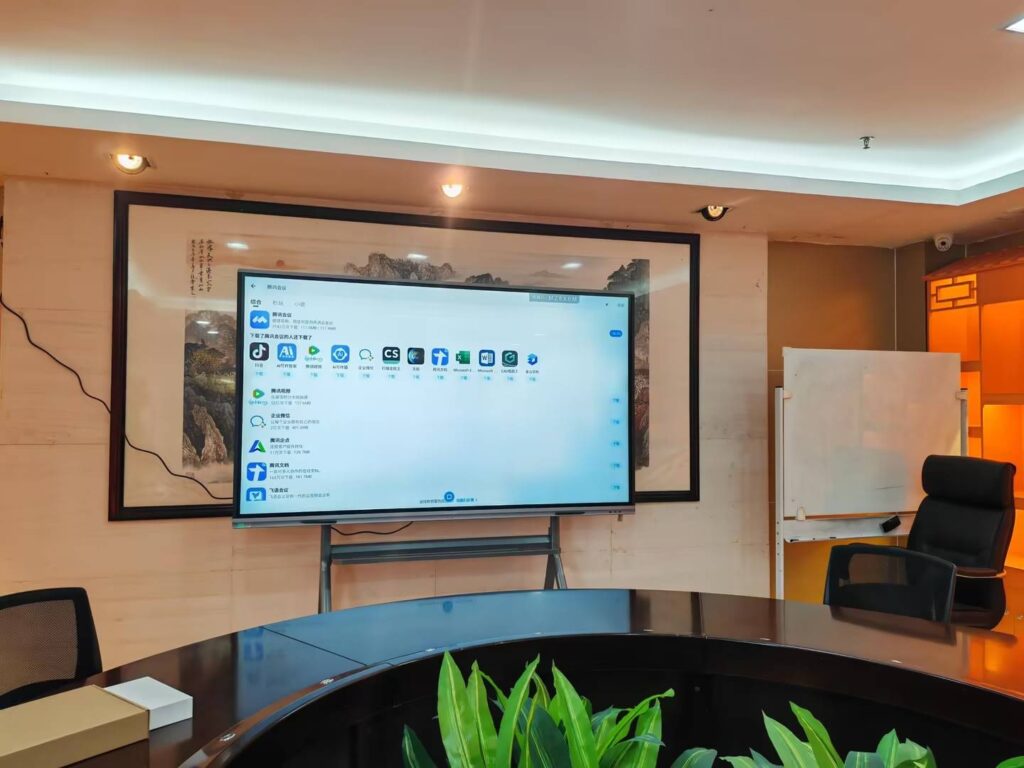
If you want to know how to collaborate on a smart board effectively, the key is not just touching the screen — it is building a clear workflow that helps everyone contribute in real time, stay organized, and leave with decisions instead of confusion. In meetings, workshops, and classrooms, a smart board works best when people know who controls the canvas, how ideas are captured, and where the final version is saved.
For teams, that means faster brainstorming, easier annotation, and cleaner follow-up. For teachers and students, it means more participation, better visibility, and a smoother transition between explanation, practice, and review. A smart board can become the center of collaboration when it is paired with the right habits and the right setup.
Smart whiteboards and interactive displays are especially useful when you need live writing, file sharing, split-screen viewing, and quick saving of notes. If you are exploring hardware, you can also browse the full product catalog or contact our team for deployment advice.
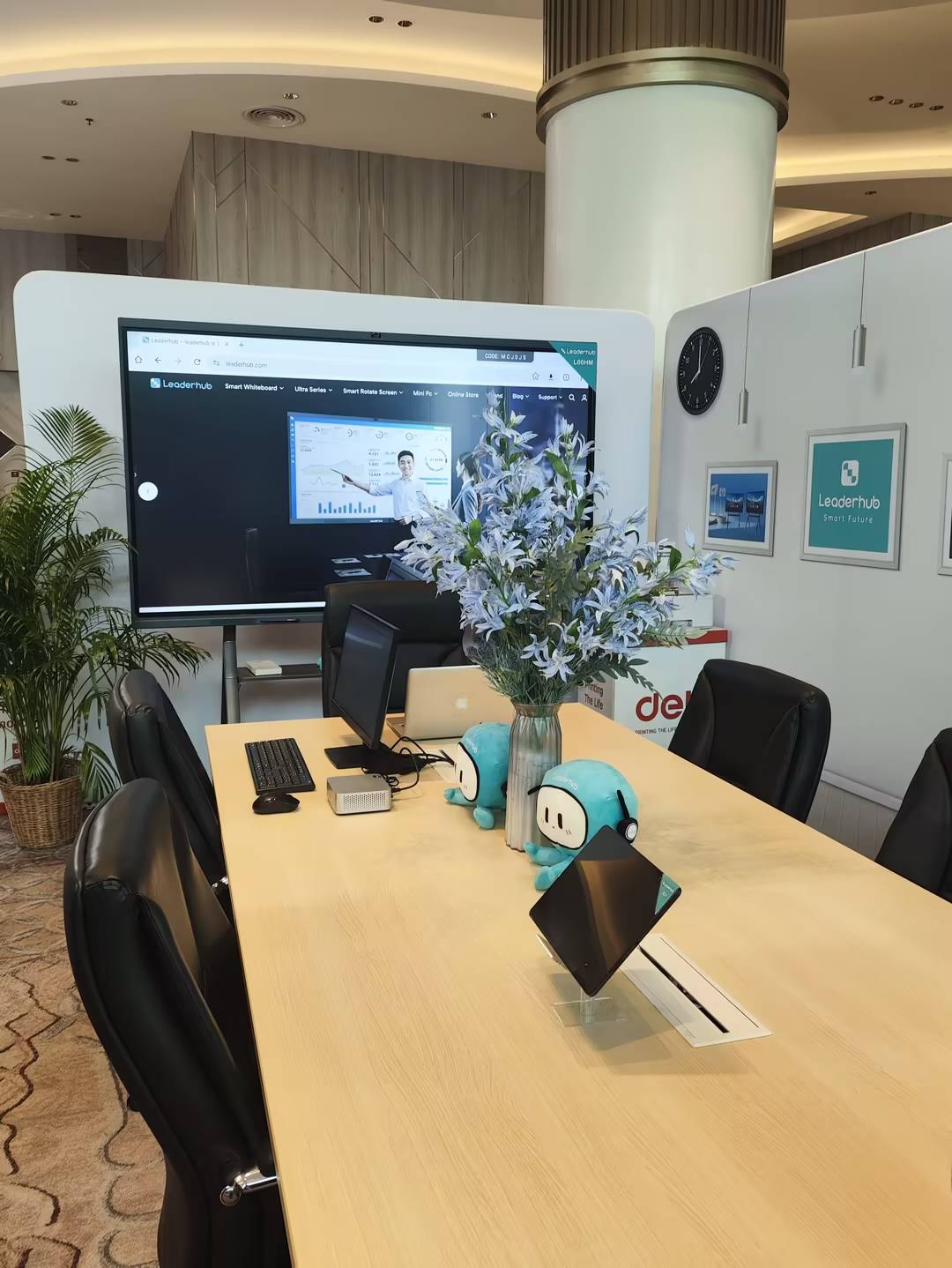
What Smart Board Collaboration Really Means
Smart board collaboration is the process of using an interactive display to let multiple people contribute to one shared workspace. Instead of passing markers, switching laptops, or waiting for one speaker to finish, everyone can participate directly on the board or through connected devices.
In practical terms, collaboration on a smart board usually includes:
- Live annotation during discussions, lessons, or presentations.
- Wireless sharing from laptops, tablets, and phones.
- Multi-user input for brainstorming, marking up content, or solving problems together.
- Easy saving and exporting so the work can continue after the session ends.
This approach aligns well with guidance from organizations such as UNESCO Technology Recommendations and ISTE Standards for Educators, both of which emphasize purposeful, instruction-driven technology use rather than technology for its own sake.
Before You Start: A Simple Setup Checklist
A smooth collaboration session begins before anyone writes on the screen. Use this quick checklist to reduce friction and keep the meeting or lesson focused.
| Checklist Item | Why It Matters |
|---|---|
| Connect Wi-Fi or wired internet | Ensures fast file access, cloud sync, and smooth casting. |
| Open the right file or whiteboard template | Prevents time loss at the start of the session. |
| Test touch, pen, and eraser tools | Reduces interruptions once collaboration begins. |
| Assign roles before the session starts | Keeps the process organized and balanced. |
| Prepare a save/export method | Protects the session outcome and follow-up action items. |
How to Collaborate on a Smart Board Step by Step
- Set the goal first. Decide whether the session is for brainstorming, teaching, reviewing a document, planning tasks, or solving a problem.
- Choose a shared canvas. Use a blank whiteboard, a presentation slide, a document, or a split-screen layout depending on the activity.
- Define participation roles. A moderator, note-taker, presenter, and reviewer can help keep the process efficient.
- Use color coding. Assign different colors for ideas, questions, action items, and corrections so the board stays readable.
- Capture and organize. Save screenshots, export notes, or sync content to cloud storage at the end of the session.
- Close with clear next steps. End by confirming who owns each task, what will be delivered, and when the follow-up happens.
Best Practices for Team Meetings
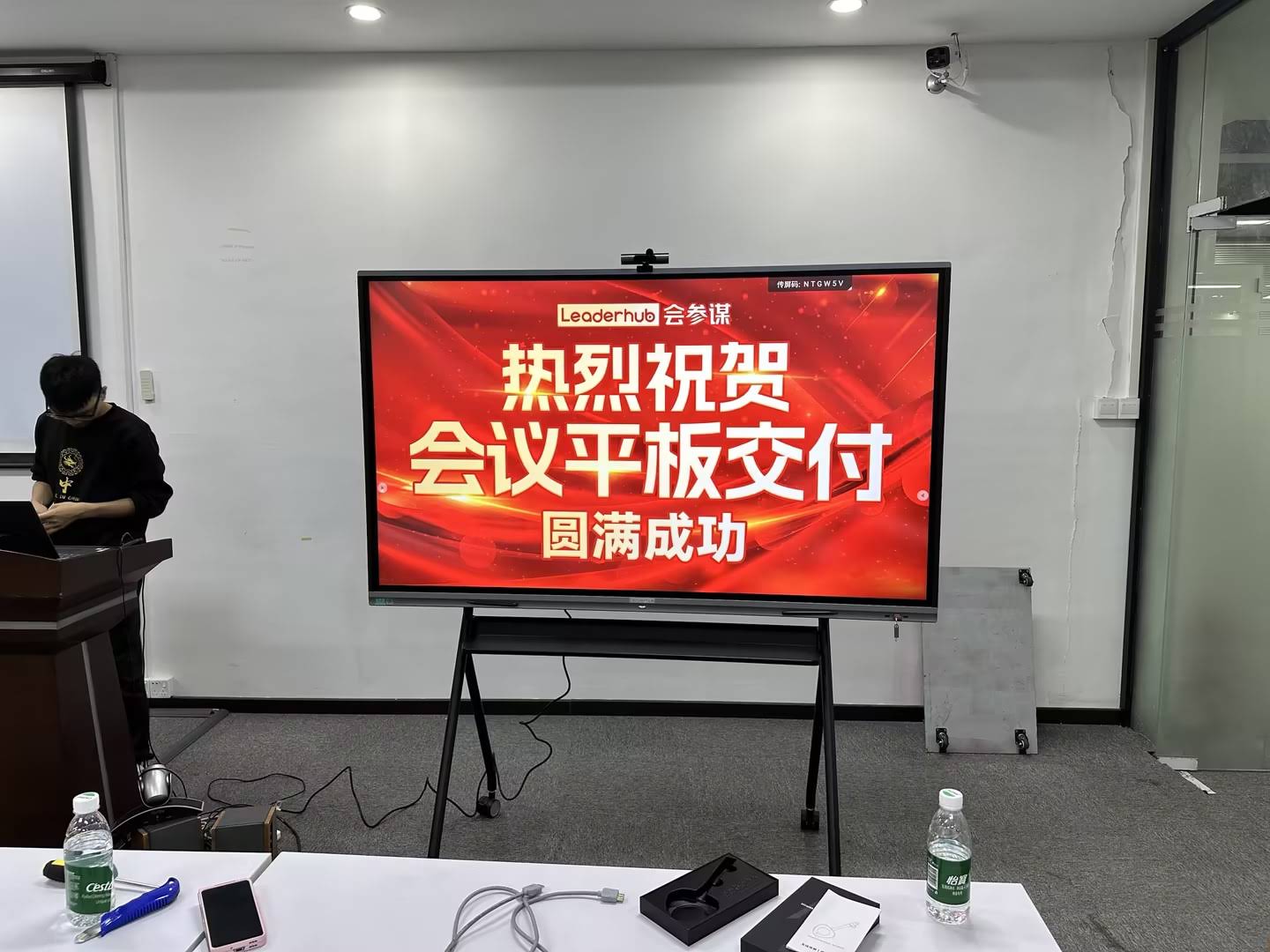
In business settings, smart board collaboration works best when the board is treated like a live workspace rather than a passive screen.
- Start with a clear agenda so the board supports the discussion instead of distracting from it.
- Use a decision area on one side of the board for final conclusions.
- Keep a separate area for parking lot items that need later review.
- Invite participants to annotate directly instead of asking one person to type everything.
- Use split screen to compare a document, a dashboard, or a design mockup while discussing it.
For hybrid meetings, a reliable display paired with a compact PC can improve responsiveness. Explore options like the U55Pro interactive flat panel for mobile collaboration or the L75H Pro interactive flat panel for larger rooms.
| Meeting Use Case | Smart Board Workflow |
|---|---|
| Brainstorming | Use a blank canvas, sticky-note style grouping, and quick voting. |
| Project review | Open the file, highlight issues, and assign follow-up tasks in real time. |
| Client presentation | Show slides, annotate objections, and capture feedback immediately. |
| Workshops | Divide the board into sections for exercises, notes, and outcomes. |
How to Collaborate on a Smart Board in Classrooms
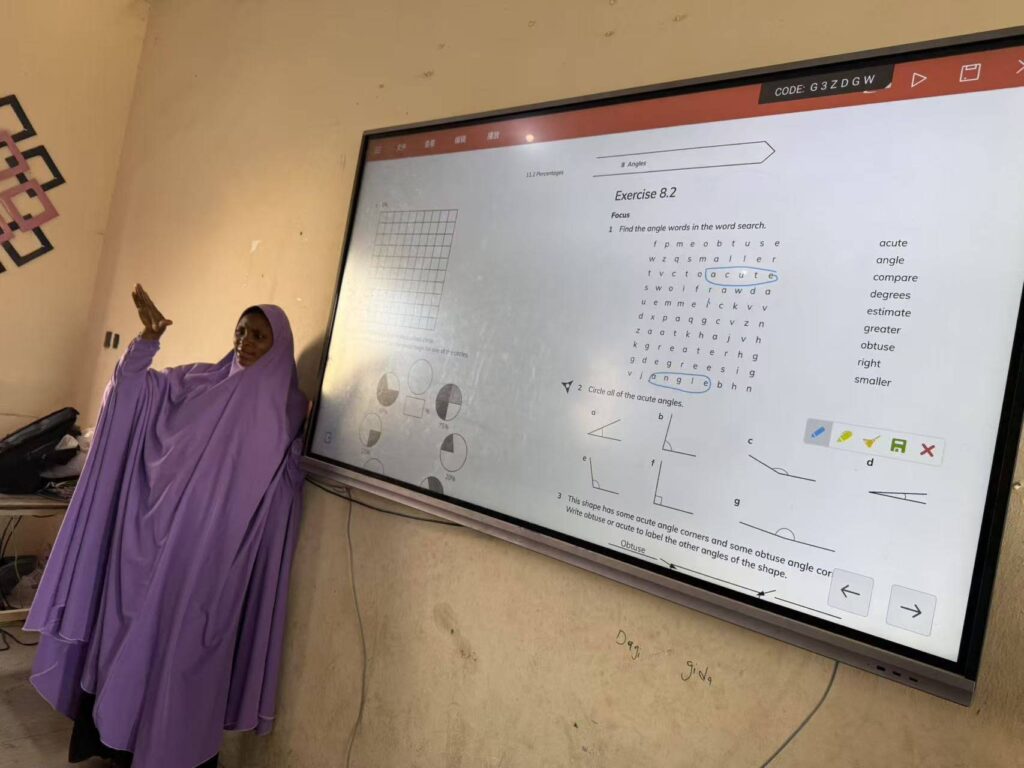
In classrooms, the best smart board collaboration creates interaction without chaos. Students should be able to see clearly, participate comfortably, and understand what happens next.
- Teacher-led demos work well for introducing a concept, modeling a process, or showing examples.
- Student turn-taking allows different learners to solve, label, or present on the board.
- Group challenges encourage teamwork and discussion.
- Saved lesson notes help students review after class.
UNESCO and OECD research on digital learning consistently points to one important idea: technology is most effective when it supports the lesson objective. That is especially true in classrooms where the board should improve clarity, engagement, and assessment — not replace teaching structure.
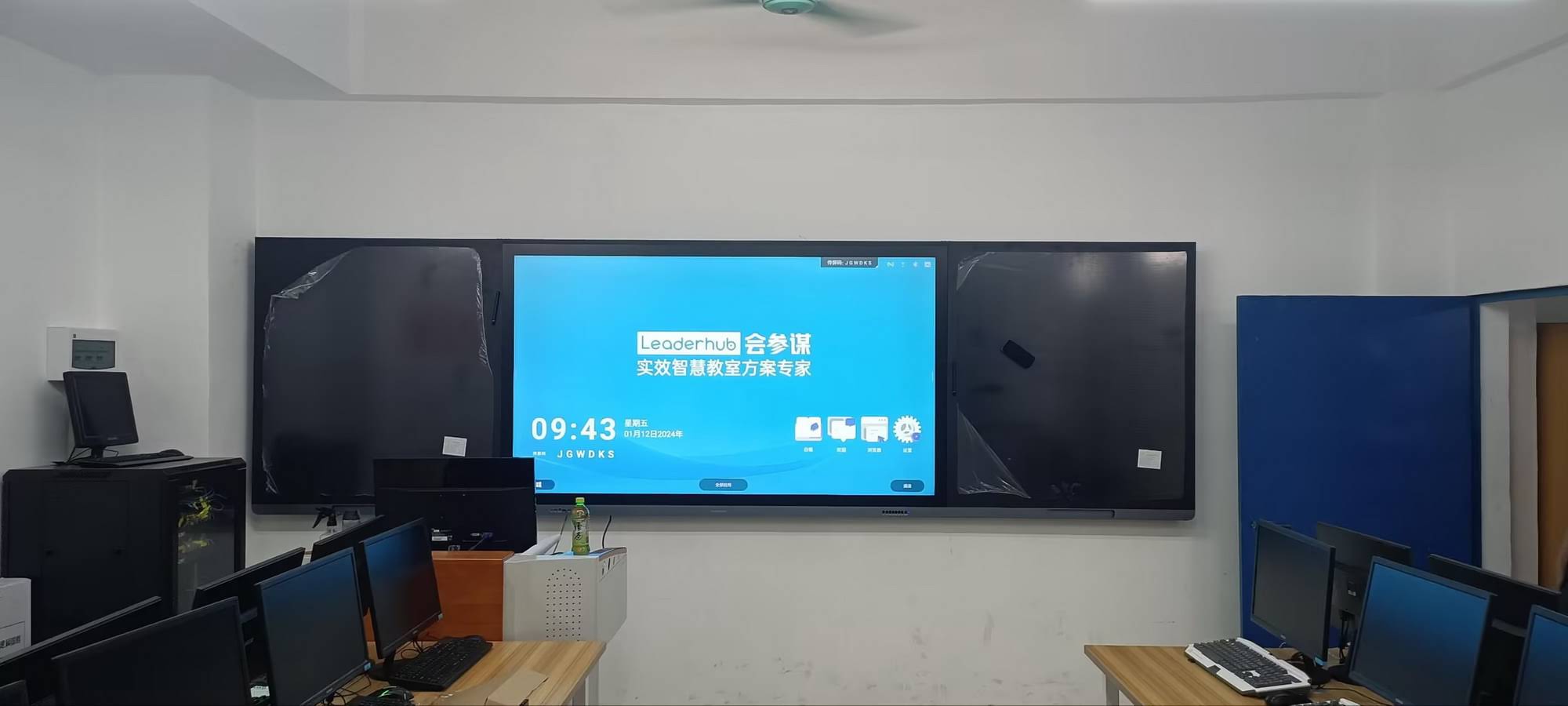
If you are building a classroom setup, consider browsing smart whiteboards for fixed rooms and the rotating screens category for flexible, student-facing activities.
Features That Make Collaboration Easier
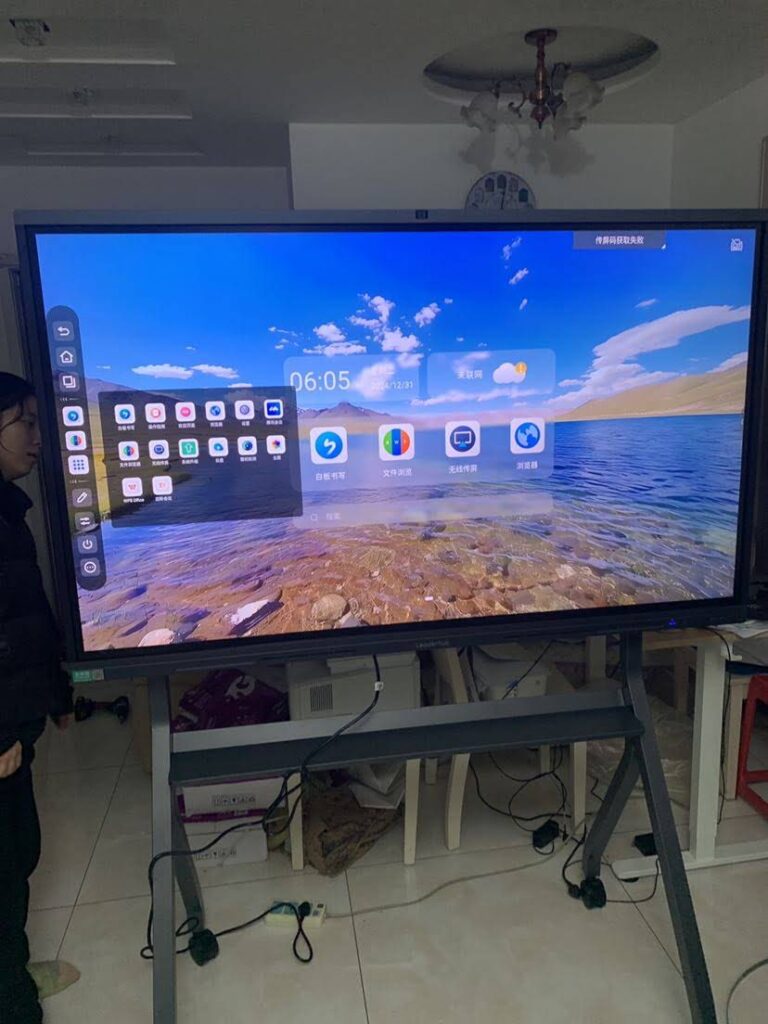
The right hardware and software can turn a basic touch display into a productive collaboration hub. Look for these features:
- Multi-touch support for simultaneous input.
- Wireless screen sharing from multiple devices.
- Annotation tools for writing, drawing, circling, and highlighting.
- Split-screen viewing for side-by-side content comparison.
- Cloud save and export for follow-up and documentation.
- Built-in video tools for hybrid teams and remote students.
- Reliable performance so the flow is not interrupted by lag or boot delays.
A compact system can also help. For example, pairing a display with a mini PC can improve responsiveness, while the L65HM and L86HM are useful choices for different room sizes.
Recommended Smart Board Options by Room Type
| Product | Best For | Why It Works |
|---|---|---|
| L65HM 65″ Interactive Smart Whiteboard | Small meeting rooms | Compact size and strong touch interaction for focused collaboration. |
| L75HM 75″ Interactive Smart Whiteboard | Classrooms and mid-size teams | Balanced viewing area for teaching, brainstorming, and group work. |
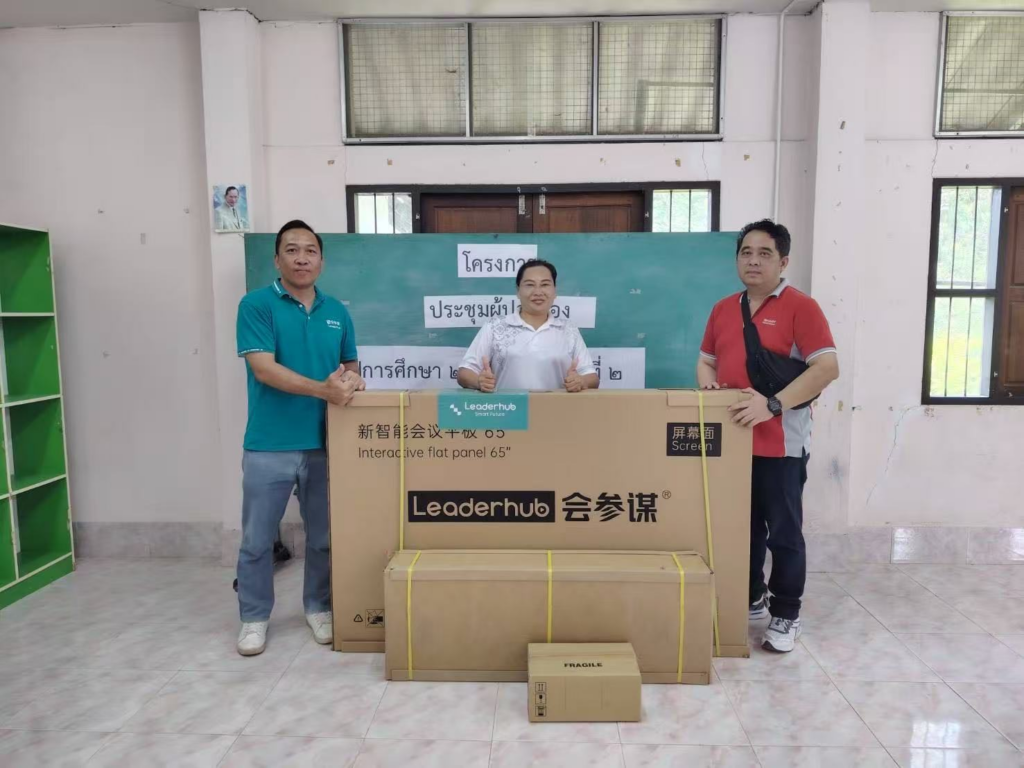
| L86HM 86″ Interactive Smart Whiteboard | Large rooms and training spaces | More screen real estate for visible collaboration across the room. |
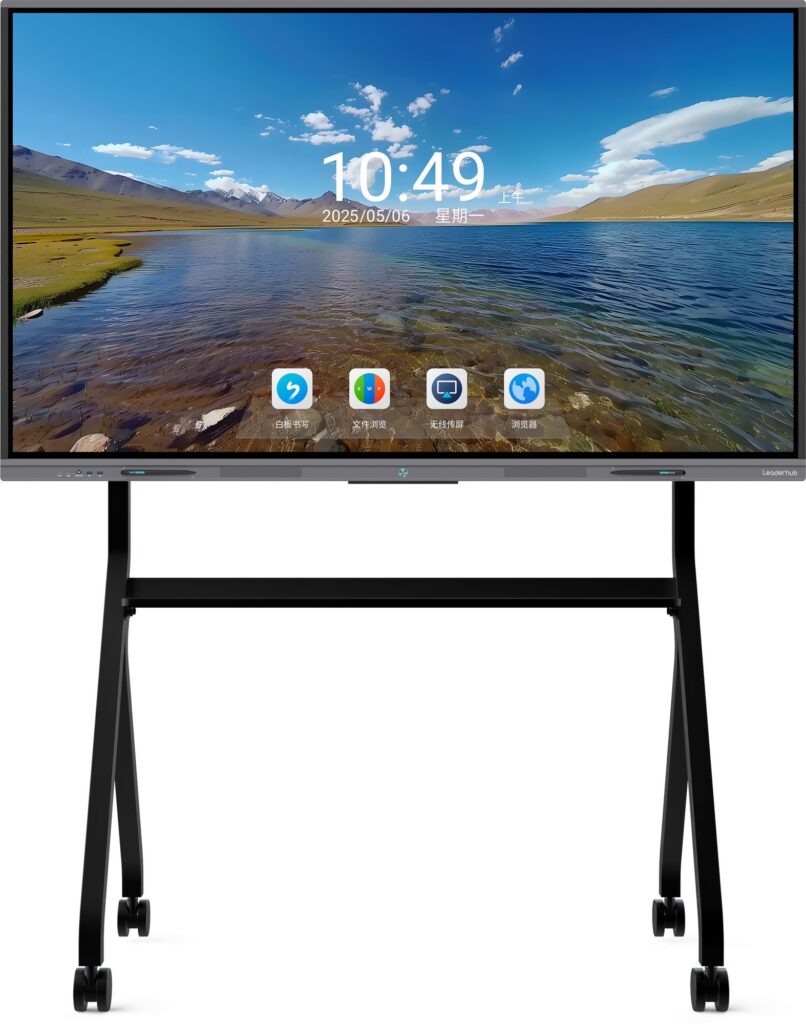
| U55Pro Mobile Interactive Flat Panel | Flexible spaces | Easy to move between rooms for workshops, demos, and temporary setups. |
| U24M Handheld Smart Screen | Portable collaboration | Useful for mobile presentations and one-to-one interaction. |
Common Mistakes to Avoid
- Letting too many people edit at once without a moderator.
- Using the board like a projector instead of an interactive workspace.
- Skipping file saving and losing valuable notes.
- Ignoring room size and viewing distance when choosing a display.
- Overloading the session with too many tools and not enough structure.
A smart board should make the process simpler. If the room feels more confusing after adoption, the issue is usually workflow, not the technology itself.
Trusted Guidance for Smarter Implementation
If you want to build a more effective smart board workflow, these resources are useful for planning and staff development:
FAQ: Smart Board Collaboration
Can multiple people use a smart board at the same time?
Yes. Many modern boards support multi-touch input, which allows more than one person to write, move objects, or annotate simultaneously.
What is the best way to collaborate on a smart board during a meeting?
Use a clear agenda, assign roles, capture notes in real time, and save the final board before ending the session.
How do teachers use smart boards for group learning?
Teachers can model lessons, invite students to solve problems on the board, run group exercises, and export the notes for later review.
What makes collaboration feel smoother?
A fast device, good connectivity, visible screen size, and a simple workflow make the biggest difference.
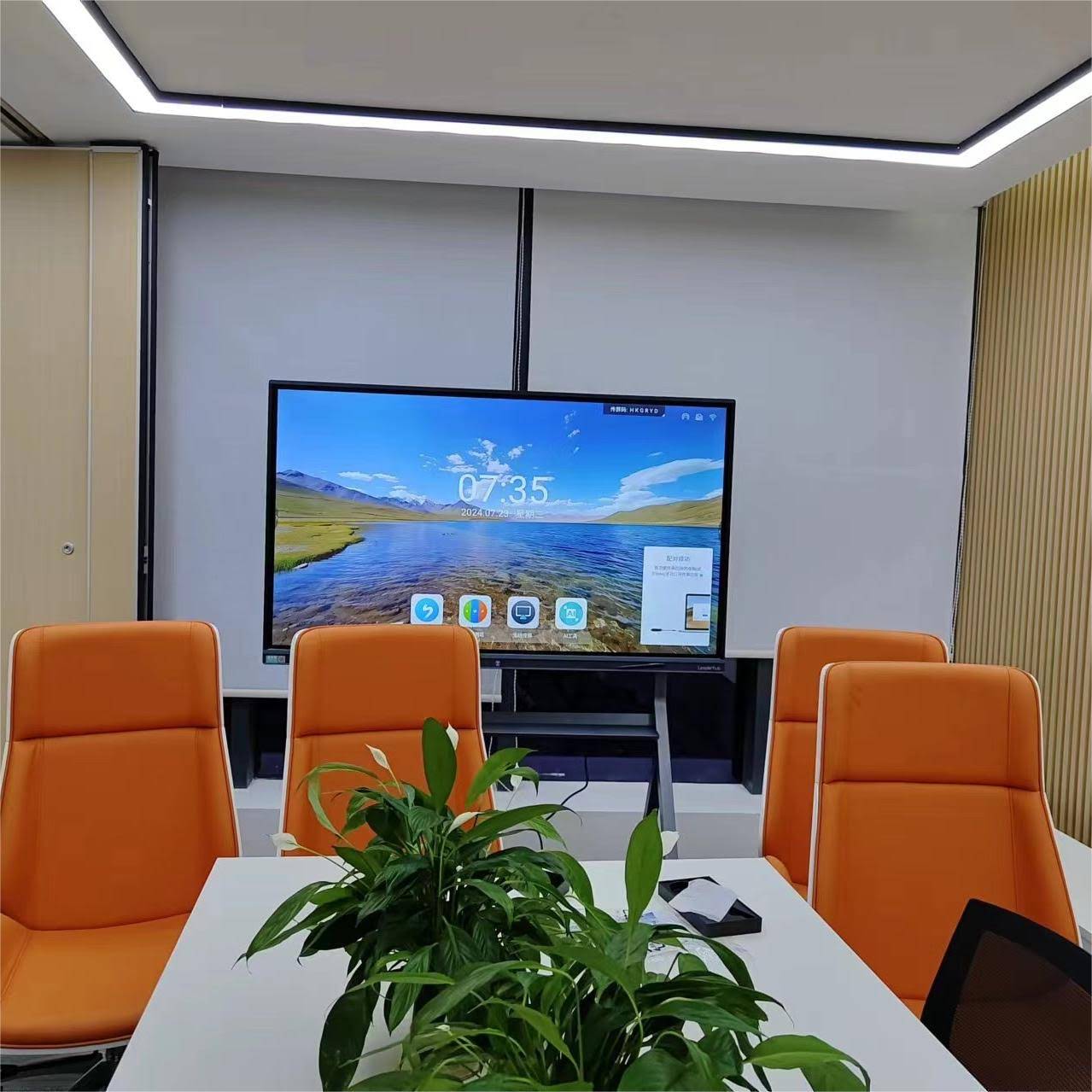
When you combine the right workflow with the right display, how to collaborate smart board becomes less of a question and more of a repeatable process. Start with a clear goal, keep participation structured, and choose hardware that matches your room size and usage needs.
To explore collaboration-ready products, visit the smart whiteboards category, review the mini PCs that can power a smooth setup, or get in touch for a tailored recommendation.