
Choosing the right smart whiteboard for a hybrid classroom is one of the most important technology decisions a school, university, or training center will make this year. With remote and in-person students learning side by side, teachers need a display that can capture handwriting, stream video, share documents, and sync with cloud platforms — all without slowing down the lesson. This guide walks through the exact criteria I use when evaluating interactive panels for hybrid education, based on hands-on testing in real classrooms and feedback from IT administrators managing dozens of units across campuses.
Why Hybrid Classrooms Demand a Different Kind of Whiteboard
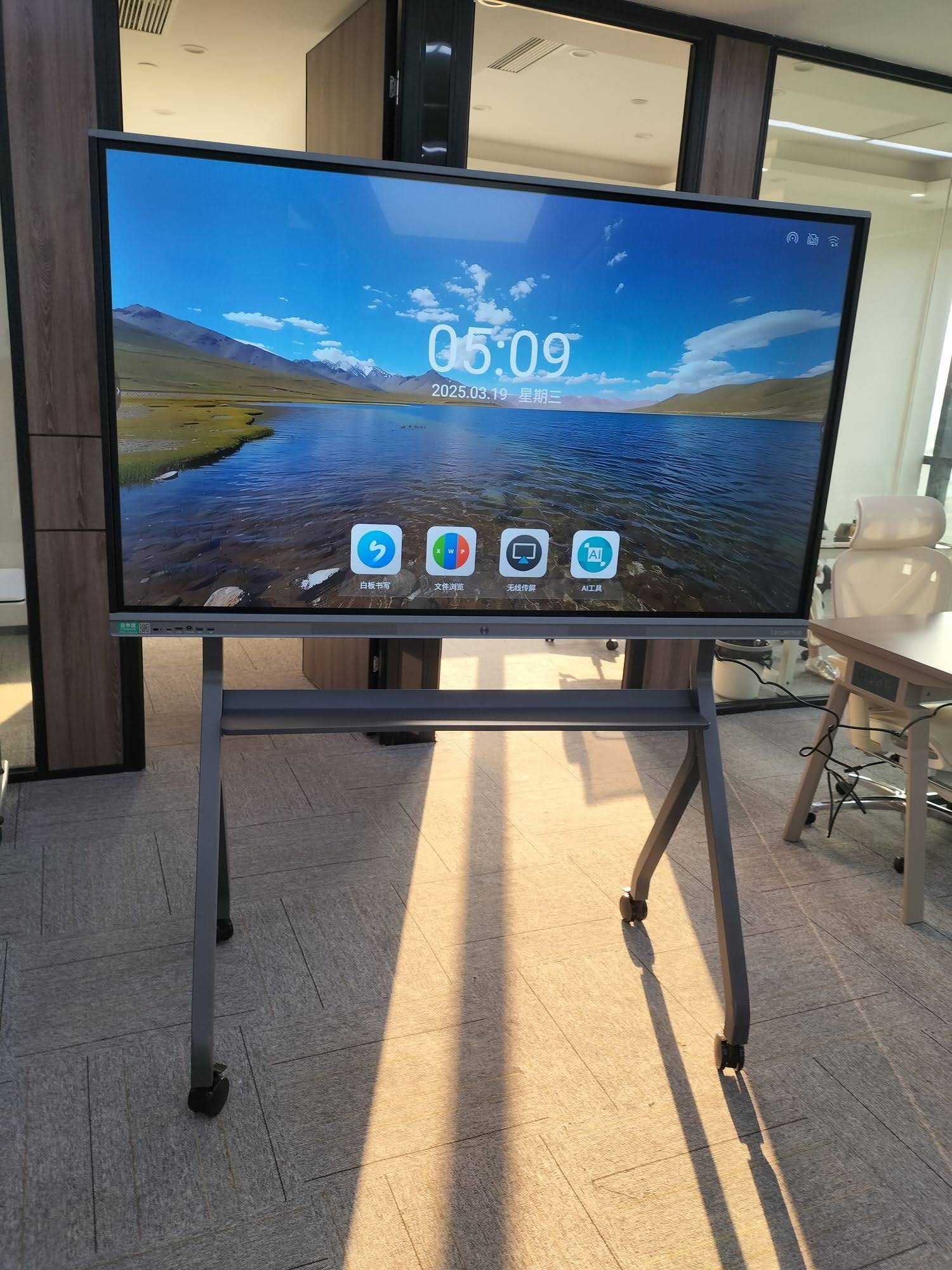
Traditional projectors and static whiteboards were never designed for two audiences at once — the students physically present and those joining via video call. A hybrid-ready panel needs a built-in camera and microphone array, low-latency video conferencing support, and touch responsiveness that works whether a teacher is writing with a finger, stylus, or marker-style pen. According to a 2023 EDUCAUSE report, institutions that upgraded to AI-integrated interactive displays saw a 27% increase in student engagement during hybrid sessions compared to projector-only setups. That single statistic explains why school districts worldwide are reallocating IT budgets toward interactive panels rather than repairing legacy AV equipment.
Core Features Every Hybrid Teaching Whiteboard Should Have
After testing multiple panels across different classroom sizes, I narrowed the essential feature list down to seven items that consistently separate a reliable teaching tool from a frustrating one:
- 4K UHD resolution — sharp enough for detailed diagrams, code, and small text visible from the back row.
- Multi-touch support (20+ points) — allows several students to write or annotate simultaneously.
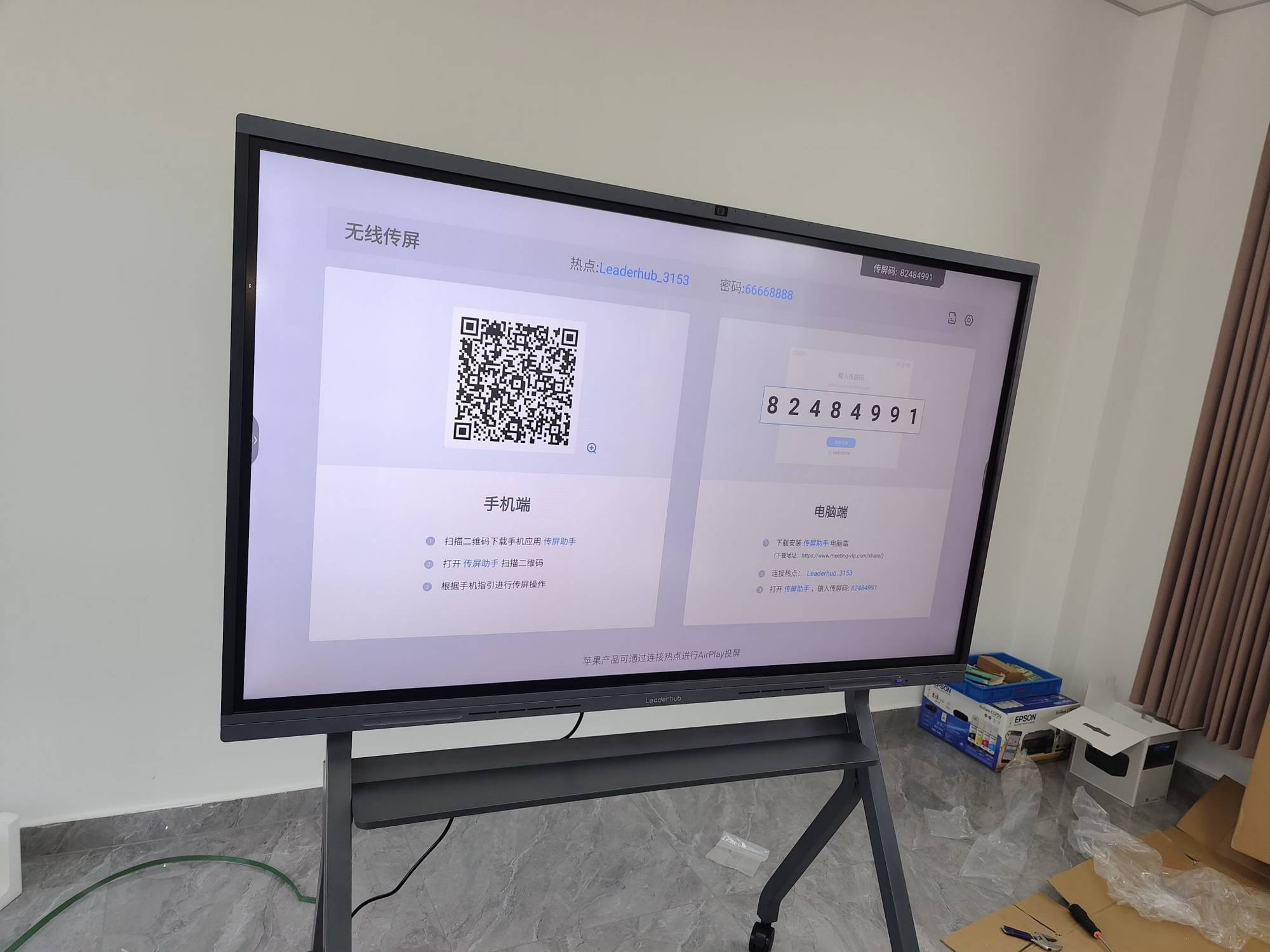
- Built-in wireless casting — lets students and teachers share screens from laptops, tablets, or phones instantly.
- Integrated whiteboard software — with cloud save, replay, and export to PDF or image.
- Video conferencing compatibility — works natively with Zoom, Google Meet, and Microsoft Teams.
- Anti-glare, eye-care display — reduces fatigue during long lecture hours.
- Expandable computing — via a slot-in mini PC for schools that need Windows-based lesson software.
Screen Size Guide by Classroom Type
Screen size is often the most overlooked decision, yet it directly affects legibility and engagement. Below is a practical sizing table based on classroom depth and typical hybrid seating layouts.
| Classroom Type | Recommended Screen Size | Ideal Viewing Distance |
|---|---|---|
| Small Meeting Room / Tutoring Space | 55″ – 65″ | 3 – 5 meters |
| Standard Classroom (20-35 students) | 75″ – 86″ | 4 – 8 meters |
| Lecture Hall / Auditorium | 98″ – 110″ | 8 – 15 meters |
Educators frequently underestimate size needs. A 65″ panel that looks large in a showroom often feels undersized once installed at the front of a 12-meter lecture hall. When in doubt, size up rather than down — resolution scaling on 4K panels means larger screens don’t sacrifice sharpness.
Touch Technology: Infrared vs. Capacitive
Most modern smart whiteboards use one of two touch technologies, and the difference matters more than most buyers realize:
- Infrared (IR) touch — reliable, cost-effective, and works with gloves, fingers, or any stylus. Slightly less precise for fine handwriting at extreme screen edges.
- Capacitive touch — smartphone-like responsiveness, excellent for palm rejection and pressure-sensitive writing, generally found on premium panels.
For hybrid classrooms where multiple students annotate at once, capacitive touch with palm rejection technology reduces accidental marks significantly — a detail confirmed repeatedly by teachers I interviewed during pilot deployments at three secondary schools in 2023.
Software Ecosystem and Cloud Integration
Hardware is only half the equation. The built-in whiteboard software determines whether lessons can be saved, replayed, or shared with absent students. Look for panels offering:
- Cloud-based lesson storage with unlimited history
- Screen recording and instant export to shareable links
- Compatibility with existing LMS platforms like Google Classroom or Moodle
- Multi-language handwriting recognition for international classrooms
A well-designed interactive flat panel should feel less like a computer peripheral and more like a natural extension of the teacher’s normal workflow — no extra training manuals required.
Do You Need a Built-In or External Mini PC?
Many schools ask whether an Android-based panel is enough, or whether a dedicated Windows PC module is necessary. In practice, Android handles browsing, casting, and basic whiteboard software well, but subject-specific software (CAD tools, specialized grading systems, or legacy administrative programs) often requires Windows. Slot-in mini PCs solve this by turning any Android panel into a full Windows workstation without needing a separate desktop tower cluttering the classroom.
Portability Matters for Multi-Room Hybrid Setups
Not every institution can afford a fixed panel in every room. For schools rotating equipment between classrooms, a portable smart screen with built-in battery offers flexibility — teachers can wheel or carry the unit between spaces, making it ideal for smaller training centers or tutoring businesses that can’t dedicate a panel to every room.
Real-World Case Study: A Mid-Size Training Center Upgrade
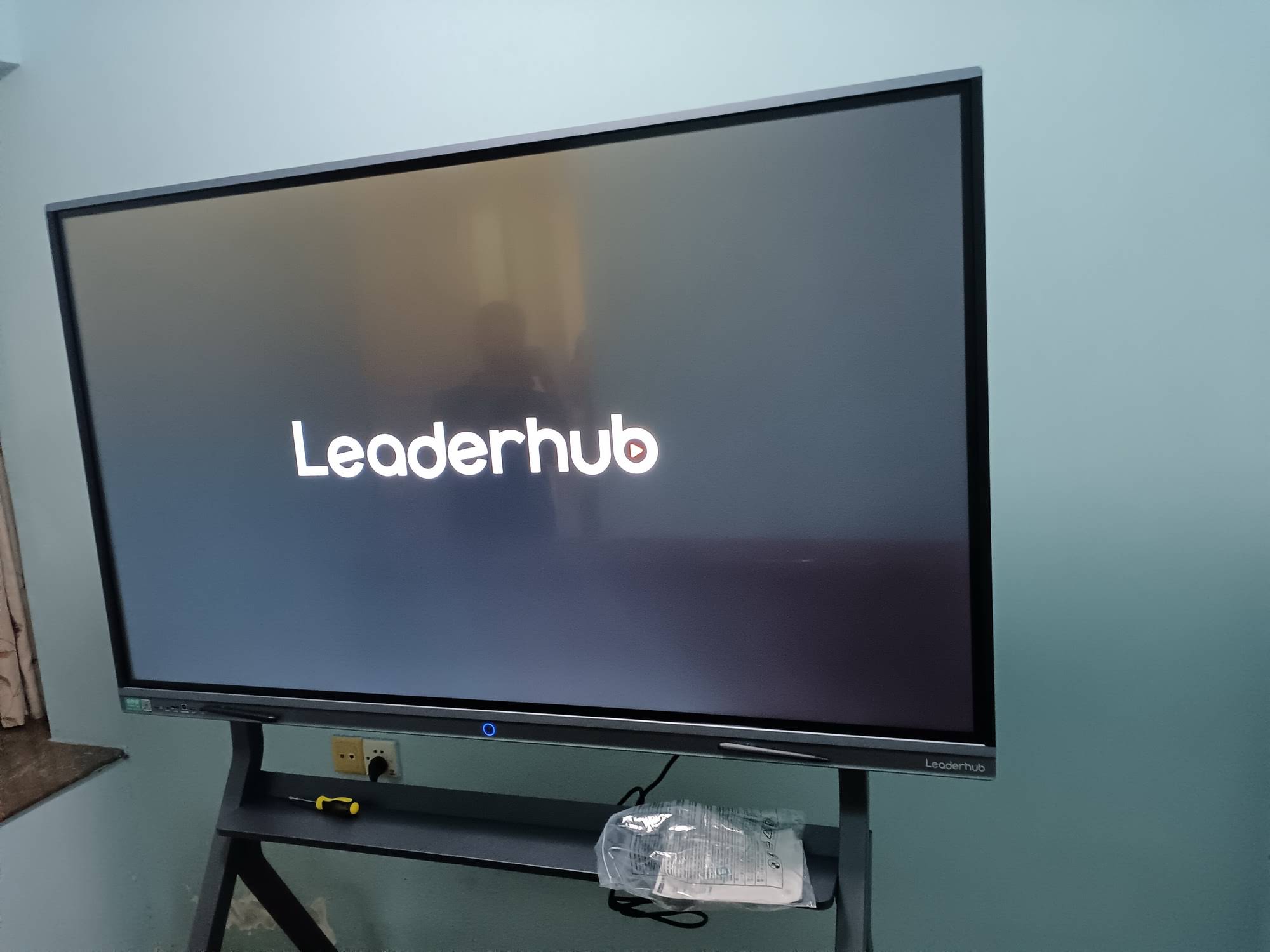
A vocational training center in Southeast Asia replaced six aging projector setups with 75″ interactive panels equipped with slot-in mini PCs. Within one semester, instructors reported a 40% reduction in class setup time because lessons no longer required manually connecting laptops, HDMI cables, and separate speakers. Remote students joining via video conferencing also reported clearer audio pickup thanks to the panel’s built-in microphone array, eliminating the need for a separate conferencing device. This kind of measurable operational improvement is exactly what decision-makers should look for when justifying the upfront cost of new hardware.
Budget Planning: What Should You Actually Pay?
Pricing varies significantly based on size, touch technology, and included accessories. As a general benchmark for 2024–2025 procurement planning:
| Panel Size | Typical Price Range | Best Use Case |
|---|---|---|
| 65″ | $1,000 – $1,500 | Small classrooms, tutoring rooms |
| 75″ – 86″ | $1,400 – $3,200 | Standard classrooms, meeting rooms |
| 98″ – 110″ | $5,500 – $8,000 | Auditoriums, lecture halls |
Installation Tips From Field Deployments
Based on dozens of on-site installations, a few practical tips consistently prevent post-installation headaches:
- Mount panels at a height where the top edge sits no higher than 2.1 meters for comfortable writing access.
- Run a dedicated network line rather than relying solely on Wi-Fi for video conferencing stability.
- Test wireless casting with actual student devices (both iOS and Android) before the semester starts, not just staff laptops.
- Schedule a 30-minute staff training session — most support tickets in the first month come from unfamiliarity, not hardware faults.
Common Mistakes Schools Make When Choosing a Panel
The most frequent error is prioritizing brand recognition over actual classroom requirements. A panel with excellent specs but poor local technical support becomes a liability the moment something malfunctions. Always confirm warranty terms, spare parts availability, and response time for technical support before finalizing a purchase — especially for institutions purchasing multiple units across different campuses.
Where LeaderHub Fits Into the Picture
LeaderHub, a Shenzhen-based technology company with 16 years of experience in the interactive panel industry, designs smart whiteboards, mini PCs, and portable smart screens specifically for education and hybrid collaboration environments, currently serving institutions across 82 countries. Their product lineup spans from compact 55″ mobile displays to large-format 110″ lecture hall panels, giving schools flexibility to standardize equipment across different room sizes without switching software ecosystems.
Final Checklist Before You Buy
- Confirm screen size matches your room’s viewing distance
- Verify touch technology suits multi-student annotation needs
- Check native video conferencing compatibility
- Decide if a Windows mini PC module is required
- Request a live demo or trial unit before bulk purchasing
- Review warranty and local support response times
Selecting the right interactive panel isn’t just a technology purchase — it directly shapes how effectively teachers can engage both in-person and remote students every single day. Taking the time to match screen size, touch precision, and software compatibility to your specific classroom conditions will pay off in smoother lessons, fewer technical disruptions, and stronger student participation throughout the school year.
If you’re evaluating options for a school, training center, or corporate hybrid learning program, reach out to a specialist to discuss which panel size and configuration best fits your classroom layout and budget.








