
Choosing the right Android interactive whiteboard can feel overwhelming when you’re faced with dozens of screen sizes, processor specs, and software ecosystems. Whether you’re outfitting a classroom, a corporate boardroom, or a training center, the decision you make will directly impact how effectively your team collaborates for years to come.
Having worked with hundreds of schools, businesses, and training institutions across 82 countries, we’ve seen firsthand which specifications actually matter and which are just marketing buzzwords. This guide breaks down everything you need to know before making a purchase decision — based on real deployment experience, not just spec sheets.
Why Android Matters for Interactive Whiteboards
Most modern interactive whiteboards run on either Android OS, Windows, or a hybrid dual-system setup. Android has become the dominant choice for a reason: it offers a familiar, app-friendly interface, lower power consumption, faster boot times, and broad compatibility with third-party collaboration tools like Zoom, Google Workspace, and Microsoft 365.
According to industry data from Futuresource Consulting, Android-based interactive panels now account for over 60% of global education and enterprise display deployments, largely because they eliminate the need for a separate PC while still supporting whiteboard annotation, screen mirroring, and cloud file access out of the box.
Step 1: Determine the Right Screen Size for Your Space
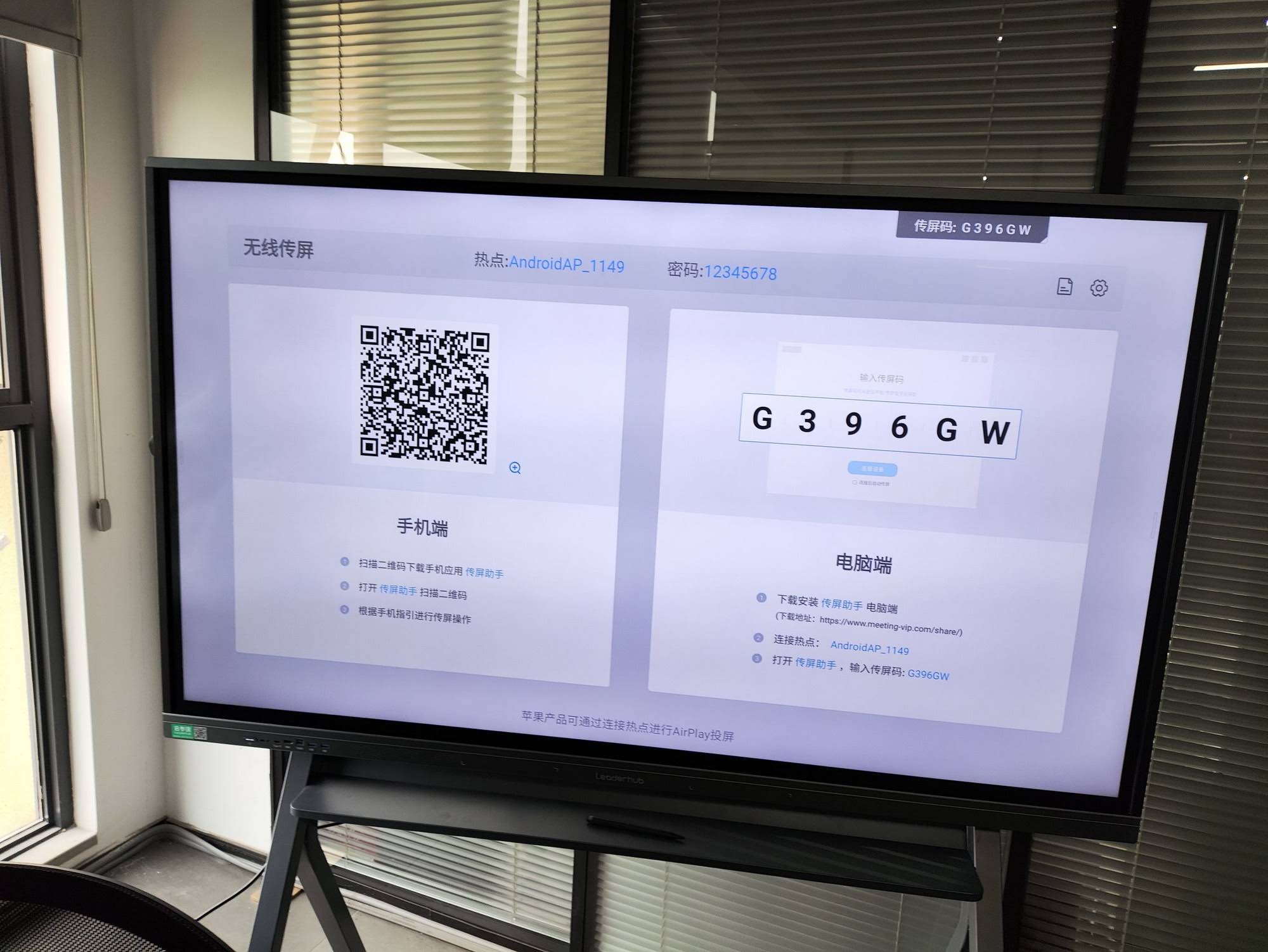
Screen size is the single most important factor affecting readability and engagement. A panel that’s too small forces people at the back of the room to squint, while an oversized panel in a tight huddle space feels overwhelming.
- Small meeting rooms (up to 8 people): 55″–65″ panels work well, such as the L65HM or U55Pro series.
- Standard classrooms or mid-size conference rooms (10–25 people): 75″ is the industry sweet spot for balancing visibility and cost.
- Large lecture halls or boardrooms (25+ people): 86″ or even 110″ panels ensure legibility from the back row.
As a general rule of thumb we recommend to clients: divide the intended viewing distance (in feet) by 1.5 to estimate the minimum diagonal screen size in inches. A room where the farthest viewer sits 20 feet away typically needs at least a 75″–86″ display.
Step 2: Check the Processor, RAM, and Storage
This is where many buyers get misled. A whiteboard with a weak processor will lag when running multiple apps, screen mirroring, or video conferencing simultaneously — a common complaint we hear from schools that purchased budget panels only to replace them within two years.
| Use Case | Minimum RAM | Recommended Storage | Android Version |
|---|---|---|---|
| Basic classroom annotation | 4GB | 32GB | Android 11+ |
| Multi-app business meetings | 8GB | 128GB | Android 13+ |
| Video conferencing + wireless casting | 8GB+ | 128GB+ | Android 14 |
Panels running Android 13 or 14 also benefit from improved multi-window support and stronger security patches, which matters if your device connects to a corporate network.
Step 3: Evaluate Touch Technology and Writing Precision
Not all touchscreens are created equal. Infrared (IR) touch technology is the most common and cost-effective option, but higher-end panels use capacitive touch with pressure sensitivity for a more natural writing experience — similar to pen on paper.
When evaluating a panel in person, test for:
- Palm rejection — the screen should ignore accidental hand contact while writing
- Touch point count — 20-point touch allows multiple users to write and gesture simultaneously
- Response latency — writing should feel instant, without visible lag between pen and stroke
Step 4: Software Ecosystem and App Compatibility
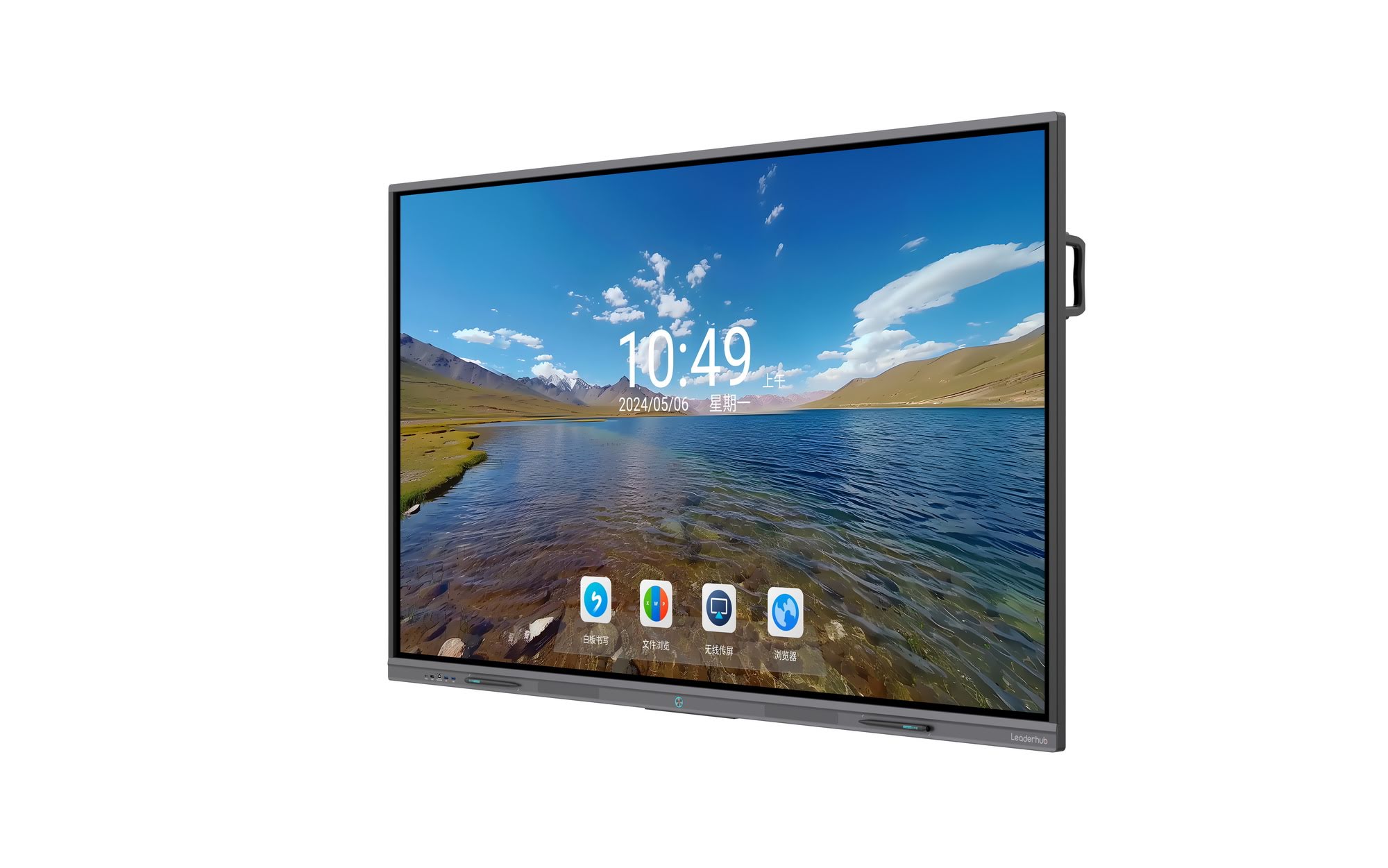
An Android whiteboard is only as useful as the apps it supports. Before purchasing, confirm the panel includes access to Google Play Store or a comparable app marketplace, since some budget brands lock users into a closed app environment with limited third-party support.
Look for built-in support for:
- Native whiteboard/annotation software with cloud save
- Screen mirroring (AirPlay, Miracast, Chromecast compatibility)
- Video conferencing apps (Zoom, Teams, Google Meet)
- File management with USB, cloud drive, and network share integration
We’ve found that panels with dual-system capability — combining Android with an optional Windows OPS module — provide the most flexibility for organizations that need both simple annotation tools and full desktop software access.
Step 5: Connectivity and Expansion Ports
A whiteboard that can’t connect to your existing devices becomes a bottleneck rather than a productivity tool. Prioritize models offering:
| Port Type | Why It Matters |
|---|---|
| HDMI In/Out | Connect laptops, cameras, or external displays |
| USB 3.0 / Type-C | Fast file transfer and peripheral support |
| Wi-Fi 6 / Bluetooth 5.0 | Stable wireless casting and accessory pairing |
| Slot-in PC Module (OPS) | Upgrade to Windows without replacing the whole unit |
Step 6: Consider Mounting Style — Fixed vs. Portable
Fixed wall-mounted panels are ideal for permanent classrooms and boardrooms, but many organizations now prefer mobile stands with rotating screens for flexible room configurations. A rotating smart screen can pivot between landscape and portrait orientation, which is particularly useful for training sessions that alternate between presentation slides and document review.
For smaller huddle spaces or roaming staff, portable handheld smart screens offer a battery-powered alternative that doesn’t require a fixed power outlet — a growing trend we’ve observed in co-working spaces and field-based training teams.
Common Mistakes to Avoid When Buying
- Choosing size over resolution — a large panel at 1080p will look blurry up close; always confirm 4K UHD resolution for panels above 65″
- Ignoring after-sales support — verify warranty length and whether local technical support is available in your region
- Overlooking brightness and anti-glare coating — rooms with large windows need panels rated at 350 nits or higher with anti-glare glass
- Skipping a live demo — specs on paper rarely reveal real-world touch latency or software responsiveness
Recommended Configurations by Use Case
| Environment | Recommended Size | Key Features |
|---|---|---|
| K-12 Classroom | 65″–75″ | Durable glass, education app suite, anti-glare |
| Corporate Meeting Room | 75″–86″ | Dual-system, video conferencing, cloud sharing |
| Training Center | 75″ + rotating screen | Portable stand, high touch-point count |
| Executive Boardroom | 86″–110″ | 4K UHD, premium audio, OPS module support |
Frequently Asked Questions
Is Android or Windows better for an interactive whiteboard?
Android offers faster boot-up, simpler app access, and lower maintenance for daily annotation and presentation tasks. Windows (via an OPS module) is better suited for running full desktop software like specialized design or engineering tools. Many organizations choose dual-system panels to get the best of both.
How long does an Android interactive whiteboard typically last?
With proper use, a quality panel with IPS glass and a reputable Android chipset should last 5–8 years before hardware refresh is needed. Cheaper panels with underpowered processors often need replacement within 2–3 years due to slowdown and app incompatibility.
Can I upgrade the Android OS on my whiteboard later?
Some manufacturers provide firmware updates that improve performance and security, but major OS version upgrades are typically limited by hardware. It’s best to choose a panel already running a recent Android version at purchase time.
Final Thoughts
Selecting the best Android interactive whiteboard comes down to matching screen size, processing power, and connectivity to your specific room and use case — not simply choosing the panel with the most impressive spec sheet. Take time to test touch responsiveness in person, confirm app ecosystem compatibility, and factor in long-term support before making your final decision.
LeaderHub has spent 16 years designing interactive panels and mini PC solutions for education and enterprise clients across 82 countries, and our team is happy to help you match the right configuration to your space and budget.








